Quick answer
What does ‘meeting conflict’ mean?
A meeting conflict (also called a scheduling conflict or calendar clash) happens when two or more events are scheduled at the same time, forcing you to choose between them or reschedule one. Conflicts can involve people (double-booked individuals), resources (one meeting room, two bookings), or priorities (two important events competing).
How to politely say you have a meeting conflict:
“Thank you for the invite. Unfortunately, I have a scheduling conflict with another meeting at that time and won’t be able to attend. Could we explore [proposed alternative time] or have someone summarize the key points afterward?”
Full email templates for 5 different scenarios are below.
A meeting conflict happens when two events compete for the same time slot. This guide covers what conflicts mean, how to politely communicate them, and how to prevent them in Outlook, Microsoft Teams, and SharePoint — with copy-paste email templates and steps you can apply in minutes.
What Is a Meeting Conflict? (Definition + Examples)
A meeting conflict (also called a scheduling conflict or calendar clash) happens when two or more events are slated for the same time slot, requiring your presence simultaneously. Whether the term used is “scheduling conflict,” “calendar conflict,” or “schedule conflict,” the practical meaning is the same: two competing demands on the same block of time.
Typical examples:
- People conflicts: a participant is double-booked across two meetings.
- Resource conflicts: the same room, projector, or shared inbox is booked twice.
- Priority conflicts: two important meetings overlap and one has to give way.
- Time-zone conflicts: a global team books a slot that lands outside another teammate’s working hours.
Calendar conflict vs. scheduling conflict. “Calendar conflict” often describes the technical notification your calendar software shows when events overlap. “Scheduling conflict” describes the broader dilemma of which event to attend and how to reschedule politely. In day-to-day use, they’re interchangeable.
💡 If your conflicts come from juggling Outlook + SharePoint + personal calendars, see Virto Calendar App below for cross-platform prevention.
How to Politely Communicate a Meeting Conflict (5 Email Templates)
Most meeting-conflict conversations live or die on tone. Each template below covers one common scenario — copy, swap the brackets, and send.
Template 1 — Declining a conflicting meeting (formal)
When to use it: The meeting is non-urgent and you want to keep the door open for a follow-up.
Subject: Conflict with [date] meeting
Hi [Name], Thank you for the invitation to [meeting name]. Unfortunately, I have a prior commitment at that time and won’t be able to attend. Could we reschedule for [day/time]? Otherwise, I’d appreciate a brief summary of the discussion. — [Your name]
Template 2 — Proposing alternative times
When to use it: You actually want to meet, just not at that slot.
Hi [Name], Thanks for the meeting request. I’m in another meeting from [time] to [time] that day. Would any of these work for you instead? • [Option 1] • [Option 2] • [Option 3] Let me know which works best. — [Your name]
Template 3 — Delegating attendance
When to use it: You can’t attend, but the meeting needs representation from your team.
Hi [Name], I have a conflict with the [meeting name] meeting at [time]. I’ve asked [Colleague’s name] to attend in my place — they’re up to date on the [topic] discussion and can represent our team. They’ll share the notes with me afterward. — [Your name]
Template 4 — Last-minute conflict
When to use it: Something popped up after you’d already accepted.
Hi [Name], I just realized I have a scheduling conflict with our meeting at [time]. I apologize for the short notice. I can either join the first 15 minutes, send a colleague in my place, or reschedule for [alternative time]. Let me know what works. — [Your name]
Template 5 — Conflict between two important meetings
When to use it: You’re being pulled between two genuinely high-priority calls.
Hi [Name], I have a conflict with another meeting at the same time. Could you let me know the priority topics on the agenda? If [topic A] is covered first, I could join until [time]. Otherwise, I’ll send a colleague to take notes. Happy to follow up afterward. — [Your name]
How to Resolve a Calendar Conflict (8 Steps)
When a clash has already landed in your inbox, work through these eight steps.
- Identify the conflict early. Open the meeting in your calendar and confirm the exact overlap — partial vs. full, and whether attendees or rooms are double-booked.
- Prioritise. Rank the two events by stakes, attendees, and reversibility. The one with more senior stakeholders or a hard external deadline usually wins.
- Check delegations. Can someone else from your team represent you? Make sure recurring meetings always have a designated back-up attendee.
- Send a polite update. Use one of the five templates above. Always propose an alternative time or a summary path.
- Reschedule with a buffer. Add a 5–10 minute gap before and after the new slot to absorb overruns.
- Update all participants. Send the new invite to everyone, including optional attendees, and remove the old slot.
- Document the change. Note the reason in the meeting description so future participants understand the move.
- Review after the fact. If the same kind of conflict keeps happening, fix the upstream cause — recurring overlap, missing working hours, or a calendar that isn’t shared with the team.
Prevention tip: Most teams treat a calendar overlay tool as Step 0 of conflict resolution. See Virto Calendar App for cross-platform prevention.
How to Prevent Scheduling Conflicts in Outlook & Teams
Outlook and Microsoft Teams have built-in tools to catch conflicts before they happen — if you use them correctly. Here are the four most effective practices.
Use Scheduling Assistant in Outlook
- Open a new meeting in Outlook.
- Click the Scheduling Assistant tab or Scheduler tab.
- Add attendees in the left panel.
- Outlook shows busy bars: blue = busy, blue stripes = tentative.
- Drag the meeting bar to a free slot for all attendees.
Note: Scheduling Assistant works only within your organisation’s Microsoft 365 tenant. External attendees show as unknown availability.
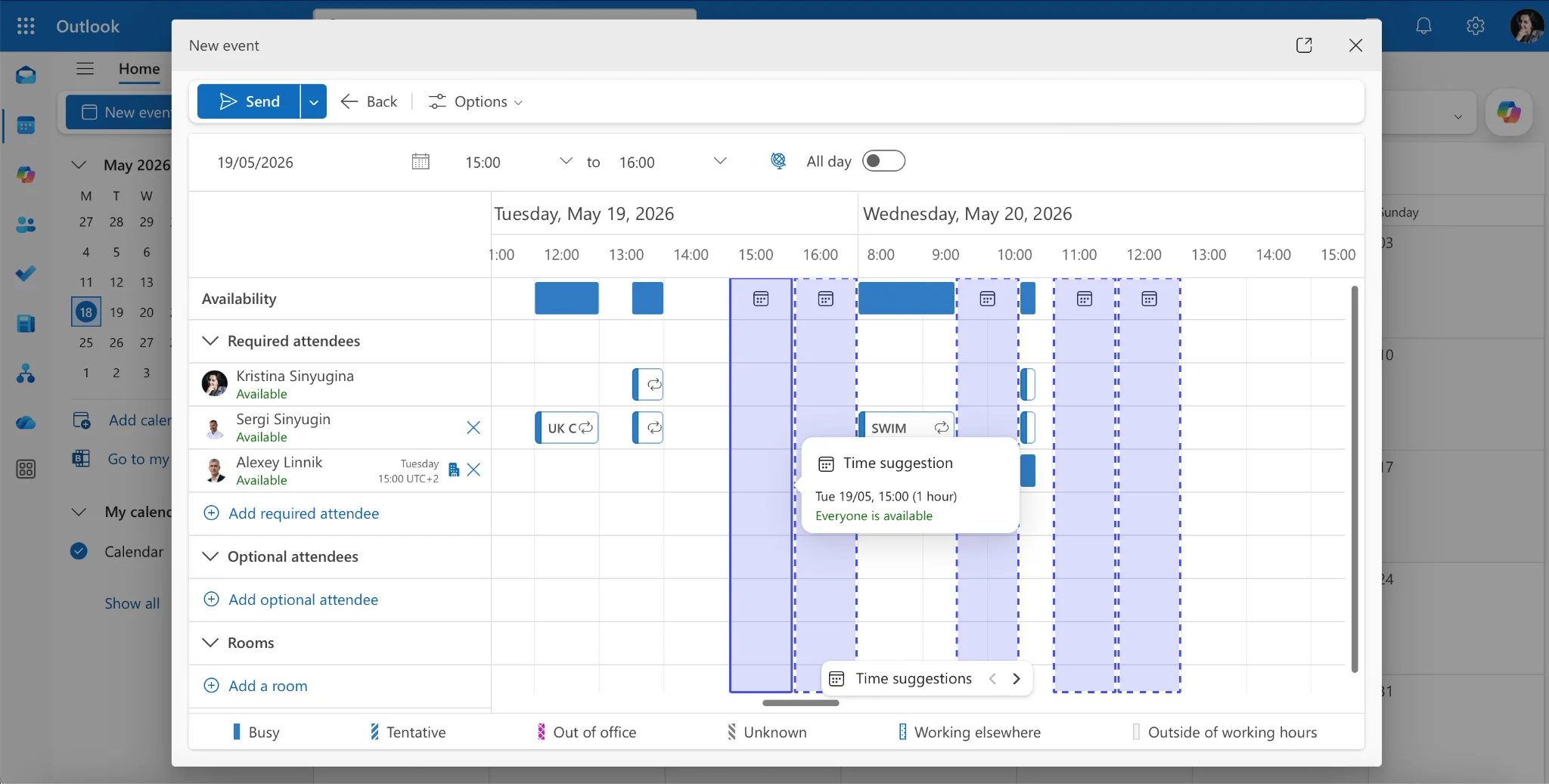
Pic. 1 — Outlook Scheduling Assistant
Set Working Hours
In Outlook, go to File → Options → Calendar and set your work start and end times. Meeting requests outside your working hours will trigger a warning, which lets you push back early rather than rearrange later.
Overlay Multiple Calendars to Spot Clashes
In Outlook, check multiple calendars in the sidebar. New Outlook overlays them automatically; Classic Outlook shows them side by side until you click the small left-arrow on a calendar tab. This catches conflicts between your personal, work, and team calendars in one view.
Native overlay is limited to Exchange / Outlook calendars. To overlay SharePoint lists, Microsoft Planner tasks, or Google Calendar in the same view, see the Virto Calendar App section below.
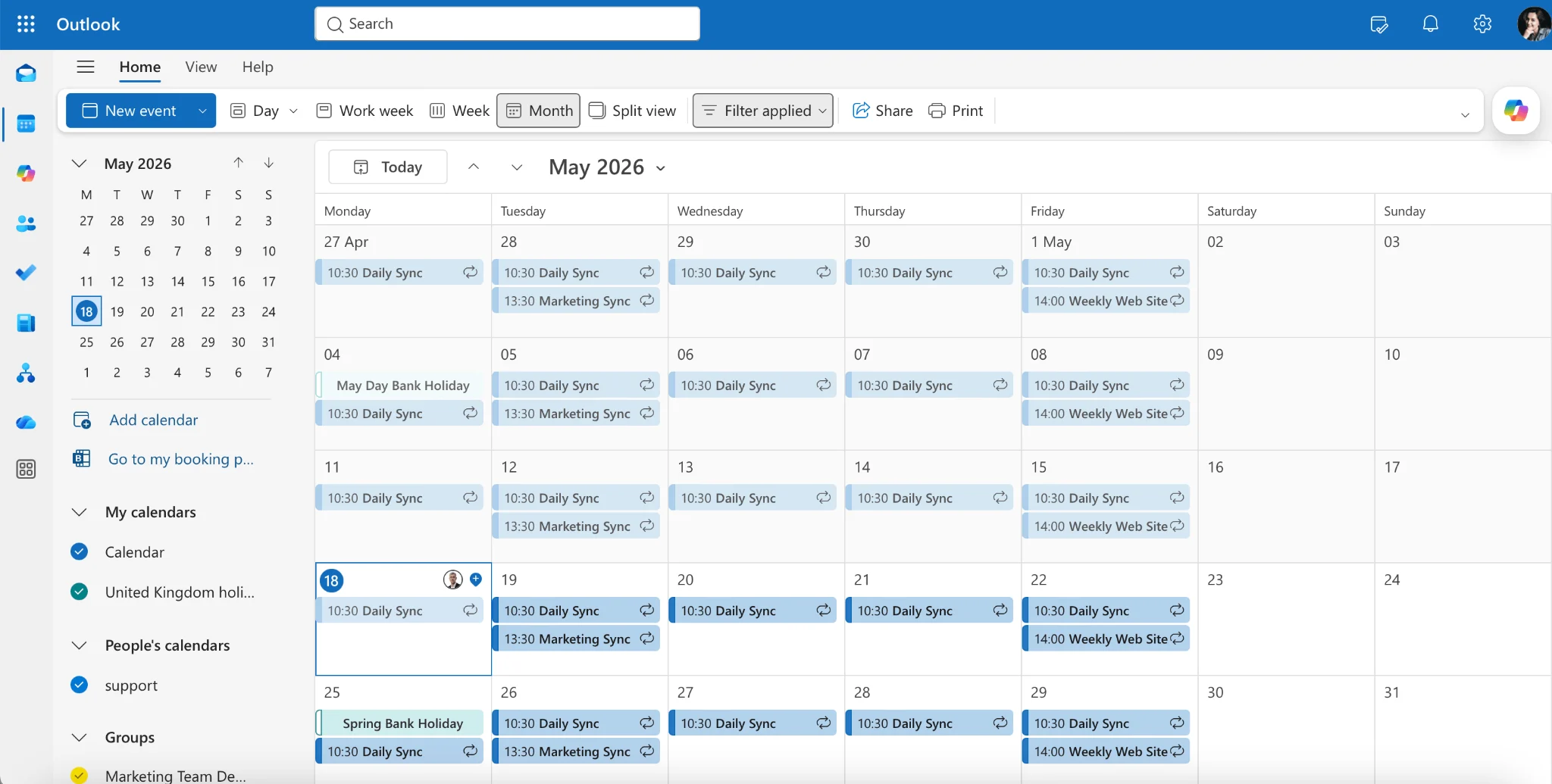
Pic. 2 — Outlook sidebar with multiple calendars checked and overlay mode active, showing colour-coded events stacked on the same grid.
Use Microsoft Teams Meeting Scheduler
Go to Teams → Calendar → New meeting → Scheduling Assistant. The logic is the same as Outlook — Teams reads the same Exchange free/busy data, so any prevention work you do in Outlook flows through here.
How Virto Calendar App Prevents Conflicts
Native Outlook and Teams catch conflicts only inside Exchange. The moment your work spans SharePoint lists, Microsoft Planner tasks, Google Calendar feeds, or shared resource calendars, those tools go blind. Virto Calendar App is built specifically to close that gap.
It solves three patterns the rest of this article keeps surfacing:
- Cross-platform conflict prevention. See Outlook, SharePoint, Planner, and Google calendars in one overlay view, with conflicts highlighted automatically.
- Resource conflict detection. Meeting-room double-bookings show up visually instead of as silent calendar errors.
- Personal vs. work calendar overlay. Catches the personal-vs-work conflicts that Outlook’s native Room Finder can’t see.
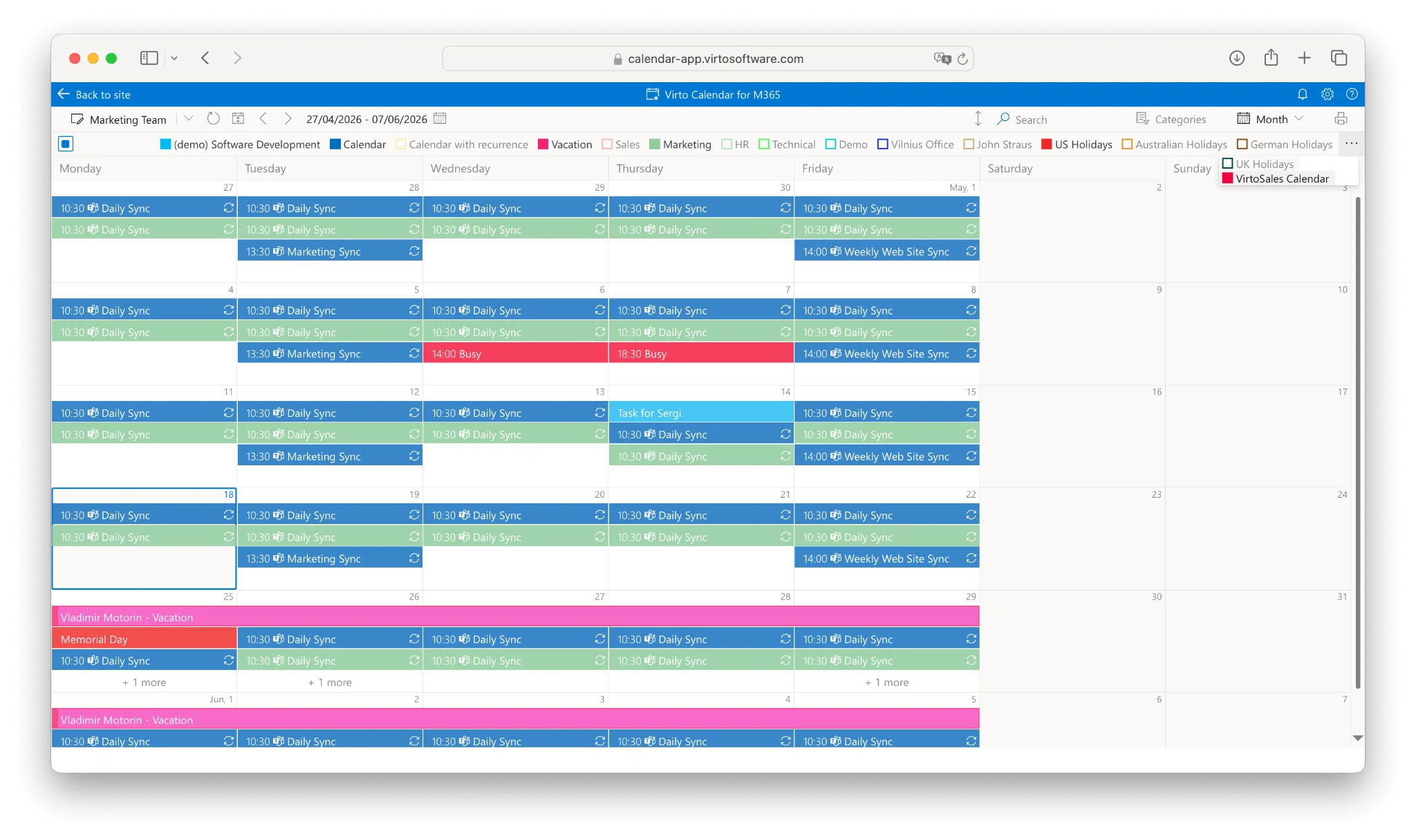
Pic. 3 — Virto Calendar App: monthly grid with colour-coded categories and a category filter panel.
Native Outlook / Teams vs. Virto Calendar App
| Capability | Native Outlook / Teams | Virto Calendar App |
|---|---|---|
| Detect Outlook conflicts | Yes — via Scheduling Assistant | Yes |
| Detect SharePoint conflicts | No — SharePoint calendars are separate | Yes — overlaid with Outlook |
| Detect Google / iCal conflicts | Manual subscription needed | Native iCal support |
| Detect Planner task conflicts | No | Yes — Planner overlay |
| Meeting room availability overlay | Room Finder only — limited view | Room calendars overlaid visually |
| Free tier | Included with M365 | Free for one month |
Next step
Primary: See Virto Calendar App for M365 →
Secondary: Start free trial on Microsoft Marketplace.
Tertiary: Book a 30-minute demo with the Virto team.
Frequently Asked Questions
What does “meeting conflict” mean?
A meeting conflict (also called a scheduling conflict or calendar clash) happens when two or more events are scheduled at the same time, forcing you to choose which to attend or reschedule one. Conflicts can involve people (double-booked individuals), resources (shared meeting rooms), or priorities (two important events competing).
How do I politely say I have a conflict with another meeting?
Use this phrasing: “Thank you for the invite. Unfortunately, I have a scheduling conflict with another meeting at that time. Could we explore [alternative time], or could someone share a summary afterward?” Always offer an alternative — it shows respect for the organiser’s time.
What is the difference between a scheduling conflict and a calendar conflict?
The terms are used interchangeably. “Calendar conflict” often refers to the technical notification from your calendar software when two events overlap. “Scheduling conflict” more often refers to the broader dilemma of which event to attend and how to reschedule. The practical meaning is the same.
How do I check for conflicts when scheduling a meeting in Outlook?
Open a new meeting in Outlook, click the Scheduling Assistant tab, and add attendees. Outlook shows everyone’s free/busy bars side by side: green means available, red means busy. Drag the meeting block to a slot where everyone is green to avoid conflicts. This works within your organisation’s Microsoft 365 tenant.
How do I overlay calendars in Outlook to spot conflicts?
Check the boxes for each calendar you want to view in the sidebar. In New Outlook, calendars overlay automatically. In Classic Outlook Desktop, click the small left-arrow next to a calendar tab to switch from side-by-side to overlay mode. Each calendar appears in a different colour, making conflicts easy to spot.
How can I prevent calendar conflicts across multiple platforms?
Native Outlook only detects conflicts within Exchange/Outlook calendars — it can’t see SharePoint lists, Microsoft Planner tasks, or external Google calendars. To prevent cross-platform conflicts, use a calendar overlay tool like Virto Calendar App that combines all sources into a single view with automatic conflict highlighting.
Related Reading
- Master calendar guide
- Merge and combine multiple calendars guide
- Vacation calendar in Outlook and Teams
- Calendar color coding
Conclusion
Meeting conflicts aren’t going away — but they don’t have to derail your week. Lead with a clear, polite reply, prevent the recurring ones in Outlook and Teams, and use a cross-platform overlay like Virto Calendar App when your work lives outside Exchange. The three CTAs above are the fastest way to start.
References
(1) Stats from Clockify.