
You add a colleague to a meeting, and their row in the Scheduling Assistant stays empty, fills with slashed lines, or Outlook reports that it’s unable to get calendar availability. None of these means the person is free. They mean Outlook asked Exchange for that person’s free/busy times and got no usable answer. This guide matches what you see to its cause and its fix, starting with the checks you can do yourself and ending with the ones only your admin can run. One cause is new: Microsoft is switching off Exchange Web Services, and with it the old way companies share availability with each other.
Quick answer: why does Outlook say it’s unable to get calendar availability? Outlook asked Exchange for the person’s free/busy times and got nothing back. There are three usual causes: the person’s calendar shares nothing (its Default permission is None), the person is in another organization that doesn’t share availability with yours, or the request never reached their mailbox because of a hybrid Exchange setup, a firewall or Outlook itself. Test with a colleague whose availability you know works. If theirs shows, the problem is with that one person; if nobody’s does, look at your Outlook or your organization.
Quick answer: why can’t I see availability for people in another organization? By default, Outlook doesn’t show free/busy for anyone outside your organization: the admins of both organizations have to set up sharing. Since October 2026 Microsoft has been switching off Exchange Web Services (EWS) in Exchange Online, for everyone by April 2027, and the two classic setups between Microsoft 365 organizations, Organization Relationship and Sharing Policy, depend on it. Their replacement is Microsoft 365 Cross-Tenant Access Policy.
Next question: what do the colors in the grid mean? Once availability loads, our guide to the Outlook Scheduling Assistant explains the grid, AutoPick and Scheduler in new Outlook.
Find your symptom
| What you see | Most likely cause | Go to |
|---|---|---|
| One person’s row is empty, or Outlook can’t get their availability | Their calendar’s Default permission is None | Availability is missing for one person |
| “Could not be updated” for one person, or a red triangle in Outlook on the web | More than 1,000 calendar items in one time slot | Availability is missing for one person |
| No availability for a Gmail attendee, or for anyone when you send from a Gmail account | That calendar isn’t in Exchange | Availability is missing for one person |
| A distribution list or a long attendee list shows nothing | Outlook’s limits on list size and attendee count | Availability is missing for one person |
| Classic Outlook stays on “We’re checking everyone’s calendars” | A registry value went missing when Office was installed or reinstalled | Availability is missing for everyone |
| Nobody’s availability shows | Your Outlook app, or requests that don’t reach Exchange | Availability is missing for everyone |
| Only people outside your organization show nothing | No free/busy sharing between the two organizations | People in another organization show no availability |
| A partner company’s availability stopped showing in or after October 2026 | The sharing ran on EWS, which Exchange Online is switching off | What the EWS shutdown changes |
| Slashed lines, # signs or error 5037, 5039 or 5016 between cloud and on-premises users | Hybrid free/busy configuration | Hybrid Exchange |
| A colleague’s availability disappeared after their mailbox moved to Microsoft 365 | Default permission set to None or Contributor | Hybrid Exchange |
| Outlook shows availability, Teams Scheduler doesn’t | Teams can’t reach the mailbox | Availability is blank in Teams |
How Outlook gets someone’s availability
When you add someone to a meeting, Outlook doesn’t open their calendar. It asks the Exchange Availability service, which looks the calendar up and answers with a status for each time slot: Free, Tentative, Busy, Out of Office or Working elsewhere. Microsoft Graph documents the same statuses. Subjects and locations come back only when the person’s sharing allows it.
Two parties control that answer. The person decides how much their own organization sees, through the Default entry in their calendar permissions. Admins decide what people in other organizations see, through organization-wide sharing settings (Microsoft Learn). Where the request goes depends on where the other person’s mailbox lives, and each destination breaks in its own way.
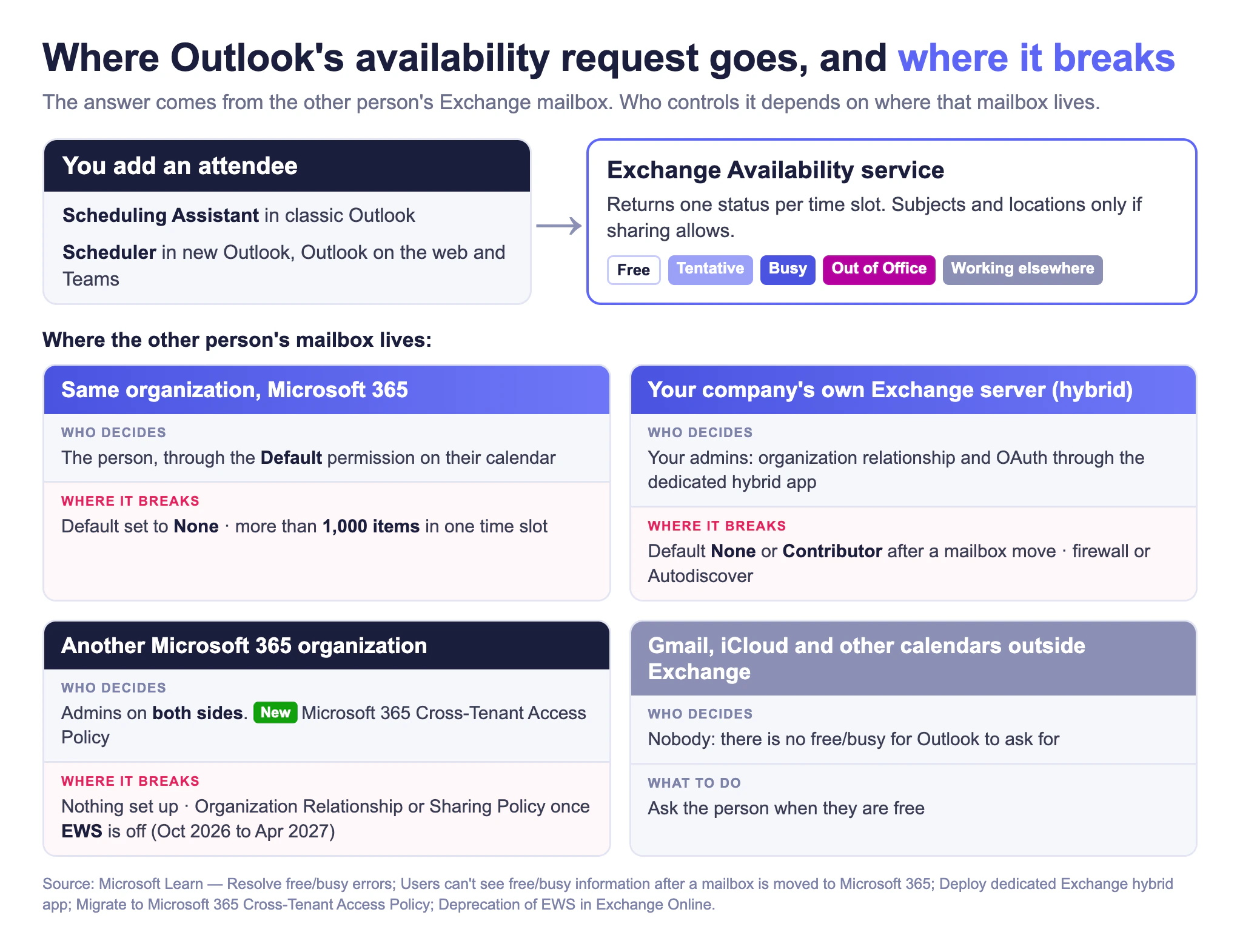
Fig. 1. Where Outlook’s availability request goes, who controls the answer, and where it breaks.
That gives you the first test for every problem in this guide. Try one colleague whose availability you know works, and open the same meeting in Outlook on the web:
- One person missing points to that person’s calendar.
- Everyone missing in your Outlook app, but not on the web, points to the app.
- Everyone missing everywhere points to your organization’s settings.
Availability is missing for one person
Their calendar shares nothing with your organization
Every calendar has a Default permission: the level everyone in the organization gets unless they’re named separately. If it’s set to None, nobody can see that person’s availability, and Exchange refuses the lookup (Microsoft Learn). Only the calendar owner or an admin can change it.
Fix: ask the person to raise the permission for their organization to at least Can view when I’m busy. In classic Outlook that’s Calendar Properties → Permissions → Default → Free/Busy time. Our guide on how to share your calendar in Outlook explains each level.
Their calendar has more than 1,000 items in one time slot
A single free/busy request returns at most 1,000 calendar items. If one person’s calendar holds more in the period you’re looking at, the lookup fails. Classic Outlook says the calendar could not be updated; Outlook on the web shows a red triangle with an exclamation mark (Microsoft Learn).
Fix: the owner deletes items they no longer need, so fewer than 1,000 remain in that time slot.
The person isn’t on Exchange, or you aren’t
Free/busy lookup works between Exchange mailboxes. An attendee on Gmail or iCloud has nothing for Outlook to read. It also fails the other way round: if Outlook holds both your work account and a Gmail account, and the invitation goes from the Gmail address, you won’t see anyone’s availability. Switch the From field to your work account (Microsoft Support).
You invited a distribution list or a crowd
Outlook limits both the size of a distribution list it will check and the number of attendees it shows free/busy for. Past either limit, the check fails. Expand the list into individual names, or check a smaller group in a second meeting (Microsoft Support).
Availability is missing for everyone
Classic Outlook: “We’re checking everyone’s calendars” never finishes
If the Scheduling Assistant in classic Outlook for Windows stays on We’re checking everyone’s calendars, the cause is usually on your PC. The FreeBusySupport registry value can go missing after Office is installed or reinstalled (Microsoft Learn).
Fix: reinstall Office. Or ask IT to add the two missing registry values, EX and SMTP, under …\Outlook\SchedulingInformation\FreeBusySupport as the Microsoft article describes, after backing up the registry.
Check whether it’s the app or the mailbox
Open the same meeting in Outlook on the web. If availability shows there, your Outlook app is the problem: update it, then repair Office. If it’s missing on the web too, the app isn’t the cause. The lookup fails on the server side, which is a job for the sections below or for your admin.
People in another organization show no availability
Outlook can’t show free/busy for someone outside your organization unless the two organizations have agreed to share it (Microsoft Support). Each side controls only what it gives away, so both admins have to act (Microsoft Learn). If one side set it up and the other didn’t, availability shows in one direction only.
How companies share availability today
Three setups have been in use for years (Microsoft Learn):
- Organization relationship. A one-to-one agreement between two organizations. Each admin chooses what the partner sees: free/busy times only, or times with subjects and locations.
- Sharing policy. Lets your users share their calendars with people in named external domains.
- Availability address space. An organization-wide free/busy link to another organization.
What the EWS shutdown changes
Exchange Web Services (EWS) is the old interface many of these lookups run on. In October 2026 Microsoft began switching it off in Exchange Online, starting with organizations whose admins hadn’t chosen to keep it for now. On 1 April 2027 it goes off for everyone, with no exceptions (Microsoft Learn: Deprecation of EWS in Exchange Online; key dates). Microsoft has moved these dates before, so check the first link for the current timeline.
For availability between Microsoft 365 organizations, this is what changes (Microsoft Learn: Migrate to Microsoft 365 Cross-Tenant Access Policy):
- Organization relationships and sharing policies rely on EWS. Once EWS is off for your organization, free/busy and calendar sharing with other Microsoft 365 organizations stop working through them (Microsoft Learn).
- The replacement is Microsoft 365 Cross-Tenant Access Policy. It’s an inbound setting: each organization decides what the other may read, so for availability in both directions, both organizations create one. The partner is identified by its tenant ID, which covers all of its domains. A Global Administrator sets up the trust once per partner; after that, an Exchange admin can manage the free/busy part.
- It reaches tenants gradually. Microsoft says the policy is still rolling out and may not have reached your tenant yet. Its advice: move after it arrives and before EWS goes off.
- Availability address spaces keep working. Between two Microsoft 365 organizations they don’t depend on EWS, though Microsoft suggests moving them to the new policy too.
- Partners on their own Exchange servers are not covered. The new policy applies only to organizations hosted in Microsoft 365. If your partner runs Exchange on-premises, or your organization is hybrid, keep the existing sharing policies switched on: the new policy can’t replace them.
| How you share with the other organization | Once EWS is off | What to do |
|---|---|---|
| Organization relationship, both in Microsoft 365 | Stops working | Move to Microsoft 365 Cross-Tenant Access Policy |
| Sharing policy, both in Microsoft 365 | Stops working | Move to Microsoft 365 Cross-Tenant Access Policy |
| Availability address space, both in Microsoft 365 | Keeps working | Optional move to the new policy |
| Partner on its own Exchange servers, or you’re hybrid | Not covered by the new policy | Keep the existing sharing policy switched on |
Fig. 2. What happens to each way of sharing availability when EWS is switched off.
What to ask your admin: Which of these setups connects us to this partner? Is EWS still on for our organization? Has Microsoft 365 Cross-Tenant Access Policy reached our tenant, and is the partner’s admin setting up theirs? The switch takes coordination. The old setups take precedence over the new policy, so Microsoft’s guide has both admins turn the old ones off and test together.
The same shutdown affects calendars shared across organizations: see Outlook shared calendar not showing.
Hybrid Exchange: on-premises and cloud users can’t see each other
In a hybrid deployment, some mailboxes sit on your own Exchange servers and some in Microsoft 365. The Hybrid Configuration Wizard sets up free/busy between them with OAuth and organization relationships on both sides. Federation trust and EWS are no longer supported for it (Microsoft Learn: Shared free/busy in Exchange hybrid deployments).
Free/busy stopped after October 2025
Since 31 October 2025, hybrid free/busy works only through a dedicated Exchange hybrid app registered in Microsoft Entra ID, on a supported Exchange Server build. The old shared route is permanently blocked, and rolling back doesn’t bring it back (Microsoft Learn: Deploy dedicated Exchange hybrid app). If cloud and on-premises users lost each other’s availability around then, and nothing has changed since, start here.
A colleague’s availability disappeared after their mailbox moved to Microsoft 365
Lookups between the two sides run on behalf of the organization relationship, not the person asking. They see only what the calendar’s Default permission allows; permissions granted to named people don’t count. If Default is None or Contributor, on-premises users see nothing (Microsoft Learn).
Fix: the mailbox owner sets Default to Free/Busy time, or to Free/Busy time, subject, location.
Slashed lines, # signs and error codes
A failed hybrid lookup often doesn’t look like an error in classic Outlook: the person’s row fills with slashed lines or # signs (Microsoft Learn). Outlook on the web is more specific (Microsoft Learn: Troubleshoot free/busy issues in Exchange hybrid environment):
- 5037: you don’t have permission to see this attendee’s free/busy. Check the calendar permission and the organization relationship.
- 5039: the attendee’s server couldn’t be found.
- 5016: the attendee’s server couldn’t be contacted.
The usual causes on the server side are a firewall or reverse proxy that asks for a password instead of passing requests through, Autodiscover pointing to the wrong place, a domain missing from the organization relationship, or TLS 1.2 not configured on every Exchange server (Resolve free/busy errors; TLS 1.2 issues). Microsoft recommends running the Hybrid Free Busy Checker script first.
Availability is blank in Teams
Teams reads calendars from Exchange mailboxes (Microsoft Learn: How Exchange and Microsoft Teams interact), so every cause above applies to Scheduler in Teams too. Our guide on how to view someone’s calendar in Teams shows where Scheduler is.
Check Outlook on the web first. If availability is missing there too, fix it with the sections above. If Outlook shows it and Teams doesn’t, the break is between Teams and Exchange (Microsoft Learn: Resolve interaction issues between Teams and Exchange Server):
- Mailboxes on your own Exchange servers. Microsoft recommends a full classic hybrid with Exchange Server 2016 or later. A modern hybrid gives Teams free/busy, but no calendar integration. The Teams calendar needs Exchange Server 2016 CU3 or later.
- EWS restricted to an allow list. If your admins limit which apps may use EWS, Teams has to be on the list, or its calendar can’t reach the mailbox.
- Teams can’t open your calendar at all. That’s a different error with its own fixes: see “Teams is unable to access your calendar”.
Still not fixed: tests your admin can run
Most of these need your admin, and they’re where Microsoft support will start too.
- Free/Busy test in Microsoft Remote Connectivity Analyzer. It checks that a Microsoft 365 mailbox can read an on-premises mailbox’s free/busy, or the reverse. Each run checks one direction, so run it twice with source and target swapped. It isn’t available in GCC and GCC High.
- Teams Exchange Integration test, in the same tool. It checks that Teams can work with the mailbox. In a hybrid organization, run it once with a cloud mailbox and once with an on-premises one.
- Hybrid Free Busy Checker (CSS-Exchange on GitHub). A Microsoft script that compares your hybrid free/busy configuration with the recommended default.
- Outlook logs. With troubleshooting logging turned on in classic Outlook, availability requests are logged in
%temp%\OlkAS, in files ending in-fb.logor-AS.log. ResultSetTooBigException means the 1,000-item limit; ErrorNoFreeBusyAccess points to permissions or the organization relationship. - Three PowerShell checks in Exchange Online:
Get-MailboxFolderPermission -Identity <mailbox>:\Calendar: the Default entry should be AvailabilityOnly or LimitedDetails, not None.Get-OrganizationRelationship | Format-List Name,DomainNames,Enabled,FreeBusyAccessEnabled: the partner’s domain is listed, and free/busy is on.Get-OrganizationConfig | Format-List EwsEnabled: False means EWS is off for the whole organization.
FAQ
Why can’t I see the calendar availability in Outlook?
Because Outlook got no free/busy answer for that person. Most often their calendar’s Default permission is None, they’re outside your organization with no sharing set up, or the request failed on the way. Compare with one colleague whose availability works, and with Outlook on the web, to tell which.
Why is the Scheduling Assistant not showing anyone’s availability?
In classic Outlook for Windows, a grid that stays on “We’re checking everyone’s calendars” usually means a registry value went missing during an Office install; reinstalling Office restores it. If Outlook on the web shows availability for the same people, your Outlook app is the problem. If the web shows nothing either, ask your admin.
What do slashed lines in the Scheduling Assistant mean?
That Outlook got no free/busy data for that person, not that they’re busy. You’ll see them when a lookup across organizations, or between on-premises and cloud mailboxes, fails (Microsoft Learn).
Does the EWS retirement affect free/busy?
Between Microsoft 365 organizations, yes. Organization relationships and sharing policies depend on EWS and stop sharing availability once it’s off for your organization: from October 2026, and for everyone on 1 April 2027. The replacement is Microsoft 365 Cross-Tenant Access Policy. Availability address spaces between Microsoft 365 organizations don’t depend on EWS.
Why can’t I see availability when I send the invitation from a Gmail account?
Because you’re creating the meeting in a calendar that isn’t part of your organization, and from there Outlook can’t look up your colleagues’ free/busy. Change the From field to your work account.
Conclusion
Missing availability stops being a mystery once you know where the request went. One person missing: their calendar’s Default permission, or an overloaded time slot. Everyone missing in your Outlook but not on the web: the app. Missing between cloud and on-premises users: your hybrid setup. Only other companies missing: the sharing between the two organizations, which in 2026 and 2027 also means moving off EWS to Microsoft 365 Cross-Tenant Access Policy. If you work with partner companies, ask your admin about that move now, not on the day their row goes blank.