Quick answer: An Outlook calendar usually stops syncing because of an account/sign-in issue, an outdated Outlook app, a corrupted local cache (OST), or a disabled sync setting; signing out/in, updating Outlook, and rebuilding the profile resolve most cases.
Fastest fix: sign out of Outlook and back in, install the latest update, then force a manual sync. If the calendar still lags behind, clear or rebuild the local cache — full steps for every platform are below.
A calendar that quietly stops syncing is one of the most disruptive problems in Microsoft Outlook: meetings vanish from your phone, new invitations never appear on your desktop, and colleagues see free/busy information that no longer matches reality. The good news is that the vast majority of Outlook calendar sync issues come down to a handful of causes — and each one has a reliable fix.
This guide covers the generic Outlook calendar sync problems: the calendar not updating across your own devices, changes not appearing for other users, and shared calendars falling out of date. All steps are verified against the 2026 versions of Outlook — new Outlook for Windows, classic Outlook, Outlook for Mac, Outlook on the web, and the iOS/Android apps. If your problem is specific to a Google or Teams pairing, jump straight to the routing section below, where we link the dedicated guides for each combination.
Why Is My Outlook Calendar Not Syncing? The Four Most Common Causes
In order of likelihood:
- Account or sign-in problem — an expired password or authentication token silently breaks the connection to the server.
- Outdated Outlook app — old builds lose compatibility with current Microsoft 365 sync services.
- Corrupted local cache — a damaged OST file (classic Outlook) or app cache serves stale calendar data.
- Disabled sync setting — calendar sync toggled off in the account settings, or Cached Exchange Mode misconfigured.
Common Causes of Outlook Calendar Sync Issues
Before you start clicking through settings, it helps to know what you are looking for. These are the culprits behind almost every “my Outlook calendar is not syncing” complaint:
- Account and authentication issues. An expired password, a revoked session after a security policy change, or a stuck sign-in token stops Outlook from reaching Exchange Online at all. Outlook often keeps showing cached events, so the failure isn’t obvious until items go missing.
- Outdated app or OS. Microsoft ships sync fixes continuously, and old builds of Outlook (or an outdated iOS/Android system) are a frequent source of one-way or delayed sync.
- Corrupted local cache. Classic Outlook for Windows stores a local copy of your mailbox in an OST file; Outlook for Mac and the mobile apps keep their own caches. When that cache is damaged, the calendar keeps displaying old data no matter what the server says.
- Misconfigured sync settings. Cached Exchange Mode turned off (or set to a very short sync window), “Download shared folders” unchecked, calendar sync disabled for the account on mobile, or a manual send/receive schedule.
- Connectivity problems. Unstable Wi-Fi, restrictive VPNs, firewalls, or proxy servers can block Outlook’s connection to Microsoft 365 while other apps appear to work fine.
- Server-side incidents. Occasionally the problem isn’t on your machine at all — an Exchange Online service incident can delay calendar updates for the whole tenant.
- Conflicting add-ins and third-party tools. Calendar-related add-ins, sync utilities, and overzealous antivirus software can interfere with the sync pipeline.
- Storage and time-zone issues. A mailbox at its storage quota stops accepting new items, and a wrong time-zone setting makes events look out of sync even when the data is correct.
One more thing to rule out: a delay is not a failure. Outlook doesn’t sync instantaneously — depending on the platform and load, a change can take from a few seconds to several minutes to propagate. If events appear eventually, you have a performance issue, not a sync failure.
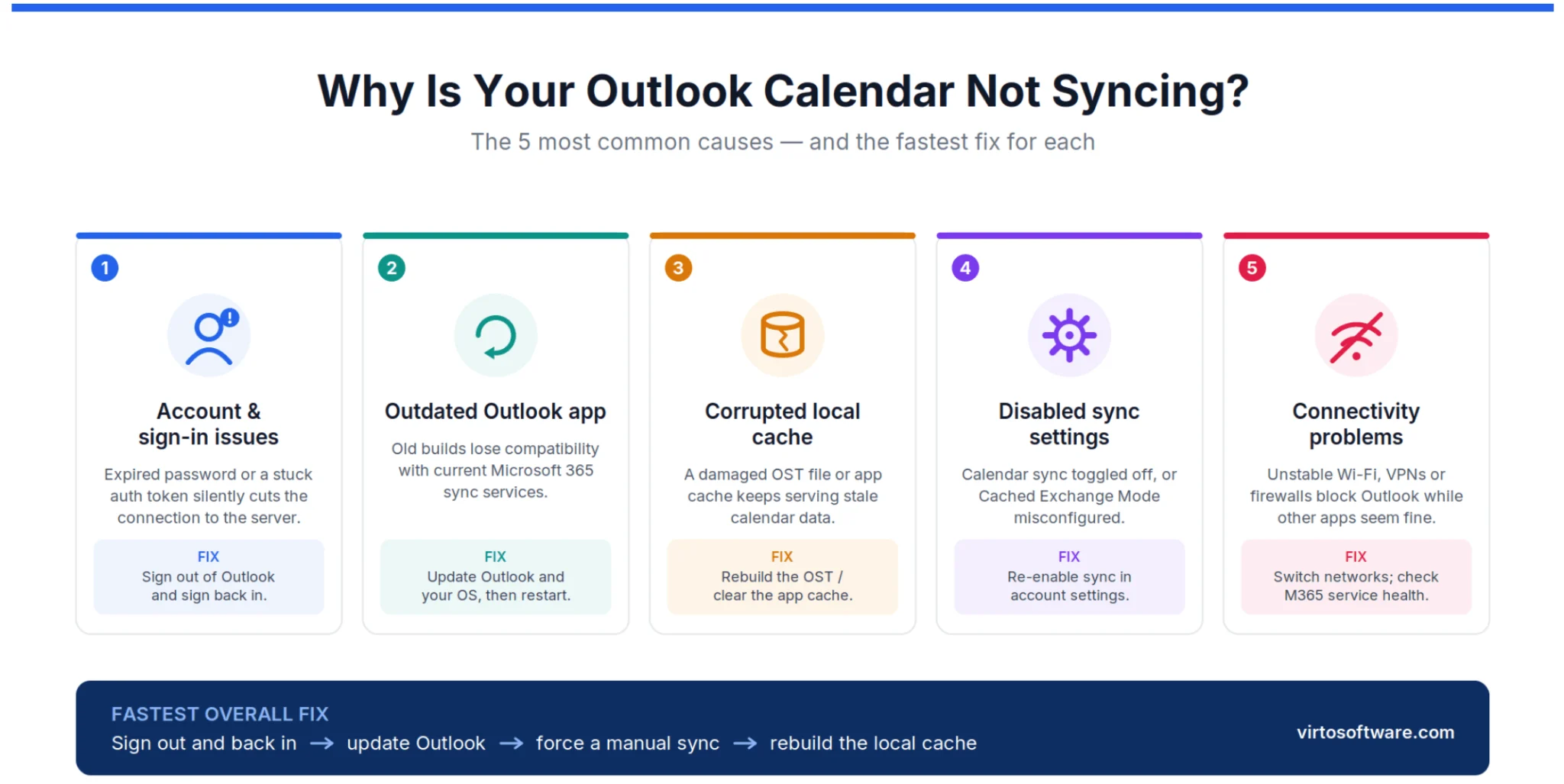
Pic. 1. Infographic: top causes of Outlook calendar sync issues.
Step-by-Step Fixes for Outlook Calendar Sync Issues
Work through these steps in order — they’re sequenced from least to most invasive, and each one resolves a large share of real-world cases. The steps cover new Outlook for Windows (the default client in 2026), classic Outlook, Outlook for Mac, Outlook on the web, and mobile.
Step 1. Check your connection and Microsoft 365 service health
- Confirm your internet connection is stable — open a few websites, or switch between Wi-Fi and cellular to rule out a network-specific block.
- If you’re on a corporate VPN or public Wi-Fi, try a different network: some environments restrict the endpoints Outlook needs.
- Check for service incidents: sign in to the Microsoft 365 admin center → Health → Service health (or ask your IT admin). If Exchange Online is having a bad day, no local fix will help — wait it out.
- Open Outlook on the web (outlook.office.com) and check whether the calendar is correct there. If the web version is right and your app is wrong, the problem is local — cache, settings, or app version. If the web version is wrong too, it’s an account or server issue.
Step 2. Update Outlook and your OS
For Windows: new Outlook updates automatically through the Microsoft Store / controlled rollout, but you can nudge it via Microsoft Store → Downloads. In classic Outlook, go to File → Office Account → Update Options → Update Now. Then run Windows Update: Start → Settings → Windows Update → Check for updates.
For Mac: in Outlook, go to Help → Check for Updates (Microsoft AutoUpdate); if you installed Outlook from the App Store, update it there. Then update macOS via Apple menu → System Settings → General → Software Update.
For iOS and Android: update the Outlook app from the App Store or Google Play, and install any pending OS updates (Settings → General → Software Update on iOS; Settings → System → System update on Android).
Restart the device after updating so all changes take effect.
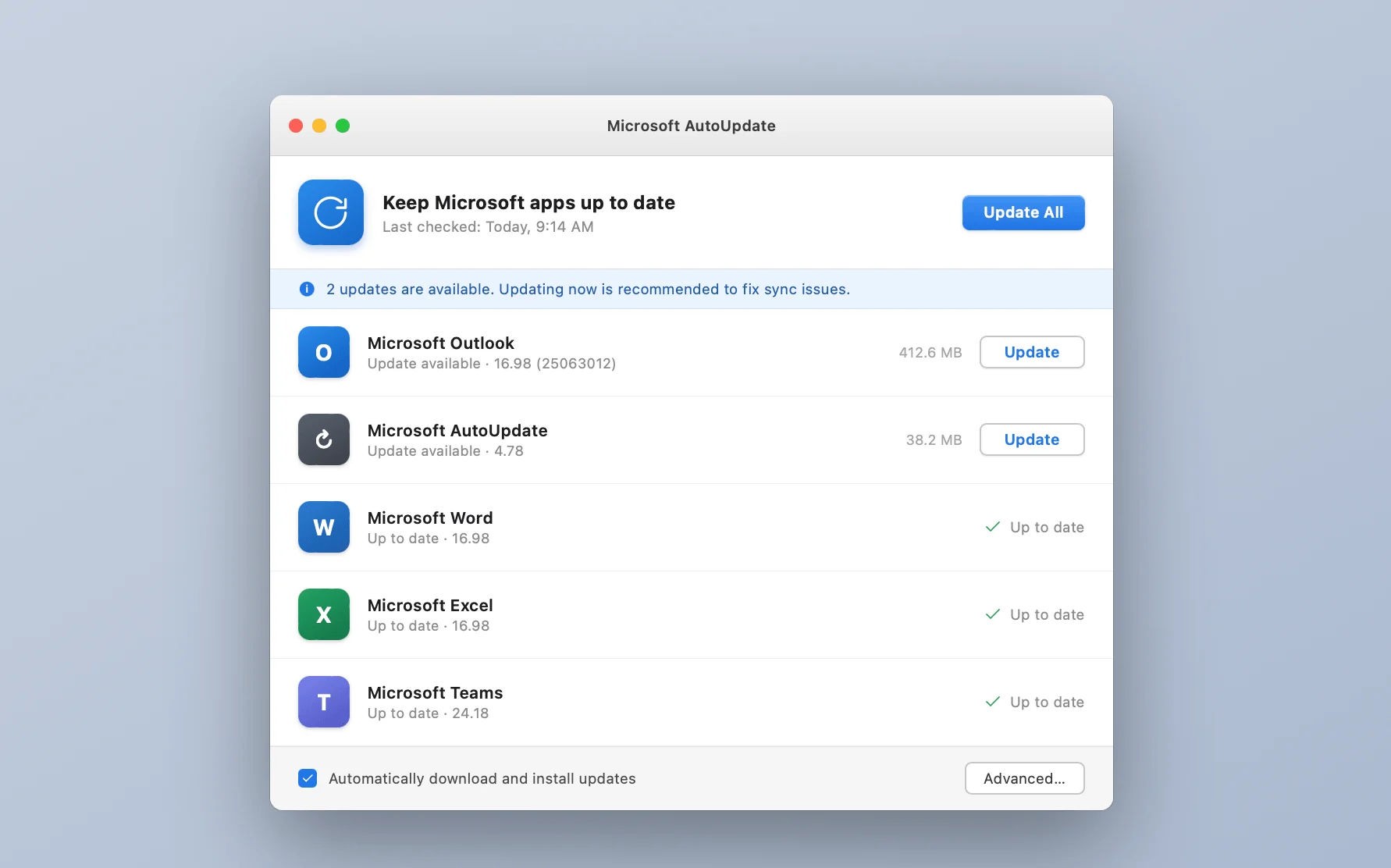
Pic. 2. Screenshot: Update Now in Microsoft AutoUpdate on Mac
Step 3. Verify account and sync settings
Classic Outlook for Windows:
- Go to File → Account Settings → Account Settings.
- Select your account and click Change.
- Make sure “Use Cached Exchange Mode” is enabled, and set “Download email for the past” to a range that covers your calendar horizon.
- Click More Settings → Advanced and confirm “Download shared folders” is checked — this directly affects shared calendar freshness.
- Save, then restart Outlook.
New Outlook for Windows: account sync is managed automatically in the cloud-backed model, so there is no Cached Exchange Mode to configure. If the calendar is stale, go to Settings → Accounts, select the account, and use the option to reset or re-add it.
Outlook for Mac: go to Outlook → Settings → Accounts, select the account, and check that it connects without errors. Most sync behavior is managed server-side; if settings look fine but sync doesn’t work, removing and re-adding the account (Step 6) is usually the effective route.
Note on account types: full calendar sync requires an Exchange / Microsoft 365 (or Outlook.com) account. IMAP and POP accounts have limited or no calendar sync — if your account is IMAP, the calendar lives only on that device, and no troubleshooting will change that.
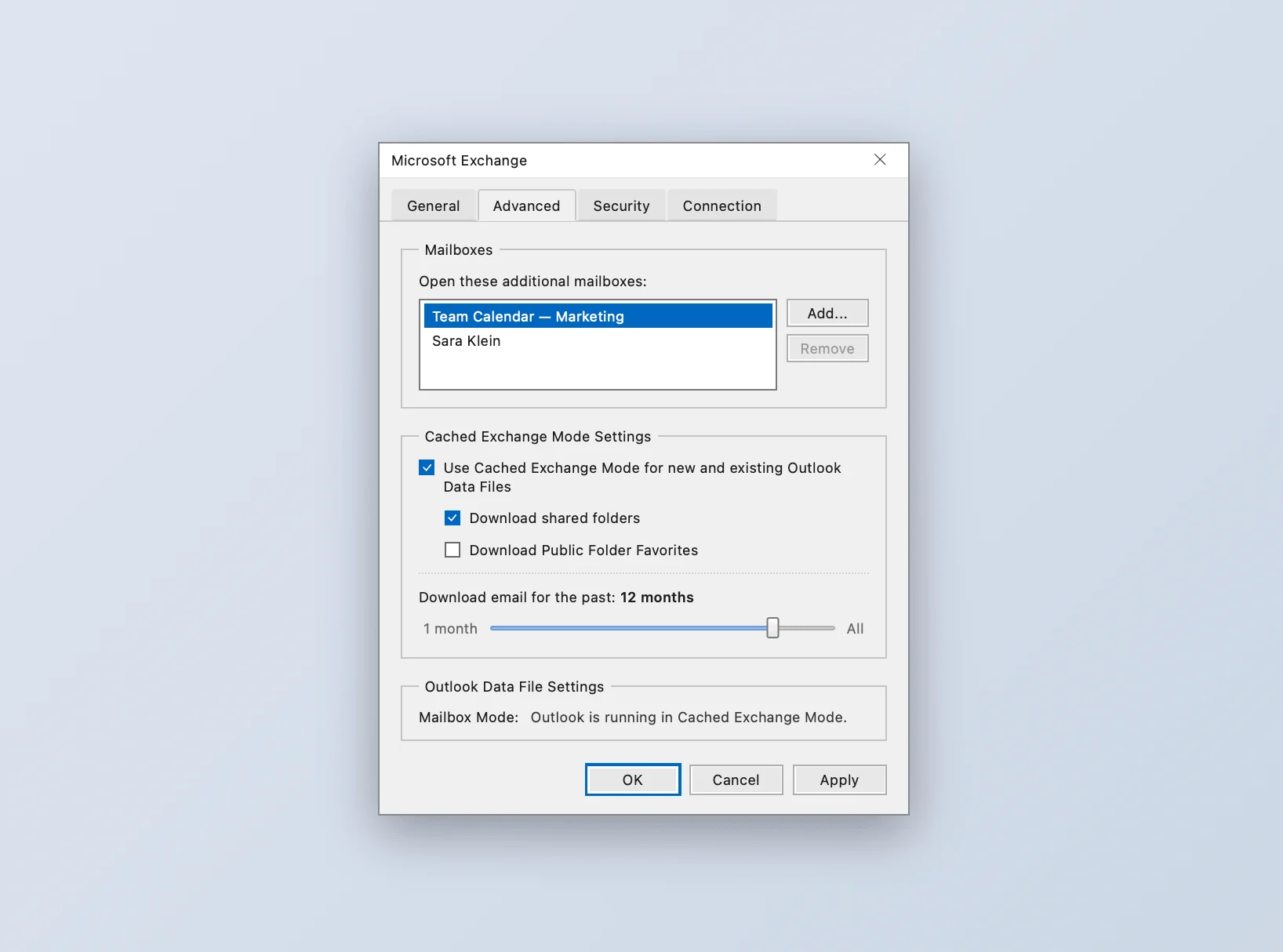
Pic. 3. Screenshot: Cached Exchange Mode and “Download shared folders” settings in classic Outlook account settings
Step 4. Force a manual sync
Windows (classic Outlook): open the Send/Receive tab and click Update Folder while viewing the calendar, or press F9 to run a full send/receive across all folders.
Windows (new Outlook): select the calendar and use the sync/refresh control in the ribbon, or simply reload — the cloud-backed client re-pulls server data on refresh.
Mac: go to Tools → Sync (or right-click the account in the sidebar and choose Sync), or press Command+K to synchronize all folders.
Web: refresh the browser tab — Outlook on the web always reads directly from the server, which is exactly why it’s the perfect reference point for comparison.
Step 5. Clear or rebuild the local cache
If forcing a sync doesn’t help, the local cache is the prime suspect.
Classic Outlook for Windows (OST rebuild):
- Close Outlook completely (check Task Manager for background OUTLOOK.EXE processes).
- Press Windows+R, type
%localappdata%\Microsoft\Outlookand press Enter. - Find the file(s) ending in
.ostand rename them (e.g., add.old) — renaming instead of deleting lets you roll back. - Restart Outlook. It creates a fresh OST and re-downloads your mailbox and calendar from the server. For large mailboxes this can take a while — let it finish.
Outlook for Mac: quit Outlook, then in Finder use Go → Go to Folder and open ~/Library/Group Containers/UBF8T346G9.Office/Outlook/. Move the profile folder to your desktop as a backup, then relaunch Outlook and let it rebuild. Alternatively, run Outlook with the -resetdb flag from Terminal to rebuild the database.
Mobile: on Android, go to Settings → Apps → Outlook → Storage → Clear cache. On iOS there’s no cache-clear button — removing and re-adding the account inside the Outlook app achieves the same result.
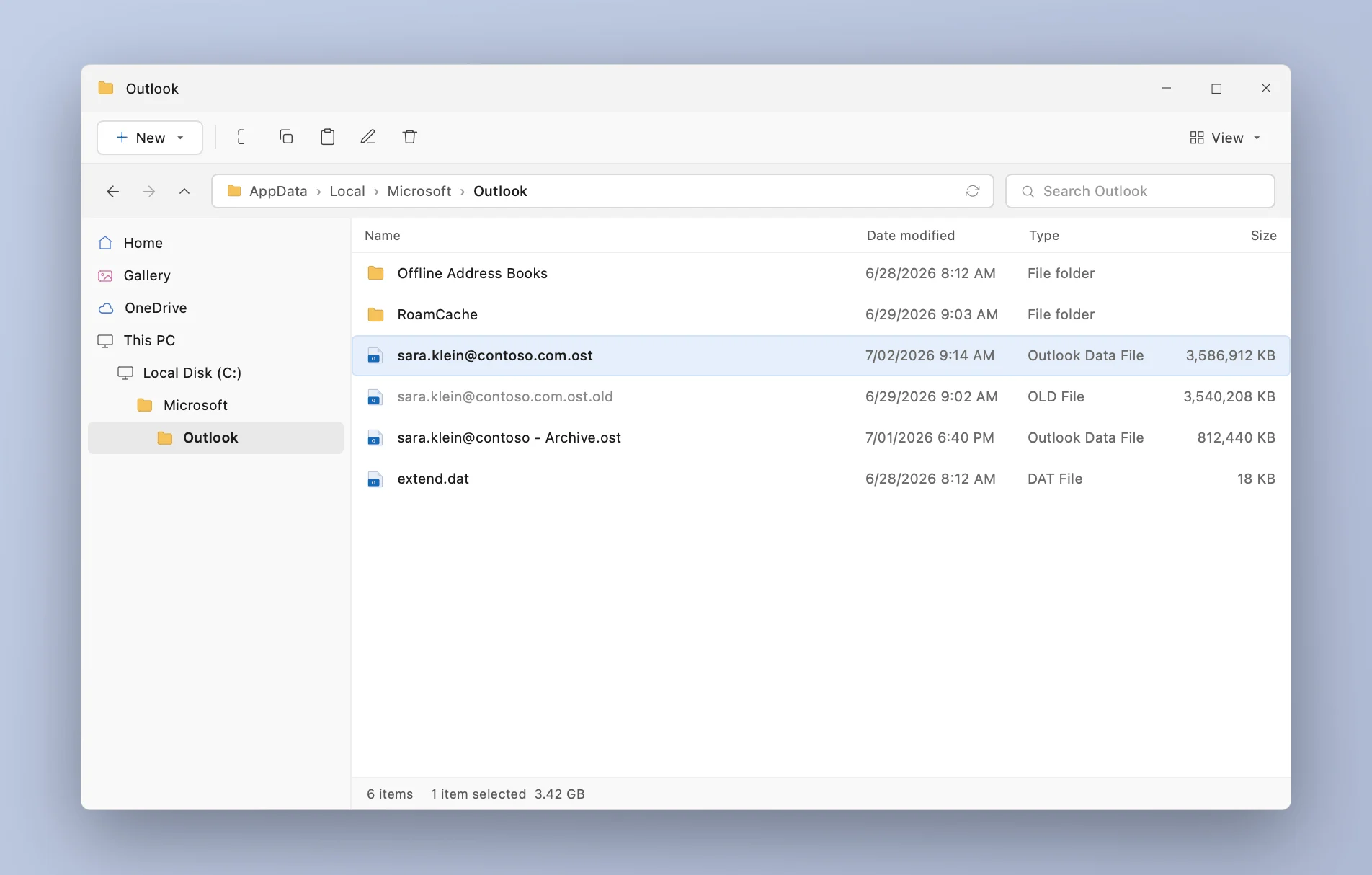
Pic. 4. Screenshot: locating the .ost file in %localappdata%\Microsoft\Outlook on Windows
Step 6. Remove and re-add the account (or recreate the profile)
When settings and cache fixes fail, resetting the account connection resolves most of what’s left:
- In new Outlook / Outlook for Mac / mobile: go to the account settings, delete the affected account, restart the app, and add the account again with a fresh sign-in.
- In classic Outlook for Windows: recreate the profile. Close Outlook, open Control Panel → Mail (Microsoft Outlook) → Show Profiles → Add. Name the new profile, add your account, then set Outlook to prompt for a profile (or make the new one default) and start Outlook with it.
- Repair option (classic Outlook): before recreating the profile, you can try the built-in repair — Control Panel → Mail → Email Accounts → select the account → Repair. For a broken Office installation, use Control Panel → Programs and Features → Microsoft 365 → Change → Quick Repair (or Online Repair for a deep fix).
Recreating a profile means reconfiguring signatures, rules, and view settings, so treat it as the near-last resort — but it is also the single most reliable fix for persistent, unexplained sync failures. If even that fails, the issue is server-side: contact your IT department or Microsoft support (admins can open a service request in the Microsoft 365 admin center).
Fixing Outlook calendar sync on mobile devices
iPhone / iPad:
- In the Outlook app: tap your profile icon → Settings (gear) → select the account → make sure calendar sync is on.
- If you use the built-in iOS Calendar instead: go to Settings → Apps → Calendar → Accounts (on older iOS: Settings → Calendar → Accounts), select the Outlook/Exchange account and confirm the Calendars toggle is enabled.
- Disable Low Power Mode restrictions if events only update when the app is open — background refresh must be allowed for Outlook (Settings → Apps → Outlook → Background App Refresh).
- If nothing helps, delete the account from the app and add it again.
Android:
- Open Outlook → profile icon → Settings → tap the account → confirm “Sync calendars” is enabled.
- Clear the app cache: Settings → Apps → Outlook → Storage → Clear cache.
- Exclude Outlook from battery optimization (Settings → Apps → Outlook → Battery) — aggressive power management is the classic reason an Android calendar only updates when you open the app.
- As a last step, remove and re-add the account inside the app.
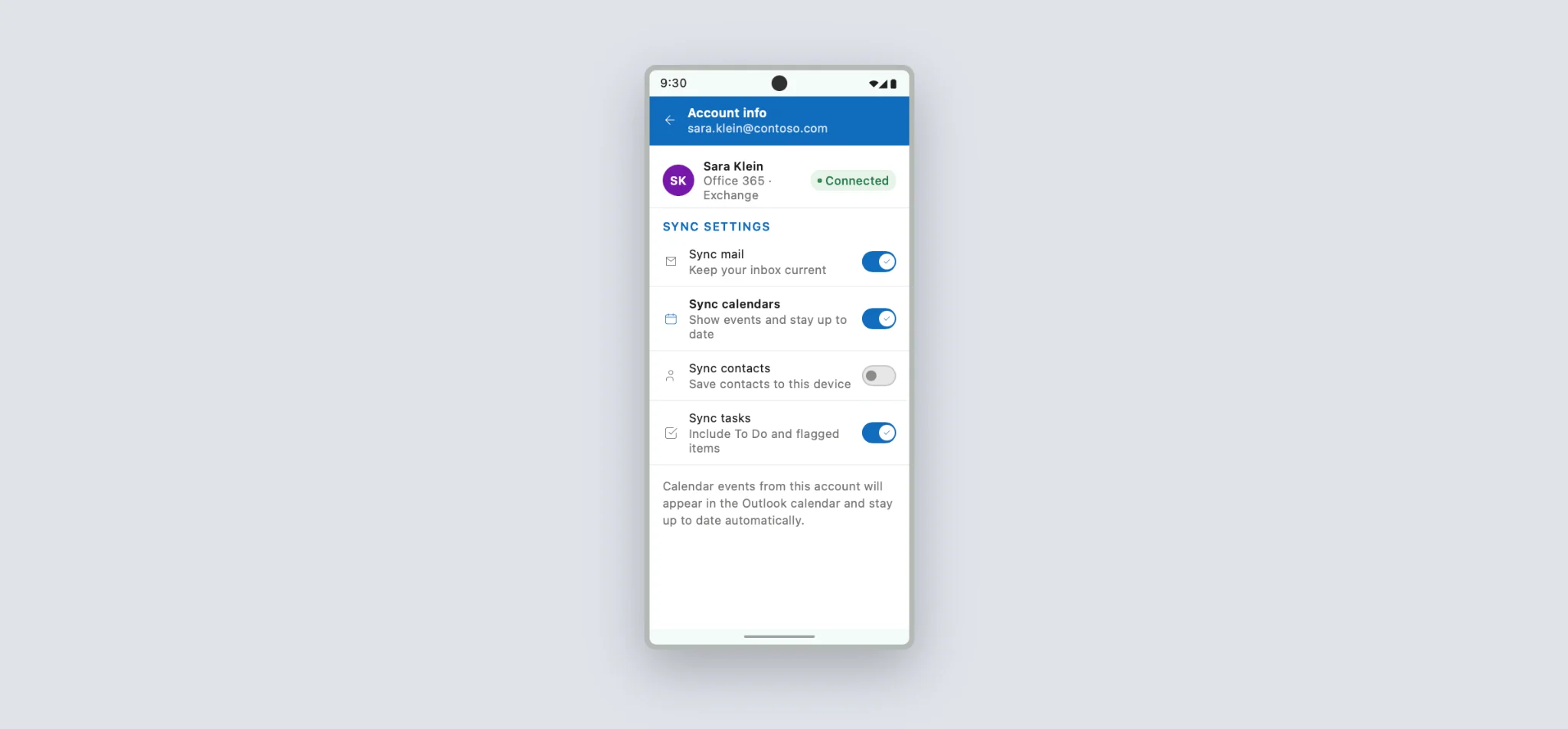
Pic. 5. Screenshot: calendar sync toggle in Outlook mobile account settings (Android)
Outlook Shared Calendar Sync Issues
Shared calendars fail in their own particular ways, because a second variable enters the picture: permissions. Typical symptoms are a shared calendar that shows events days out of date, changes by one person that never appear for another, or a calendar that displays for some team members but not others.
Why shared calendars fall out of sync
- Permission changes. If the owner adjusts or re-shares permissions, existing connections can break silently until the calendar is re-added.
- Access level mismatches. Reviewer-level users see items but can’t change them; Editor and Delegate levels can modify events — and simultaneous edits by several editors are the main source of conflicts, where the most recent change typically wins.
- Caching. Shared folders are cached locally like everything else, and a stale cache is even more visible on a calendar many people watch.
- Mixed client versions. Old Outlook builds talking to the modern shared-calendar sync platform cause delays and one-way updates; keeping everyone updated matters more for shared calendars than anywhere else.
How to fix shared calendar sync problems
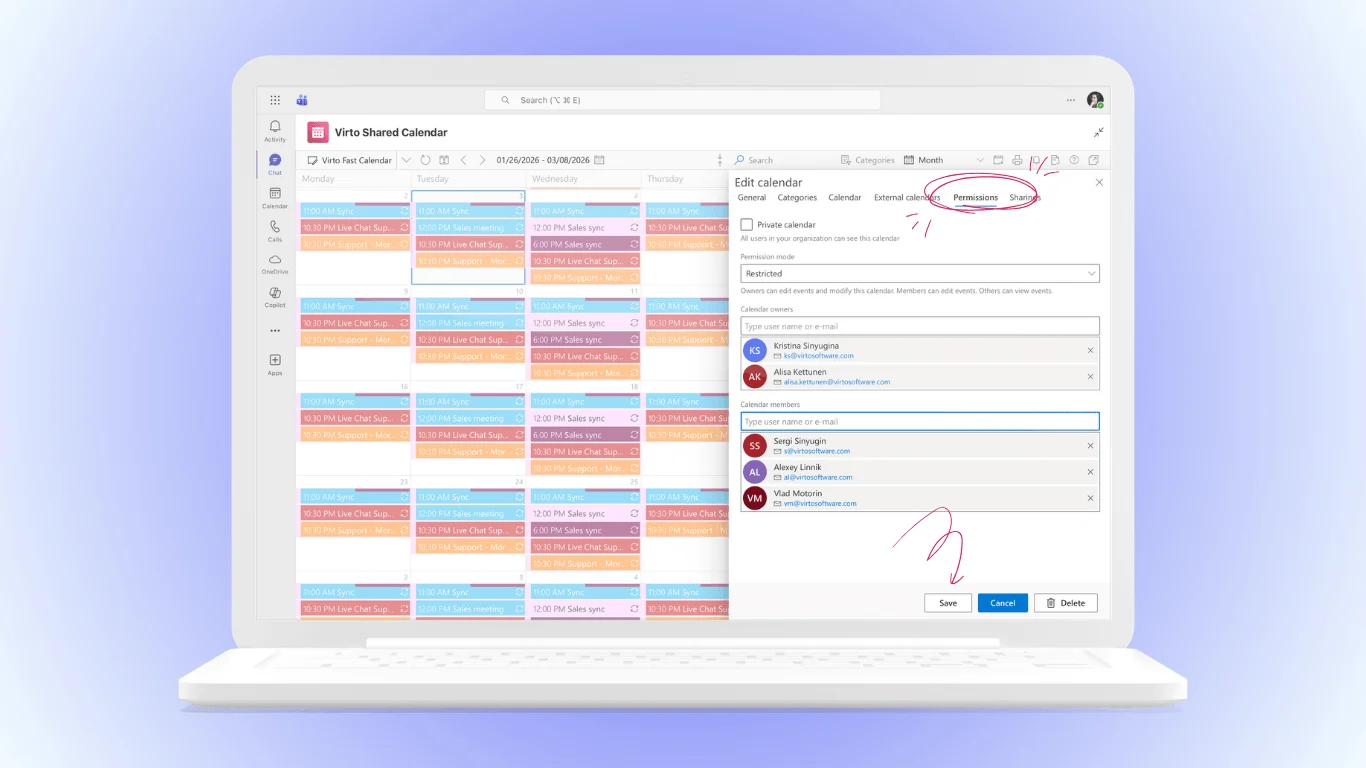
- Check your permission level. Right-click the shared calendar → Properties (Windows) / Sharing Permissions → Permissions tab, and confirm you have at least the level you need. If it’s wrong, only the calendar owner can change it — the fix happens on their side, not yours.
- Refresh the calendar data. Force a sync (Step 4 above) with the shared calendar selected.
- Confirm “Download shared folders” is on (classic Outlook: Account Settings → Change → More Settings → Advanced) — with it off, shared calendars update only sporadically.
- Test in Outlook on the web. If the shared calendar is correct in OWA but stale in the desktop app, clear the local cache (Step 5).
- Remove and re-add the shared calendar. Right-click → remove it from your view, ask the owner to share it again, and accept the new invitation. This resets the sharing connection and clears corrupted permission states — it’s the shared-calendar equivalent of rebuilding a profile.
If a shared calendar consistently lags for the whole team, ask IT to check the mailbox and tenant health — at that point it’s not a client problem.
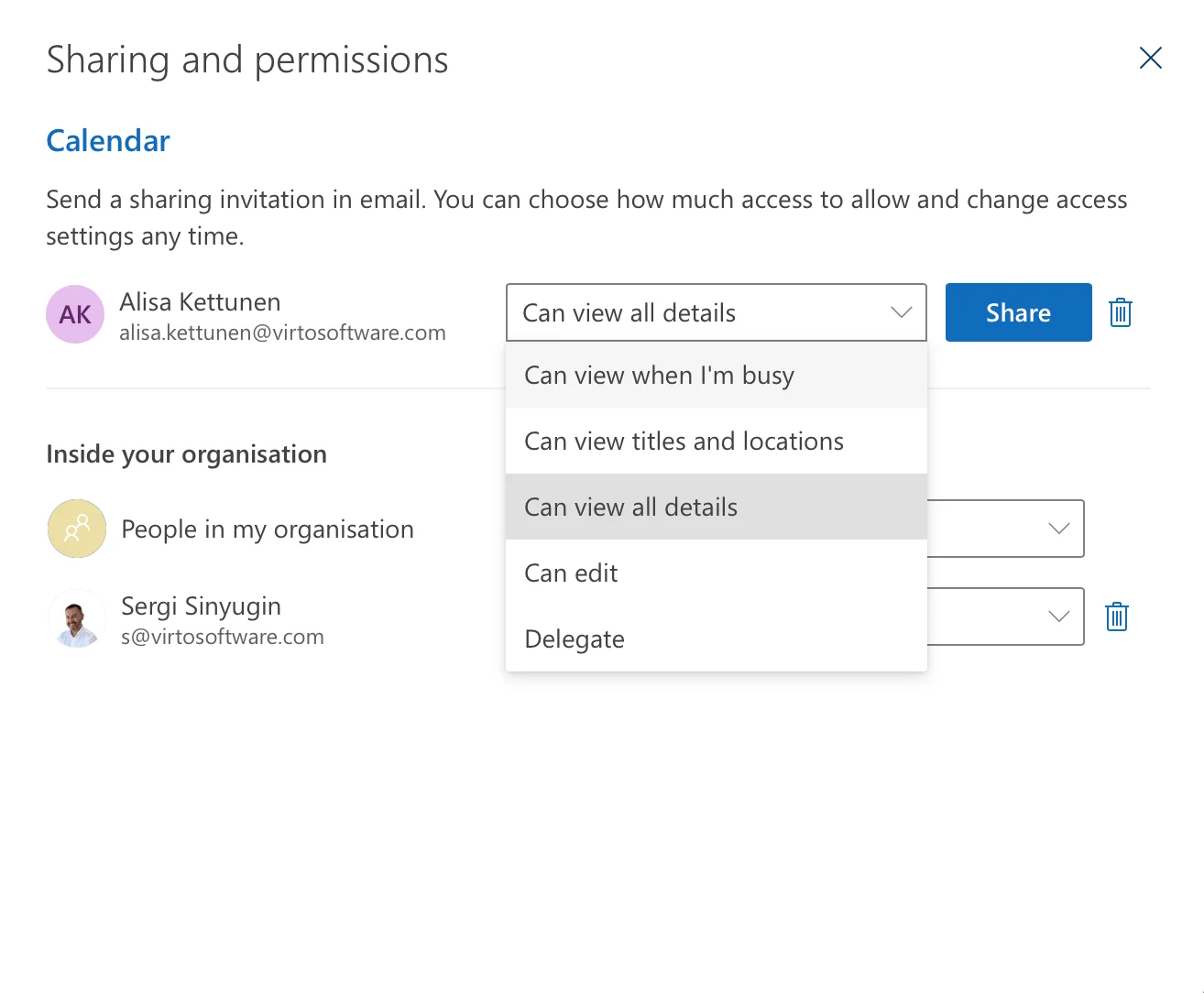
Pic. 6. Screenshot: shared calendar Permissions tab in Outlook (permission levels list)
Syncing Outlook with Google, Teams, and Microsoft 365
Everything above covers Outlook syncing with itself — the same account across your own devices and shared calendars inside one organization. Cross-platform pairings are a different class of problem, with their own connectors, their own failure modes, and their own fixes. We keep a dedicated troubleshooting guide for each pairing:
- Outlook ↔ Google Calendar. Subscription delays, one-way ICS feeds, and third-party sync tools — see Google Calendar not syncing with Outlook.
- Outlook ↔ Microsoft Teams. Teams meetings missing from Outlook (or vice versa), the Teams Meeting add-in, and channel calendar quirks — see Teams calendar not syncing with Outlook.
- Teams ↔ Google Calendar. Bridging the two ecosystems for mixed-stack teams — see how to sync a Microsoft Teams calendar with Google Calendar.
- Microsoft 365 shared calendars. Since Microsoft 365 calendars are Outlook calendars on the same Exchange Online backend, the fixes in this guide apply directly. For setup rather than troubleshooting, see how to share a calendar in Outlook and managing multiple Microsoft 365 calendars.
Short version: if your problem involves Google or Teams specifically, the spoke guides above will get you further than generic Outlook troubleshooting.
How to Prevent Outlook Calendar Sync Problems
A few habits eliminate most future sync headaches:
- Keep everything updated. Enable automatic updates for Outlook and the OS on every device — most sync regressions are already fixed in a newer build.
- Use one authoritative account. A Microsoft 365 / Exchange account syncs fully across devices; avoid keeping parallel local or IMAP calendars that can’t stay in step.
- Mind mailbox storage. A quota-full mailbox stops syncing new items; archive old mail before it becomes a calendar problem.
- Keep shared permissions clean. Grant the minimum level each person needs, and re-share deliberately after permission changes instead of leaving broken connections in place.
- Check the web version first. Whenever something looks wrong, a 30-second glance at Outlook on the web tells you immediately whether the problem is local or server-side.
Bring all calendars into one reliable view with Virto Calendar
If your team constantly juggles multiple calendars — personal Exchange calendars, shared team calendars, meeting rooms, SharePoint events, even external Google feeds — a big share of “sync issues” are really visibility issues: the data exists, it’s just scattered across sources that each sync on their own schedule. The Virto Calendar App for Microsoft 365 and SharePoint solves this by overlaying all those sources into a single reliable calendar view inside Microsoft 365, SharePoint, or Teams.
Instead of hoping every individual calendar has synced everywhere, your team works from one aggregated view: Exchange Online calendars, SharePoint lists, meeting rooms, Planner tasks, and external iCal feeds (including Google Calendar), color-coded by source and governed by granular permissions. Changes in the underlying calendars appear in the overlay, so there’s one place to look — and one less way for schedules to drift apart.
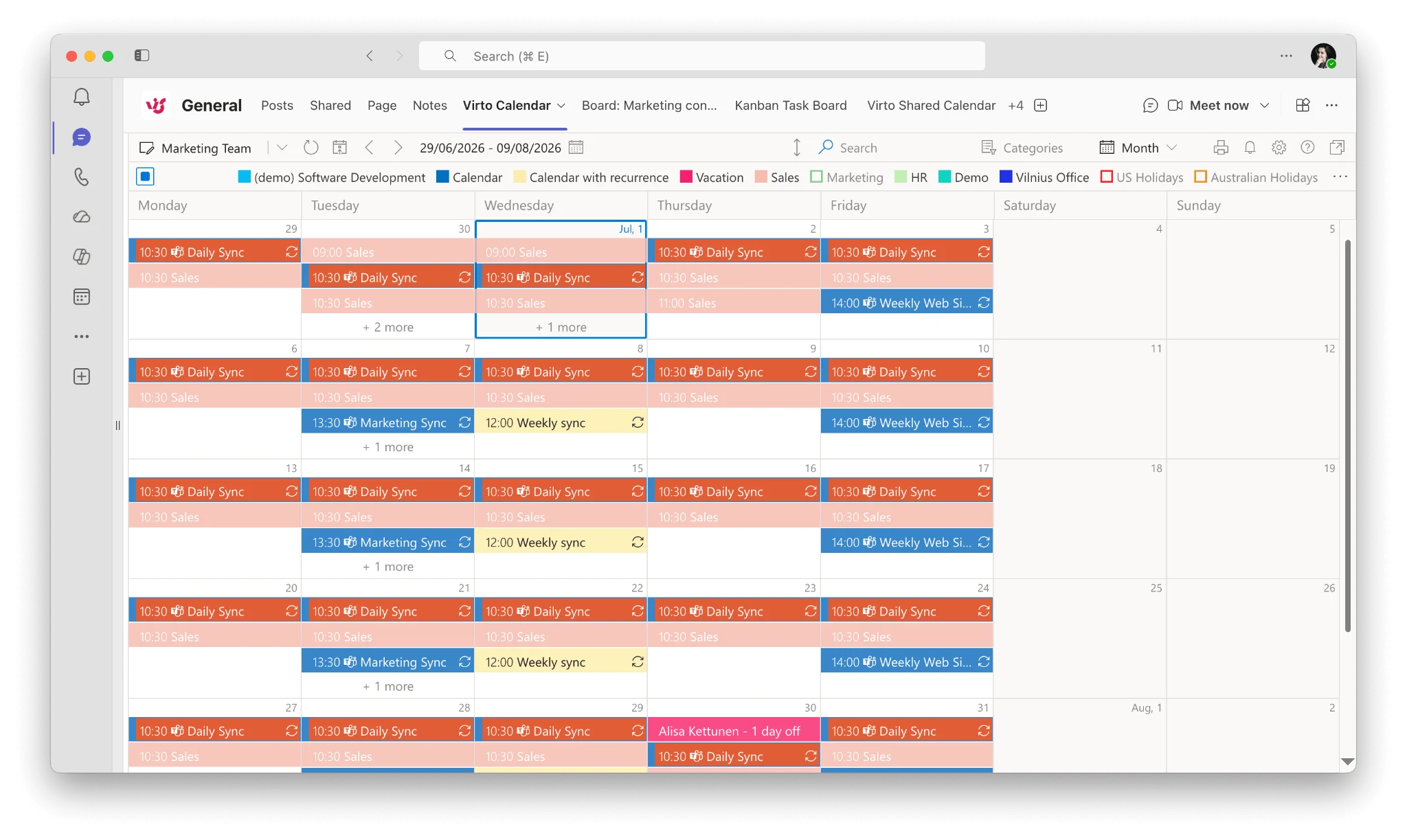
Pic. 8. Virto Calendar overlay view combining several Microsoft 365 calendar sources with color coding
FAQ: Outlook Calendar Sync
Why isn’t my Outlook calendar syncing?
Usually an account/sign-in issue, an outdated Outlook app, a corrupted local cache (OST), or a disabled sync setting; signing out/in, updating Outlook, and rebuilding the profile resolve most cases.
How do I force my Outlook calendar to resync?
Sign out and back in, update Outlook, clear/rebuild the OST cache, and confirm calendar sync is enabled in settings. For a quick manual push in classic Outlook for Windows, press F9 or use Send/Receive → Update Folder; on Mac, use Tools → Sync or Command+K.
Why is my Outlook calendar not updating with new meetings?
Check that you’re online and signed in, that the send/receive schedule isn’t set to manual, and that the app is up to date. For shared calendars, verify your permissions and that “Download shared folders” is enabled; if the calendar is correct in Outlook on the web but not in the app, rebuild the local cache.
How long does Outlook take to sync calendar changes?
Typically seconds to a couple of minutes. Longer, consistent delays point to a stale cache, an outdated app, background-refresh restrictions on mobile, or a service-side incident — work through the steps in this guide in order.
Conclusion
Outlook calendar sync problems feel chaotic, but they resolve into a short, orderly checklist: verify the connection and service health, update the app, check the account and sync settings, force a sync, rebuild the cache, and — if all else fails — re-add the account or recreate the profile. Shared calendars add permissions to that list, and cross-platform pairings with Google or Teams have their own dedicated guides linked above.
And if the underlying issue is that your organization simply has too many calendars in too many places, consider consolidating them: Virto Calendar App overlays every Microsoft 365, SharePoint, and external calendar source into one dependable view — so the next time someone asks why the calendar is out of sync, the answer is a click away, not a support ticket. You can try it free from Microsoft AppSource or book a quick demo with the VirtoSoftware team.