



Shared calendars keep a team pulling in the same direction — one place where everyone can see meetings, deadlines, and who is available. Microsoft Teams gives you several native ways to set one up, each with its own strengths and trade-offs. This guide walks through how to create, share, and manage a shared calendar in Teams, where the built-in options run out of road, and a simpler alternative when they do.
Quick answer: how to create a shared calendar in Teams
The fastest native route is to add a Channel Calendar to a team channel:
- Open the Teams channel where the calendar should live.
- Click the + (Add a tab) icon at the top of the channel.
- Search for Calendar, select it, give it a name, and click Save.
- The calendar now appears as a tab and is visible to every member of that channel.
When is native enough? A Channel Calendar works well if everyone who needs the calendar is inside one Teams channel and you do not need to share with external people or control who can edit. If you need external sharing, granular permissions, or an overlay of several calendars, you will need Outlook sharing or a dedicated app — covered below.
What is a shared calendar in Microsoft Teams?
A shared calendar in Microsoft Teams is a calendar that more than one person can view and, depending on permissions, edit. In practice the term covers a few different things: a Channel Calendar built into a Teams channel, a Microsoft 365 Group calendar surfaced through Outlook, or a personal Outlook calendar shared with specific colleagues. Teams itself has no single standalone “shared calendar” object — what you choose depends on who needs access and how tightly you need to control it.
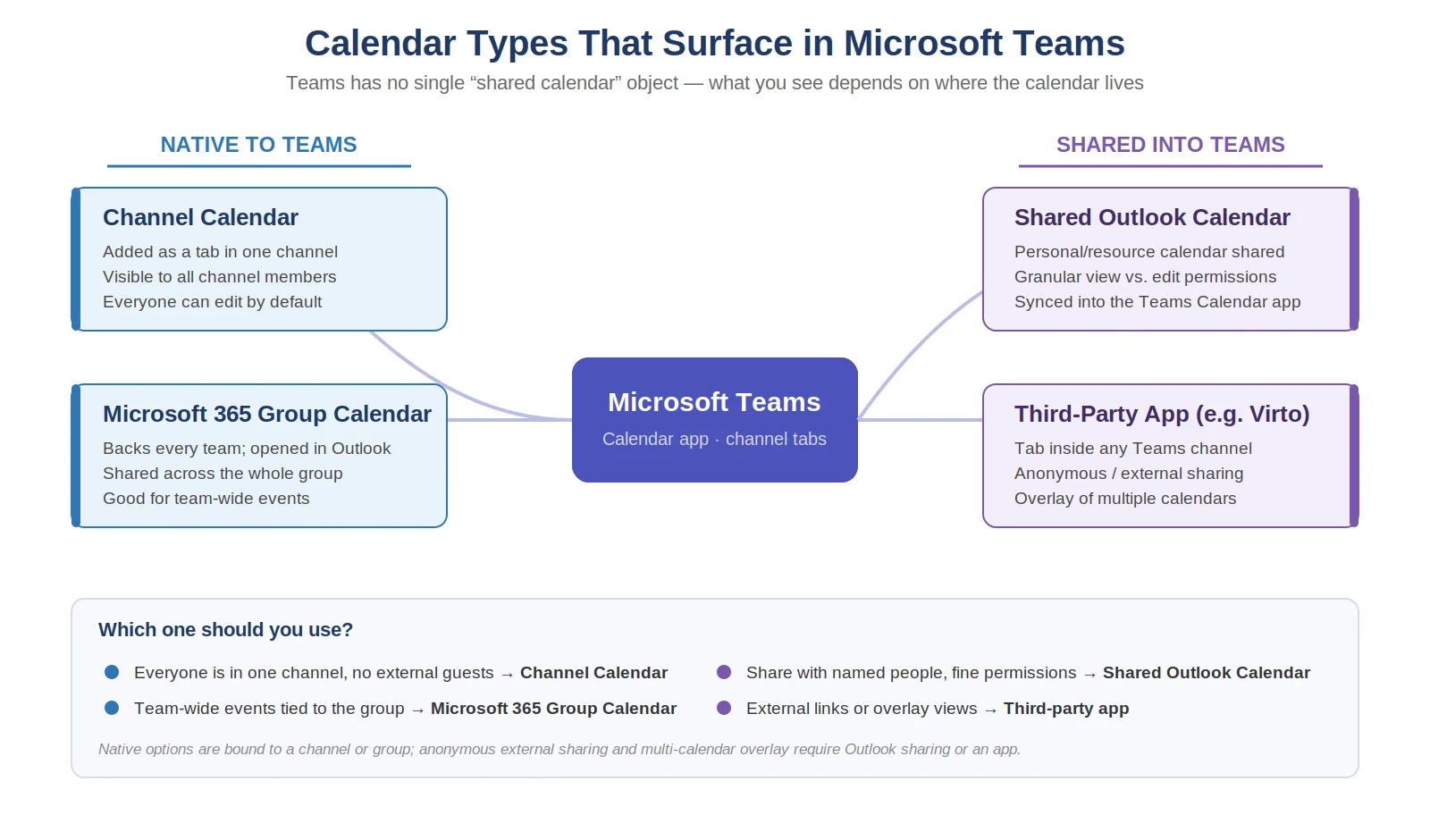
Diagram: the different calendar types that surface in Microsoft Teams
Native ways to add a shared calendar in Teams
Microsoft Teams does not offer a dedicated “create shared calendar” button. Instead, you reach a shared calendar through one of three native paths.
1. Channel Calendar app
The Channel Calendar app is the closest thing to a native shared calendar in Teams. Added as a tab in a channel, it is visible to all members of that channel and any member can add events. It is ideal for channel-specific events and deadlines.
- In the target channel, click the + icon to add a tab and choose “Apps”.
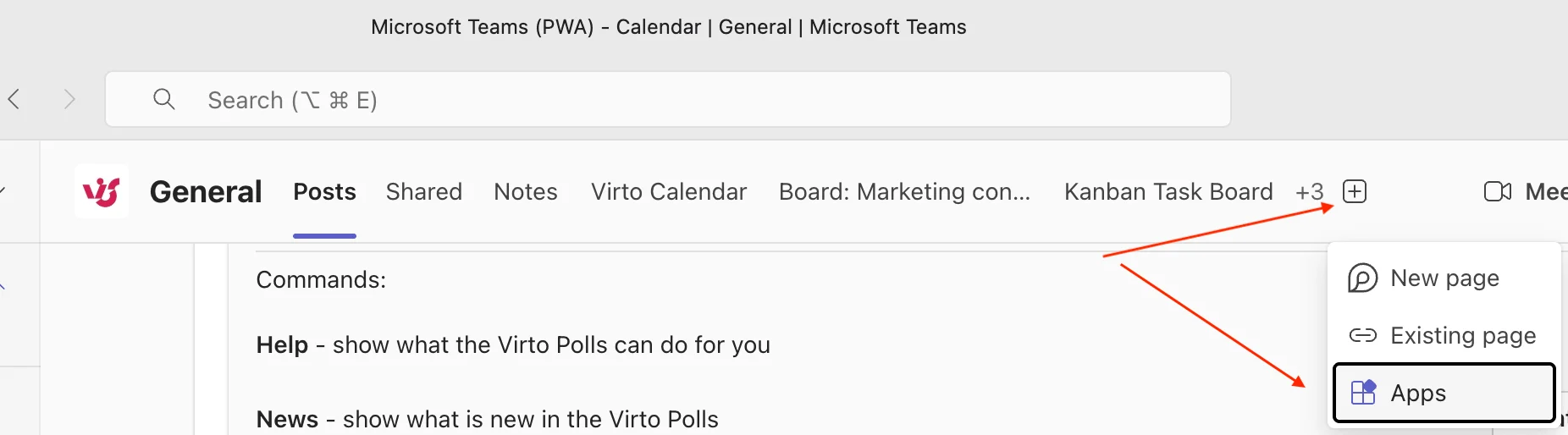
Adding a new tab to a Teams channel
- Search for and select Calendar.
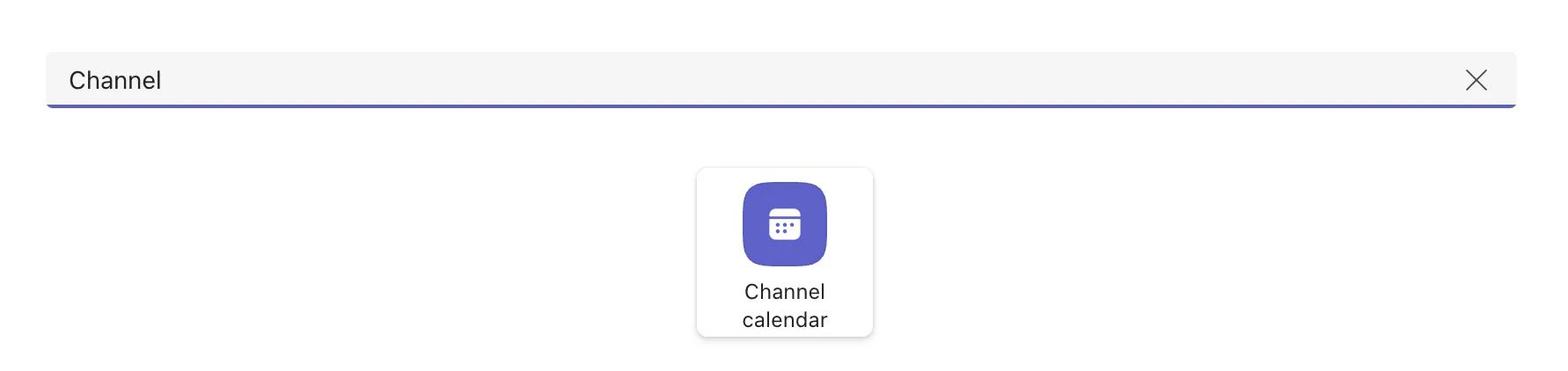
Selecting the Channel Calendar app
- Name the calendar and click Save. It now appears as a tab for the whole channel.
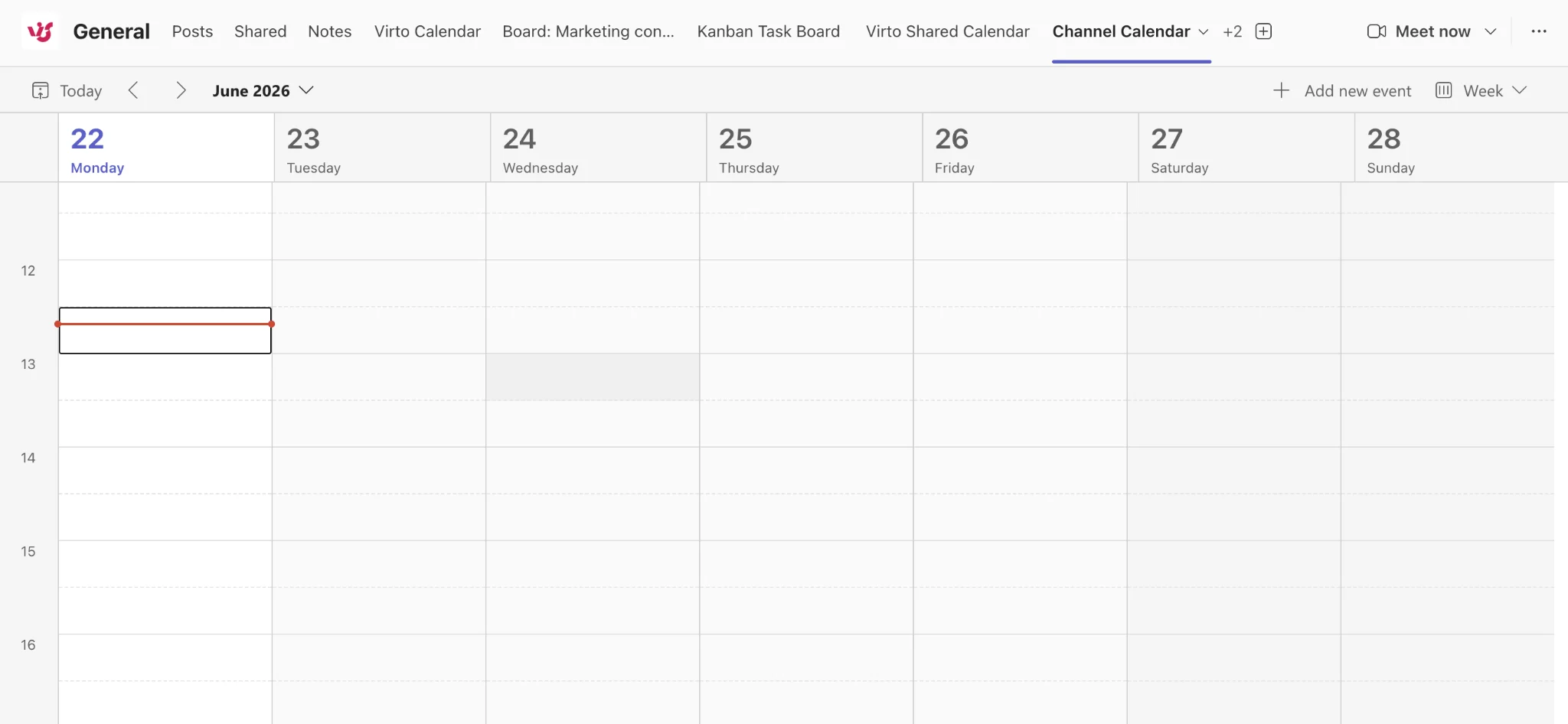
The Channel Calendar tab in place
2. Microsoft 365 Group calendar (via Outlook)
Every team in Teams is backed by a Microsoft 365 Group, and each Group has its own calendar. Members can open this Group calendar in Outlook (web or desktop), where events are shared automatically across the group. This is useful for team-wide events that should live with the group rather than a single channel.
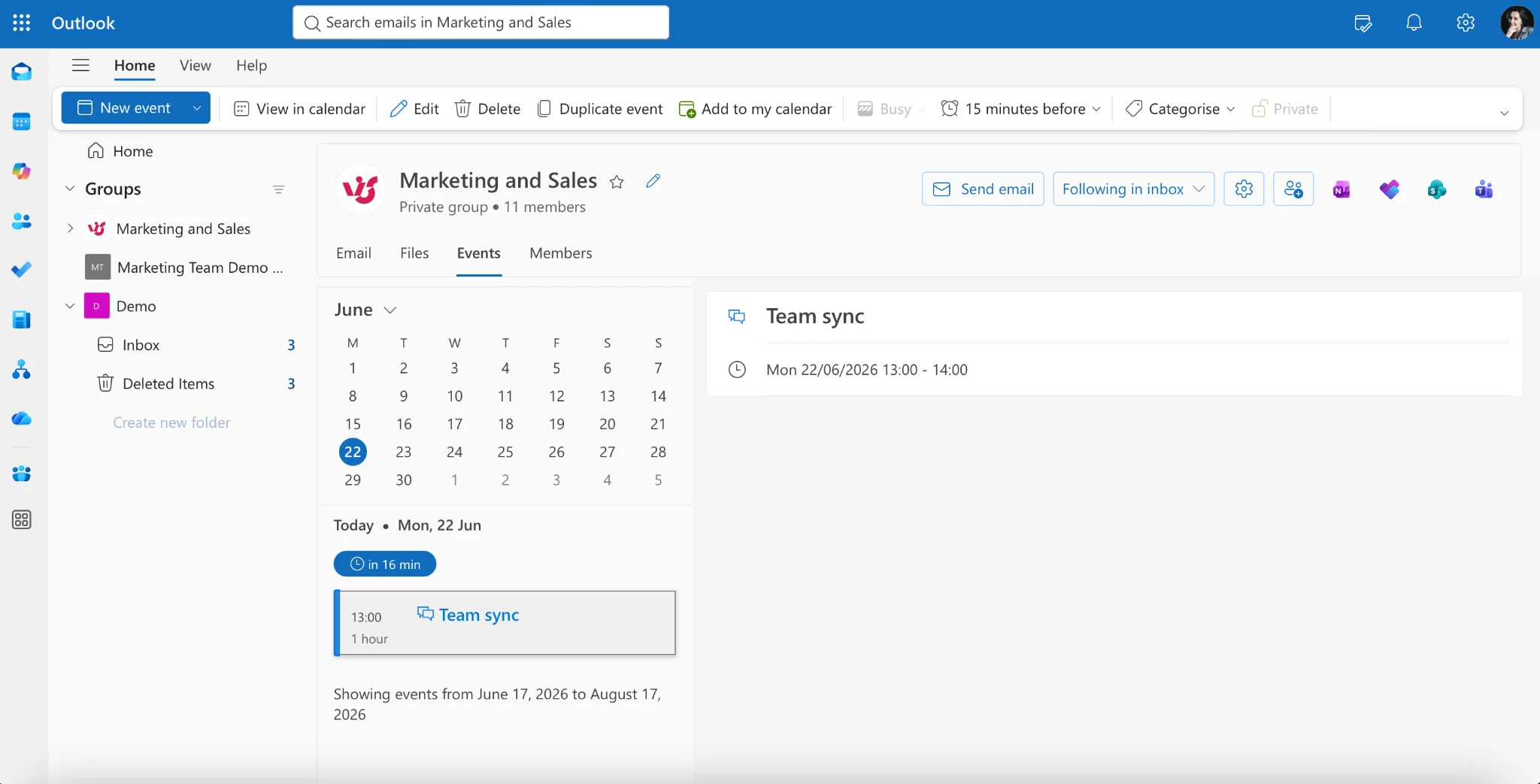
Opening a Microsoft 365 Group calendar in Outlook
3. Shared Outlook calendar surfaced in Teams
You can share a personal or resource Outlook calendar with specific people and let them view it through the Teams Calendar app, since Teams syncs with Outlook. This is the route to take when you need to share with named individuals rather than an entire channel.
- In Outlook, right-click the calendar and choose Sharing and permissions.
- Enter the person’s email, choose a permission level, and click Share. The calendar then appears for them in both Outlook and Teams.
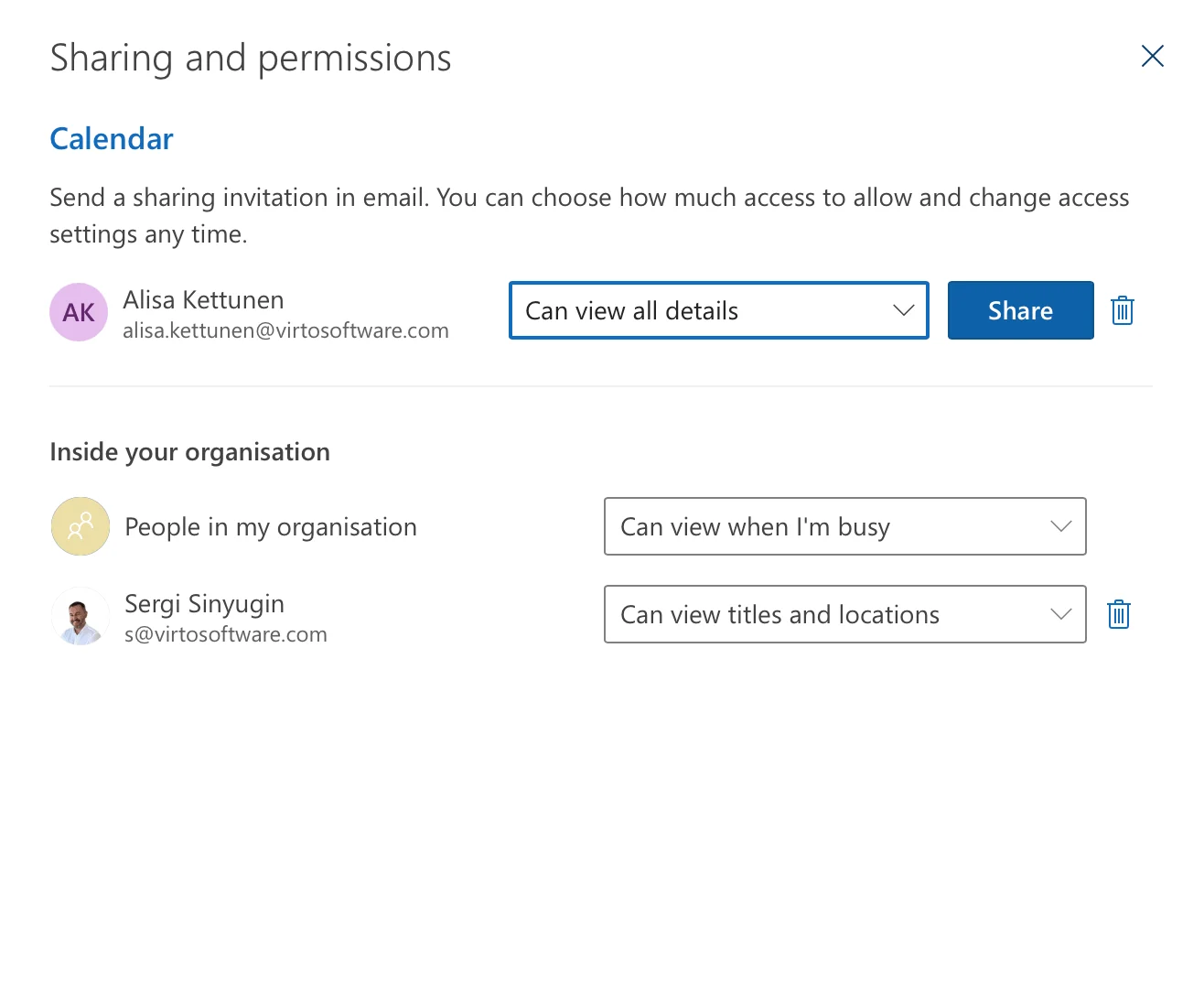
Sharing an Outlook calendar with permission levels
Native Teams calendar limitations
The native options cover everyday coordination, but teams quickly hit their edges. Knowing these limits up front saves a lot of frustration:
- Channel-bound. A Channel Calendar lives inside one channel and cannot easily span multiple teams or channels.
- No anonymous or external sharing. You cannot hand a simple link to a client or partner who has no Microsoft account — access is tied to team or channel membership.
- No overlay. There is no native way to layer several calendars into a single combined view.
- Coarse permissions. In a Channel Calendar every member can edit by default; fine-grained view-versus-edit control means falling back to Outlook sharing.
- Settings split between Teams and Outlook. Reminders and advanced calendar settings are often managed in Outlook rather than directly in Teams.
Easier shared calendars with Virto (overlay + anonymous sharing)
When the native limits get in the way, a dedicated app fills the gaps. Virto Shared Calendar for Teams installs as a tab in any Teams channel and adds the two things native calendars lack most often: anonymous sharing with people outside your organisation, and the ability to overlay multiple calendars in Teams in a single view. You can create, tag, and colour-code events without leaving Teams, and view them on the web as well.
For the full feature list, pricing, and a comparison with the native calendar, see the Virto Shared Calendar for Teams product page.
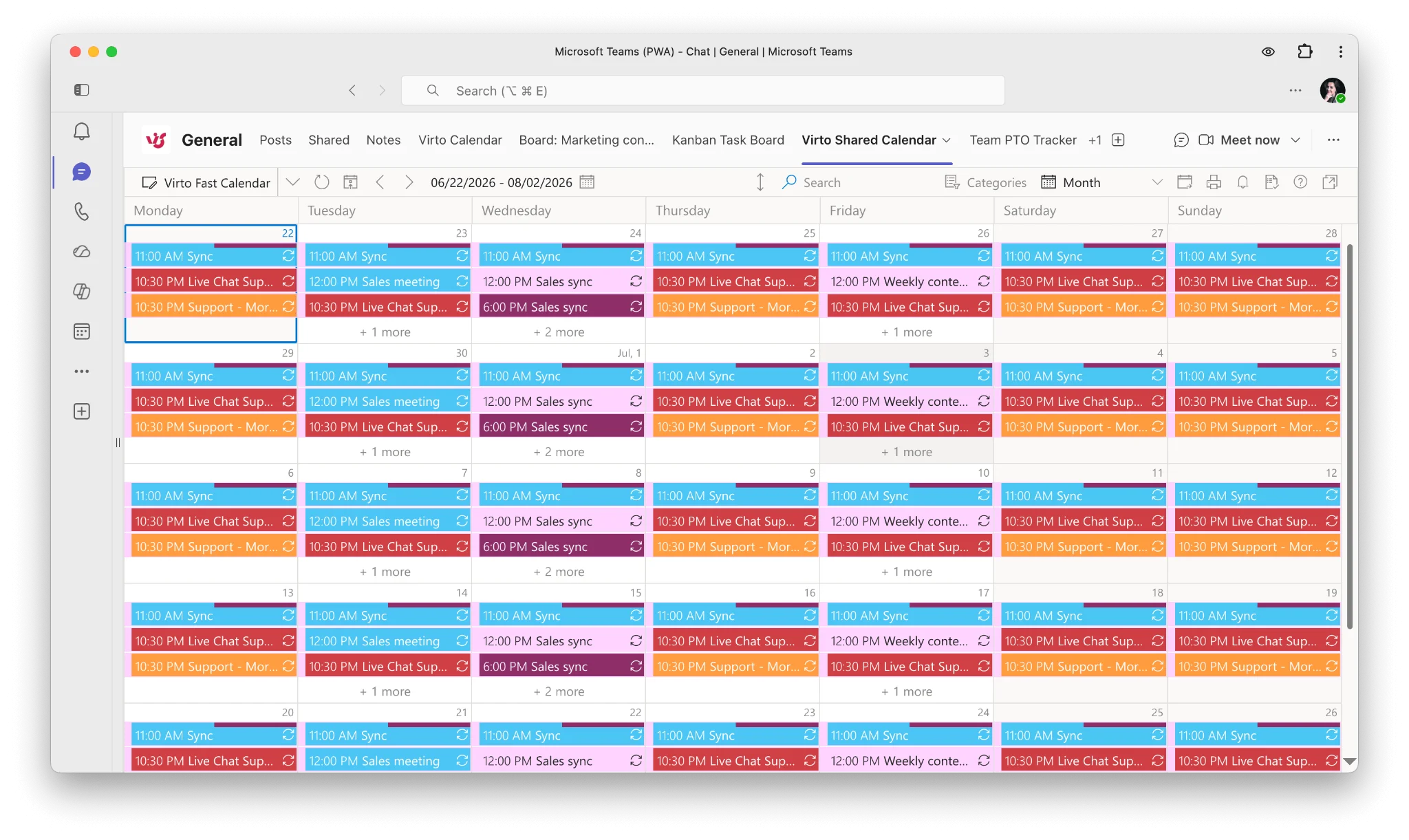
Virto Shared Calendar running as a tab in Microsoft Teams
How to manage permissions and share externally
Once a calendar exists, deciding who can see and change it is the next step. The control you get depends on which calendar type you chose.
View vs. edit roles
With a Channel Calendar, access follows team membership: owners have full control and members can view and edit by default. For more precise roles, share an Outlook calendar instead and pick a permission level when you share it:
- Can view when I’m busy — They see only free/busy blocks. No event titles, times-detail, or locations — just that you’re occupied.
- Can view titles and locations — They see the subject line and where the event is, but not the body, attendees, or notes.
- Can view all details — Full read access to every event, including descriptions, attendees, and attachments. Still read-only.
- Can edit — Everything in “view all details,” plus they can create, change, and delete events on the calendar.
- Delegate — Edit access plus the ability to act on your behalf: respond to and send meeting invitations as you. Optionally they can also see items you’ve marked private. This is the highest level.
They’re cumulative — each tier includes everything below it, moving from “just my availability” up to “act as me.”
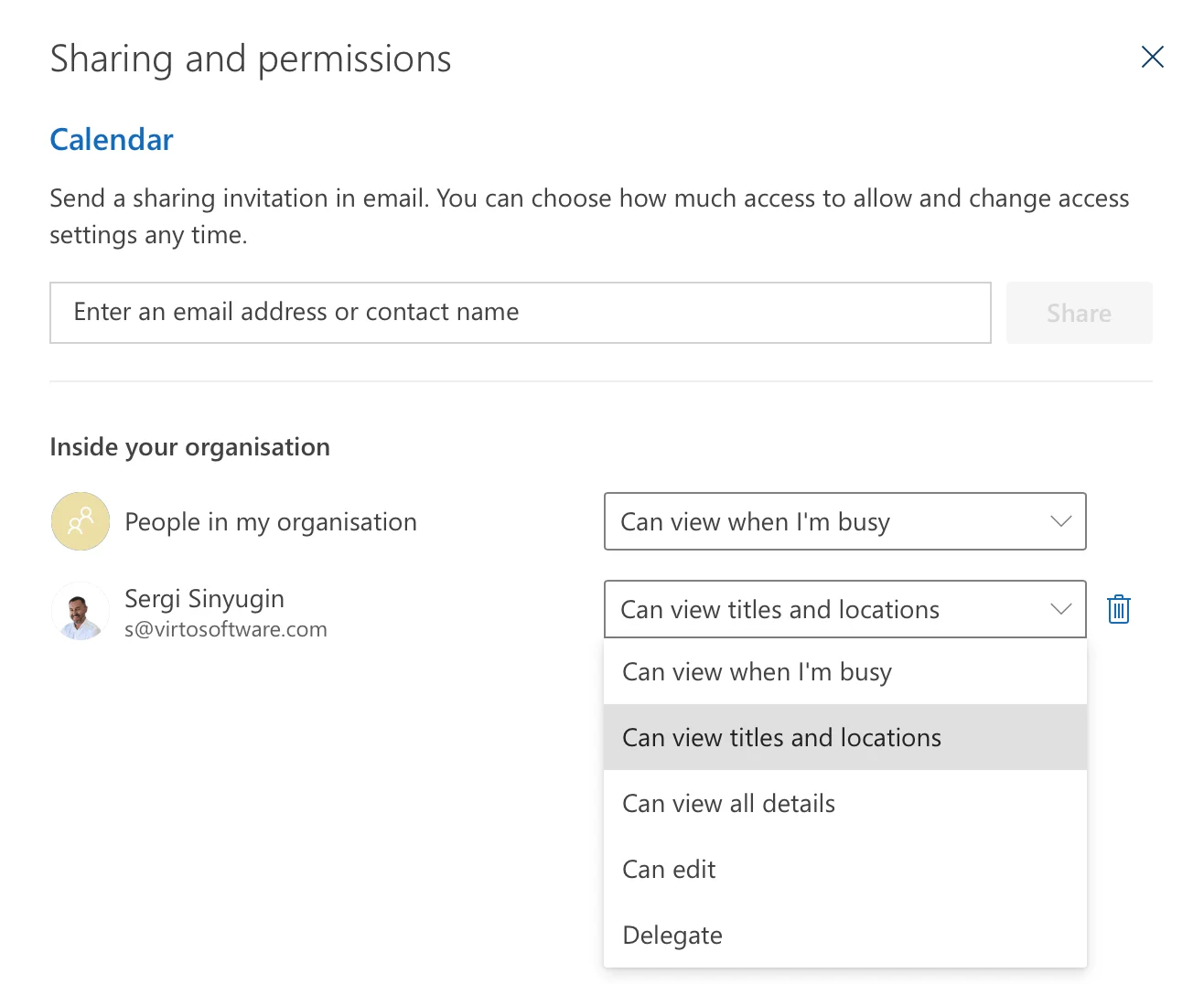
Choosing a permission level when sharing an Outlook calendar
Sharing with external users
Native Teams and Outlook sharing with people outside your organisation depends on your tenant’s external-sharing policies, and guests generally still need a Microsoft account to view a shared calendar. If you regularly work with clients or partners who should not have to sign in, an anonymous share link — available through Virto Shared Calendar — is the more practical option. Whatever route you take, review external access periodically and grant only what each person needs.
FAQ
How do I create a shared calendar in Teams?
Open the channel, click the + icon to add a tab, search for and select Calendar, name it, and save. The Channel Calendar is then shared automatically with everyone in that channel. For sharing with named individuals instead, share an Outlook calendar and view it through the Teams Calendar app.
Can I share a Teams calendar with external users?
Not directly through a Channel Calendar. Native external sharing relies on guest access and your tenant policies, and guests usually need a Microsoft account. To share with external people who have no account, use an anonymous share link from an app such as Virto Shared Calendar.
What are the limits of the native Teams calendar?
The Channel Calendar is tied to a single channel, offers only coarse edit-for-everyone permissions, cannot overlay multiple calendars, and has no anonymous external sharing. Advanced reminder and permission settings are handled in Outlook rather than in Teams.