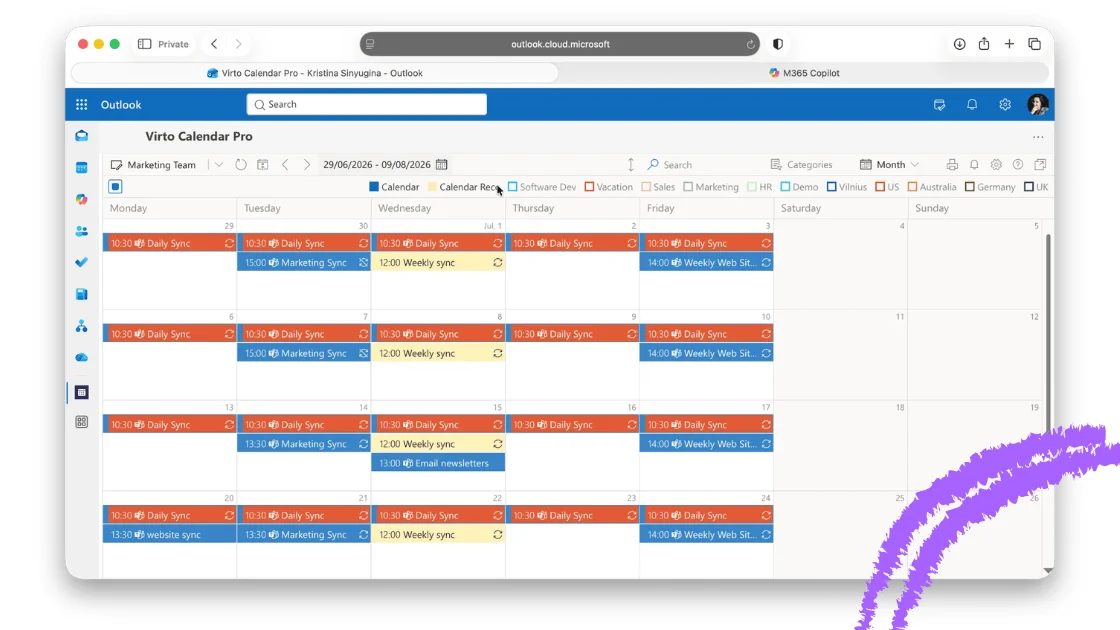
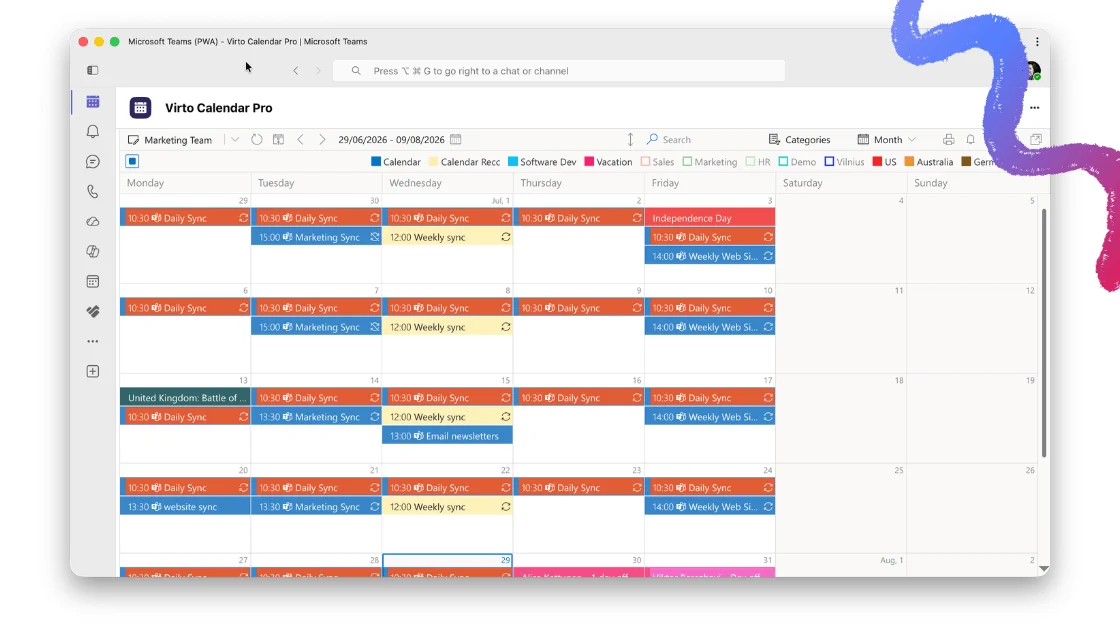
The Microsoft Teams calendar is where most Microsoft 365 users now live: it is the place you check what is coming up, schedule a meeting, and see what your team is doing this week — without ever opening Outlook. Over the last eighteen months Microsoft rebuilt it from the ground up, and a lot of the advice still circulating online (including our own earlier version of this guide) is now out of date.
This guide covers the hub: what the Teams calendar is, how to access and pin it, how views including month view work, channel calendars, sharing, and how to bring several calendars into one screen. Where a topic has its own deep guide — syncing with Outlook, syncing with Google, building a shared team calendar — we link you straight to it.
Quick answer: what is the Microsoft Teams calendar?
The Microsoft Teams calendar is the calendar app built into Microsoft Teams. It is not a separate calendar — it is a live view of your Outlook/Exchange calendar, so anything you create in Teams appears in Outlook and vice versa. You use it to see your schedule, schedule and join meetings, and view several calendars at once. Individual Teams channels can also have their own channel calendar, which is a filtered view of the team’s Microsoft 365 group calendar.
Two things follow from that, and they explain most of the confusion people have:
- You never “create” a personal Teams calendar. If you have a Microsoft 365 mailbox, you already have one.
- If something looks wrong in Teams, the cause is almost always in Exchange/Outlook, not in Teams.
What changed in the new Teams calendar
Microsoft shipped a rebuilt calendar (the “new calendar”) to general availability in January 2025, and removed the toggle back to the legacy version between January and February 2026. Unless you are in a government cloud (GCC, GCC High, DoD), you are on the new calendar now. That means:
| Capability | Legacy calendar | New calendar (today) |
|---|---|---|
| Month view on desktop/web | Not available | Available |
| Views | Day, Work week, Week | Day, Work week, Week, Month |
| Multiple calendars at once | No | Yes — split or combined view, calendar groups |
| Share your whole calendar from Teams | No | Yes, with five permission levels |
| Saved views, filters, printing | No | Yes |
| Meeting categories / colour coding | Limited | Yes |
If you still see only three views and no Share option, you are either on an old client or in a government tenant — update Teams first.
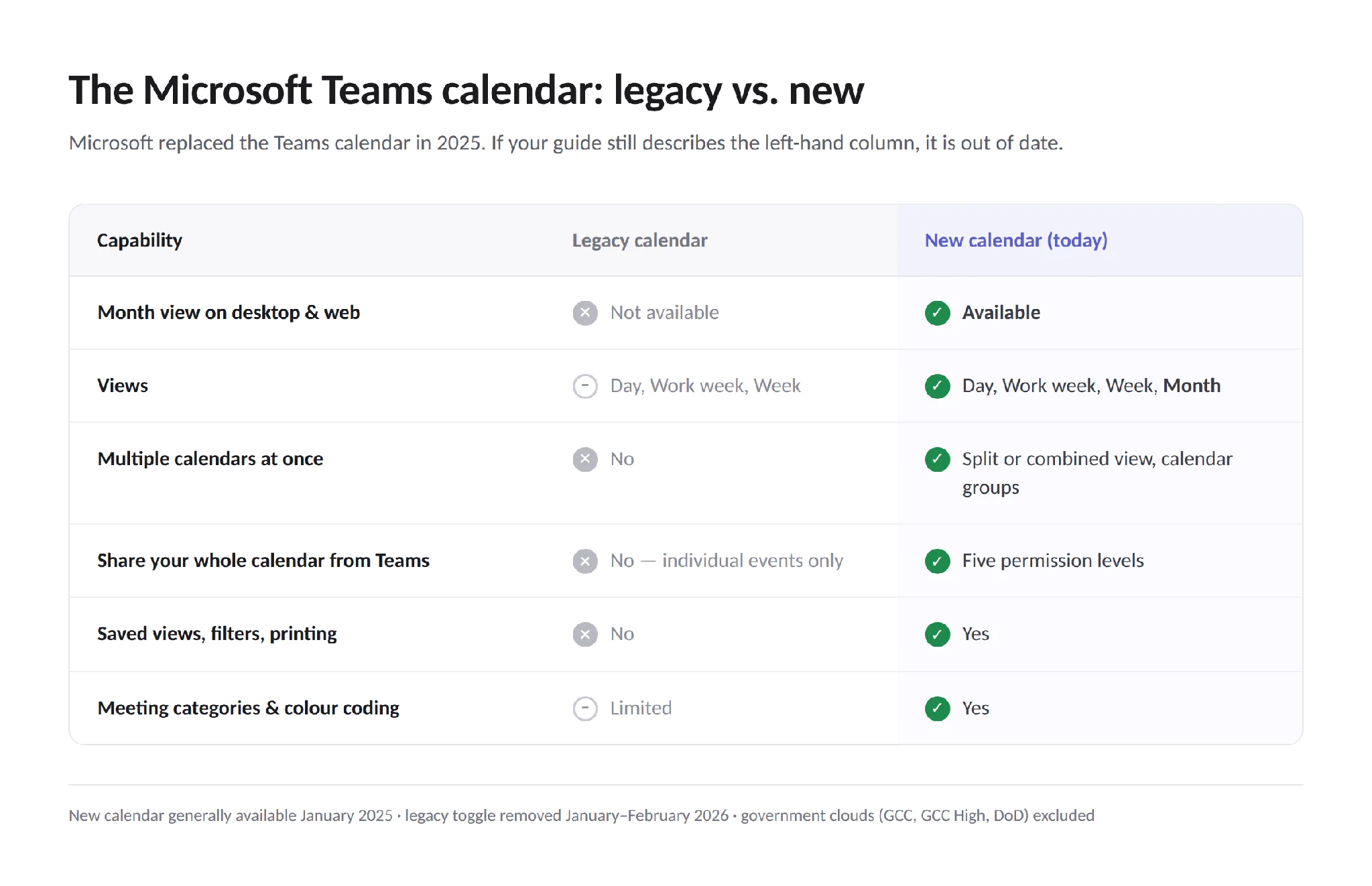
What changed between the legacy Teams calendar and the new one.
Heads-up for mobile users: Microsoft requires the Teams mobile app to be updated by 1 October 2026 to keep calendar functionality. Older builds will lose access to Calendar in Teams mobile. Desktop and web are unaffected.
How to access and add the Teams calendar app
The calendar usually sits in the left app bar by default. If it is not there:
- Open Microsoft Teams.
- Click the ••• (More apps) button on the left app bar.
- Type Calendar in the search box.
- Click Calendar to open it.
- Right-click the Calendar icon in the app bar and choose Pin so it stays visible.
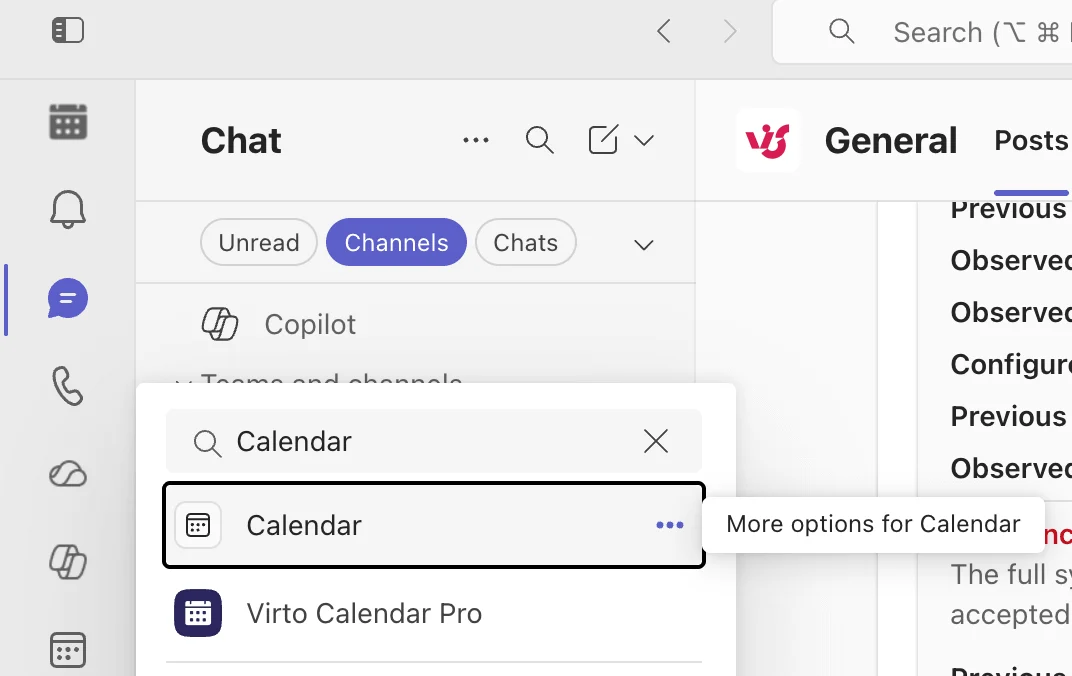
Search for Calendar under ••• (More apps), then right-click the icon to pin it.
No setup is required — it loads your Outlook calendar automatically. On Teams mobile, the calendar is one of the bottom-bar tabs; tap More and pin it if you do not see it.
If the Calendar app does not appear at all, it is usually one of three things: you are signed in with an account that has no Exchange Online mailbox, your admin has hidden the app through a Teams app setup policy, or your licence does not include Exchange Online. All three need an administrator to resolve.
Create events and schedule meetings
From the calendar, click New meeting (top right), or simply click and drag on any empty slot to create an event inline. The scheduling form gives you title, required and optional attendees, start and end time, recurrence, channel, location, and a description body that supports attachments and rich formatting.
Two shortcuts worth knowing:
- Scheduling Assistant — the tab at the top of the meeting form shows every attendee’s free/busy in a grid, so you can find a slot that actually works instead of guessing.
- Meet now — the button beside New meeting starts an instant meeting and lets you invite people into it, with no calendar entry needed.
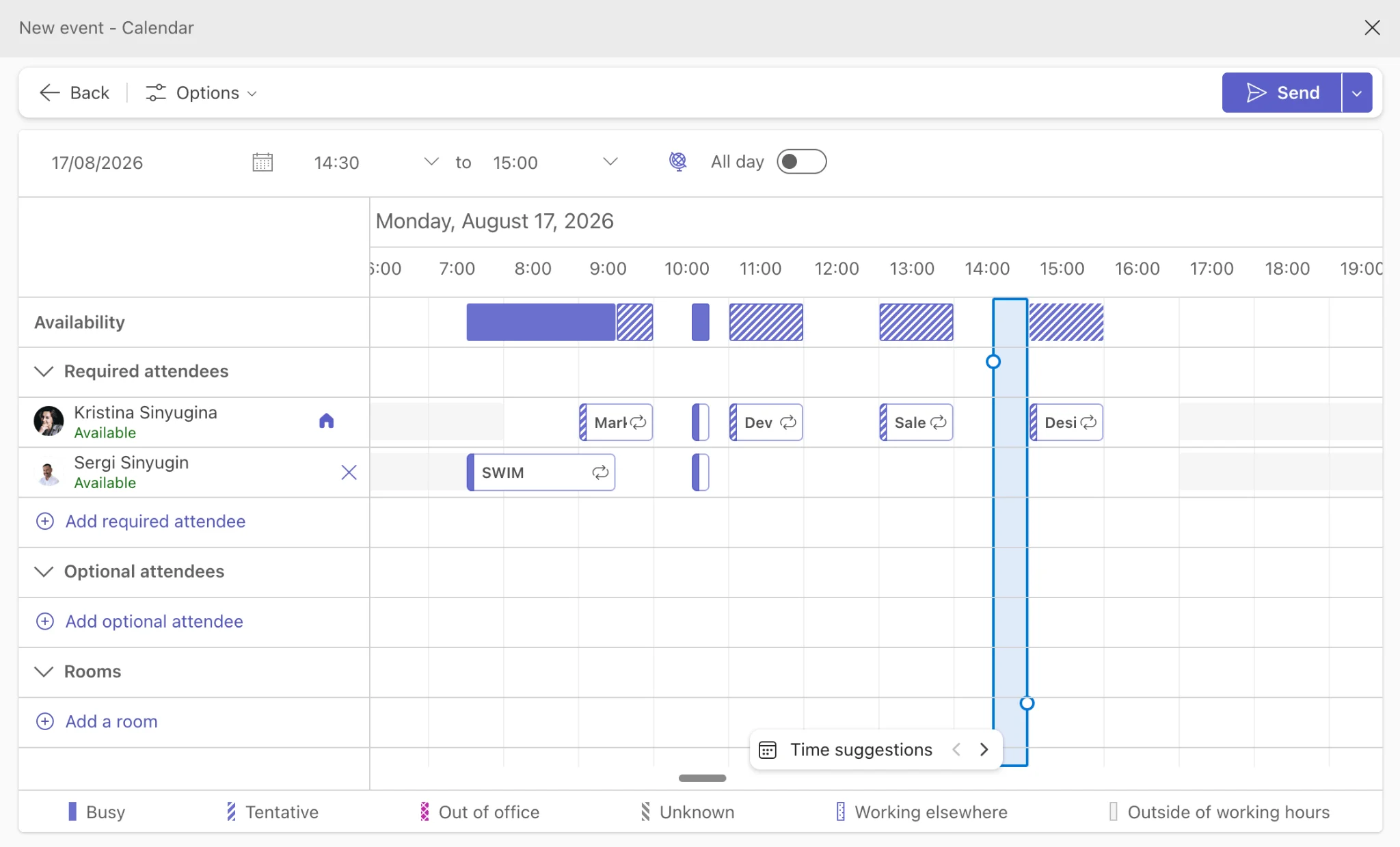
The New meeting form and Scheduling Assistant in the Teams calendar.
For the full walkthrough — recurring meetings, channel meetings, registration, and scheduling on someone else’s behalf — see our dedicated guide: How to schedule a Teams meeting.
Teams calendar vs. your Outlook calendar
They are the same calendar. Both read and write to the same Exchange Online mailbox, so there is no syncing to configure and no “master” copy — an event created in either surface appears in the other within seconds.
What differs is the interface and what each one is optimised for:
| Teams calendar | Outlook calendar | |
|---|---|---|
| Underlying data | Exchange Online mailbox | Same Exchange Online mailbox |
| Best for | Meetings, joining calls, team context | Long-range planning, email-driven scheduling, delegation |
| Advanced features | Growing fast; still fewer options | Categories, rules, complex delegation, room finder depth |
| Channel calendars | Yes | No (channel events surface via the group calendar) |
| Availability | Desktop, web, mobile | Desktop, web, mobile |
In practice: schedule and join in Teams, do heavyweight calendar administration in Outlook. If you want a team’s Teams calendar visible alongside your other Outlook calendars, follow how to add a Teams calendar to Outlook.
Teams calendar views, including month view
Click the view name at the top of the calendar (it shows the current view, e.g. Work week) to open the dropdown:
- Day — a single day. Use the arrows beside it to show several consecutive days side by side.
- Work week — Monday to Friday by default; your working days are taken from your Outlook settings.
- Week — all seven days.
- Month — the full month grid. This is the view people spent years asking for, and it is now standard.
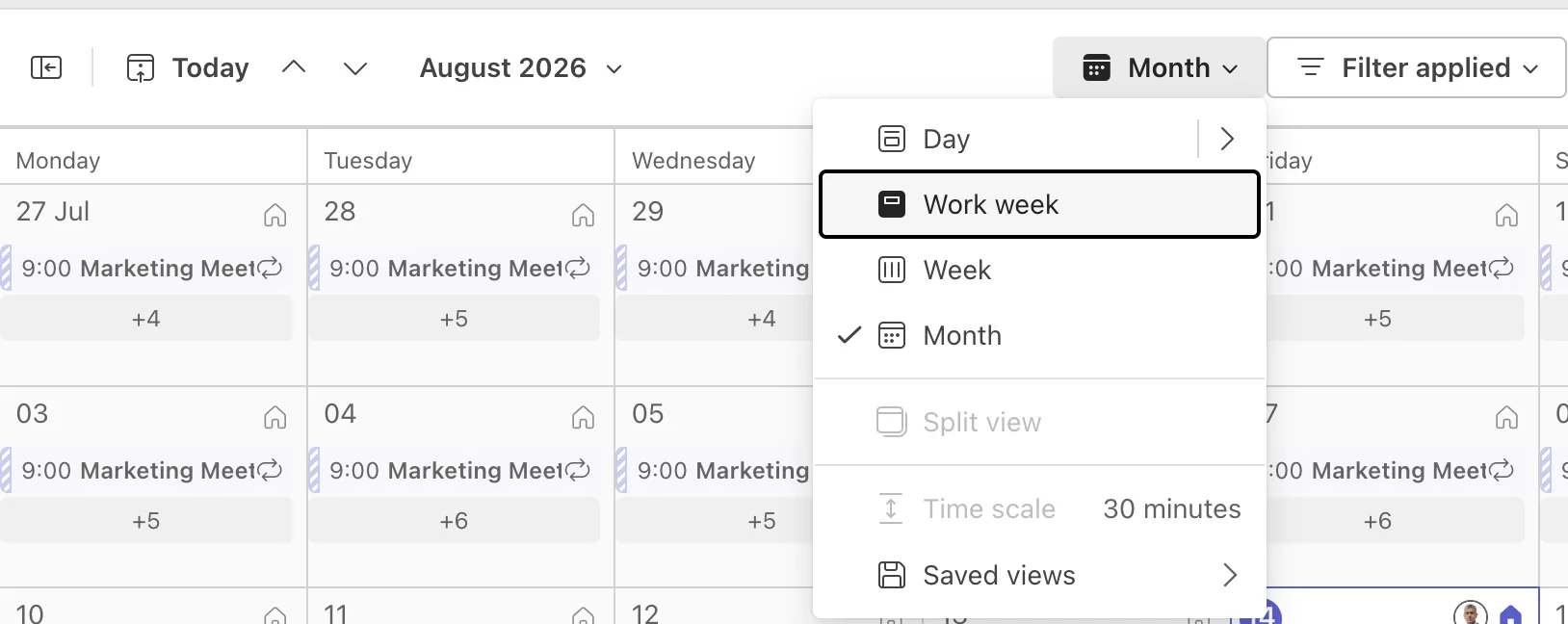
Click the view name at the top of the calendar to switch to month view.
Beyond the four views, the new calendar adds filters (hide declined events, show only meetings you organise), customisable time scales (compress or expand the hour rows), saved views, printing, and a pop-out calendar you can keep in its own window beside a chat.
Month view is still missing? Update your Teams client. Month view arrived with the new calendar and became universal when the legacy toggle was removed in early 2026 — the only remaining exceptions are government clouds. In those tenants, use the Outlook web calendar for a month overview, or add a third-party calendar tab (see below).
Viewing several calendars at once
The new calendar lets you add other people’s or resource calendars and display them together. Choose Split view to see them as side-by-side columns, or Combined view to overlay them in one grid with colour coding per source. You can group calendars — by team, by project — although a given calendar can belong to only one group at a time.
This is genuinely useful for a handful of calendars. If you need to overlay a dozen sources, including SharePoint lists, holidays, Google and iCloud, see the combined-view section below.
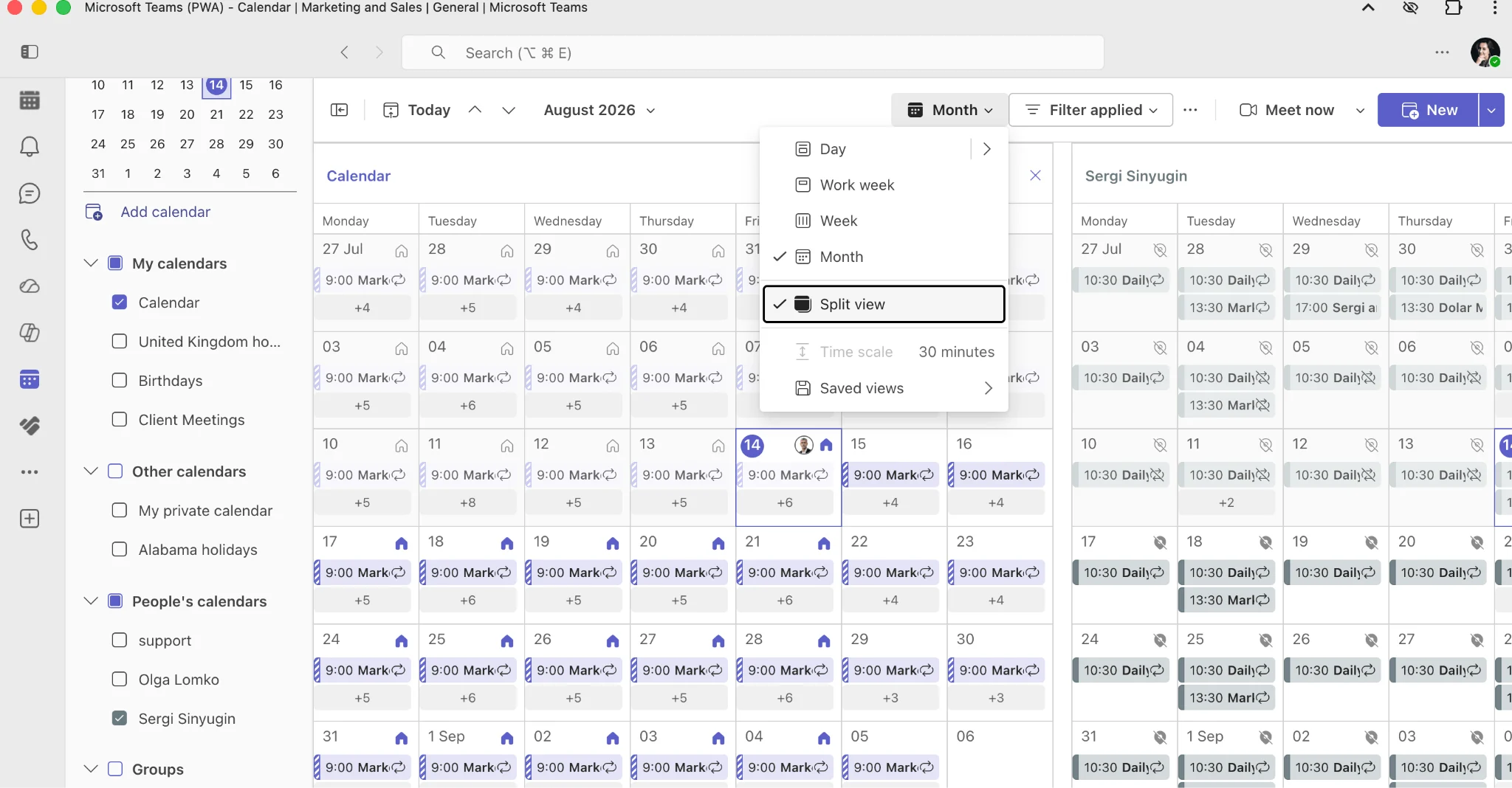
Split view puts calendars side by side.
Channel calendars in Microsoft Teams
A channel calendar is a tab you add to a Teams channel that shows only the meetings scheduled in that channel. It is a filtered view of the Microsoft 365 group calendar behind the team, not a new calendar.
To add one:
- Open the team and select the channel.
- Click + (Add a tab) at the top of the channel.
- Search for and select Channel calendar.
- Give the tab a name.
- Choose whether to post about it in the channel.
- Click Save.
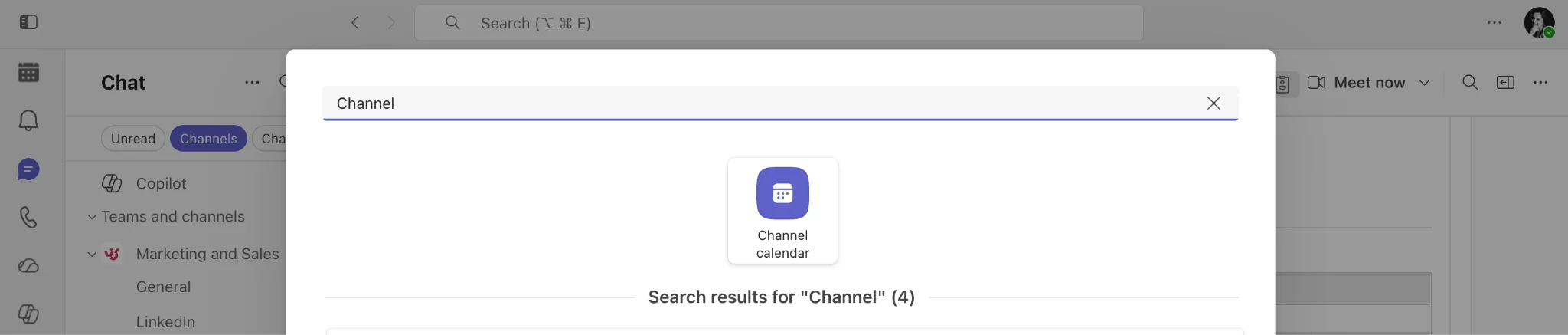
Add a channel calendar with the + button at the top of any standard channel.
Anyone can then schedule directly into it, and the meeting is announced in the channel so members can join without an individual invite.
Know the limits before you rely on it:
- It shows only the events for that specific channel, not the whole team.
- To get channel meeting invites in your personal calendar, you must be following the team’s Microsoft 365 group in Outlook.
- Channel calendars are not available in private channels. Support in shared channels is also absent in practice, since shared channels do not use the team’s group mailbox.
- Guests from outside the channel cannot view it.
- The channel calendar tab still has no month view of its own — month view is a feature of the main Teams calendar, not of the channel calendar tab.
Channel calendar vs. group calendar vs. personal calendar
- Personal calendar — your own Exchange calendar. Private by default; visible in Teams and Outlook.
- Microsoft 365 group calendar — belongs to the team, lives in Outlook, holds all events for the whole team.
- Channel calendar — a Teams tab showing the slice of that group calendar tagged to one channel.
If what you actually want is a proper shared team calendar that everyone can see and edit, that is a different job — read how to create a shared calendar in Microsoft Teams.
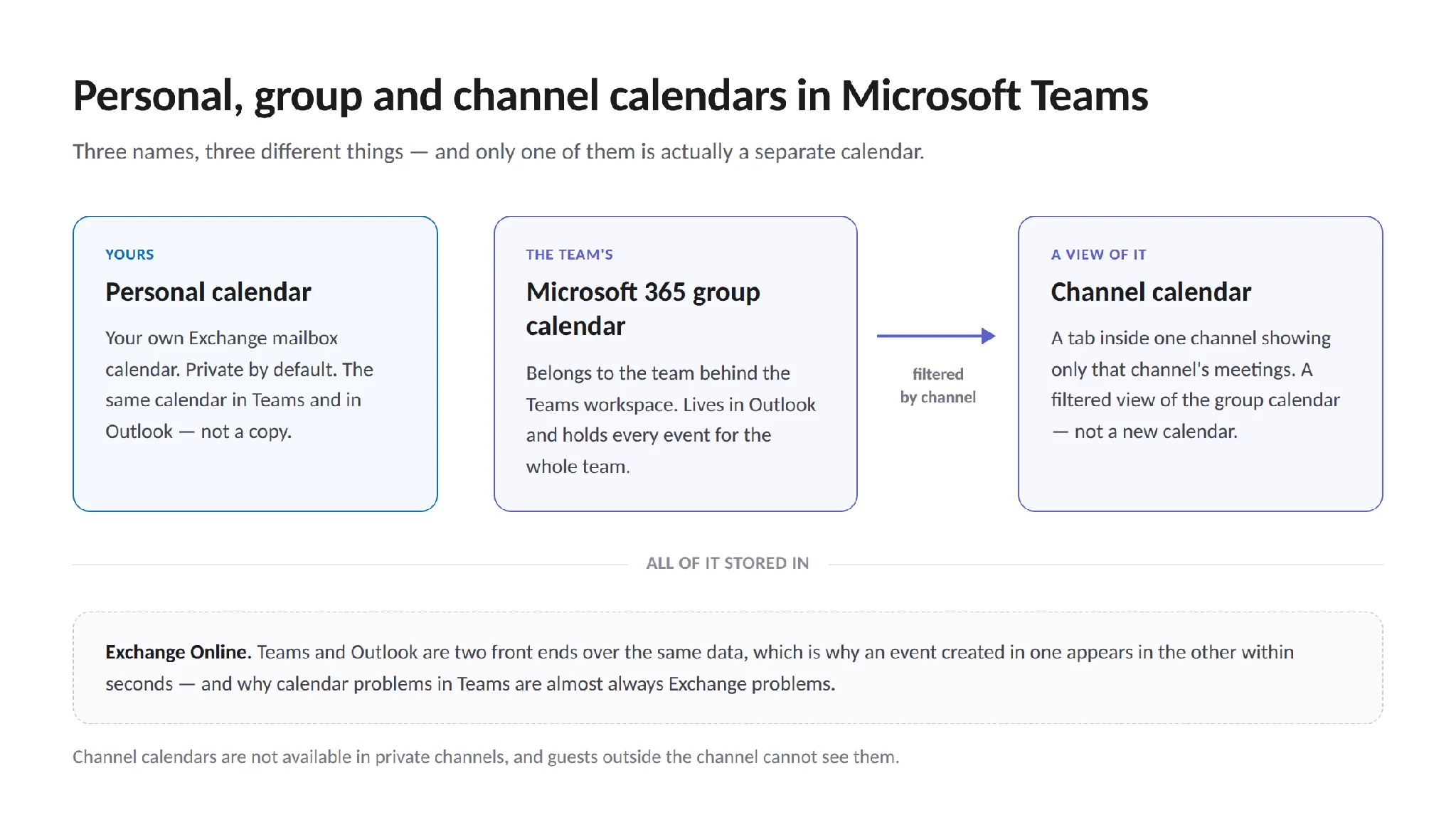
How the three calendar types in Microsoft Teams relate to each other.
How to share your Teams calendar
This is the biggest change to the Teams calendar, and older guides get it wrong. You can now share your entire calendar from inside Teams.
- Open Calendar in Teams.
- Click More options (•••) at the top of the calendar.
- Select Share.
- Enter the name or email address of the person.
- Choose a permission level and send.
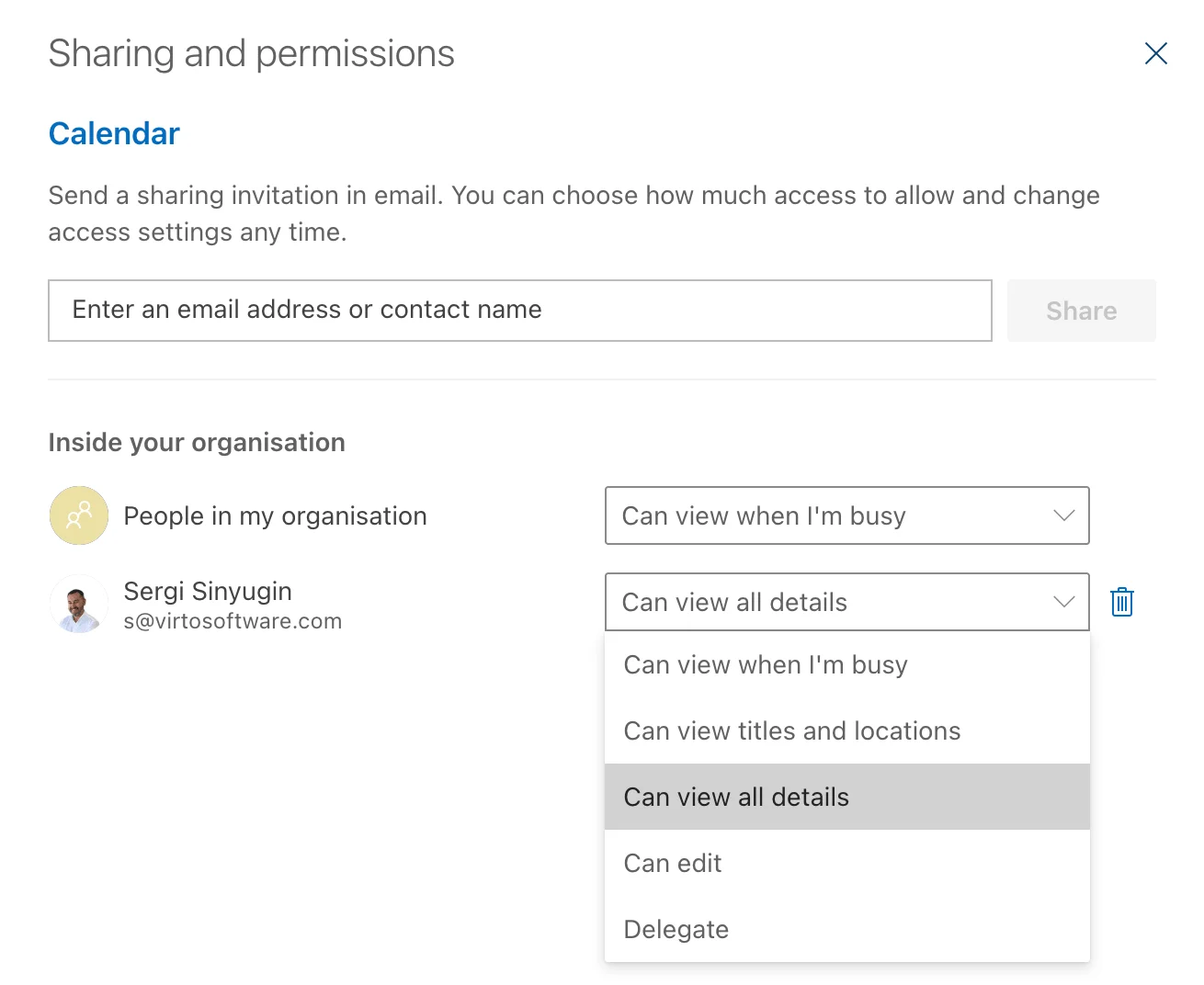
Calendar → More options (•••) → Share, then pick one of five permission levels.
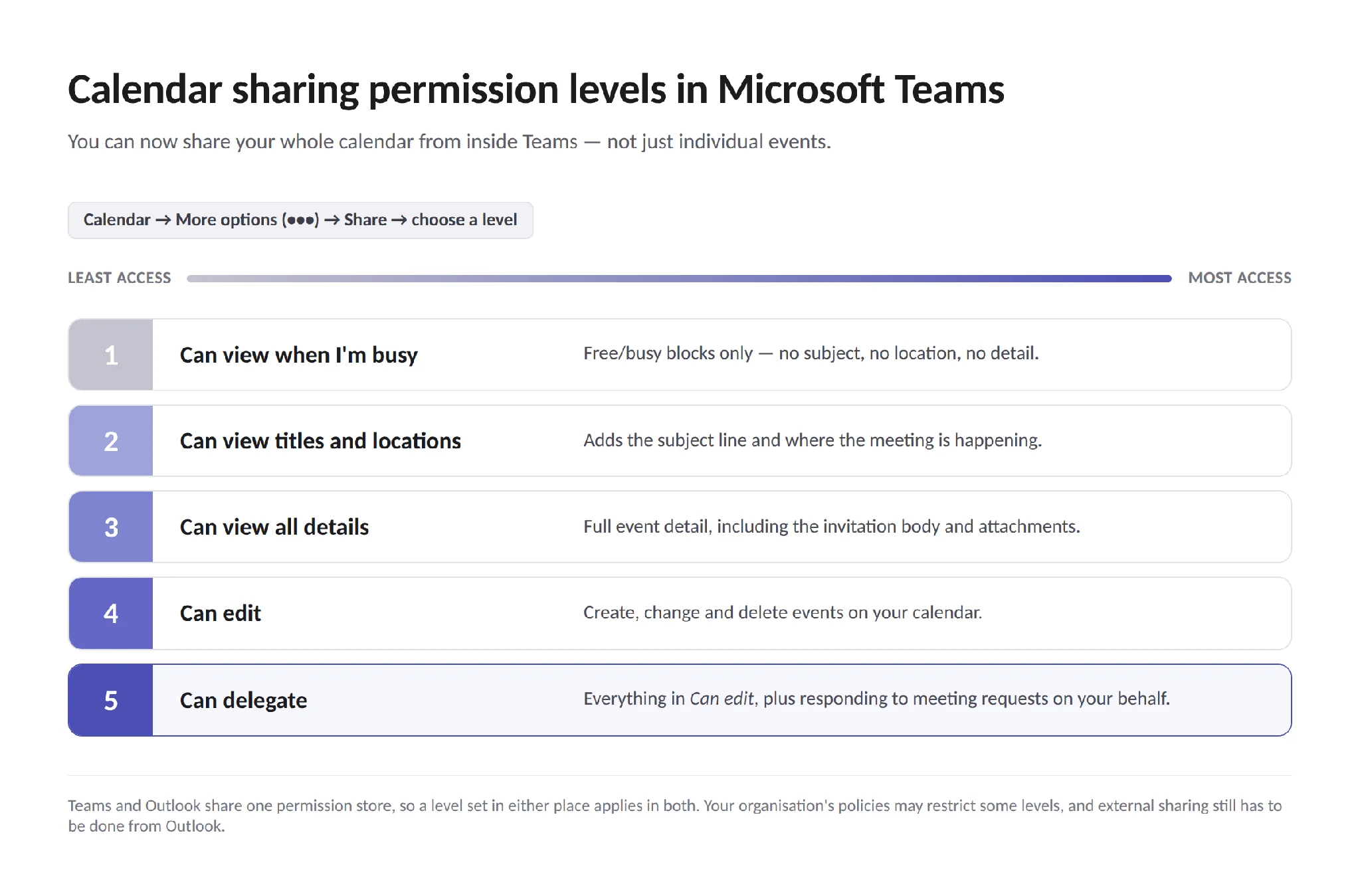
The five permission levels, from free/busy only to full delegation.
The five levels mirror Outlook’s model:
| Permission | What they see or do |
|---|---|
| Can view when I’m busy | Free/busy blocks only, no detail |
| Can view titles and locations | Subject line and location |
| Can view all details | Full event detail including the body |
| Can edit | Create, change and delete events |
| Can delegate | Manage items and respond to meeting requests on your behalf |
There is also an Inside your organization → People in my organization setting that controls what colleagues see by default. Your admin’s sharing policies can restrict some of these levels.
Because Teams and Outlook share one permission store, anything you set here applies in Outlook too — and vice versa. For the Outlook-side walkthrough, including external sharing and published calendar links, see how to share your calendar in Outlook.
Two things you still cannot do: publish a whole Teams calendar to people outside your tenant from Teams itself, and share a channel calendar with guests.
Sync problems and calendar not showing: the quick version
Because Teams reads directly from Exchange, “Teams and Outlook are out of sync” almost always means something is wrong upstream. Run through this before escalating:
- Restart and update Teams. Genuinely fixes the majority of cases.
- Clear the Teams cache — a stale local cache is the single most common cause of ghost or missing events.
- Check the time zone in Teams, Outlook and Windows. Mismatches make events appear shifted by hours, or an all-day event land on the wrong day.
- Confirm the Teams Meeting add-in is enabled in Outlook if the New Teams Meeting button has disappeared.
- Verify licensing — no Exchange Online mailbox means no Teams calendar.
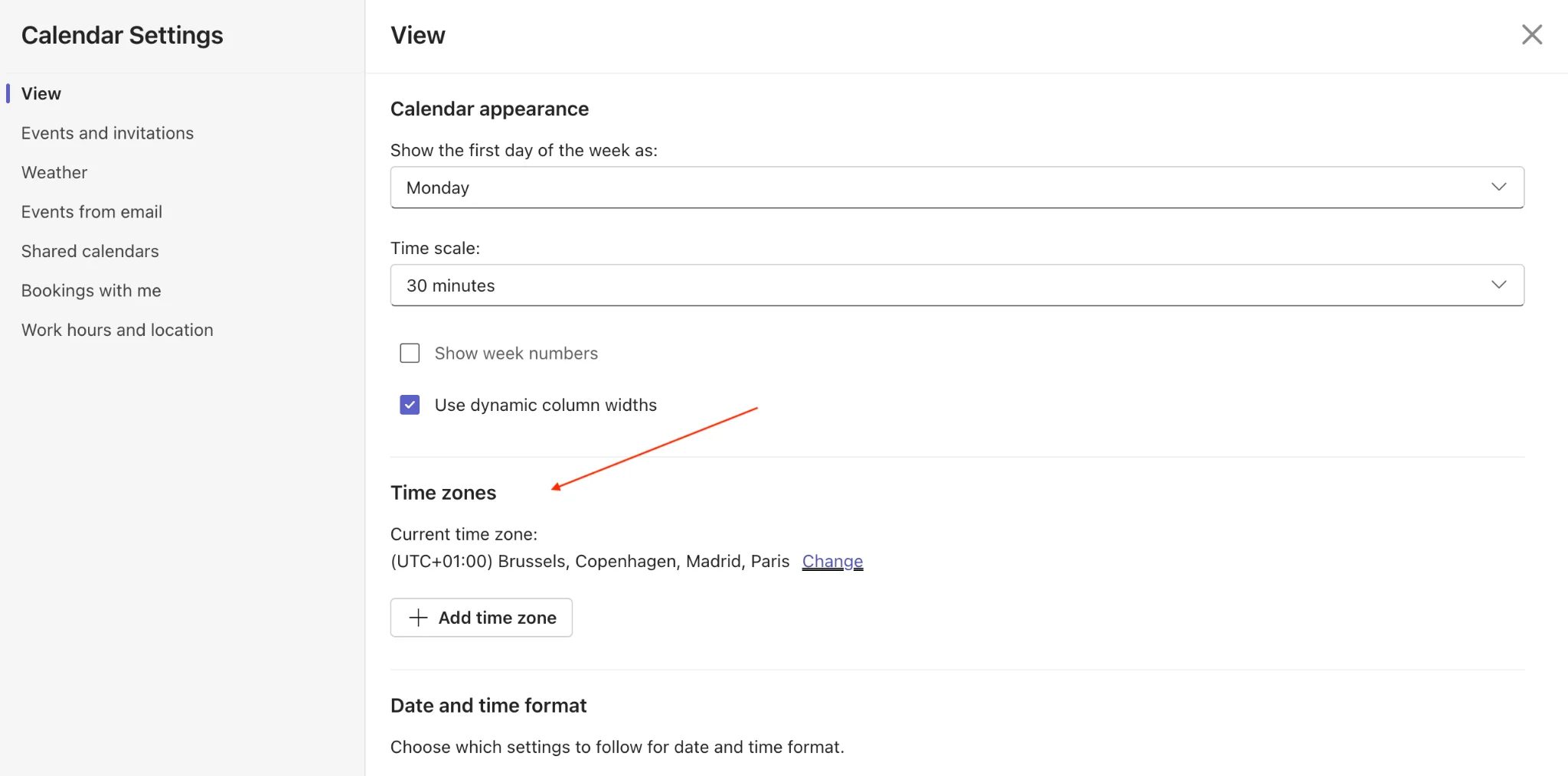
Mismatched time zones between Teams, Outlook and Windows are a common cause of shifted events.
For the full diagnostic path, including admin-level fixes, see Teams calendar not syncing with Outlook: how to fix it.
Bringing in a Google Calendar is a separate exercise — Teams has no native Google connector, so you either subscribe to the Google iCal feed from Outlook or use a third-party app. The steps are in how to sync your Microsoft Teams calendar with Google Calendar.
A combined view with Virto Calendar
Native Teams multi-calendar support is a real improvement, but it stops at Exchange calendars. If your planning lives across SharePoint lists, group calendars, personal calendars, public holidays, Google and iCloud, you end up switching contexts anyway.
The Virto Calendar App solves that by overlaying all of those sources in one colour-coded view, inside Teams. It adds what the built-in calendar does not have:
- Unlimited overlays — Exchange Online, Microsoft 365 group calendars, SharePoint lists, Google Calendar, iCloud and iCal feeds in a single grid.
- Colour coding and categories — colour-code by project, client, team or event type, with filters that stick.
- Granular permissions — control who sees which source, independent of Exchange permissions.
- Resource and room availability — see rooms, equipment and shared assets in the same calendar.
- Day, week, month, year and Gantt-style views, plus printing and export.
- Absence and vacation tracking — see our vacation and time-off calendar guide.
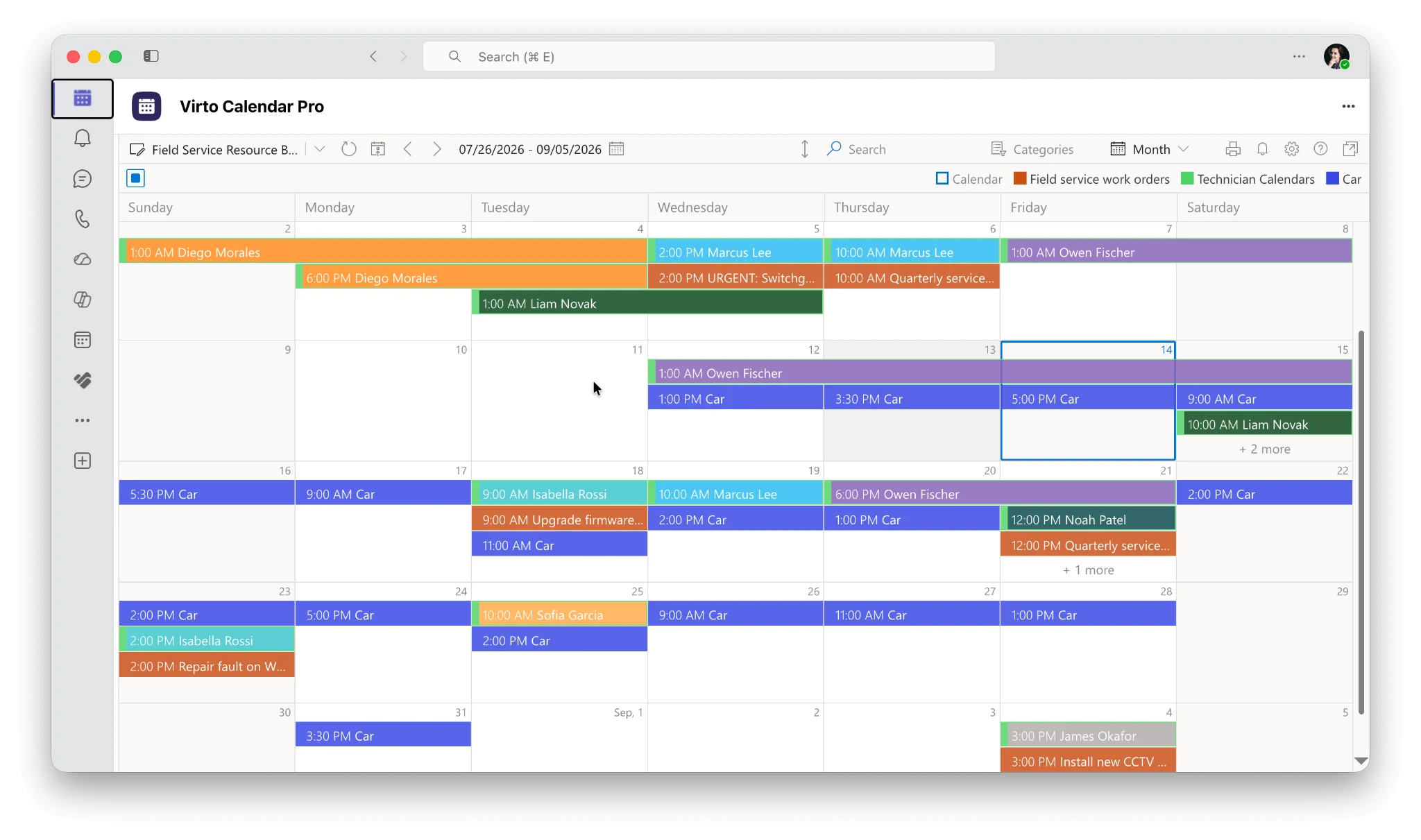
Virto Calendar App overlays Exchange, group, SharePoint, and Google calendars in one colour-coded view.
How to add Virto Calendar to Teams — two options
Since July 2026 there are two ways to bring Virto Calendar into Teams, and they serve different purposes.
Option 1 — as a channel tab (shared with the channel)
Best when a specific team or project needs one shared calendar that everyone in the channel opens in the same place.
- Open the team and select the channel.
- Click + (Add a tab) at the top of the channel.
- Search for Virto Calendar and select it.
- Name the tab and click Save.
- Connect your calendar sources — Exchange, group calendars, SharePoint lists, external feeds — and set colours.
Every member of the channel sees the same configured calendar on that tab.
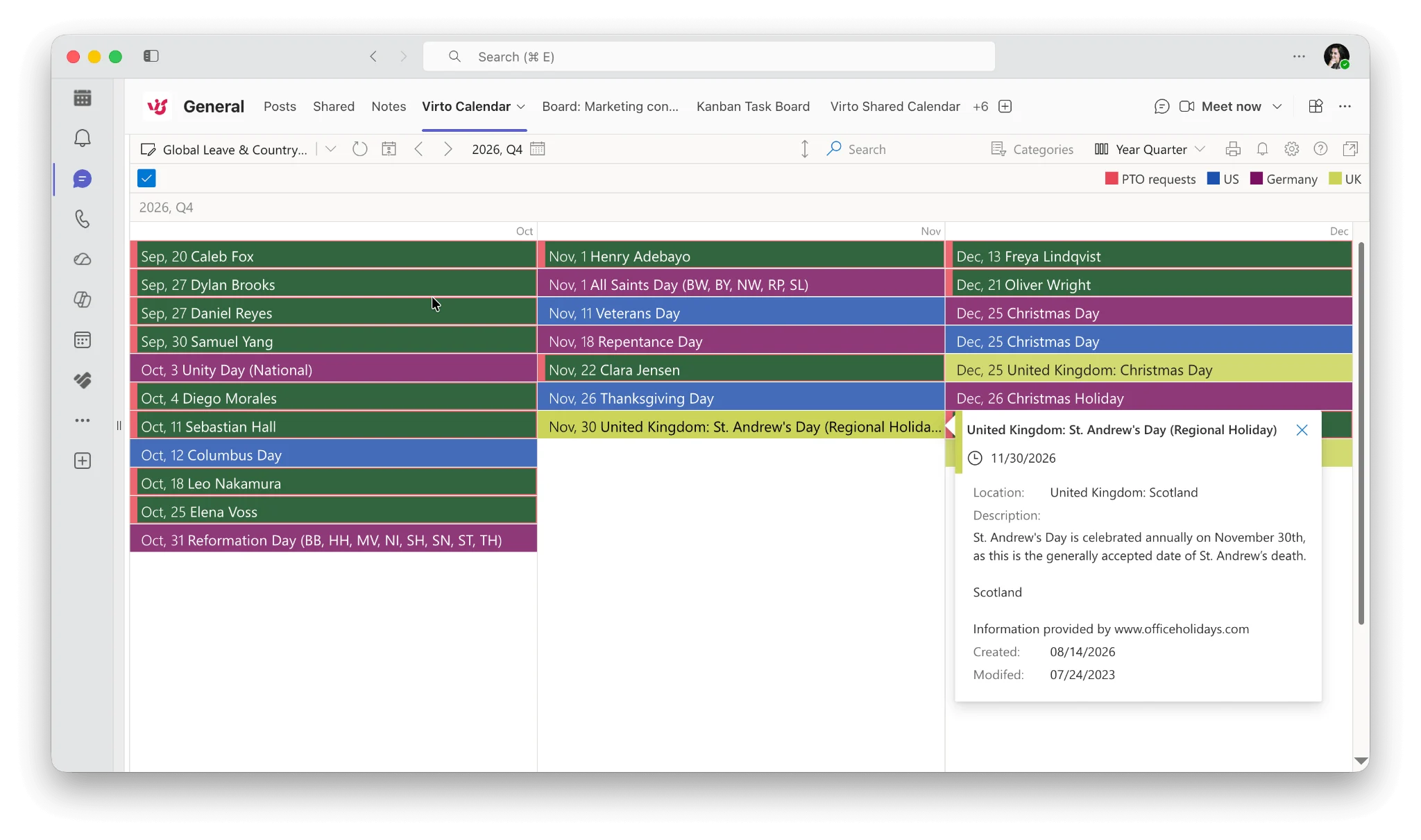
Option 1: add Virto Calendar as a channel tab so the whole channel shares one calendar.
Option 2 — as an app in your app bar (personal, and everywhere you work)
Best when you want your own combined calendar always one click away — and the same calendar in Outlook and the Microsoft 365 app, not just Teams.
Prerequisite: an administrator enables the app first, in Microsoft Teams admin center → Teams apps → Manage apps → Virto Calendar Pro → Users and groups.
Then, in Teams:
- Open Apps in the sidebar.
- Search for Virto Calendar Pro (that is the name to look for in the app store, even though the product is called Virto Calendar App).
- Add it.
- Right-click the icon in the app bar and choose Pin.
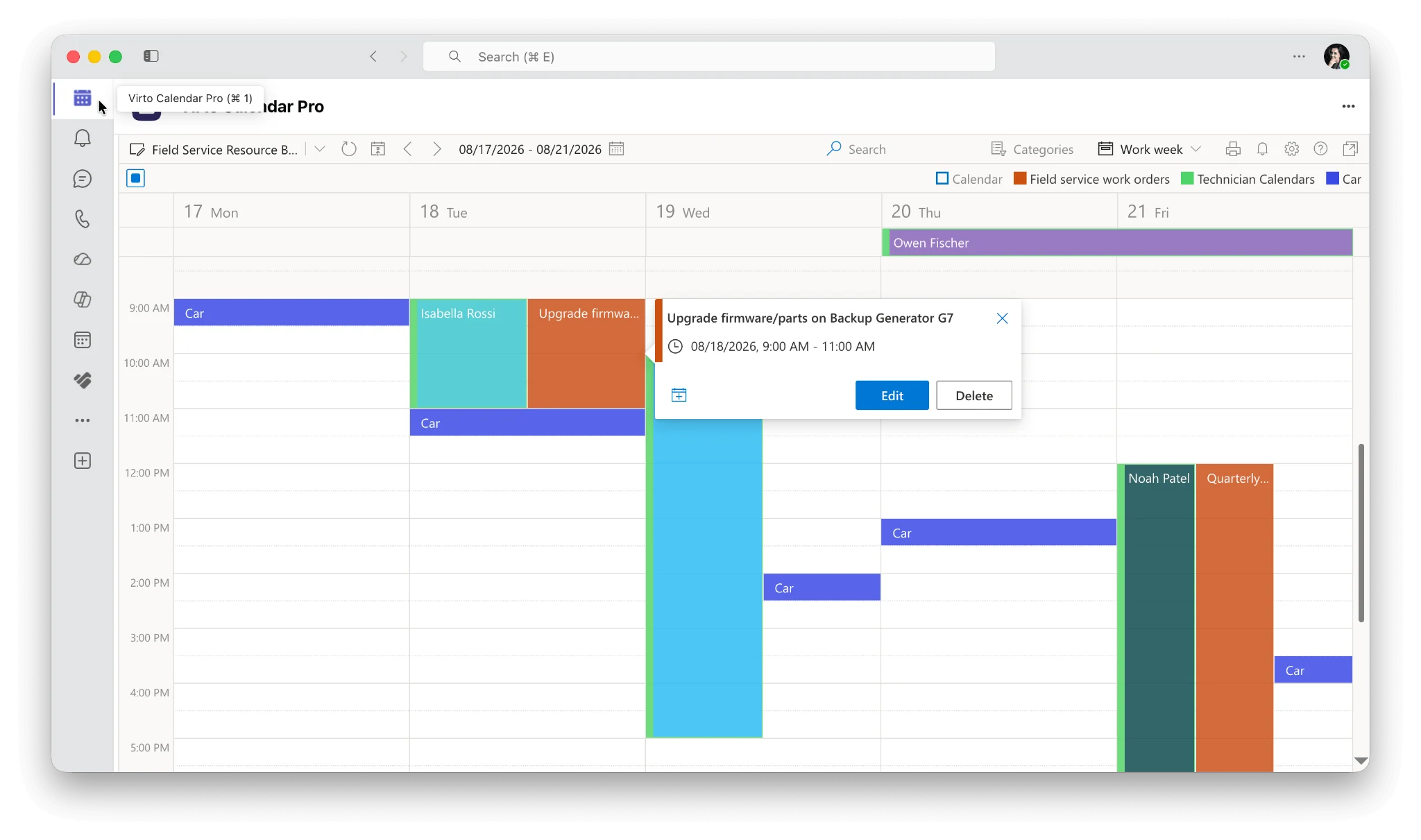
Option 2: install Virto Calendar Pro from Apps and pin it to your app bar.
The same app package also runs in Outlook and the Microsoft 365 app:
- Outlook on the web / Microsoft 365 app: sidebar → Apps → find Virto Calendar Pro → add.
- Outlook for Windows: sidebar → More apps → find Virto Calendar Pro → add.
Each surface keeps its own app bar, so pin it separately in each one. It opens straight into your calendar — no second sign-in, no setup screen. Teams mobile is supported; Outlook and Microsoft 365 mobile are not yet.
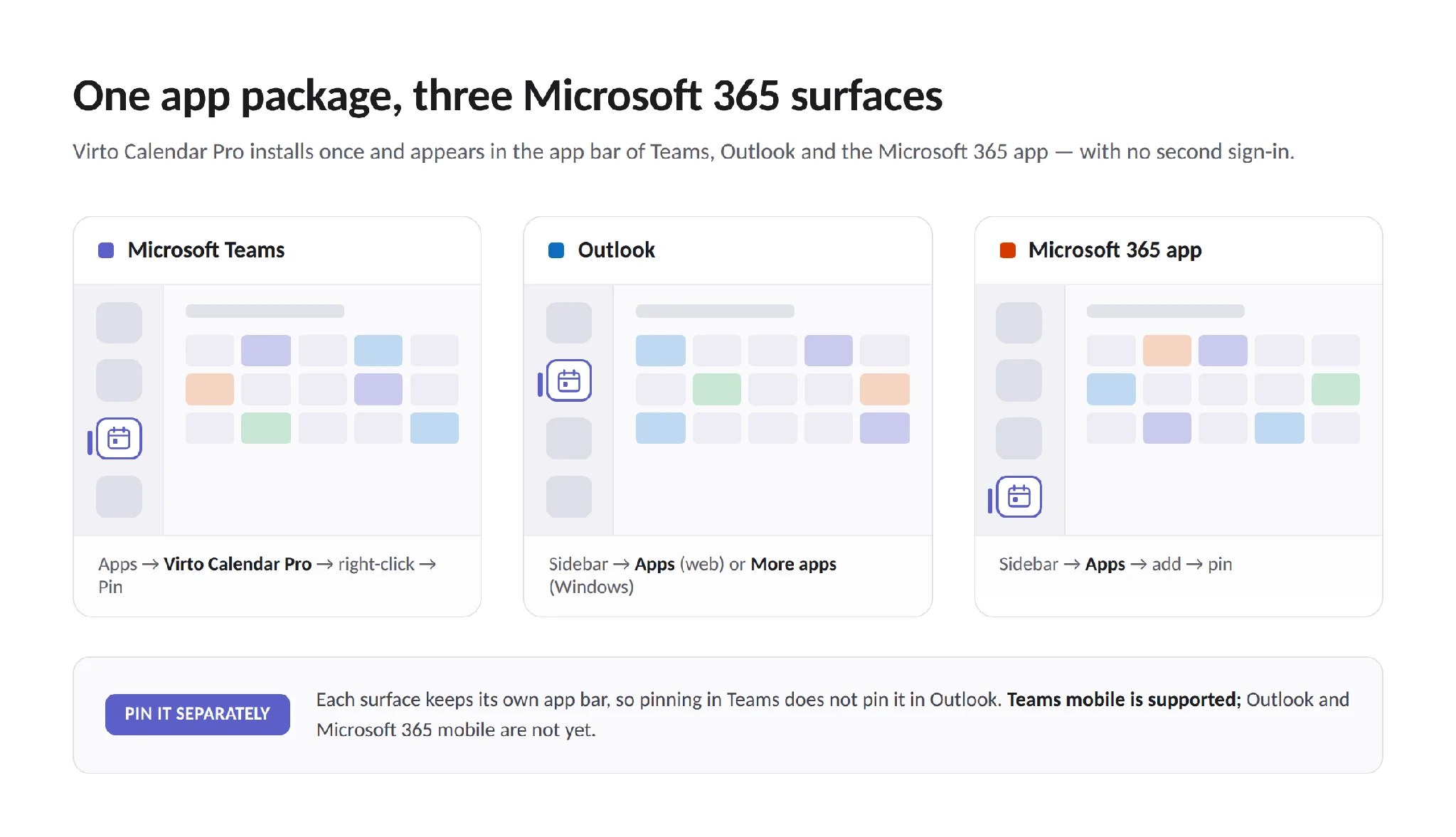
One app package, three surfaces — pin it separately in each.
Full details of the cross-surface release are in the Virto Calendar App announcement, and there is a feature comparison against Virto Shared Calendar if you are choosing between the two.
Pricing: $2,412 per 100 users per year with a 3-year agreement, with Enterprise quoted on request. Every Virto product comes with a full-featured 30-day free trial — see pricing or start your 30-day trial.
Best practices for the Microsoft Teams calendar
A condensed set of tactics from people who run their operations on the Teams calendar.
Give each workstream its own channel calendar. Dennis Sanders, CEO of Burning Daily, organises channels by product category and gives each one a calendar, so restock dates, launches and promos never collide in a single shared grid. The same pattern works for clients, regions or campaign lines. Reyansh Mestry at TopSource Worldwide extends it to private channels for campaign work, keeping sensitive launch dates visible to the core team only.
Segment by location when your team is distributed. Joseph Passalacqua of Maid Sailors Cleaning Service runs location-based channels with their own calendars, which removed the cross-city scheduling collisions his dispatchers used to spend hours untangling. He pairs this with open calendar sharing — visibility, in his experience, does more for accountability than any check-in process.
Protect focus time deliberately. Sanders mutes non-critical channel notifications during deep-work blocks and books those blocks as calendar events, so colleagues see the block rather than interrupting it. Setting your status to Out of office or Busy on an all-day event does the same job for whole days off.
Let clients book themselves. Oliver Morrisey of Empower Wills & Estate Lawyers uses the Bookings app in Teams so clients pick from published availability, which cut his firm’s scheduling email volume sharply. He attaches the relevant tasks and documents to each event, so nobody arrives unprepared — adding Planner alongside the calendar achieves the same thing at team level. (If you also measure delivery flow, our Kanban metrics guide covers connecting scheduling to throughput.)
Keep Teams and Outlook honestly aligned. Cybersecurity specialist Michael Robert’s rule is simple: never treat them as two calendars. Enable the Teams Meeting add-in in Outlook, set agendas in the invitation body rather than in a follow-up chat, and use Meet now for anything that does not need a calendar entry at all.
Standardise categories across the team. Agreeing on a small, shared set of colours and categories is what turns a busy calendar from noise into a dashboard — see calendar category ideas for a starting set.
FAQ
What is the Microsoft Teams calendar? It is the calendar app inside Microsoft Teams, synced with your Outlook/Exchange calendar, where you view your schedule and create or join meetings. Individual channels can also have their own channel calendar.
How do I add the calendar in Teams? In Teams, click the ••• (more apps) button on the left app bar, search for Calendar, and pin it. It shows your Outlook calendar automatically — there is nothing to set up.
Does the Teams calendar have a month view? Yes. Month view arrived with the new Teams calendar (generally available January 2025) and became standard for everyone when the legacy calendar toggle was removed in early 2026. Click the view name at the top of the calendar and choose Month. Government cloud tenants are the exception.
What is the difference between a channel calendar and a personal calendar? Your personal calendar is your own Exchange calendar, private by default and visible in both Teams and Outlook. A channel calendar is a tab in a Teams channel showing only the meetings scheduled in that channel — a filtered view of the team’s Microsoft 365 group calendar, visible to channel members.
Can I share my whole Teams calendar? Yes, from Teams: Calendar → More options (•••) → Share, then pick a permission level from Can view when I’m busy through Can delegate. Organisational policies may restrict some levels, and external sharing still needs to be done from Outlook.
Why is my Teams calendar not showing? Most often: no Exchange Online mailbox on that account, an admin app policy hiding the Calendar app, or a stale Teams cache. Update Teams, clear the cache, and confirm your licence — then work through the full troubleshooting guide.
Can I see several calendars at once in Teams? Yes — the new calendar supports adding other calendars in split or combined view, grouped by team or project. For sources outside Exchange (SharePoint lists, Google, iCloud, holiday feeds), use the Virto Calendar App.
How do I get a Teams calendar into Outlook? Follow how to add a Teams calendar to Outlook. Your personal calendar is already there; group and channel calendars need to be added from the Microsoft 365 group in Outlook.
Conclusion
The Microsoft Teams calendar in 2026 is a much stronger tool than the one most guides describe: month view, multiple calendars, split and combined views, and real calendar sharing are all built in now. For most individuals and small teams, that is enough.
Where it still runs out of road is breadth of sources — the moment your planning depends on SharePoint lists, external feeds, resource bookings or fine-grained per-source permissions, you are back to switching apps. That is exactly the gap the Virto Calendar App fills, in Teams, Outlook and the Microsoft 365 app at once. Try it free for 30 days, or book a short demo and we will set it up with you.
Related reading
- How to create and manage a shared calendar in Microsoft Teams
- Teams calendar not syncing with Outlook: how to fix it
- How to add a Teams calendar to Outlook
- How to schedule a Teams meeting
- How to sync your Teams calendar with Google Calendar
- Managing multiple Microsoft 365 calendars
- How to share your calendar in Outlook
- Best Microsoft Teams apps and integrations
- Vacation and time-off calendars in Teams and Outlook