



Quick answer: does Microsoft Planner have a calendar view?
Not a true one. The new Microsoft Planner includes a Schedule view that plots tasks on a calendar grid by their due dates — but it works at the day level only. There are no hourly time slots, so you can’t see a task next to your 11:30 a.m. marketing meeting. To get tasks and timed events together in a real, hour-by-hour calendar, you overlay your Planner tasks in a third-party calendar such as Virto Calendar inside Microsoft Teams. The three-step setup is below.
Planner’s built-in views (and why Schedule view isn’t a real calendar)
Microsoft has consolidated To Do, Planner, and Project for the web into one unified Microsoft Planner experience, available on the web, in the Microsoft 365 app launcher, on mobile, and as a tab inside Microsoft Teams. With a standard Microsoft 365 (Basic) license you get four views:
- Grid — a spreadsheet-style task list for fast bulk editing and field updates.
- Board — the classic Kanban layout with buckets you drag tasks between.
- Schedule — tasks placed on a month or week calendar grid by due date.
- Charts — visual summaries of status, buckets, and workload.
Additional views — Timeline (Gantt), People, and Goals — require a Planner Plan 1 (Premium) license.
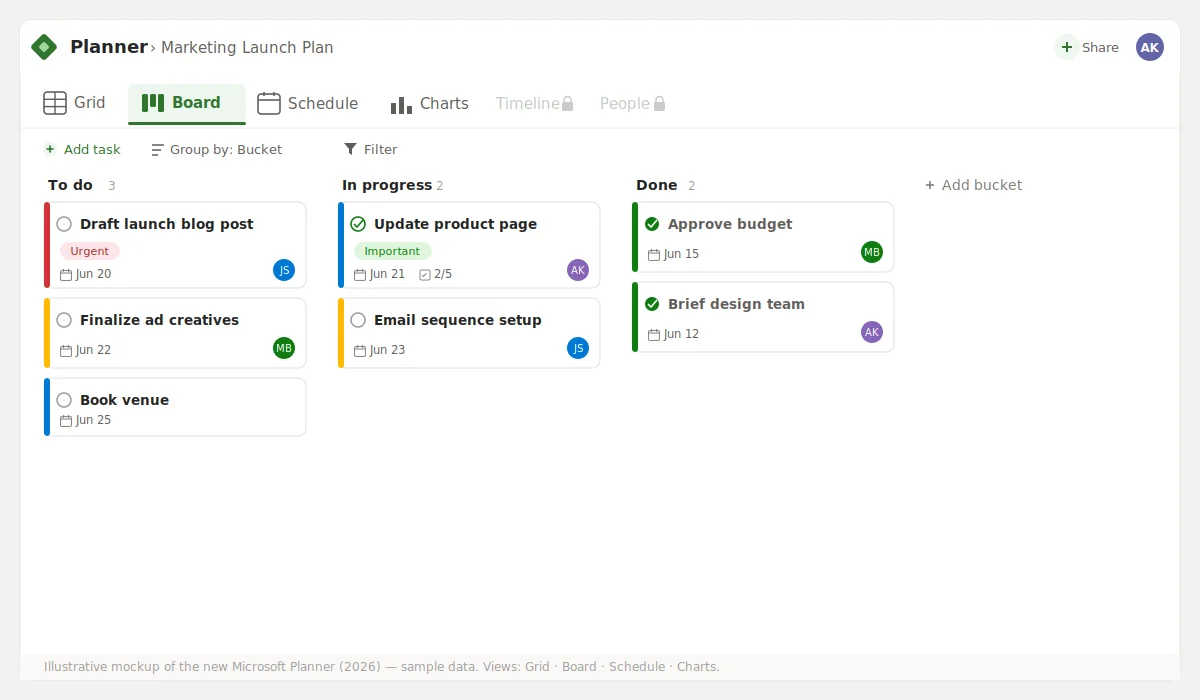
New Microsoft Planner view switcher showing Grid, Board, Schedule and Charts tabs (2026 UI).
The Schedule view is the closest thing Planner offers to a calendar, and it’s genuinely useful for spotting deadline pile-ups. But it has two hard limits: it only shows tasks (never meetings or events), and it only places them on a day — not at a specific time. If more than one task lands on the same day, the grid quickly gets crowded, and there is no hourly column to anchor real time-blocked planning.
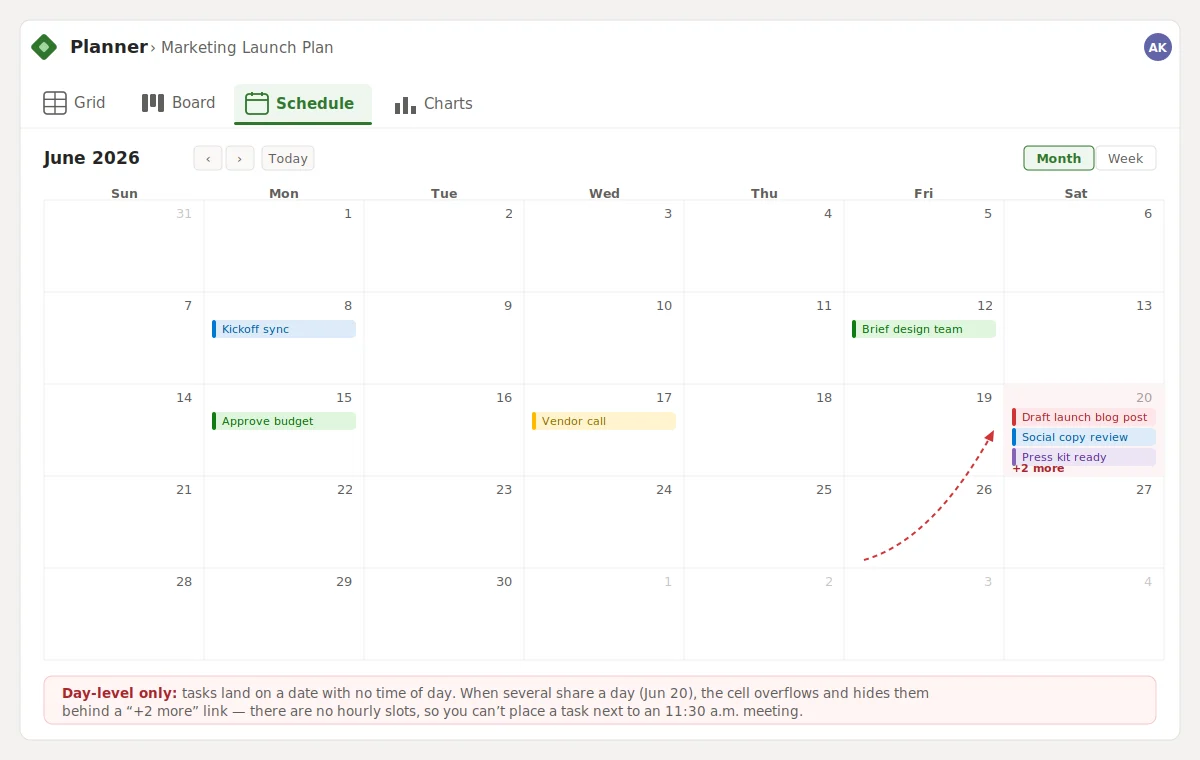
Planner Schedule view (month) with several tasks stacked on the same day, illustrating the day-level limitation — new 2026 UI.
How to show Planner tasks in a true calendar view in Teams
To see Planner tasks at a specific time, alongside your meetings and events, add Microsoft Planner as a data source in Virto Calendar App for Microsoft Teams. It pulls your Planner tasks into an overlay calendar with real hourly slots, then lives as a tab in your Teams channel. Three steps:
- Add Planner as a data source. In Virto Calendar settings, open Available Calendars, then create a new calendar (or open an existing one) where your Planner tasks will appear.
- Enable “display tasks from MS Planner.” Tick the Display tasks from MS Planner checkbox, choose the plan, and save. Your Planner tasks now flow into the calendar and can be color-coded by source.
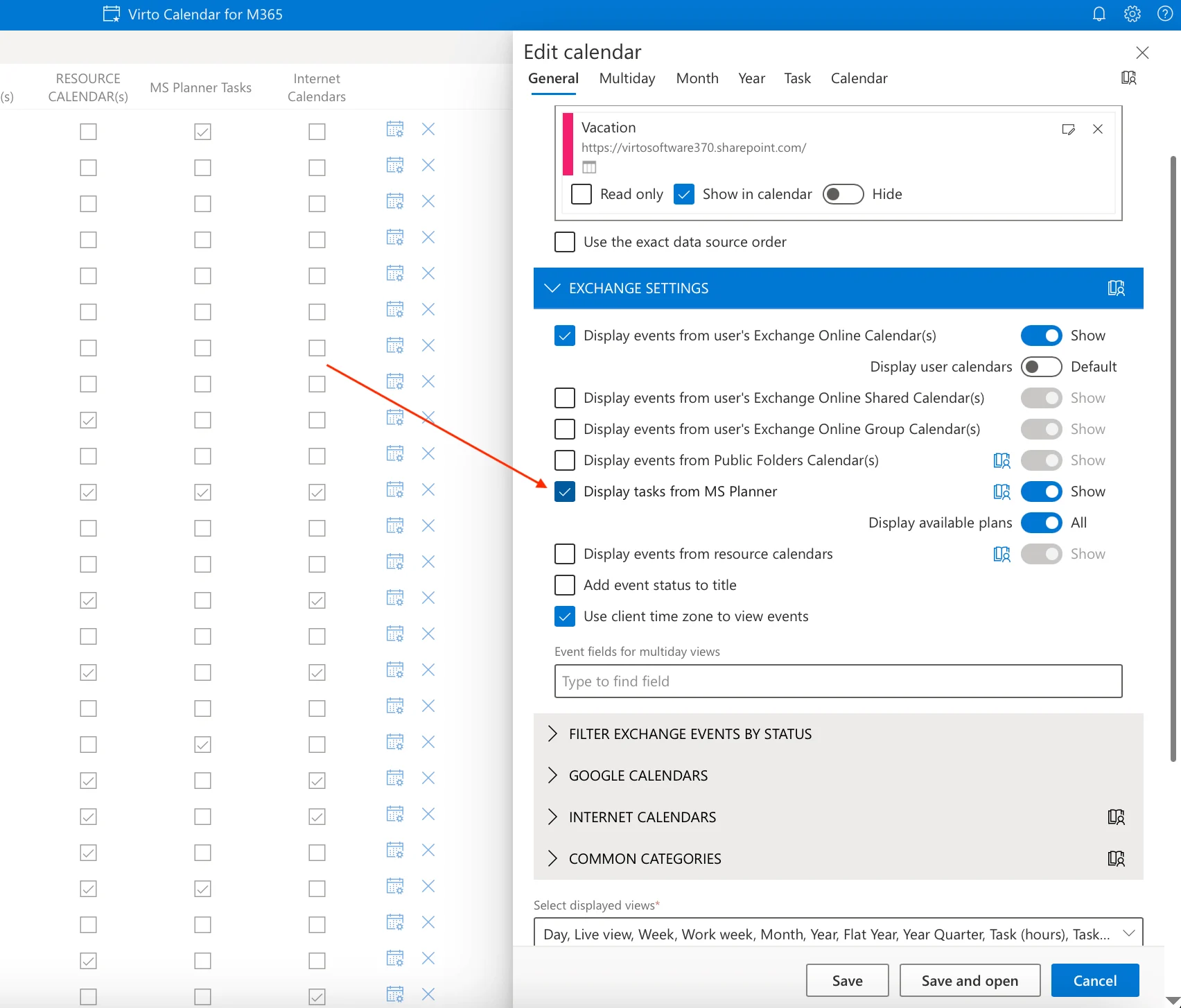
Virto Calendar general settings with the “Display tasks from MS Planner” checkbox enabled — refreshed 2026 screenshot.
- Pin the calendar as a Teams channel tab. Open your Teams channel, click + in the tab bar, search for Virto Calendar, select the calendar that includes your Planner tasks, and add it. The whole team now sees tasks and events in one hourly view — no app-switching.
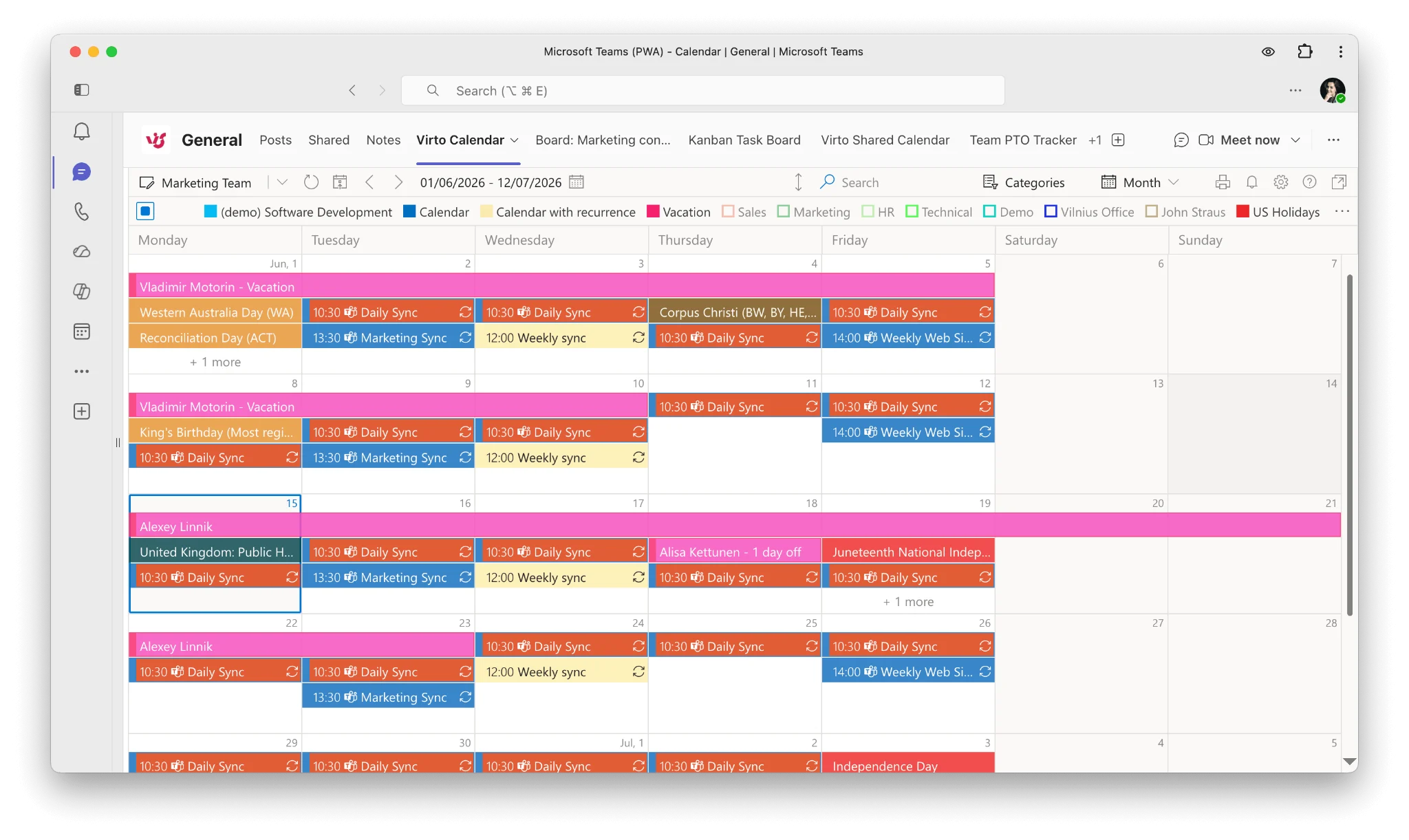
Microsoft Teams channel tab showing Planner tasks and timed events together in a color-coded calendar.
Tasks + events in one view (why it matters)
Once Planner tasks live in Virto Calendar, you can overlay them with your Outlook, SharePoint, and iCal calendars on the same grid, each with its own color. That turns a flat list of due dates into real hourly planning: you can see that a deliverable is due the same afternoon as two meetings and a deep-work block, and rebalance before the day falls apart. It’s the difference between knowing what is due and knowing when you’ll actually do it.
Product solution: Virto Calendar App for Microsoft Teams
Virto Calendar App for Microsoft Teams lets you show Planner tasks in a calendar inside Teams with true hourly events, color-coded by source, and shared with your whole channel. For Microsoft 365 and SharePoint users who work outside Teams, the Virto Calendar App for Microsoft 365 does the same job — overlay Planner with Outlook & SharePoint calendars in a single view, on desktop and mobile.
Show Planner tasks in a real calendar inside Teams
Set it up in three clicks — tasks and events, hourly, in one view.
FAQ
Can Microsoft Planner show a calendar?
Planner’s Schedule view shows tasks on a calendar grid, but only by day — it has no hourly time slots and shows tasks only, not events. For a true calendar with timed events you overlay Planner tasks in a tool like Virto Calendar inside Microsoft Teams.
Does the new Microsoft Planner have a calendar view?
The new Planner (which merged To Do, Planner, and Project for the web) still offers only the day-level Schedule view in its Basic and most Premium plans. It is not an hourly calendar, and it doesn’t combine tasks with meetings.
How do I see Planner tasks by hour?
Add Planner as a data source in Virto Calendar, enable “display tasks from MS Planner,” and pin the calendar as a Teams channel tab. Your tasks then appear in hourly slots alongside your Outlook, SharePoint, and iCal events.
Related guides
- Microsoft Teams shared calendar guide
- Create Microsoft Teams meetings from Virto Calendar events
- Project management in Microsoft Teams
External reference: Microsoft’s official “new Planner” overview