


Quick answer: what is the Microsoft Exchange calendar? The Microsoft Exchange calendar is the calendar service behind Outlook and Microsoft 365. It stores your events in your mailbox on the Exchange server and syncs them across Outlook on the desktop, on the web and on mobile, and across Microsoft Teams. Outlook is the app you look at. Exchange is where the calendar actually lives.
Most people who use an Exchange calendar every day have never opened anything called Exchange. They open Outlook, or the calendar in Teams, or the calendar app on their phone, and the same meetings are there in all three. That is Exchange doing its job: one copy of every event, kept on the server, shown wherever you sign in.
Knowing that one fact explains most of what happens with a work calendar: why a meeting accepted on the phone is already on the laptop, why a colleague can see that you are busy without seeing why, why a room can decline an invite, and why the calendar does not appear on a SharePoint page without help. This guide covers what the Exchange calendar is, how it works with Outlook and Microsoft 365, how sharing and delegation work, how to bring Exchange calendars into SharePoint and Teams, and how to fix the issues that come up most often.
In this article:
- What the Exchange calendar is, and how Exchange Online differs from Exchange Server
- How it works with Outlook, Teams and mobile
- The everyday features worth knowing
- Sharing, permission levels and delegation
- Exchange calendar integration: other calendars in Outlook, and Exchange calendars in SharePoint and Teams
- Common issues and fixes
- Exchange calendars in one overlay with Virto Calendar App
- FAQ
What is the Microsoft Exchange calendar?
Microsoft Exchange is Microsoft’s mail and calendar server. Every person, shared mailbox, group, meeting room and piece of bookable equipment in an organization has a mailbox in it, and every mailbox has a Calendar folder. The Exchange calendar is that folder plus the services built around it: meeting invitations and responses, free/busy lookups, reminders, permissions, and room booking.
“Exchange calendar” and “Outlook calendar” are therefore two names for the same thing seen from two sides. Outlook is the client. Exchange is the service. When you create an event in Outlook, Outlook hands it to Exchange, and Exchange stores it, sends the invitations, tracks who accepted and updates every other device signed in to the same mailbox.
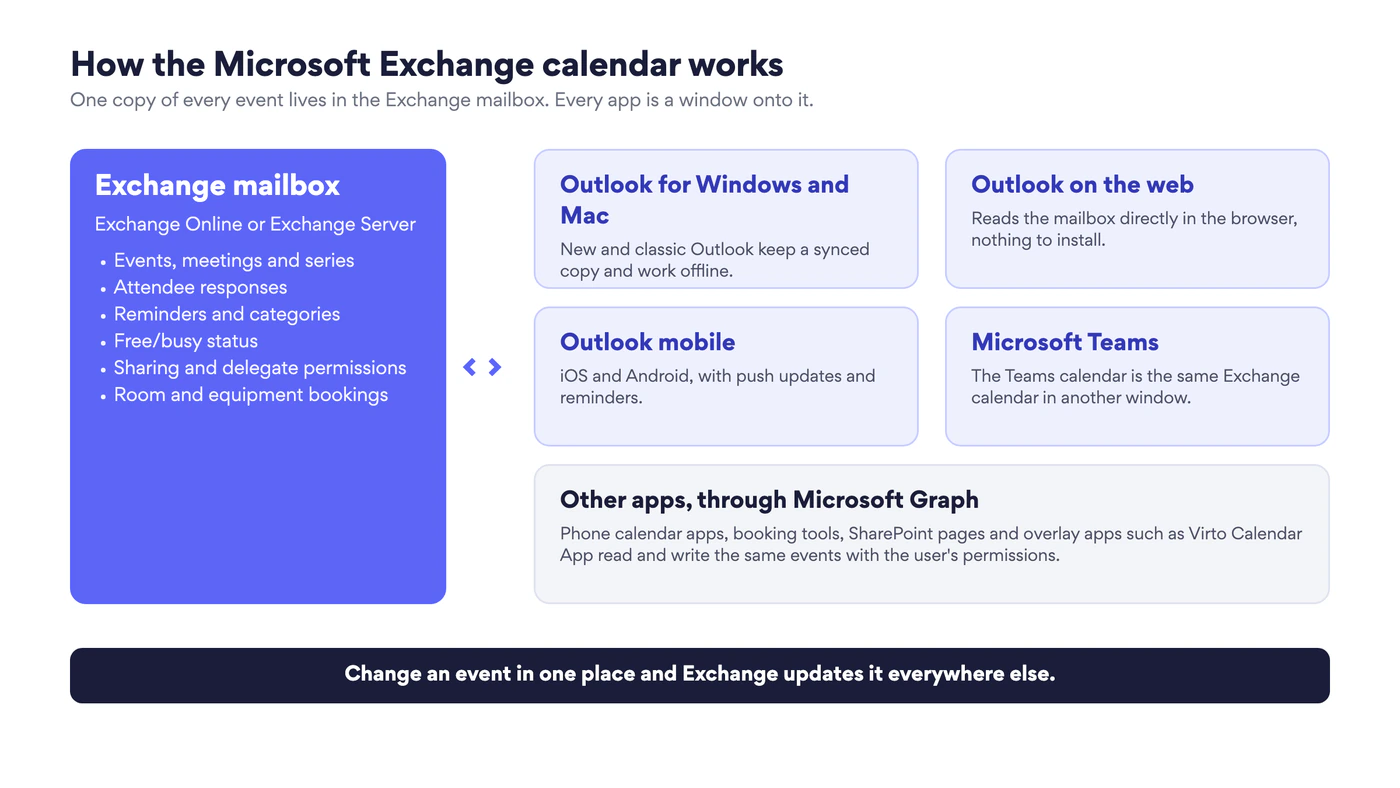
Fig. 1. How the Microsoft Exchange calendar works: one copy of every event in the mailbox, shown in every app
Exchange Online and Exchange Server
Exchange comes in two forms, and the calendar behaves the same way in both from a user’s point of view.
- Exchange Online is the cloud service included in Microsoft 365 business and enterprise plans and sold on its own as Exchange Online Plan 1 and Plan 2. Microsoft runs it. When people say “Exchange Online calendar”, “Microsoft 365 calendar” or “Office 365 calendar”, they mean this. A user mailbox holds 50 GB on Plan 1 and 100 GB on Plan 2, according to the Exchange Online limits published by Microsoft.
- Exchange Server is the on-premises product an organization installs on its own servers. In 2026 the supported version is Exchange Server Subscription Edition (SE): support for Exchange Server 2016 and 2019 ended on October 14, 2025. Many organizations run a hybrid of the two while they move mailboxes to the cloud.
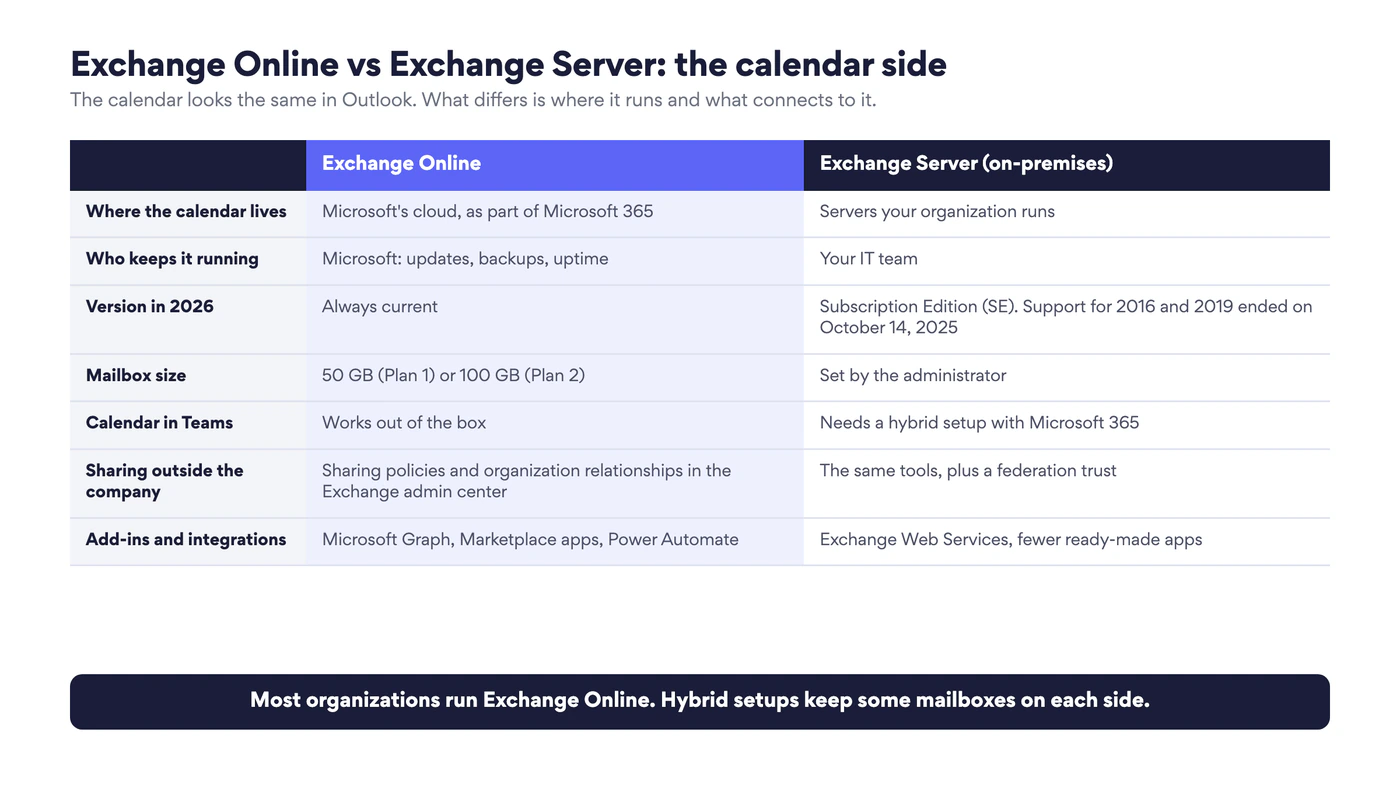
Fig. 2. Exchange Online vs Exchange Server from the calendar’s point of view
The rest of this guide describes Exchange Online with new Outlook and Outlook on the web, because that is what most readers have. Where Exchange Server behaves differently, it is called out.
How the Exchange calendar works with Outlook and Microsoft 365
Because the calendar lives on the server, every app is a window onto the same data.
- Outlook for Windows and Mac. New Outlook and classic Outlook both keep a synced copy of the calendar so you can work offline. Changes go up to Exchange as soon as you are connected.
- Outlook on the web. Reads the mailbox directly at outlook.office.com. It has the same features as new Outlook, because new Outlook is built on it.
- Outlook for iOS and Android. Gets push updates from Exchange, so an invite sent a minute ago is already on the phone.
- Microsoft Teams. The calendar in Teams is not a separate calendar. It is your Exchange calendar shown inside Teams, which is why a meeting scheduled in Teams appears in Outlook and the other way round. See our Microsoft Teams calendar guide for what Teams adds on top.
- Other apps. The calendar apps built into phones, booking tools and SharePoint add-ins reach the same events through Microsoft Graph, with the permissions of the signed-in user.
If a device falls behind, the cause is almost always on the device, not in Exchange. Our guide on how to sync your Office 365 calendar with Outlook walks through desktop, web and mobile one by one.
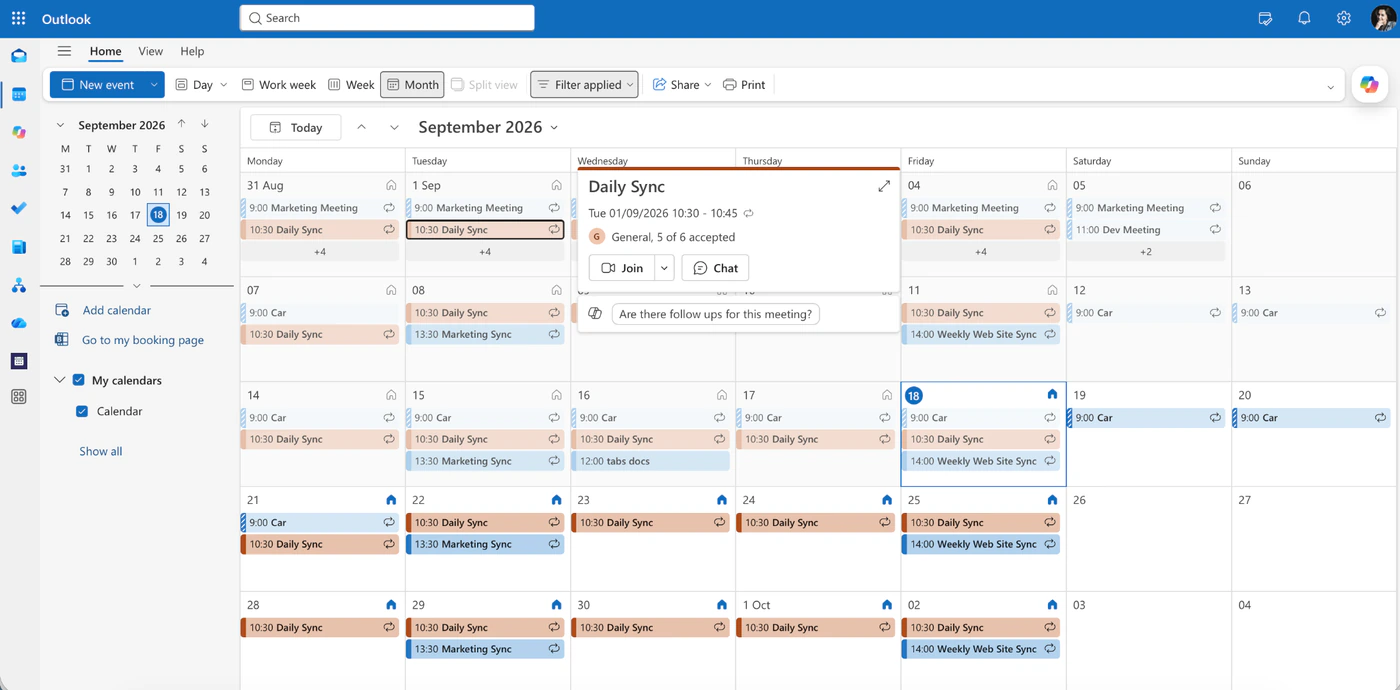
Pic. 1. The Exchange calendar as most people see it: Month view in new Outlook
Four kinds of calendar in Exchange
Not every calendar in the left pane of Outlook is a personal one. Exchange holds four kinds, and they differ in who owns them and who can write to them.
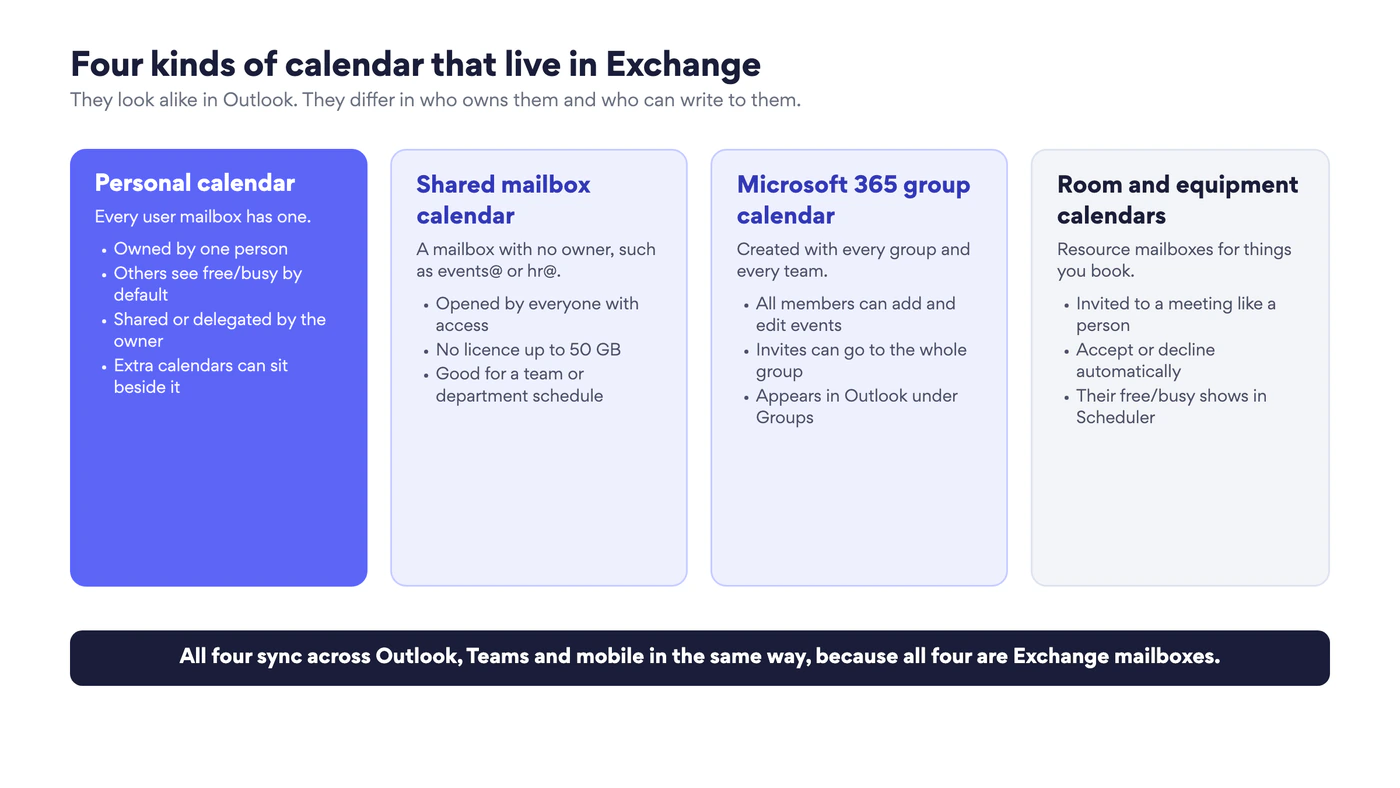
Fig. 3. The four kinds of calendar that live in Exchange
- Personal calendar. One per user mailbox, owned by that person, plus any extra calendars they create beside it.
- Shared mailbox calendar. A mailbox such as events@ or hr@ that nobody signs in to directly. Everyone with access to the mailbox opens its calendar. It is the usual way to build an Exchange shared calendar for a department. Step-by-step instructions are in How to create an Office 365 shared calendar.
- Microsoft 365 group calendar. Created automatically with every Microsoft 365 group and every team in Teams. All members can add and edit events. More in the Microsoft 365 group calendar guide.
- Room and equipment calendars. Resource mailboxes. You invite a room to a meeting the way you invite a person, and Exchange accepts or declines for it according to the booking rules the admin set. See how to create and display a meeting room calendar in Microsoft 365.
Everyday Exchange calendar features worth knowing
Events, meetings and series
An event with nobody invited is an appointment. Add one attendee and it becomes a meeting, and Exchange starts tracking responses. To create either one in new Outlook or Outlook on the web:
- Open Calendar and select New event.
- Add a title, the date and the time. To invite people, type their names in Invite attendees.
- To repeat the event, use the recurrence option next to the date and choose the pattern and the end date.
- Add a location or a room, set the reminder, and turn the Teams meeting toggle on or off.
- Select Save for an appointment or Send for a meeting.
If the time overlaps something already in your calendar, Outlook warns you but still lets you save. For meetings, open the Scheduler tab (the former Scheduling Assistant) to see the free/busy rows of every attendee and room before you pick a time. Our Outlook Scheduling Assistant guide covers it in detail.
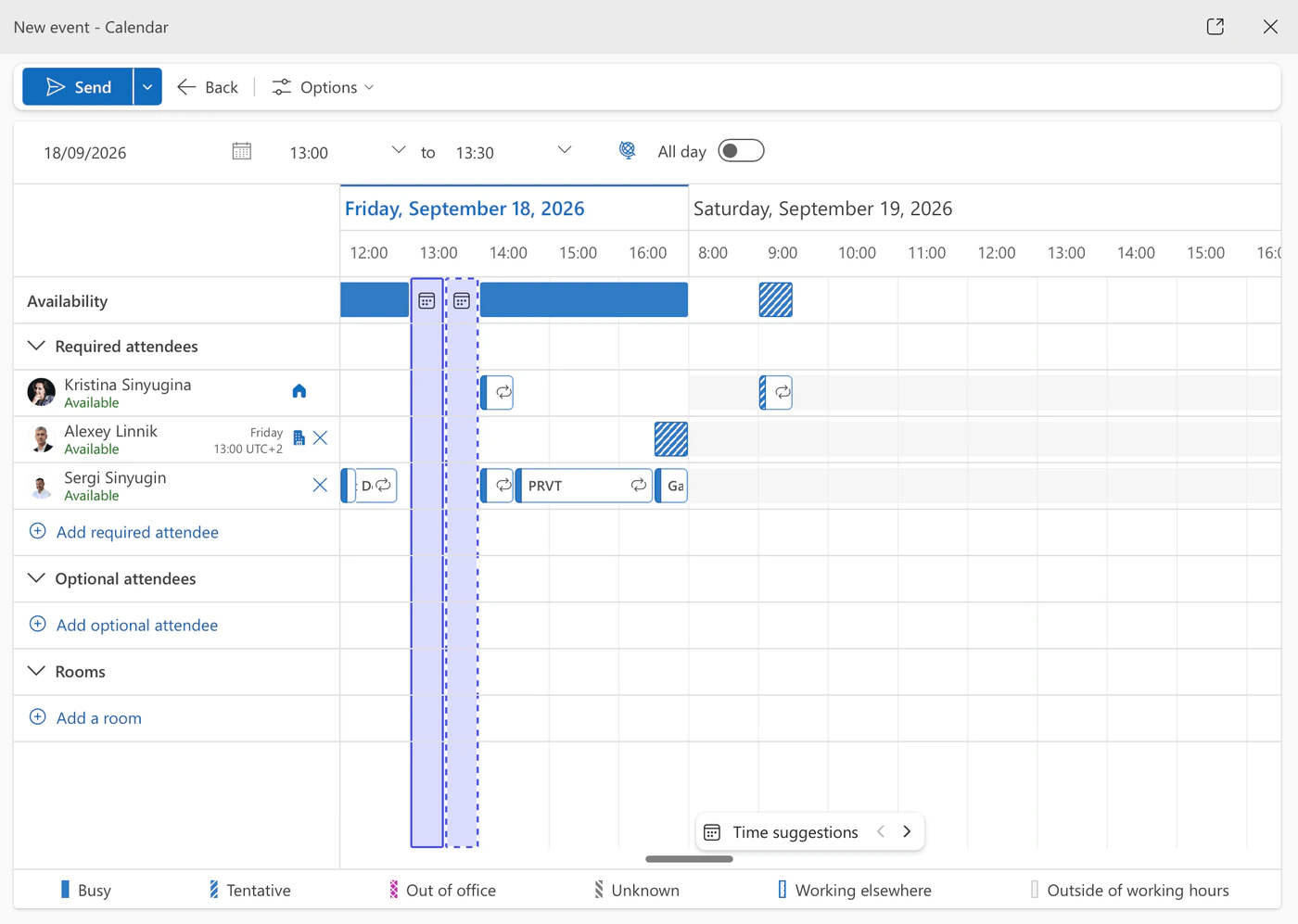
Pic. 2. The scheduling view reads free/busy from every attendee’s Exchange calendar before you pick a time
Reminders
Every event carries a reminder, 15 minutes before by default. Change it per event in the reminder drop-down, or change the default under Settings → Calendar → Events and invitations. In Outlook on the web and new Outlook you can also add an email reminder to an event, which is useful when the people who need the nudge do not live in Outlook. For reminders that go to a whole team, by email or in Teams, and that are driven by dates in a SharePoint list, see Virto Alerts & Reminder App.
Buffer time between meetings
Exchange can shorten your meetings automatically so that back-to-back blocks leave a gap. Go to Settings → Calendar → Events and invitations, select Shorten duration for all events, choose whether events should end early or start late, and set the number of minutes for events under one hour and for longer ones. An administrator can also set this for the whole organization.
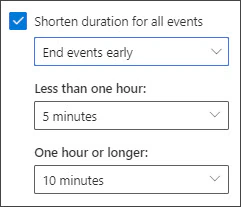
Pic. 3. The “Shorten duration for all events” setting that adds buffer time between meetings. Source: Microsoft Support
Work hours and location
Under Settings → Calendar → Work hours and location you set your working days, hours, time zone and whether you are in the office or remote on each day. Exchange uses this when colleagues look for a time: hours outside your working day show as unavailable in Scheduler.
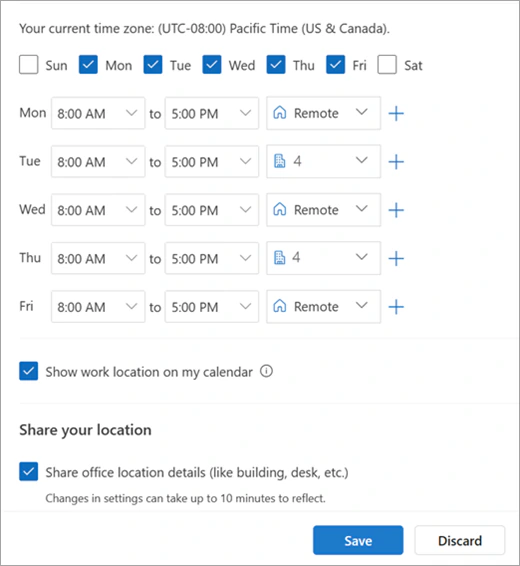
Pic. 4. Work hours and location in new Outlook: days, hours and where you work on each day. Source: Microsoft Support
Several calendars at once
Tick more than one calendar in the left pane and Outlook shows them side by side in Day and Week view or merged in one grid. Use Split view in the ribbon to switch between the two. This is the quickest way to compare your week with a colleague’s or to check a room. For the full method, including classic Outlook and Mac, see how to overlay calendars in Outlook and how to manage multiple Microsoft 365 calendars.

Pic. 5. The Split view button switches between side-by-side and merged calendars. Source: Microsoft Support
Sharing and delegation in the Exchange calendar
Inside an organization nobody’s calendar is fully closed. By default every colleague can see when you are free or busy, and nothing more. Everything beyond that is a permission you grant.
Share your Exchange calendar
- In Calendar, on the Home tab select Share (Share calendar in new Outlook for Windows) and choose the calendar.
- Type the name or email address of the person.
- Choose the permission level.
- Select Share. The person gets an email with an Accept button, and your calendar appears in their left pane under People’s calendars.
To change or remove access later, open the same Sharing and permissions window. The full walkthrough for web and desktop is in How to share your calendar in Outlook.
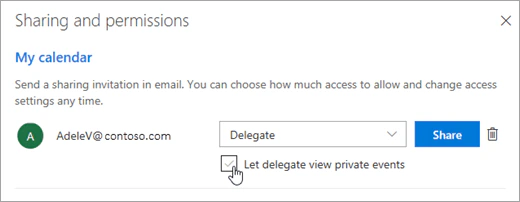
Pic. 6. The Sharing and permissions window of an Exchange calendar, here granting Delegate access. Source: Microsoft Support
Permission levels
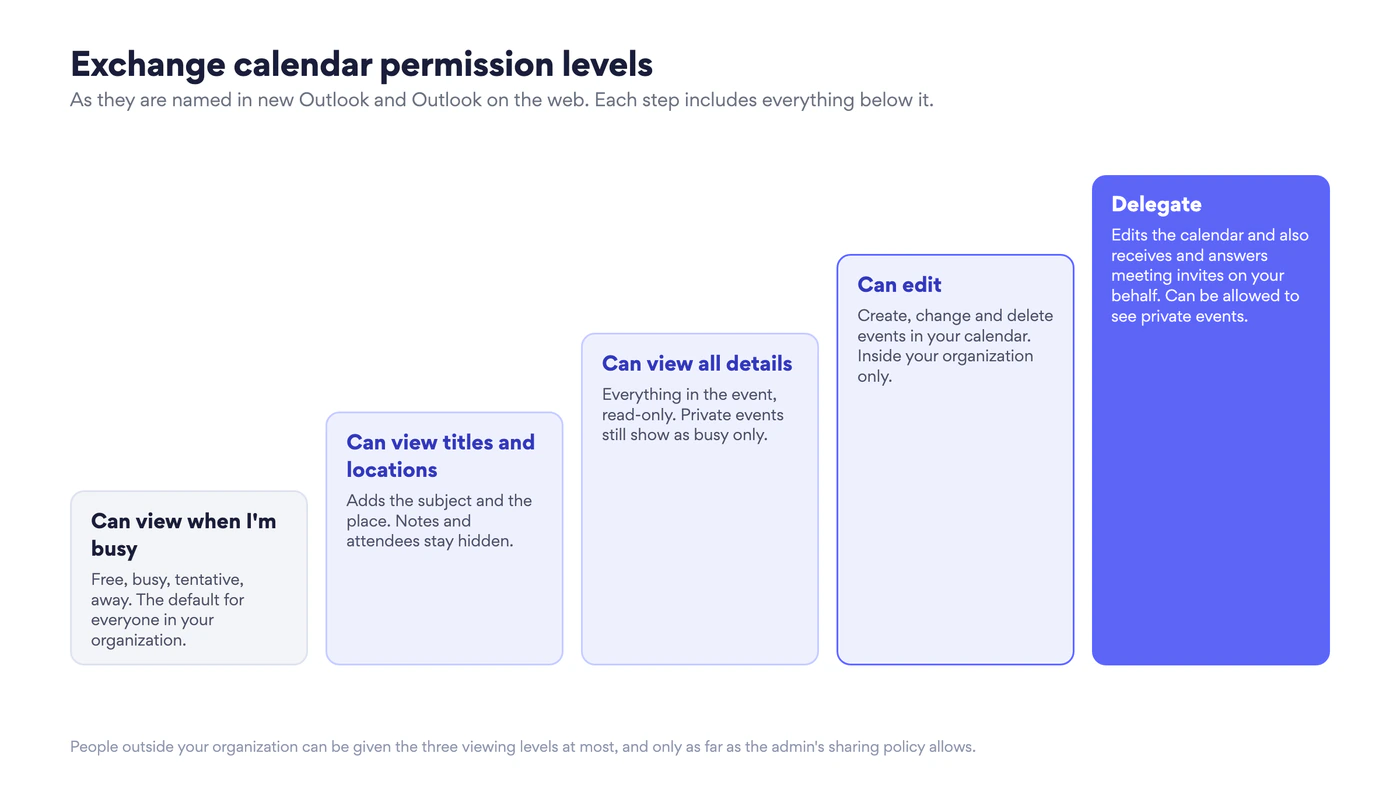
Fig. 4. Exchange calendar permission levels as they are named in new Outlook and Outlook on the web
| Level | What the other person can do | Typical use |
|---|---|---|
| Can view when I’m busy | See free, busy, tentative and away blocks | The default for the whole organization |
| Can view titles and locations | Also see the subject and the place | A wider team, a partner company |
| Can view all details | Read everything except events marked private | Your own team, your manager |
| Can edit | Create, change and delete events | A colleague who plans with you |
| Delegate | Edit, and also receive and answer meeting invitations on your behalf | An executive assistant |
Delegation
A delegate is more than an editor. Exchange forwards your meeting invitations to the delegate, lets them accept or decline for you, and marks the meetings they create as sent on your behalf. When you choose Delegate in Sharing and permissions, you also decide whether invitations go to the delegate only or to both of you, and whether the delegate may see events you marked private. Microsoft’s instructions are in Allow someone else to manage your mail and calendar.
Sharing outside the organization
There are three ways to show an Exchange calendar to someone outside, and an administrator controls all three.
- Share with an external email address. The same sharing window, limited to the three viewing levels. How much detail is allowed is set by the sharing policy in Exchange Online. By default users can invite anyone with an email address to view their calendar.
- Publish a calendar. Under Settings → Calendar → Shared calendars → Publish a calendar, choose the calendar and the level of detail and select Publish. Outlook gives you an HTML link that opens in a browser and an ICS link that can be subscribed to from Google Calendar, Apple Calendar or another Outlook. Anyone with the link can see the calendar, so publish only what is meant to be public.
- Organization relationship. An admin-level link between two companies that lets each side see the other’s free/busy in Scheduler without anyone sharing anything by hand. See Organization relationships in Exchange Online.
Exchange calendar integration
Integration runs in two directions. You can bring other calendars into the Exchange calendar in Outlook, and you can bring Exchange calendars out to the places where the team works: a SharePoint page or a Teams channel.
Bring other calendars into Outlook
Select Add calendar in the left pane of the Calendar view. The options are:
- Add from directory. Open the calendar of a colleague, a room or a shared mailbox in your organization. What you see depends on the permission they gave you.
- Subscribe from web. Paste an ICS link, for example a Google calendar’s secret address or a public holiday feed. Outlook refreshes it on its own schedule, and the calendar is read-only.
- Upload from file. Import an .ics file once. The events are copied into a calendar you choose and do not update afterwards.
- Holidays and other ready-made calendars for your country.
- Create blank calendar. A second calendar in your own mailbox, for a project or for personal plans.
- Add personal calendars. Connect a personal Outlook.com or Google account so its events show next to your work calendar.
Subscribed Google calendars can lag by hours. If that is a problem, see Google Calendar not syncing with Outlook: causes and fixes.
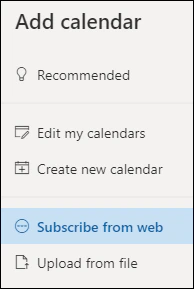
Pic. 7. The Add calendar window in Outlook on the web. Newer builds add more options to the same menu. Source: Microsoft Support
Show Exchange calendars in SharePoint and Teams
This direction is harder. SharePoint Online has no web part that displays an Exchange calendar with its events. The built-in options show either a SharePoint list, or the calendar of one Microsoft 365 group, or free/busy only. In Teams, the Calendar app shows each person their own Exchange calendar, and the channel calendar shows only channel meetings. There is no native view that puts a manager’s calendar, the team’s shared mailbox, two meeting rooms and the project’s SharePoint list on one page.
The workarounds are a Power Automate flow that copies Exchange events into a SharePoint list, which gives you a one-way copy that needs maintenance, or a calendar overlay app that reads the Exchange calendars live. We compare all three approaches in How to display Exchange calendars in SharePoint Online.
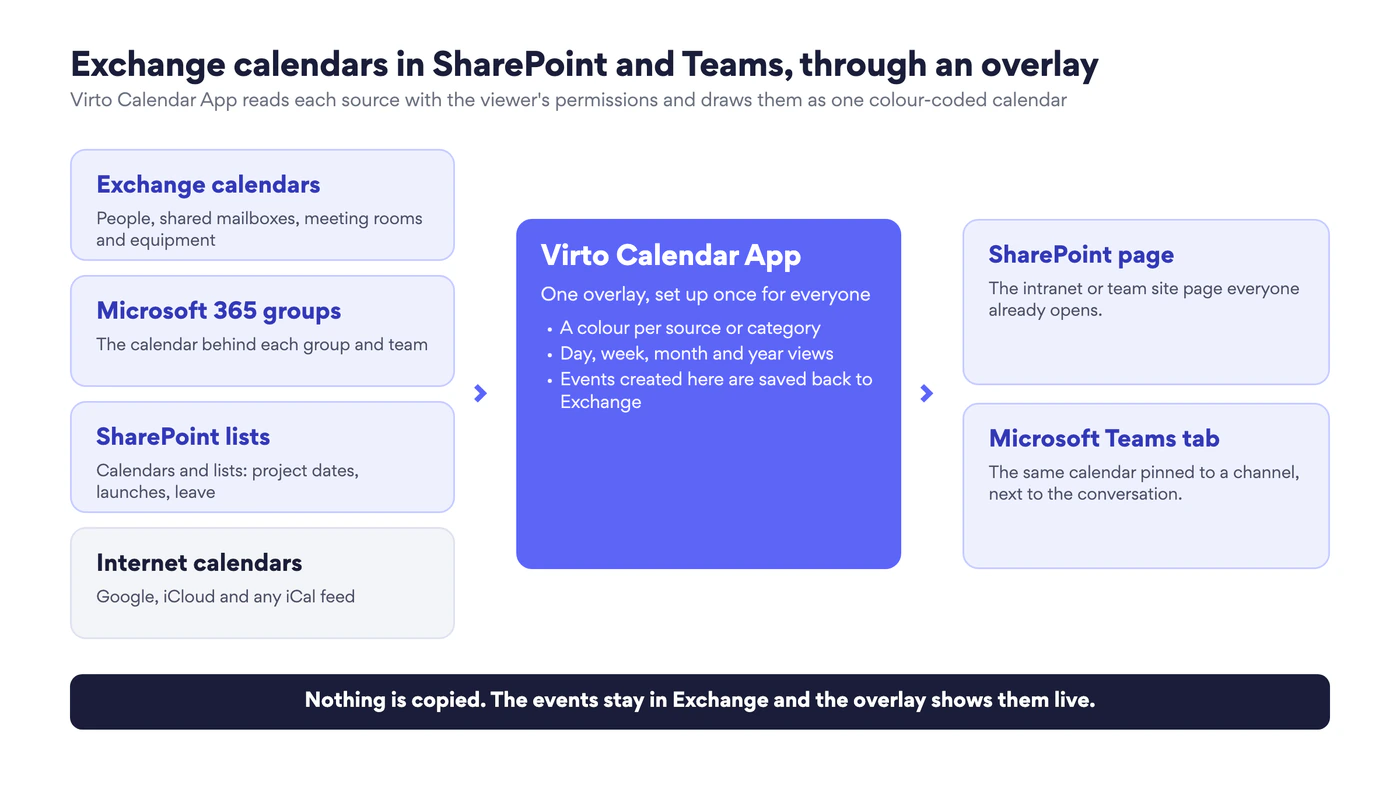
Fig. 5. Exchange calendar integration through an overlay: several sources, one calendar, shown in SharePoint and Teams
Common Exchange calendar issues and how to fix them
| What you see | Likely cause | What to do |
|---|---|---|
| An event is on the phone but not on the laptop, or the other way round | The device’s local copy is behind, or the account is added as IMAP instead of Exchange | Check the event in Outlook on the web first. If it is there, Exchange is fine: fix the device using our Outlook calendar not syncing guide |
| A shared calendar shows old data or takes long to update in classic Outlook | The calendar was added through the old sharing model | Ask the owner to share it again and accept the new invitation. In classic Outlook, check that Turn on shared calendar improvements is enabled in the account’s advanced settings |
| You see only “Busy” in a colleague’s calendar | You have the default permission | Ask them to share the calendar with “Can view titles and locations” or “Can view all details” |
| You cannot share details with an external address | The organization’s sharing policy limits external sharing | Ask the admin to review the policy under Organization → Sharing in the Exchange admin center |
| A room does not answer, or declines everything | Booking options of the resource mailbox: booking window, maximum duration, who may book | The admin checks the room under Recipients → Resources in the Exchange admin center |
| The Calendar app is missing in Teams | The mailbox is on Exchange Server without a hybrid connection, or an app policy hides the app | See Teams calendar not showing. Microsoft documents the requirements in How Exchange and Microsoft Teams interact |
| A delegate does not receive the manager’s invitations | Delegate settings send invitations to the owner only | The owner opens Sharing and permissions and changes who receives meeting invitations |
A useful rule: Outlook on the web shows what is really in Exchange. If the event is right there and wrong elsewhere, the problem is in the app or the device. If it is wrong on the web as well, the problem is in the data or the permissions. For a wider list of symptoms across Outlook, Teams and SharePoint, start from our calendar troubleshooting hub.
Exchange calendars in one overlay with Virto Calendar App
Virto Calendar App is a calendar overlay for Microsoft 365. It reads calendars from several sources, gives each a colour and shows them as one calendar on a SharePoint page or in a Teams tab. For Exchange it covers the cases the native tools leave open:
- Exchange Online calendars of people, shared mailboxes and distribution groups, shown with their event details to the viewers who have permission and as busy blocks to those who do not.
- Meeting rooms and equipment, so room availability sits next to the team’s schedule.
- Exchange Server calendars in organizations that still keep mailboxes on-premises.
- SharePoint lists and calendars, Microsoft 365 group calendars and internet calendars such as Google or iCloud, in the same view.
The events are not copied anywhere. The app reads them from Exchange each time the calendar is opened, and an event created in the overlay is saved back to the Exchange calendar it belongs to.
Add an Exchange calendar to the overlay
- Install Virto Calendar App from Microsoft Marketplace and open its settings on your SharePoint site.
- Create a new calendar or edit an existing one.
- Open Exchange settings and turn on the sources you need: the user’s own Exchange Online calendars, shared calendars and group calendars each have a switch.
- To show a specific mailbox to everyone, such as a meeting room, a shared mailbox or a colleague, enable Display events from resource calendars and type its name or email address. Each mailbox you add gets its own colour.
- Add the other sources you need, such as SharePoint lists or internet calendars, and select Save and open.
- Add the calendar to a SharePoint page as a web part, or to a Teams channel as a tab.
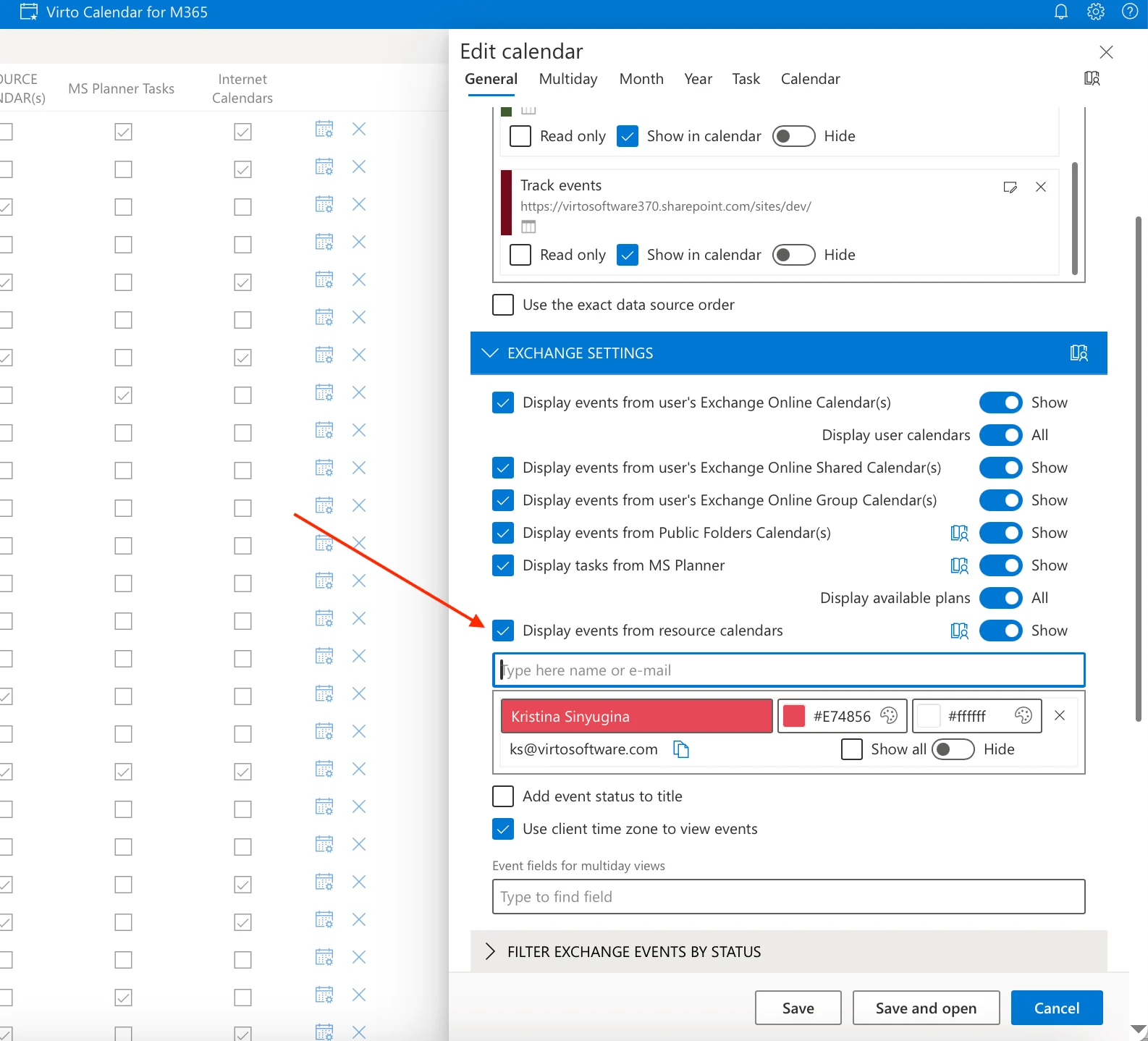
Pic. 8. Exchange settings of a calendar in Virto Calendar App, with a mailbox added under “Display events from resource calendars”
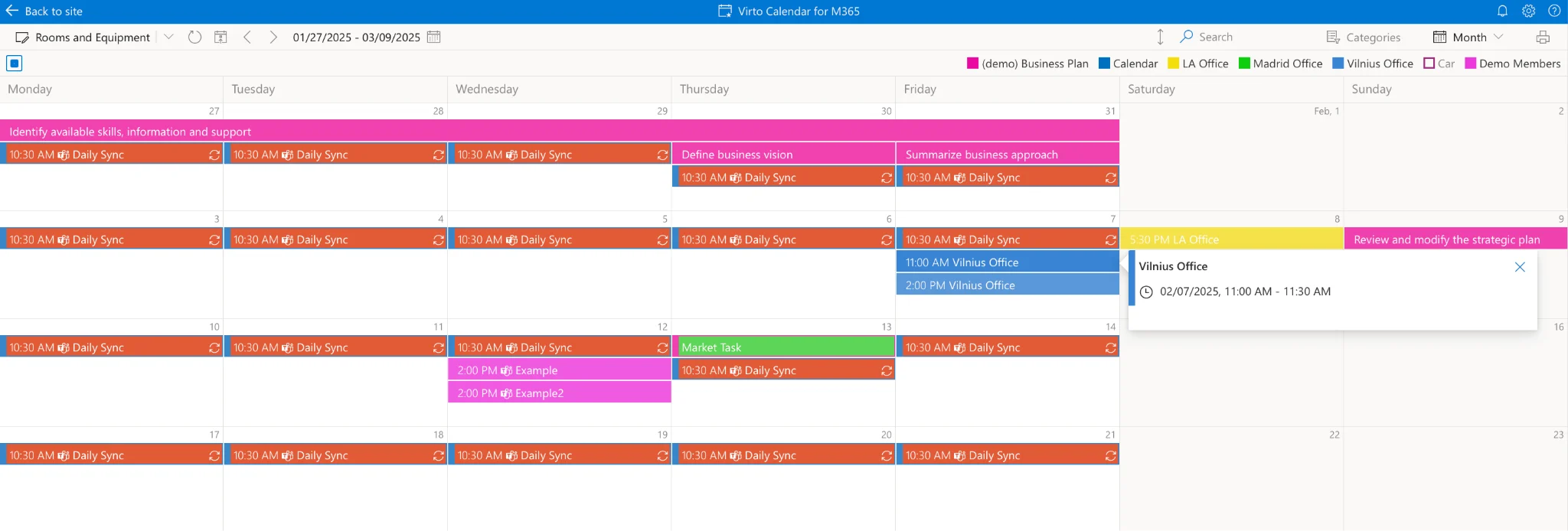
Pic. 9. Exchange room calendars and team calendars in one colour-coded overlay in Virto Calendar App
What each viewer sees follows their Exchange permissions, so an overlay on the intranet does not reveal more than Outlook would. Virto Calendar App comes with a 30-day free trial. You can start it from the product page and test the overlay on your own Exchange calendars before you decide.
FAQ
What is the Microsoft Exchange calendar?
It is the calendar service behind Outlook and Microsoft 365. It stores events in your mailbox on the Exchange server and syncs them across Outlook on the desktop, on the web and on mobile, and across Teams.
Is the Exchange calendar the same as the Outlook calendar?
For a work or school account, yes. Outlook is the app that displays the calendar and Exchange is the service that stores it. A personal Outlook.com account works in a similar way but is a separate consumer service.
What is the Exchange Online calendar?
The same calendar when the mailbox is hosted in Microsoft’s cloud as part of Microsoft 365, as opposed to Exchange Server, which an organization runs on its own servers.
How do I create an Exchange shared calendar?
Either share your own calendar with colleagues from Share in Outlook, or, for a calendar that belongs to a team and not to a person, use a shared mailbox or a Microsoft 365 group. The steps are in How to create an Office 365 shared calendar.
Can I see an Exchange calendar in SharePoint or in a Teams channel?
Not with the built-in web parts, which show SharePoint lists, one group calendar or free/busy only. A calendar overlay app such as Virto Calendar App displays Exchange calendars, shared mailboxes and rooms on a SharePoint page or in a Teams tab.
Does Exchange calendar integration work with Google Calendar?
In one direction at a time. You can subscribe to a Google calendar in Outlook through its ICS link, and you can publish an Exchange calendar as an ICS link and subscribe to it from Google. Both are read-only and refresh with a delay. There is no native two-way sync.
Why is my Exchange calendar not syncing?
Check Outlook on the web first. If the calendar is correct there, the server is fine and the device or app needs attention: see Outlook calendar not syncing.
Conclusion
The Microsoft Exchange calendar is the part of Microsoft 365 that everyone uses and few people name. It keeps one copy of every event on the server, shows it in Outlook, Teams and on the phone, and decides who may see or change it. Once that is clear, sharing, delegation, room booking and most sync problems stop being mysterious.
Where Exchange stops is at the edge of Outlook: it does not put calendars on the pages and channels where a team plans its work. When you need Exchange calendars, rooms, SharePoint lists and outside calendars in one place, Virto Calendar App adds that view on top of what Exchange already stores, and the 30-day free trial is enough to check it against your own calendars.