



Most Microsoft 365 users don’t have one calendar — they have a handful. A personal Outlook calendar, a Microsoft 365 group calendar for the team, a SharePoint calendar for project dates, maybe a shared calendar for a colleague’s schedule. The challenge is rarely creating them; it’s seeing and managing them together. This guide walks through how to view and manage multiple Microsoft 365 calendars natively, where the built-in tools run out of road, and how a calendar overlay app gives you every source in one color-coded view.
Quick answer: how to manage multiple Microsoft 365 calendars
To manage multiple Microsoft 365 calendars, open Outlook and add the calendars you need (personal, group, shared and SharePoint) under Add calendar. Turn on Overlay mode to stack a few calendars in one view, and use color categories to tell them apart. Native overlay works for a small number of Exchange calendars but gets cluttered fast and can’t pull SharePoint, group and external calendars into a single combined view. For one unified, color-coded view across Outlook, SharePoint, group and Google/iCal calendars, use a calendar overlay app such as Virto Calendar.
Calendars in Microsoft 365 (personal, group, shared, SharePoint)
Before managing several calendars together, it helps to know what kinds you’re dealing with. In Microsoft 365 most calendar data lives in Exchange Online and surfaces across Outlook, Teams and SharePoint. The four you’ll juggle most often are:
- Personal calendars — your individual Outlook calendar for appointments, meetings and reminders. Synced through Exchange Online and visible across Outlook and Teams.
- Group calendars — attached to a Microsoft 365 Group or Team, shared by all members for meetings, deadlines and team coordination.
- Shared calendars — a personal calendar shared with specific colleagues at a chosen permission level (view, edit, delegate). Common for assistants managing an executive’s schedule.
- SharePoint calendars — calendars or SharePoint Lists on a site, used for project timelines, events and team schedules with list-level access control.
Tip: If your goal is to merge or combine calendars into a single calendar object, that’s a different task from overlaying — see our dedicated guide. This article is about viewing and managing many M365 calendars side by side without flattening them into one.
Quick reference: the three calendar types
| Type | Ownership & access | Best for |
|---|---|---|
| Personal | Owned and managed by one user. | Individual scheduling, reminders, personal appointments. |
| Group | Owned by a Microsoft 365 Group / Team; open to all members. | Team projects, shared deadlines, departmental coordination. |
| Shared | Owned by one user, shared with others at set permissions. | Close collaboration, e.g. assistant managing an exec’s diary. |
Fig. 1. The three core Microsoft 365 calendar types.
How to view multiple Microsoft 365 calendars natively
Microsoft 365 gives you several built-in ways to look at more than one calendar at once. Here’s how to set each up in Outlook (the steps are similar in the new Outlook, classic Outlook and Outlook on the web).
Add another person’s or a group calendar
- In Outlook, go to the Calendar view.
- Select Add calendar → Add from directory.
- Choose the person or Microsoft 365 Group and pick which calendar group to add it to.
- The calendar appears in your calendar pane and can be toggled on or off with its checkbox.
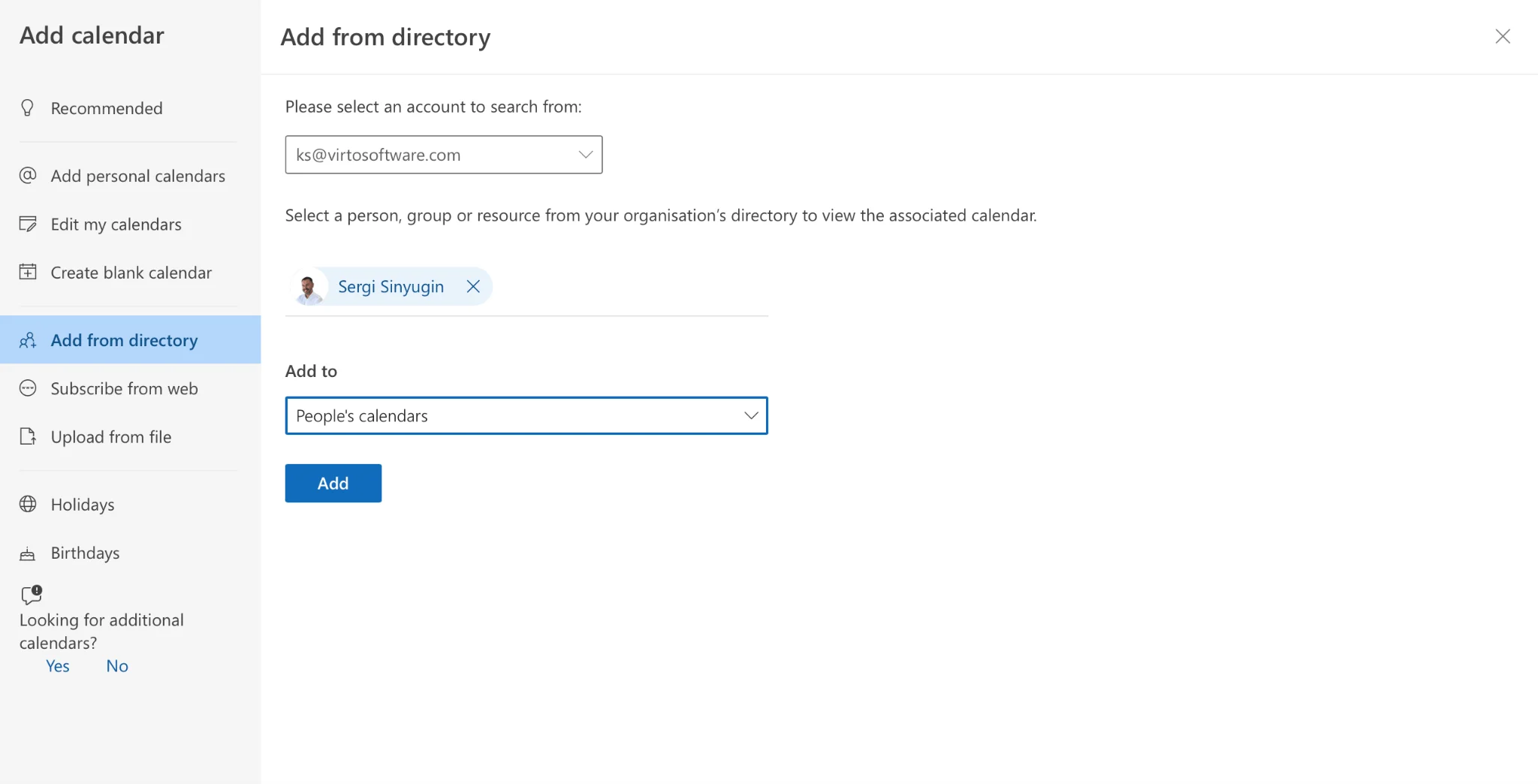
Outlook “Add calendar” dialog showing Add from directory
Open a shared calendar
When a colleague shares their calendar with you, accept the invitation and it appears under Shared calendars in your list. Your permission level (view titles, full details or edit) is set by the person who shared it.
Side-by-side vs. overlay mode
By default Outlook shows added calendars side by side, each in its own column. To merge them into a single grid, switch on Overlay:
- Tick the checkbox for each calendar you want to include.
- Click the overlay arrow on a calendar tab (classic Outlook) or use View → Overlay to stack the calendars on top of each other.
- Events from each calendar inherit that calendar’s color so you can tell sources apart.
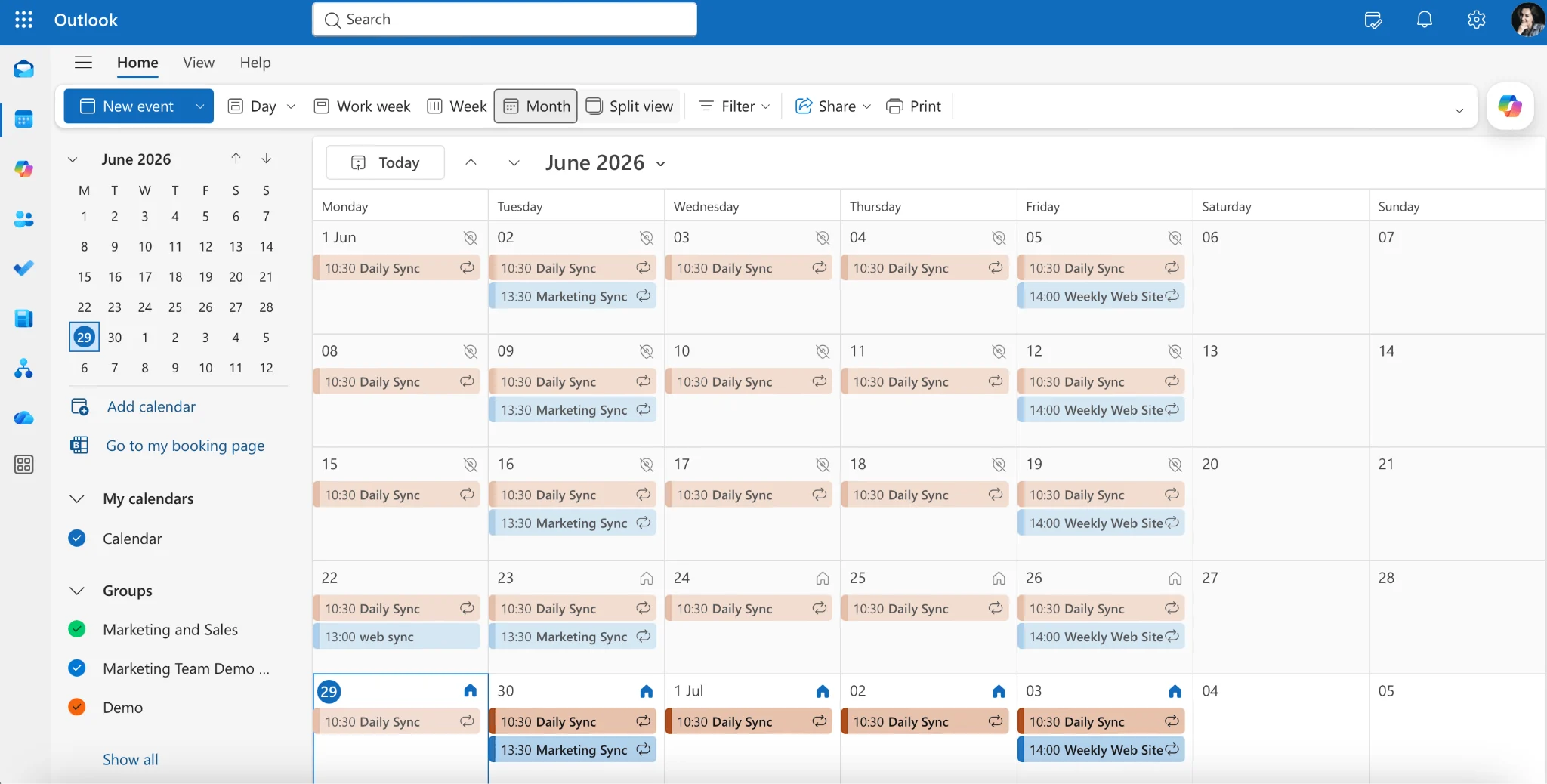
Outlook calendars in overlay mode, color-coded by source
Color-code with categories
Assign a color to each calendar (right-click the calendar → Color) and use color categories on individual events. In a busy overlay, consistent color-coding is the single biggest readability win.
Add a SharePoint calendar or list
SharePoint calendars and Microsoft Lists can be surfaced in Outlook in some configurations, but the experience is limited in the modern SharePoint and new Outlook clients — which is where the native approach starts to strain.
Limits of the native approach
Native overlay is fine for two or three Exchange calendars. Beyond that, a few hard limits show up:
- Overlay clutter. Stack more than a few calendars and overlapping events become a wall of color that’s hard to read.
- No true cross-source single view. Outlook overlay is built for Exchange calendars. Pulling SharePoint Lists, group calendars and external (Google/iCal) calendars into one consolidated grid isn’t something native Outlook does cleanly.
- Limited filtering and color control. You can’t easily filter by category across all sources or build saved, role-specific views.
- SharePoint gaps. Modern SharePoint dropped the classic calendar view, so list-based project dates don’t overlay neatly with personal calendars.
- Security trade-offs with third-party tools. Many add-ins solve the view problem but store your data on their own servers. For organizations with strict data-protection requirements, that’s a real concern — so it’s worth choosing a tool that keeps data inside Microsoft 365.
Unify everything with Virto Calendar (overlay)
This is exactly the gap Virto Calendar fills. It’s a calendar overlay app for Microsoft 365 and SharePoint that consolidates many sources into a single, color-coded view — available as a standalone app, inside SharePoint, or directly in Microsoft Teams.
With Virto Calendar you can:
- Overlay any source — Outlook/Exchange personal, group and shared calendars, SharePoint calendars and Lists, plus external Google and iCal feeds — in one combined grid.
- Color-code by source or category so a dozen calendars stay readable at a glance.
- Toggle calendars on and off to keep the view focused on what matters right now.
- Stay inside Microsoft’s security boundary — Virto operates within Microsoft 365 and follows Microsoft’s data-security recommendations, so calendar data isn’t parked on a third party’s servers.
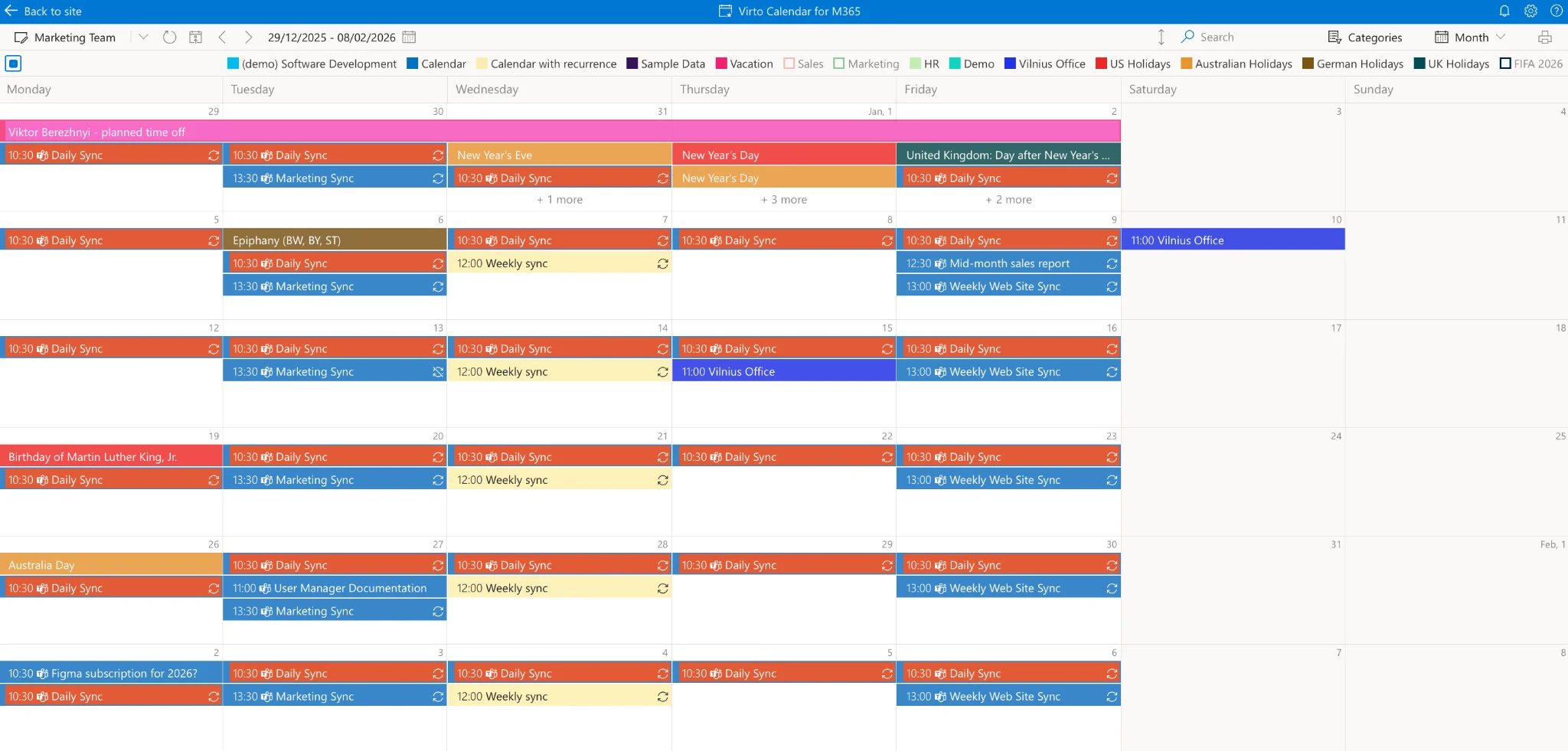
Virto Calendar overlay showing Outlook, SharePoint and group calendars in one color-coded monthly view
Pricing: Virto Calendar App costs $2,412 per 100 users per year with a 3-year agreement (100 users and up), with a 30-day free trial. Smaller teams can use Virto Shared Calendar, which has a free plan.
Example: multi-calendar project management
Say you’re a project manager running a long, complex project. To stay on top of it you need three things in view at once:
- Your personal calendar (Outlook) for your own appointments and commitments.
- A project calendar (a Microsoft 365 group calendar) holding milestones and deliverables.
- A vacation calendar (a SharePoint List) tracking team time off, with list-level permissions so only the right people can edit it.
Managing these separately means constant toggling between apps. With Virto Calendar you overlay all three into one view: personal, project and vacation calendars side by side, color-coded, each switchable on or off. You see your own commitments, the project’s critical dates and your team’s availability from a single screen — in the standalone app, in SharePoint or in Teams — without copying data between systems or giving up Microsoft-grade security.
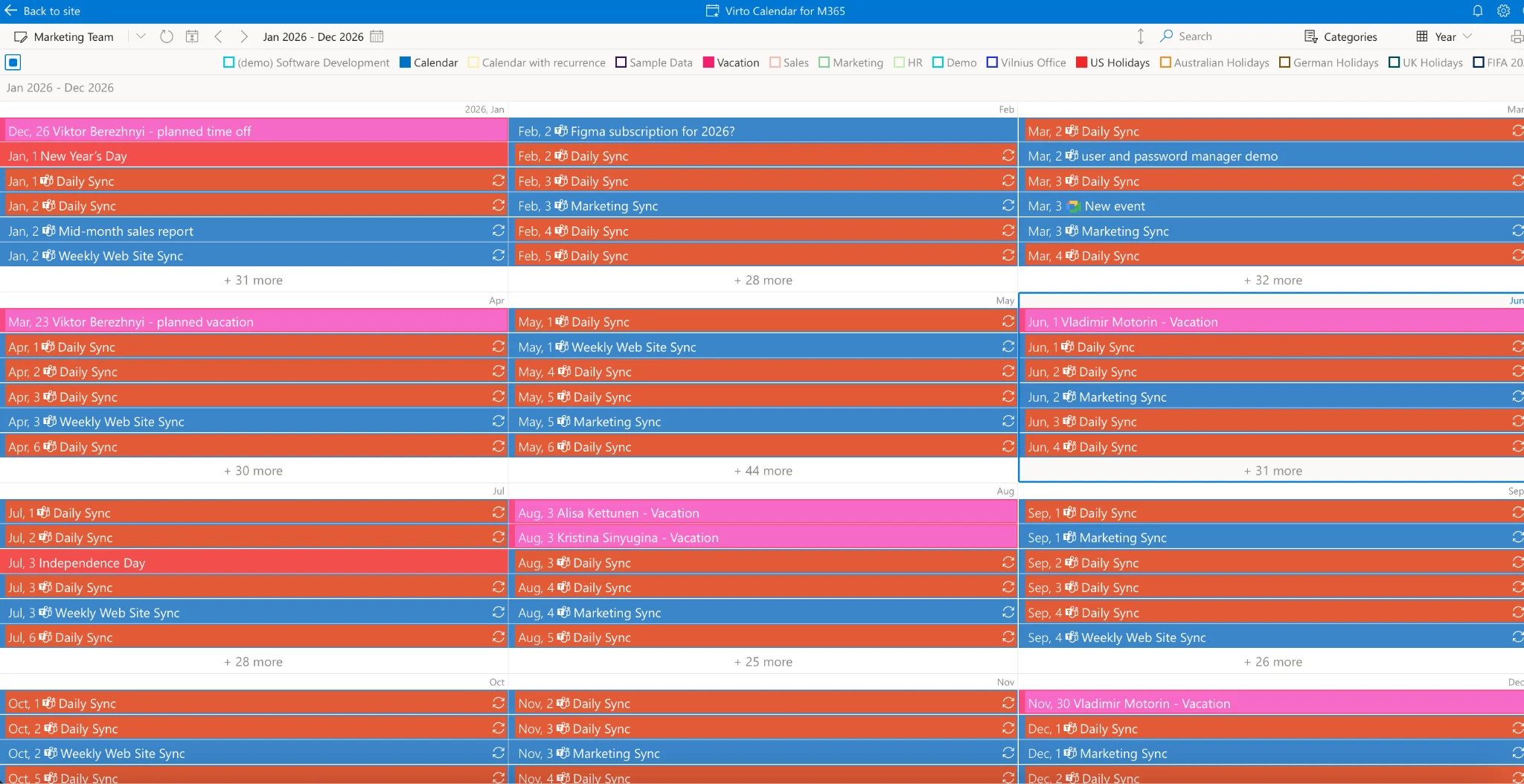
Project, personal and SharePoint vacation calendars overlaid in a single Virto Calendar year view
FAQ
How do I view multiple Microsoft 365 calendars in one view?
In Outlook, add each calendar via Add calendar, tick the ones you want, and switch on Overlay to stack them in a single grid with color-coding. For a single view that also includes SharePoint, group and external calendars, use an overlay app like Virto Calendar.
How do I manage many Microsoft 365 calendars at once?
Natively, add and overlay calendars in Outlook and color-code them by source. When you’re juggling more than a few sources — especially across Outlook, SharePoint and Teams — a calendar overlay app consolidates them into one customizable, color-coded view you can filter and toggle.
Can I see Outlook, SharePoint and group calendars together?
Outlook’s native overlay is designed for Exchange calendars and doesn’t cleanly combine SharePoint Lists or external calendars. Virto Calendar brings Outlook, SharePoint, group and Google/iCal calendars into one unified view inside Microsoft 365.
Is it safe to use a third-party calendar app in Microsoft 365?
It depends on where the app stores your data. Tools that keep data on external servers can be a problem for security-sensitive organizations. Virto Calendar runs within the Microsoft 365 environment and follows Microsoft’s security recommendations.
Conclusion
Microsoft 365 gives you plenty of calendars — personal, group, shared and SharePoint — but no native way to see all of them, across every source, in one clean view. Outlook’s overlay handles a couple of Exchange calendars; beyond that it gets crowded and can’t reach SharePoint or external feeds. A calendar overlay app closes that gap, and Virto Calendar does it without taking your data outside Microsoft 365.
Want to see it on your own calendars? Start a free trial of Virto Calendar, or book a demo and we’ll walk through your specific setup.
Related guides
- Availability Calendar for Groups: See Team Availability and Book Time
- Microsoft Exchange Calendar: How It Works, Sharing and Integration
- How to Merge & Combine Calendars: Google & Outlook
- How to Create an Office 365 Shared Calendar
- How to Share a Calendar in Outlook
- Outlook Calendar Not Syncing: Fixes