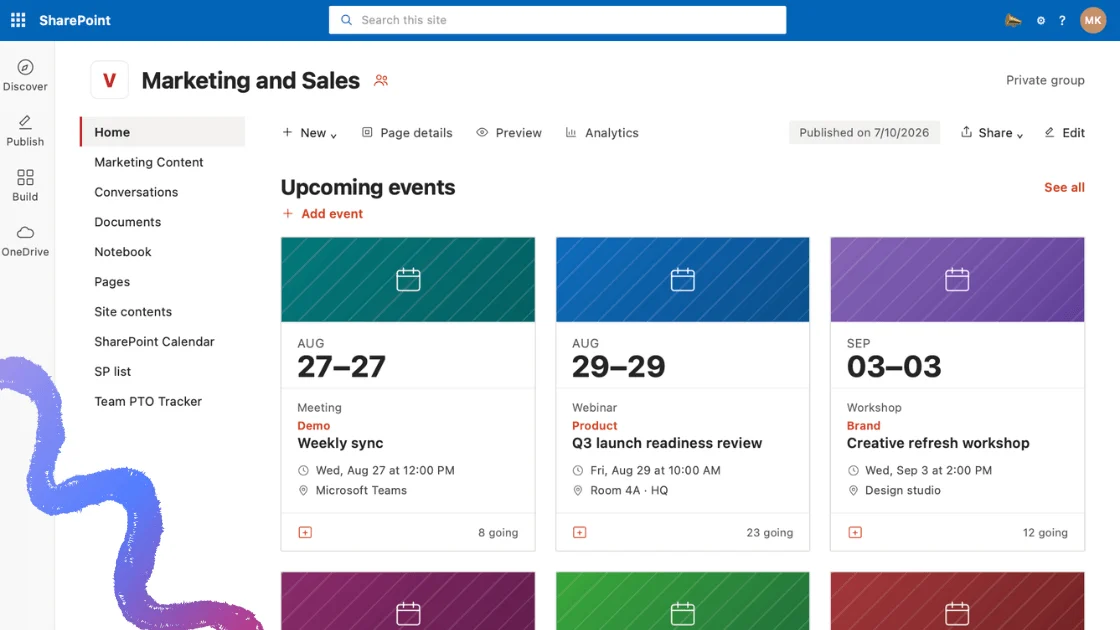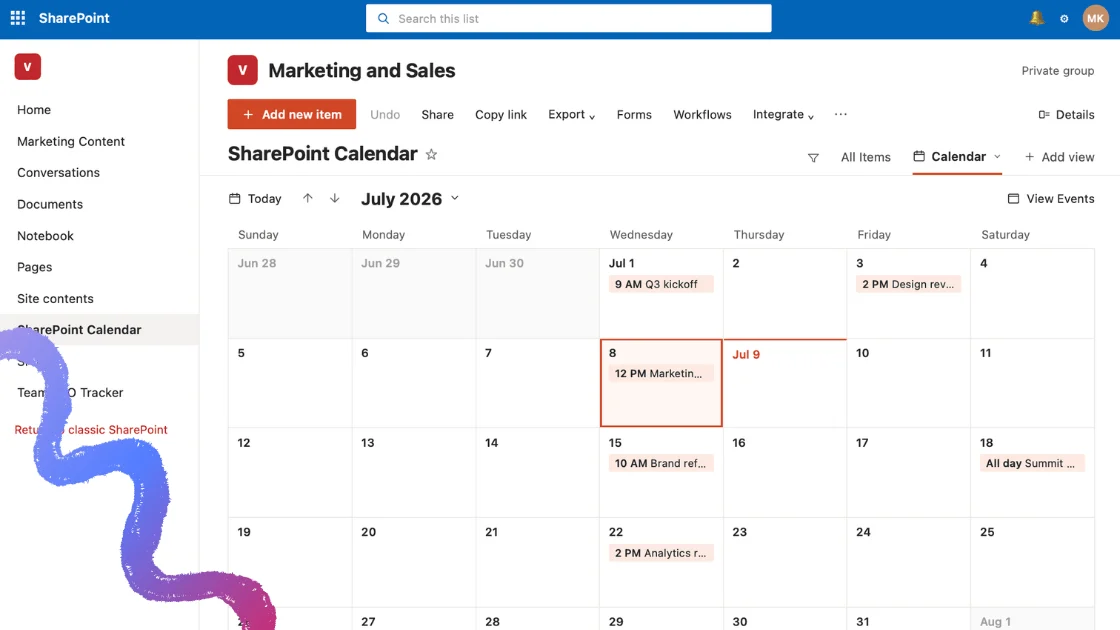
Scattered schedules quietly drain productivity, and interactive calendars promise relief — but with so many options, choosing the right platform can feel daunting. This guide cuts through the noise, explaining what an interactive calendar actually is, comparing the best interactive calendar tools available in 2026, and showing you how to build one of your own.
Quick answer: An interactive calendar is a calendar you can act on — clicking, filtering, overlaying and drilling into events — rather than a static, read-only view. The best interactive calendar tool depends on your ecosystem: Google Calendar for personal use, Outlook or the Virto Calendar App for Microsoft 365 teams, and Teamup or Trello for lightweight sharing and project work.
Ineffective time and task management leads to lost productivity and missed deadlines. Research suggests most people lack a system to optimize their schedule, with a large share of the workday spent on lower-value activities (1). The problem is made worse by meeting conflicts and scattered information, with roughly a third of employees naming time management as their biggest obstacle (2).
Fortunately, interactive digital calendars help resolve these alignment challenges. With intuitive visual interfaces and collaboration features, they let users organize objectives, assignments and meetings clearly while staying in sync with others.
At VirtoSoftware, we specialize in interactive calendar management. With 25 years of experience developing the Virto Calendar App and other productivity tools for MS Teams, Microsoft 365, and SharePoint, we’ve helped thousands of teams — including Warner Bros., Sony, NASA, and FedEx — streamline scheduling. That hands-on expertise informs the practical, product-tested advice below.
Interactive Calendars: Functions, Features, Capabilities
Interactive calendars are reshaping digital scheduling with more user-centric design. But what actually makes a calendar interactive, and how does it improve on a traditional calendar app? This section defines interactive calendars, outlines their core capabilities, contrasts them with standard calendars, and shows how they enable more effective time and task management.
What is an interactive calendar?
An interactive calendar is a sophisticated electronic calendar that goes beyond simply displaying events. It lets users engage directly with their schedules through a dynamic interface where events can be manipulated, shared, and integrated with other applications. This turns the calendar from a passive record of appointments into an active tool for managing daily work and life.
Main functions and capabilities of interactive calendars
The essence of interactivity lies in multifunctional capabilities. Users can:
- Create and edit events: Quickly add new events and adjust times and descriptions as plans change.
- Share events: Easily share events with others for better collaboration and coordination.
- Integrate with other apps: Connect email clients, task managers, and other tools to streamline scheduling and communication.
- Set reminders and alerts: Customize alerts so important appointments and deadlines aren’t missed.
- Filter and drill into events: Click, filter, and expand entries to see the detail behind each event, rather than just viewing a static grid.
Comparison with traditional and shared calendars
Traditional digital calendars let users view and edit events, but interactive calendars go further with app integration and real-time collaboration. Where traditional calendars limit you to adding, removing, or editing individual entries, interactive calendars support a more collaborative, integrated approach.
Shared calendars, meanwhile, let multiple users view and sometimes edit events but often lack deeper interaction such as real-time updates and integration with other productivity tools. Interactive calendars enhance that collaborative framework so everyone can interact with the calendar dynamically — making them more adaptable to complex scheduling needs.
How is a desktop planner different from an interactive calendar? A desktop planner is a broader tool that combines task management, note-taking, and scheduling to organize daily work directly from your desktop. An interactive calendar focuses primarily on scheduling and managing dates and events — reminders, recurring events, and integrations with other calendar services. Desktop planners often include a calendar but extend into detailed task lists and project tracking; interactive calendars stay simpler, emphasizing easy viewing and editing of event details across day, week, and month views.
Enhancing task and time management with an interactive calendar online
Interactive calendars can significantly improve how individuals and teams manage tasks, deadlines, and overall time. By letting users act on their schedules directly, these tools streamline planning, reduce scheduling conflicts, and improve precision in time allocation. Integrating tasks and reminders with personal or team calendars means deadlines are less likely to be overlooked and projects are more likely to finish on time.
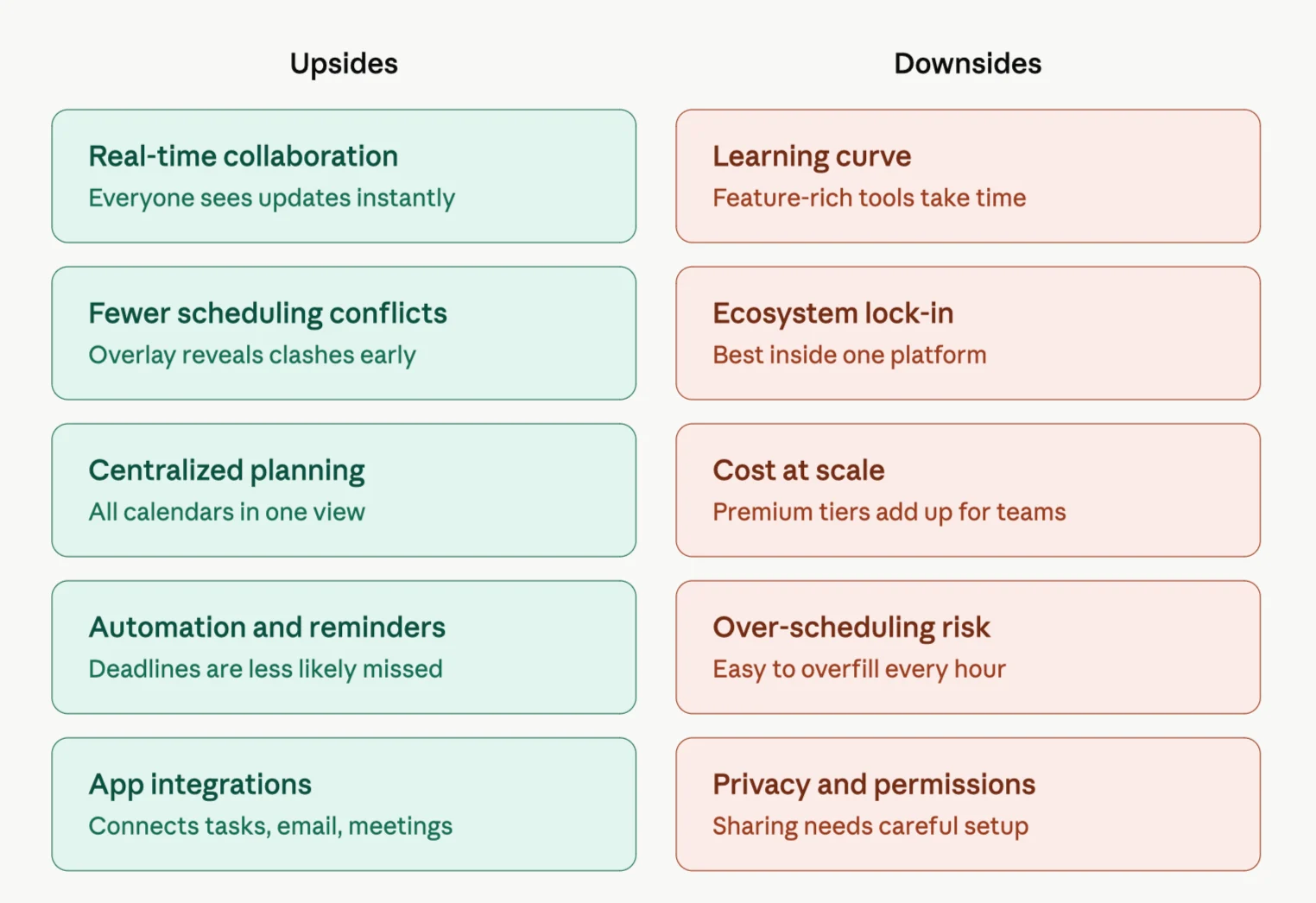
Pic. 1. The upsides and downsides of adopting interactive calendars.
Real-time updating means any change is instantly visible to everyone involved, reducing miscommunication and scheduling errors. That synchronization is invaluable for fast-paced teams and for individuals juggling complex portfolios of tasks and appointments. In short, interactive calendars are more than a way to track dates — they’re a comprehensive solution for boosting productivity in both personal and professional settings.
Review of Online Interactive Calendars
Specialized calendar solutions offer comprehensive features and tight integration, but many users like to build their own calendars from scratch with tools they already have, such as Excel or Google Sheets. For those who prefer the DIY route, here’s a detailed, step-by-step walkthrough.
How to make an interactive calendar in Google Sheets
Set up the calendar grid
- Open Google Sheets and start a new blank spreadsheet.
- In the first row, type the days of the week (Sunday to Saturday). Below each day, create cells for each date. Six rows usually covers months that start on different weekdays.
Input the dates
- Enter the first day of the month in the correct weekday column — for example, put “1” under Wednesday if the month begins on a Wednesday.
- Fill in the remaining days. The fill handle speeds this up, but stop at the correct final day.
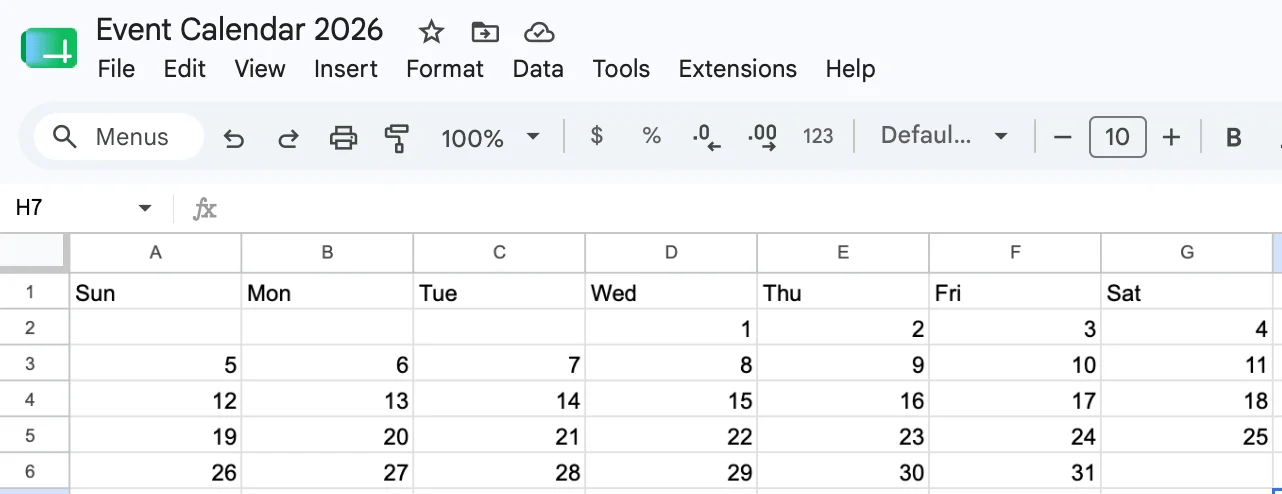
Pic. 2. Creating a calendar in Google Sheets: accounting for the days of the week and the number for each day.
- Format the calendar
- Adjust cell sizes by dragging the row and column lines to make cells square.
- Highlight the grid and apply borders from the toolbar so it reads like a traditional calendar.
- Color-code weekends with Format > Conditional formatting, choosing your range and color.
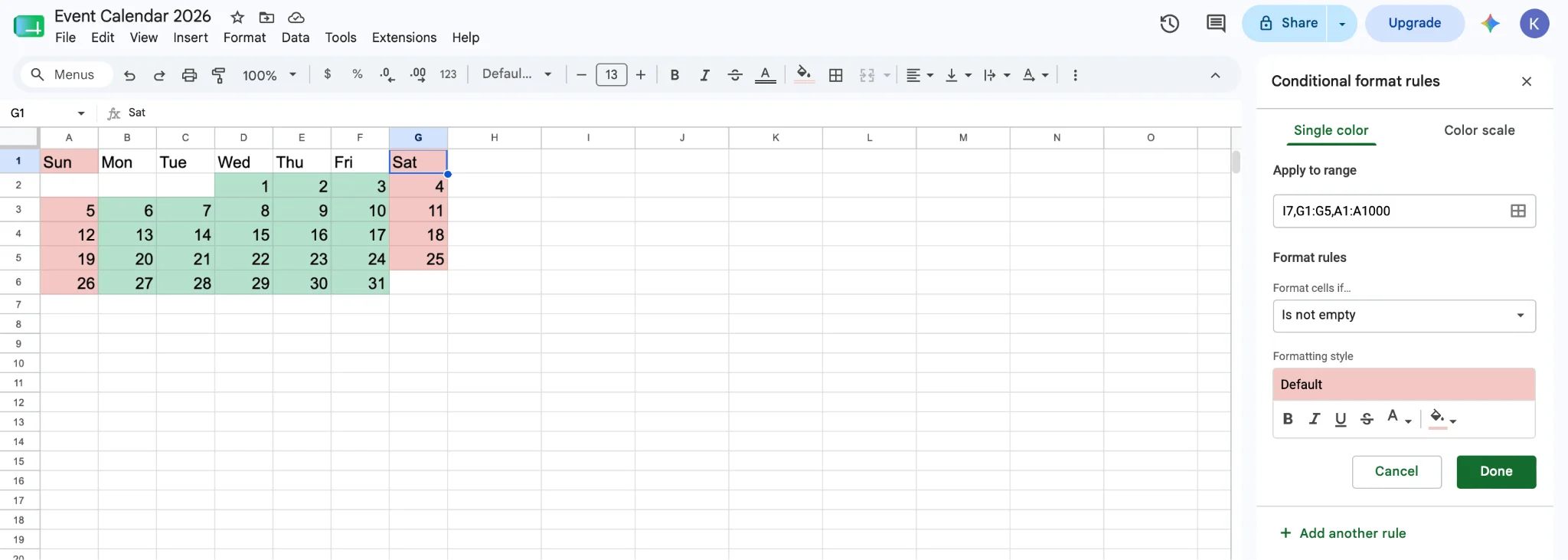
Pic. 3. Color-coding weekends in your newly created Google Sheets calendar.
- Add interactivity
- Insert dropdown menus for event types or status: select the cells, go to Data ▸ Data validation ▸ Add rule, choose Dropdown under Criteria, and enter your values (e.g. Free, Busy, Meeting, Deadline), adding each as a separate item.
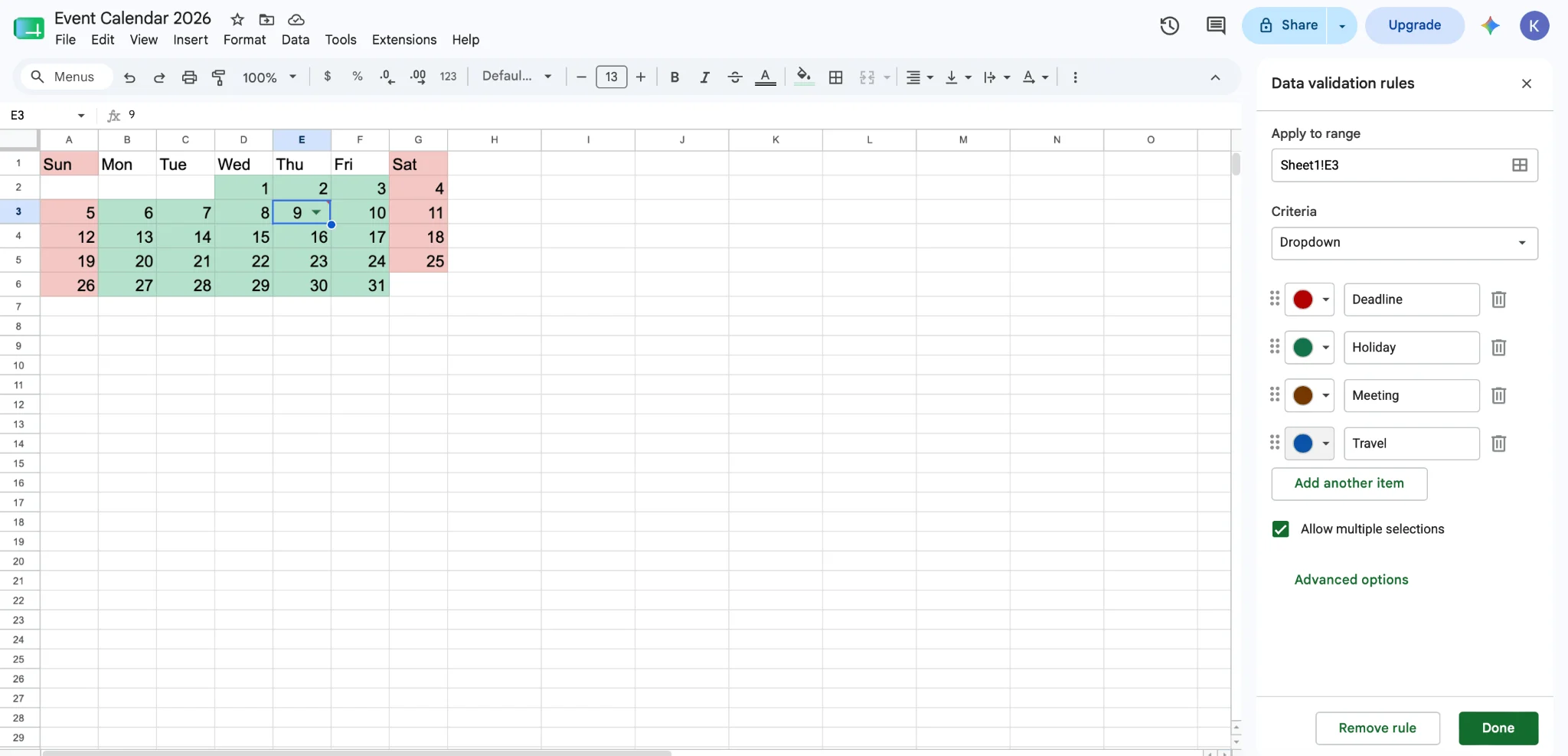
Pic. 4. Setting up additional parameters for your calendar.
- Link to other sheets for detailed event planning: right-click a cell, choose “Insert link,” and point to another sheet with that date’s details.
- Share and collaborate
Click Share and enter email addresses to give others view, edit, or comment access based on the permissions you set. This calendar can be as simple or complex as you need — extend it with Google Apps Script or connect it to Google Calendar for more interactivity.
Building an interactive calendar in Excel follows the same logic: replicate the steps above and use Excel’s native features to create a customizable calendar.
How do I create an online interactive calendar? Use a specialized platform such as Google Calendar, Microsoft Outlook, or Virto Calendar. These let you set up, customize, and share calendars easily, with features like event invitations, notifications, and integration with other apps.
Different desktop calendar apps for Windows
If you want a calendar that lives on your Windows desktop, here are solid options ranging from lightweight widgets to full planning tools:
- Microsoft Outlook Calendar: Built into Outlook, powerful for scheduling and task management.
- Rainlendar: A lightweight, customizable calendar that sits on your desktop for constant visibility; a capable free version is available.
- VueMinder: Detailed calendars with reminders and tasks, with support for older Windows versions.
- Google Calendar: Web-based and free, accessible on the desktop via browser or companion apps.
- One Calendar: Integrates well with Windows and supports Google, Outlook, and more.
- Any.do: Primarily task management, but includes calendar functions and syncs across devices.
- Microsoft To Do: Task management with deadline reminders and calendar integration, native to Windows.
Review of the best interactive calendar tools
Interactive calendars help you keep track of appointments, meetings, and deadlines, usually with sharing, collaboration, and integration features. Below we review the most popular platforms — their features, availability, and typical user feedback. (Feature details and free tiers were re-verified for 2026; always check each vendor’s page for the latest plans.)
Google Calendar: interactive calendar online, free
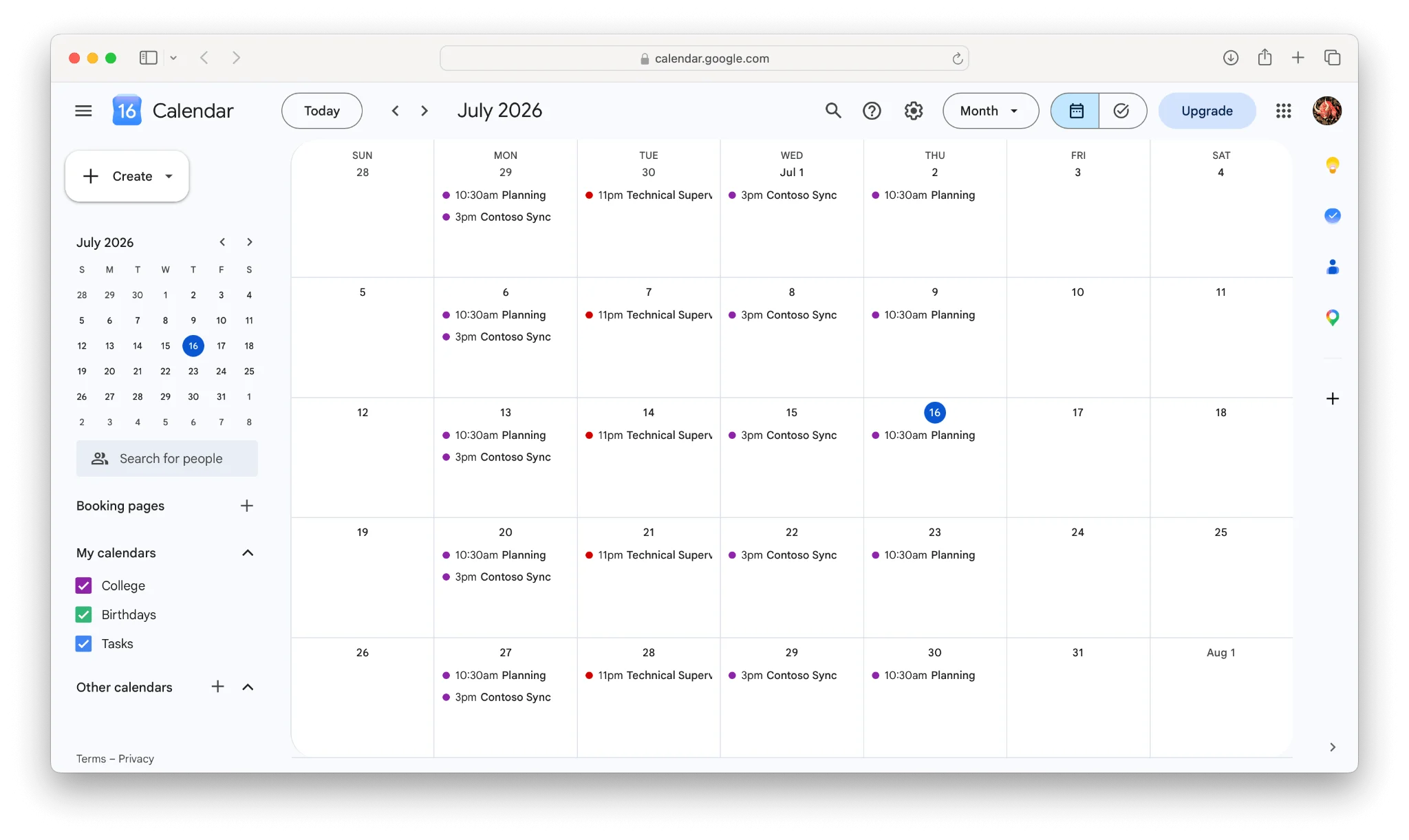
Pic. 5. Google Calendar.
Google Calendar is a highly accessible, widely used calendar that integrates seamlessly with other Google services.
- Free version: Yes, with core functionality.
- Delivery: Web-based, plus iOS and Android apps.
- Pros: Excellent Gmail and Google Meet integration, intuitive interface, great for personal and team use.
- Cons: Limited customization compared with some professional tools.
- Best for: Both personal and work calendars.
Outlook Calendar: interactive calendar, desktop & online
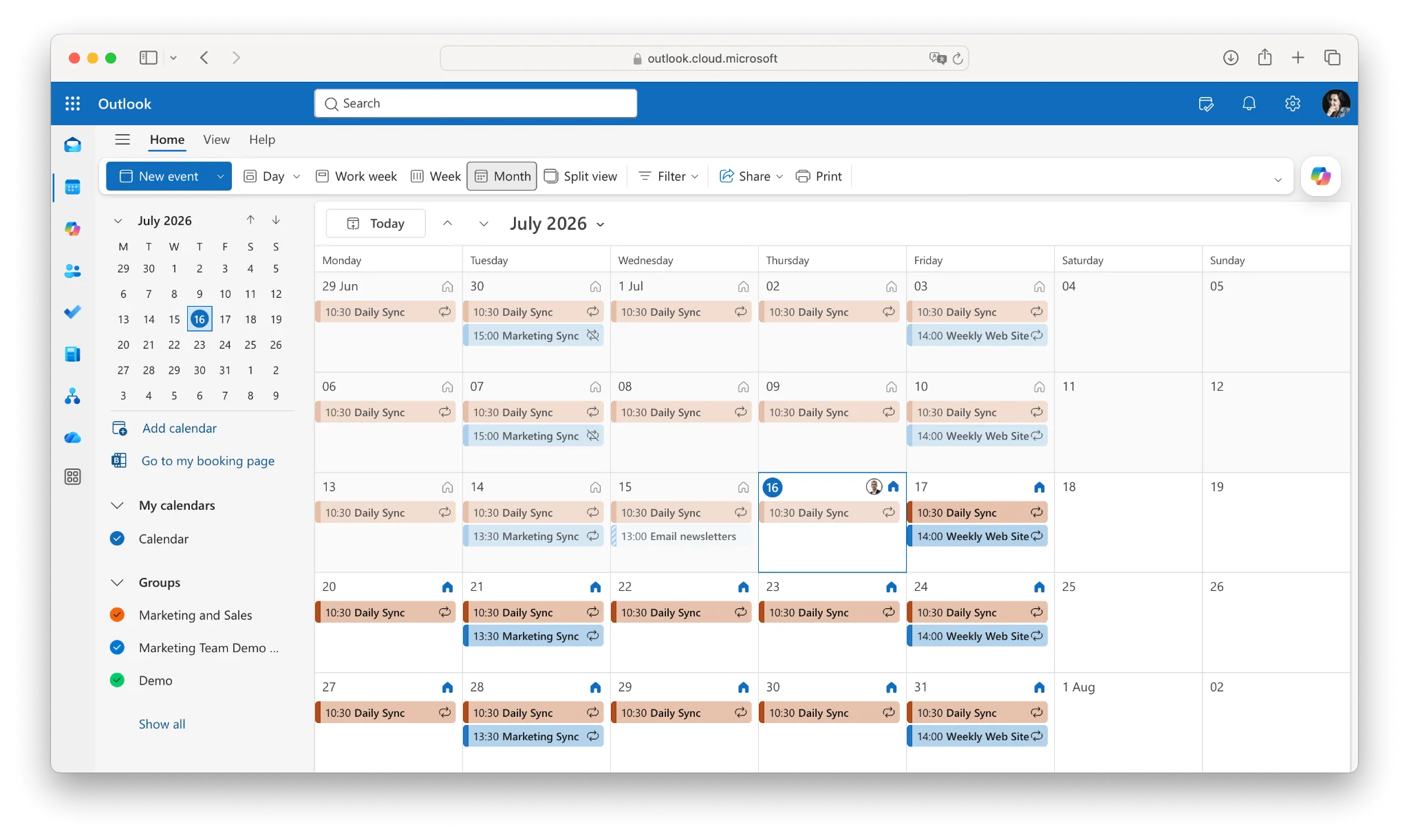
Pic. 6. Outlook Calendar.
Part of the Microsoft ecosystem, Outlook Calendar is geared toward enterprise users but works well for personal use too.
- Free version: Yes, as part of Outlook.com.
- Delivery: Desktop application, web, and mobile apps.
- Pros: Robust features, strong integration with Microsoft 365, solid security. The scheduling assistant streamlines finding meeting times across time zones.
- Cons: Can be complex for beginners and occasionally clunky on mobile.
- Best for: Work, but also useful for personal planning.
Apple Calendar: free interactive calendar
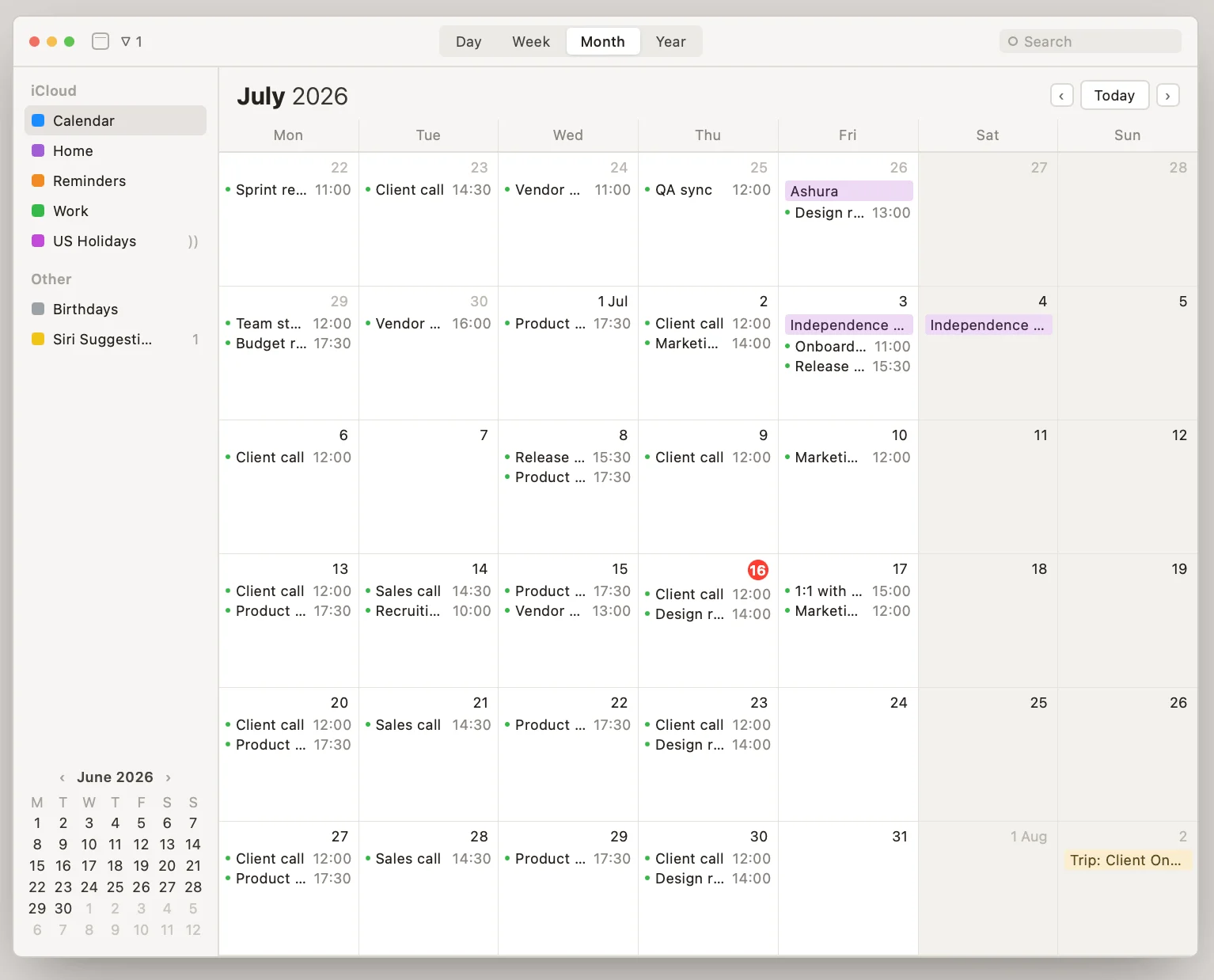
Pic. 7. Apple (iCloud) Calendar.
Apple Calendar is built into macOS and iOS for a seamless experience across Apple devices.
- Free version: Yes, included with all Apple devices.
- Delivery: Native on Apple devices, with web access via iCloud.
- Pros: Sleek interface, tight Apple-ecosystem syncing, good Siri and Apple Maps integration.
- Cons: Limited functionality outside Apple devices.
- Best for: Personal use, unless everyone on the team uses Apple devices.
Trello Calendar
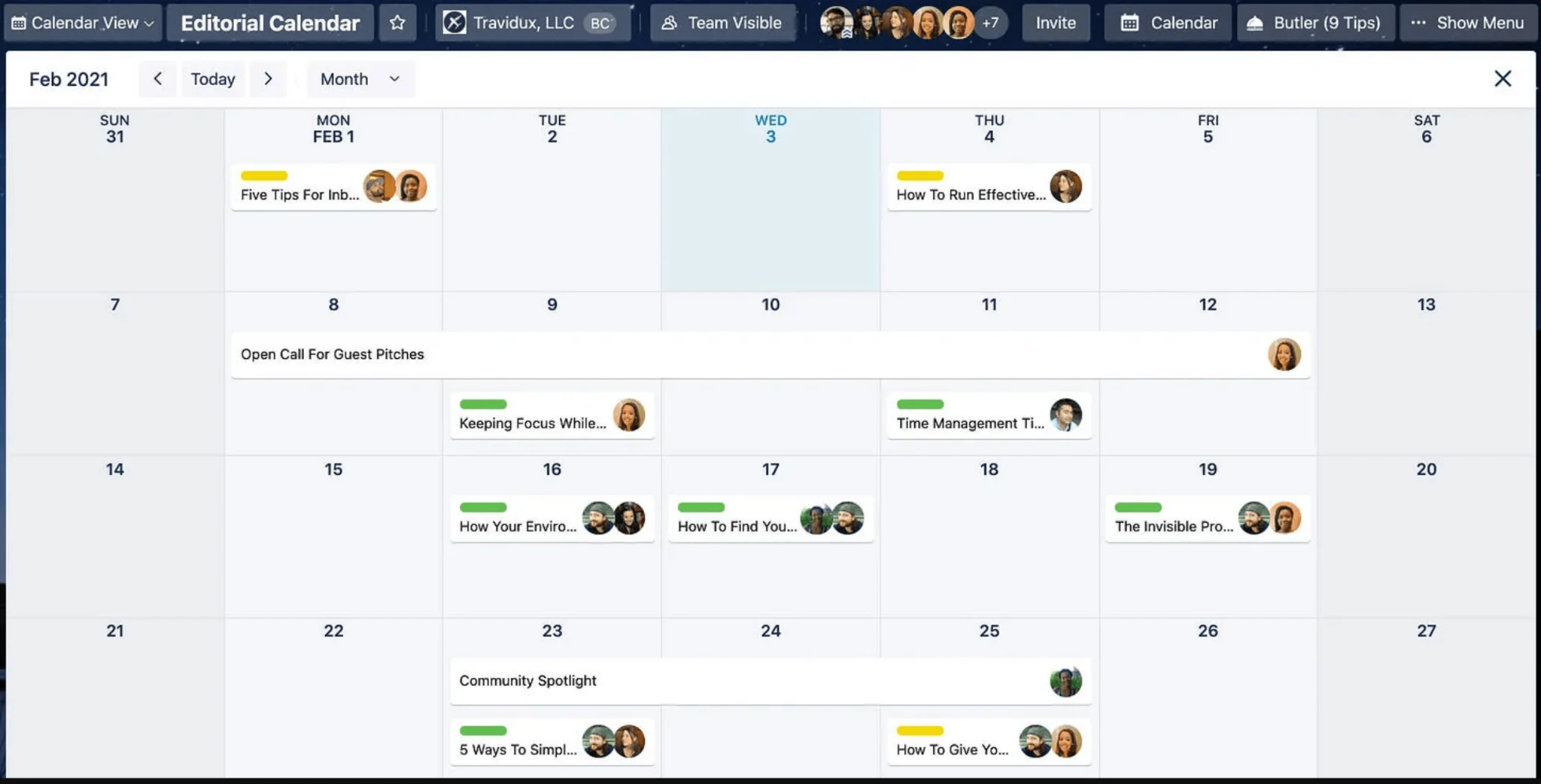
Pic. 8. Trello Calendar view.
Trello’s Calendar view is a Power-Up for its visual project-management boards, showing tasks and cards on a calendar.
- Free version: Calendar view available on the free plan.
- Delivery: Web-based, desktop, and mobile apps.
- Pros: Great for project management; visual layout helps with deadline tracking.
- Cons: A project-management tool first, not a standalone calendar.
- Best for: Project management rather than general calendar needs.
Asana
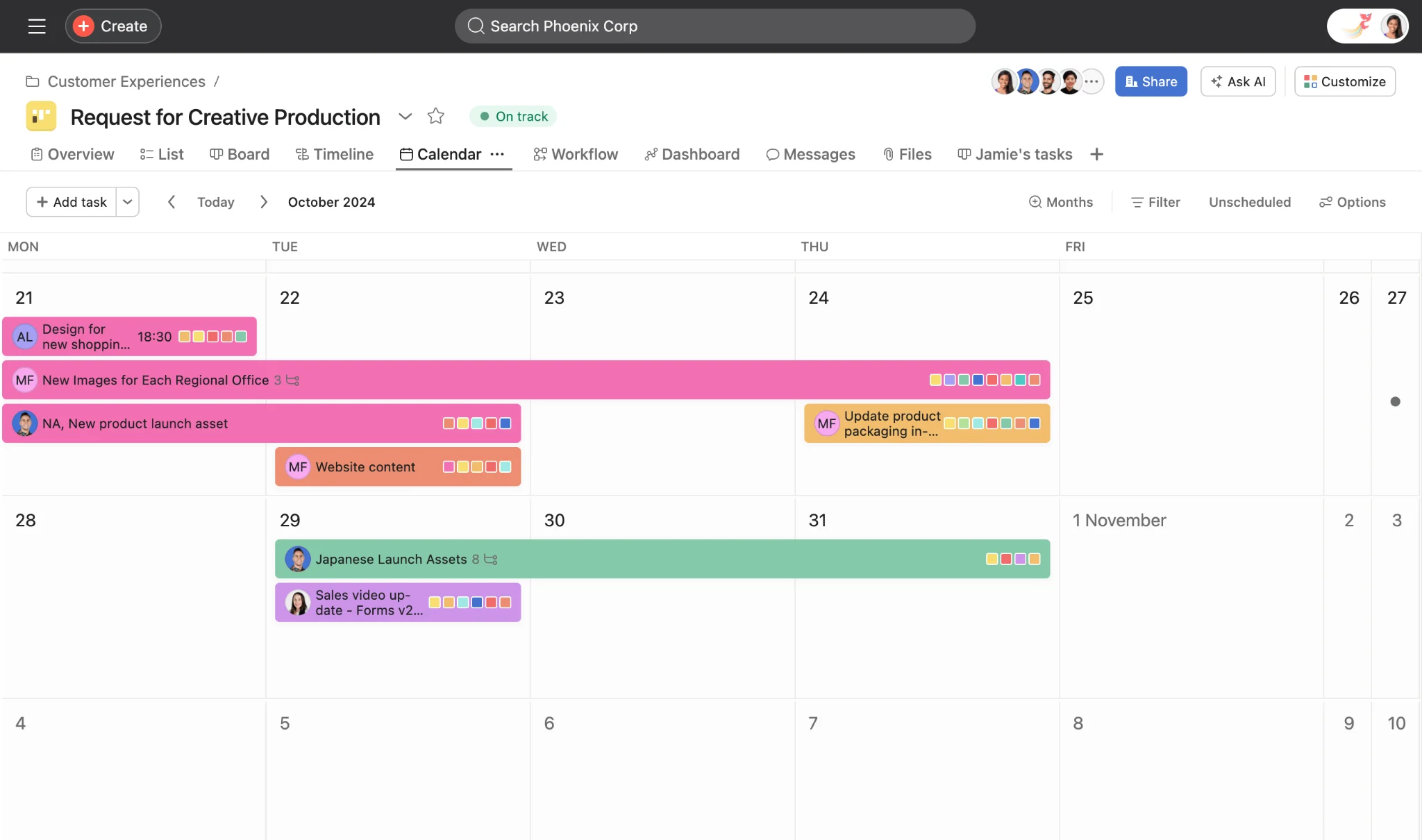
Pic. 9. Asana Calendar.
Asana is a task and project-management tool with a calendar view for tracking deadlines and projects.
- Free version: Basic version available for free.
- Delivery: Web-based, desktop, and mobile apps.
- Pros: Good for team collaboration; integrates with many tools; supports subdividing tasks.
- Cons: Feature-rich, so there’s a learning curve.
- Best for: Work calendars, especially collaborative project settings.
Teamup Calendar: online interactive calendar
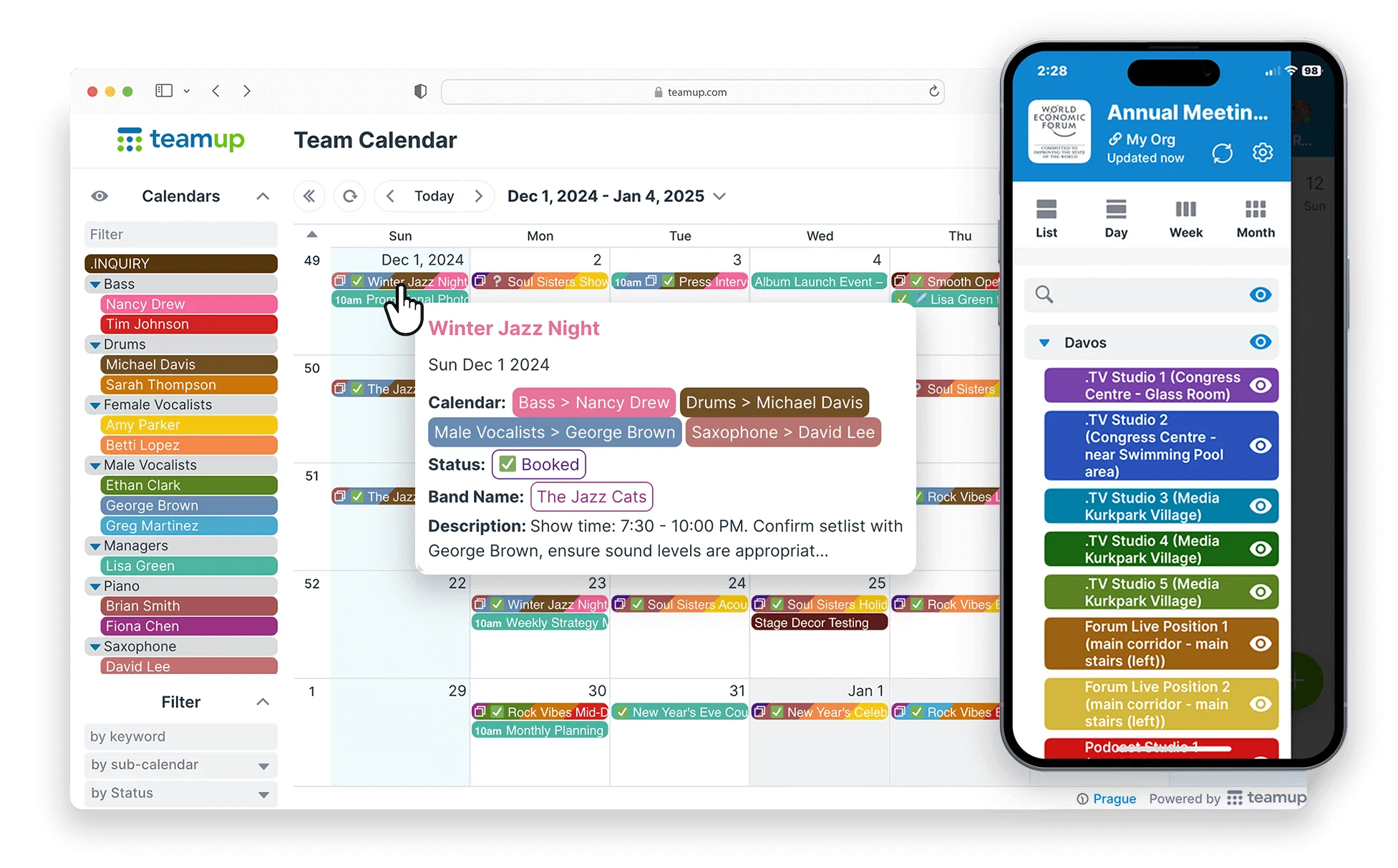
Pic. 10. Teamup Calendar.
Teamup Calendar is built for group scheduling, with a straightforward interface for managing team resources and events.
- Free version: Yes, with limited features.
- Delivery: Web-based and mobile apps.
- Pros: No account required to share; color-coded calendars; easy external sharing.
- Cons: Limited integration with other productivity tools.
- Best for: Work environments where external sharing matters.
Virto Calendar App: interactive online calendar
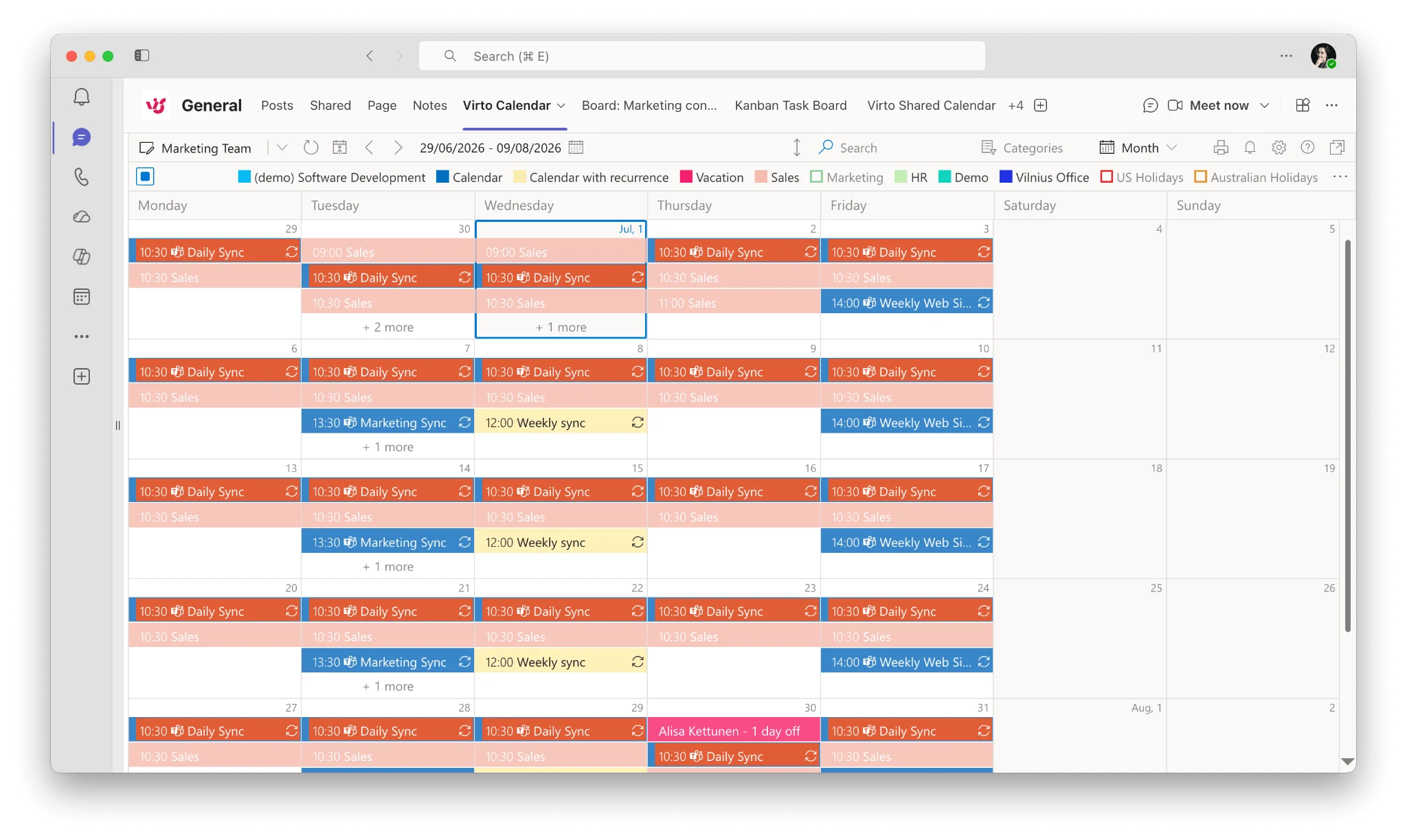
Pic. 11. Virto Calendar App overlay view.
The Virto Calendar App is an enterprise-grade overlay solution for SharePoint Online and Microsoft Teams. It consolidates multiple Exchange Online, Microsoft 365, SharePoint, and internet calendars (Google, iCloud, and more) into a single, color-coded interface. It can be deployed in your own Azure infrastructure or Microsoft 365 tenant for full data ownership and compliance control, and holds a 4.9-star rating from 60+ reviews on Microsoft AppSource.
- Free version: 30-day free trial.
- Delivery: SharePoint Online, Microsoft Teams, and M365 (self-hosted or tenant-based).
- Pros: Unlimited calendar overlay, deep Microsoft integration, color-coding, customizable views, and enterprise-grade security.
- Cons: Focused on the Microsoft ecosystem and oriented toward enterprise use.
- Best for: Organizations already invested in Microsoft 365, SharePoint, and Teams.
What’s the best interactive calendar for desktop? It depends on your ecosystem and needs — integrations, ease of use, and extra features. Top choices include Google Calendar (ideal if you already use Google Workspace), Microsoft Outlook Calendar (for Microsoft 365 users), and Apple Calendar (for macOS users). For Microsoft-centric teams that need to overlay many sources, the Virto Calendar App is the strongest fit.
The comparison below summarizes all the interactive calendar solutions discussed above:
| Calendar tool | Platform | Pros | Cons | Best for |
|---|---|---|---|---|
| Google Calendar | Desktop / Mobile / Web | Integrates with Google services; intuitive; free | Limited customization | Personal & work |
| Outlook Calendar | Desktop / Mobile / Web | Strong features; secure; deep Microsoft 365 integration | Complex for beginners; mobile can feel clunky | Work |
| Apple Calendar | Native / Web (iCloud) | Seamless in Apple ecosystem; Siri support | Limited outside Apple devices | Personal |
| Trello Calendar | Desktop / Mobile / Web | Visual project management; deadline tracking | Not a standalone calendar | Project management |
| Asana | Desktop / Mobile / Web | Great for teams; many integrations | Steep learning curve | Work, project management |
| Teamup Calendar | Web / Mobile | Easy sharing; no account needed; color-coded | Limited third-party integrations | Work, team scheduling |
| Virto Calendar App | Web (SharePoint, MS Teams, M365) | Unlimited overlay; deep Microsoft integration; color-coding; self-hosted option | Microsoft-focused; enterprise-oriented | Enterprise |
Fig. 1. Comparative view of interactive calendar solutions.
How do I create an interactive calendar for a website? Use a JavaScript library such as FullCalendar or Toast UI Calendar for easy integration and customization. These provide a responsive calendar interface that can connect to a back-end server for real-time data and event handling.
Recommendations for Using Interactive Calendars
Interactive calendars offer real potential for optimizing personal and professional scheduling when applied strategically. By centralizing task management and coordination, they help you take control of your time. Here are the key tips for unlocking their full capabilities.
Tips and strategies for effective use
- Set clear goals: Define what you want to achieve before populating your calendar, then align entries with those specific, measurable objectives.
- Block time consistently: Time blocking dedicates blocks to specific activities for focus and efficiency — useful for deep work sessions, meetings, exercise, and breaks.
- Use color coding: Color-code activity types to distinguish and prioritize tasks at a glance — for example, red for urgent, blue for informational, green for personal time.
- Integrate across devices: Sync your calendar everywhere so you can access your schedule at home, at work, or on the move.
- Leverage reminders and notifications: Set reminders for important tasks, and tune their timing to the priority and preparation each task requires.
Best practices at home and at work
- Personal life: Share a family calendar so everyone sees appointments and events, and schedule meal planning and errands to reduce last-minute stress.
- Professional environment: Block preparation time alongside meetings, link relevant documents in invites, track project milestones, and use a shared calendar to keep hybrid or remote teams aligned.
- Health and wellness: Schedule exercise and wellness activities to protect your energy across the day.
- Continuous review: At the end of each week, review what got done and adjust your scheduling based on your productivity patterns.
Ultimately, these tools deliver the most value not from isolated features but from becoming embedded in your routine — so aim for a habit loop that reinforces organization and structure.
Creating Creative Elements for an Interactive Calendar
The effectiveness of an interactive calendar hinges on its user experience. A well-designed calendar presents your schedule clearly and offers seamless management. Here are practical tips for adding functional, visually appealing elements, using the Virto Calendar App as an example.
Enhancing user experience through design
- Clear, intuitive layout: Keep the interface clean so users grasp their day, week, or month at a glance. Virto Calendar’s customizable dashboard can display multiple calendars in an overlay without clutter.
- Color-coded events: Color-code events by type for swift navigation — for example, blue for personal, red for urgent meetings, green for family events.
Read more about color coding events here: Calendar Color Coding.
- Thoughtful color choices: Pick a palette that clearly distinguishes categories but stays harmonious and easy on the eyes; avoid overly bright colors that distract or strain.
Learn how to better categorize your calendar here: Calendar Category Ideas.
Practical tips for personalization
- Custom event labels: Virto Calendar lets you create custom labels — tagging a meeting “Preparation Needed” or “Follow-up Required” aids planning and execution.
- Interactive elements: Add drag-and-drop rescheduling, clickable tags that sort or filter events, and pop-up reminders to make the calendar more engaging and functional.
- Integration with other tools: Ensure your calendar connects with the tools you already use. Virto Calendar’s Microsoft Teams integration lets you manage your schedule directly from a Teams channel.
How to Create an Interactive Calendar with the Virto Calendar App
The Virto Calendar App is an interactive calendar solution built for businesses, designed to streamline scheduling by integrating multiple calendar sources with extensive customization.
Key interactive features of the Virto Calendar App
- Integration capabilities: Combine events from multiple sources — SharePoint lists, Outlook calendars, and meeting rooms — into one centralized view, reducing double-booking and conflicts.
- External calendars: Add iCal links from Google Calendar and other services to view all appointments in one place, regardless of origin.
- Flexible viewing options: Switch between day, week, month, year, and task views to plan effectively across short- and long-term horizons.
- Color coding and categorization: Color-code events and categories to create a clear, well-structured SharePoint calendar overlay that’s easy to navigate.
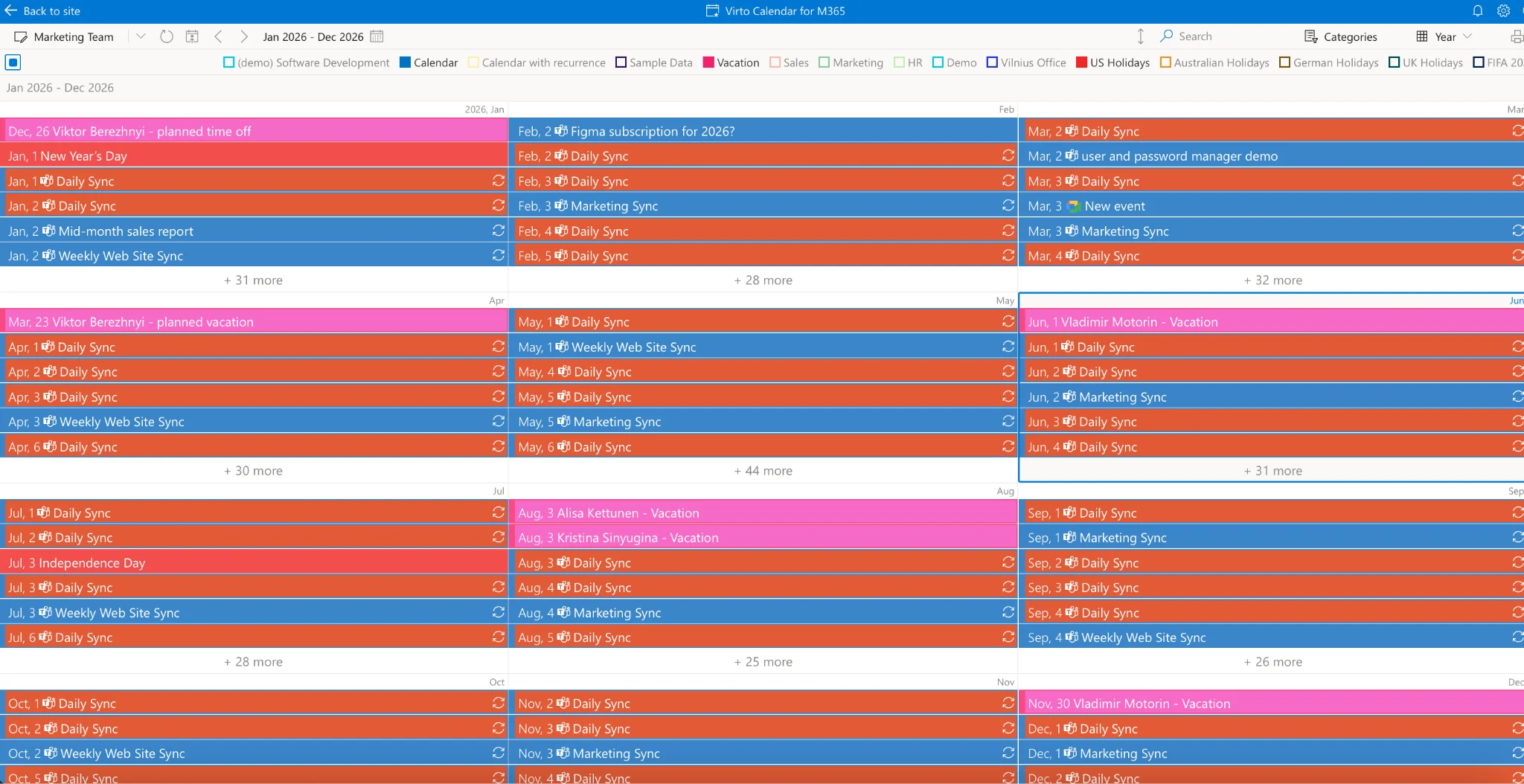
Pic. 12. Color-coding and categorizing your calendar however you like.
To see the app’s full capabilities, visit the product page, where you can start a free trial and explore its features. For installation and configuration details, see VirtoSoftware’s Knowledge Center.
For businesses that want a tailored setup, scheduling a demo is a great next step — you’ll get personalized advice on implementing and optimizing the app for your processes.
FAQ
What is an interactive calendar?
An interactive calendar is one you can act on — clicking, filtering, overlaying, and drilling into events — rather than a static, read-only view. It lets you create, edit, share, and integrate events with other tools in real time.
What is the best interactive calendar app?
There’s no single best app — it depends on your ecosystem. Google Calendar suits personal and Google Workspace users, Outlook and the Virto Calendar App fit Microsoft 365 teams, and Teamup or Trello work well for lightweight sharing and project-based needs.
How do I create an interactive calendar online?
Use a specialized platform such as Google Calendar, Microsoft Outlook, or Virto Calendar to set up, customize, and share a calendar with invitations, notifications, and integrations. Alternatively, build one from scratch in Google Sheets or Excel using dropdowns, conditional formatting, and links.
Is there a free interactive calendar?
Yes. Google Calendar and Apple Calendar are free, Teamup and Trello offer free tiers, and the Virto Calendar App provides a 30-day free trial.
Conclusion
Interactive calendars can meaningfully improve time management and productivity. They enable seamless coordination of meetings, events, and deadlines, keep teams synchronized, and — through real-time interaction — help prevent scheduling conflicts and make the most of available time.
We encourage you to explore the solutions reviewed here; each targets a different aspect of calendar management, from streamlining communication to optimizing resources and collaboration.
If the Virto Calendar App looks like a fit, schedule a demo call to see how it can be tailored to your business. It combines flexibility and functionality, making it an excellent choice for enterprises aiming to improve their time-management practices.
Need help with initial setup? Our support team is ready to guide you. Book a meeting.
Further learning resources
- Calendar Management
- Shared and Collaborative Calendars
- Master Calendar Guide
- Managing Multiple Microsoft 365 Calendars
- SharePoint Calendar Guide
- Scheduling Conflicts
- Business Calendars
- Corporate Event Calendar
- Calendar Color Coding
- Calendar Category Ideas
References
(1) Time-management statistics via JoinHomebase.
(2) Time-management statistics via ZoomShift.