



Quick answer: Microsoft Teams doesn’t let you view someone’s full calendar directly. There are three ways to see a colleague’s schedule: (1) Scheduling Assistant when creating a meeting — shows free/busy for any attendee; (2) a channel calendar tab — shows events for that channel; (3) the Virto Calendar App — overlays multiple full calendars inside Teams. Choose based on how much detail you need.
This guide covers all three methods step by step using the current New Teams interface (2025/2026), and works across the Teams desktop, web, and mobile apps. If you specifically need to view a calendar in Outlook rather than Teams, see our dedicated guide on how to view someone’s calendar in Outlook.
Method 1: Use Scheduling Assistant to check availability in Teams
Best for: finding a free meeting time. Shows free/busy only — no event titles or details.
The Scheduling Assistant is the fastest native way to see when colleagues are free or busy. It doesn’t reveal what’s on their calendar, only when they’re available — which is usually all you need to book a meeting.
- In the Teams Calendar tab, click New and choose Event.
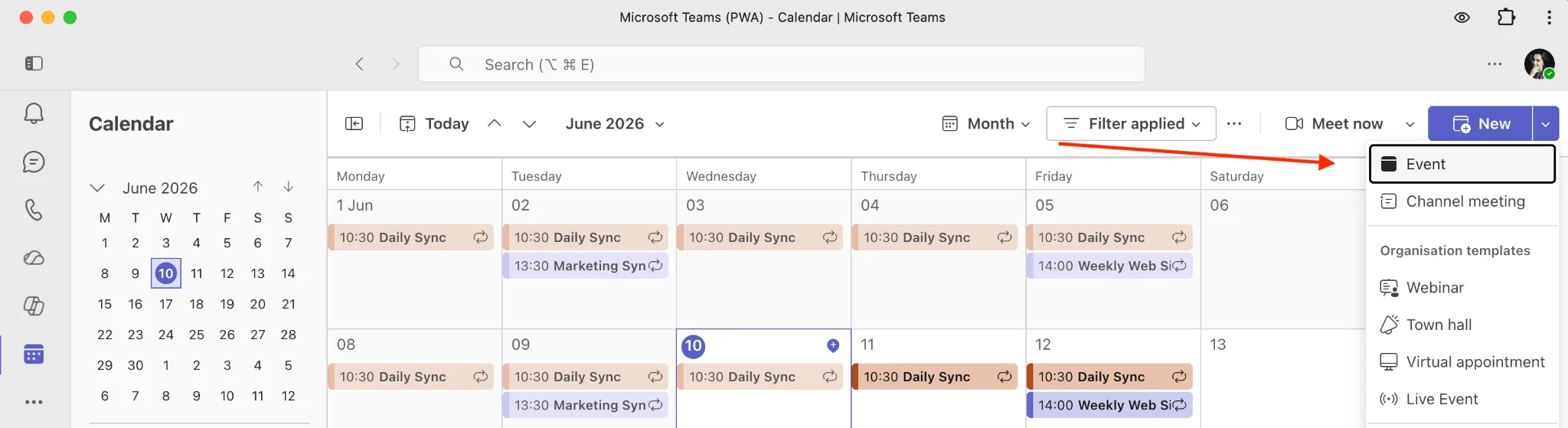
Pic. 1. Scheduling a new meeting within Microsoft Teams.
Add the people whose availability you want to check in the Invite required attendees field.
Click the Scheduler button next to the meeting date and time to open the availability grid.
Review each attendee’s free/busy blocks on the timeline. Shaded areas show when someone is busy or tentative; open areas show when they’re free. Pick a slot that works for everyone.
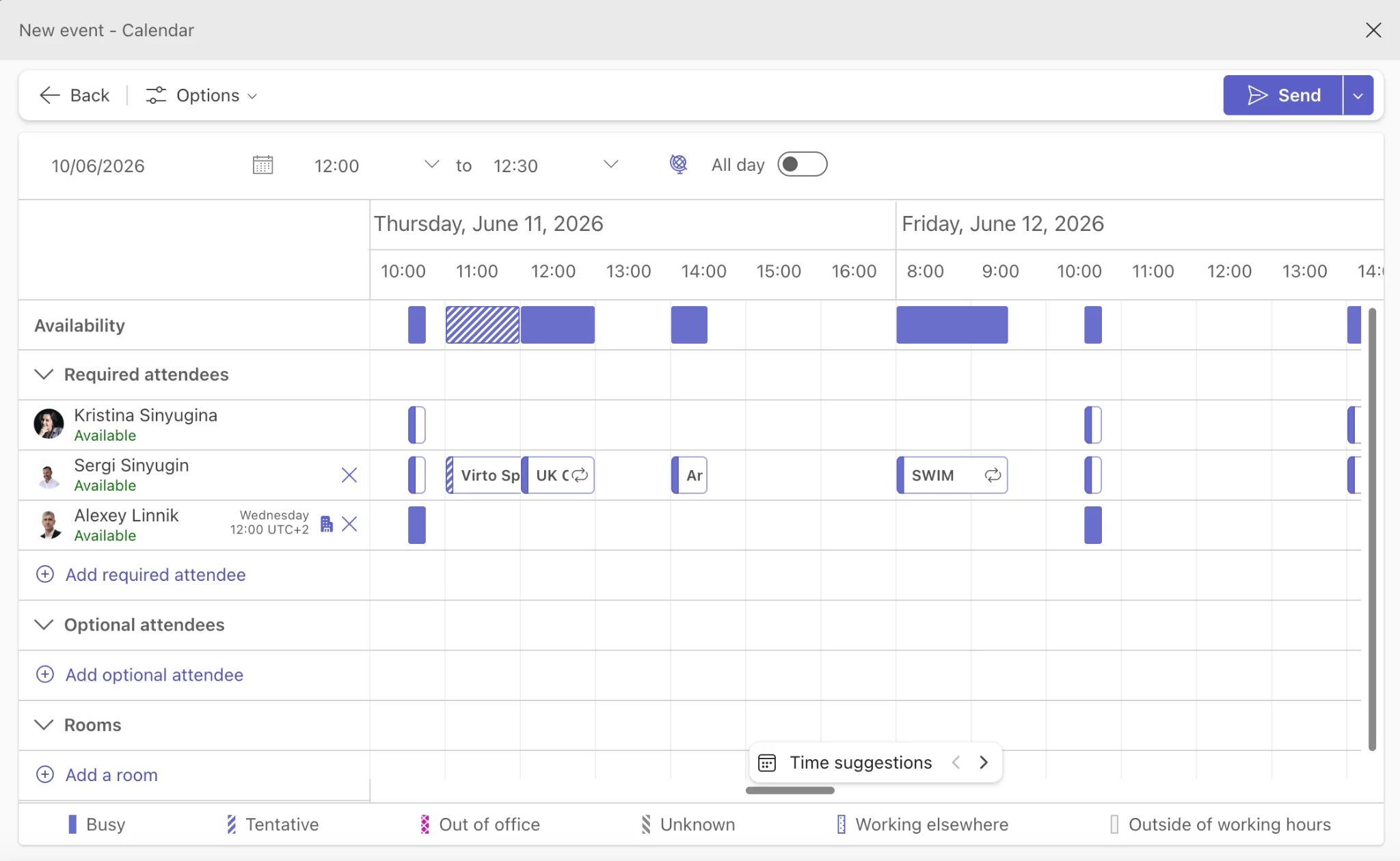
Pic. 2. Using Scheduling Assistant to view attendees’ availability in Microsoft Teams.
Does Scheduling Assistant work for external or guest users? Yes, but with limits. You can add an external person by typing their full email address, and Teams will show their free/busy information only if their organization shares it with yours (via an organizational relationship or shared free/busy). If nothing appears, their tenant likely isn’t sharing availability, and you’ll need to ask them directly.
Method 2: Add a channel calendar tab in Teams
Best for: shared team events. Shows channel meetings only — not anyone’s personal Outlook calendar.
A channel calendar gives everyone in a channel a shared view of meetings scheduled in that channel. It’s the closest thing Teams has to a built-in “shared calendar.”
Go to the channel where you want the calendar.
Click the + at the top of the channel to add a new tab.
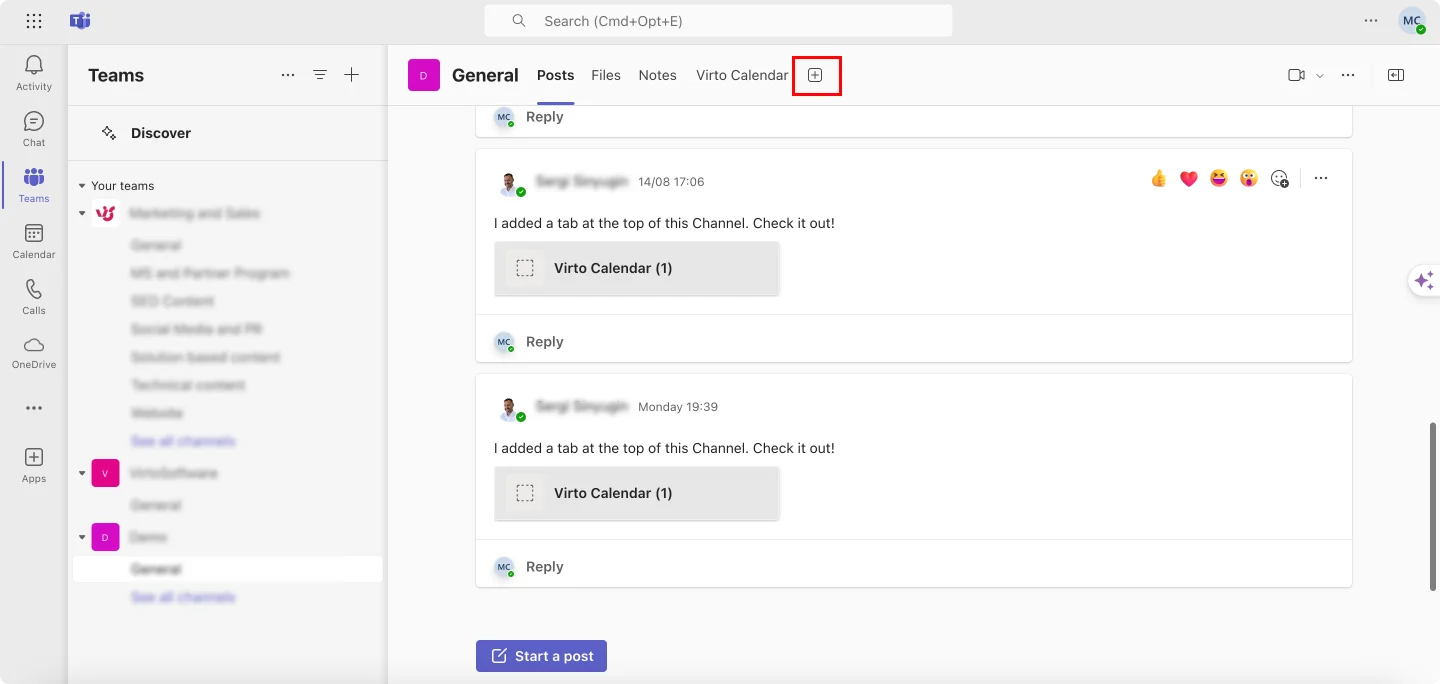
Pic. 3. Adding a new tab within a channel in Microsoft Teams.
- Select Calendar from the list of apps.
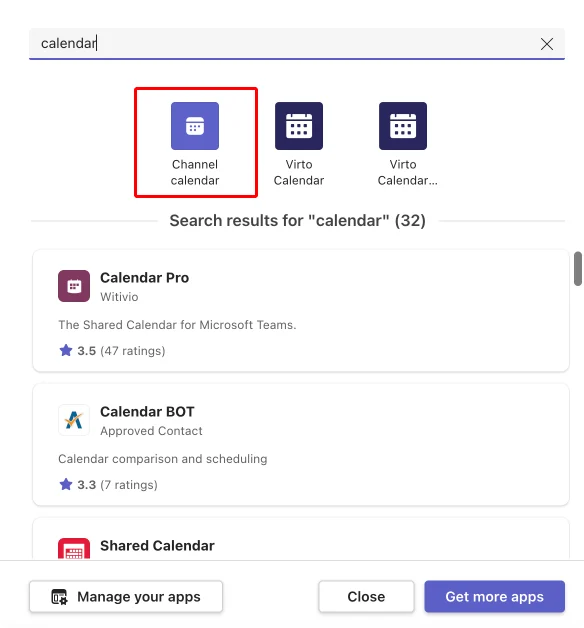
Pic. 4. Adding the channel calendar app within Microsoft Teams.
- The tab now shows a calendar visible to all channel members.
Limitation: a channel calendar shows only meetings scheduled in Teams within that channel — it does not display members’ personal Outlook calendar events. For a full-calendar view, see Method 3.
For a deeper walkthrough of channel and group calendars, see our Microsoft Teams Shared Calendar Guide.
Method 3: View full calendars with Virto Calendar for Teams
Best for: seeing teammates’ full calendars — not just free/busy — without leaving Teams.
If you need to see a teammate’s full calendar — not just free/busy — inside Teams, the Virto Calendar App for Microsoft Teams is the native solution. It fills the gap Teams leaves open by overlaying complete calendars right in a Teams tab.
Three things make it the right fit for viewing others’ calendars:
- Multi-source overlay: combine unlimited Microsoft 365 calendars — plus Google and other web calendars — into one view, so you can see a whole team’s schedules at once.
- Color coding: each person or calendar source gets its own color, so it’s easy to tell schedules apart at a glance.
- Teams tab integration: the combined calendar lives directly inside Teams — no switching apps to check who’s busy.
How to install Virto Calendar
- Install the app from the Microsoft Teams app store.
- Open it from the Apps section in Teams.
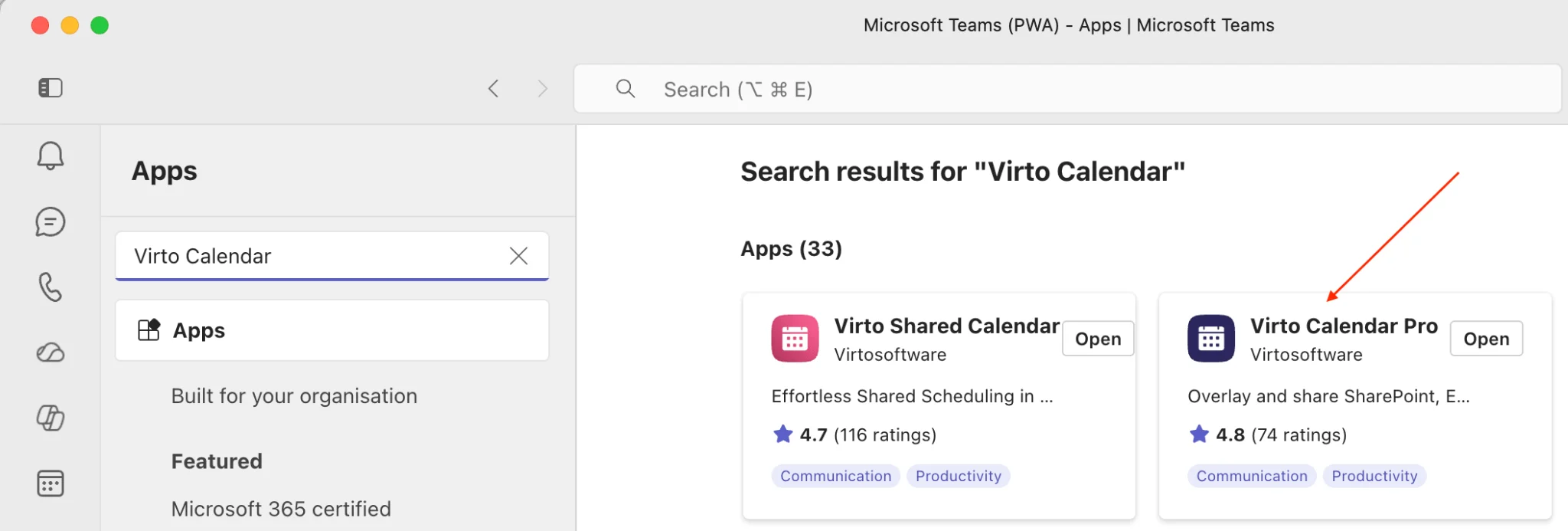
Pic. 7. Adding the Virto Calendar App in Microsoft Teams.
- Use the app interface to add calendar sources, set permissions, and toggle team members’ schedules on or off.
The resulting team view overlays everyone’s schedule in one color-coded calendar:
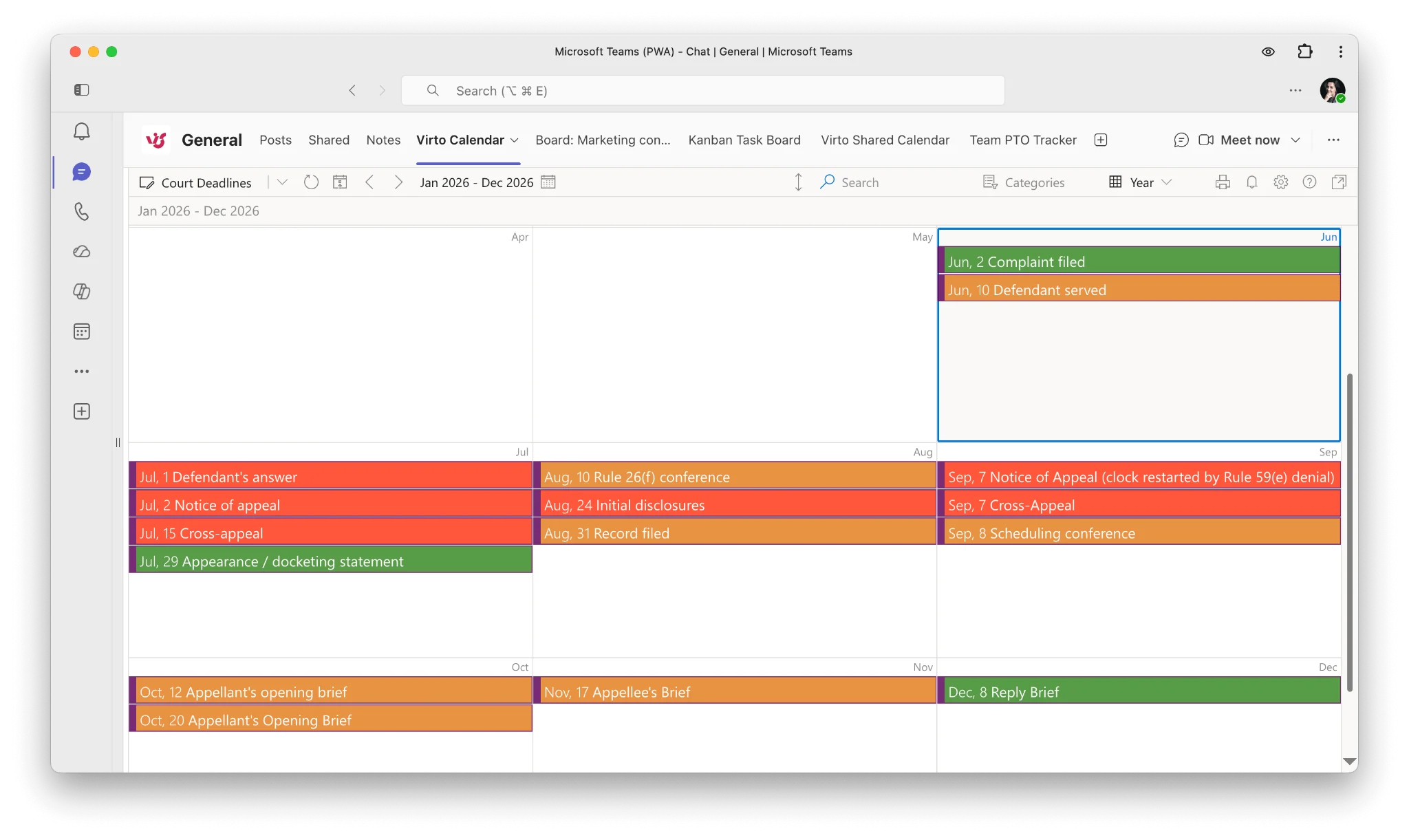
Pic. 8. Sample Virto Calendar team view within Microsoft Teams.
You can toggle individual schedules on and off, see each person’s availability and busy times, and keep everything color-coded and customizable. For setup details and adding sources, see the Virto Calendar documentation.
Try it free: see how Virto Calendar brings your whole team’s calendars into Teams.
How to view a colleague’s calendar in Outlook (linked from Teams)
Because Teams relies on Outlook and Exchange for full calendar sharing, many people who want to see a full calendar are better served in Outlook. Rather than duplicate that here, we cover it in full in a dedicated guide: How to view and access someone’s calendar in Outlook.
Bonus for IT admins: surface Teams channel calendars in Outlook
Channel calendars aren’t visible in Outlook by default. An admin can enable them per Team using Exchange Online PowerShell:
Set-UnifiedGroup -Identity "Your-Team-Name" -HiddenFromExchangeClientsEnabled:$False
Once enabled, the Microsoft 365 Group calendar for that Team appears in Outlook (web, desktop, and mobile) alongside personal calendars. Note that to show up in a Teams channel, a meeting must still be scheduled as a channel meeting within Teams.
FAQ
Can you see someone’s full calendar in Microsoft Teams?
Not natively. Teams only shows free/busy information through the Scheduling Assistant, and channel calendars show channel meetings only. To see a full calendar inside Teams, use the Virto Calendar App; alternatively, use Outlook for native full-calendar sharing.
Can people see my Teams calendar?
By default, people in your organization can see your free/busy information but not the details of your appointments. You can adjust how much detail is visible in your Outlook calendar sharing settings.
How do I see a colleague’s schedule in Teams without scheduling a meeting?
Use the Virto Calendar App to overlay their full calendar, or check their presence status (Available, Busy, In a meeting) on their Teams profile card for a quick read on availability.
Why can’t I see someone’s calendar in Teams?
Usually it’s a permissions or sharing issue — the person hasn’t shared their calendar, or your organization’s policies restrict access. If the calendar itself isn’t loading or appears empty, see our troubleshooting guide on Teams calendar not showing.
Summary
Teams has no native full-calendar view, but you’re not stuck. Use the Scheduling Assistant for quick free/busy checks, a channel calendar tab for shared team events, and the Virto Calendar App when you need to see full calendars overlaid inside Teams. For full calendar sharing outside Teams, head to Outlook using the linked guide above.