


Quick answer: Add your Microsoft 365 account in Outlook — File > Add Account in classic Outlook, Settings > Accounts > Email accounts > Add account in new Outlook, or Add Account in the mobile app. The calendar then syncs automatically over Exchange, in both directions, on every device signed in to that account. There is no separate “sync calendar” button to press.
Most people who search for this expect a sync setting somewhere in Outlook. There isn’t one — and that is good news. In Microsoft 365, your calendar lives in your Exchange Online mailbox in the cloud, not on your laptop. Every Outlook client is a window onto that one mailbox. Add the account, and the calendar is there.
Where it does get fiddly is everything around that: other people’s calendars, team calendars, SharePoint calendars, external subscriptions, and the mobile apps. This guide covers the whole set, updated for Outlook in 2026.
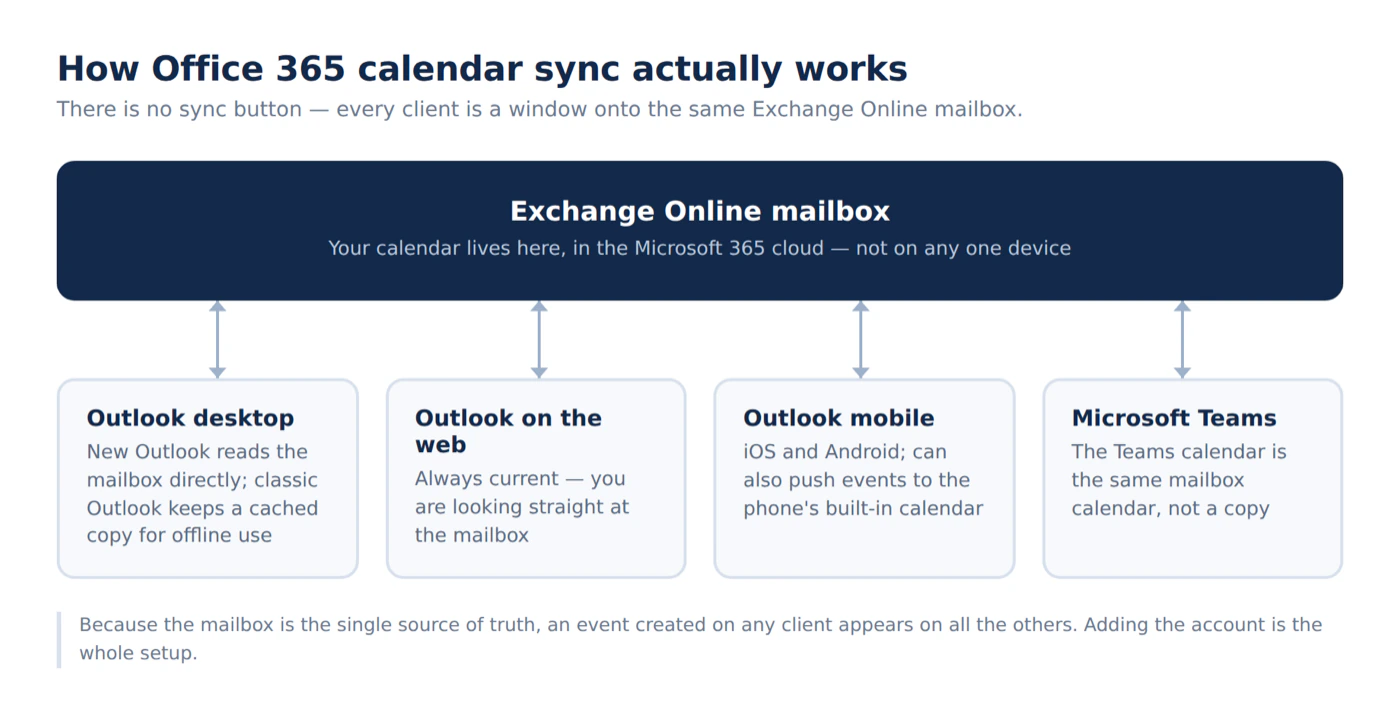
Fig. 1. Your Microsoft 365 calendar lives in Exchange Online. Each Outlook client syncs with the same mailbox, so a change on any device appears on all of them
What “syncing” actually means in Microsoft 365
Three things are worth knowing before you touch any settings.
Exchange does the syncing, not Outlook. When you create an event on your phone, it is written to your Exchange Online mailbox and pushed out to every other client. Classic Outlook for Windows keeps a local cached copy (the .ost file) so the calendar works offline, then reconciles it with the server. New Outlook, Outlook on the web and the mobile apps read from the same mailbox directly.
The account type decides whether a calendar syncs at all. This trips up more people than any other single cause. POP and IMAP are email-only protocols — they carry no calendar data whatsoever. If your account is set up as IMAP, mail will sync perfectly and the calendar never will, because there is nothing on the server to sync.
Your own calendar and someone else’s behave differently. Your own mailbox calendar syncs instantly. Shared calendars follow separate rules, covered further down.
| Account type | Calendar syncs in Outlook? |
|---|---|
| Microsoft 365 work or school (Exchange Online) | Yes — two-way, instantly |
| Outlook.com / Hotmail | Yes — two-way |
| Google, iCloud, Yahoo | Yes, with limits — and Outlook for Mac does not sync iCloud calendars at all |
| POP or IMAP account | No — mail only, no calendar or contacts |
| On-premises Exchange | Yes in classic Outlook; not supported in new Outlook for Windows |
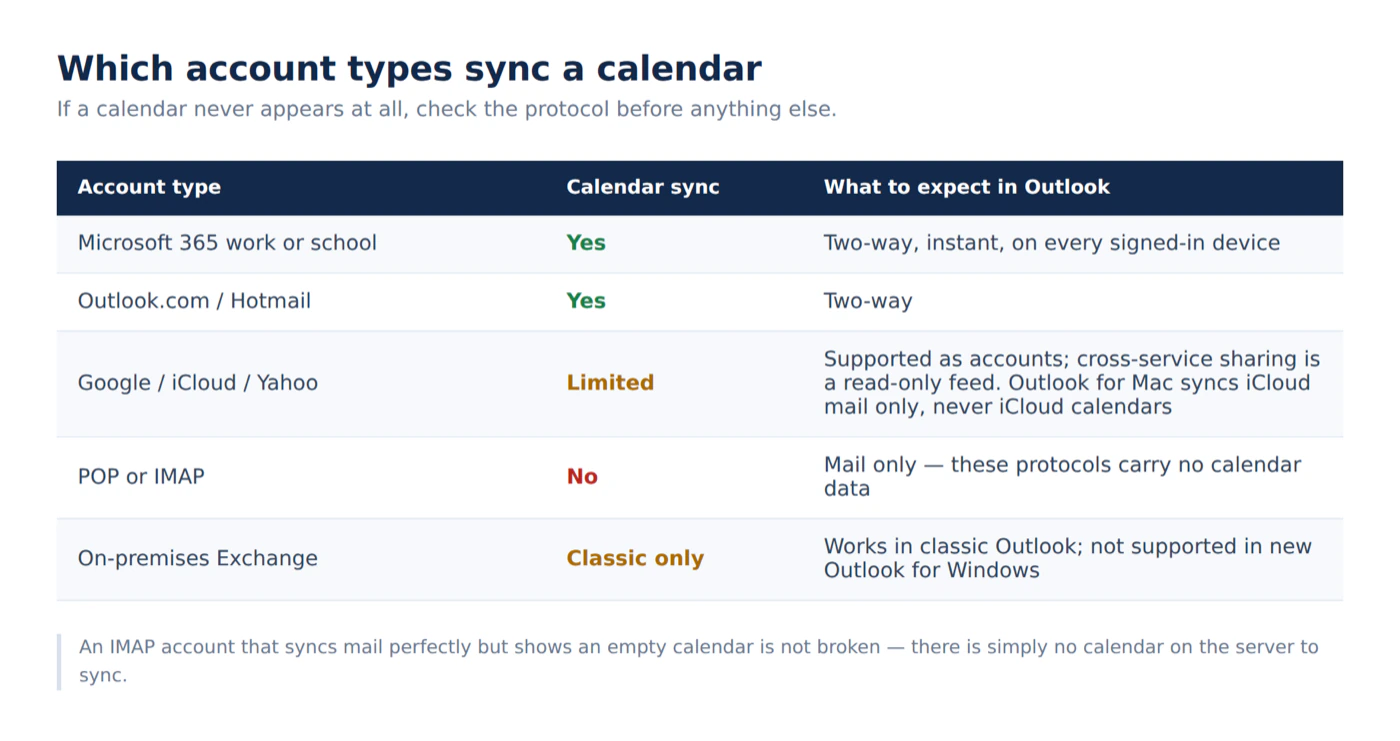
Fig. 2. If a calendar never appears at all, check the protocol first — IMAP and POP accounts carry no calendar data, and Outlook for Mac never syncs iCloud calendars
Sync your Office 365 calendar in Outlook for desktop
Windows now ships two different Outlook apps and the steps differ. Check the icon: new Outlook is blue, classic Outlook is orange. You can also look for the New Outlook toggle in the top-right corner. On macOS there is one app, with its own paths — covered below.
New Outlook for Windows
- Open Outlook and select the gear icon in the top-right corner to open Settings.
- Go to Accounts > Email accounts.
- Select Add account, enter your Microsoft 365 address and sign in.
- Wait for the initial sync to finish — on a large mailbox this takes several minutes.
- Switch to the Calendar module in the left navigation bar. Your calendar is listed under the account name.
New Outlook supports Microsoft 365 work and school accounts, Outlook.com, Gmail, Yahoo, iCloud, and generic IMAP or POP accounts. On-premises Exchange accounts are not supported — if your mailbox is hosted on your own Exchange server, use classic Outlook. If your organization’s licence does not include the Outlook desktop apps, adding the account fails with a licensing message and you use Outlook on the web instead.
Classic Outlook for Windows
- Select File > Add Account.
- Enter your Microsoft 365 email address and select Connect.
- Sign in when prompted, then restart Outlook.
- Open the Calendar view from the bottom-left navigation. The calendar appears under My Calendars.
If the wizard cannot find your mailbox, it is almost always Autodiscover. Outlook uses Autodiscover to locate your Exchange Online settings, and Group Policy that disables connected experiences or blocks local Autodiscover will break account setup. If you hit that, your IT admin needs to allow the cloud Autodiscover option.
One classic-Outlook detail worth knowing: a shared mailbox added the usual way (automapped, or as an extra mailbox) will not show event reminders. If you need reminders from a shared mailbox calendar, add it as a separate account rather than an extra mailbox.
Outlook for Mac
- Open Outlook and go to Outlook > Settings > Accounts (in older builds, Tools > Accounts).
- Select Add Account, or the + button in the lower-left corner.
- Enter your Microsoft 365 address, sign in, and let the first sync finish.
- Switch to the Calendar view. Your Microsoft 365 calendar appears in the sidebar under the account name.
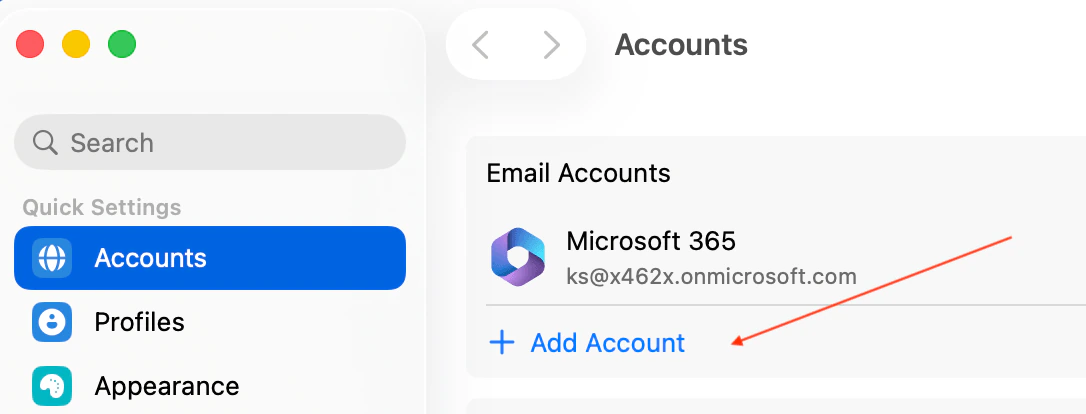
Pic. 1. Outlook for Mac: Outlook > Settings > Accounts > Add Account
Two Mac-specific points. Outlook for Mac supports iCloud mail, but it does not sync iCloud calendars or contacts — those use CalDAV and CardDAV, which Outlook for Mac has never supported. And to open a shared or delegated mailbox calendar, go to Outlook > Settings > Accounts, select your account, then Delegates and Sharing > Shared with Me > Add; adding it as a brand-new account is what produces the “Account already exists” error.
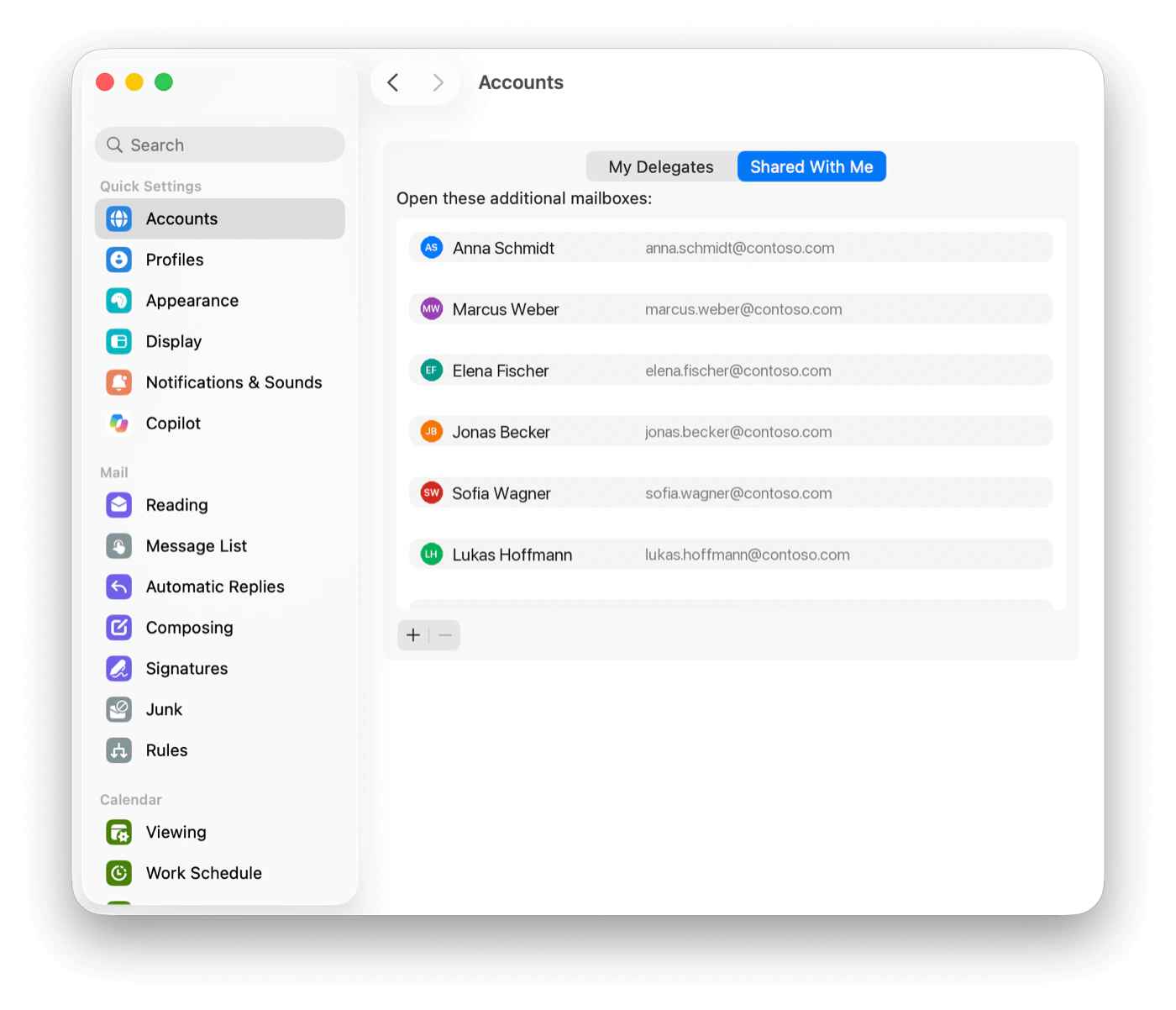
Pic. 2. Outlook for Mac: Settings > Accounts > Delegates and Sharing > Shared with Me
Sync in Outlook on the web
There is nothing to set up. Sign in at outlook.office.com with your Microsoft 365 account and select the calendar icon in the left navigation — you are looking directly at your mailbox, so it is always current.
What you can do here is add more calendars into the same view. Select Add calendar in the left pane, then choose:
- Add from directory — a colleague’s calendar, a room, or a resource in your organization.
- Subscribe from web — paste an .ics link to bring in an external calendar such as a public holiday feed or a project calendar from another system.
- Upload from file — import a one-off .ics file.
- Create blank calendar — a second calendar of your own, which syncs to all your devices like the first.
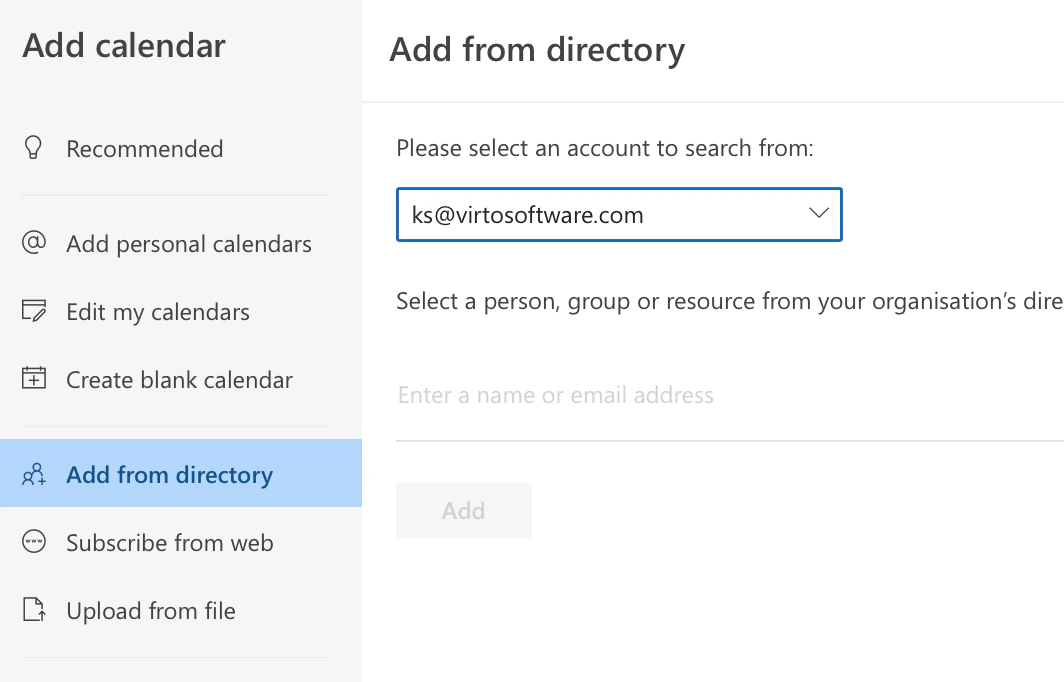
Pic. 3. Outlook on the web: the Add calendar dialog with Add from directory and Subscribe from web
Calendars added here sync back to your desktop and mobile Outlook automatically, because the subscription is stored in your mailbox. That makes Outlook on the web the fastest place to fix a calendar list that has gone wrong on other devices.
Sync on mobile
Outlook for iOS and Android
- Install Microsoft Outlook from the App Store or Google Play.
- Open the app and tap Add Account.
- Enter your Microsoft 365 address and sign in. Approve multi-factor authentication if your organization requires it.
- Tap the Calendar icon at the bottom of the screen.
Your calendar, and any shared calendars already in your mailbox, come across automatically.
Getting work events into the phone’s built-in calendar
On Android, Outlook can push your work calendar into the native Android Calendar app. Open Settings, tap your account, and turn on Sync calendars. It is off by default and you have to grant Outlook permission to the calendar app. Note that this is an Android-only feature, and your IT department can disable it through Intune app configuration policy.
On iOS, Outlook has no equivalent setting. If you want work events in Apple’s Calendar app, add the Microsoft 365 account directly in Settings > Apps > Calendar > Calendar Accounts > Add Account > Microsoft Exchange and enable Calendars.
How shared calendars sync — and how fast
Microsoft rebuilt shared calendar sync some years ago around local copies plus push notifications, replacing the old model that polled the server on a timer. The practical result is that changes to a colleague’s calendar show up in yours immediately — but only in certain configurations.
| Sharing scenario | How quickly changes appear |
|---|---|
| Shared inside your Microsoft 365 organization | Immediately |
| Shared by an Outlook.com user | Immediately |
| Shared across two different Microsoft 365 tenants | Approximately every 3 hours |
| Shared out to Gmail or another third-party service | Every 24–48 hours |
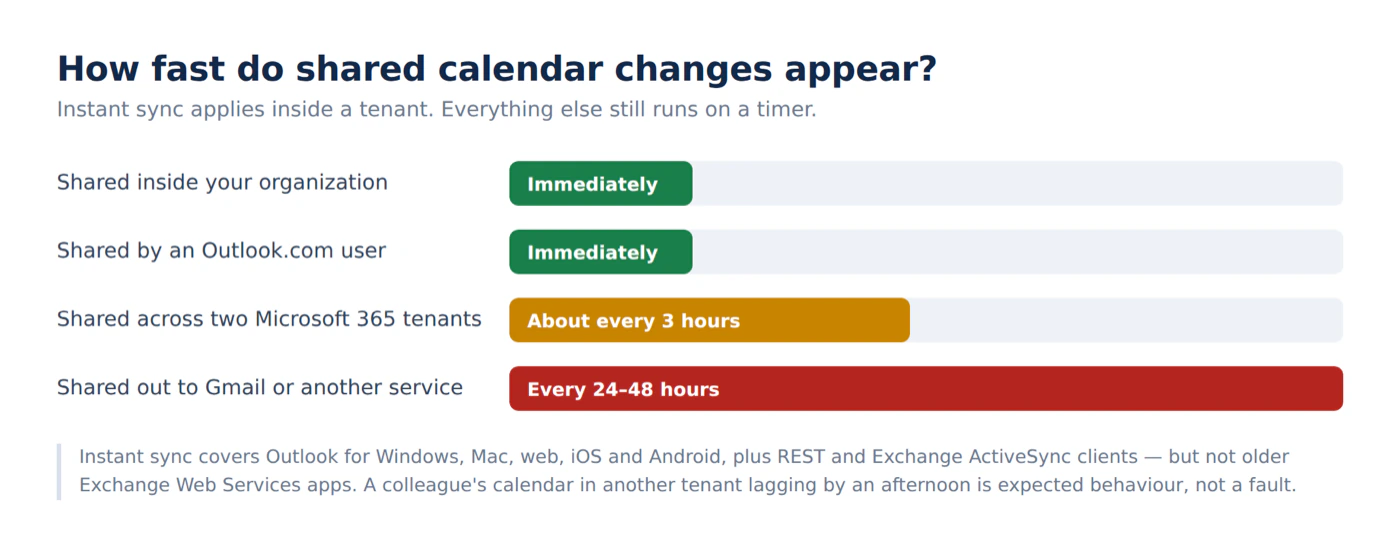
Fig. 3. Instant sync only applies within a tenant. Cross-tenant and third-party sharing still run on a timer — worth knowing before you assume something is broken
Instant sync works in Outlook for Windows, Mac, web, iOS and Android, and in apps that use REST or Exchange ActiveSync. It does not apply to older Exchange Web Services clients.
Two more recent changes are worth noting. In new Outlook, calendars that your admin assigns to you now appear in your calendar list automatically, with nothing for you to add. And you can rename calendar accounts in the left navigation pane, which helps when three calendars are all called “Calendar”.
For the mechanics of granting and revoking access, see our guide to sharing your calendar in Outlook.
Keep it up to date and force a refresh
Sync is automatic, but occasionally you want to push it along.
- Classic Outlook: use Update Folder. Open the Calendar, then on the Send / Receive tab select Update Folder. This refreshes just the folder you are looking at rather than the whole mailbox.
- Check you are not working offline. On the Send / Receive tab, make sure Work Offline is not highlighted. It is the single most common cause of a calendar that has quietly stopped updating.
- Keep Cached Exchange Mode on. In classic Outlook, cached mode is what makes the calendar fast and available offline. Turning it off to “fix” sync usually makes things worse.
- Install updates. Sync fixes ship constantly. New Outlook updates itself; classic Outlook updates through File > Office Account > Update Options.
- On Mac, check Work Offline too. Outlook for Mac has no Send / Receive tab — the equivalent check is the Outlook > Work Offline toggle. If sync stalls repeatedly, removing and re-adding the account in Outlook > Settings > Accounts is the documented fix.
- Restart after adding a shared calendar. Newly added shared calendars sometimes need one restart before their events populate fully.
Calendar not syncing? Start here
If events are missing, stale, or appearing on one device but not another, work through the dedicated troubleshooting guide rather than re-adding your account: Outlook calendar not syncing — how to fix it. It covers Windows, Mac, iOS, Android and the web, plus the shared-calendar cases that behave differently from your own.
The quick triage before you go there: confirm the account is Exchange and not IMAP, confirm Outlook is not in offline mode, and check the same calendar in Outlook on the web. If the event is correct on the web, the mailbox is fine and the problem is on the client.
Syncing with Teams and Google
Teams. Your Teams calendar is your Outlook calendar — Teams reads the same Exchange mailbox, so there is nothing to connect. When the two disagree, it is a mailbox or client issue: see Teams calendar not syncing with Outlook. For channel calendars and Google-side scheduling, see syncing a Microsoft Teams calendar with Google Calendar.
Google. Native integration between Google Calendar and Outlook is a one-way, read-only .ics subscription in both directions. It is fine for visibility and useless for editing, and the refresh interval is measured in hours, not seconds. If events are going stale, that is expected behaviour rather than a fault — the details are in Google Calendar not syncing with Outlook.
What about SharePoint calendars?
This is where the old advice has aged badly. For years the answer to “sync a SharePoint calendar with Outlook” was the Connect to Outlook button in the list ribbon. That button belongs to the classic SharePoint list experience, and modern SharePoint sites — which is what most tenants now run — don’t offer it. Even where it still appears, it produces a separate SharePoint Lists folder in Outlook with its own sync quirks; recurring events created by email, for instance, never sync at all.
If your team keeps a calendar in a SharePoint list, the realistic options today are to move it to a Microsoft 365 group calendar, publish it as an .ics feed and subscribe in Outlook on the web, or use a calendar app that reads the list directly. Our comparison of calendar apps for SharePoint Online walks through the trade-offs.
Seeing everything in one place with Virto Calendar
Syncing your own calendar is the easy part. The harder problem is that a working week is scattered across your personal calendar, two team calendars, a SharePoint list of project milestones, a shared mailbox, and a leave calendar — and Outlook’s overlay view stacks them into a single grid that becomes unreadable past three or four sources.
The Virto Calendar App is built for exactly that case. It pulls Exchange and Outlook calendars, SharePoint lists, Microsoft 365 group calendars, Google Calendar and external .ics feeds into one colour-coded view that you can filter by source, and it runs inside Microsoft Teams, Outlook and the Microsoft 365 app rather than in yet another browser tab.
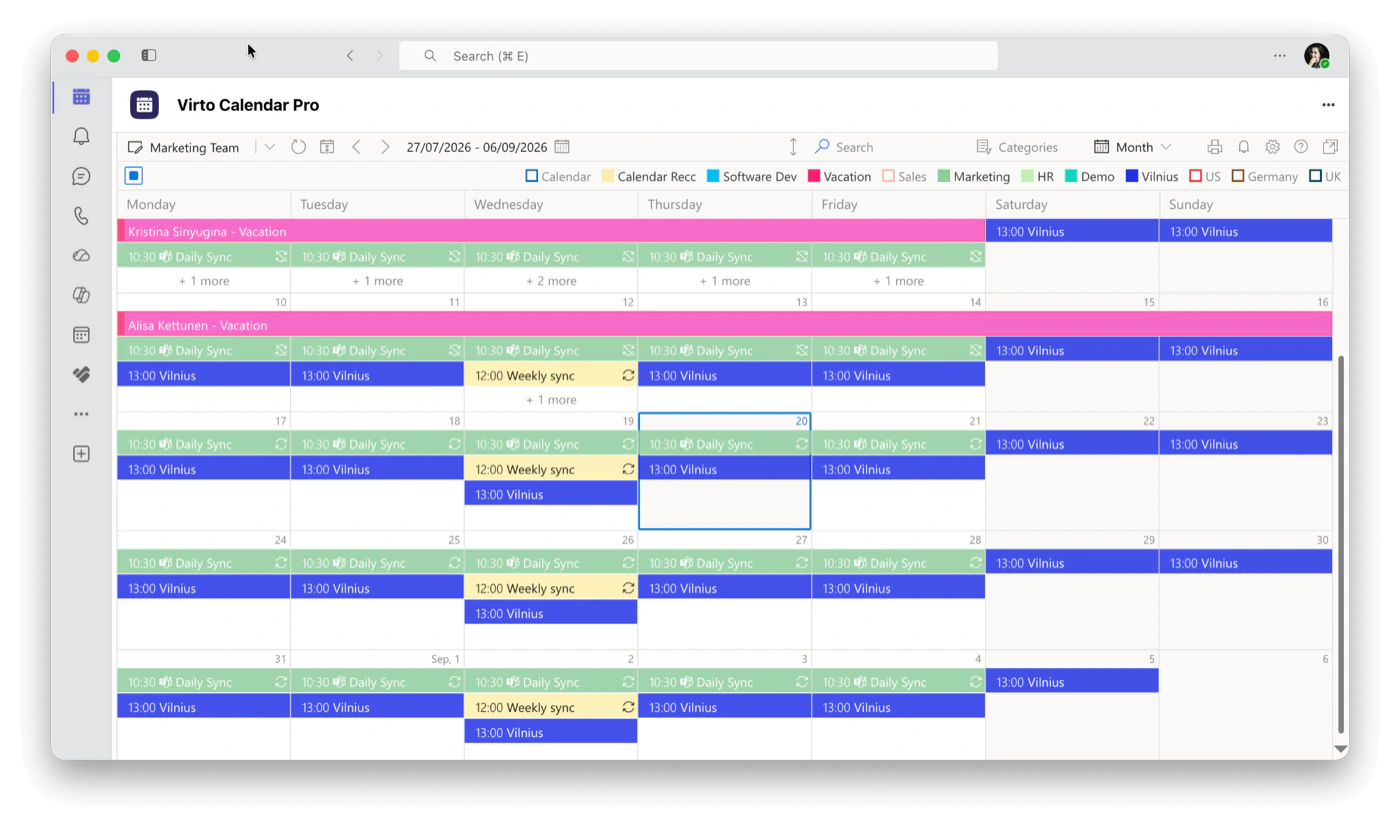
Pic. 4. Virto Calendar App: Outlook, SharePoint and external calendars overlaid in one colour-coded view
It also solves the SharePoint problem above without the deprecated Connect to Outlook route — the app reads SharePoint list events natively, so a project calendar maintained in a list appears alongside your meetings. Virto Calendar is available on a 30-day free trial, with no card required.
If you are wrangling several calendars regardless of the tool, our guide to managing multiple Microsoft 365 calendars covers the organizing patterns that actually hold up.
Frequently asked questions
How do I sync my Office 365 calendar with Outlook?
Add your Microsoft 365 account in Outlook — File > Add Account in classic Outlook, Settings > Accounts > Email accounts > Add account in new Outlook, or Add Account in the mobile app. The calendar syncs automatically over Exchange once the account is signed in.
Why is my Office 365 calendar not syncing with Outlook?
The most common causes are an account set up as IMAP or POP (which carries no calendar data), Outlook running in offline mode, an outdated client, or a shared calendar that is syncing on a schedule rather than instantly. Start with the troubleshooting guide.
How do I sync my Office 365 calendar to my phone?
Install Outlook for iOS or Android and add your Microsoft 365 account. To get work events into the phone’s built-in calendar app, turn on Sync calendars in Outlook for Android, or add the account as a Microsoft Exchange account in iOS Settings.
How long does it take for a shared calendar to update?
Inside your own Microsoft 365 organization, immediately. Across two tenants, roughly every three hours. Shared out to Gmail or a similar service, every 24 to 48 hours.
Is there a sync button in Outlook?
No. Sync is continuous and automatic. The closest equivalent is Send / Receive > Update Folder in classic Outlook, which refreshes the folder you are viewing.
Can I sync a SharePoint calendar with Outlook?
Only through the legacy Connect to Outlook button in classic SharePoint lists, which modern sites no longer offer and which has known limitations. Publishing an .ics feed or using a calendar overlay app such as Virto Calendar is the current approach.
Does my calendar sync if I use IMAP?
No. IMAP and POP are email-only protocols. You need an Exchange, Microsoft 365, Outlook.com, Google or iCloud account for the calendar to sync.