The out of office (OOO) status in Microsoft Teams tells colleagues you’re away before they message you — and, if you want, replies for you automatically. In this guide, you’ll learn how to set out of office in Teams on desktop, web, and mobile, how to show the status without sending an automatic reply, how the status syncs with Outlook, and how to fix it when it won’t turn off or doesn’t show.
Quick answer: how to set out of office in Teams
How do I set out of office in Microsoft Teams?
- Click your profile picture in the top-right corner of Teams.
- Select Set status message → Schedule out of office (or go to Settings → General → Out of Office).
- Enter your out of office message.
- Check Send replies only during a time period and set the start and end date/time (if you skip this, the status stays on until you turn it off manually).
- Click Save. Your status updates in Teams and syncs to Outlook automatic replies.
That’s the whole process for the standard case. The sections below cover each platform in detail, plus the variations most people search for: setting the status without an automatic reply, syncing with Outlook, and removing the status when it gets stuck.
Set Your Out of Office Status in Teams Step-by-Step
Out of Office is one of several presence states in Teams (alongside Available, Busy, Do Not Disturb, Be Right Back, and Appear Away), but it’s the only one designed for extended absences: vacation, business travel, medical leave, or training. Unlike the others, it can carry a date range and an automatic reply that Teams sends to anyone who messages you directly.
Teams desktop and web app
- Open Microsoft Teams and click your profile picture in the top-right corner.
- Select Set status message.
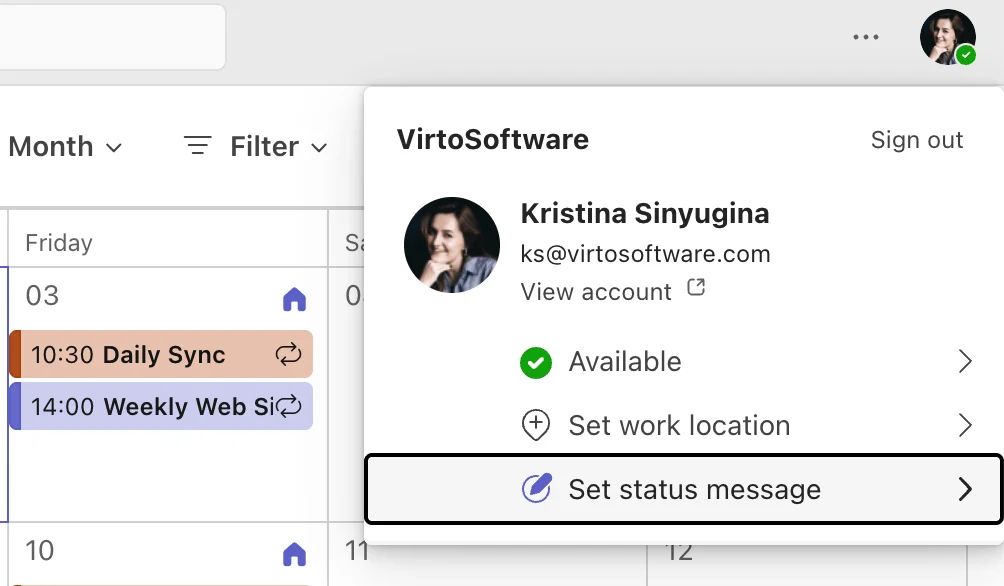
Pic. 1. Locating “Set status message” in Microsoft Teams.
- Click Schedule out of office.
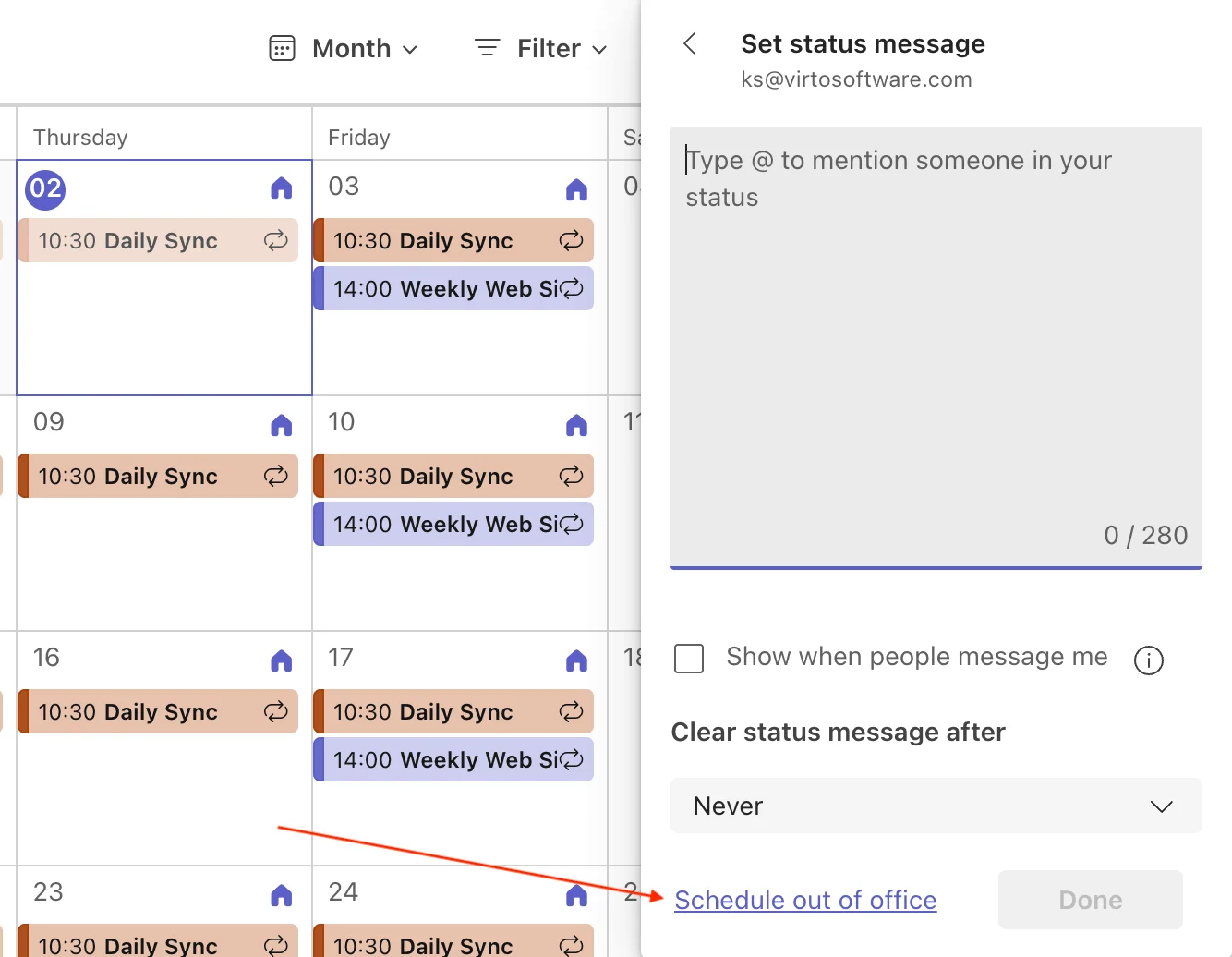
Pic. 2. Navigating to “Schedule out of office” in Microsoft Teams.
- Toggle Turn on automatic replies on and type your message.
- Optionally check Send replies outside my organisation to send your auto-reply to external senders as well.
- Check Send replies only during a time period and set the start and end date/time — otherwise the out of office stays active until you turn it off manually.
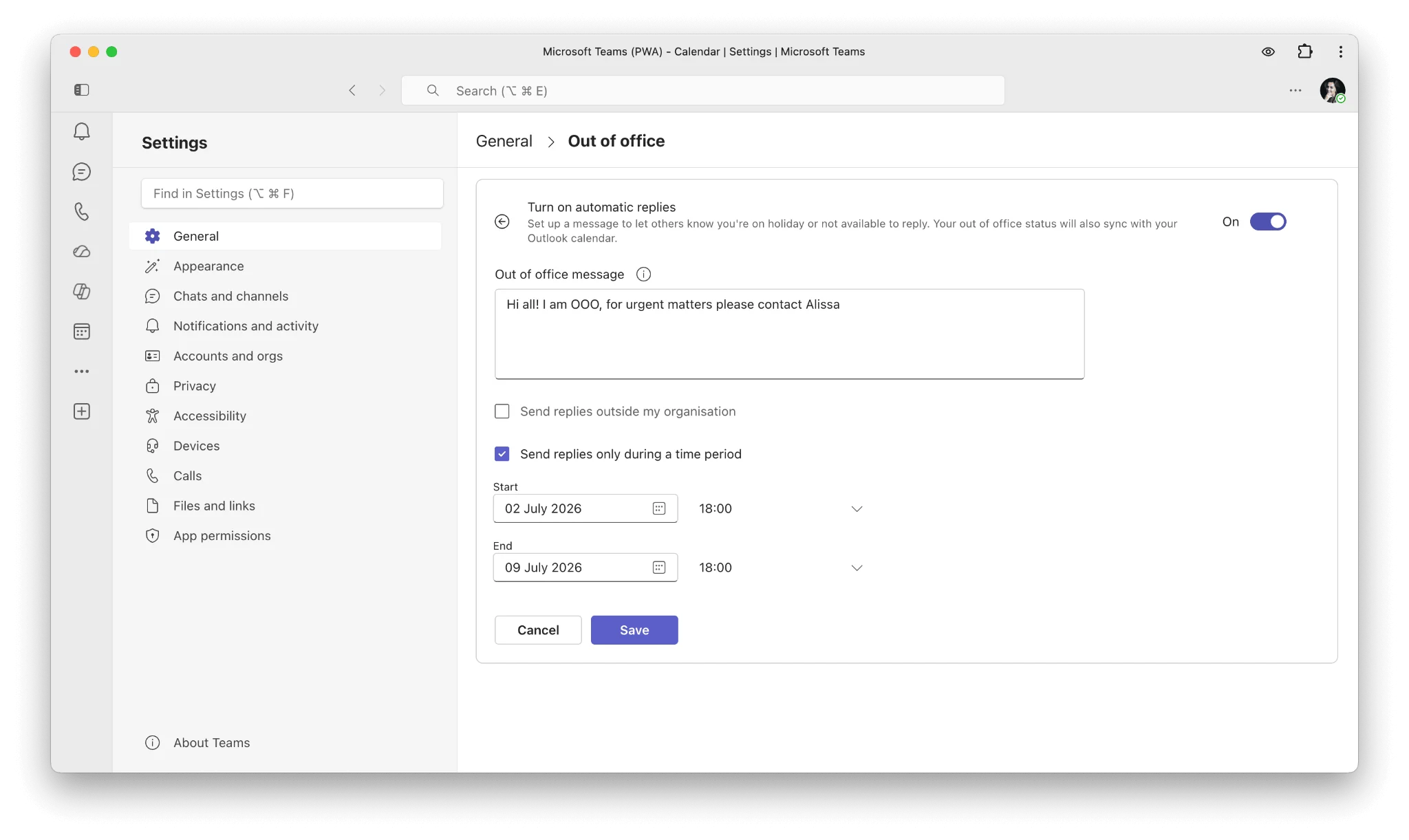
Pic. 3. Configuring your out of office message and dates in Microsoft Teams.
- Click Save.
The same screen is also available under Settings → General → Out of Office → Schedule — both paths lead to the identical dialog.
Teams mobile app
- Open the Teams mobile app and tap your profile picture.
- Tap Set status message.
- Tap Out of office.
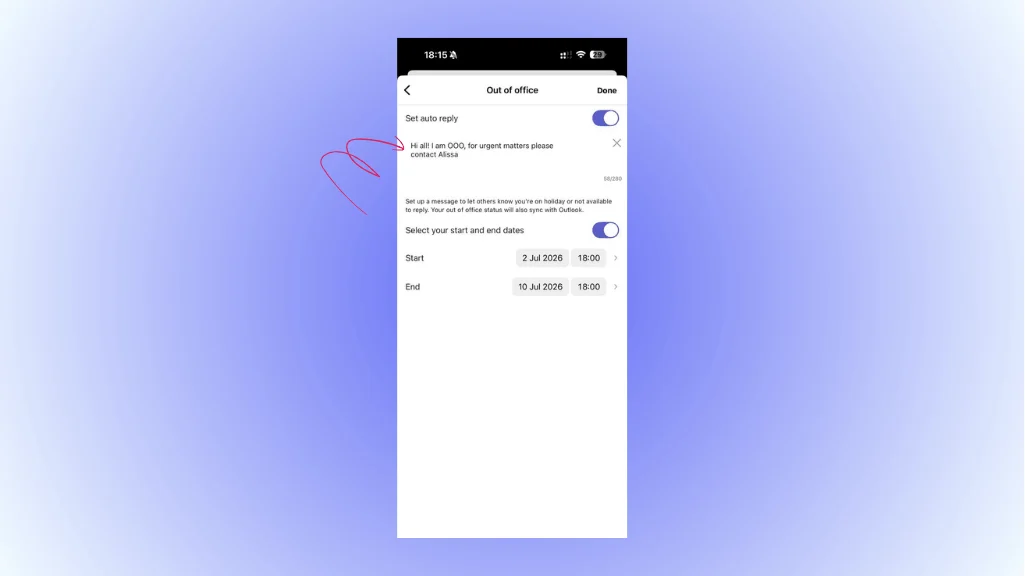
Pic. 4. Configuring your out of office message in Microsoft Teams for mobile.
- Set the duration and, if you want automatic replies, create your auto-reply message.
- Save your changes.
What about channels?
Teams doesn’t send automatic replies inside channels — your OOO reply only goes to people who message you directly. If a channel needs to know you’ll be away, post a short message before you leave with your absence dates and an alternative contact.
Out of Office in Teams Without an Automatic Reply
You don’t have to send auto-replies to show that you’re away. If you only want the purple OOO indicator next to your name — with no automatic message going out — use a status message with an expiry date instead of the scheduled out of office:
- Click your profile picture → Set status message.
- Type a short note (e.g., “On vacation until July 20, back on the 21st”).
- Under Clear status message after, pick a custom date and time matching your return.
- Check Show when people message me so colleagues see the note when they start typing to you.
- Click Done.
Alternatively, open Schedule out of office and simply leave the Turn on automatic replies toggle off — Teams will display the out of office status for the scheduled period without sending any messages or triggering Outlook auto-replies. This is the right choice when you want to signal unavailability quietly, without generating reply emails for every incoming message.
❓ How do I set out of office in Teams without an automatic reply? Use a status message with a date range instead of “Schedule out of office”, or open the schedule dialog and leave the automatic replies toggle off — the status shows without sending Outlook auto-replies.
How Teams Out of Office Syncs with Outlook
Teams and Outlook share one out of office state through your Microsoft 365 account. It’s the same status, managed from either side:
- Scheduling out of office in Teams turns on Outlook automatic replies for the same period, with the same message.
- Turning on automatic replies in Outlook flips your Teams presence to Out of Office.
- Turning it off in either app clears it in both.
To set it from the Outlook side: in new Outlook or Outlook on the web, go to Settings → Account → Automatic replies (classic Outlook for Windows: File → Automatic Replies), turn replies on, set the period and messages, and save. Teams typically reflects the change within a few minutes; if it lags, restart Teams or sign out and back in.
This article stays focused on Teams. For the full Outlook workflow — platform-by-platform steps, internal vs. external replies, calendar blocking, and Outlook-specific troubleshooting — see our dedicated guide: How to Set and Show Out of Office in Outlook Calendar.
Troubleshooting: Remove Out of Office, Status Won’t Turn Off, or Not Showing
How to remove out of office in Teams
- Click your profile picture → Set status message → Schedule out of office.
- Toggle Turn on automatic replies off and Save (if you set a time period, you can instead shorten its end date/time to now).
- Clear any status message: profile picture → Set status message → delete the text or set “Clear status message after” to now.
- Check Outlook too: make sure automatic replies are off (Settings → Account → Automatic replies in new Outlook / web, or File → Automatic Replies → Do not send in classic Outlook). An active Outlook auto-reply will keep re-setting your Teams status.
- Check your calendar: delete or shorten any event marked as Out of Office / “Away” that covers the current time — Teams derives presence from calendar busy status as well.
Allow a few minutes for the change to propagate. If the purple status still won’t clear, restart Teams, and if that fails, sign out and back in.
Why is my out of office not showing in Teams?
- Sync delay. Status changes usually propagate within minutes but can lag under server load. Wait, then restart Teams.
- A manual status is overriding it. If you’ve manually set yourself to Available or Busy, reset your status to automatic (profile picture → status → Reset status).
- Misconfigured dates. Double-check the start/end date and time — and your computer’s time zone, especially if you’re traveling.
- Stale cache. Clearing the Teams cache resolves many display issues (sign out of Teams first, then clear the cache folder for your platform).
- Outdated app or connectivity issues. Update Teams and Outlook and confirm a stable connection.
- Organization policy. Some tenants restrict how presence is shared; if nothing above helps, ask your IT admin.
❓ How do I remove out of office in Teams? Turn off the scheduled out of office in Settings (or clear the status message); it can take a few minutes to update.
If your problem is broader than the OOO status — for example, calendars not matching between apps — see Outlook and Teams calendars syncing: a troubleshooting guide and Troubleshooting Outlook calendar sync problems.
Tips for an Effective Out of Office in Teams
A good OOO setup is more than flipping a toggle. A few practices that pay off:
- Write a complete message. Include your exact absence dates, your return date and time (with time zone), an alternative contact for urgent matters, and your level of availability (fully offline vs. checking messages once a day).
- Keep it secure. Don’t reveal your location, health details, or client/project names — “I’m out of the office until August 3” is enough. Use role-based contacts (support@company.com) rather than personal phone numbers, and keep the external version of your reply more general than the internal one.
- Build in buffer time. Set your stated return a day after your actual return, and block your first day back for catch-up instead of meetings.
- Schedule in advance. Set the OOO to activate the evening before you leave so nothing slips through, and mark the whole period as Out of Office in your calendar so meeting schedulers can’t book you.
- Prepare the handover. A short handover note with project status, contacts, and decision authority saves your team far more time than any auto-reply.
A sample vacation reply you can adapt:
Thank you for your message. I’m out of the office from July 20 to July 31, 2026, with limited access to messages.
For urgent project matters, please contact Alex Thompson (athompson@company.com); for client questions, Maria Garcia (mgarcia@company.com).
I’ll be back on August 3 and will reply to everything else then.
Tracking Team Absences Beyond the OOO Status: Virto Calendar
The Teams OOO status solves the individual problem — it tells people you are away. It doesn’t solve the team problem: who is out next week, whose vacations overlap, and whether anyone is left to cover the release. Presence indicators disappear as soon as you close a chat, and nobody plans staffing by hovering over avatars.
That’s the gap the Virto Calendar App for Microsoft Teams covers: it gives the whole team a shared, color-coded view of absences, vacations, and PTO right inside a Teams tab. Instead of each person’s status living in their profile, planned time off lives on one calendar everyone can see:
- A single vacation and absence calendar overlaying Outlook, SharePoint, and Microsoft 365 group calendars — no app switching.
- Color-coding by absence type (vacation, business trip, sick leave, remote days), so coverage gaps are visible at a glance.
- Automated notifications about upcoming absences, so managers aren’t surprised on Monday morning.
- Day, week, month, year, and Gantt views for planning around longer absences and overlapping schedules.
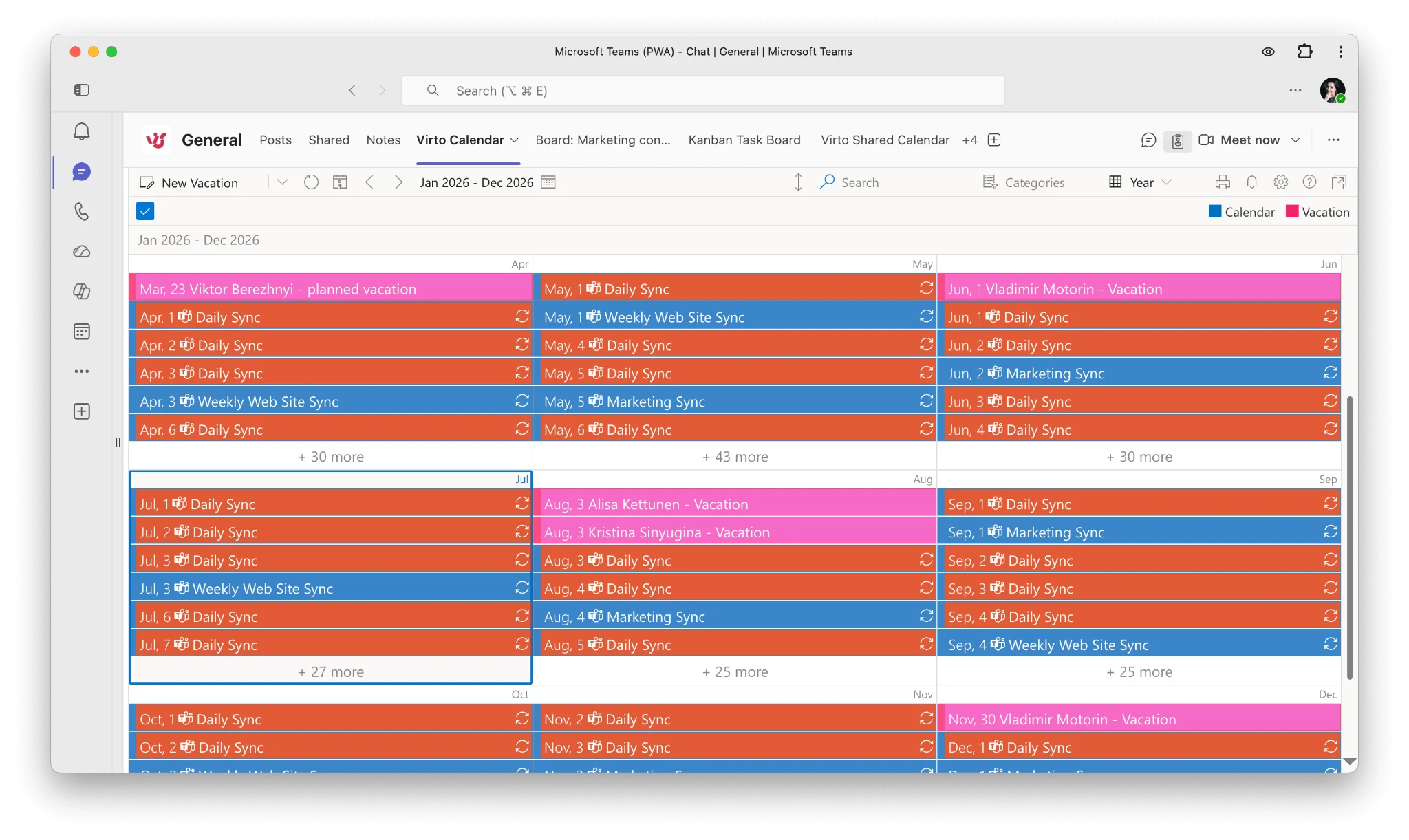
Typical setup: a manager keeps a team vacation calendar in a Teams tab, everyone logs planned time off there, and each person still sets their individual Teams OOO status before leaving. Individual status handles the messages; the shared calendar handles the planning. For a full walkthrough of that setup, see the vacation calendar for Outlook & Microsoft Teams guide.
Schedule a quick demo of Virto Calendar for Microsoft Teams, or start a free trial from AppSource and set up your team’s absence calendar in minutes.
FAQ: Out of Office in Microsoft Teams
How do I set out of office in Microsoft Teams?
Click your profile picture → “Set status message” (or Settings → General → “Schedule out of office”), enter your message, optionally set a time period, and save; it syncs to Outlook automatic replies.
How do I set out of office in Teams without an automatic reply?
Use a status message with a date range instead of “Schedule out of office”, which avoids sending Outlook auto-replies.
How do I remove out of office in Teams?
Turn off the scheduled out of office in Settings (or clear the status message); it can take a few minutes to update. If it keeps coming back, also turn off Outlook automatic replies and remove any “Out of Office” events from your calendar.
Why can’t I schedule out of office in Teams?
Make sure Teams and Outlook are updated, sign out and back in, and check that your organization hasn’t restricted presence settings. If the option is still missing, contact your IT administrator.
Does the Teams out of office reply go to channels?
No. Automatic replies are sent only to people who message you directly (and, if enabled, to external contacts). Post a note in important channels before you leave.
Conclusion
Setting out of office in Teams takes under a minute: profile picture → Set status message → Schedule out of office → message, optional time period, save. Use a plain status message when you don’t want auto-replies, manage the same status from Outlook when that’s more convenient, and remember the fix order when it misbehaves — Teams settings first, then Outlook automatic replies, then calendar events.
For everything the individual status can’t do — team-wide visibility of vacations and absences — pair it with a shared absence calendar like Virto Calendar for Microsoft Teams. And for related how-tos, see our guides on out of office in Outlook and creating a shared calendar in Microsoft Teams.
Official Microsoft reference: Schedule an out of office status in Microsoft Teams.