



Quick Answer: How to Merge Calendars in Outlook
Outlook has no true one-click “merge” button. To actually combine calendars you either import or copy events from one calendar into another, or you overlay the calendars to view them together in a single, color-coded pane. Import or copy when you want everything to live in one calendar; overlay when you only need to see several calendars at once. Step-by-step instructions for each method are below.
Merging vs overlaying, in one line: merging combines events into one calendar permanently, while overlaying simply displays several calendars together without changing any of them.
Feeling overwhelmed by conflicting appointments and endless calendar notifications? Find peace of mind and take control of your day by learning how to merge your Outlook calendars.
From scheduling crucial meetings and client appointments to tracking project deadlines and personal engagements, Outlook helps us juggle the complexities of work and personal commitments.
Within a corporate environment, shared calendars are essential for team collaboration, resource allocation, and efficient workflow management. They provide transparency, facilitate scheduling, and reduce the risk of conflicts. However, as our responsibilities grow, so too does the number of calendars we need to monitor. Juggling multiple calendars can quickly become a frustrating and time-consuming exercise, leading to missed appointments, scheduling conflicts, and a general sense of overwhelm.
Merging these disparate calendars into a single, unified view offers a powerful solution. By consolidating all your appointments, events, and tasks, you gain a clearer overview of your schedule, enabling better time management, improved productivity, and reduced stress.
This article provides clear, step-by-step instructions on how to merge calendars within Outlook, outlining various methods to achieve this, along with the distinct benefits of each. We’ll also address potential issues you might encounter during the merging process and offer effective solutions.
Furthermore, we’ll introduce Virto Calendar App for SharePoint Online & Microsoft 365 as an alternative solution that provides a convenient and robust way to merge and view your calendars.
👉 Interested in learning more about Outlook’s extensive set of features? Check out the dedicated section on our blog: Microsoft Outlook Blog: Best Practices, Tips, and Ideas
What Does Merging Outlook Calendars Mean?
Managing multiple calendars in Outlook can quickly become overwhelming, especially when juggling work commitments, personal appointments, and team schedules. This section explores the concept of calendar merging in Outlook, different merging approaches, and the practical benefits of consolidating your calendars. We’ll also address common questions about the merging process to help you determine the best approach for your needs.
👉 Learn more about merging in the dedicated article on our blog: Merging and Managing Multiple Calendars: Simplified Steps for Google & Outlook
Definition of merging Outlook calendars
Calendar merging in Outlook refers to the process of combining multiple calendars into a single, unified view or consolidated calendar. Think of it as creating a master schedule that pulls information from various sources, allowing you to see all your commitments at a glance without switching between different calendar windows.
There are several ways to merge calendars in Outlook:
- Account-based merging: Combining calendars from different email accounts (such as work and personal Microsoft accounts)
- Folder consolidation: Merging multiple calendar folders into a single destination folder
- Shared calendar creation: Creating a collaborative calendar that multiple team members can access and modify
It’s important to note that while merging calendars offers numerous benefits, some functionality may be limited or lost during the process. For instance, calendar-specific features like reminders, categories, or custom settings might not transfer perfectly when calendars are merged.
👉 How does merging differ from other similar concepts like combining or overlaying calendars? “Merging” implies combining multiple calendars into a single, new calendar file, which is rarely a direct feature. “Combining” often refers to importing events from one calendar into another, preserving the original calendar. “Overlaying” simply displays multiple calendars simultaneously in the same view without altering any data. Subscribing, another related concept, allows you to view another calendar’s events in your own calendar view without modifying either calendar. Therefore, merging is distinct from these other methods in its intended outcome of a unified, new calendar file. Even though there are subtle differences, most of those terms are used interchangeably to refer to what’s commonly known as viewing multiple calendars in a single view.
Why merge Outlook calendars?
The primary advantage of merging calendars is the ability to view all your appointments and tasks in a single, centralized location. This significantly improves workflow efficiency and reduces the risk of overlooking important events, especially for individuals managing multiple accounts or calendars.
Merged calendars empower you to:
- Better organize your work time: By visualizing all your commitments together, you can more effectively allocate time, prioritize tasks, and avoid scheduling conflicts.
- Improve communication with colleagues and the team: Shared calendars facilitate transparent scheduling, ensuring everyone is on the same page and reducing the likelihood of double-bookings or miscommunication.
Can you merge two calendars together in Outlook?
Yes, Outlook provides several methods to merge calendars, depending on your specific needs and setup. You can:
- Overlay multiple calendars in a single view
- Import calendar data from one calendar to another
- Create shared calendars that combine multiple schedules
- Use third-party tools or add-ins for more advanced merging capabilities
The best method for your situation will depend on factors such as:
- Whether you’re working with personal or professional calendars
- The number of calendars you need to merge
- Your desired level of automation
- The specific features and functionality you need to preserve
In the following sections, we’ll explore detailed step-by-step instructions for each merging method, helping you choose and implement the best solution for your calendar management needs.
Step-by-Step Guide to Merge Calendars in Outlook
Now that we understand what calendar merging means and its benefits, let’s dive into the practical steps for combining your calendars in Outlook. This section provides detailed instructions for different merging scenarios, whether you’re working with multiple calendars in a single account or managing calendars across different Outlook accounts. We’ll also cover specific features available in Outlook 365 that can make the merging process more streamlined.
👉 Disambiguation: A note on the terms. Outlook 365, Office 365, and Microsoft 365 are related but not interchangeable terms. Outlook 365, for instance, refers specifically to the email and calendaring component of the Microsoft 365 suite. When you subscribe to a Microsoft 365 plan that includes Outlook, you’re using Outlook 365. Office 365, in turn, was the former name for the suite of cloud-based Microsoft applications, including Word, Excel, PowerPoint, Outlook, OneNote, and others. Microsoft 365 is the current name for the subscription service that includes Office 365 apps (Word, Excel, etc.) plus other services like Windows 10/11, enhanced security features (like device management and advanced threat protection), and more.
How do I merge calendars?: How to merge calendars in Outlook
Outlook offers several methods to merge calendars, each suited to different needs and situations. Here’s how to use each approach:
Merge calendars in Outlook — Windows Desktop
Method 1: Calendar overlay
- Open Outlook and click the Calendar icon at the bottom navigation
- In the left sidebar, locate the “My Calendars” section
- Select the checkboxes next to the calendars you want to view together
- Right-click any selected calendar and choose “Overlay”
- The calendars will now display in a single view with events color-coded by calendar
- To disable overlay mode, right-click the calendar again and uncheck “Overlay”
Method 2: Copy/move calendar items
- Go to Calendar view and open the source calendar
- Select the events you want to transfer (You can select multiple events by holding Ctrl (or Cmd on Mac) while clicking or use Ctrl+A to select all)
- Right-click on the selected events > Choose “Move” or “Copy” > “Choose Folder…” > In the dialog box, select the destination calendar. Otherwise, drag the selected events to the destination calendar in the navigation pane. This will move the events. To copy the events instead of moving them, hold Ctrl (or Cmd on Mac) while dragging.
Method 3: Side-by-Side View
- In Calendar view, check the boxes next to desired calendars
- The calendars will display side by side by default
- Drag and drop events between calendars as needed
- Use the “View Settings” button to customize the layout
Merge calendars in Outlook — Web App (OWA)
Method 1: Calendar overlay
- Go to outlook.com and click the Calendar icon
- In the left pane, under “Your calendars,” check the boxes of calendars to display
- The checked calendars merge into a single combined view automatically—there is no separate “Overlay” command in Outlook on the web. To view them side by side instead, use the “Split view” button in the toolbar.
- Each calendar’s events will appear in their designated colors
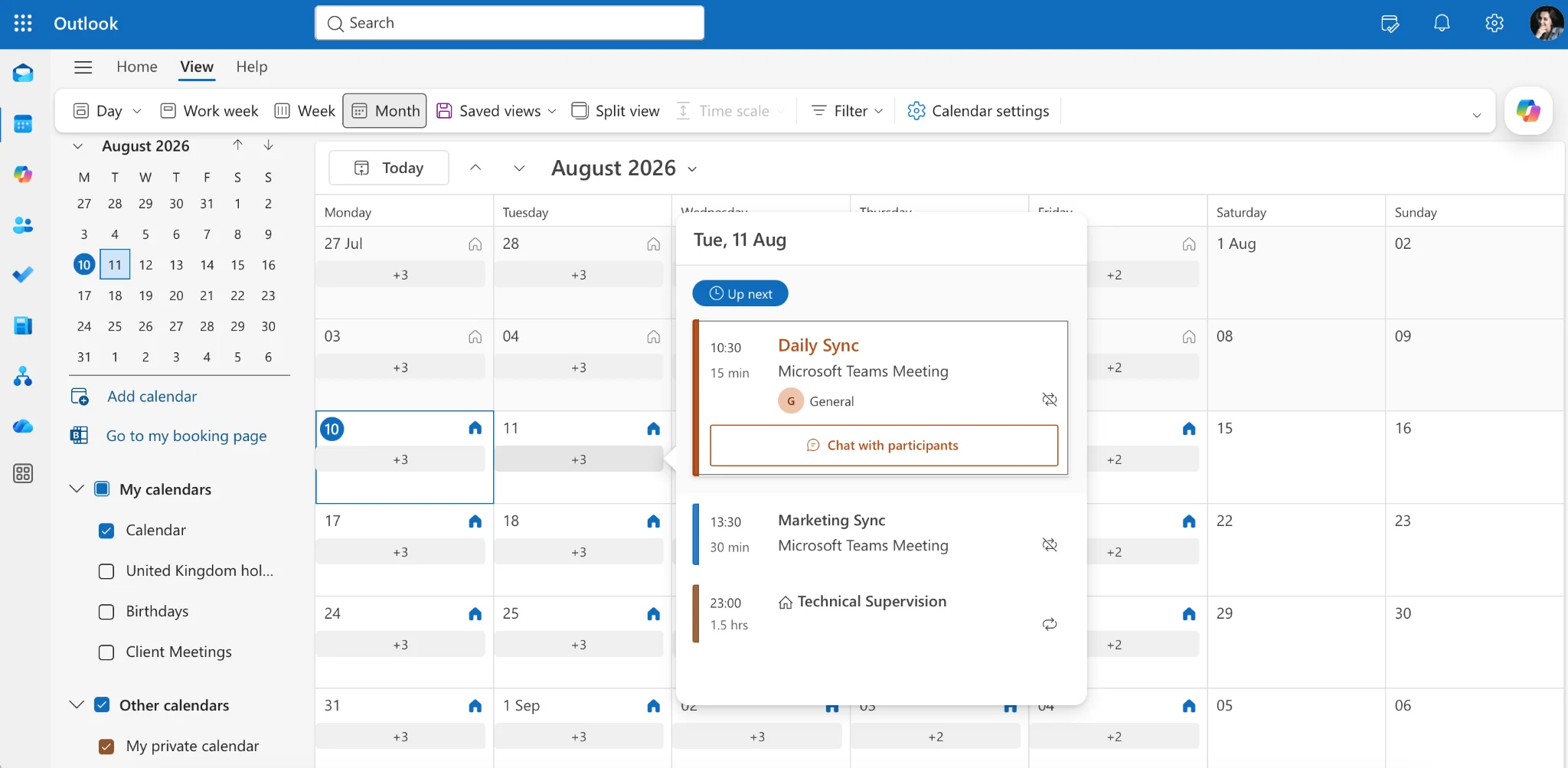
Pic. 1. Overlaid calendars in OWA.
👉 To learn more about overlaying calendars in Outlook, please visit: How to Overlay Calendars in Outlook
Method 2: Import calendar items
- In Calendar view, click “Add calendar” at the top of the left pane
- Select “Upload from file” if importing from an external calendar
- Choose “From your device” and select your calendar file (.ics format)
- Select the destination calendar
- Click “Upload” to import the events
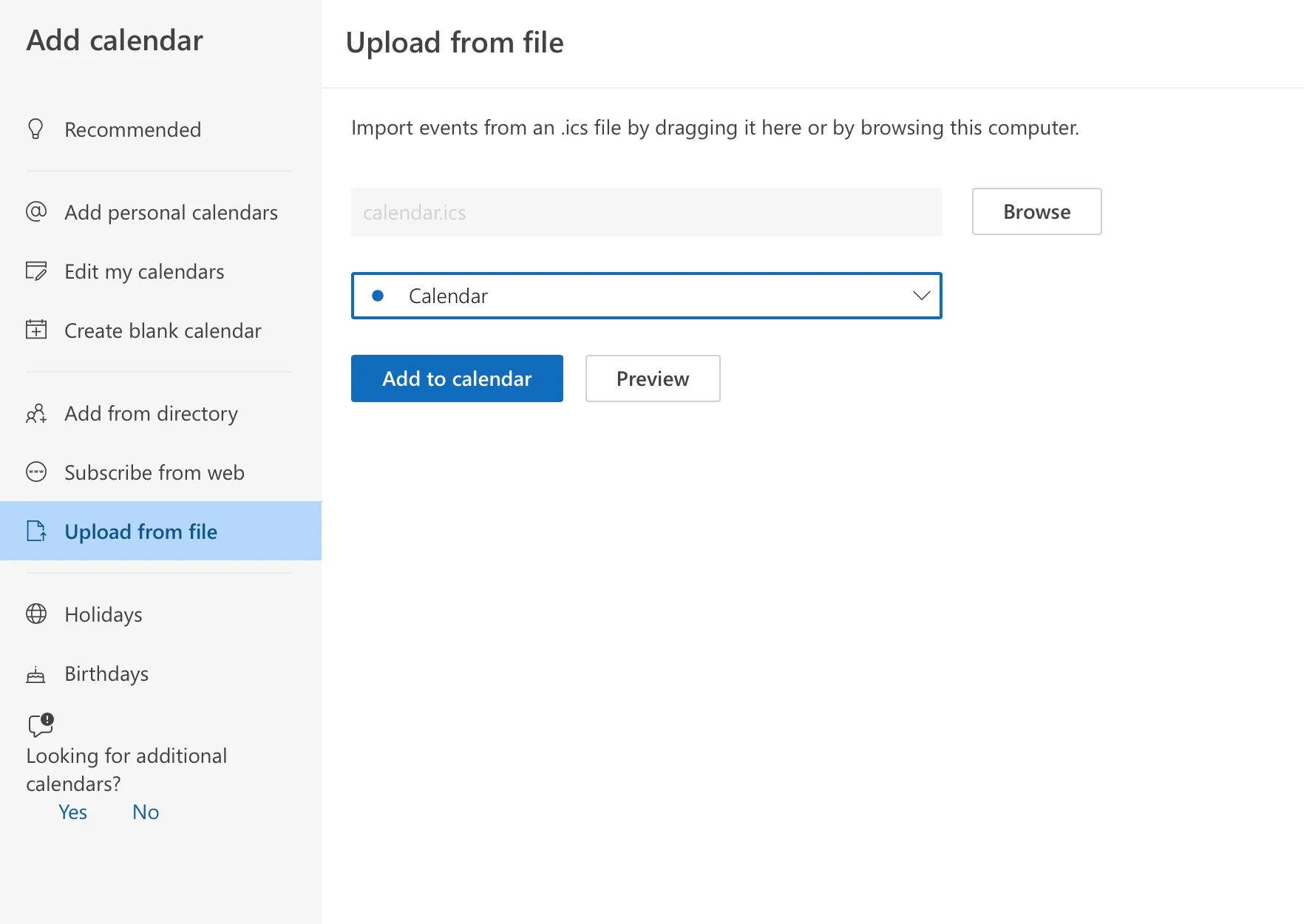
Pic. 2. Uploading your calendar from a file in OWA.
Method 3: Share and merge
- Click the calendar you want to share
- Select “Sharing and permissions”
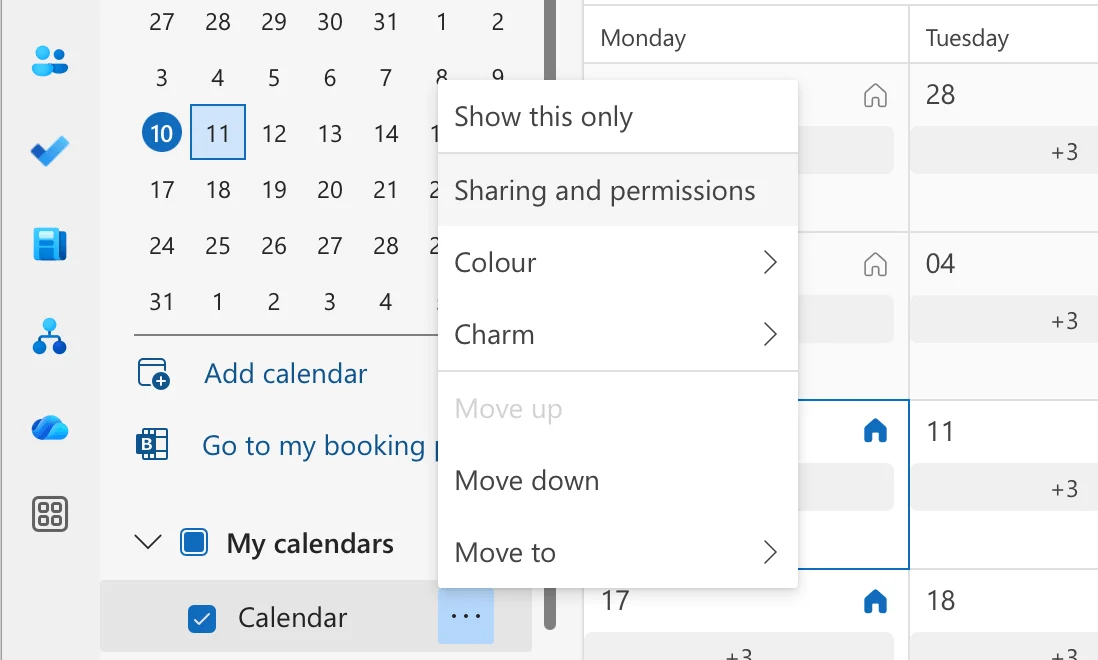
Pic. 3. Sharing your calendar in OWA.
- Enter the email address of the recipient
- Choose permission levels (Can view all details, Can edit, etc.)
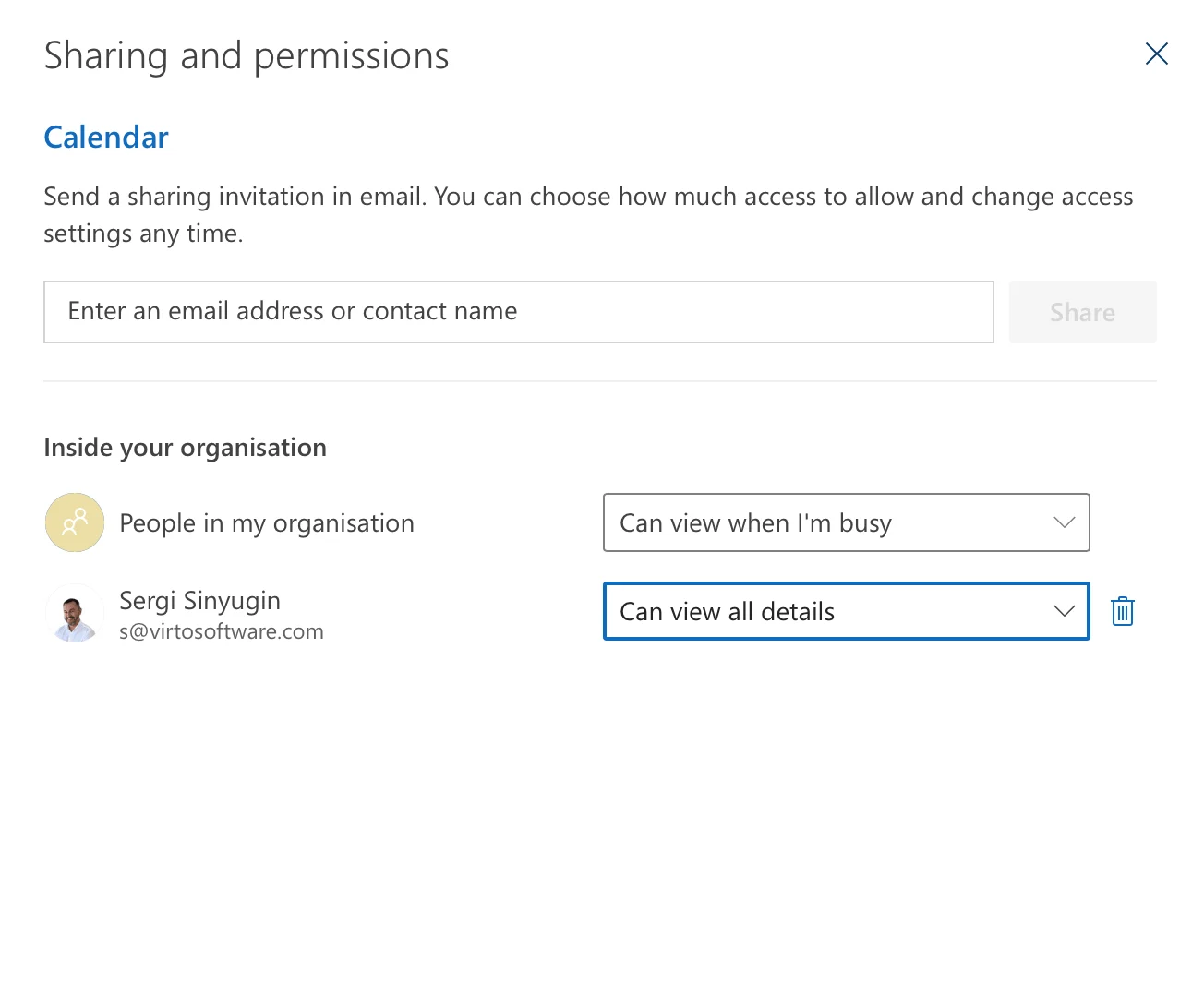
Pic. 4. Configuring permissions for your calendar in OWA.
- Click “Share” to send the invitation
- The recipient can then add this calendar to their view
Method 4: Copy/move calendar items
- Open OWA and navigate to the Calendar view.
- Open the calendar containing the events you want to copy.
- Create a new appointment in the destination calendar.
- Copy and paste the details (subject, location, time, etc.) from the original events into the new appointment. OWA doesn’t currently support direct dragging and dropping between calendars.
👉 So, how to merge two calendars in Outlook? You can merge calendars in Outlook by moving or copying events between calendars, overlaying calendars for a combined view, or importing/exporting calendar data. The specific steps depend on the method you choose and whether you’re using the desktop app or OWA.
How to merge calendars across multiple Outlook accounts: Merging calendars across multiple Outlook accounts
When working with multiple Outlook accounts, follow these steps to create a unified calendar view:
How to combine calendars in Outlook: For Outlook Windows Desktop
Step 1: Add all accounts to Outlook
- Open Outlook and click File > Info > Add Account
- Choose between “Manual setup or additional server types” or “Email Account”
- Enter your email address and click “Connect”
- If prompted, enter your password
- Allow the automatic account setup to complete
- Click “Finish” and repeat for additional accounts
- Restart Outlook after adding all accounts
Step 2: Configure calendar sharing
- In the Calendar view, locate the calendar you want to share
- Right-click the calendar and select “Sharing Permissions”
- Click “Add” and enter the email address of your primary account
- Set permission level (typically “Editor” for full access)
- Click “OK” to send the sharing invitation
- Repeat for each calendar you want to merge
Step 3: Create unified view
- In your primary account’s Calendar view
- Check your Inbox for sharing invitations
- Click “Accept” for each calendar invitation
- In Calendar view, check boxes next to shared calendars
- Right-click each calendar and select “Overlay”
- To color-code: right-click calendar > Color > choose desired color
How to merge Outlook calendars: For Outlook Web App (OWA)
To achieve a merged calendar view in OWA with multiple accounts involves subscribing to one calendar from another account. This is the closest equivalent to merging in this context. Here’s how to do it:
Account A (The calendar you want to see in Account B):
- Share the calendar:
- In OWA for Account A, go to Settings > Calendar > Shared calendars.
- Select a calendar to publish.
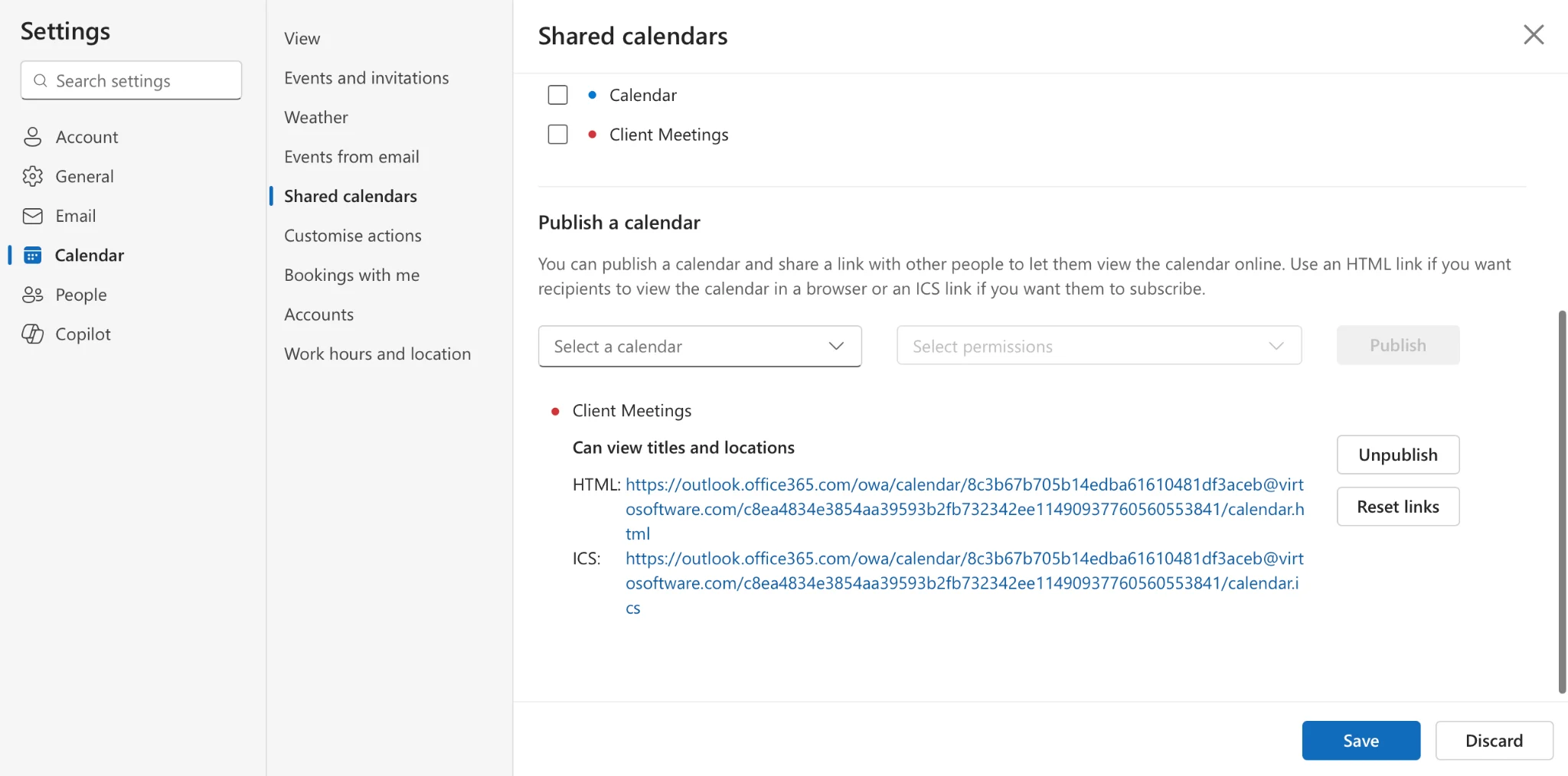
Pic. 5. Publishing your calendar in OWA.
- Create a sharing link with at least “View” permissions. You can choose to create an HTML link or an ICS link.
- Click Publish and copy the generated link.
Account B (The account where you want to view the merged calendar):
- Subscribe to the Calendar:
- In OWA for Account B, go to the Calendar view.
- In the left-hand navigation pane, look for an option to “Add calendar” or “Subscribe to calendar.” The wording may vary slightly depending on your OWA version.
- Choose the option to “Subscribe from web” or similar.
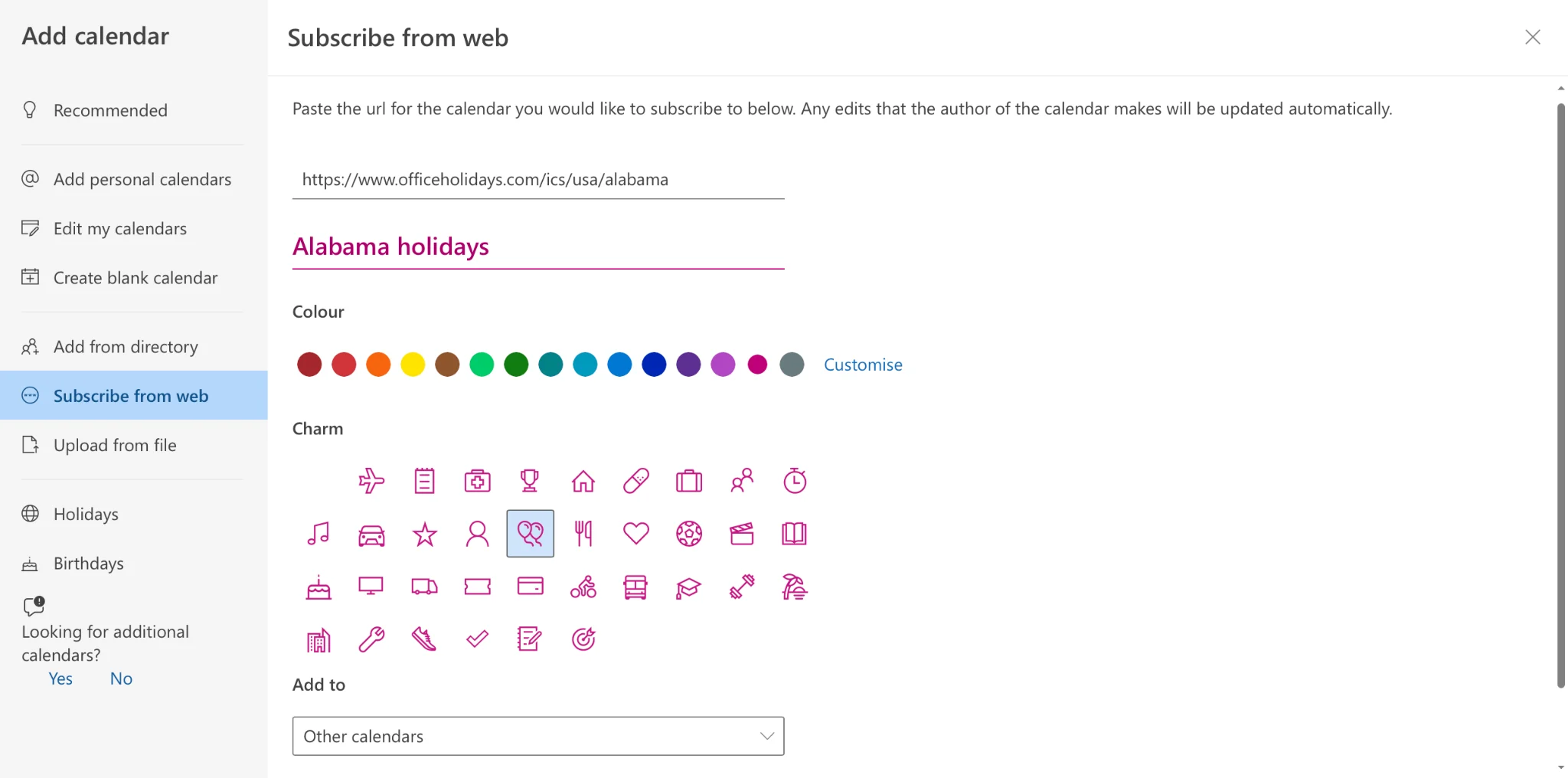
Pic. 6. Subscribing to a calendar from web in OWA.
- Paste the calendar link you copied from Account A into the provided field.
- Give the calendar a descriptive name (e.g., “Account A Calendar”).
- Click “Import” or “Subscribe.”
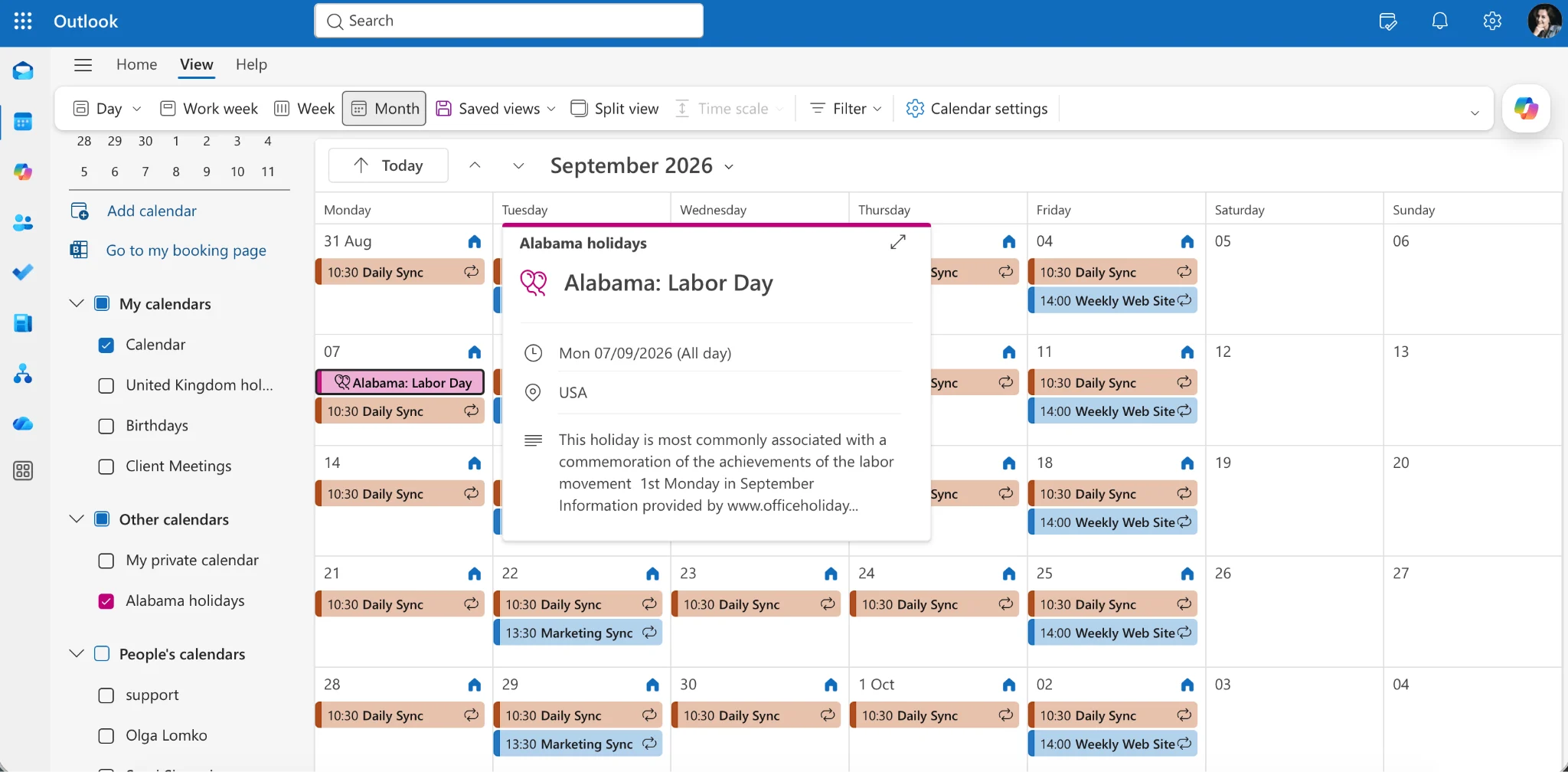
Pic. 7. Navigating to your subscribed calendar in OWA.
Now, the calendar from Account A should appear in Account B’s OWA calendar view. You can customize its color and visibility as needed.
Key considerations:
- Updates: Changes made to the original calendar in Account A will be reflected in the subscribed calendar in Account B, but there might be a slight delay in synchronization.
- One-way synchronization: This is not a true merge. You can only view the events from Account A in Account B. You cannot create or edit events in the subscribed calendar directly from Account B. All modifications must be made in the original calendar in Account A.
- Alternative—third-party apps: If you need more robust merging functionality, consider exploring third-party calendar applications or browser extensions that specialize in integrating multiple online calendars.
👉 So, how to merge two Outlook calendars? Merging two Outlook calendars into a single, unified calendar isn’t directly possible in the traditional sense. Instead, you can import or copy the contents of one calendar into another. This effectively combines all appointments and events. For ongoing synchronization, consider subscribing to a calendar or sharing calendar access, allowing you to view multiple schedules simultaneously in overlay mode. For more advanced merging and management capabilities, explore dedicated calendar management tools like the Virto Calendar App.
Pro tips for managing multiple calendars
- Setting your primary account:
When managing multiple calendars, understanding how your primary account functions is crucial. Your primary account is generally the one used for sending new emails.
Outlook Desktop: Set your preferred account as default by going to File > Account Settings > Account Settings, selecting the account, and clicking “Set as Default.”
OWA (Outlook Web App): In OWA, the first account you sign in with in a given browser session is the default for that session. Meeting invites will be sent from the account whose calendar you’re currently viewing.
Maintaining calendar sync:
Keeping your calendars synchronized is vital for accurate scheduling.
Outlook Desktop: Check the Outlook status bar for sync errors. The “Last Updated” timestamp in calendar properties usually indicates the last successful sync. Manually initiate a sync if needed.
OWA: OWA displays external calendars through subscriptions, which update periodically. Refresh your browser or resubscribe to the calendar to force an update. Verify sharing permissions and link validity if you encounter persistent issues.
Using categories effectively:
Categories are powerful tools for organizing events across different accounts and contexts.
- Developing a consistent system: Develop a category system that spans all your calendars, distinguishing between client meetings, internal meetings, personal appointments, project-specific events, time-sensitive tasks, and travel.
- Assigning categories: In Outlook Desktop, right-click an event and select “Categorize.” In OWA, click an event and use the category option in the event details.
- Creating shortcuts: Create shortcut keys for frequently used categories in Outlook Desktop to expedite the categorization process.
👉 Can you merge two Outlook calendars, and how to combine two Outlook calendars? What’s the difference? As discussed, “merging” and “combining” Outlook calendars are often used interchangeably, but there’s a subtle difference. True merging, creating a brand new calendar from two existing ones, isn’t a standard Outlook feature. “Combining” is more accurate, as it describes importing or copying events from one calendar into another, resulting in a single calendar with all the entries. You can also view multiple calendars simultaneously through sharing or subscribing, which overlays the schedules without actually combining them.
Merge calendars for Outlook 365: How to merge multiple calendars in Outlook 365
Outlook 365 doesn’t offer a single “merge” function. Instead, it provides several ways to view multiple calendars together or share calendars for collaborative use.
Overlay method (both Desktop and OWA):
This is the simplest way to see multiple calendars at once.
- Outlook Desktop:
- In the Calendar view, navigate to the “My Calendars” section in the left-hand navigation pane.
- Check the boxes next to the calendars you want to display. They will be overlaid in the main calendar view.
- OWA:
- In the Calendar view, look for the “Your Calendars” or “Other Calendars” section in the left-hand navigation pane. (The exact location might vary slightly depending on the OWA version).
- Check the boxes next to the calendars you want to display. (See Pic. 1)
Microsoft 365 Groups (both Desktop and OWA):
This creates a shared calendar for a team or group.
- Outlook Desktop & OWA:
- Create a Microsoft 365 Group (this is typically done through the Microsoft 365 portal or Outlook’s Groups section).
- Once the group is created, it will automatically have a shared calendar. Group members can add events to this calendar.
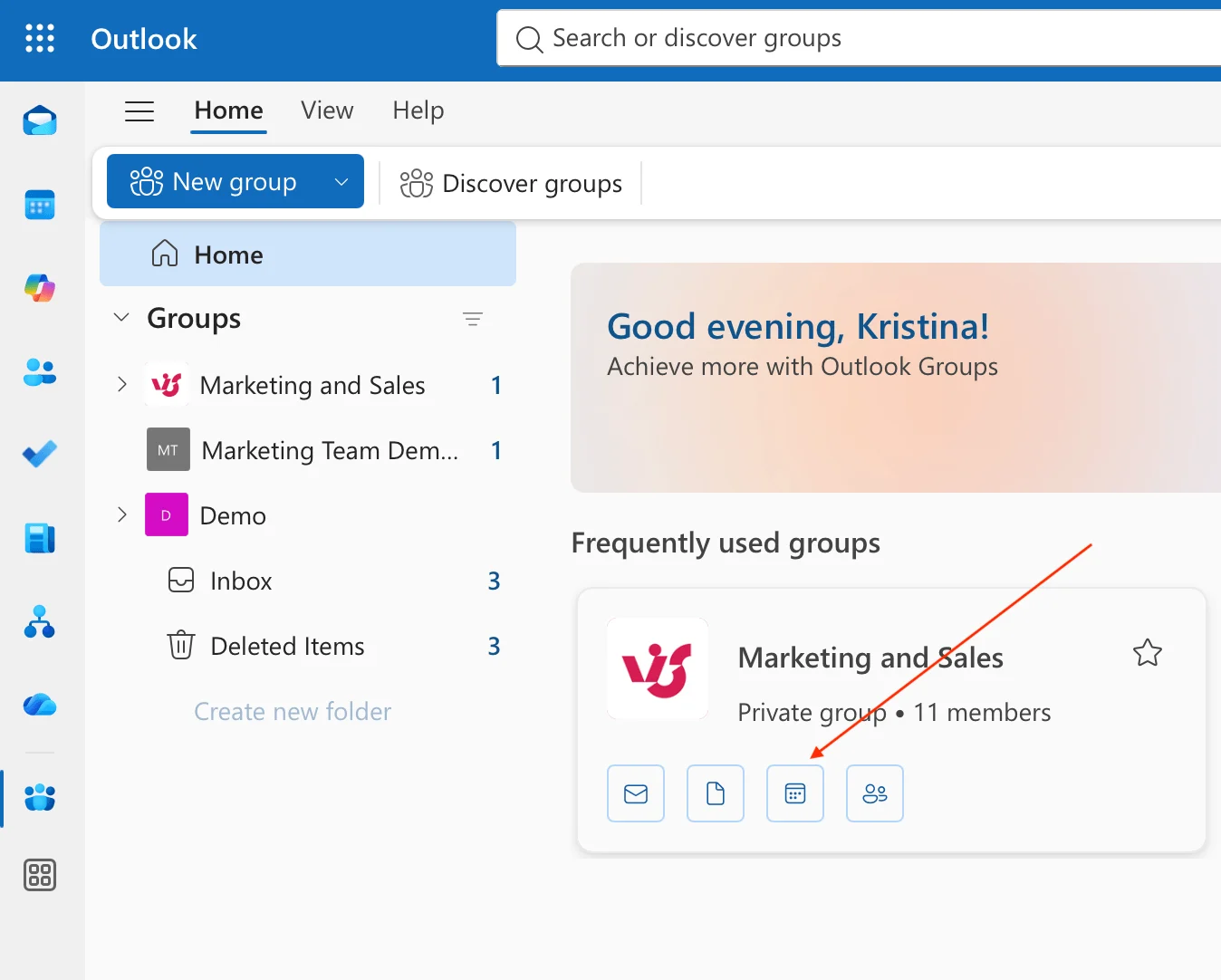
Pic. 8. Checking out a group and its calendar from OWA.
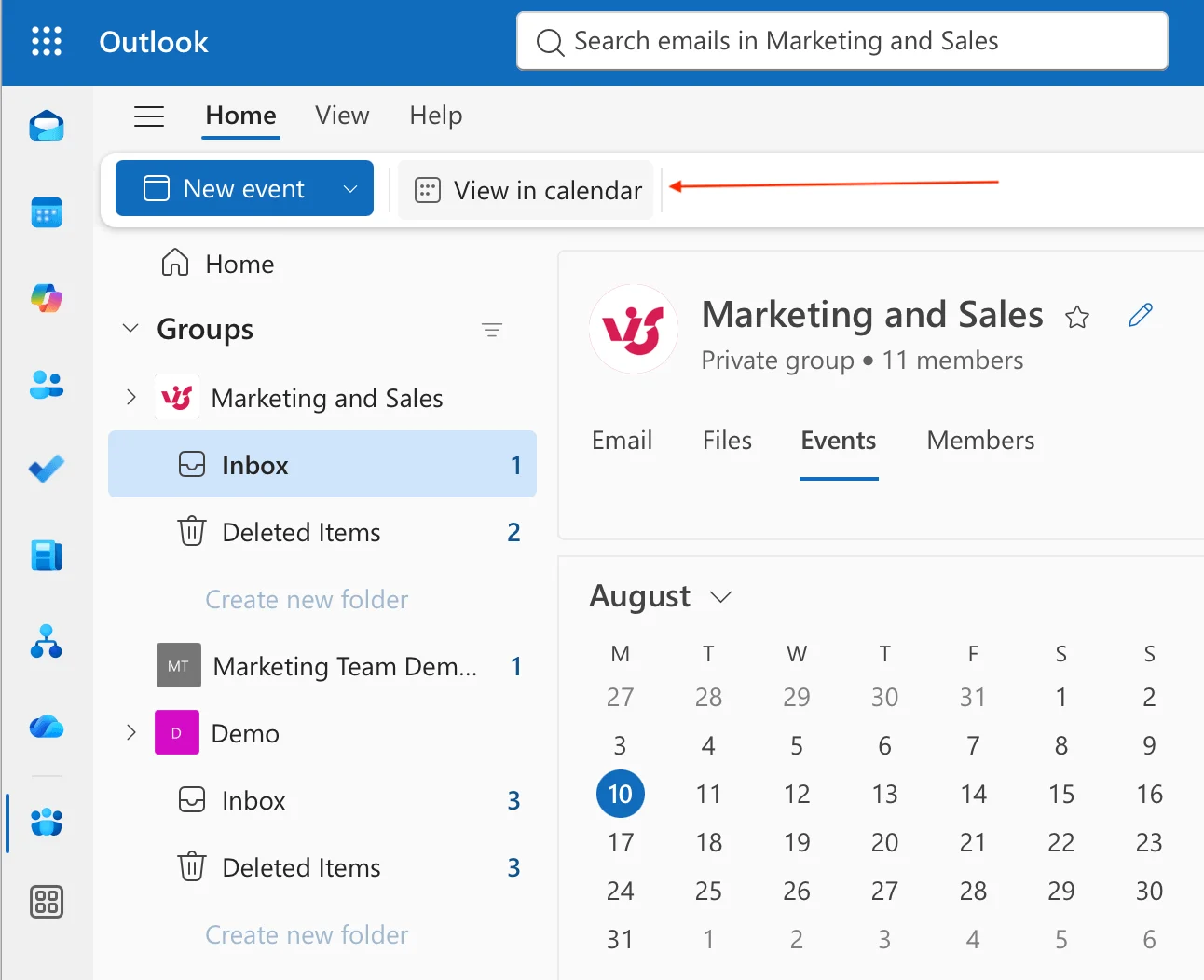
Pic. 9. Clicking “View in calendar” to view group events in the calendar in OWA.
- In Outlook Desktop and OWA, the Group calendar will appear in the navigation pane under the Group’s name. You can select it to view its events.
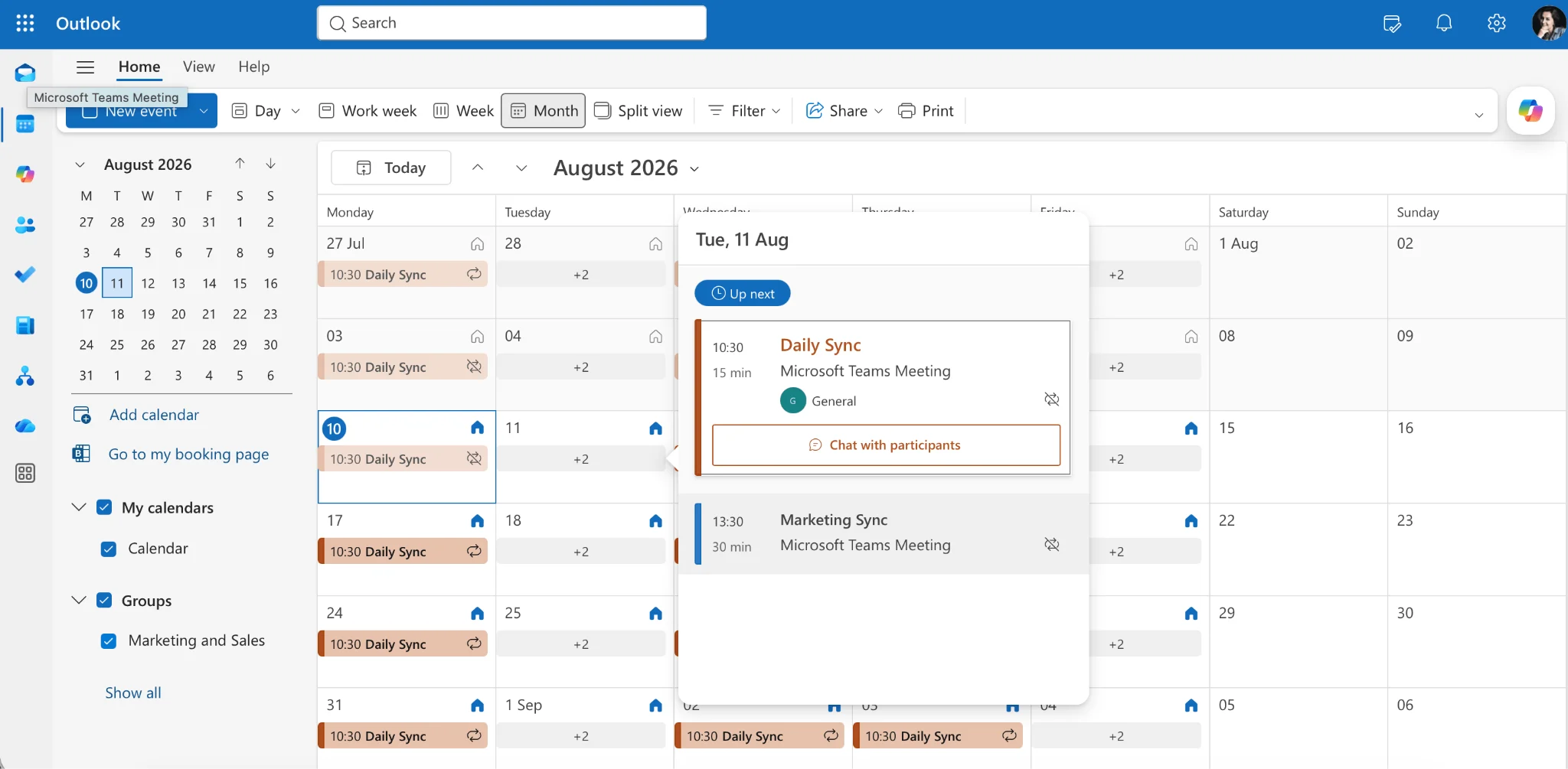
Pic. 10. Navigating to your group calendar in OWA.
Calendar Groups (Outlook Desktop only):
This feature allows you to group existing calendars for easier viewing.
- Outlook Desktop:
- In the Calendar view, go to the Home tab.
- Click “Calendar Groups” and then “Create New Calendar Group.”
- Give the group a name and select the calendars you want to include.
- The Calendar Group will appear in the navigation pane. You can expand it to view the individual calendars within the group.
Sharing and subscribing (both Desktop and OWA):
This allows you to view a calendar from another account.
- Sharing (Source account):
- Right-click the calendar you want to share and select “Share” or “Permissions.”
- Grant “View” permissions to the desired users or generate a sharing link.
- Subscribing (Target account—OWA): (See detailed instructions in the previous response.)
- Adding shared calendar (Target Account—Desktop):
- Click “Open Calendar” in the Home tab.
- Select “From Address Book” or “From Room List” if the calendar is associated with a user or resource. Alternatively, if you have a sharing link, you can sometimes add it directly.
👉 How to merge Outlook calendars in Office 365? Similar to other Outlook versions, direct merging of Microsoft 365 (previously Office 365) calendars isn’t a standard feature. You can import or copy events from one calendar to another to combine their contents. Sharing and subscribing offer ways to view multiple calendars overlaid. For enhanced merging and management solutions within the Office 365 ecosystem, explore apps like the Virto Calendar App.
Additional 365 features:
- Teams integration
Microsoft Teams and Outlook calendars work seamlessly together to streamline your scheduling experience. When you schedule a Teams meeting, it automatically appears in your Outlook calendar with all relevant details, including the Teams join link, attendees, and meeting materials. This integration works both ways: updates made in Teams reflect in Outlook and vice versa. This is not a merging feature but rather standard integration.
- Calendar sharing
Microsoft 365 provides granular control over calendar sharing. Permission levels include:
- Availability Only: Shows only free/busy times.
- Limited Details: Shows event subject, time, and location, but not the full event details or attachments.
- Full Details: Provides complete event information.
- Editor Access: Allows others to modify events.
- Delegate Access: Grants full management rights.
Sharing options may vary slightly for internal and external sharing. You can also share individual calendar items for project-based collaboration.
- Mobile sync
Microsoft 365 ensures your calendar stays updated across all devices through real-time synchronization. Benefits include instant updates, offline access, push notifications, and a consistent view regardless of the device used. A stable internet connection and proper account configuration are essential for optimal sync performance.
- Schedule view (Desktop)
The Schedule View in Outlook Desktop displays multiple calendars side-by-side on a horizontal time grid. This allows for easy identification of free/busy times, drag-and-drop scheduling, and quick availability comparisons.
- Calendar publishing
Publishing your calendar allows external sharing via a generated link. You can set expiration dates, control visible information, and update the shared calendar in real-time. Note that the level of detail in published calendars might be limited, and access control is typically managed through link management rather than detailed tracking.
- Calendar delegation
Delegation empowers others to manage your calendar. Delegates can create and modify appointments, respond to meeting requests, organize meetings on your behalf, and manage recurring meetings. The calendar owner must grant delegate permissions within Outlook’s settings.
Outlook Merge Calendars While Keeping Future Events
When merging calendars, preserving future appointments is crucial to maintaining your schedule integrity. This section provides detailed guidance on safely combining calendars while ensuring no future commitments are lost in the process. We’ll cover backup strategies, verification methods, and best practices for a successful calendar merger.
How do I merge calendars while keeping future appointments?
As mentioned in the beginning of the article, the term “merging” calendars can be misleading. In most calendar applications, including Outlook, true merging (combining all events into a single, new calendar file) isn’t the typical approach. Instead, you’re usually importing or subscribing to another calendar’s data, or overlaying multiple calendars in the same view. This distinction is crucial for understanding how to preserve future events.
Here’s how to handle different scenarios:
- Importing a calendar (e.g., from a .pst or .ics file): This is common when migrating from one calendar system to another or consolidating old calendar data. Before importing, always back up your current calendar data. This can usually be done by exporting your calendar to a file (e.g., .pst or .ics). Once backed up, import the second calendar. Most calendar applications will add the imported events to your existing calendar without deleting existing entries.
- Subscribing to a calendar (common in OWA): Subscribing lets you view another calendar’s events in your own calendar view. This method inherently preserves future events in both calendars because it doesn’t modify the original data.
- Overlaying calendars (both Outlook Desktop and OWA): This simply displays multiple calendars simultaneously in the same view. No data is modified, so future events remain intact in their respective calendars.
Backing up your data:
Before any calendar migration or import, back up your existing calendar data:
- Outlook Desktop: Export your calendar to a .pst file.
- OWA: Export your calendar to a .ics file (if this option is available). Alternatively, take a screenshot of your important future events as a secondary backup.
👉 So, how to merge calendars while keeping future appointments? The best way to merge calendars while keeping future appointments is to avoid a true “merge” altogether. Instead, use importing, subscribing, or overlaying, depending on your specific needs and the calendar application you’re using. Always back up your existing calendar data before importing anything.
Verifying the migration:
After importing or subscribing, carefully check that all future events have been transferred correctly:
- Compare: If possible, compare the original calendar with the imported/subscribed calendar. Check event dates, times, titles, and details.
- Spot check: At a minimum, spot-check several important future appointments to ensure they are present in the new calendar view.
- Time range: View your calendar in a wide date range to ensure all future events are visible. Sometimes, imported events might be grouped differently, so adjusting the view is important.
- Search: Use the search function in your calendar application to look for specific keywords or event titles to verify their presence.
Merge vs Overlay — Which Do You Want?
Before you start, decide what you actually need. Merging — importing or copying events — puts everything into a single calendar permanently, which is ideal for consolidating an old calendar or a departing colleague’s schedule. Overlaying leaves every calendar untouched and simply stacks them in one color-coded view, which is ideal for day-to-day visibility across your work, personal, and team calendars.
👉 If you only want to see your calendars together rather than fold them into one, overlaying is the faster route. See our full guide: How to Overlay Calendars in Outlook
Combine Outlook Calendars Best Practices: Helpful Tips for Effectively Merging Calendars in Outlook
After successfully merging your calendars, proper organization and maintenance are crucial for maximizing efficiency. This section covers essential post-merge optimization techniques, from managing notifications to handling duplicates and customizing your calendar view for optimal productivity.
Setting up notifications and reminders after merging Outlook calendars
Outlook Desktop:
- Go to File > Options > Calendar.
- Set the default reminder time for new items.
- Choose the default notification sound.
- Configure working hours for more relevant alerts.
OWA:
- Click Settings > Calendar > Events and invitations.
- Customize default reminder times. Note that sound options are generally limited in OWA.
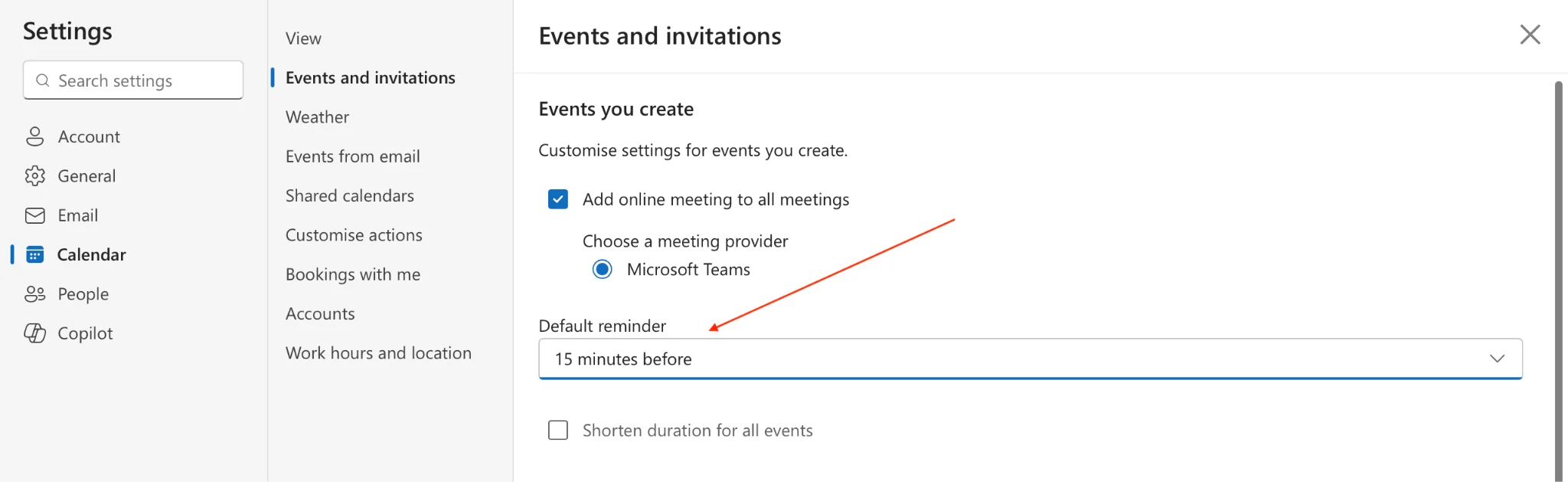
Pic. 10. Navigating to reminders in OWA.
Notification best practices:
- Create tiered notifications (e.g., 1 hour for meetings, 1 day for deadlines).
- Configure desktop, mobile, and email notifications appropriately. OWA’s notification options might be more limited.
- For work-related events, leverage Teams notifications if applicable.
Removing duplicate events in Outlook combine calendars
True duplicates are rare unless you’ve imported the same calendar data multiple times. What often appears as duplicates are similar events or recurring meetings.
- Prevention strategies (both platforms):
- Carefully review existing events before importing or subscribing to another calendar.
- Be mindful of recurring meeting patterns.
- Cleanup (both platforms):
- Manual review: The most reliable method is to manually review your calendar for potential duplicates. Sort by subject and date to identify similar entries.
- OWA: There are no built-in duplicate removal tools.
- Outlook Desktop: While there’s no dedicated “duplicate remover,” sorting and filtering can help identify potential duplicates. Third-party add-ins might offer more advanced features.
Customizing the display of calendars
- View options (both platforms):
- Time display: Choose day, work week, week, or month views. Adjust time scales and set custom work hours. Week number display is also configurable.
- Outlook Desktop: In the Calendar view, use the tabs in the ribbon (e.g., “Day,” “Work Week,” “Week,” “Month”) to change the view. Click the “View Settings” button (or similar) in the ribbon to adjust time scales, set custom work hours, and configure week number display.
- Time display: Choose day, work week, week, or month views. Adjust time scales and set custom work hours. Week number display is also configurable.
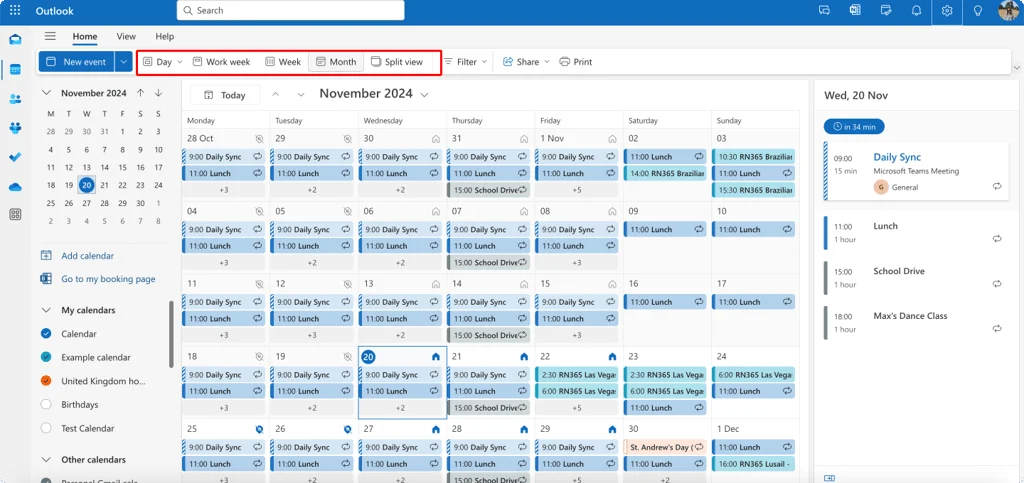
Pic. 11. Navigating to different calendar views in OWA.
- OWA: In the Calendar view, use the buttons or dropdown menu at the top of the calendar to select the desired view (Day, Work Week, Week, Month). Click the “Settings” icon (gear icon) and look for “Calendar” settings to adjust work hours and other display options. Time scale adjustments might be limited.
- Visual customization (Desktop offers more options): Desktop allows for more extensive visual customization (grid lines, fonts, colors, headers). OWA offers basic color and theme options.
- Outlook Desktop: Go to “View Settings” (or similar) in the Calendar view. Here, you can adjust grid lines, fonts, colors, headers, and more. The “View” tab in the ribbon also offers some visual customization options.
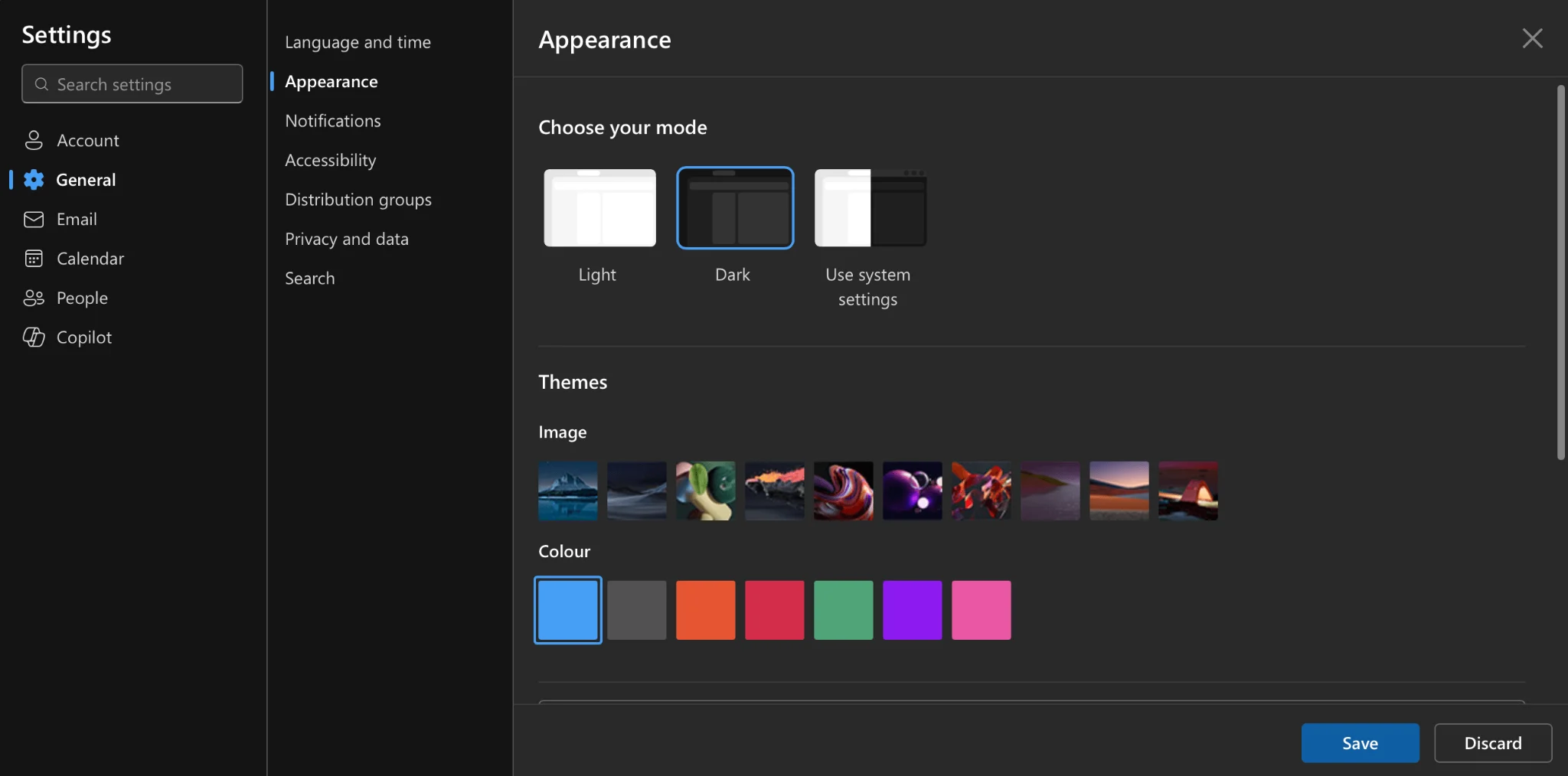
Pic. 12. Navigating to ‘appearances’ in OWA.
- OWA: Click the “Settings” icon (gear icon) and look for “Appearance” or “Theme” settings. OWA offers basic color and theme options, but visual customization is more limited compared to the desktop application.
- Layout optimisation (primarily Desktop): Side-by-side viewing, weather bar, task pane, reading pane, and mini-calendar configurations are mainly desktop features. OWA’s layout options are more limited.
Using categories:
- Setting up categories (both platforms):
- Create a category system: Develop a consistent system (work, personal, project-specific, priority, location).
- Implementation (Desktop): Go to Categories > All Categories to create and manage categories. Assign colors and shortcut keys.
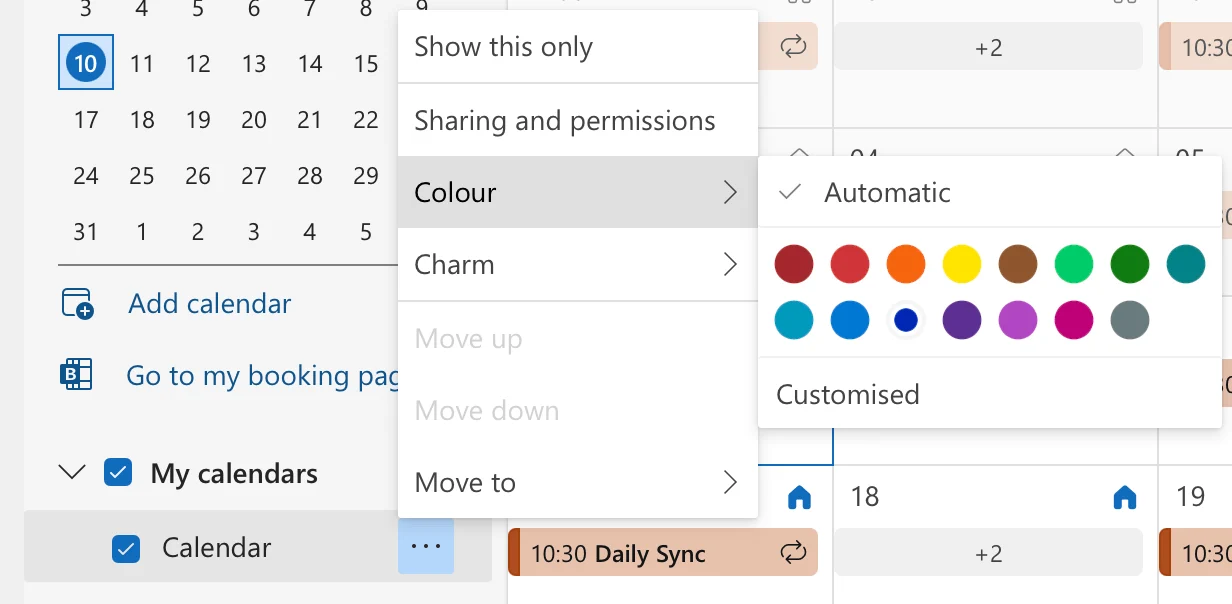
Pic. 13. Setting up a color for your calendar in OWA.
- Implementation (OWA): Categorize events directly from the event details. Color options might be more limited.
- Category best practices (both platforms):
- Use consistent naming, limit the number of categories, review and update regularly.
- Advanced category usage (primarily Desktop): Category groups and conditional formatting are primarily desktop features. Both platforms allow filtering by category.
- Category-based views (primarily Desktop): Creating custom views based on categories, filtering in the navigation pane, and search folders are primarily desktop features. OWA offers basic filtering options.
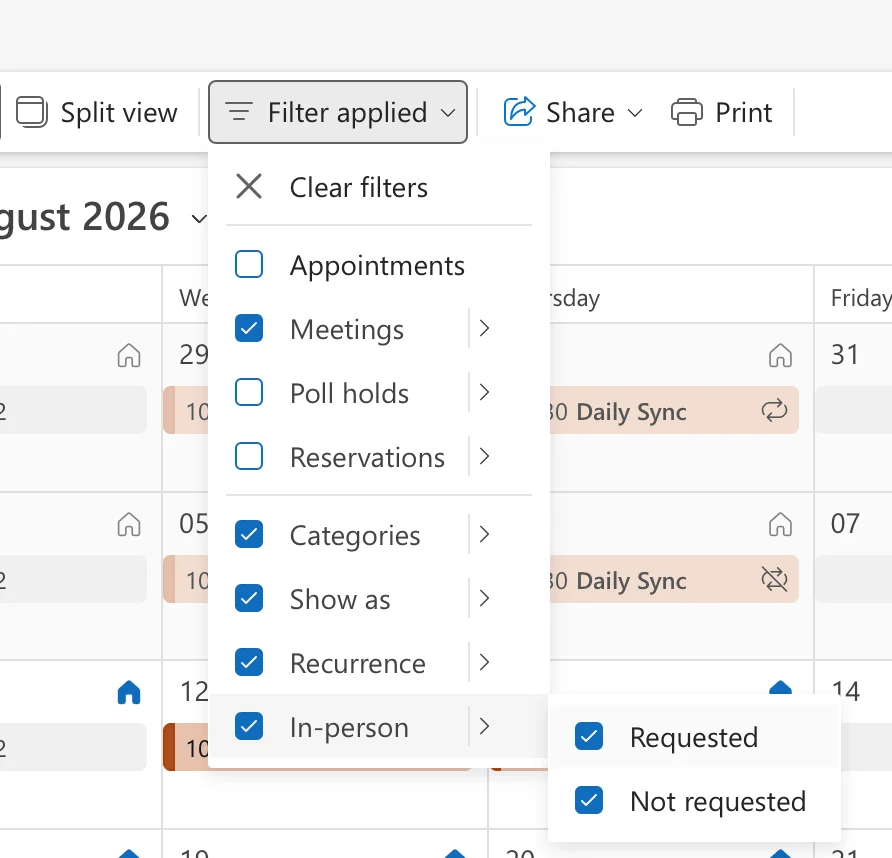
Pic. 14. Navigating to filters in OWA.
Problems and Solutions When Merging Calendars
While managing multiple calendars offers significant benefits, it can also present challenges. This section addresses common problems and provides practical solutions for Outlook Desktop and OWA.
Calendars not displaying/syncing properly
When your calendars aren’t displaying or syncing properly, it can disrupt your entire schedule management system. Let’s explore these issues and their solutions in detail.
- Symptoms: Missing events, incomplete data, permission errors, delayed updates, events not appearing on all devices.
Calendar synchronization issues often manifest in several ways. You might notice that new events aren’t appearing across all your devices, or there may be a significant delay before updates show up. In some cases, you might find that events are missing entirely, or your calendar appears incomplete. These issues can be particularly frustrating when managing multiple calendars across different platforms.
- Solutions:
- Check permissions (both platforms): Verify account access and sharing permissions for subscribed or overlaid calendars.
Start by checking your account permissions—this is often the root cause of sync issues. For instance, if you’re trying to view a shared team calendar but only have “availability” permissions instead of “full details,” you’ll see blocked time slots but no event details.
To verify permissions:
- Review your account access levels
- Check sharing permissions for each calendar you’re trying to view
- Confirm that any delegated access is still active
- Verify that your account hasn’t been inadvertently signed out
- Reset view settings (both platforms): Ensure you’re viewing the correct date range and that no filters are hiding events. In Outlook Desktop: View > View Settings. In OWA: Use the date range selector and filter options.
Your calendar view settings can significantly impact how information is displayed. Sometimes what appears to be a sync issue is actually just a view configuration problem.
Consider this scenario: You think events are missing, but they’re actually hidden because:
- A filter is active
- The date range is incorrect
- The calendar is minimized in the view pane
- The color scheme makes events hard to see
- Check internet connection (both platforms): A stable internet connection is crucial for proper syncing.
Regular network maintenance, including checking your connection status, verifying firewall settings, and ensuring proper router configuration, can prevent most sync issues before they occur. If you’re working in an environment with unreliable internet, consider setting up offline access and regular calendar exports as a backup strategy to ensure you never miss an important appointment.
- Sync reset: When basic troubleshooting doesn’t resolve the issue, a sync reset might be necessary.
Think of sync reset like rebooting your computer—it clears temporary issues and establishes a fresh connection.
Force sync:
- Outlook Desktop: Send/Receive > Update Folder.
- OWA: Refresh your browser. OWA generally syncs automatically more frequently than the desktop app.
Reset sync settings (both platforms, but methods differ):
- Outlook Desktop: File > Account Settings > Account Settings… Select the account, then “Repair.” As a last resort, remove and re-add the account.
- OWA: Settings > Mail > Sync email. Check the settings here. Removing and re-adding the account is generally done at the operating system or device level.
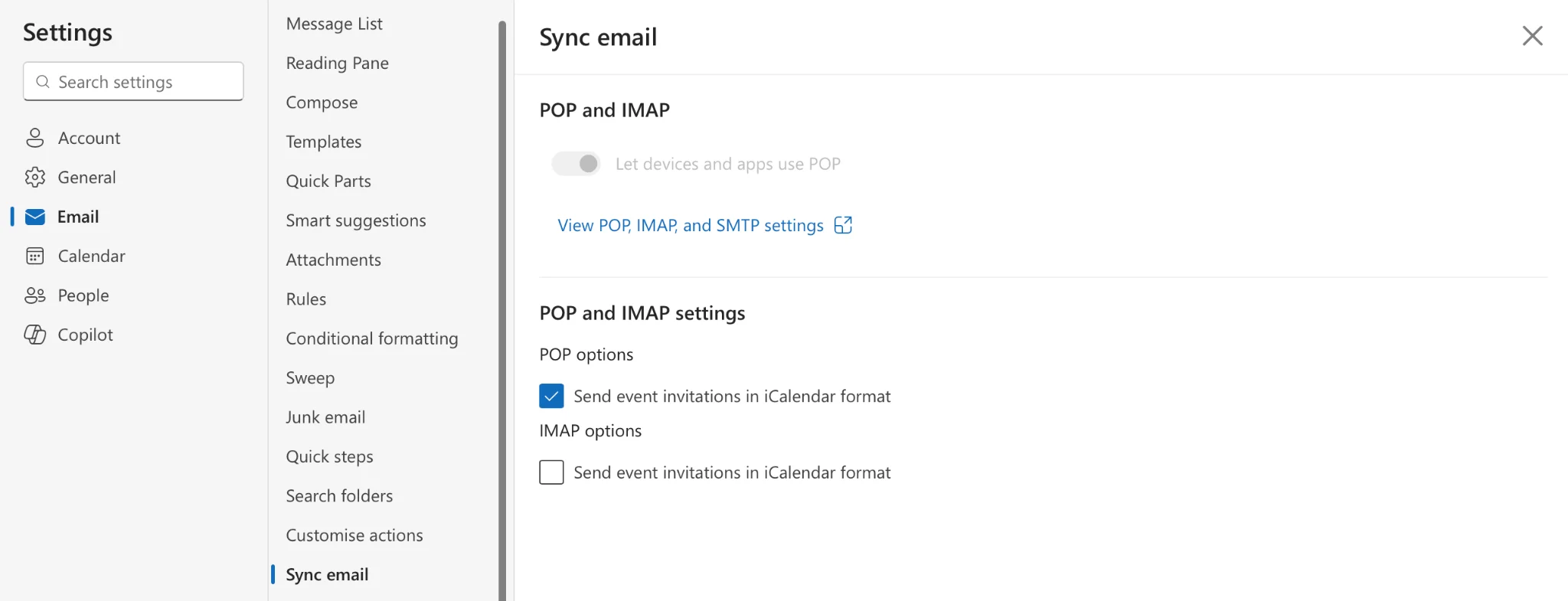
Pic. 15. Navigating to email sync settings in OWA.
👉 Learn more about troubleshooting various sync problems in the dedicated articles on our blog:
- Troubleshooting Outlook Calendar Sync Problems: Quick Fixes Inside
- How to Seamlessly Sync MS Teams and Outlook Calendars
- Outlook and Teams Calendars Syncing: A Troubleshooting Guide
- How to Fix Google Calendar Not Syncing with Outlook
Duplicate events
Duplicate events are a common headache when merging calendars or syncing across devices. They can clutter your calendar and create confusion about which event is the “real” one.
- Prevention (both platforms): Use unique subject lines, check for existing events before importing, maintain consistent time zones.
The best approach to duplicates is preventing them in the first place. Consider these preventive measures:
Standardized event creation
- Use consistent naming conventions for events
- Include unique identifiers in recurring meeting titles
- Maintain the same time zone settings across devices
- Double-check for existing events before creating new ones
Import/export best practices
- Export complete calendar data rather than partial selections
- Use standard file formats (.ics) for transfers
- Verify data before finalizing imports
- Keep backup copies of original calendars
- Resolution: When prevention fails and you find yourself with duplicate events, here’s how to clean them up effectively:
- Manual removal (both platforms): The most reliable method is to manually review and delete duplicates. Sorting by date and subject helps.
- Outlook Desktop: Third-party add-ins might offer duplicate removal features. OWA does not have built-in or readily available add-in options for this.
Using Virto Calendar App to Merge Calendars More Easily
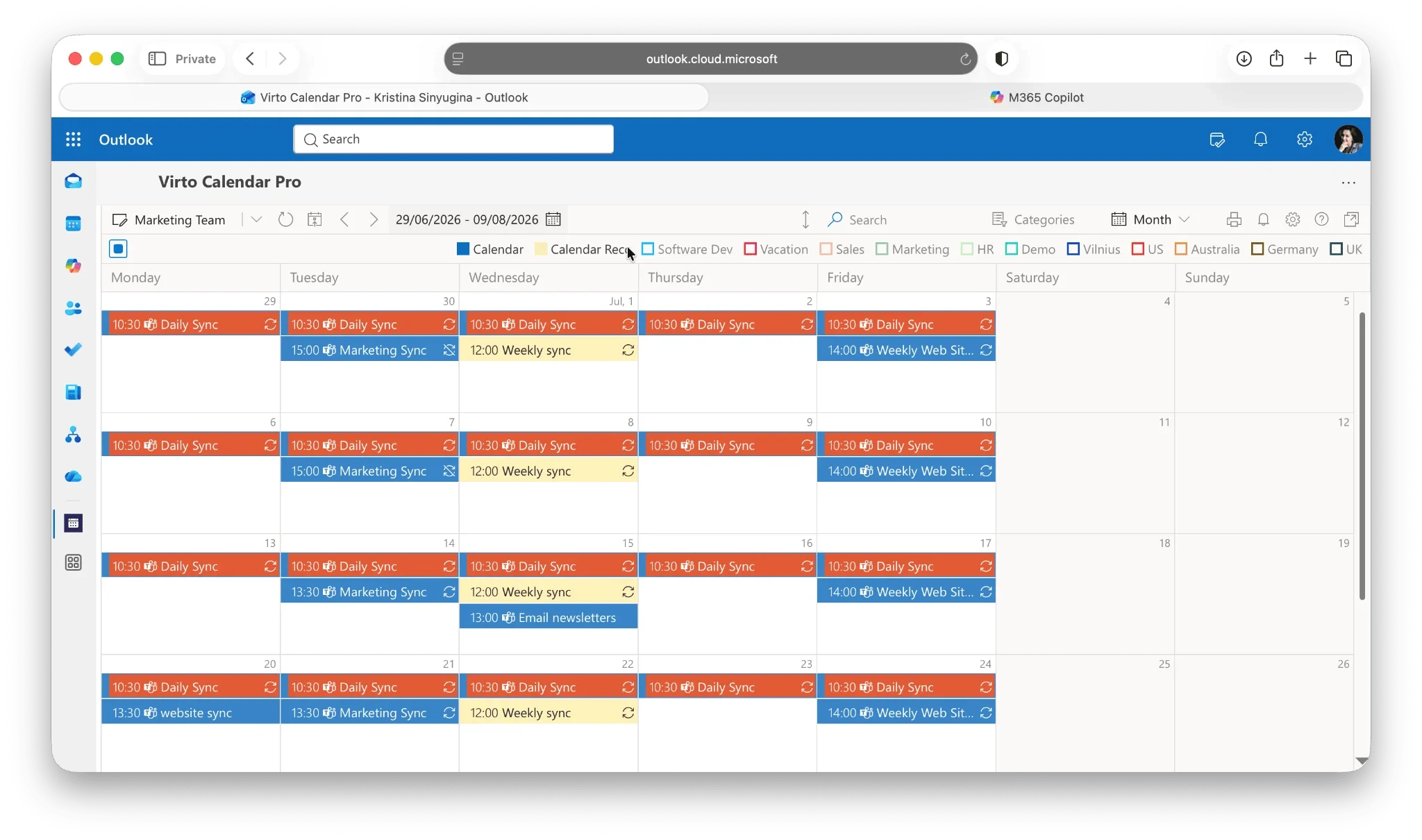
When managing multiple calendars becomes overwhelming, Virto Calendar App offers a powerful solution for SharePoint Online and Microsoft 365 users. This section explores how Virto Calendar simplifies calendar management through its comprehensive integration capabilities and user-friendly interface, making it an ideal tool for both individuals and teams managing complex schedules.
Streamlined calendar management
The Virto Calendar App transforms how users interact with multiple calendars by providing a unified view of all your scheduling needs. Instead of jumping between different calendar applications or browser tabs, users can access all their calendars in one intuitive interface.
Key features and benefits
Whether you’re an executive assistant juggling multiple schedules, a project manager coordinating team activities, or a professional balancing various commitments, Virto Calendar App provides the tools you need to streamline calendar management. Let’s explore how Virto’s comprehensive feature set transforms the way you handle multiple calendars, making schedule management more efficient and less time-consuming.
Comprehensive integration
Virto Calendar App acts as a central hub for all your calendar needs by connecting with:
- Exchange Online personal and shared calendars
- SharePoint lists and public folders
- Microsoft Planner tasks
- Meeting room calendars
- External calendars via iCal feeds (including Google Calendar)
Enhanced visualization options
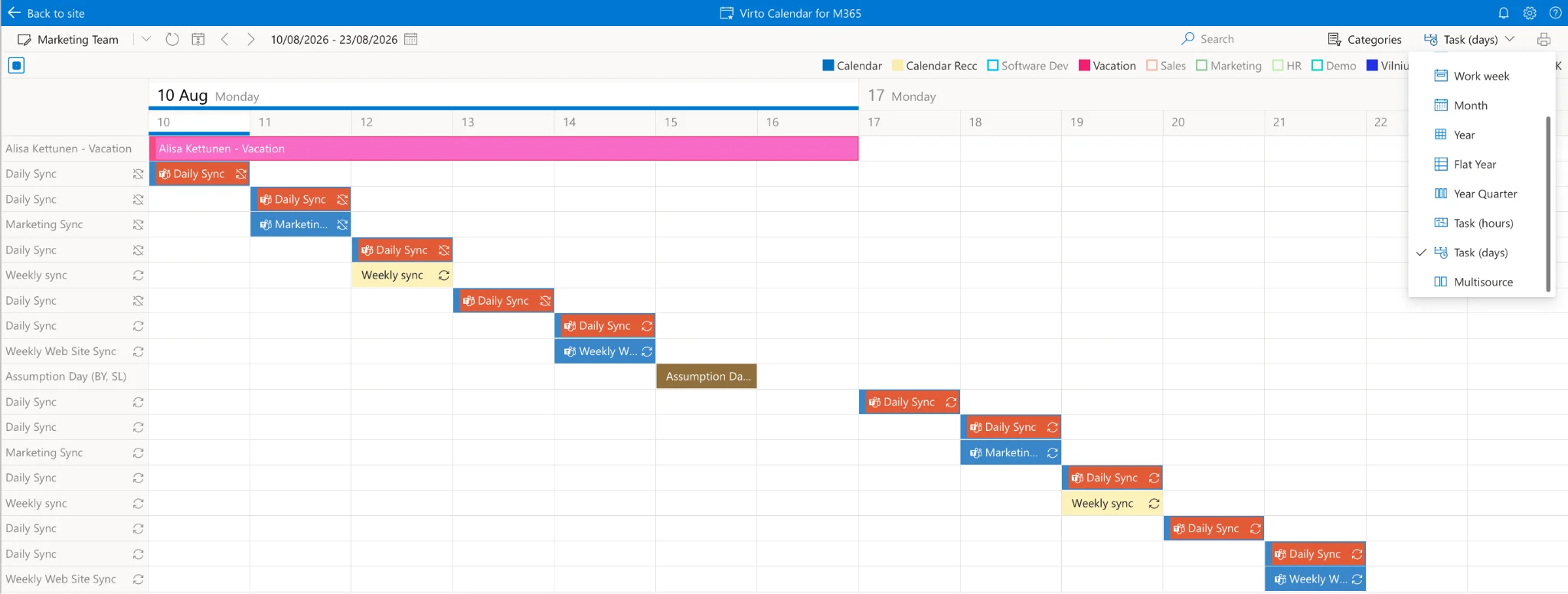
Pic. 16. Checking different view options in the Virto Calendar App.
The app’s flexible display options help users stay organized through:
- Customizable time scales (day, week, month, year, flat year, or task view)
- Color-coding for different event types and categories
- Mini calendar for quick date reference
- Overlay capabilities for multiple calendars
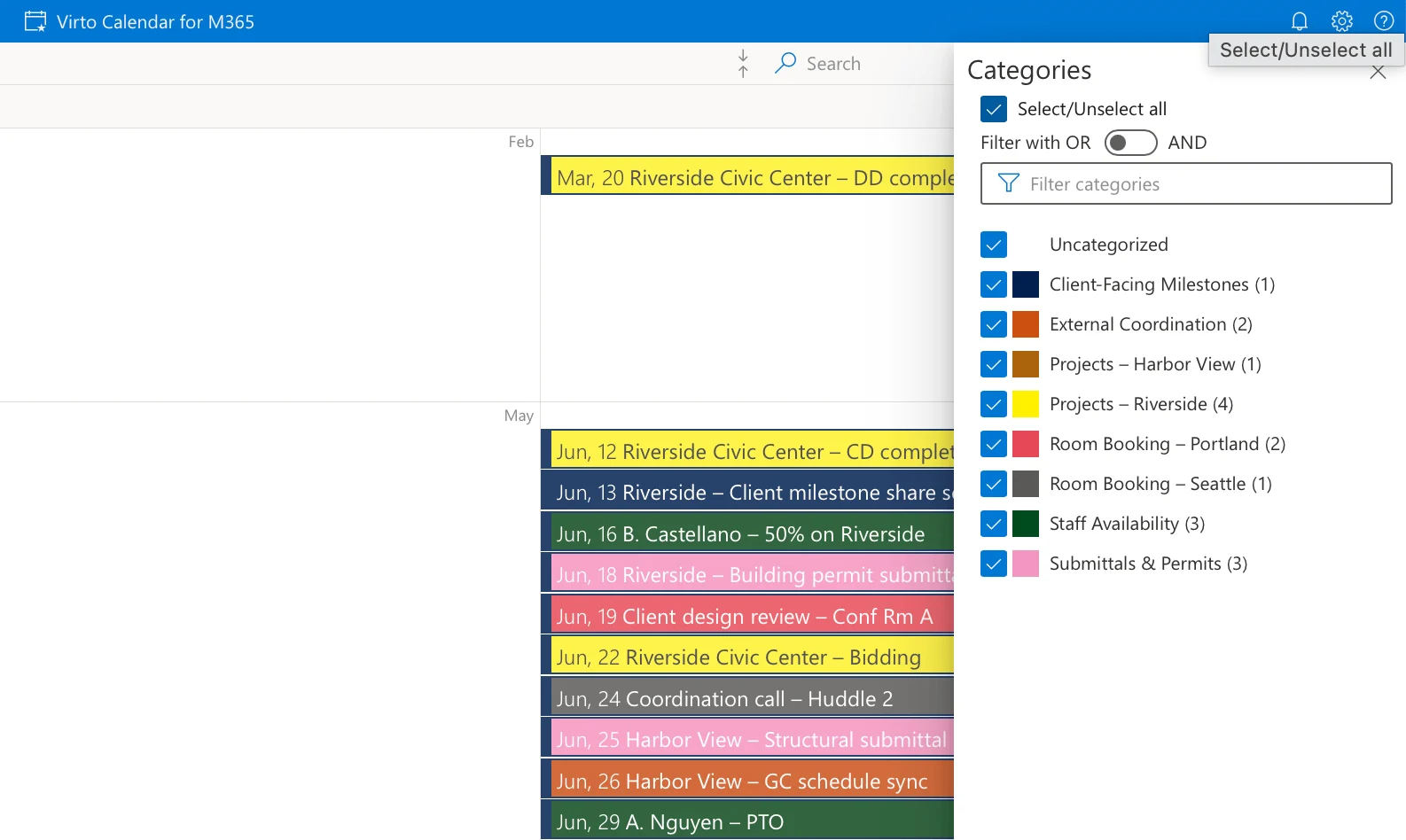
Pic. 17. Checking different categories in Virto Calendar.
Practical application scenario
Consider Sarah, a marketing manager who needs to coordinate:
- Her department’s campaign calendar
- Meeting room bookings for client presentations
- Team members’ availability
- Personal appointments
- Cross-department project deadlines
With Virto Calendar App, Sarah can:
- View all these calendars in one window
- Toggle different calendar views as needed
- Quickly identify scheduling conflicts
- Manage resource allocation efficiently
Team collaboration benefits
The app particularly shines in team environments by:
- Providing clear visibility of team member availability
- Simplifying meeting room and resource availability
- Enabling easy sharing of group calendars
- Supporting cross-department coordination
Efficiency improvements
Users report significant time savings through:
- Reduced time switching between calendar applications
- Fewer scheduling conflicts
- Easier resource management
- Streamlined event planning
- Quick access to all calendar information
For example, John in IT uses Virto Calendar to manage system maintenance schedules, team availability, and project deadlines. By combining these calendars in one view, he can easily schedule maintenance windows that don’t conflict with critical project milestones or team meetings.
With its robust feature set and intuitive interface, Virto Calendar App transforms complex calendar management into a streamlined, efficient process.
👉 For more information on the various potential use cases for Virto Calendar, please visit VirtoSoftware Use Cases, or:
FAQ: Merging Calendars in Outlook
How do I merge two Outlook calendars?
Outlook has no single “merge” button. Either import or copy events from one calendar into another to truly combine them, or overlay the calendars to view them together in one pane. To combine permanently, export the source calendar to an .ics file and import it into the destination calendar; to just view them together, tick both calendars and choose Overlay.
Can I combine calendars without losing events?
Yes. Importing adds the source events to your existing calendar without deleting anything, and overlaying or subscribing never changes the underlying data. Always back up first — export to a .pst or .ics file — then spot-check a few future appointments once the import is done.
What’s the difference between merging and overlaying calendars?
Merging combines events into one calendar permanently; overlaying just displays several calendars together without changing them. Choose merging when you want a single source of truth, and overlaying when you only need a combined view.
How do I merge calendars while keeping future events?
Avoid a true “merge.” Use import, subscribe, or overlay instead — all three preserve future events in their original calendars. Back up your data first, then verify that future appointments appear correctly in the combined view.
Can I merge calendars across different Microsoft 365 accounts?
Not into one editable calendar. The closest approach is to publish or share the calendar from one account and subscribe to it from the other, giving you a combined (read-only) view. For a single editable view across multiple accounts and sources, a dedicated tool such as the Virto Calendar App is the more practical option.
Conclusion on Merging Calendars in Outlook
Throughout this guide, we’ve explored various methods for merging and managing multiple calendars in Outlook, from basic overlay techniques to advanced synchronization strategies. While Outlook’s native calendar merging capabilities offer solid foundational tools, the growing complexity of modern scheduling demands often calls for more robust solutions.
The challenges of managing multiple calendars—whether they’re spread across different accounts, platforms, or teams—can be significantly reduced through proper consolidation. By implementing the techniques discussed in this guide, you can eliminate the daily frustration of switching between calendars, reduce the risk of missed appointments, and improve your overall schedule management efficiency.
However, as organizations continue to evolve with hybrid work environments and cross-functional teams, many users find themselves needing more advanced calendar management capabilities. This is where Virto Calendar App for SharePoint Online & Microsoft 365 emerges as a powerful alternative. Its ability to seamlessly integrate multiple calendar sources, including Exchange Online calendars, SharePoint lists, meeting rooms, and external calendars, provides a more comprehensive solution for modern scheduling needs.
We encourage you to check the Virto Calendar App for yourself by either scheduling a quick demo with our representative or installing a free 30-day trial version.
For more detailed information about calendar management and specific features, refer to Microsoft’s official documentation or explore our comprehensive blog articles covering various aspects of Outlook and calendar management:
- Official Microsoft resources:
- VirtoSoftware blog articles:
- How to Set and Show Out of Office in Outlook Calendar
- How to Overlay Calendars in Outlook: A Complete Guide & Tips
- Outlook Calendar Not Syncing
- Shared Outlook Calendar Not Showing? Here’s How to Fix
- Access and View Someone’s Calendar in Outlook: A Full Guide
- How to create Shared Calendar in Outlook: Step-by-Step Guide
- How to Create Office 365 Shared Calendar
- Managing Multiple M365 Calendars
- Merge & Combine Calendars Guide
- Outlook Group Calendar