A step-by-step guide for 2026: create a room (resource) mailbox in Microsoft 365, book rooms in Outlook, surface room availability in SharePoint, and bring every room calendar into one unified view.
Quick answer: how to display meeting rooms in Microsoft 365
If you just need the short version, here is the whole workflow:
- Create a room (resource) mailbox in the Microsoft 365 admin center or the Exchange admin center (EAC).
- Optionally add the room to a room list so it shows up in Outlook’s Room Finder.
- Book and display the room in Outlook, where users add it from the Room Finder when scheduling a meeting.
- Surface room calendars in SharePoint so the wider team can see availability on a site.
- Overlay multiple room calendars in one view with Virto Calendar App for a unified, color-coded room schedule.
That is the fast path. The rest of this guide walks through each step in detail, with the current admin-center screens for 2026.
Create a room (resource) mailbox
In Microsoft 365, a meeting room is represented by a room mailbox — a type of resource mailbox that has its own name and email address and can be booked like any attendee. When someone invites the room to a meeting, the room mailbox automatically accepts or declines based on its availability, so you never double-book a space.
Option A — Create a room mailbox in the Microsoft 365 admin center
- Sign in to the Microsoft 365 admin center at admin.microsoft.com with an admin account.
- In the left navigation, expand Resources and select Rooms & equipment.
- Select Add resource.
- Choose Room as the resource type, then enter a Name (for example, “Conference Room A”) and an Email address used for booking.
- Set the Capacity, and optionally a Location and Phone number.
- Save your changes. The new room appears in the Rooms & equipment list.
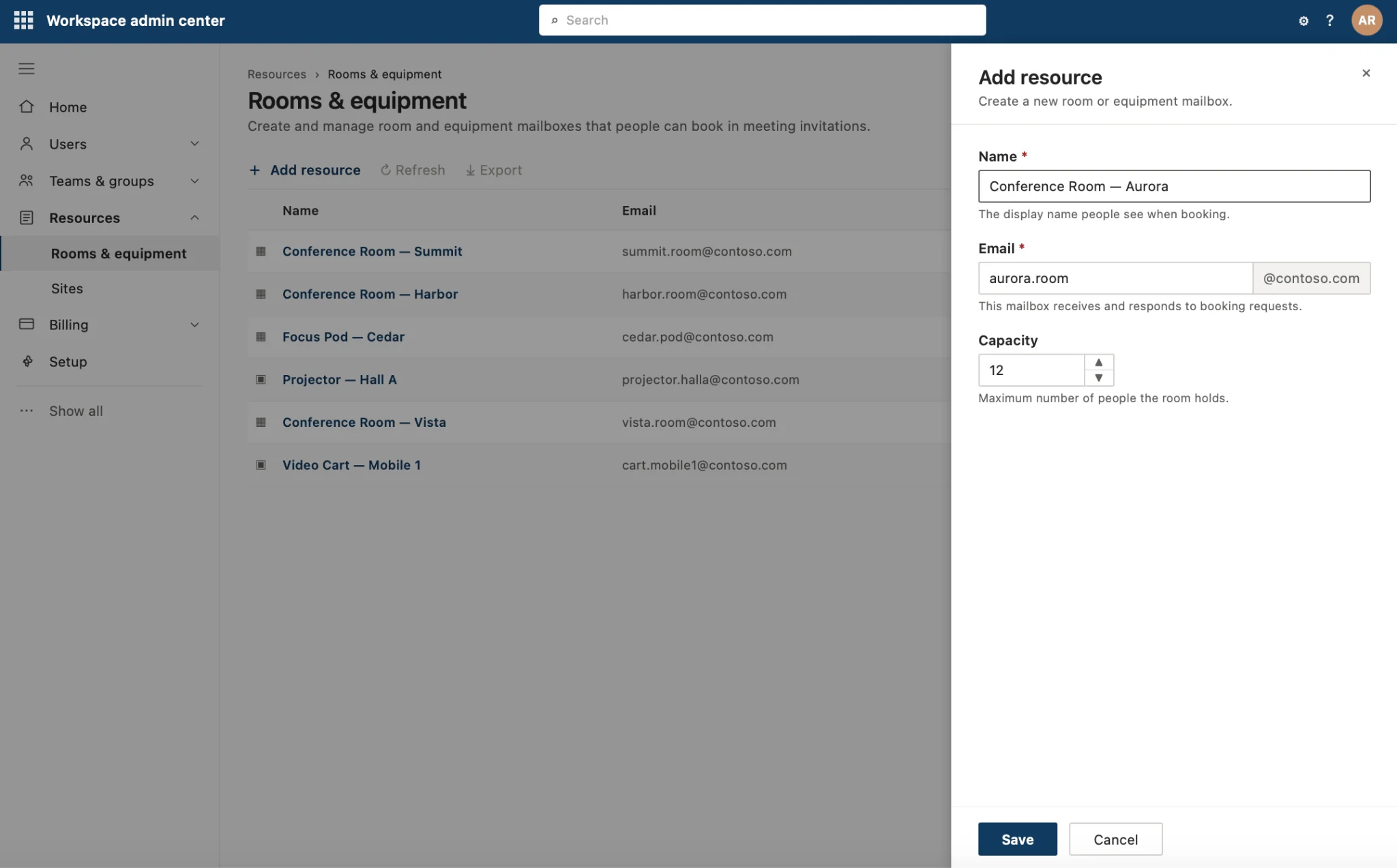
“Add resource” panel with Name, Email, and Capacity fields.
Option B — Create a room mailbox in the Exchange admin center (EAC)
The Exchange admin center gives you finer control over booking behavior (auto-accept, booking window, working hours, and delegates).
- Go to the Exchange admin center at admin.exchange.microsoft.com.
- Navigate to Recipients → Resources.
- Select Add a resource mailbox, then choose Room.
- Enter the Display name, Email address, Capacity, and Location, then save.
- Open the new room and use Booking options / Booking delegates to control how invitations are accepted.
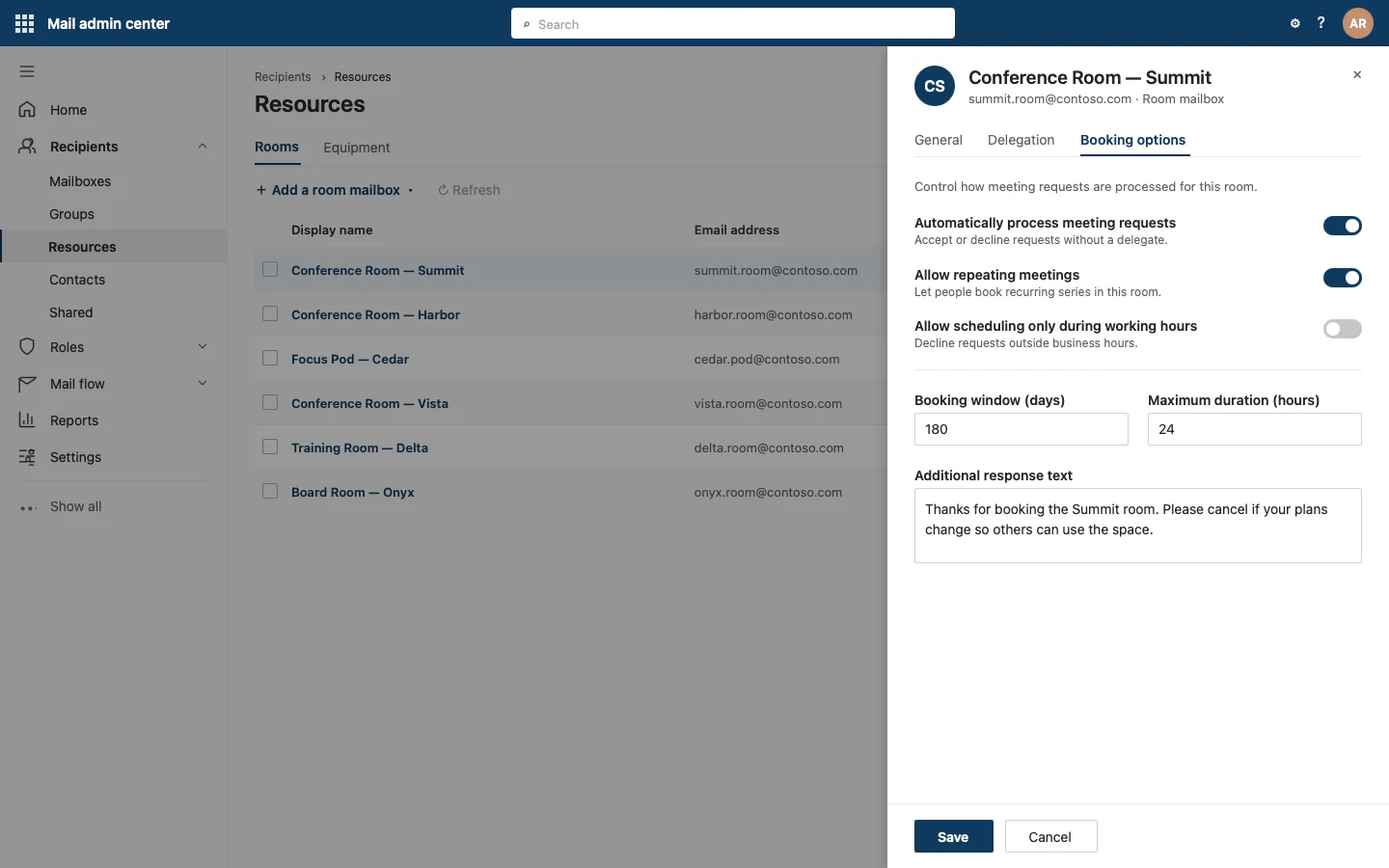
Resources, with the room mailbox “Booking options”.
Group rooms with a room list
A room list is a special distribution group that groups rooms by building, floor, or site. Room lists are what power the Outlook Room Finder, which lets users filter rooms by location and capacity. Room lists are created with PowerShell:
New-DistributionGroup -Name "Madrid Office" -RoomList
Add-DistributionGroupMember -Identity "Madrid Office" -Member confroomA@yourdomain.com
Once rooms are in a room list, they appear grouped under that location in the Room Finder.
Add & book rooms in Outlook (Room Finder)
After the room mailbox exists, users book it directly from Outlook — no extra setup on their side.
- In Outlook (new Outlook, classic, or Outlook on the web), create a new meeting or event.
- Open the Room Finder (or select Add room / Search for a room).
- Filter by building (room list) and capacity, then pick an available room. The room’s free/busy status updates the meeting automatically.
- Send the invitation. The room mailbox accepts if it is free, giving you instant confirmation.
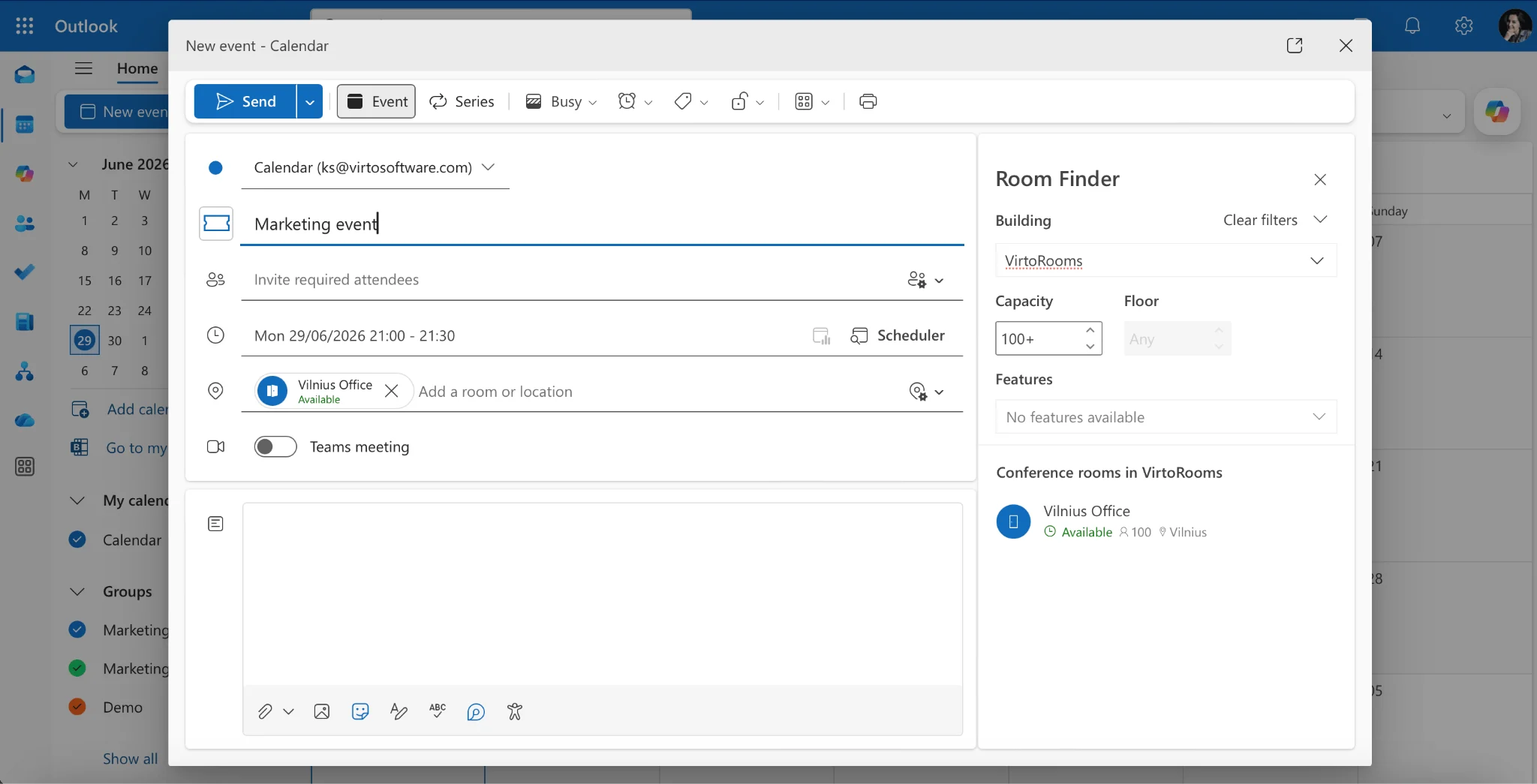
Outlook meeting composer with the Room Finder.
To see a room’s full schedule, users can also add the room mailbox as a calendar in Outlook (Add calendar → From directory → type the room’s email). The room’s bookings then display alongside personal calendars.
Display room calendars in SharePoint
Outlook is great for individuals, but teams often want room availability visible on a shared SharePoint site — a reception screen, a floor’s intranet page, or a department hub. Microsoft 365 does not surface room mailboxes on a SharePoint page out of the box, so this is where a calendar app does the heavy lifting.
With Virto Calendar App, you import an Exchange/Outlook room calendar into a SharePoint site in a few clicks:
- Add the Virto Calendar App to your SharePoint Online site.
- Open the calendar settings and add a new data source of type Exchange / Outlook calendar.
- Enter the room mailbox email address (for example, confroomA@yourdomain.com) and connect.
- The room’s bookings now render on the SharePoint page, color-coded and filterable.
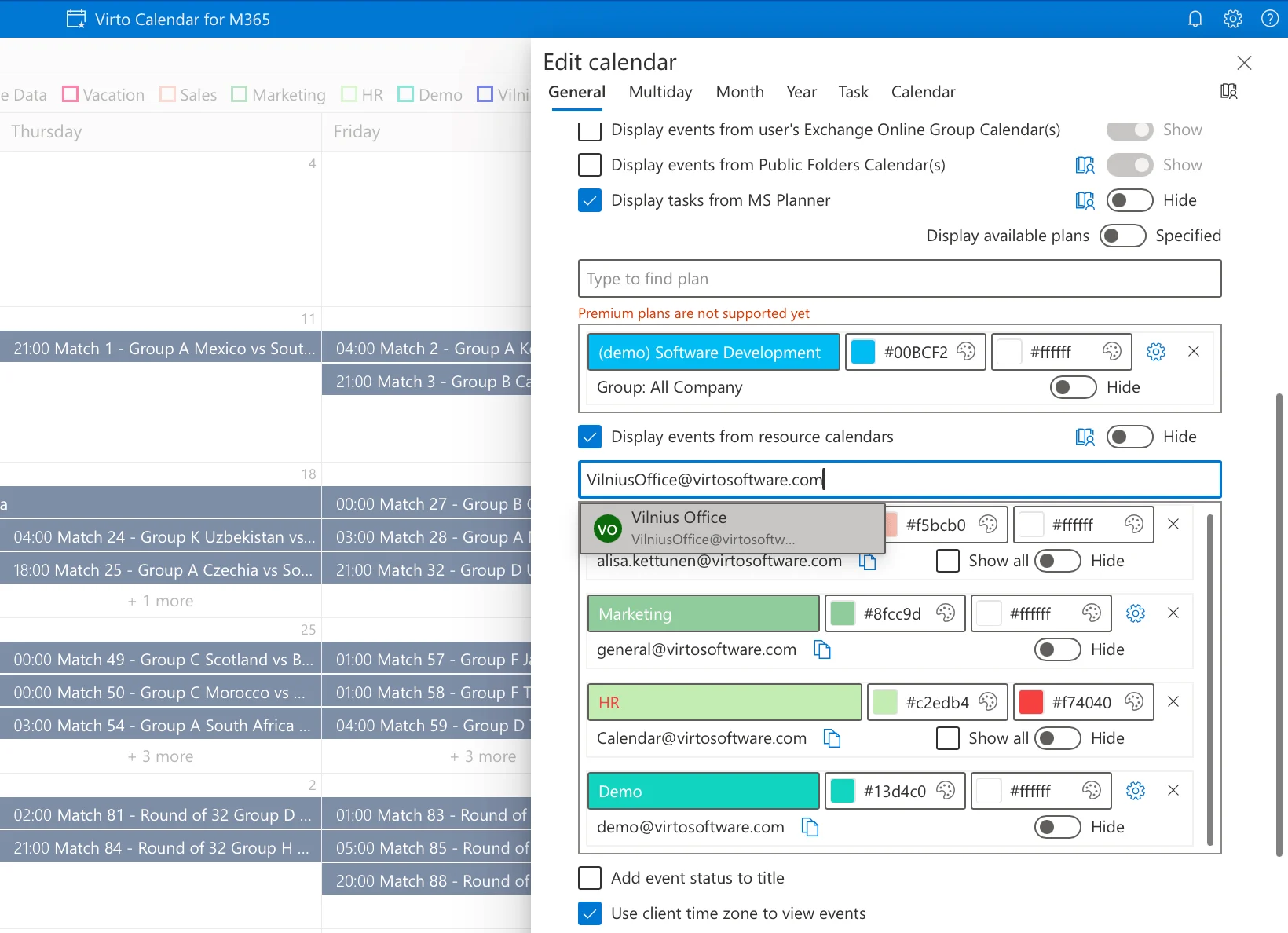
Virto Calendar App data-source settings in SharePoint.
Unified room view with Virto Calendar
The real payoff comes when you have several rooms. Instead of opening each room mailbox separately, the Virto Calendar App overlays multiple room calendars into a single, color-coded view, so anyone can see at a glance which rooms are free and when.
- Overlay all room mailboxes (plus team, project, and personal calendars) in one place.
- Color-code by room or location for instant scanning.
- Filter and group rooms by building, floor, or capacity.
- Embed the unified view on any SharePoint or Microsoft Teams page.
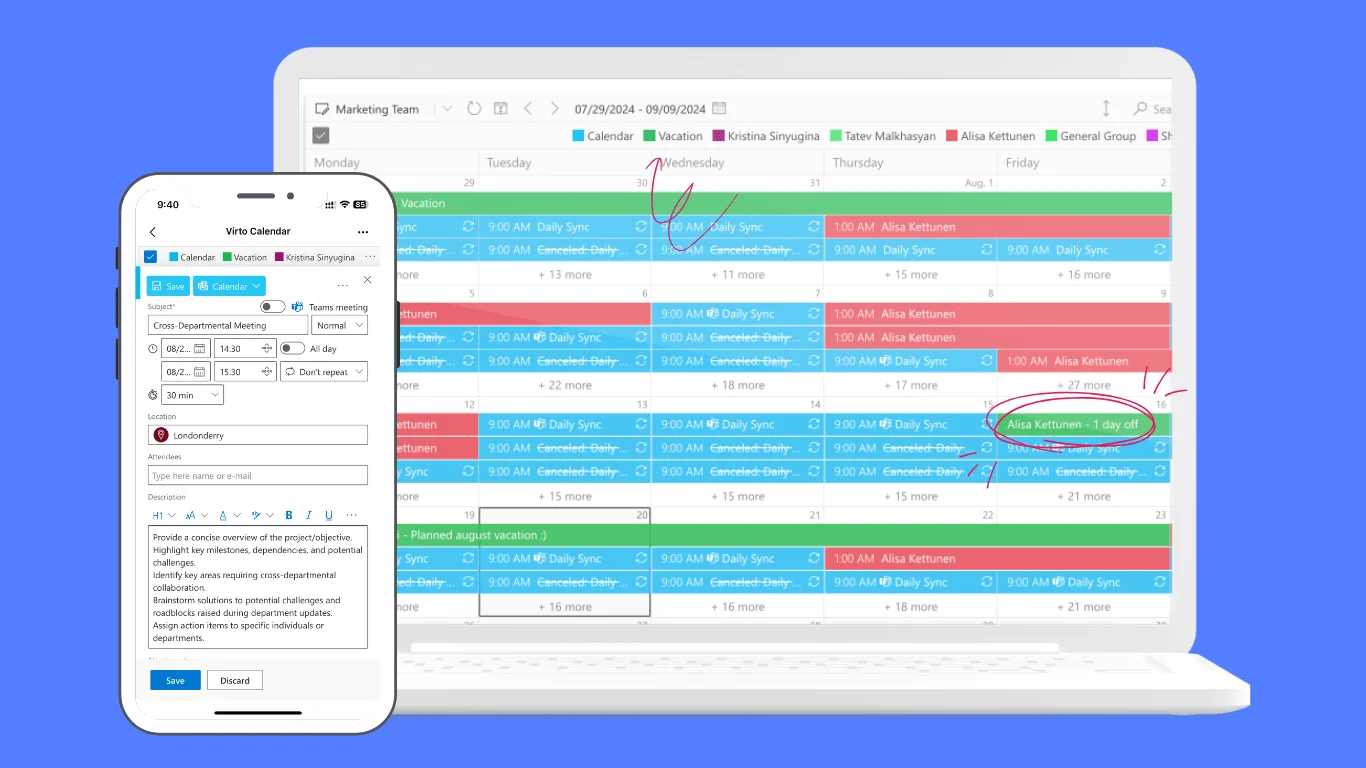
Virto Calendar App unified overlay view
This is exactly the rooms & equipment calendar use case the app is built for — a single pane of glass for every bookable space in the organization. A 30-day free trial is available; the app costs $2,412 per 100 users per year with a 3-year agreement (100 users and up), and smaller teams can use Virto Shared Calendar, which has a free plan.
FAQ
How do I create a room calendar in Office 365?
In the Microsoft 365 admin center (or the Exchange admin center) create a Room (resource) mailbox, optionally add it to a room list. It then appears as a bookable room calendar in Outlook’s Room Finder, and its bookings can be displayed in Outlook and SharePoint.
How do I display room availability?
Add the room mailbox in Outlook (or pick it via the Room Finder) to see its free/busy schedule, or surface room calendars on a SharePoint site. To view several rooms at once, an overlay app such as Virto Calendar shows multiple room calendars in one unified view.
What is the difference between a room mailbox and a room list?
A room mailbox represents a single bookable space. A room list is a distribution group that groups rooms by location so they appear, filterable, in the Outlook Room Finder.
Related guides