



Yes, you can add a SharePoint calendar to Outlook — but how you do it depends entirely on which version of SharePoint you run. On SharePoint Server (On-Premise), the classic Connect to Outlook ribbon button still works. On SharePoint Online / Microsoft 365, Microsoft removed that button when it retired the classic calendar experience, so you need a different approach.
This guide covers both. If you are unsure which path applies to you, start with the quick-reference table below and follow the link to the right method. For broader SharePoint navigation tips, see our guide on how to add SharePoint to File Explorer.
Can you connect a SharePoint calendar to Outlook?
The short answer: it depends on your SharePoint version. Use this table to find the right method for your setup.
| Your SharePoint version | Native Connect to Outlook? | Go to |
|---|---|---|
| SharePoint Server 2016 / 2019 / SE (On-Premise) | Yes — ribbon button available | Method 1 |
| SharePoint Online / Microsoft 365 (modern experience) | No — removed circa 2022 | Method 2 + Alternatives |
| SharePoint Online (classic experience forced) | Maybe — tenant-dependent | Method 1 (may work) |
Method 1: SharePoint On-Premise — Connect to Outlook (Classic ribbon)
These steps apply to SharePoint Server 2016, 2019, and Subscription Edition only. They rely on the classic calendar ribbon, which is still present in On-Premise SharePoint. If you are on SharePoint Online, skip to Method 2.
Once you authorize the connection, the SharePoint calendar syncs two ways: changes you make in Outlook appear in SharePoint, and vice versa. This lets you work with the calendar directly inside Outlook instead of navigating to the SharePoint site each time.
Step-by-step
- Open the SharePoint calendar you want to add. On the ribbon, click the Calendar tab.
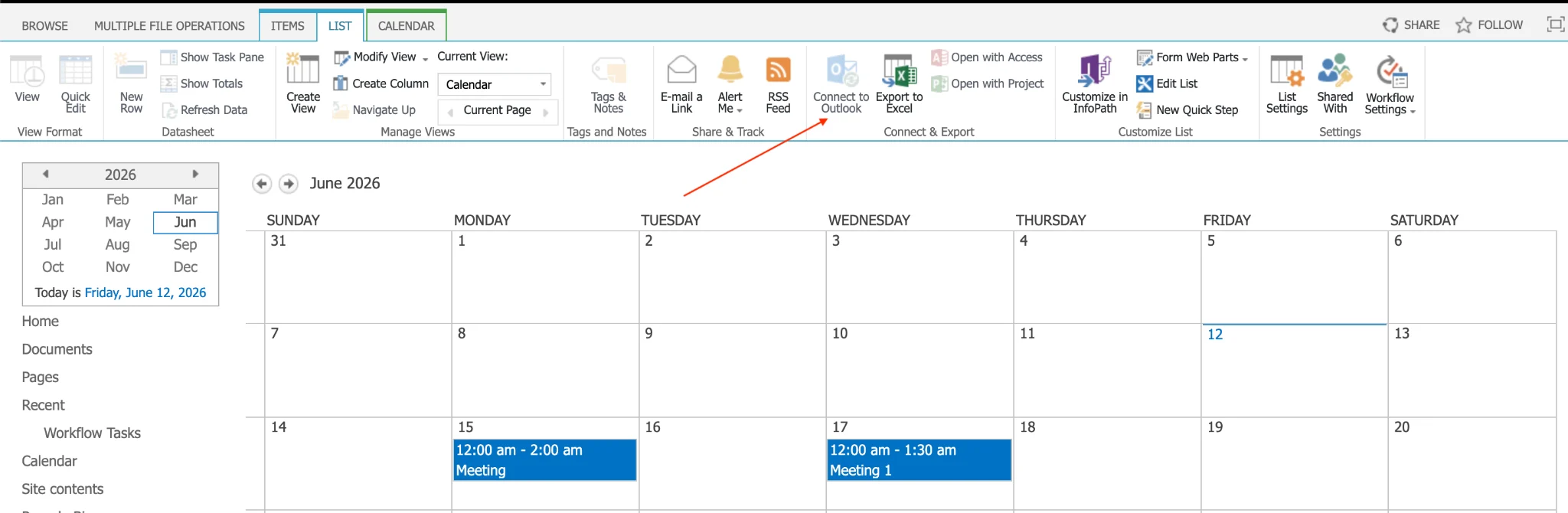
SharePoint Server calendar with the Calendar ribbon tab selected
- In the “Connect & Export” group on the ribbon, click Connect to Outlook.
- Your browser may ask whether to allow the site to open a program on your computer. Click Allow / Open.
Browser note: modern Chrome and Edge may silently block the calendar:// (stssync) protocol. If nothing happens after clicking, check the address bar for a blocked-pop-up or protocol-handler icon and choose to allow the site to open Outlook.
- Outlook opens and asks you to confirm that you want to connect the SharePoint calendar. Click Yes.
- If the SharePoint site requires authentication, enter your credentials when prompted.
- Switch to Outlook’s Calendar view. The connected SharePoint calendar now appears under “Other Calendars.”
You can now stack the calendars side by side, overlay them in a single view, and drag and drop events between them. Uncheck the SharePoint calendar in the left pane to hide it from the view at any time.
What syncs and what doesn’t: the Connect to Outlook method syncs calendar events (subject, start/end, location, body) two ways. It does not reliably sync custom list metadata, attachments, or columns that don’t map to standard Outlook appointment fields.
Add a new event to a SharePoint calendar using Outlook
- In Outlook, open the Calendar tab.
- In the left pane, tick the checkbox next to the connected SharePoint calendar.
- Select a day and time, then double-click to open a new appointment window and enter the event details.
- Click Save & Close on the Appointment tab. The event appears in both Outlook and the SharePoint calendar.
Copy an existing event from Outlook to a connected SharePoint calendar
- In Outlook, open the Calendar tab.
- Single-click the event you want to copy (do not double-click, which opens the event).
- On the ribbon, choose Move → Copy to Folder (in classic Outlook, Edit → Copy to Folder).
- In the Copy Items window, scroll to the SharePoint Lists section and select the target SharePoint calendar.
- Click OK and confirm. The event now appears in your SharePoint site calendar.
Running SharePoint On-Premise and want richer calendar views? See the Virto Calendar Web Part for SharePoint, which overlays multiple SharePoint, Exchange, and SQL data sources in a single on-premise calendar.
Method 2: SharePoint Online (M365) — native Connect to Outlook is not available
If you use SharePoint Online / Microsoft 365, the Connect to Outlook ribbon button does not exist. Microsoft retired the classic SharePoint calendar app and its “Connect & Export” ribbon group as part of the move to the modern SharePoint experience (rolled out broadly around 2020–2022). The modern calendar is built on Microsoft Lists, which has no native one-click Outlook sync.
That means the steps in Method 1 will not work in a modern SharePoint Online site — there is simply no button to click. Instead, use one of the alternatives below.
Closest native option: subscribe to an iCal feed
The nearest built-in equivalent is to publish the SharePoint calendar (or the underlying list) as an iCalendar feed and subscribe to it in Outlook:
- Generate an iCal (.ics) feed URL for the SharePoint list/calendar (via the list’s export option or a published feed).
- In Outlook, go to Add Calendar → Subscribe from web (or, in the desktop client, Account Settings → Internet Calendars → New).
- Paste the iCal URL and confirm.
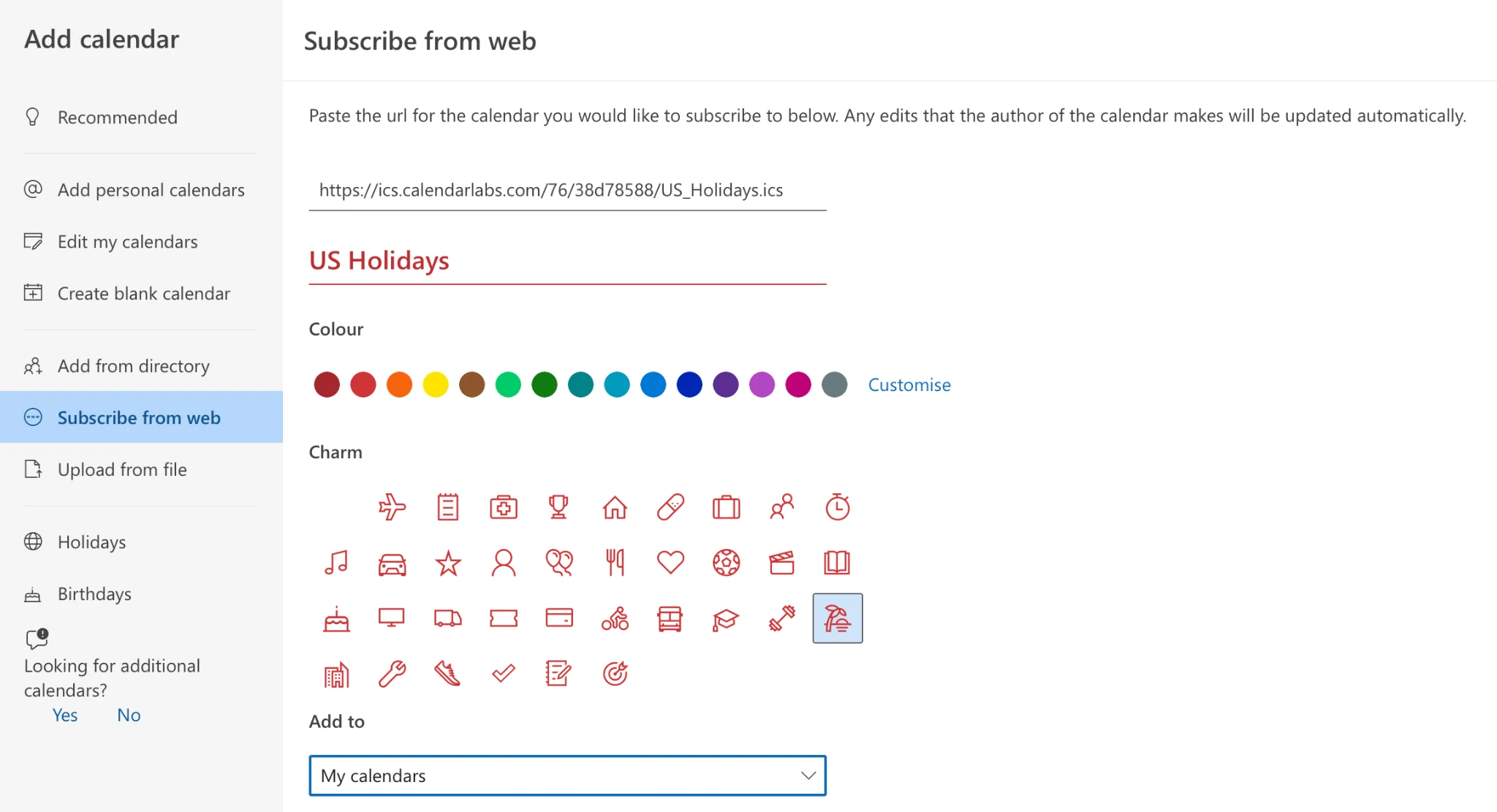
Outlook on the web — “Subscribe from web” dialog with an iCal URL
Limitation: an iCal subscription is read-only and not real-time. Outlook polls the feed on its own schedule (often only every few hours), so changes can take a while to appear, and you cannot edit SharePoint events from Outlook this way.
Alternatives for SharePoint Online: iCal, Power Automate & Virto Calendar
Because the native sync is gone, SharePoint Online users have three practical alternatives, in increasing order of capability:
| Alternative | How it works | Best for | Sync |
|---|---|---|---|
| iCal subscribe (native, free) | Export the SharePoint calendar as an iCal feed and subscribe in Outlook. | Small teams, view-only need | One-way, read-only, not real-time |
| Power Automate (Microsoft, free) | A flow copies new or changed SharePoint list items into an Exchange calendar. | Teams with IT support needing write-back | One-way (configurable) |
| Virto Calendar Overlay App | Overlays SharePoint lists, Exchange, Planner and more in a unified M365 calendar inside SharePoint and Teams. | Enterprise, multi-source, Teams-first orgs | Two-way |
Option A — iCal subscribe
Covered above. Free and native, but read-only and slow to refresh. Suitable when people only need to view SharePoint events alongside their Outlook calendar.
Option B — Power Automate sync
Build a flow that triggers when a SharePoint list item is created or modified and creates/updates a matching event on an Exchange (Outlook) calendar. This gives you a near-real-time, one-way push from SharePoint into Outlook and can be extended with conditions and field mapping. It requires some Power Automate familiarity and licensing appropriate to your tenant.
Option C — Virto Calendar Overlay App (recommended for M365)
For SharePoint Online users who genuinely want the old Connect to Outlook experience back, the Virto Calendar Overlay App for M365 is the modern replacement. It overlays multiple data sources — SharePoint lists, Exchange/Outlook calendars, Microsoft Planner, and more — into a single, color-coded, two-way calendar that lives inside SharePoint and Microsoft Teams.
- Combine several calendars into one overlaid view, without leaving SharePoint or Teams.
- Two-way editing, unlike the read-only iCal method.
- No deprecated ribbon dependency — built for the modern SharePoint experience.
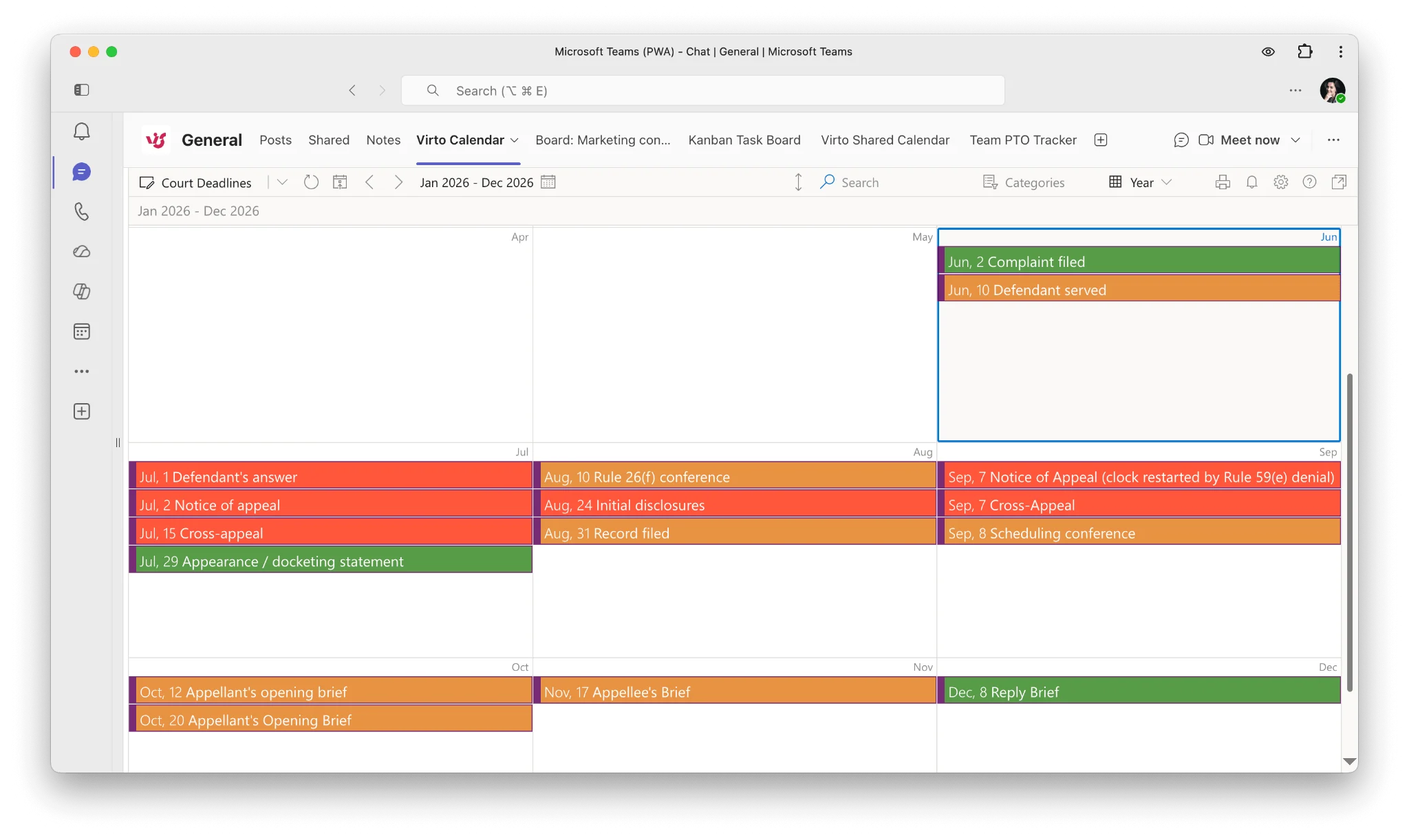
Virto Calendar Overlay App showing calendars inside a Teams view
Teams-first organizations can also surface these calendars directly in a channel — see how to view someone’s calendar in Teams.
How to sync changes: two-way vs one-way
Not every method keeps Outlook and SharePoint in step the same way. Here is what to expect:
| Method | Direction | Real-time? | Edit from Outlook? |
|---|---|---|---|
| On-Premise Connect to Outlook | Two-way | Near real-time | Yes |
| iCal subscription (M365) | One-way (SP → Outlook) | No (scheduled poll) | No |
| Power Automate (M365) | One-way (SP → Outlook) | Near real-time | No (unless reverse flow built) |
| Virto Calendar Overlay App | Two-way | Yes | Yes |
How to remove a SharePoint calendar from Outlook
- In Outlook, select the SharePoint calendar you want to remove.
- Right-click it and choose Delete Calendar, then click Yes to confirm.
This removes the calendar from Outlook only; it does not delete any events, and the calendar remains accessible from the SharePoint site.
New Outlook note: in Outlook for Microsoft 365 (the “New Outlook”), the path differs slightly — right-click the calendar in the left pane and choose Remove, or use the calendar’s “…” menu. Subscribed iCal calendars are removed the same way.
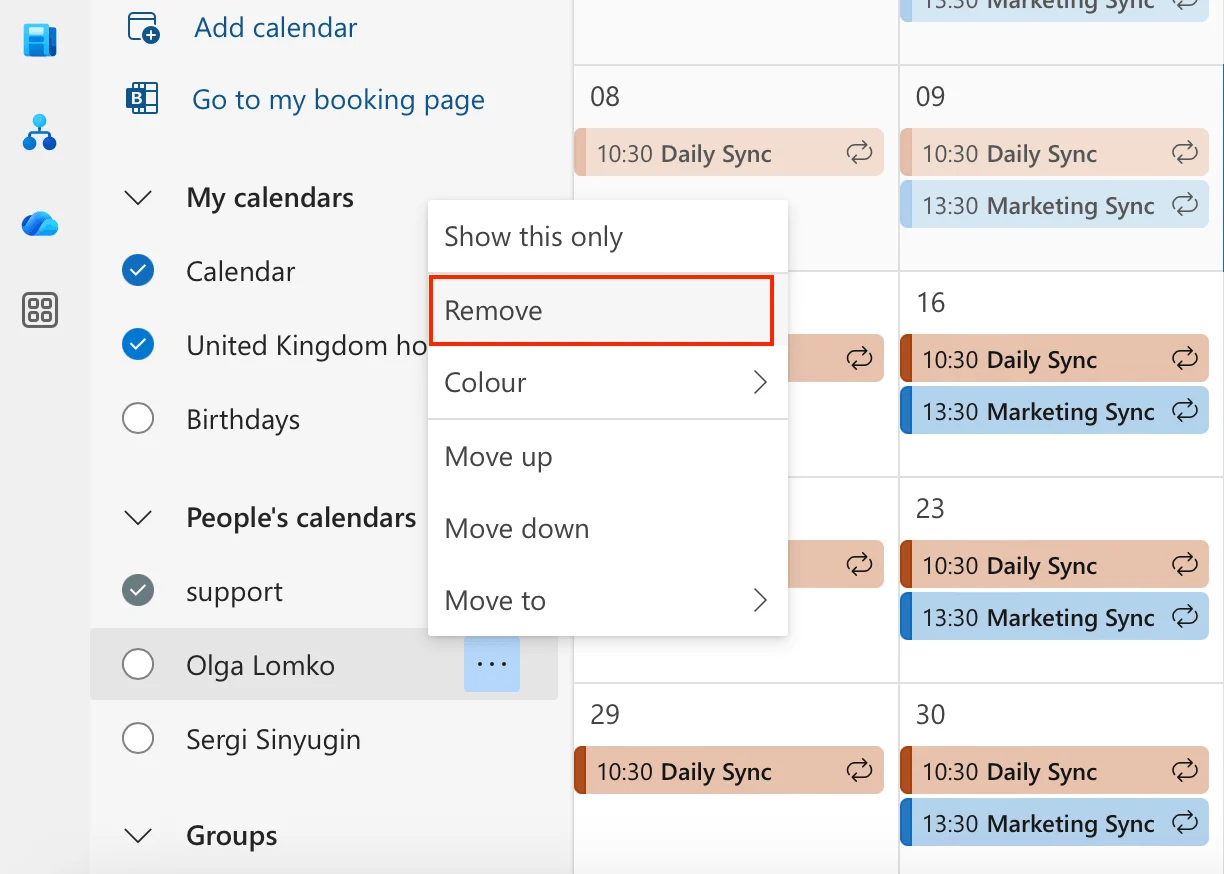
Deleting a SharePoint calendar in the Outlook with “Remove” highlighted
FAQ
Does SharePoint Online have Connect to Outlook?
No. The Connect to Outlook button was part of the classic SharePoint calendar ribbon, which Microsoft removed from the modern SharePoint Online experience. Use the iCal subscription, a Power Automate flow, or the Virto Calendar Overlay App instead.
Is SharePoint calendar sync with Outlook two-way?
It depends on the method. SharePoint On-Premise (Connect to Outlook): yes, two-way. iCal subscription: no, read-only. Power Automate: one-way by default. Virto Calendar Overlay App: yes, two-way.
How do I add a SharePoint calendar to Outlook in Microsoft 365?
There is no native one-click button. The closest native option is to subscribe to the calendar’s iCal feed in Outlook (read-only). For two-way editing inside SharePoint and Teams, use the Virto Calendar Overlay App.
Why is my SharePoint calendar not showing in Outlook?
Common causes are a blocked calendar:// protocol prompt in Chrome/Edge, a stale Outlook cache, or insufficient SharePoint permissions. Confirm you have access on the SharePoint site, allow the protocol handler in your browser, and let Outlook complete its sync.
Can I edit SharePoint calendar events from Outlook?
On SharePoint On-Premise via Connect to Outlook: yes. On Microsoft 365: not with the read-only iCal method — you need a two-way solution such as the Virto Calendar Overlay App, or a custom Power Automate flow for write-back.