Quick answer: Google Calendar usually fails to sync with Outlook because the connection is a one-way ICS subscription (not true two-way sync), the refresh interval is slow (Outlook may only poll every few hours), or account permissions / sharing settings changed.
Fast fixes: confirm the calendar is shared correctly in Google, wait out or force the refresh, clear the Outlook cache, and if it’s still stuck, remove and re-add the calendar. For real two-way sync, use a connector or an overlay app.
Google Calendar and Microsoft Outlook are the two calendars most people juggle at once — Outlook anchored in the Microsoft 365 workplace, Google Calendar handling personal and cross-platform scheduling. When the two stay in step, planning is effortless. When they drift apart, you get missed meetings, scheduling conflicts, and duplicated events.
This 2026 guide covers both sides of the problem: how to connect Google Calendar and Outlook in the first place, and how to fix a sync that has stopped working. You’ll also see where a purpose-built overlay tool like the Virto Calendar App for Microsoft 365 removes the sync headache entirely.
How to sync Google Calendar with Outlook (and vice versa)
If your goal is simply to see your Google Calendar inside Outlook (or the reverse), you don’t need a sync failure to fix — you need the connection set up correctly. Native integration between the two is done through an ICS/iCal subscription link. This is a one-way, read-only feed: events flow from the source calendar into the destination, but edits made on the destination side don’t flow back. For true two-way sync, jump to the third-party section below.
How to sync Google Calendar with Outlook (fastest method):
- In Google Calendar, open Settings → Settings for my calendars, pick the calendar, and copy the Secret address in iCal format under Integrate calendar.
- In Outlook on the web, click Add calendar → Subscribe from web, paste the iCal link, name it, and click Import.
- In classic Outlook desktop, right-click Other calendars → Add calendar → From Internet, paste the link, and confirm.
Add Google Calendar to Outlook
Outlook on the web (recommended)
- In Google Calendar, click the gear icon → Settings.
- Choose Settings for my calendars and select the calendar you want.
- Scroll to Integrate calendar and copy the Secret address in iCal format.

Pic. 1. Copying the secret iCal address from Google Calendar settings.
- In Outlook.com or your work OWA, open Calendar and click Add calendar.
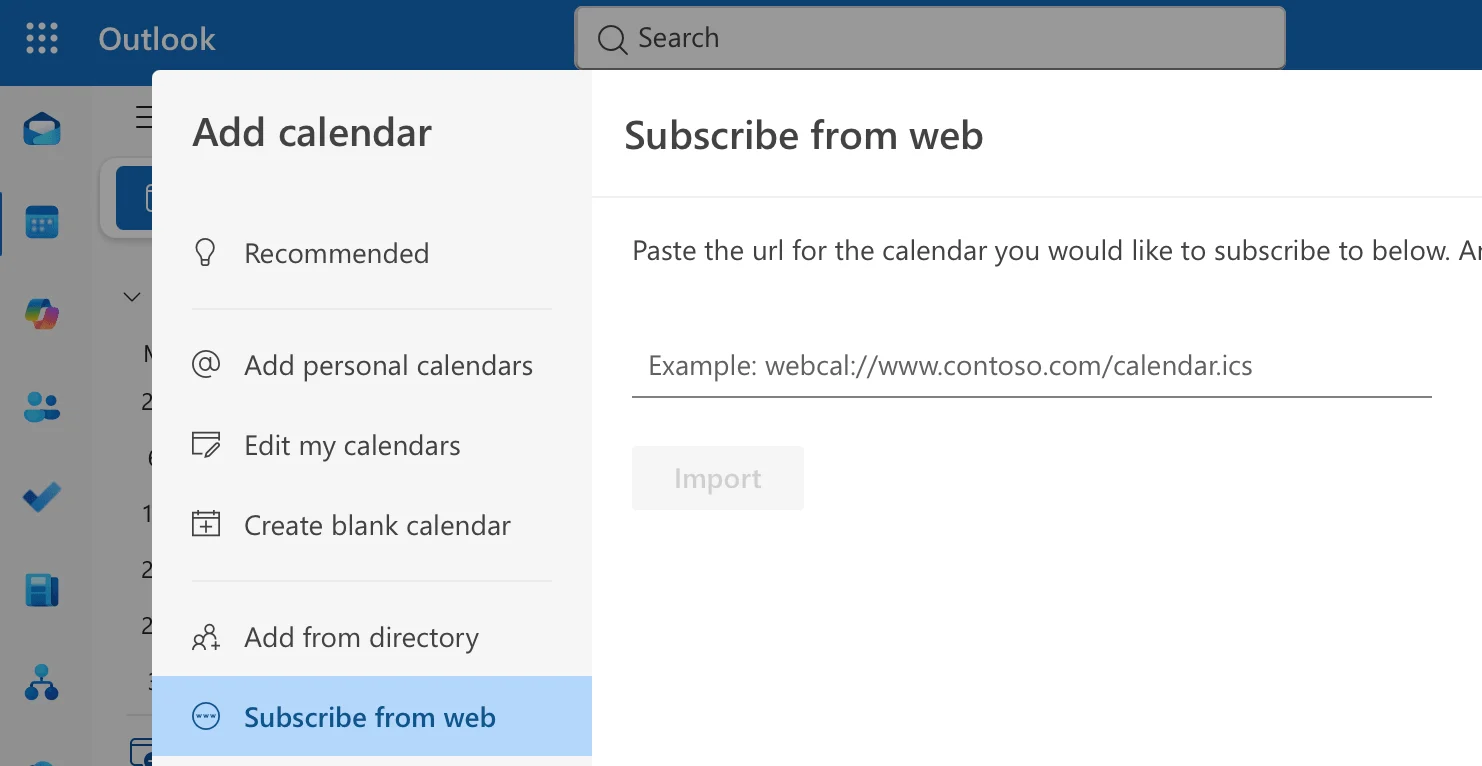
Pic. 2. Adding a calendar in Outlook on the web.
- Select Subscribe from web, paste the iCal link, set a name and colour, then click Import.
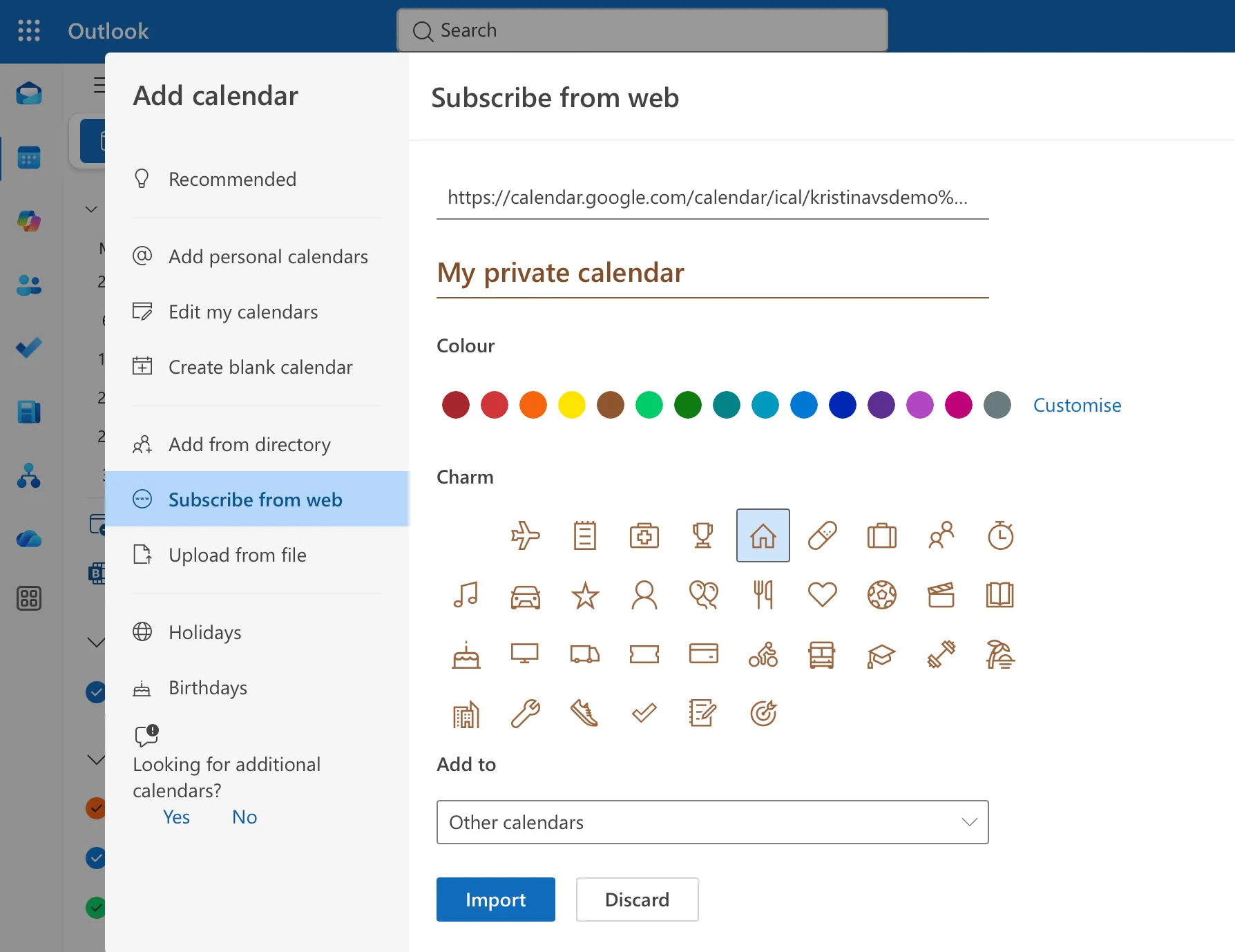
Pic. 3. Subscribing to the Google Calendar iCal feed from the web in OWA.
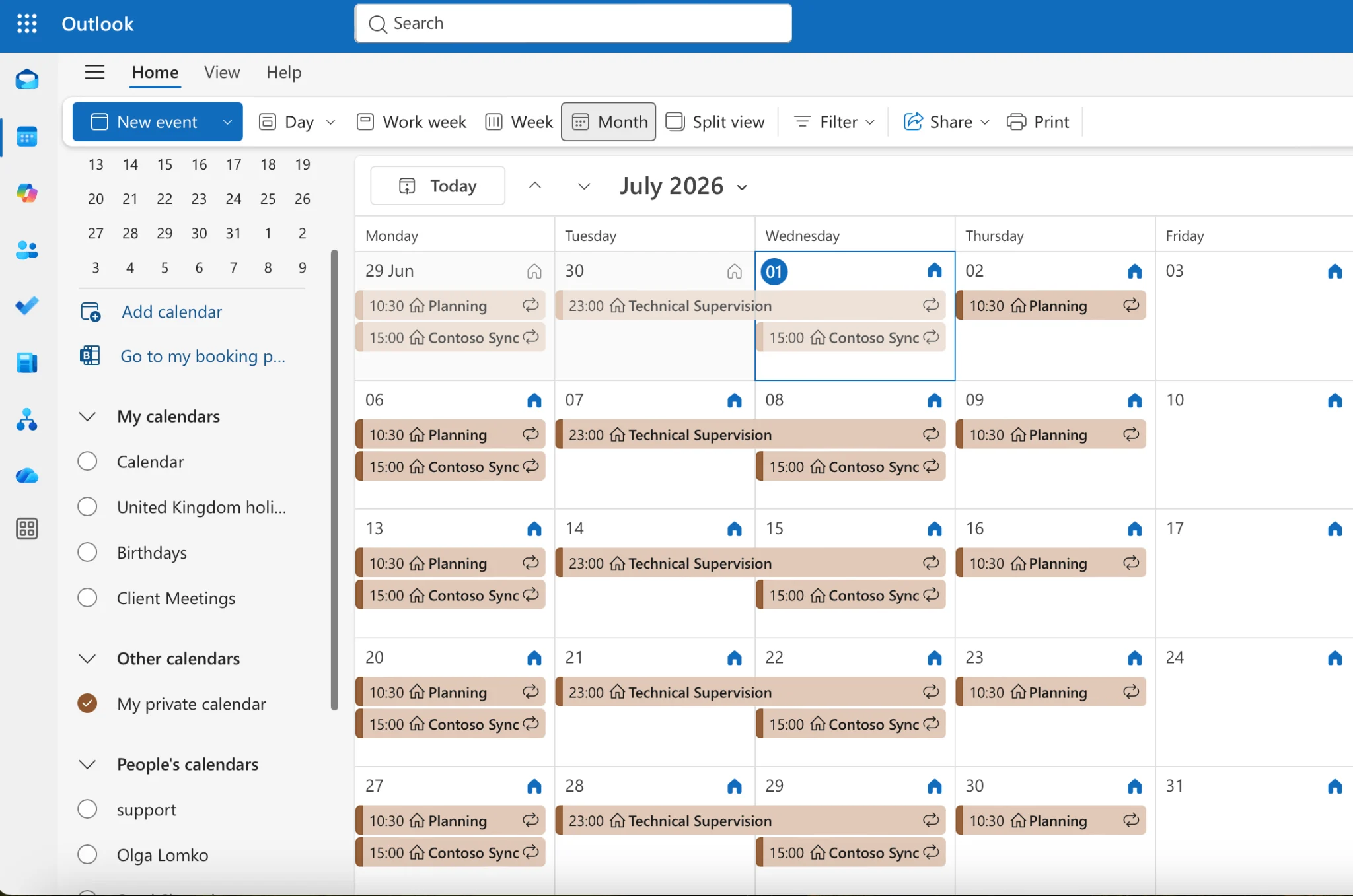
Pic. 4. The subscribed Google Calendar now appears in the OWA calendar list.
Classic Outlook desktop
- Copy the iCal (secret) address from Google Calendar as above.
- In classic Outlook, go to Calendar view, right-click Other Calendars, and choose Add Calendar → From Internet.
- Paste the link, click OK, name the calendar, and confirm.
Note: the new Outlook for Windows and Outlook for Mac add internet calendars in a similar way — look for Add calendar → Subscribe from web, the same flow as OWA. Microsoft has been converging the new Outlook and web experiences, so the desktop “From Internet” wording mainly applies to classic Outlook.
Google Workspace users (two-way option)
If you’re on a Google Workspace account, you can install Google Workspace Sync for Microsoft Outlook (GWSMO) instead of an ICS subscription. It provides a fuller two-way profile between Google and classic desktop Outlook. Download GWSMO, run the setup wizard, sign in with your Workspace address, grant permissions, and choose your sync options.
Mobile (Outlook app)
- Open the Outlook mobile app and tap the Settings icon.
- Tap Add account → Add Google Account (Outlook connects the whole Google account, including calendar).
- Complete Google authentication and make sure calendar sync is enabled for the account.
After signing in, make sure the Google calendar is actually showing: open the Calendar tab, tap the calendars/filter icon, and confirm your Google account’s calendar is checked. If it’s missing, the toggle is usually at the phone level, not in Outlook — on Android, go to Settings → Accounts → [Google account] → Account sync → Calendar (enabled) and grant Outlook calendar permission under Settings → Apps → Outlook → Permissions; on iPhone, check Settings → Calendar → Accounts → [Google] → Calendars (on) and Settings → Outlook → Calendars (allowed). If it still doesn’t appear, remove and re-add the account and let the initial sync finish.
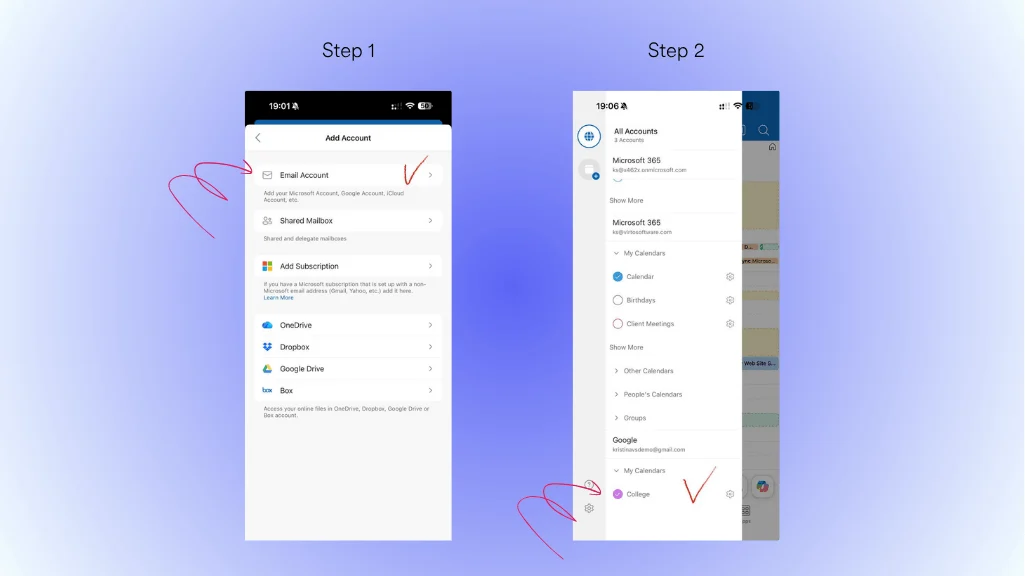
Pic. 5. Adding a Google account and enabling calendar sync in Outlook mobile.
Add Outlook calendar to Google
The reverse direction also uses a published ICS link.
From Outlook on the web
- In OWA, open Settings → Calendar → Shared calendars.
- Under Publish a calendar, pick the calendar, choose Can view all details, and click Publish.
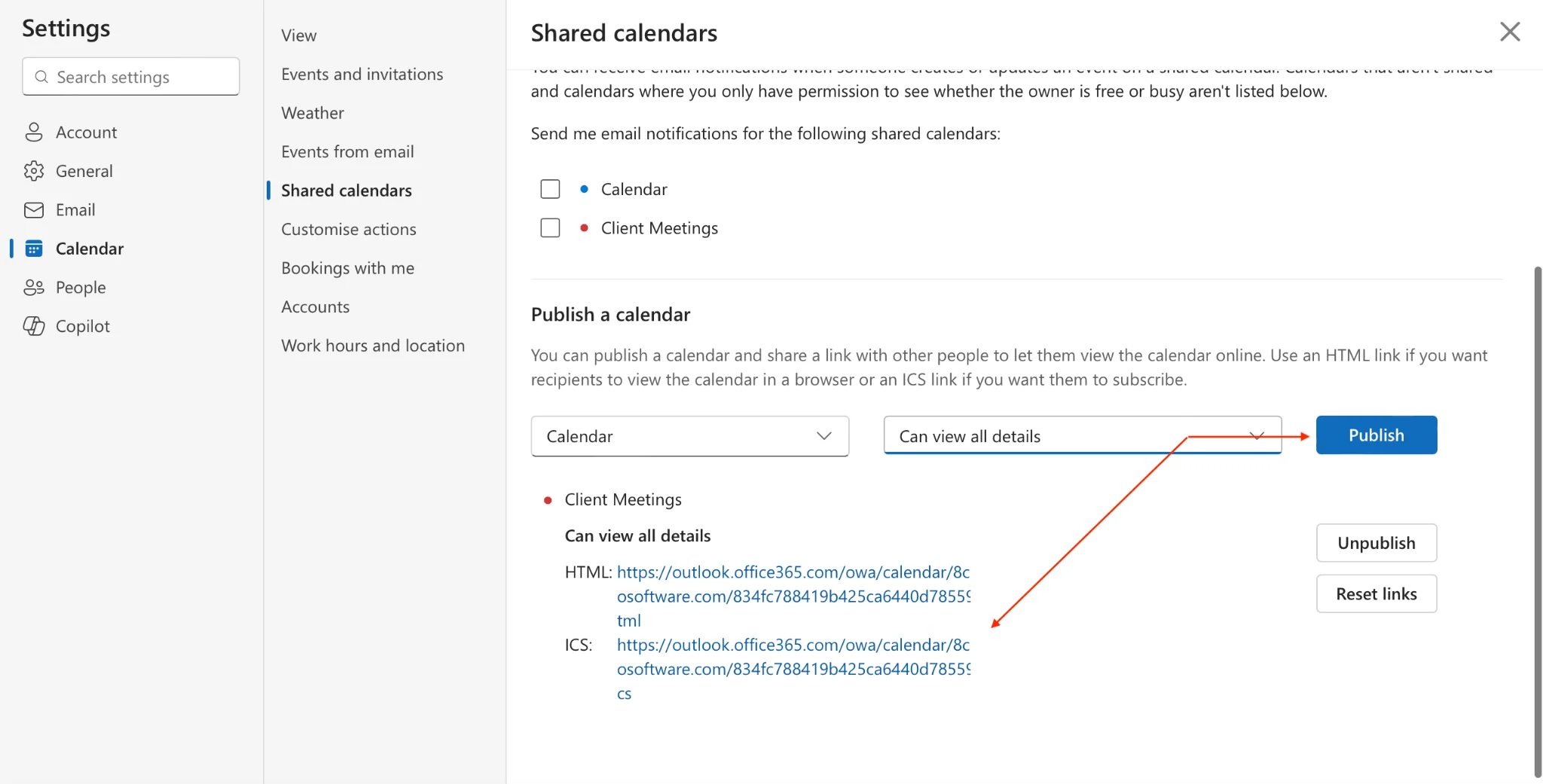
Pic. 6. Publishing an Outlook calendar and copying its ICS link.
- Copy the ICS link provided.
- In Google Calendar, click + (Add other calendars) → From URL, paste the ICS link, and click Add calendar.
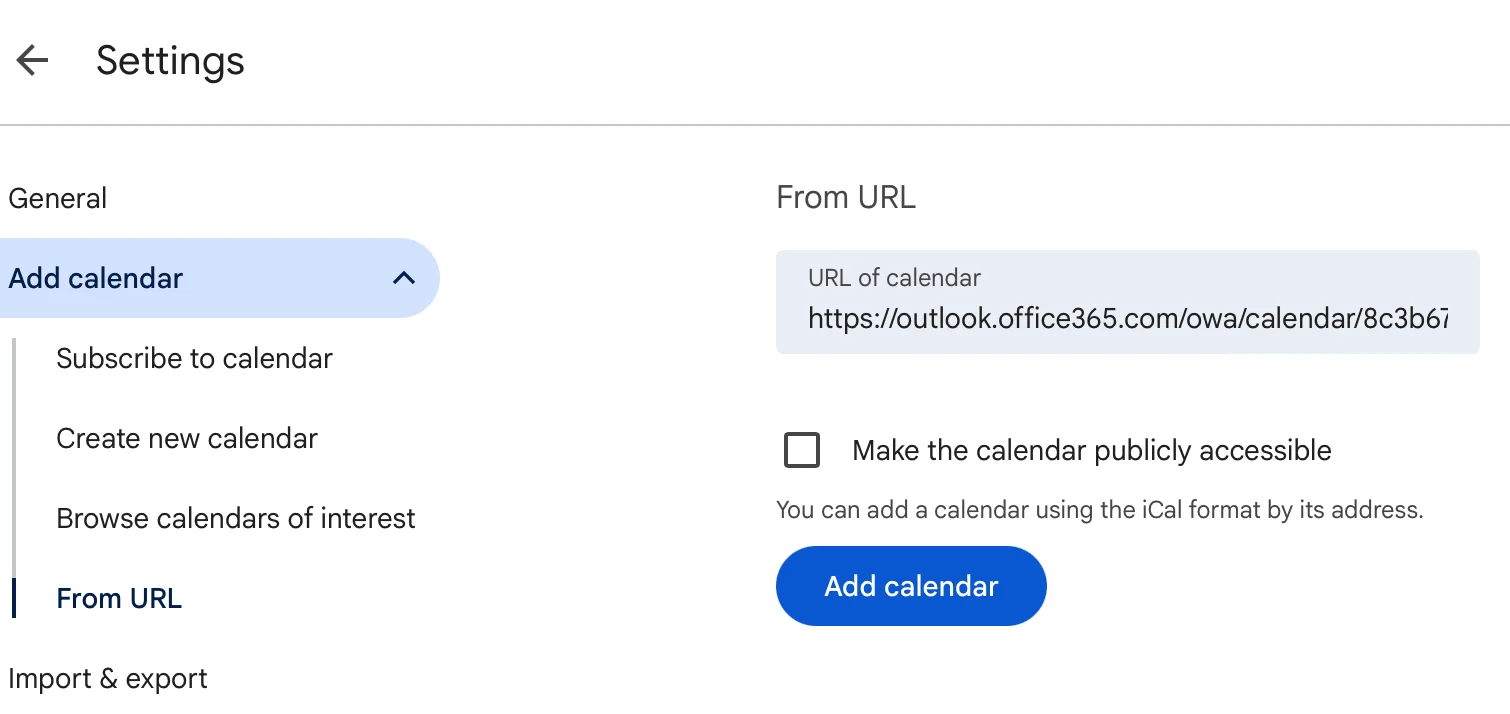
Pic. 7. Adding the published Outlook calendar to Google Calendar via From URL.
To import a fixed snapshot instead of a live feed, export an .ics file from Outlook (File → Save Calendar in classic desktop, or Export in OWA) and use Import & export in Google Calendar.
Common causes & fixes
If the calendars are already connected but not staying in sync, work through the causes below from most to least common.
1. It’s a one-way, read-only subscription (by design)
The single biggest source of confusion: an ICS subscription is read-only. Events created in the source calendar appear in the destination, but anything you add or edit on the destination side will not push back. If you expected changes to flow both ways, that’s not a bug — you need a two-way connector (see below) rather than a plain subscription.
2. Slow refresh interval
Outlook doesn’t poll subscribed ICS feeds in real time. Depending on the platform and the calendar publisher, updates can lag from several minutes to several hours. New events therefore look “missing” when they simply haven’t been fetched yet. Give it time, or force a manual refresh: right-click the calendar in Outlook and choose Update Calendar / Sync.

Pic. 8. Forcing a manual calendar refresh in Outlook.
3. Account, sharing and permission issues
Sync will silently fail if the source calendar isn’t shared the way the subscription expects. In Google Calendar, open Settings for my calendars, select the calendar, and check Access permissions and Share with specific people or groups. For a public subscription link, availability must be set appropriately; for corporate Google Workspace, your IT administrator may need to grant access. Also confirm you’re signed into both services with the correct accounts, and that no firewall or device-management policy is blocking the feed.
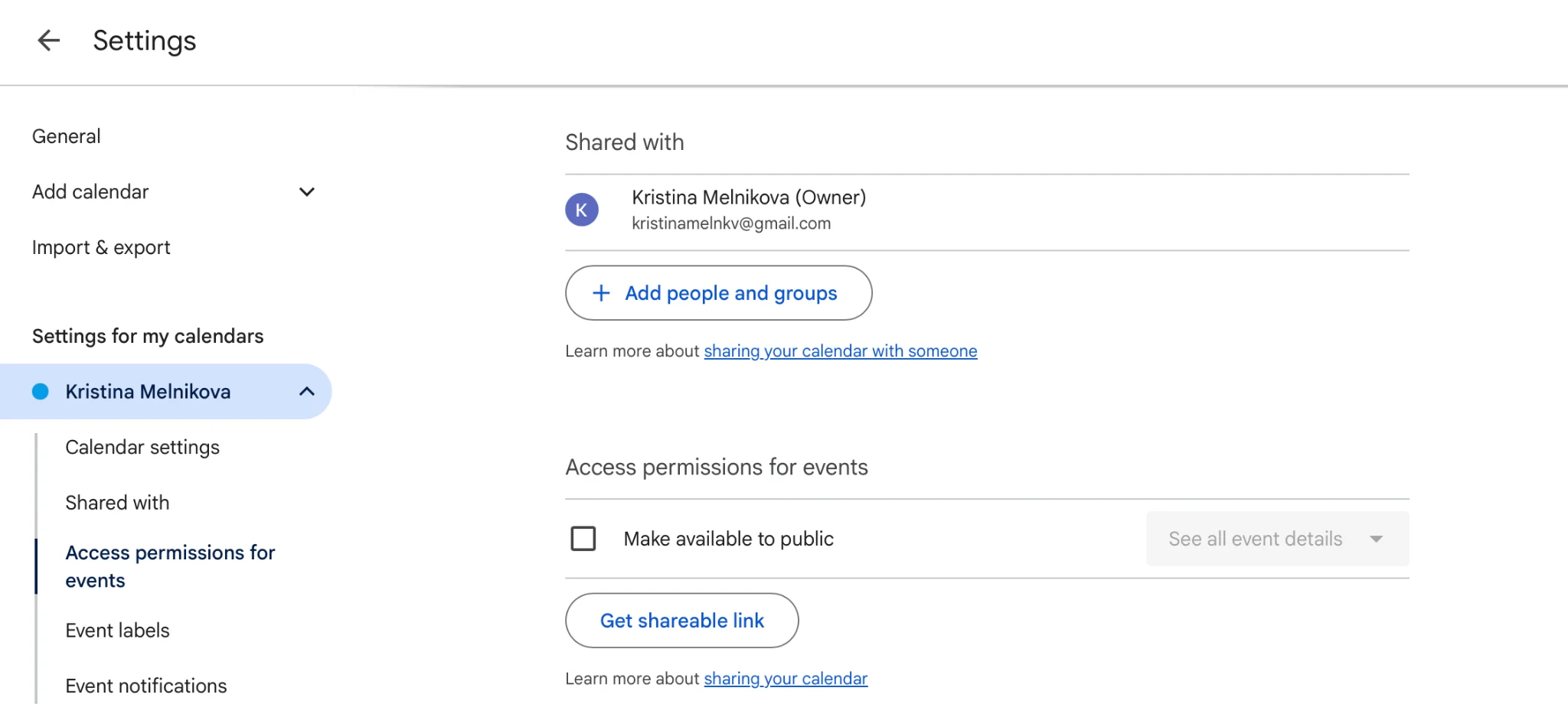
Pic. 9. Checking access permissions and sharing settings in Google Calendar.
4. ICS / iCal link problems
A broken or stale iCal address is a frequent culprit. If events stopped updating, the secret address may have been reset in Google Calendar — regenerating it invalidates old subscriptions. Re-copy the current Secret address in iCal format and re-subscribe. Also verify you’re visiting calendar.google.com/calendar/syncselect to confirm the right calendars are enabled for sync.
5. Cache and stale local data
Outlook keeps a local copy of calendar data. When that cache corrupts, sync stalls. Clearing it usually helps:
- Classic desktop: close Outlook fully, then rename (don’t delete) the .ost / .pst data file so Outlook rebuilds it on restart. Microsoft’s own guidance covers clearing the Outlook cache on Windows, the new Outlook for Windows, and Outlook for Mac.
- Outlook on the web: clear the browser cache, sign out fully, close all windows, then sign back in.
- Outlook mobile: remove the account, clear the app cache (Android) or delete and reinstall the app (iOS), then re-add the account and let the initial sync finish.
After clearing cache, the first sync takes longer than usual while Outlook rebuilds its store — don’t interrupt it.
6. Outdated software or conflicting add-ins
Version mismatches and third-party add-ins can quietly break sync. Update Outlook (File → Office Account → About Outlook to check the version), keep the mobile apps and OS current, and if problems started recently, launch Outlook in Safe Mode to test without add-ins. Disable suspect COM add-ins via File → Options → Add-ins and re-test.
Known native-integration limits
Some behaviours aren’t fixable because they’re limitations of the Google-to-Microsoft connection, documented in Microsoft’s known-issues article. The most impactful ones:
| Area | Limitation | Workaround |
|---|---|---|
| Visibility | Events default to “Public” in Outlook; Google privacy doesn’t carry over | Set sensitive events to private manually |
| Attachments | Meeting attachments don’t sync between platforms | Share files via cloud links instead |
| Deletions | Deleting a meeting auto-notifies the organizer | No silent-delete option; manage etiquette accordingly |
| Shared limit | Max of 20 shared calendars can sync | Consolidate calendars where possible |
| Free/Busy | Free & Busy permission sharing may not work | Use alternative availability checks |
| Responses | Invitations need “Automatically add invitations” enabled in Google | Set it to Yes in Google Calendar settings |
Fig. 1. Key native Google ↔ Outlook sync limitations and workarounds.
Two-way / automated sync (third-party)
When you need genuine two-way sync — edits flowing both directions, near real-time, without the ICS read-only ceiling — a dedicated tool is the reliable answer. Common options:
- Outlook Google Calendar Sync (OGCS) — a free, open-source GitHub project (active since 2012) that many users rely on for two-way sync between classic Outlook and Google.
- Commercial connectors such as CalendarBridge, SyncGene, Cronofy, and Sync2 — paid, with more control over direction, fields, and intervals.
- Overlay apps like the Virto Calendar App, which show all your sources together in one M365 view (covered next).
Security considerations
Before granting any third-party tool access to calendar data, review its data-privacy practices, the scope of permissions it requests (favour least-privilege), its enterprise compliance posture, its authentication support (modern auth / MFA), and where your calendar data is stored and processed. In regulated environments, run a proper security assessment first.
Keep calendars unified with Virto
Rather than forcing Google and Outlook to sync perfectly, the Virto Calendar App for Microsoft 365 / SharePoint lets you overlay Google and Outlook calendars in a single view — plus Exchange Online, SharePoint lists, meeting rooms, and any iCal source — so there’s nothing to break in the first place.
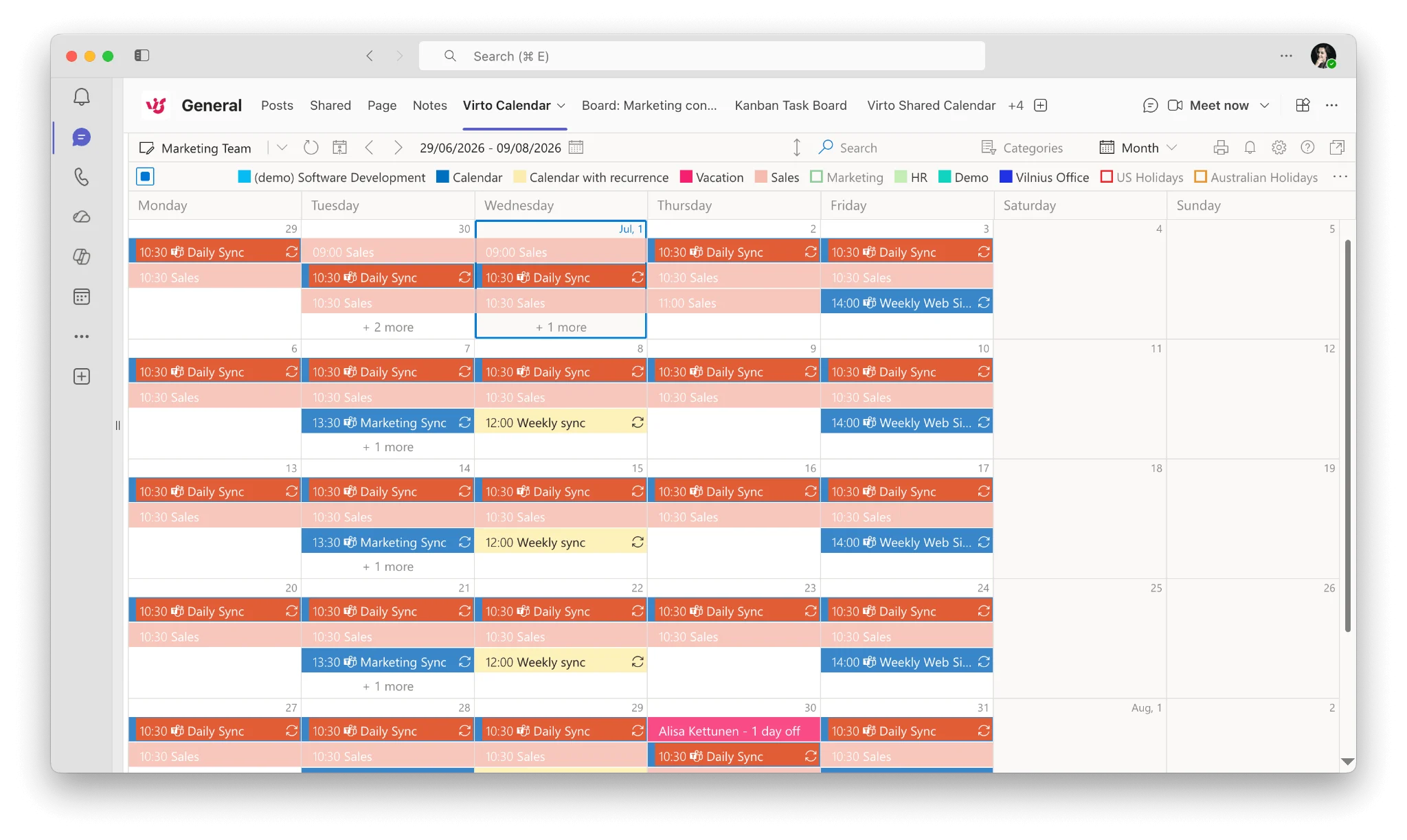
Pic. 10. Example Virto Calendar overlay combining multiple sources in one view.
Key capabilities:
- Overlay multiple calendar sources (Google, Outlook/Exchange, SharePoint, iCal) in one place, with no 20-calendar ceiling.
- Support for Exchange Online, SharePoint list integration, and meeting-room management.
- Colour-coding and multiple views to organise event types at a glance.
- Microsoft Teams integration and Microsoft Planner task integration for a unified workspace.
Because it’s native to Microsoft 365, it keeps the familiar interface, respects enterprise security policies, and works consistently across desktop and mobile. It costs $2,412 per 100 users per year with a 3-year agreement (100 users and up), with a 30-day free trial; smaller teams can use Virto Shared Calendar, which has a free plan.
Schedule a quick demo · Start a free 30-day trial
FAQ
Can Google Calendar sync with Outlook?
Yes. You can subscribe Outlook to your Google Calendar’s iCal address for a one-way, read-only feed, or use a connector/overlay app for two-way sync. Google Workspace users can also install GWSMO for a fuller two-way profile in classic desktop Outlook.
How do I sync Google Calendar with Outlook?
Copy the Secret address in iCal format from Google Calendar (Settings → Settings for my calendars → Integrate calendar), then in Outlook on the web choose Add calendar → Subscribe from web and paste it (or, in classic desktop Outlook, Other Calendars → Add Calendar → From Internet).
Why is my sync one-way / read-only?
Because native ICS/iCal subscriptions are read-only by design — the destination calendar only displays events from the source. For edits to flow both ways, use a two-way connector such as OGCS or a commercial sync tool, or unify everything with an overlay app.
Why is my Google Calendar not updating in Outlook?
Usually a slow refresh interval, a reset iCal link, changed permissions, or a stale cache. Force a manual sync, re-copy the current secret address, confirm sharing settings, and clear the Outlook cache if needed.
Conclusion
Keeping Google Calendar and Outlook aligned comes down to two things: setting up the connection correctly (an iCal subscription for one-way, a connector for two-way), and knowing the handful of causes — refresh lag, permissions, stale links, cache, add-ins — behind a sync that stops working. Work through those in order and most problems resolve quickly.
If you’d rather not fight native sync at all, an overlay approach like the Virto Calendar App brings every calendar into one Microsoft 365 view — no ICS ceiling, no one-way surprises. For related setups, see our guides on managing multiple M365 calendars, syncing Microsoft Teams calendar with Google Calendar, Teams calendar not syncing with Outlook, and the broader Outlook calendar not syncing hub.