A short technical guide for SharePoint site owners and M365 admins. Updated 2026.
SharePoint Online has no native web part for displaying iCal (iCalendar) feeds. The Events web part only shows items from SharePoint Events lists. The Group Calendar web part only shows Microsoft 365 Group calendars. Neither accepts an iCal URL, and the Embed web part can’t reliably render a calendar from a .ics link either.
That’s a problem for the very common case where teams want a Google Calendar, Apple Calendar, project tool deadlines, or a published partner schedule to appear directly on a SharePoint page — not in a separate tab, and not as a static screenshot.
This guide covers what an iCal feed actually is, where to find the iCal URL for the most common calendar sources, why SharePoint blocks the obvious workarounds, and the simplest way to display one or more iCal feeds on a modern SharePoint page using the Virto Calendar App. The on-premises Virto Calendar Web Part also supports iCal sources and is covered briefly at the end.
What Is an iCal Feed?
iCal — short for iCalendar — is an open standard (RFC 5545) for exchanging calendar data between applications. A .ics file contains structured event data: titles, start and end times, recurrence rules, locations, descriptions, and attendees. Almost every modern calendar application can both export and consume this format.
An iCal feed is the same format, but served from a live URL. Instead of downloading a static .ics snapshot, applications subscribe to the URL and pull updates on a schedule. When the source calendar changes, subscribers see the change after the next refresh. Feeds are read-only — you can display the events, but you can’t edit them through the feed.
Feed URLs typically use one of two prefixes. A webcal:// URL is functionally identical to https:// but tells the operating system to open the link in the default calendar client. For embedding into another tool, the https:// version ending in .ics is what you want.
Most calendar platforms expose iCal URLs through their share or publish settings. Below are the four most common sources customers ask about.
Where to Find iCal URLs
| Source | How to get the iCal URL |
|---|---|
| Google Calendar | Settings → select the calendar under “Settings for my calendars” → scroll to “Integrate calendar” → copy “Secret address in iCal format” |
| Apple Calendar (iCloud) | iCloud.com → Calendar → click the broadcast icon next to a calendar → enable “Public Calendar” → copy the URL (replace webcal:// with https://) |
| Outlook (published calendar) | Outlook on the web → Settings → Calendar → Shared calendars → Publish a calendar → choose permissions → copy the ICS link |
| Zoom | Zoom web portal → Profile → scroll to “Others” → copy “Calendar Link” |
Many other tools — Asana, Monday.com, Jira, Salesforce, Trello, Eventbrite, GitHub Projects — expose iCal feeds in similar fashion. The pattern is consistent: find calendar export or publishing settings, choose the iCalendar format, and copy the URL.
Why SharePoint Doesn’t Support iCal Natively
SharePoint Online ships with three calendar-related building blocks, and none of them accept an external iCal URL.
The Events web part is tied to a SharePoint Events list inside the current site. You can add events manually, but there is no field for an external feed URL. The Group Calendar web part is bound to the mailbox of a Microsoft 365 Group via Exchange. It surfaces Outlook meetings for that group only — again, no URL input. The classic SharePoint Calendar list (still available in older sites) supports connecting to Outlook, but not subscribing to an arbitrary iCal feed from the SharePoint UI.
The closest workaround using out-of-the-box parts is the Embed web part, which renders an iframe of an external URL. Embedding outlook.office.com calendar views is blocked by X-Frame-Options headers, and embedding a third-party iCal renderer (Google’s public calendar embed, for instance) produces an inflexible result: no overlay with SharePoint data, no theming, no event clicks back into SharePoint, and a frame that breaks on mobile.
The bottom line: there is no built-in way to display an iCal feed as an interactive calendar on a modern SharePoint page. To get that, you need a web part that knows how to fetch and render iCal data — which is what the Virto Calendar App provides.
How to Display iCal Feeds in SharePoint with Virto Calendar
The Virto Calendar App is a SharePoint Online add-in that adds a calendar web part capable of overlaying multiple data sources — SharePoint lists, Exchange calendars, Microsoft Planner, Google Calendar, and iCal feeds — on a single view. Setup takes a few minutes once you have the iCal URL in hand.
Install Virto Calendar App from Microsoft Marketplace. A SharePoint or M365 administrator installs the app to the tenant App Catalog. Once approved, the web part becomes available to all SharePoint sites in the tenant.
Add the Virto Calendar web part to a modern SharePoint page. Edit the target page, click the plus icon to add a new web part, search for “Virto Calendar,” and place it where you want the calendar to appear. Save and publish the page once — you’ll configure the data source from the live page.
Open calendar settings and add a new data source. Hover over the web part and click the edit (pencil) icon to open the property pane. Under data sources, choose Add data source and select Internet Calendar (iCal) from the list of source types.
Paste the iCal URL, name the feed, and pick a color. The configuration dialog asks for three things: the full iCal URL (the https:// version ending in .ics), a display name that will appear in the calendar legend, and a color that distinguishes this feed from others. Save the source.
(Optional) Add more sources. Repeat Step 3 for additional iCal feeds — a vendor delivery schedule, a marketing events feed, a project tool calendar. You can also mix in SharePoint Events lists, Exchange calendars, or Microsoft Planner buckets. Each source gets its own toggle in the legend so users can show or hide it.
Save the page. iCal events now appear in the calendar alongside any other configured sources. Users can switch between month, week, day, and agenda views, click any event to see its details, and toggle individual sources on or off.
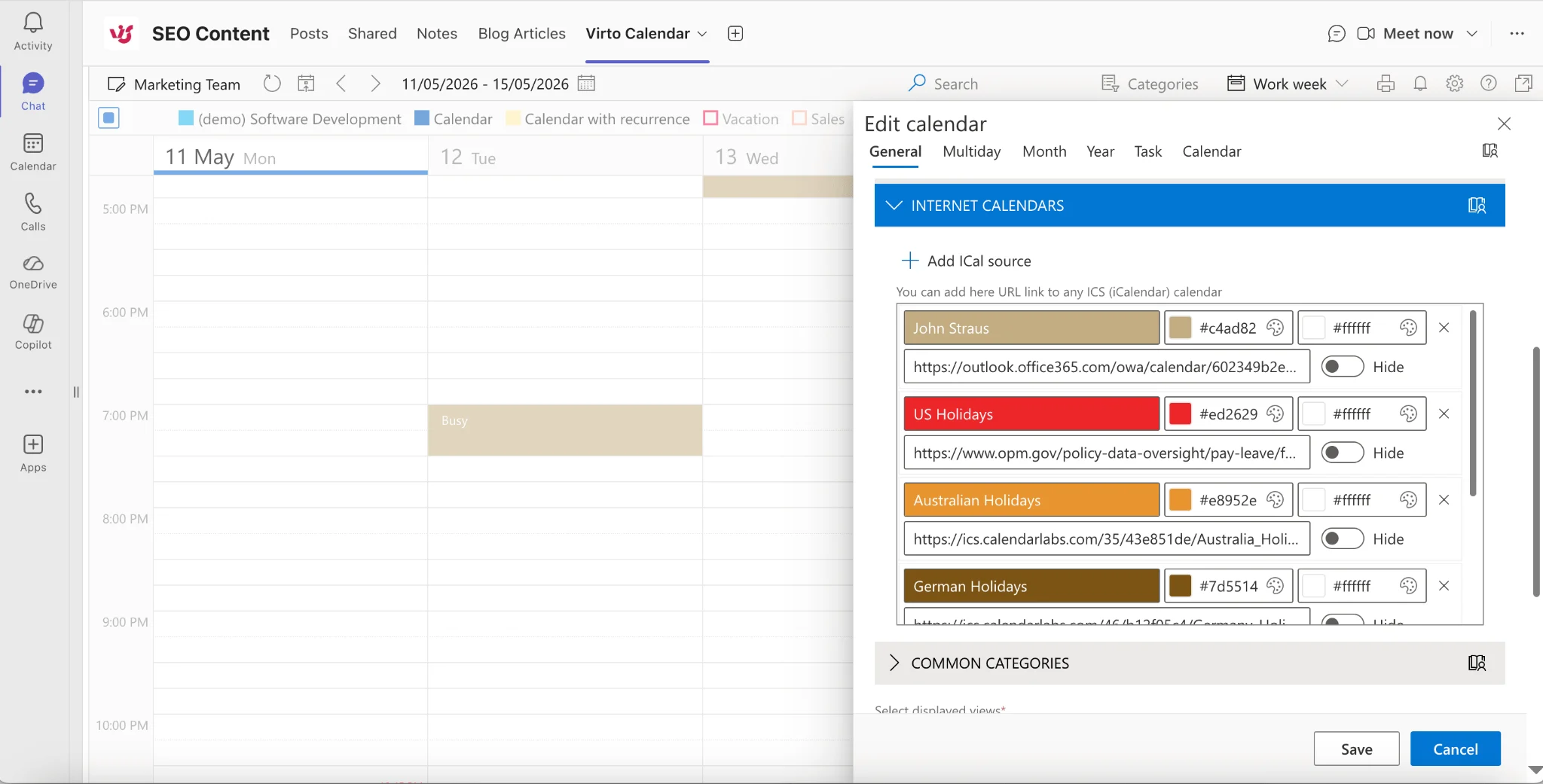
Pic.1. iCal URL configuration in the Virto Calendar property pane.
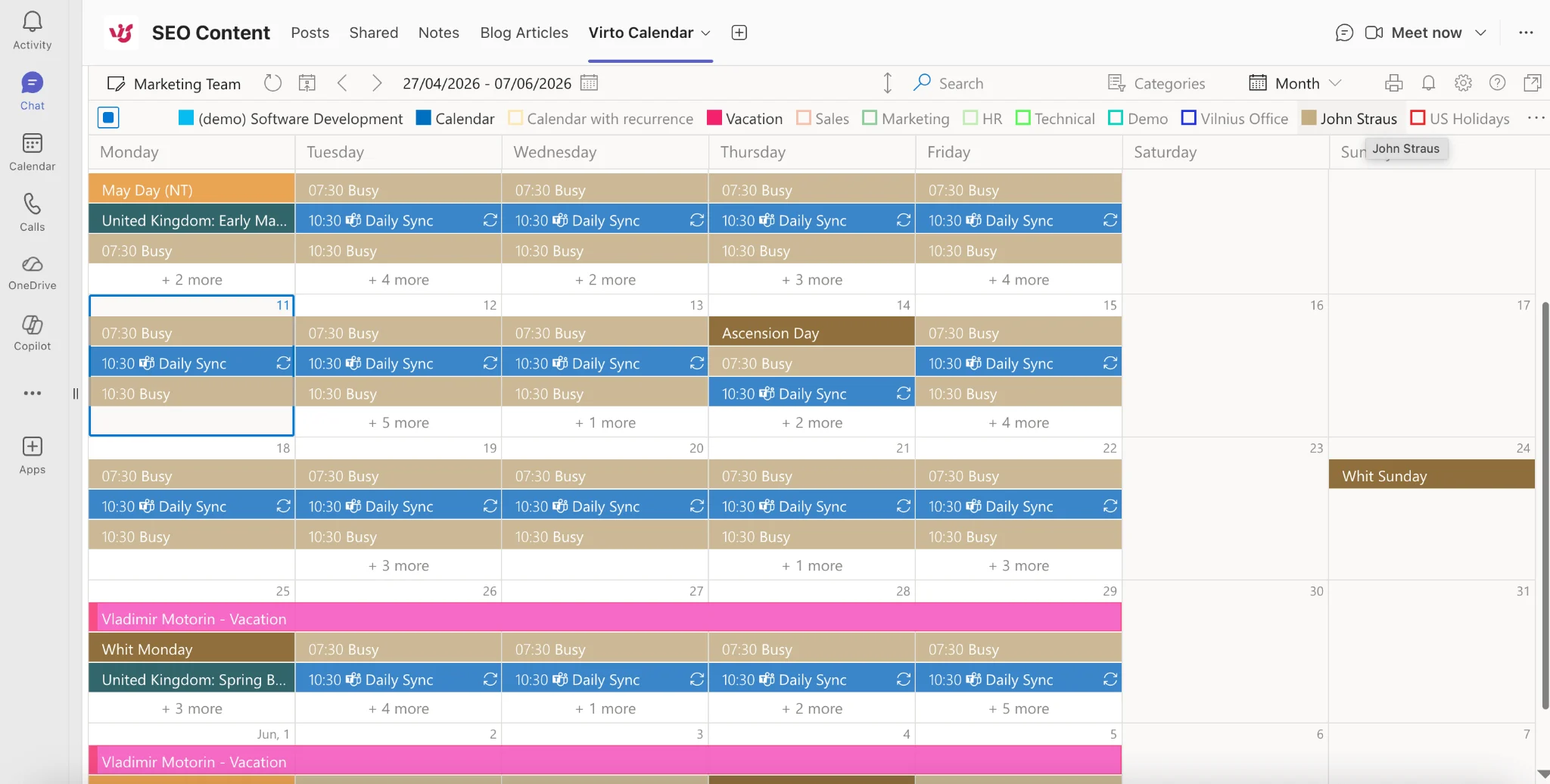
Pic.2. Final result with a Google Calendar iCal feed and a SharePoint Events list overlaid in month view.
Feeds refresh on a schedule set in the web part configuration (typically every 15–60 minutes), so events stay current without manual intervention. Because iCal subscriptions are read-only, edits to the original calendar — adding events, rescheduling, deleting — flow through to SharePoint, but users can’t modify the source calendar from the SharePoint page.
On-premises note: SharePoint Server (2016, 2019, Subscription Edition) customers can achieve the same result with the Virto Calendar Web Part for SharePoint on-premises, which supports iCal feeds as well as direct Google Calendar API integration and XML-based feeds. The configuration UI differs slightly but the data source model is the same.
Common iCal Use Cases in SharePoint
Google Calendar to SharePoint. Hybrid environments are the single most common iCal scenario. A subset of the organization — often a sales team, an agency partner, or an acquired division — still runs on Google Workspace, while the rest of the company is on Microsoft 365. Surfacing the Google calendar on a SharePoint intranet page gives everyone a single place to see schedules without forcing a platform migration.
Public event calendars on the intranet. Many cities, conferences, professional associations, and industry bodies publish iCal feeds of their event schedules. HR and communications teams use these to populate an intranet “what’s happening” page — local civic events, industry conferences, holiday calendars — without manually copying dates each quarter.
Project tool calendars on SharePoint project sites. Asana, Monday.com, Jira, and similar tools all expose iCal feeds of deadlines and milestones. Overlaying those on a SharePoint project site puts task due dates on the same calendar as SharePoint Events lists and Outlook meetings, which is the view most project managers actually want.
Partner and vendor schedules. Vendors and contractors often share their availability or delivery schedules as iCal feeds. A collaboration site for a specific vendor relationship can pull that feed directly, so internal staff see vendor commitments alongside their own.
FAQ
Can I embed a Google Calendar on a SharePoint page?
Not with native SharePoint web parts, no. The Embed web part can render Google’s public calendar iframe, but the result is read-only, doesn’t overlay with SharePoint data, and looks out of place. A web part that consumes the Google Calendar iCal feed — like Virto Calendar — produces a calendar that matches the rest of your page and supports overlay.
Does SharePoint support iCal feeds natively?
No. The Events web part, the Group Calendar web part, and the classic SharePoint Calendar list cannot subscribe to an arbitrary iCal URL. A third-party web part is required.
Will iCal events update automatically in Virto Calendar?
Yes. The web part refreshes each iCal source on a configurable schedule. New events, changes, and deletions in the source calendar appear in SharePoint after the next refresh.
Can I overlay an iCal feed with SharePoint and Outlook calendars?
Yes. Virto Calendar treats every source — iCal, SharePoint list, Exchange, Microsoft Planner — as an overlay layer. Each source has its own color and visibility toggle. See the merge and combine calendars guide for layout patterns.
Does this work on SharePoint on-premises?
Yes. The Virto Calendar Web Part for SharePoint on-premises supports iCal feeds and, for Google Calendar specifically, direct API integration. The UI differs from the SharePoint Online add-in but the source types are equivalent.
Conclusion
Any calendar that publishes an iCal URL — Google, Apple, Outlook published calendars, Zoom, Asana, Monday.com, Jira, Salesforce, and dozens of others — can appear on a SharePoint page once you have a web part that knows how to consume the feed. SharePoint won’t do it on its own; the Virto Calendar App adds the missing piece in a few minutes of setup and lets you overlay iCal sources with the SharePoint and Outlook data you already have.
Try Virto Calendar free for a month → Install from Microsoft Marketplace