



SharePoint Online has no built-in way to display Exchange Online calendars on a page. There are three approaches: the native Scheduling web part (free/busy only), a Power Automate flow (one-way sync), and a calendar overlay app like Virto Calendar Overlay, which provides a full multi-source view including Exchange, shared calendars, and meeting rooms.
If you also need to push events the other way, see our guide on how to add a SharePoint calendar to Outlook. This article focuses on bringing Exchange data into SharePoint and comparing the methods so you can pick the right one.
Quick comparison: native vs Power Automate vs Virto
| Capability | Scheduling web part | Power Automate | Virto Calendar |
|---|---|---|---|
| Shows event details | No (free/busy only) | Yes (copied to list) | Yes (live, permission-based) |
| Multiple calendars overlaid | No | Limited | Yes |
| Meeting room availability | Limited | Manual | Yes |
| Real-time | Live free/busy | Near-real-time | Yes |
| Setup effort | Low | Medium | Low |
| Cost | Free | Free* | Paid app |
Power Automate is included with most Microsoft 365 plans; premium connectors may carry extra cost.
Can SharePoint Online display Exchange calendars natively?
The short answer is: only in a limited way. SharePoint Online does not include a web part that renders full Exchange Online calendar events on a modern page. What you can do natively is surface free/busy availability through the Scheduling web part, or copy events into a SharePoint list using Power Automate. Neither approach gives you a true, live overlay of multiple Exchange calendars with full event detail. For that, you need a third-party calendar overlay app.
The three methods below are ordered from the most basic native option to the most complete. Choose based on whether you need availability only, a periodic copy of events, or a live multi-source calendar view.
Method 1: Native — SharePoint Scheduling web part (free/busy only)
The Scheduling web part is the closest native option for showing Exchange-backed availability on a SharePoint page. It is designed around meeting scheduling rather than full calendar display, so it shows whether people or resources are free or busy rather than the underlying event details.
- Edit the SharePoint page where you want availability to appear.
- Add a web part and choose the Scheduling (or Bookings/availability) web part from the toolbox.
- Enter the people or resource mailboxes whose availability you want to show.
- Publish the page. Visitors will see free/busy blocks pulled from Exchange.
Limitations: no event titles or descriptions, no overlay of several calendars into one view, and limited meeting-room handling. If you only need to know when a room or person is free, this is enough. If you need to see what the events actually are, move to Method 2 or 3.
Method 2: Power Automate — sync Exchange events to a SharePoint list
Power Automate (included with most Microsoft 365 plans) can copy events from an Exchange Online calendar into a SharePoint list, which you then display as a calendar view. This is a one-way, near-real-time sync: events flow from Exchange to SharePoint, not back.
- In Power Automate, create a flow with the trigger “When an event is added, updated or deleted (V3)” from the Office 365 Outlook connector.
- Point the trigger at the mailbox and calendar you want to mirror.
- Add a SharePoint “Create item” (and matching update/delete) action that maps the event subject, start, end, and location into columns on a SharePoint list.
- Save and test the flow, then add the list to your page using a calendar or list view.
Trade-offs: you get indexable event detail inside SharePoint, but you maintain the flow yourself, sync is one-way, and overlaying multiple source mailboxes means multiple flows. Meeting-room resource calendars are awkward to handle this way. For a single calendar this is workable; for a true multi-calendar overlay it becomes hard to maintain.
Method 3: Virto Calendar App — full Exchange + meeting rooms in SharePoint
The Virto Calendar App is built specifically to display and overlay calendars from many sources directly on a SharePoint Online page. Unlike the native options, it shows live event detail (subject to permissions) and lets you combine Exchange Online calendars, shared calendars, and meeting rooms into one SharePoint calendar overlay view.
Supported data sources
Virto Calendar App can pull from a wide range of Exchange and Microsoft 365 sources in a single view:
- Exchange Online calendars
- Exchange On-Premise calendars
- Shared mailboxes
- Meeting rooms and resource mailboxes
- Distribution groups
- SharePoint Online lists and calendars
Step-by-step: add an Exchange calendar
The video below walks through the overlay setup. Because search engines and on-page readers cannot index video, the written steps follow underneath.
Watch the video walkthrough on YouTube
- Open the Virto Calendar settings page on your SharePoint site. Create a new calendar or edit an existing one — for example, the sample calendar.
- Under the data sources, find the option “Display events from resource calendars.” Enable it and type in the email address of the Exchange calendar, shared mailbox, or meeting room you want to display.
- Adjust the remaining display settings as needed, then save the calendar.
- Return to the calendar and click the eye icon to view it. The imported Exchange events now appear in your SharePoint calendar.
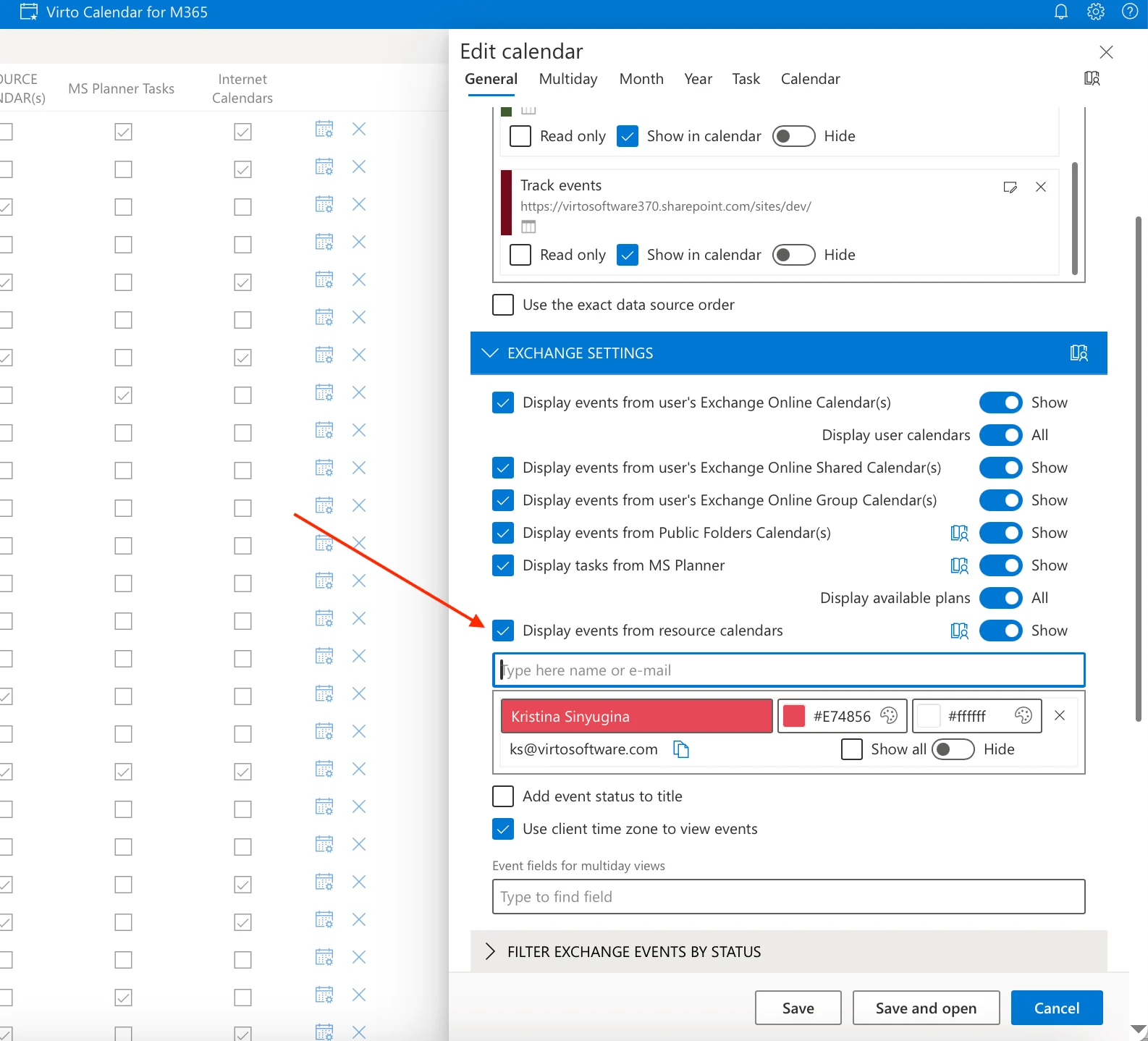
Virto Calendar App settings — the “Display events from resource calendars” data source with email addresses entered.
You can create events directly in the Virto calendar and have them appear in the Exchange calendar, using the same fields you would see in the standard Exchange Online event form. After setup, you can also color code your SharePoint calendars so each source is easy to tell apart.
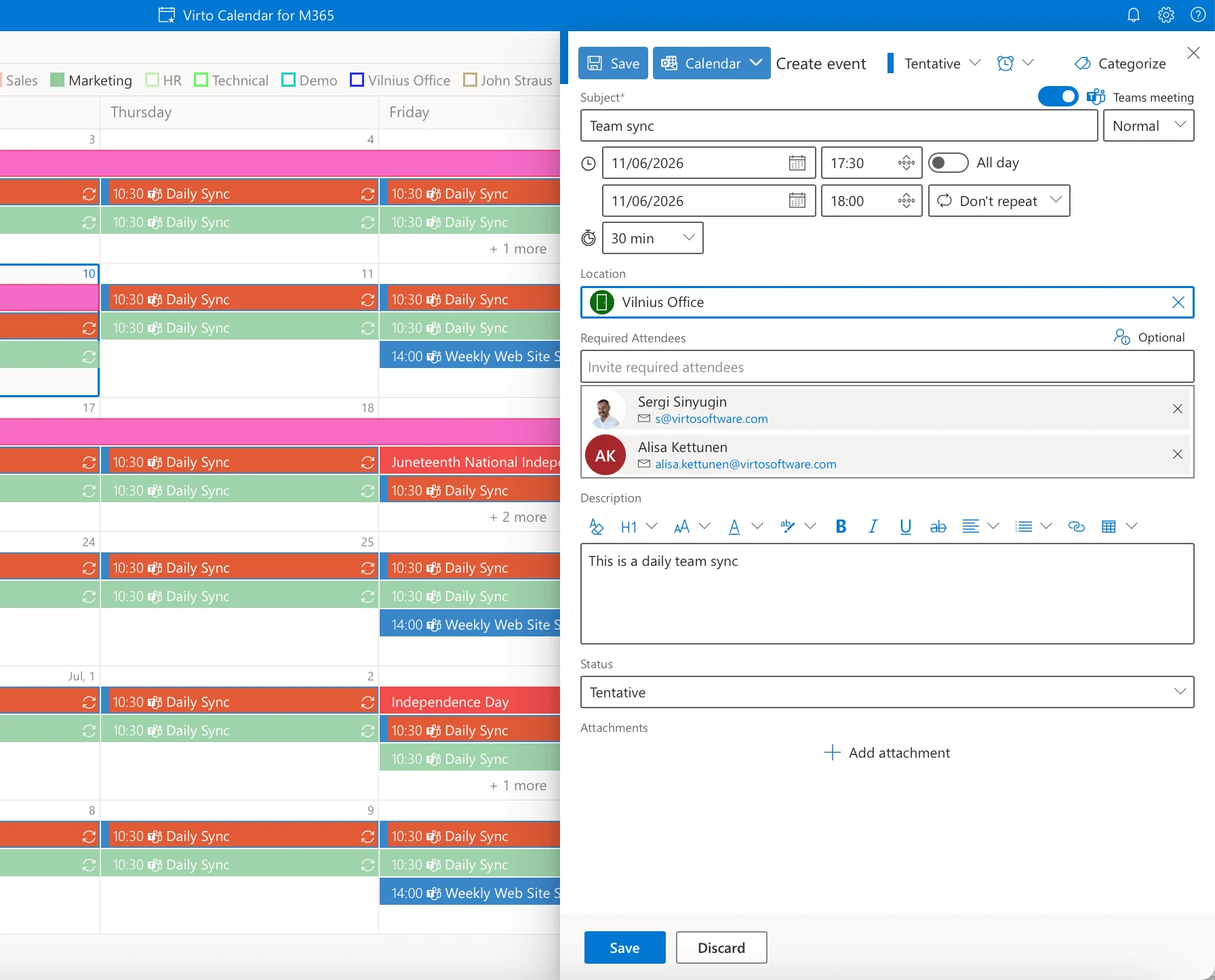
Creating an event in the Virto calendar, showing the same fields as the standard Exchange Online event form.
A note on permissions
What each viewer sees depends on their own Exchange permissions, so it is worth clarifying upfront. If a user does not have permission to view a particular event, it shows only as busy with no detail. If they do have permission, the full event details are visible. Meeting rooms behave the same way: the room shows as busy for the booked time, and viewers see only the availability they are allowed to see. At a minimum, free/busy access is required; full event display requires Reviewer permission or higher.
Exchange meeting rooms in SharePoint: resource scheduling
Meeting-room calendars are a common reason teams want Exchange data inside SharePoint, and they are a distinct use case from general user calendars. IT administrators managing room resources often need a single page where staff can see which rooms are booked and when — without opening Outlook.
With Virto Calendar, you add a meeting room exactly as you would any other source: enable the “Display events from resource calendars” option and enter the room’s resource mailbox email address. The room’s bookings then appear in the overlay alongside team and personal calendars, giving a real-time view of room availability on the SharePoint page itself.
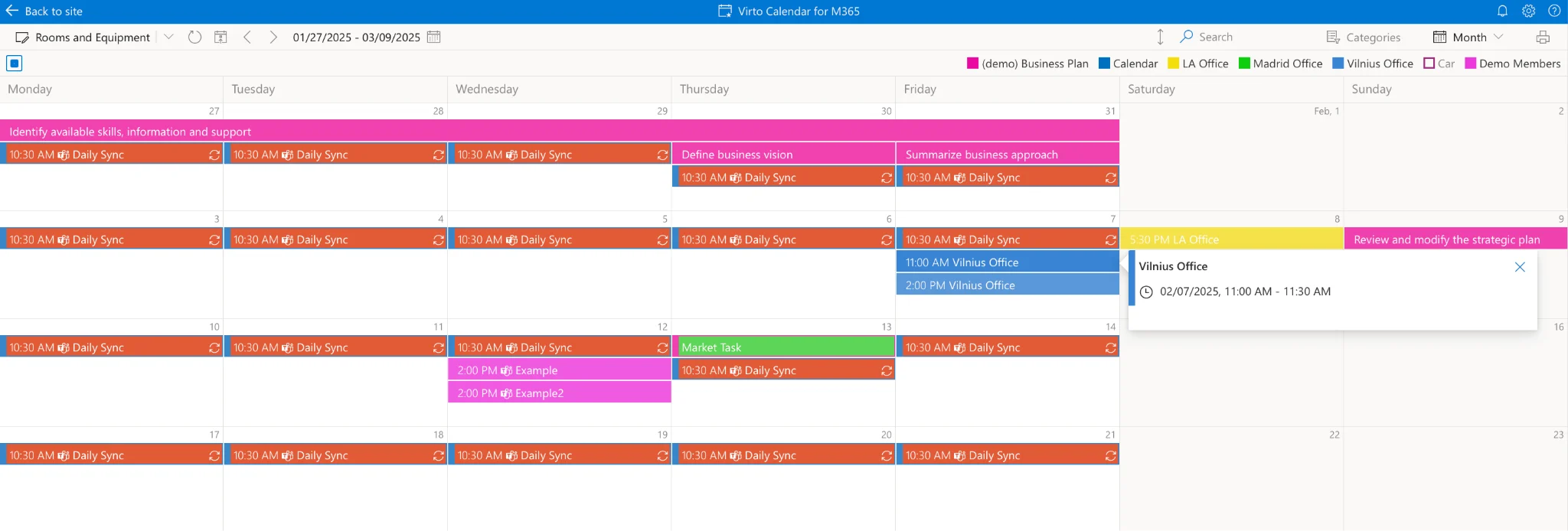
Meeting room availability overlaid in a SharePoint calendar via Virto Calendar.
Because rooms follow the same permission model, viewers see the room as busy for booked slots and can see further detail only where permitted. Overlaying several rooms in one calendar makes it easy to compare availability across a floor or building at a glance — a practical advantage over checking each room individually in Outlook.
Frequently asked questions
Does SharePoint Online support Exchange calendar integration natively?
Only in a limited way. The native Scheduling web part can surface free/busy availability, and Power Automate can copy events into a SharePoint list, but SharePoint Online has no built-in web part that displays full Exchange calendar events. A calendar overlay app is needed for a complete view.
Can I display multiple Exchange calendars on one SharePoint page?
Yes, with the Virto Calendar App. You can overlay several Exchange Online calendars, shared calendars, and meeting rooms into a single SharePoint calendar view. The native methods do not support a true multi-calendar overlay.
How do I add a meeting room calendar to SharePoint Online?
In the Virto Calendar settings, enable the option to display calendars and meeting rooms, then enter the meeting room’s resource mailbox email address. The room’s availability and bookings appear in the overlay.
Is the Exchange calendar display in SharePoint real-time?
It depends on the method. Virto Calendar shows calendars in real time. Power Automate provides a near-real-time one-way sync. The native Scheduling web part shows live free/busy availability but not event detail.
What permissions do I need to display someone’s Exchange calendar in SharePoint?
At a minimum you need free/busy access, which shows whether a slot is busy. To display full event details, you need Reviewer permission or higher on the source calendar. Without sufficient permission, events appear only as busy.
Which method should you choose?
If you only need availability, the native Scheduling web part is the quickest path. If you need event detail for a single calendar and don’t mind maintaining a flow, Power Automate works. If you need a live, multi-source view — Exchange calendars, shared calendars, and meeting rooms overlaid on one SharePoint page with permission-aware detail — a dedicated overlay app is the most reliable option.
Ready to display Exchange calendars and meeting rooms in SharePoint Online? Explore the Virto Calendar App to see the full multi-source calendar in action.