



What is calendar management? (quick answer)
Calendar management is the practice of organizing your time by deliberately planning, scheduling, and protecting blocks on your calendar so that meetings, focused work, and personal commitments fit together without conflict. Done well, it turns your calendar from a passive list of appointments into an active tool for controlling where your attention goes. Good calendar management combines simple habits — time blocking, color-coding, and keeping one source of truth — with tools that let you see every calendar in a single view.
Calendar management tips at a glance:
- Block time for focused work before meetings fill the day.
- Color-code events by type so your week is readable at a glance.
- Keep one source of truth and overlay other calendars into it.
- Audit recurring meetings regularly and cut what no longer earns its slot.
- Share your availability instead of trading scheduling emails.
Why calendar management matters
Time is the one resource you can’t make more of, yet most workdays are shaped by whoever books a meeting first. Strong calendar management flips that dynamic. By deciding in advance how your hours are spent, you protect the deep-focus time that real work depends on, cut down on double-bookings and last-minute conflicts, and give your team clear visibility into when you’re actually available.
The payoff compounds across a team. Research on time management consistently links structured planning with lower stress and higher output — see, for example, Harvard Business Review’s coverage of time-management research. When everyone keeps an accurate, well-organized calendar, scheduling stops being a negotiation and meetings stop colliding with the work they’re meant to support.
10 calendar management best practices & tips
Block time for focused work
Time blocking means reserving named chunks of your calendar for specific work — “write proposal,” “review PRs” — rather than leaving gaps that meetings rush to fill. Treat those blocks as real appointments. When colleagues see the time is taken, they book around it. Start by blocking your two or three most important tasks for the week, then defend them. See our time blocking method guide for a step-by-step setup.
Use time boxing to cap open-ended tasks
Where time blocking reserves space, time boxing sets a hard limit: you give a task a fixed window and stop when it’s up. It’s a powerful counter to perfectionism and tasks that expand to fill whatever time they’re given. Pair it with time blocking — block the slot, then box the task inside it. Our time boxing technique guide walks through how to size each box realistically.
Color-code by category
Assigning colors to event types — meetings, focus work, admin, personal — turns a wall of identical blocks into a calendar you can read in a glance. A week that’s mostly one color is an instant signal that your time is out of balance. Keep the scheme small (four to six colors) so it stays meaningful. Learn why you should color-code your calendar for a practical system.
Protect your focus time
Deep work needs uninterrupted stretches, but those stretches vanish if every hour is bookable. Set recurring focus-time blocks during the part of the day when you concentrate best, and mark them as busy. Many calendar tools now let you auto-decline or flag meeting requests that land on protected time, so you don’t have to police it manually.
Batch your meetings
Scattered meetings fragment the day and leave behind gaps too short to use. Cluster meetings into defined windows — for example, afternoons only — so mornings stay open for focused work. Batching also reduces the mental cost of switching contexts repeatedly between making and discussing.
Audit recurring meetings
Recurring meetings are the quiet weeds of a calendar: useful when created, often pointless months later. Once a quarter, review every standing meeting and ask whether it still earns its slot. Shorten, merge, or cancel the ones that don’t. A 30-minute recurring meeting with eight attendees costs four person-hours every single week.
Share your availability
The back-and-forth of “what times work for you?” wastes hours across a week. Publish your availability or use a scheduling link so others can book directly into open slots. Shared team calendars make this even simpler — colleagues see real availability instead of guessing.
Keep one source of truth
Work, personal, and project calendars scattered across apps guarantee conflicts. Consolidate into a single primary calendar, or overlay the others into one view so nothing gets double-booked. The goal is one place that shows your whole life at once.
Build in buffers and transitions
Back-to-back meetings leave no room to prepare, decompress, or travel between rooms. Add short buffers — 5 to 10 minutes — between commitments. Default meeting lengths of 25 and 50 minutes (instead of 30 and 60) build this in automatically and keep the day from running over.
Review and reset weekly
A calendar drifts out of shape unless you tend it. Spend 15 minutes at the end of each week reviewing the week ahead: confirm priorities are blocked, clear conflicts, and decline what doesn’t fit. This small ritual is what keeps every other habit on this list working.
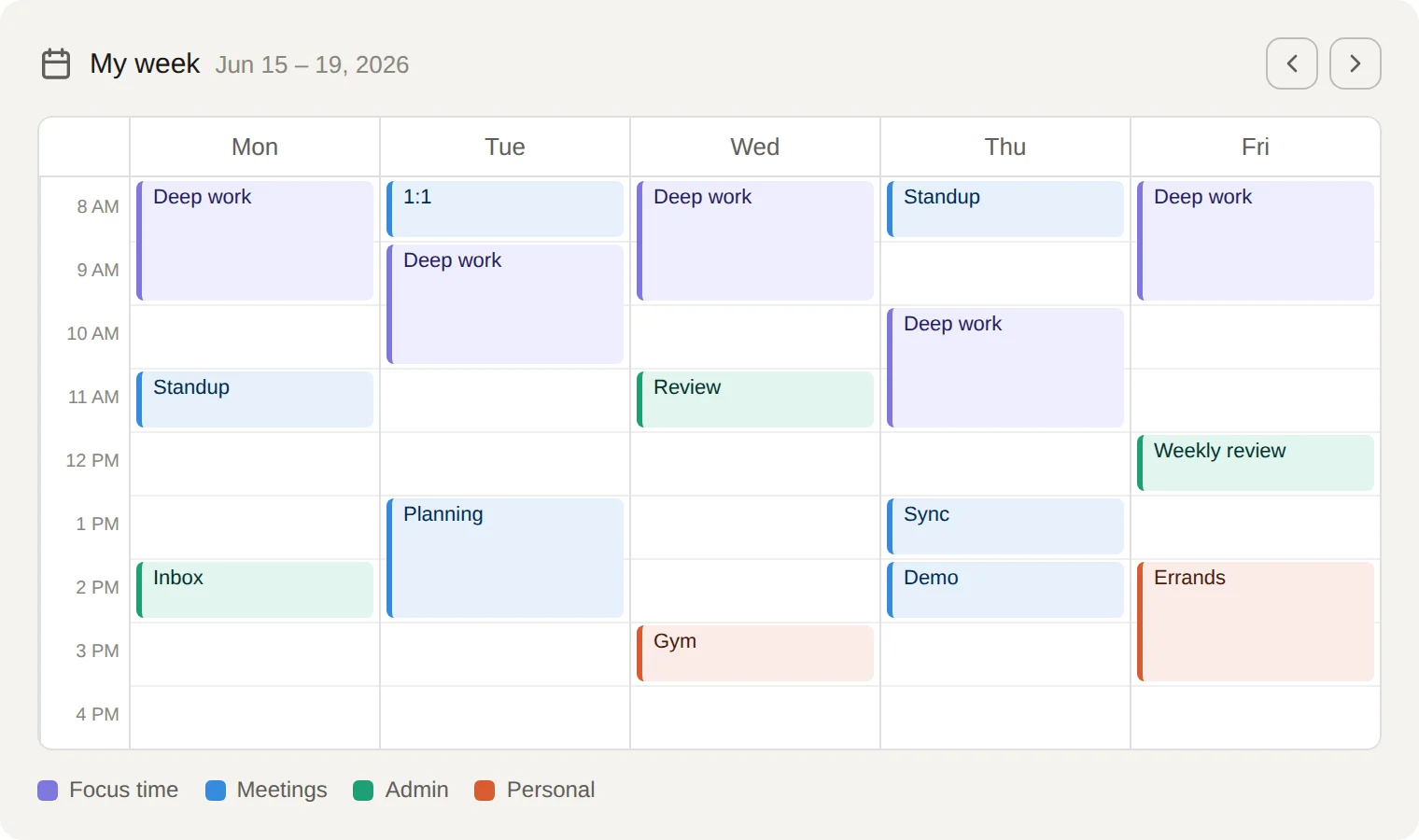
Calendar with color-coded event categories and dedicated focus-time blocks.
Calendar management skills to build
Tools and habits only go so far without the underlying skills to use them. The most effective calendar management rests on a few that are worth developing deliberately:
- Prioritization — deciding what actually deserves a block before the calendar fills up. If everything is important, nothing gets protected.
- Delegation — recognizing which commitments don’t need you specifically, and handing them off so your calendar reflects your real priorities.
- Saying no — declining low-value meetings and requests politely but firmly. Every yes to one thing is a no to your focus time.
- Estimation — judging how long work really takes, so blocks and boxes are realistic rather than aspirational.
Best calendar management tools (including overlaying multiple calendars)
The right tool removes friction from every habit above. Beyond the calendar built into your email client, the most useful additions help you do one of three things: see everything in one place, schedule without back-and-forth, or protect focus time automatically.
The single biggest gap in standard calendars is the inability to overlay multiple calendars cleanly into one readable view — exactly the problem teams hit when work, project, and shared calendars live separately. The Virto Calendar App for Microsoft 365 is built for this: it lets you overlay all your calendars in one view, combining Exchange, SharePoint, Google, and other sources so you finally see your whole schedule on a single screen.
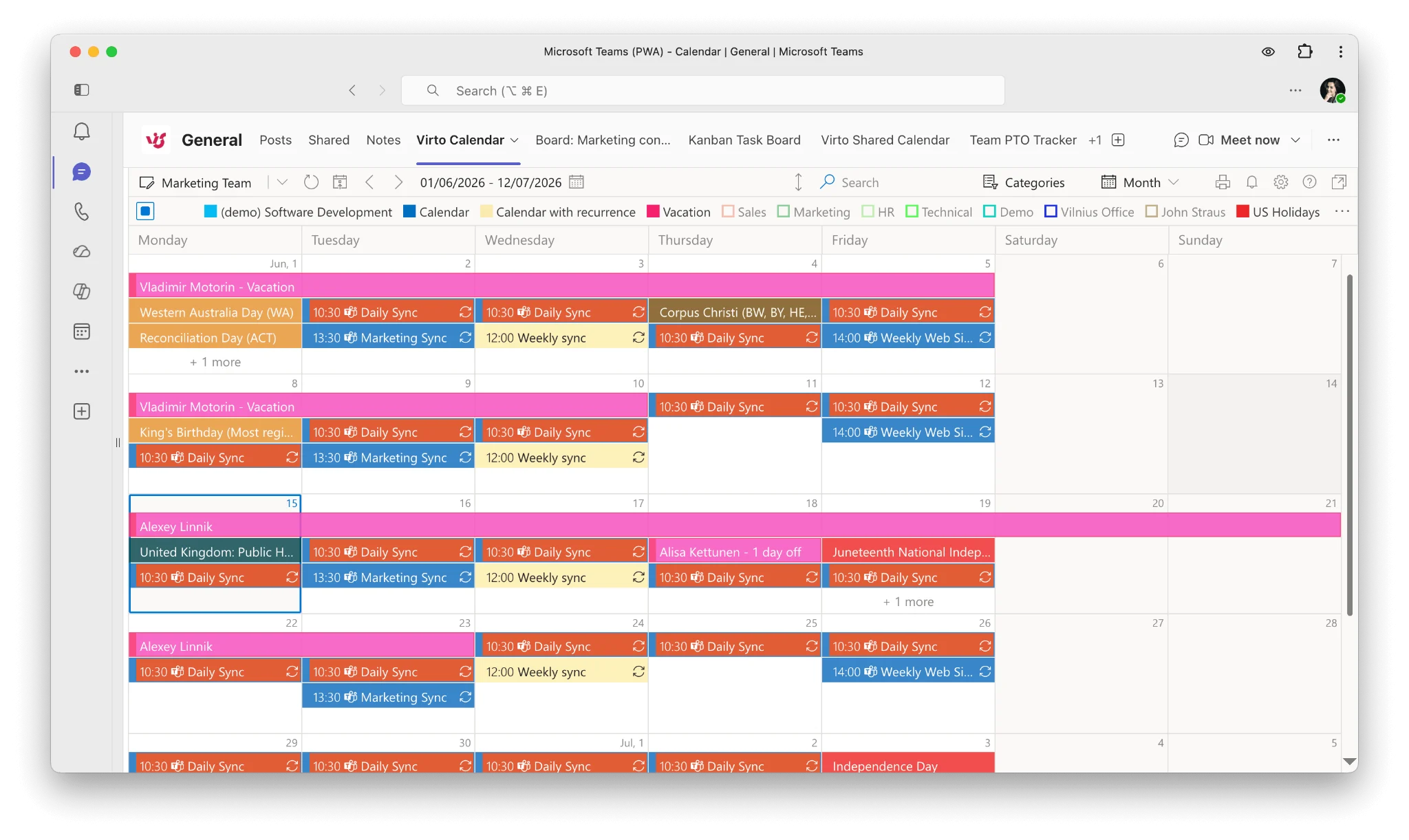
Virto Calendar App for Microsoft 365 overlaying multiple calendars in a single view.
For teams that need a single shared schedule rather than an overlay, the Virto Shared Calendar lets everyone share one team calendar, so availability and team events stay visible to the whole group in one place.
Ready to see every calendar in one view? Try the Virto Calendar App free or book a demo.
FAQ
What is calendar management?
Calendar management is the practice of planning, scheduling, and protecting time on your calendar so that meetings, focused work, and personal commitments fit together without conflict. It turns your calendar into an active tool for directing your attention rather than a passive list of appointments.
What are good calendar management tips?
The most effective tips are time blocking for focused work, time boxing to cap open-ended tasks, color-coding events by category, protecting dedicated focus time, batching meetings, auditing recurring meetings, sharing your availability, and keeping a single source of truth by overlaying all your calendars into one view.
What tools help with calendar management?
Beyond your built-in email calendar, tools that overlay multiple calendars into one view, offer scheduling links, and auto-protect focus time are the most useful. The Virto Calendar App for Microsoft 365, for example, overlays Exchange, SharePoint, Google, and other calendars into a single screen.