Almost every business already has calendars. What most of them do not have is one calendar that everyone can actually see — which is why a Tuesday deadline lives in a SharePoint list, the client call sits in one person’s Outlook, and the only record of who is on holiday is a spreadsheet nobody opens.
This guide compares the shared calendar apps that are genuinely worth considering for business use in 2026, with prices re-verified in August 2026, an honest look at what each one is bad at, and a short section on the two well-known calendar tools that no longer exist.
Quick answer: the best shared calendar apps for business
Microsoft 365 (Outlook Calendar) — best overall if your company already runs on Microsoft.
Google Calendar — best for teams on Google Workspace.
Virto Calendar App — best for overlaying many Microsoft 365, SharePoint and Teams calendars in one colour-coded view.
Teamup — best for sharing a schedule with people outside your organisation.
Zoho Calendar — best free standalone option.
Calendly — best for letting clients book time with you.
Asana or Trello — best when the “calendar” is really a project schedule.
Doodle — best for finding a time across a large group.
Apple Calendar — workable only for very small, all-Apple teams.
There is no single winner. The honest answer to “what is the best shared calendar app for business?” is that it depends on your stack: Microsoft 365 / Outlook for Microsoft shops, Google Calendar for Google Workspace, and add-ons like Virto Calendar to overlay and share multiple calendars in SharePoint and Teams.
Why teams outgrow a personal calendar
A personal calendar answers one question: what am I doing today? A shared calendar has to answer a harder set — who is available, what is due, which room is free, and when the client is expecting something. The moment a second team needs that information, three problems show up:
- Fragmentation. The schedule is spread across Outlook, a Teams channel, a SharePoint list, a room mailbox and a spreadsheet, so no one view is authoritative.
- Permission guesswork. People either see nothing or see everything, because nobody wants to configure per-calendar rights every time someone joins.
- External blindness. Contractors, clients and volunteers cannot see the schedule at all unless someone re-types it into an email.
A shared calendar app is worth paying for at exactly the point where it collapses that sprawl into one grid — without giving everyone edit rights over everything.
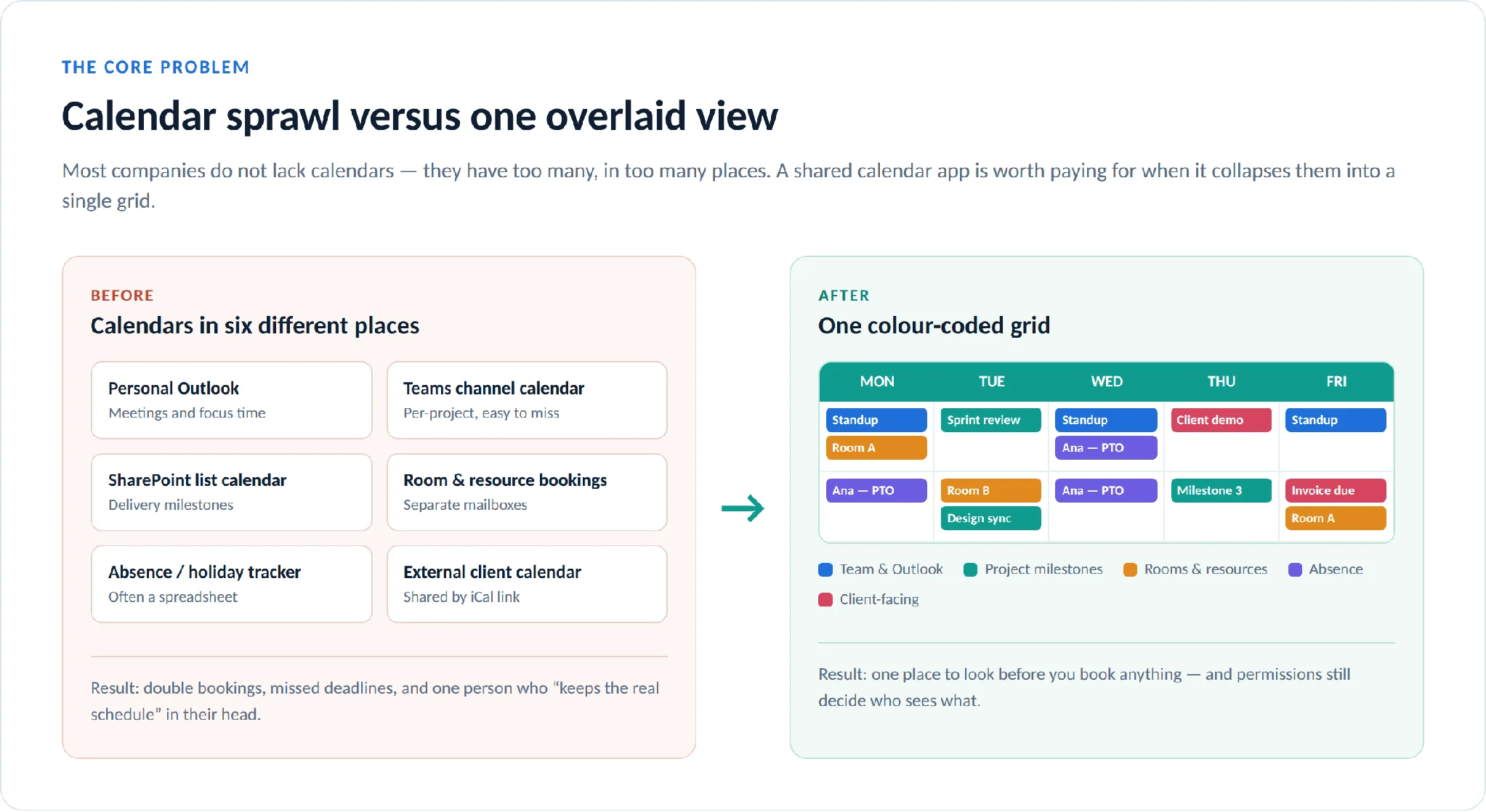
Pic.1. Calendar sprawl versus a single overlaid view.
What to look for in a shared calendar app
Feature lists all look similar on a vendor page. These eight criteria are the ones that actually separate a business shared calendar from a personal calendar with an invite button:
- Real calendar sharing, not just invitations. You should be able to share an entire calendar with a person or a group, not only send individual meeting invites.
- Overlay. Several calendars displayed together in one colour-coded grid, rather than switching tabs to compare them.
- It lives where your team already works — inside Outlook, Teams, SharePoint or your intranet, with a mobile view that is not an afterthought.
- Genuine two-way sync through iCal/CalDAV feeds or native connectors, not a read-only snapshot that quietly goes stale.
- Granular permissions: free/busy only, full details, edit rights and delegate access, set per person or per group.
- Access for outsiders without forcing clients or contractors to create accounts.
- Filtering, tags and colour coding that still work when the calendar holds thousands of events.
- Admin control and audit — central provisioning, permission reporting, data residency, and a security posture you can hand to IT.
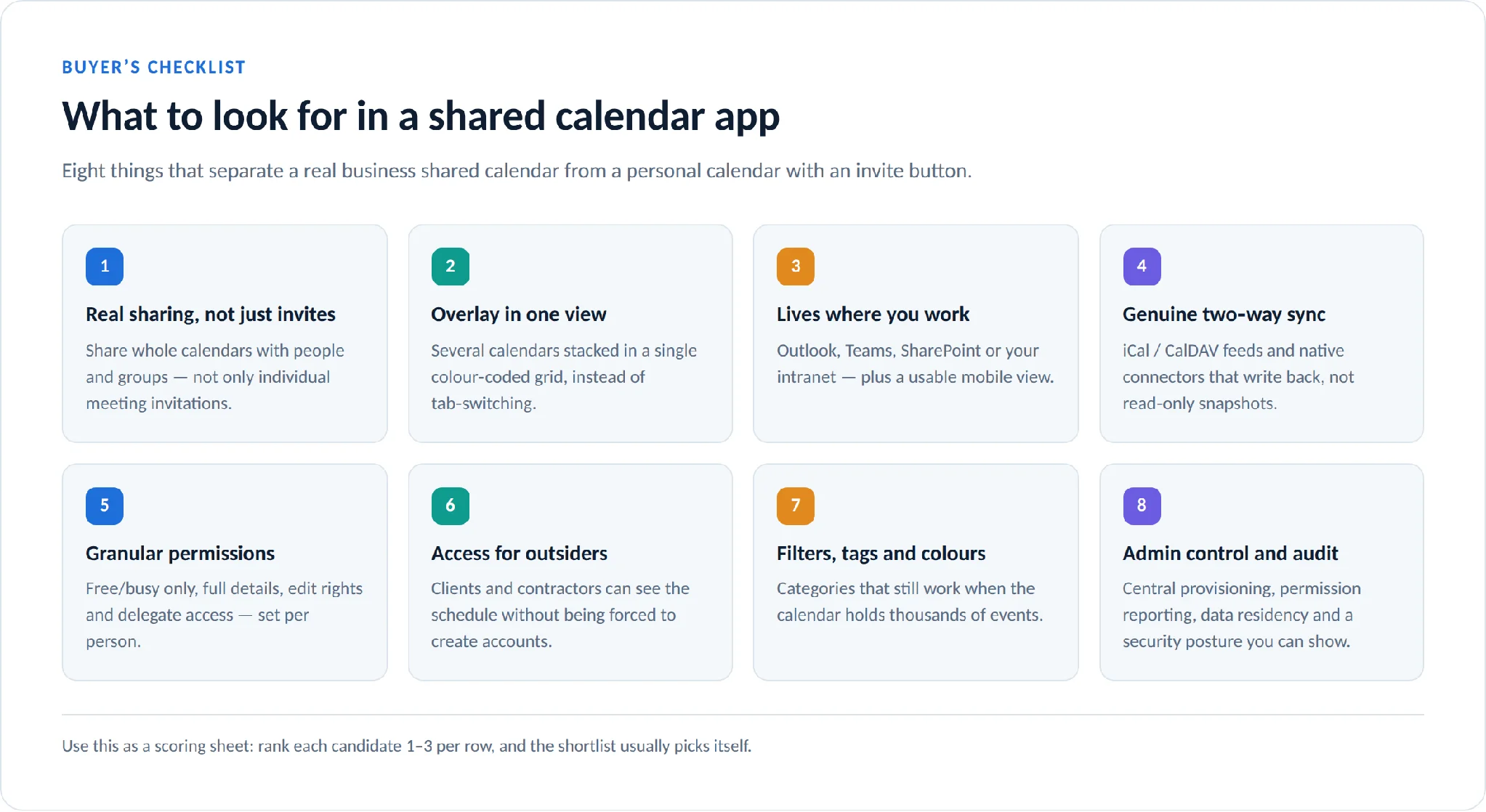
Pic.2. An eight-point checklist for evaluating a shared calendar app.
Comparison: the best shared calendar apps in 2026
Prices below are the cheapest paid tier that gives a team usable shared-calendar functionality, per user per month, billed annually. All figures were re-verified against vendor pricing pages in August 2026 and change often — check before you buy.
| App | Best for | Free tier | Entry price | Watch out for |
|---|---|---|---|---|
| Microsoft 365 (Outlook) | Microsoft-based businesses | No (trial only) | $7 /user/mo (Business Basic) | Overlaying many calendars at once is still clumsy natively |
| Google Calendar | Google Workspace teams | Yes, personal accounts | $7 /user/mo (Business Starter) | Appointment booking pages need Standard ($14) |
| Virto Calendar App | Overlaying M365, SharePoint and Teams calendars | 30-day free trial | Licensed per tenant in user blocks | Microsoft 365 / SharePoint environments only |
| Teamup | Sharing with people outside your company | Yes — 5 sub-calendars, 5 users | From $12 /mo per calendar (not per user) | Not a mailbox — no free/busy against Exchange |
| Zoho Calendar | A free standalone team calendar | Yes | Free; paid only inside Zoho Workplace | Best value if you already use Zoho, thin outside it |
| Calendly | Letting clients book time with you | Yes — 1 event type | $8.30 /user/mo (Standard) | A booking tool, not a team calendar |
| Asana | When the calendar is a project plan | Yes — but only 2 users | $10.99 /user/mo (Starter) | Free tier is unusable as a team calendar |
| Trello | Lightweight visual scheduling | Yes — 10 collaborators | $5 /user/mo (Standard) | Calendar view requires Premium ($10) |
| Doodle | Finding a time across a big group | Yes — 1 poll, 1 booking page | $16 /user/mo (Team, min. 2 seats) | Polls and booking pages, not an ongoing shared calendar |
| Apple Calendar | Very small, all-Apple teams | Yes | Free | Private sharing requires an Apple Account; only two permission levels |
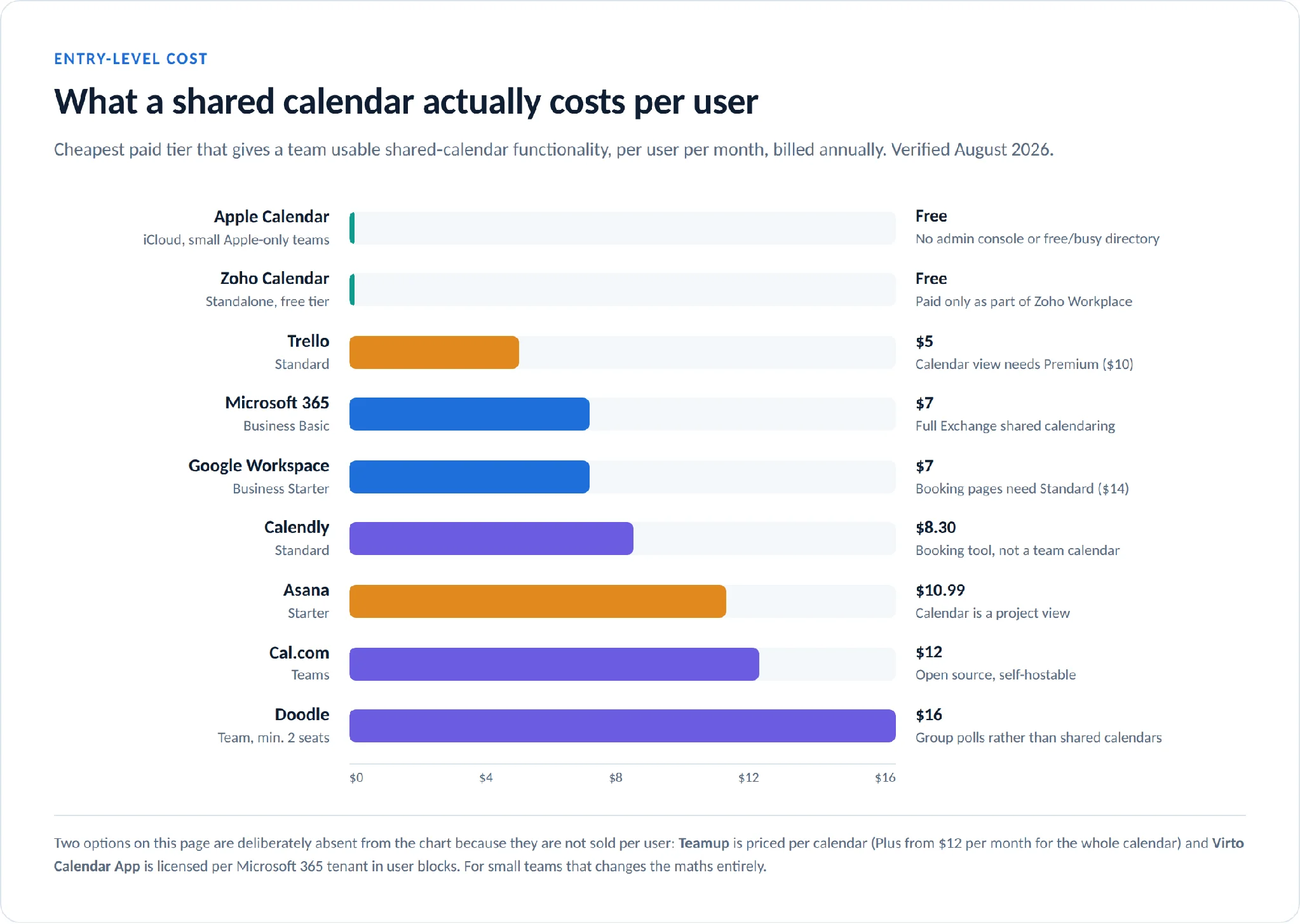
Pic.3. Entry-level cost per user per month, billed annually (August 2026).
The best shared calendar apps, reviewed
1. Microsoft 365 / Outlook Calendar — best overall for Microsoft businesses
If your company already pays for Microsoft 365, you already own a business-grade shared calendar platform and most of the alternatives on this page are solving a problem you have already bought a solution to. Exchange gives you full calendar sharing with delegate access, tenant-wide free/busy lookup, room and resource mailboxes, and — from Business Standard up — Microsoft Bookings appointment pages.
Pricing: Business Basic $7 per user per month billed annually ($8.40 monthly); Business Standard $14 ($16.80 monthly). See the Microsoft 365 business plans.
Where it falls short: the sharing model is excellent and the viewing model is not. Displaying half a dozen calendars side by side, filtering them by category, or surfacing a SharePoint list of milestones next to your meetings is still awkward with the native tools — which is the gap third-party overlay apps exist to fill.
Start here: how to share your calendar in Outlook.
2. Google Calendar — best for Google Workspace teams
Google Calendar remains the cleanest shared calendar most people will ever use. Sharing is granular (see only free/busy, see all details, make changes, manage sharing), org-wide free/busy works out of the box, and browse-and-reserve room booking is included on every business tier.
Pricing: Business Starter $7 per user per month on an annual commitment ($8.40 flexible); Business Standard $14; Business Plus $22. See Google Workspace pricing.
Where it falls short: appointment booking pages are Standard and above only, so the Starter tier does not cover client self-booking. Storage is also thin at Starter (30 GB pooled per user).
3. Virto Calendar App — best for overlaying Microsoft 365 calendars
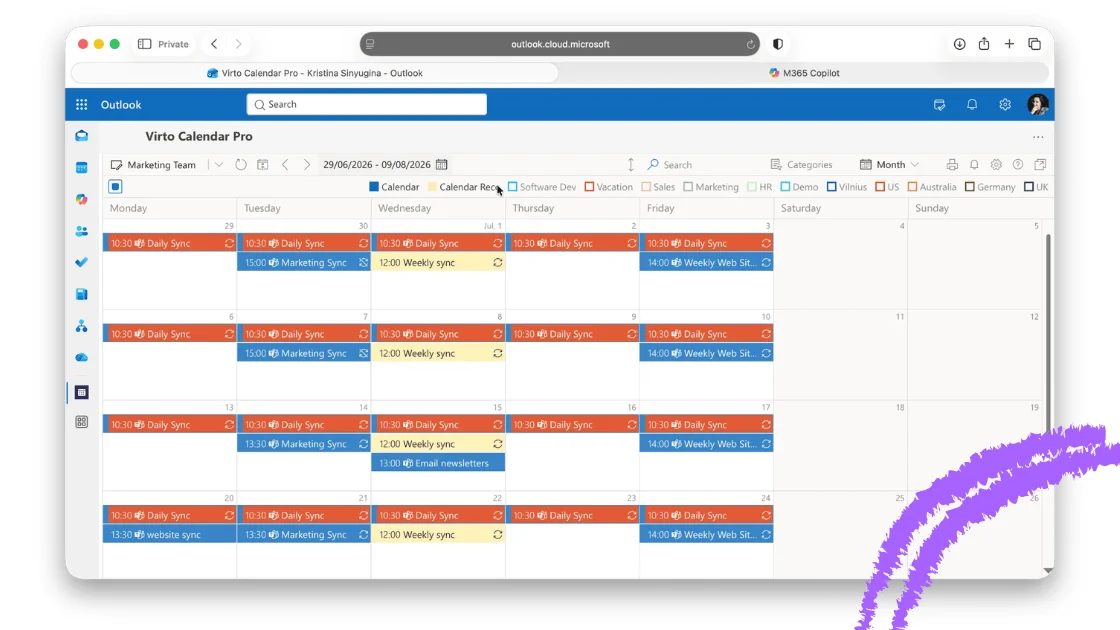
Virto Calendar App is the answer to the specific complaint above: it takes Microsoft 365, Outlook/Exchange, SharePoint, Teams, Google and iCloud calendars, plus SharePoint lists and public iCal feeds, and renders them as one colour-coded overlay inside SharePoint, Teams or Outlook — with permissions inherited from Microsoft 365 rather than reinvented.
Since July 2026 it is also available as a personal app: install Virto Calendar Pro from the Microsoft store and pin it to the app bar in Microsoft Teams, Outlook or the Microsoft 365 app, so the team calendar opens in one click without navigating to a SharePoint site first.
It is covered in detail further down, since it is the closest thing on this list to a purpose-built shared calendar layer for a Microsoft tenant.
4. Teamup — best for sharing outside your organisation
Teamup is the outlier on this list, and the one most often overlooked. It is built around a master calendar with colour-coded sub-calendars, and its real differentiator is access control: nine distinct permission levels attached to shareable links, so a client, a contractor or a volunteer can open the schedule with no account and no login at all.
Pricing: free for 5 sub-calendars and 5 users; Plus $12 per month billed annually, Pro $30, Business $70 — priced per calendar, not per user, which makes it dramatically cheaper than per-seat tools for a large group of occasional viewers. See Teamup pricing.
Where it falls short: it is not a mailbox. There is no free/busy lookup against Exchange, no delegate access to someone’s personal calendar, and it will not replace Outlook for your internal staff.
5. Zoho Calendar — best free standalone option
Zoho Calendar is free as a standalone product and covers more ground than that suggests: group calendars, colleague calendar sharing with availability checks, resource booking and appointment pages. There is no separate paid Calendar SKU — it is bundled into Zoho Workplace if you want mail and the rest of the suite alongside it.
Where it falls short: it works best as part of the Zoho ecosystem. If your identity, mail and files live in Microsoft or Google, bolting Zoho Calendar on adds an account nobody wants to maintain.
6. Calendly — best for external booking
Worth being precise about what Calendly is: it is a scheduling tool, not a shared calendar. It reads your availability and lets other people book time in it. For sales calls, interviews and customer onboarding it is excellent; for “where is the whole team this week” it does nothing.
Pricing: free for one event type; Standard $8.30 per seat per month billed annually ($10 monthly); Teams $12.80 annually ($16 monthly), which adds round-robin and collective scheduling. See Calendly pricing.
7. Asana — best when the calendar is a project plan
If what your team wants to see is deadlines and workload rather than meetings, a calendar app is the wrong shelf. Asana’s calendar view sits over tasks and projects, so the calendar stays correct automatically when a due date moves.
Pricing: the free Personal tier is capped at 2 users, which rules it out for team use; Starter is $10.99 per user per month billed annually, Advanced $24.99. See Asana pricing.
8. Trello — best lightweight visual option
Trello is the least intimidating tool on this list, and for a small team running an editorial schedule or a simple rota it is often enough. The catch is a licensing one: calendar view is a Premium and Enterprise feature, so the $5 Standard tier will not give it to you.
Pricing: free for up to 10 collaborators per Workspace; Standard $5, Premium $10, Enterprise $17.50, all per user per month billed annually. See Trello pricing.
9. Doodle — best for finding a time across a large group
Doodle’s group polls still do one thing better than anything else here: converge twenty people with no shared calendar system on a single time slot. It also offers booking pages and sign-up sheets.
Pricing: free tier with one poll and one booking page (ad-supported); Pro $132 per year for a single licence; Team $16 per user per month billed annually, minimum two seats.
10. Apple Calendar — only for very small, all-Apple teams
Apple Calendar is free and pleasant, and it is not a business calendar platform. Private sharing requires every invitee to have an Apple Account on iCloud, and offers exactly two permission levels: “Allow editing” or “Read-Only”. Public sharing works for anyone but is read-only and link-based. There is no admin console, no organisational free/busy directory and no room booking.
Two calendar apps that no longer exist
Roundups of this topic still routinely recommend tools that have been switched off. Two to strike from any shortlist:
- Woven Calendar shut down permanently on 28 May 2021; servers were decommissioned and user data deleted. Any 2026 article recommending it has not been checked.
- Clockwise — far more recent — stopped being available on 27 March 2026, with the team joining Salesforce. Focus Time, Travel Time and Scheduling Links all stopped working. Clockwise pointed customers at Reclaim.ai (now owned by Dropbox) for migration.
Also worth knowing, if you are shortlisting adjacent tools: Notion Calendar is free and useful for Notion-centric teams, and Cal.com is a credible open-source, self-hostable Calendly alternative from $12 per user per month.
Shared calendars in Microsoft 365: Outlook, Teams and SharePoint
Because most business shared-calendar questions turn out to be Microsoft 365 questions, it is worth being clear about what the platform already gives you — and where the joins show.
Outlook shared calendars
The default option: share your own calendar, or a shared mailbox calendar, with named people at a chosen permission level. Full walkthrough: how to share your calendar in Outlook and how to create an Office 365 shared calendar.
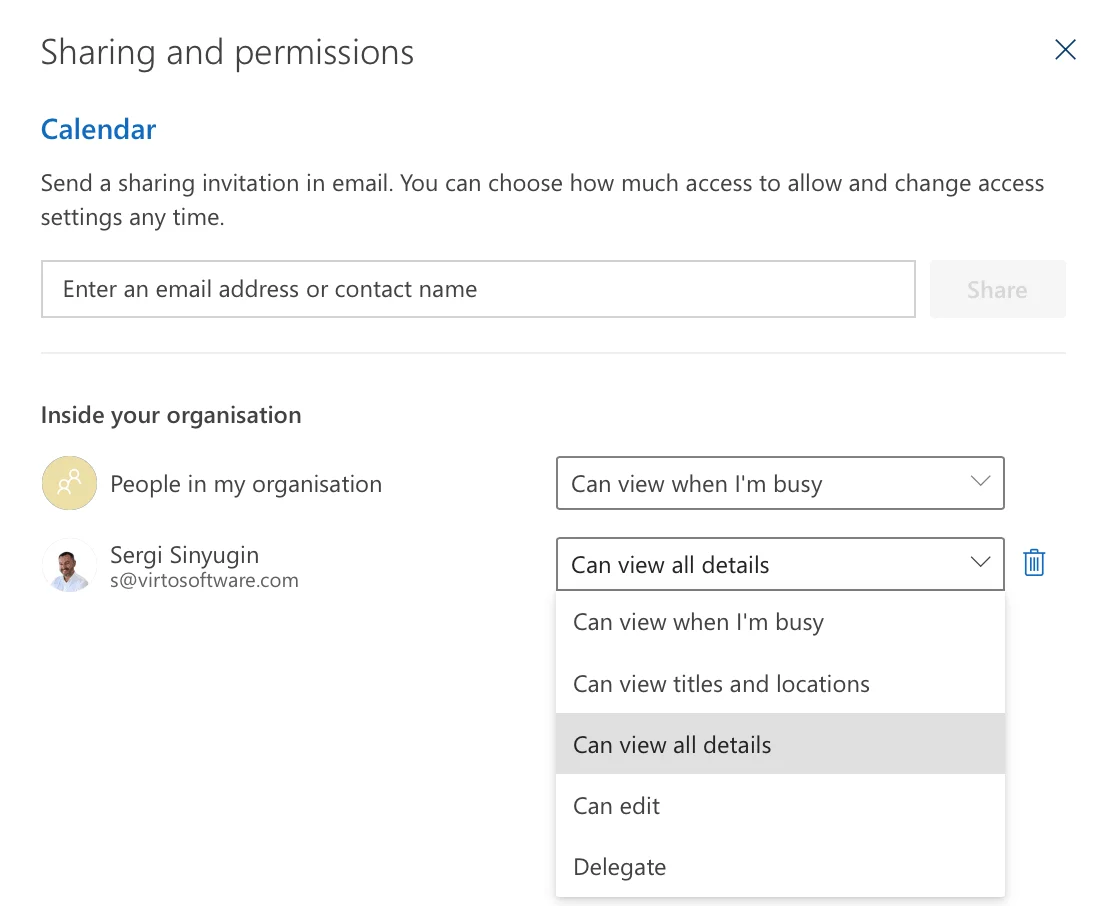
Pic.4. Sharing permissions in the Outlook calendar sharing dialog
Microsoft 365 group calendars
Every Microsoft 365 group gets a calendar automatically, which is the fastest way to give a department a shared schedule with no configuration at all. See the Microsoft 365 group calendar guide.
Teams channel calendars
A Channel calendar tab keeps meetings tied to the channel where the work happens — useful, but scoped to that one channel, so a person in six channels has six calendars to check. See how to create and manage a shared calendar in Microsoft Teams.
SharePoint calendars
SharePoint still hosts a great deal of scheduling data — usually as list data with dates rather than a true calendar. The classic overlay UI is effectively absent from modern tenants, which is why this is the most common place teams reach for an add-on. See SharePoint calendar: how to create and add one and the best shared calendars for SharePoint Online.
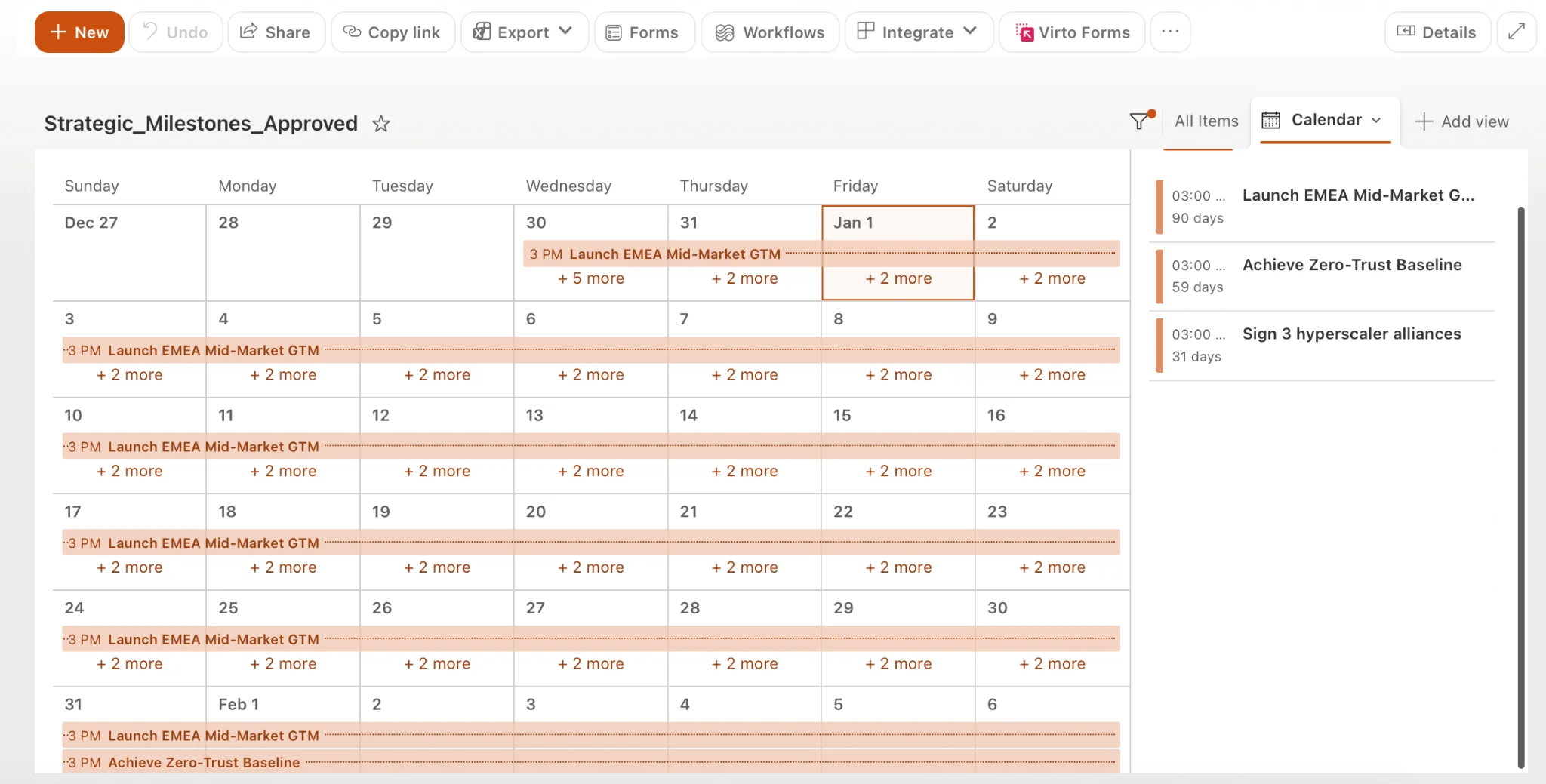
Pic.5. A SharePoint list of project milestones displayed in calendar view
If you are already juggling several of these, the practical starting point is managing multiple Microsoft 365 calendars.
How Virto Calendar shares calendars across Microsoft 365
Virto Calendar App exists for the gap described above: Microsoft 365 shares calendars well but displays several of them together badly. It adds a single overlay view on top of the calendars you already have, without moving any data out of your tenant.
What it connects. Microsoft 365 and Exchange Online calendars, SharePoint lists and libraries with date columns, Microsoft Teams calendars, Google Calendar, iCloud, and public iCal/ICS feeds — all rendered in one grid.
Where it appears. As a web part on a SharePoint Online page, as a tab in a Microsoft Teams channel, or — since July 2026 — as a pinned personal app in Teams, Outlook and the Microsoft 365 app, so nobody has to learn a new place to look.
- Colour-coded overlay — each source keeps its own colour, and users can switch sources on and off.
- Categories, tags and filters that hold up on calendars with thousands of events.
- Microsoft 365 permissions, inherited rather than reinvented — people see what they already have rights to see.
- Multiple views — day, week, month, year, timeline and resource views for rooms and equipment.
- Enterprise-scale sync designed to stay inside Microsoft Graph API limits rather than hammering them.
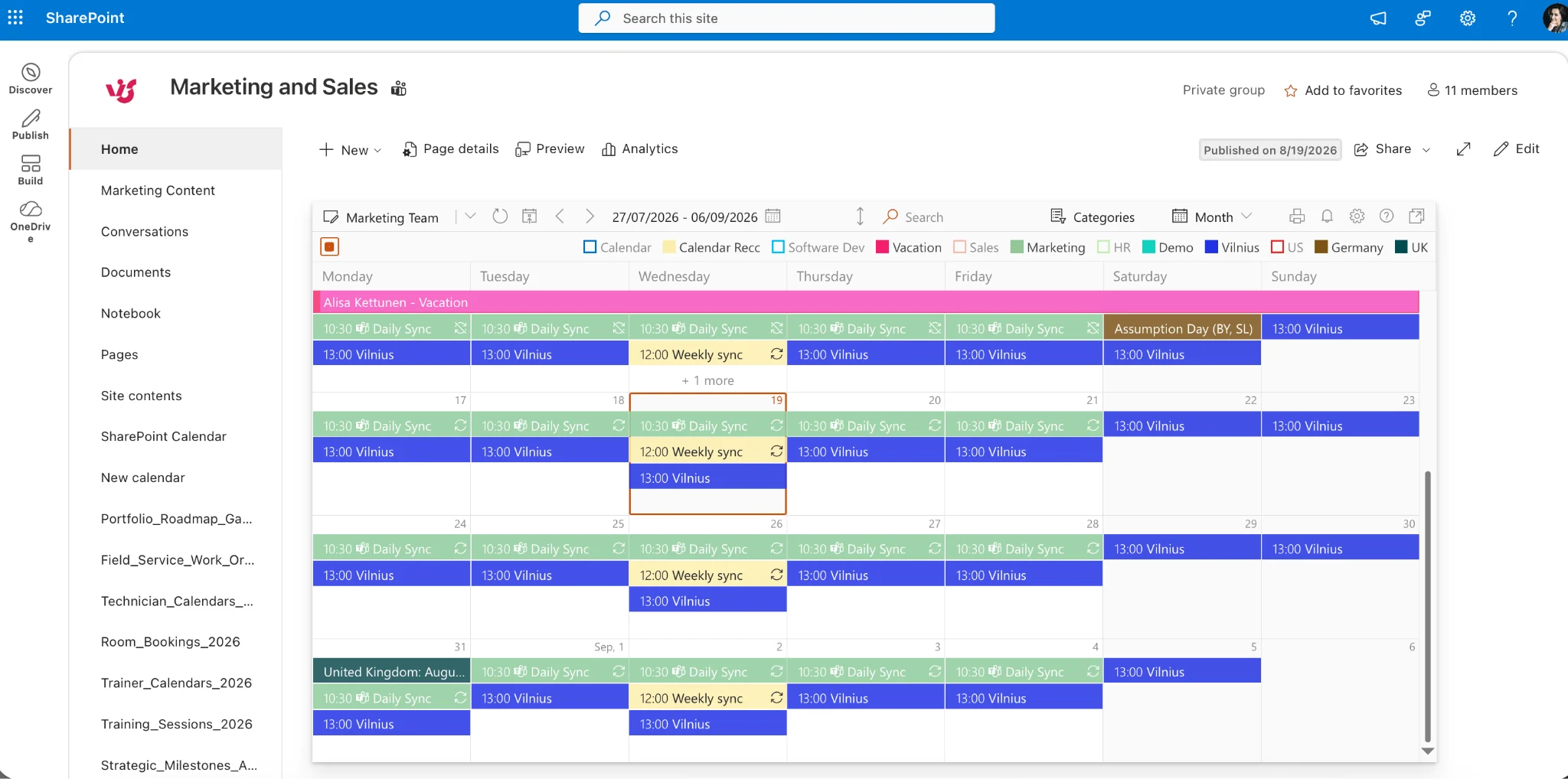
Pic.6. Several Microsoft 365 and SharePoint calendars overlaid in one colour-coded Virto Calendar view
Adding Virto Calendar as a pinned app in Teams, Outlook and Microsoft 365
The personal-app release removed the biggest friction point in day-to-day use: people no longer have to remember which SharePoint site the calendar lives on. The app is listed in the Microsoft store as Virto Calendar Pro, and it opens straight onto the calendar rather than a setup screen.
- Microsoft Teams — go to Apps, find Virto Calendar Pro, then right-click it in the app bar and choose Pin. It can still be added as a channel tab as well.
- Outlook on the web and the Microsoft 365 app — open Apps in the sidebar and add it there.
- Outlook for Windows (desktop) — use More apps in the sidebar.
- Rollout by admins — in the Teams admin center, open Manage apps, select Virto Calendar Pro and assign it to users or groups on the Users and groups tab. After that people can add it themselves, no ticket required.
Two things to know before you announce it internally: each host keeps its own app bar, so pinning is not synchronised between Teams, Outlook and the Microsoft 365 app and has to be done once in each. And mobile support currently covers Teams only — Outlook and the Microsoft 365 app on mobile are not supported yet.
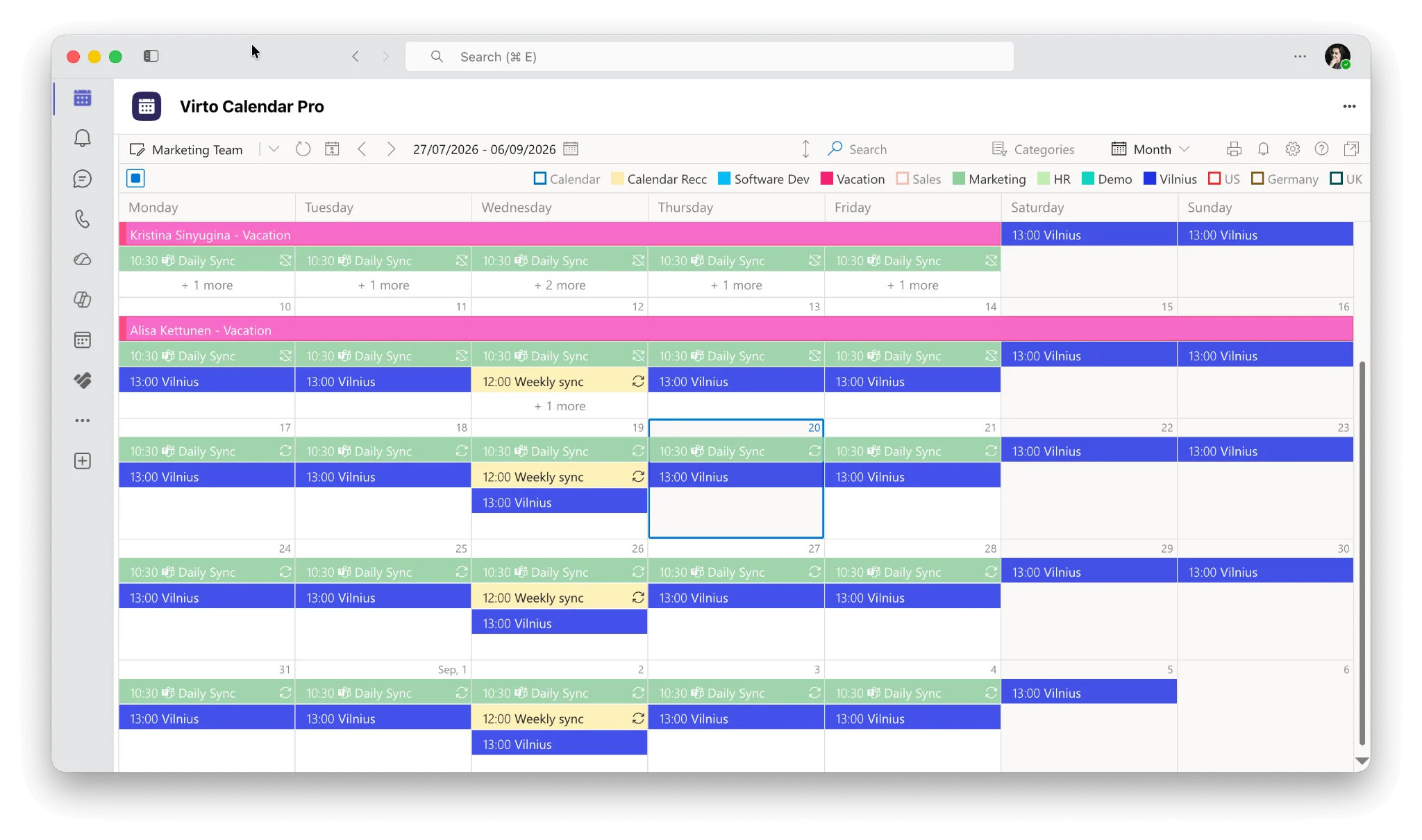
Pic.7. Virto Calendar pinned in the Microsoft Teams app bar
Trial and pricing. Virto Calendar App comes with a full-featured 30-day free trial — no credit card, and every feature enabled. Licensing is per Microsoft 365 tenant in user blocks rather than per seat, with Enterprise terms on request; current figures are on the Virto Calendar App page. Security and compliance documentation lives in the Trust & Security Center.
If your requirement is narrower — one shared team calendar living inside a Teams channel rather than a full overlay — the lighter Virto Shared Calendar for Microsoft Teams covers that case, and the Virto Calendar App for Microsoft Teams is the Teams-first version of the overlay.
So which shared calendar app should you choose?
Start from the stack your team already lives in. That one answer eliminates most of the market before you compare a single feature:
- On Microsoft 365? Use what you own. If one calendar is enough, an Outlook shared calendar or a Microsoft 365 group calendar costs nothing extra. If you need several visible at once, add an overlay app.
- On Google Workspace? Google Calendar is already the right answer. Add Calendly or Cal.com only if outsiders need to book you directly.
- Lots of external people, mixed tools? Teamup, because per-calendar pricing and no-login access are the two things per-seat tools cannot match.
- Really tracking deadlines, not meetings? Asana or Trello, and skip the calendar category entirely.
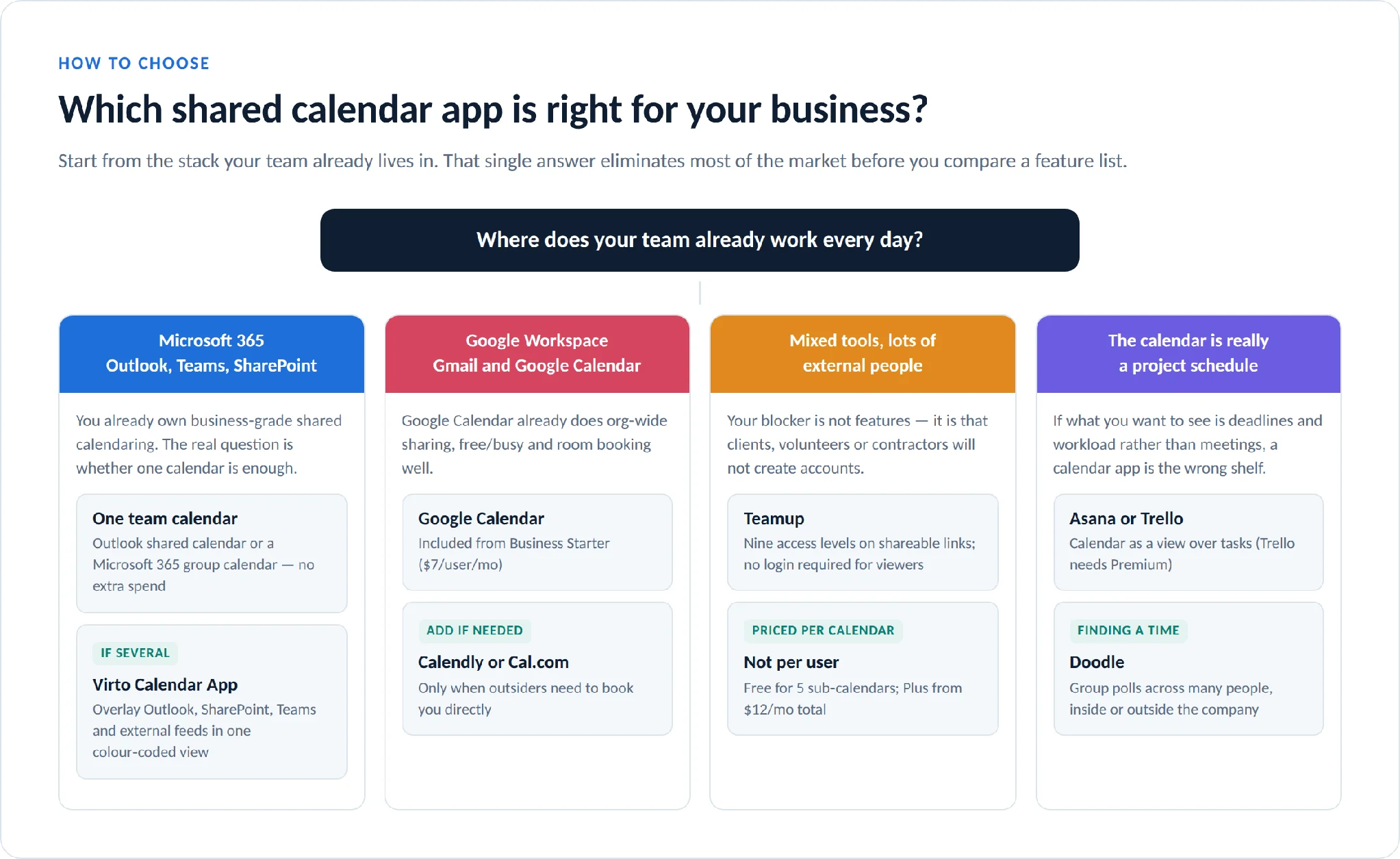
Pic.8. Choosing a shared calendar app by the stack your team already uses.
Making a shared calendar actually get used
The tool matters less than the conventions around it. Four that consistently survive contact with a real team:
- Agree a colour scheme before you invite anyone. Retrofitting colours to a calendar with 800 events is nobody’s favourite afternoon — see calendar colour coding: best colours and how to.
- Name events for the reader, not the author. “Q3 budget review — Finance — Room B” beats “Review”.
- Default to view-only. Give edit rights to the people who own the schedule and free/busy to everyone else; it is far easier to grant access later than to reconstruct a calendar someone overwrote.
- Put absences on the shared calendar, not in chat. Holiday and out-of-office data is the single highest-value thing a shared calendar can show — see the vacation calendar guide for Outlook and Teams and calendar category ideas.
FAQ
What is the best shared calendar app for business?
It depends on your stack. For companies on Microsoft 365, Outlook Calendar plus an overlay app such as Virto Calendar is the strongest combination. For Google Workspace teams, Google Calendar already covers it. For sharing with people outside your organisation, Teamup is the best fit because viewers do not need accounts.
What is the best free shared calendar app?
Google Calendar with a personal account and Zoho Calendar are the two strongest genuinely free options. Teamup’s free tier (5 sub-calendars, 5 users) is the best free choice when you need to share with outsiders. Be careful with “free” claims elsewhere: Asana’s free tier caps at 2 users and Trello’s free tier has no calendar view.
What is the best shared calendar for a team already in Microsoft 365?
Start with a Microsoft 365 group calendar or an Outlook shared calendar — both are included in your licence. Add a third-party overlay app only when you need several calendars, SharePoint list data and external feeds visible in one colour-coded view, which the native tools do not do well.
Can I share a calendar with someone outside my company?
Yes, but how well depends on the tool. Outlook and Google Calendar can share with external addresses, usually with reduced detail. Teamup is built for it — shareable links with nine permission levels and no account required. Apple Calendar’s public sharing is read-only.
How much does a shared calendar app cost?
Entry-level business tiers cluster around $5–$12 per user per month billed annually: Microsoft 365 Business Basic and Google Workspace Business Starter are both $7. Some tools are not priced per user at all — Teamup charges per calendar from $12 per month, and Virto Calendar App is licensed per Microsoft 365 tenant in user blocks.
What is the difference between a shared calendar and a scheduling app?
A shared calendar shows a group what is happening and when. A scheduling app (Calendly, Doodle, Cal.com) helps other people book time in someone’s calendar. They solve different problems and many teams end up with both.
Is there a free trial for Virto Calendar App?
Yes — a full-featured 30-day free trial with every feature enabled and no credit card required.
Do shared calendar apps sync both ways?
Not always, and it is the most common disappointment. Native connectors (Exchange, Google, Microsoft Graph) generally write back; subscribed iCal/ICS feeds are usually read-only and refresh on a delay ranging from minutes to hours. Confirm the direction and the refresh interval before you commit.
Conclusion
The best shared calendar app for your business is almost always the one that sits closest to where your team already works. If that is Microsoft 365, you have already bought the platform — the remaining question is whether you need a better way to see several calendars at once. If it is Google Workspace, you are already done. If the people who most need to see the schedule do not work for you, per-seat pricing is the wrong shape and Teamup is worth a serious look.
Whatever you choose, decide the colour scheme and the permission defaults before you invite anyone. That, more than the feature list, is what determines whether the calendar is still accurate in six months.
If your calendars live in Microsoft 365, SharePoint or Teams and you want to see them all in one place, you can try Virto Calendar App free for 30 days — all features included, no credit card required.