


Quick answer: what is an availability calendar for a group? An availability calendar for a group is a view that shows every member’s free and busy time together, so you can find a slot that suits everyone and book it. In Microsoft 365 you get one in three ways: the Scheduler view in Outlook or Teams (the former Scheduling Assistant) for a single meeting, a Microsoft 365 group calendar or shared calendars opened side by side for a standing view, or a calendar overlay app such as Virto Calendar App when the group’s time lives in more than one place.
Finding an hour that five people can all make should take a minute, and in most teams it takes a day of messages. The fix is not another calendar. It is a way to see the calendars people already keep, together, as free and busy blocks, and to book straight from that view. That is what an availability calendar for a group is, and Microsoft 365 already contains most of the pieces.
This guide is about the group angle: seeing several people’s availability at once, finding the common gap and booking it, in Outlook, in Teams and, when the native tools run out, with a calendar overlay. It does not repeat the general setup, scenarios and templates, which live in our availability calendar guide, and it does not cover the group calendar as a container for shared events, which has its own Microsoft 365 group calendar guide.
What is an availability calendar for a group?
An availability calendar for a group shows all group members’ free/busy times together so you can find and book a slot that suits everyone. It is not a list of events. Each person’s calendar stays private; what the group view reads from it is only whether a given half hour is free, busy, tentative or out of office. Put five of those rows under one time axis and the common free column is visible without anyone being asked.
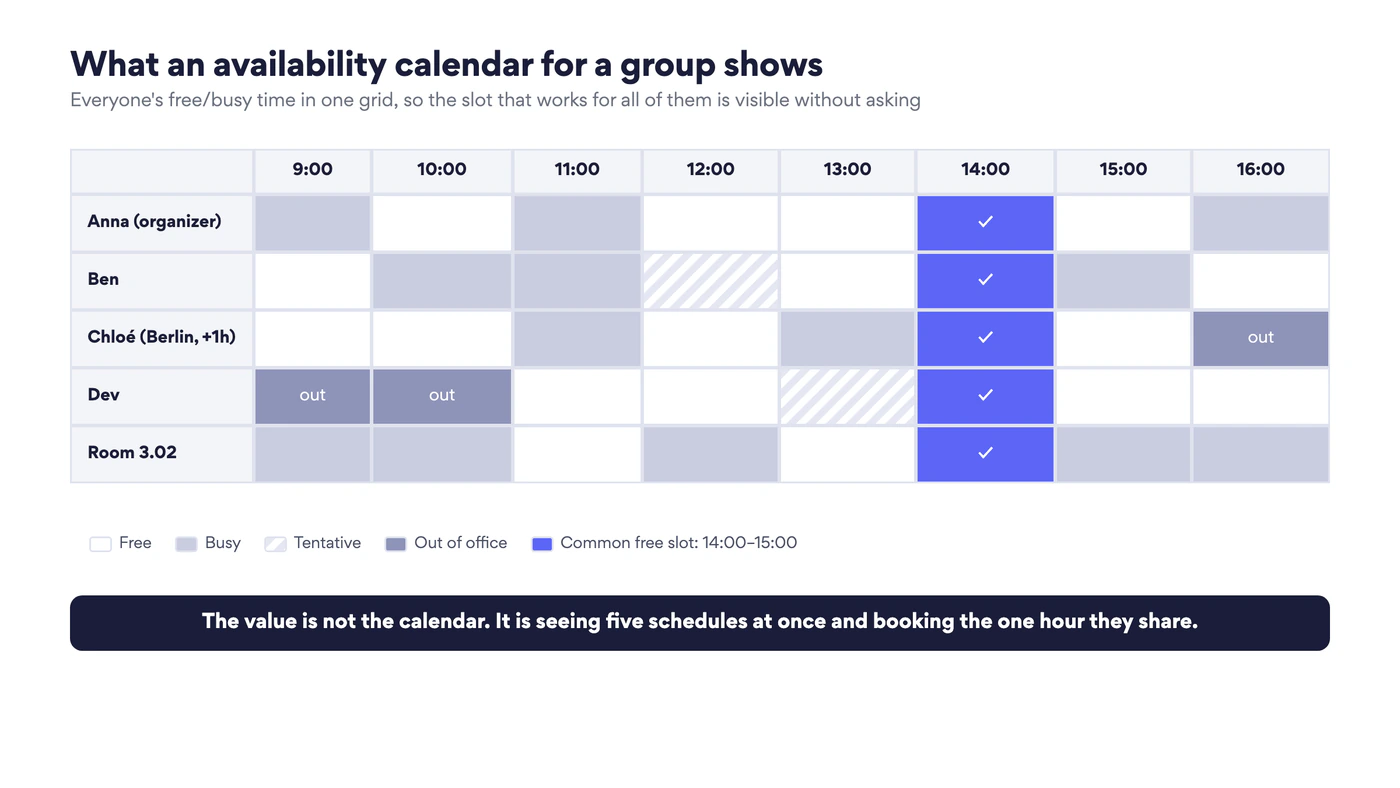
Fig. 1. What an availability calendar for a group shows: five schedules on one axis and the slot they share
Three things distinguish it from the calendars it is built on:
- It is a view, not a calendar. Nobody maintains it. It is computed from the members’ own calendars every time someone opens it, so it is as current as the last accepted invite.
- It shows status, not content. The default level of sharing inside a Microsoft 365 organization is “can view when I’m busy”, and that is all a group availability view needs. Titles, locations and notes are extra and optional.
- It includes things that are not people. A meeting room, a pool car, a shared laptop or a training lab has a mailbox in Exchange like a colleague does, and its free/busy row sits in the same grid.
A Microsoft 365 group calendar is a different object: a calendar owned by the group where members post shared events. It tells you what the team has planned together, not when each member is free. The two are complementary, and the second section of this guide shows how to use the group’s membership to feed the availability view.
Two settings every member sets once
The accuracy of a group availability calendar is decided before anyone opens it. Two per-person settings feed every view described later, and both take about a minute.
Free/busy sharing
In Microsoft 365, each person’s primary calendar is shared with “My organization” at the level “Can view when I’m busy” by default. That default is what the Scheduler grid in Outlook and Teams reads, so for most teams there is nothing to switch on. What you can change is how much more the group sees.
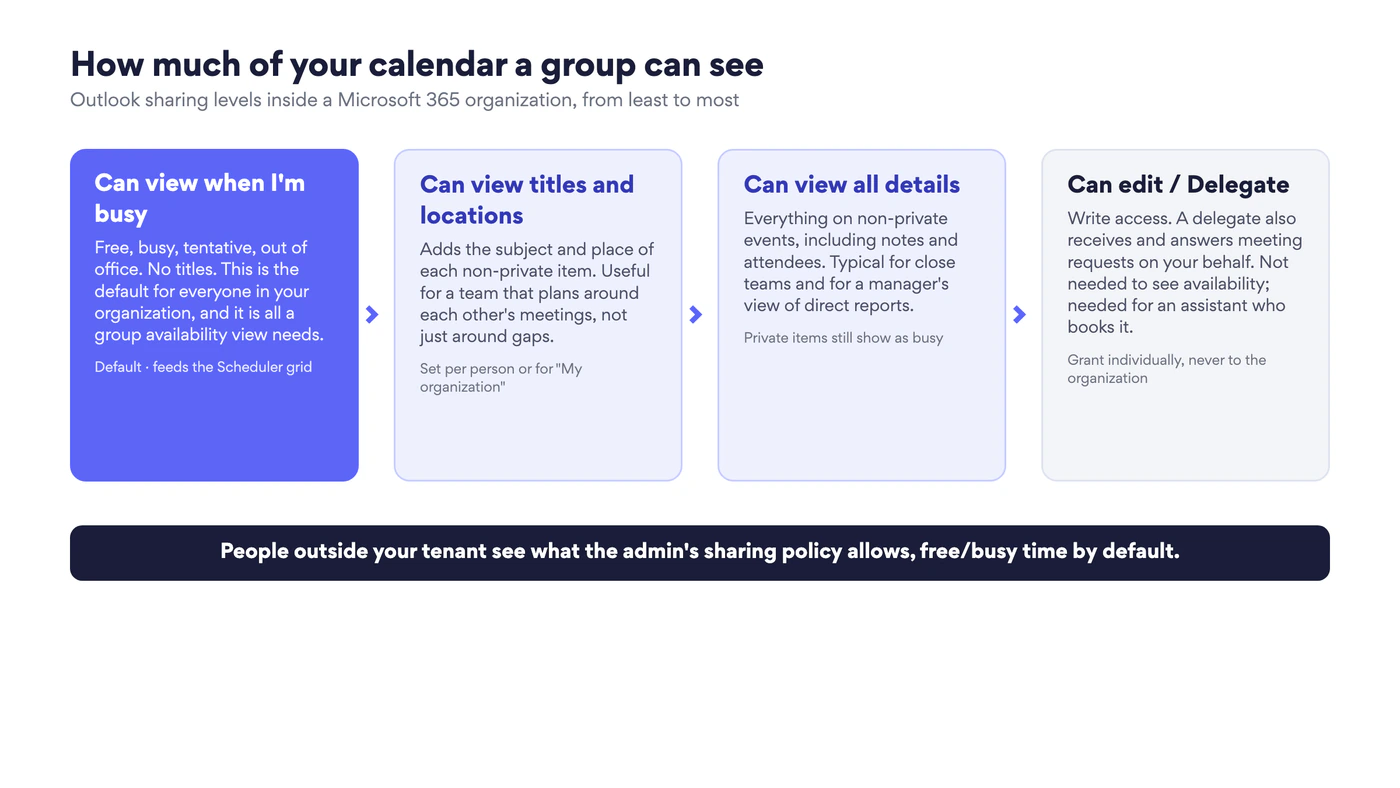
Fig. 2. Outlook sharing levels inside an organization. The first one is the default and is all a group availability view needs
To check or change your level in new Outlook or Outlook on the web, open the calendar, point at your calendar in the left pane, choose the three dots and then Sharing and permissions. The entry for My organization is the one that feeds the group; entries for named people override it for those people. The same dialog is where you share with a colleague at “Can view titles and locations” or “Can view all details” when the team plans around each other’s meetings rather than just around gaps. Microsoft’s share an Outlook calendar as view-only page has the steps for classic Outlook and Mac as well; our how to share a calendar in Outlook guide walks through every client.
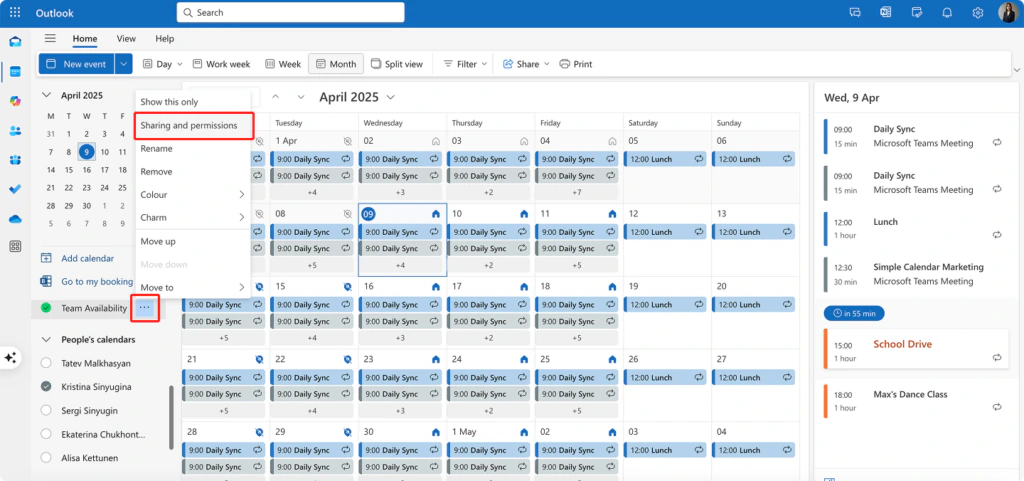
Pic. 1. Sharing and permissions in the calendar’s menu in Outlook on the web
Two habits keep the shared status honest. Mark focus time and deep work as Busy, or the group will book over it. Mark leave and travel as Out of office, not just as an all-day note, or the day will show as free. People outside your tenant see whatever your administrator’s sharing policy allows, which by default is free/busy time only; that is covered in the booking section below.
Work hours and location
Outlook only suggests times inside working hours, and a colleague in another time zone is only shown as available when their working hours say so. In new Outlook and Outlook on the web, open Settings, then Calendar, then Work hours and location, and set working days, hours, time zone and, per day, whether you are in the office or remote. The plan syncs to Teams, and if your organization has set up buildings in Microsoft Places you can name the building too. Microsoft’s set your work hours and location in Outlook page covers each client.
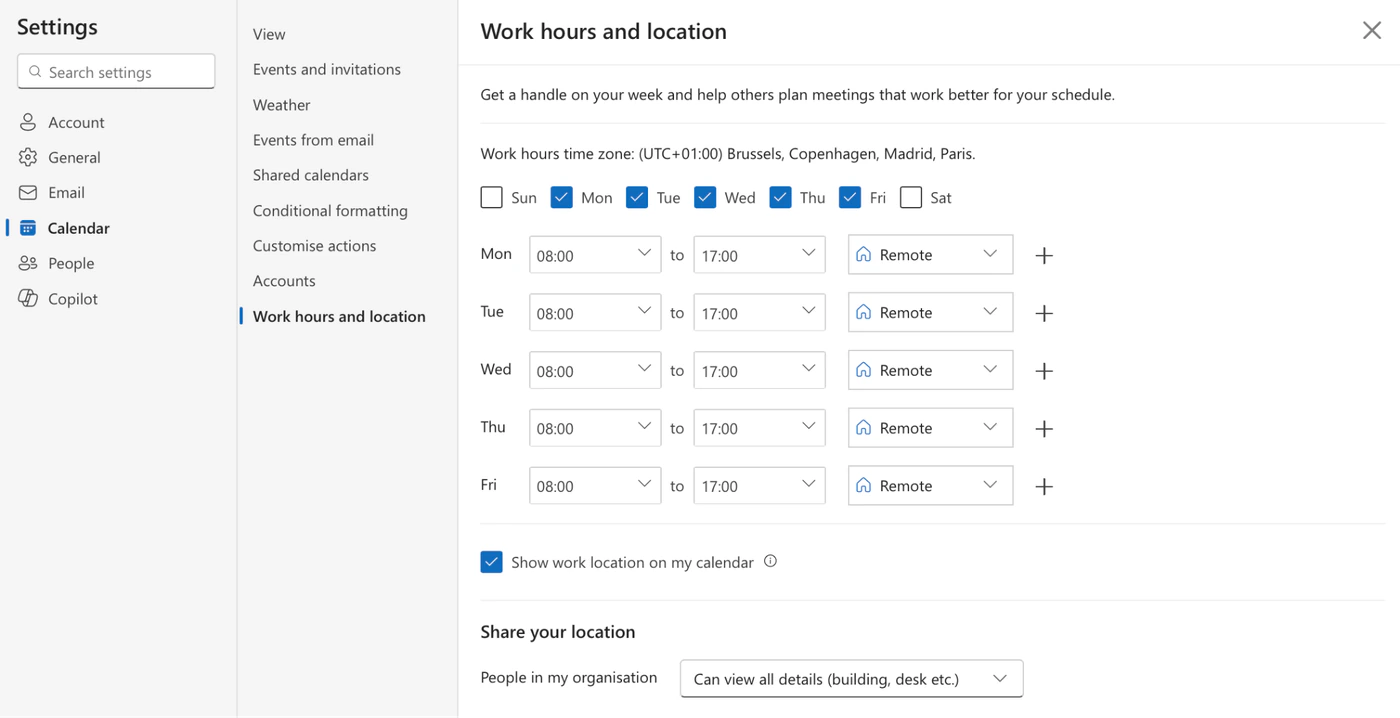
Pic. 2. Work hours and location in Outlook. Everything that suggests a time reads from this
For a hybrid team this setting is the availability calendar’s second layer: the grid shows who is free at 14:00, and the location shows whether “free” means free to meet in the room or free to join from home.
How to see group availability in Microsoft 365
Microsoft 365 gives you three different views of a group’s availability, and they answer different questions. Most teams end up using two of them.
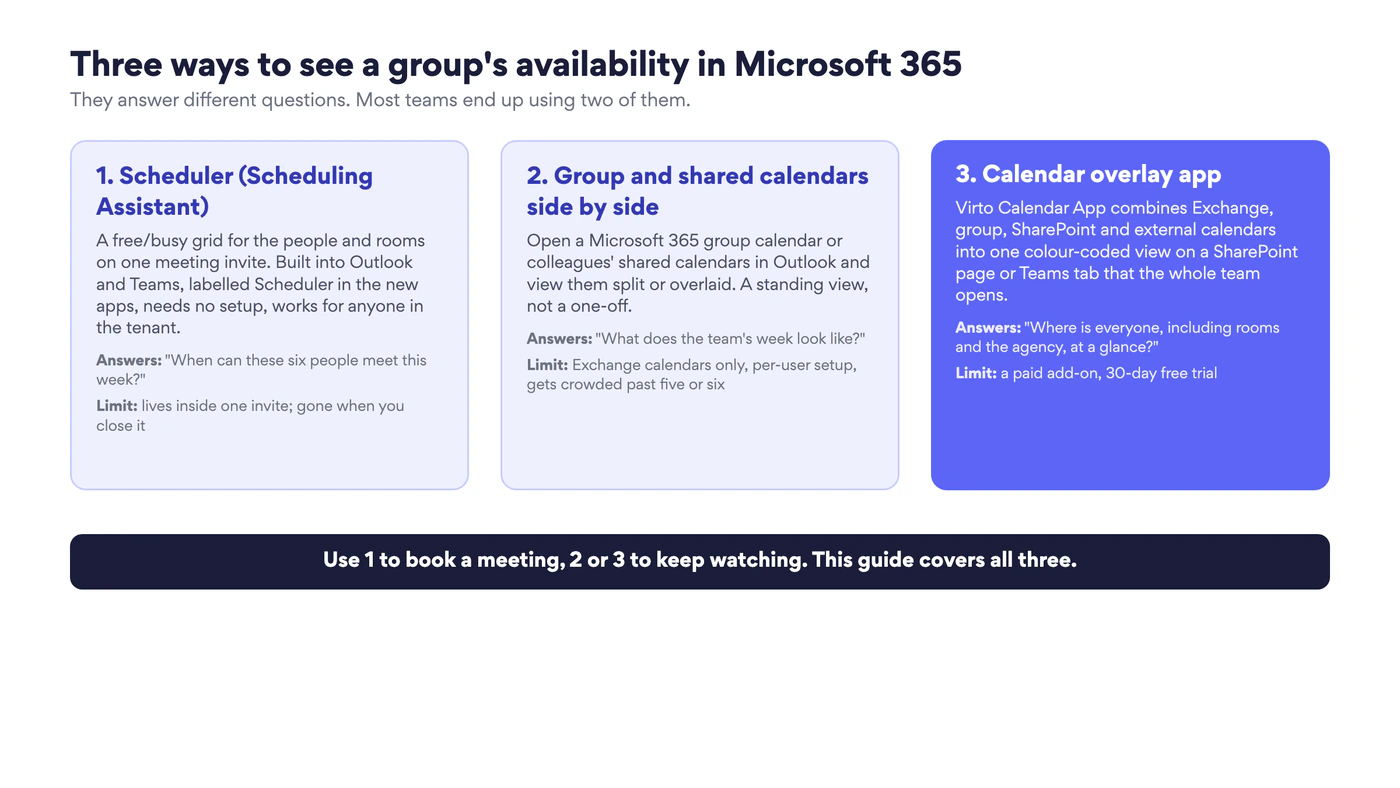
Fig. 3. Three ways to see a group’s availability in Microsoft 365 and the question each one answers
Scheduler (Scheduling Assistant) in Outlook
Outlook has a built-in group availability calendar for one meeting. In new Outlook and Outlook on the web it is called Scheduler; classic Outlook for Windows and Outlook for Mac still label it Scheduling Assistant, which is the name most people search for. It is the same feature: a free/busy row for every person and room on the invite, on one time axis.
- In the calendar, choose New event and add the people in the Invite attendees field. To include a whole Microsoft 365 group or distribution list, add the group’s address.
- Open Scheduler at the top of the event form (in classic Outlook, Scheduling Assistant on the ribbon). The grid shows each attendee’s status: solid for busy, striped for tentative, a distinct colour for out of office, grey for outside working hours, and “unknown” when someone’s free/busy cannot be read.
- Read the Availability row at the top, or drag the highlighted meeting block along the day until every required row is clear. Time suggestions at the bottom of the grid steps through slots that suit the attendees. Mark people as Optional so that their conflicts do not block the search.
- Add a room with Add a room in the grid, or from the location field with Browse with Places (in classic Outlook, Room Finder). Rooms show their own free/busy row, so you are checking people and space in one pass.
- Choose Send. Everyone’s free/busy updates as they accept.
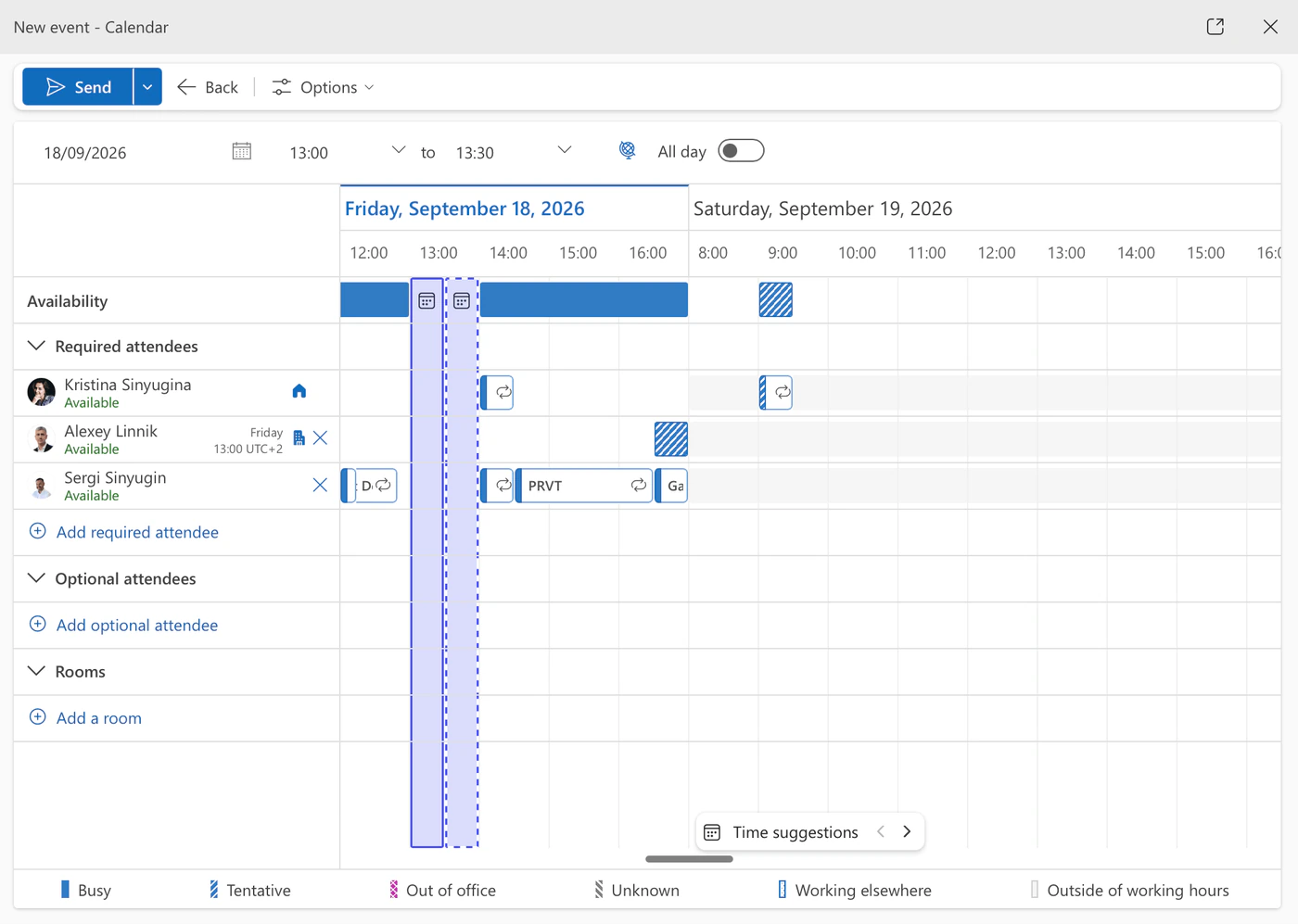
Pic. 3. Scheduler in new Outlook: the Availability row, each attendee’s free/busy row and the selected block
In classic Outlook for Windows, AutoPick jumps to the next slot where every required attendee and the room are free, which is faster than dragging when the group is large. Microsoft’s Scheduling Assistant and Room Finder page documents each client, and our Outlook Scheduling Assistant guide goes deeper, including what to do when a row shows only hashed lines.
The limit is built into the design: the view exists inside one invite. Close it and the group’s availability is gone; the next meeting starts from scratch. It is the right tool for booking and the wrong one for watching.
Scheduler in Teams
The Teams calendar is the same Exchange calendar, so the same grid is there too. In Teams, open Calendar, start a new event, add attendees, and select Scheduler next to the date and time; the free/busy rows and the room search behave as in Outlook. It is the natural choice when the meeting is going to be a Teams call anyway. Teams also shows each colleague’s work location on their profile card, which is handy when you are deciding between an in-person and an online slot. Our guide on how to view someone’s calendar in Teams covers the two other options Teams offers.
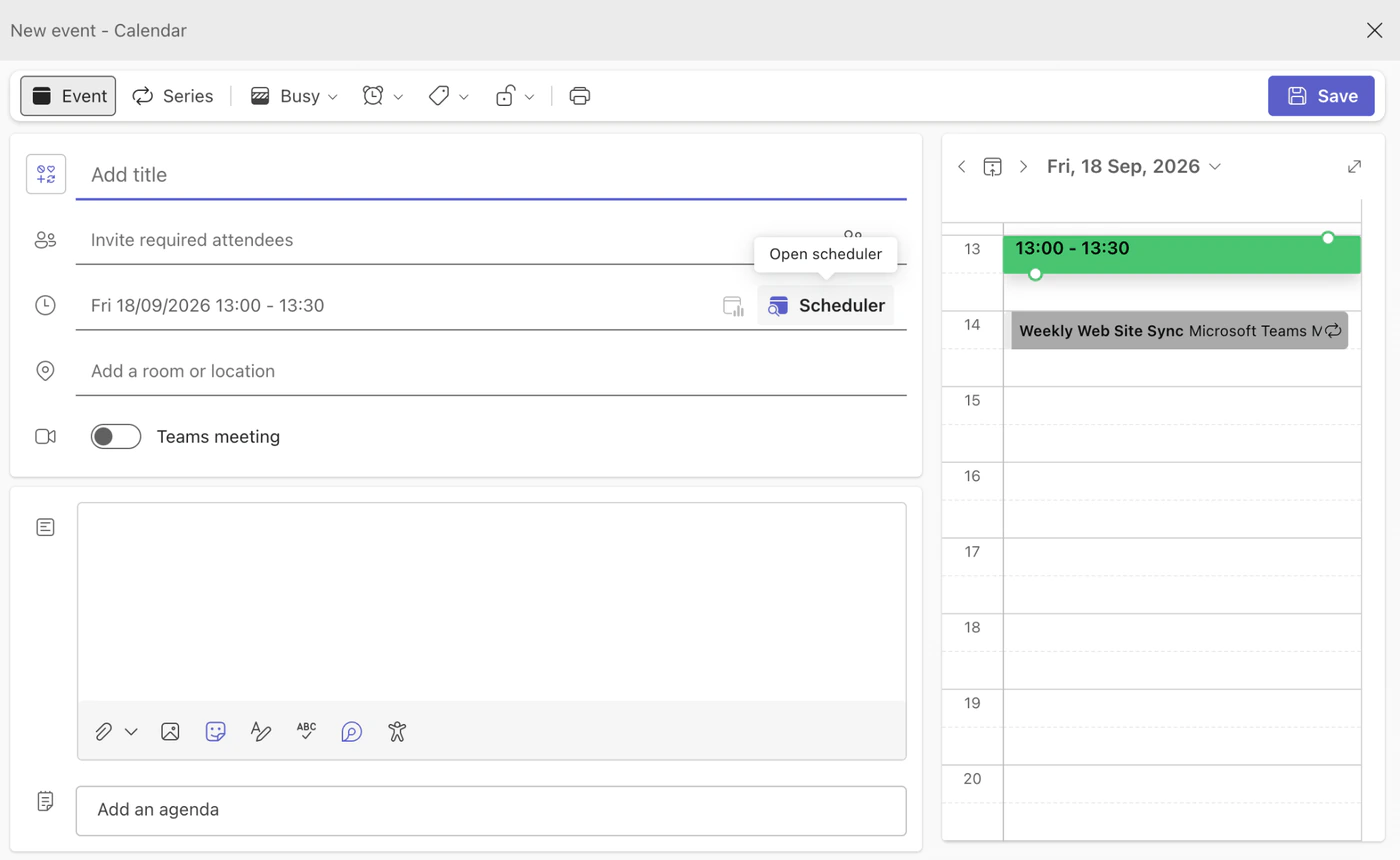
Pic. 4. The Scheduler button next to the date and time in a new event in the Teams calendar
Group and shared calendars side by side
For a standing view of the team’s week rather than a one-off search, open the members’ calendars in Outlook and look at them together.
- In the calendar’s left pane choose Add calendar, then Add from directory, and pick a colleague. Repeat for each member, or open the Microsoft 365 group under Groups so its shared events sit next to the personal calendars.
- With several calendars ticked, use Split view on the toolbar to see them in parallel columns, or leave it off to overlay them in one column.
- Give each calendar its own colour from its three-dot menu so a glance tells you whose block is whose.
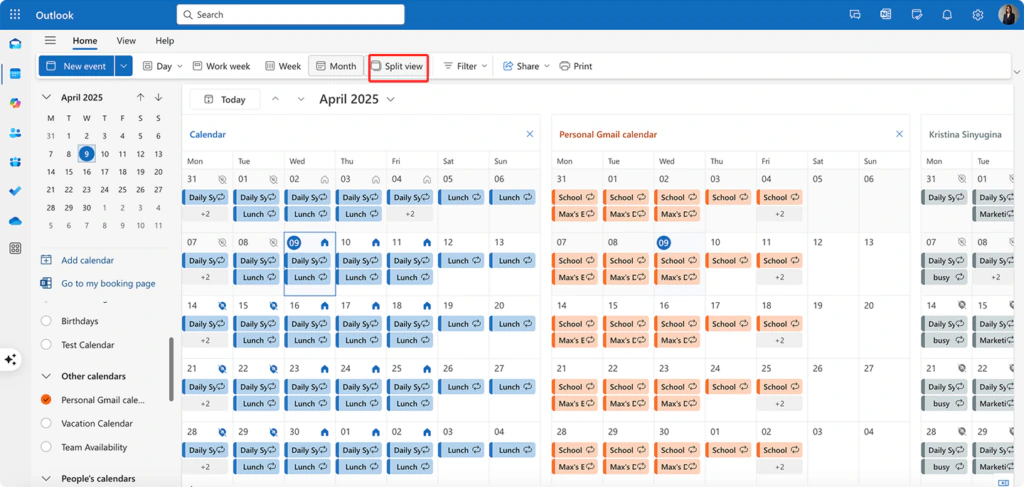
Pic. 5. Split view in Outlook on the web with three calendars in parallel columns
What you see depends on the sharing level each person granted: with the default you see busy blocks without titles, which is enough to spot the gap. The setup is per user, so every member who wants the view builds it themselves, and beyond five or six calendars the columns become too narrow to read. Our guides on how to overlay calendars in Outlook and managing multiple Microsoft 365 calendars cover the variations in classic Outlook and on Mac.
Ask Copilot
With a Microsoft 365 Copilot licence, you can skip the grid. Since August 2026, classic Outlook for Windows has a Schedule with Copilot entry and accepts a chat request such as “find an hour next week for the design team and book a room”; Copilot reads the same free/busy data, proposes times, books the room and drafts the invite for you to review and send. Microsoft’s Microsoft 365 Copilot release notes track the rollout by client. It is convenient for one organizer; it does not give the team a shared view.
Overlay multiple calendars into one group availability view
The native options share one assumption: everyone’s time is in Exchange and everyone looks at it from their own Outlook. That assumption breaks in predictable places.
- The group’s time is in more than one system. Shift rotas in a SharePoint list, a project calendar in another site, an agency’s Google calendar, a public iCal feed of trade shows. None of them appear in the Scheduler grid.
- The group is bigger than a column. A department of twenty, three teams that share one lab, every room on a floor.
- The view has to live somewhere shared. A team site, a Teams channel tab, a screen in the office, rather than each person’s private Outlook setup.
- Colour has to mean the same thing to everyone. Outlook colours are personal categories; there is no way to say “blue is always Marketing” for the whole team.
A calendar overlay app answers all four. Virto Calendar App combines Exchange calendars, Microsoft 365 group calendars, SharePoint lists and external calendars into one colour-coded view that is published once, on a SharePoint page or as a Teams tab, and opened by everyone.
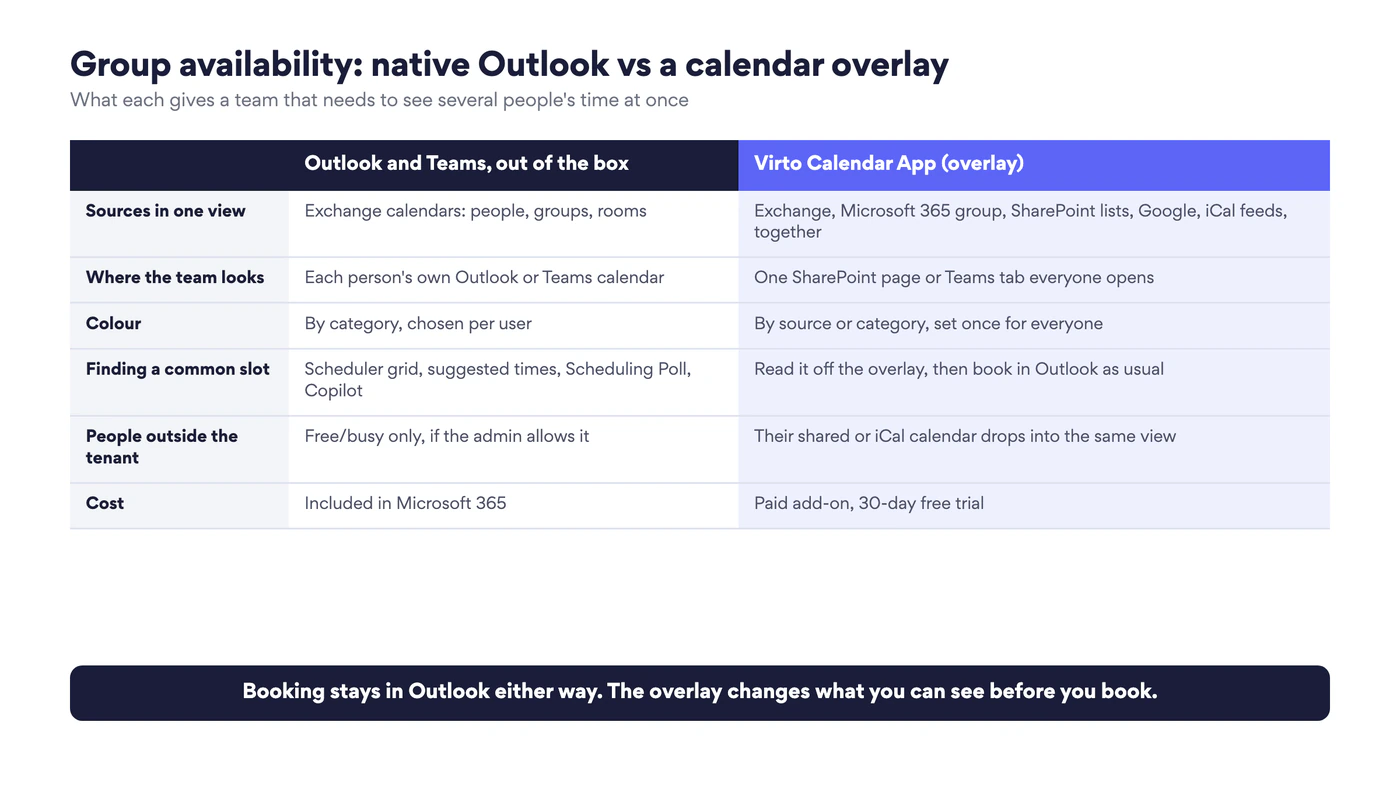
Fig. 4. What native Outlook and a calendar overlay each give a group that needs to see several people’s time at once
The booking still happens in Outlook or Teams. The overlay changes what the group can see before they book: the gap that is visible only when the rota, the room and the agency’s feed sit on the same axis as the members’ Exchange calendars.
How to book time once you can see the gap
Seeing the common free hour is half the job. The other half is turning it into an accepted meeting, and Microsoft 365 has a tool for each of the ways that goes wrong.
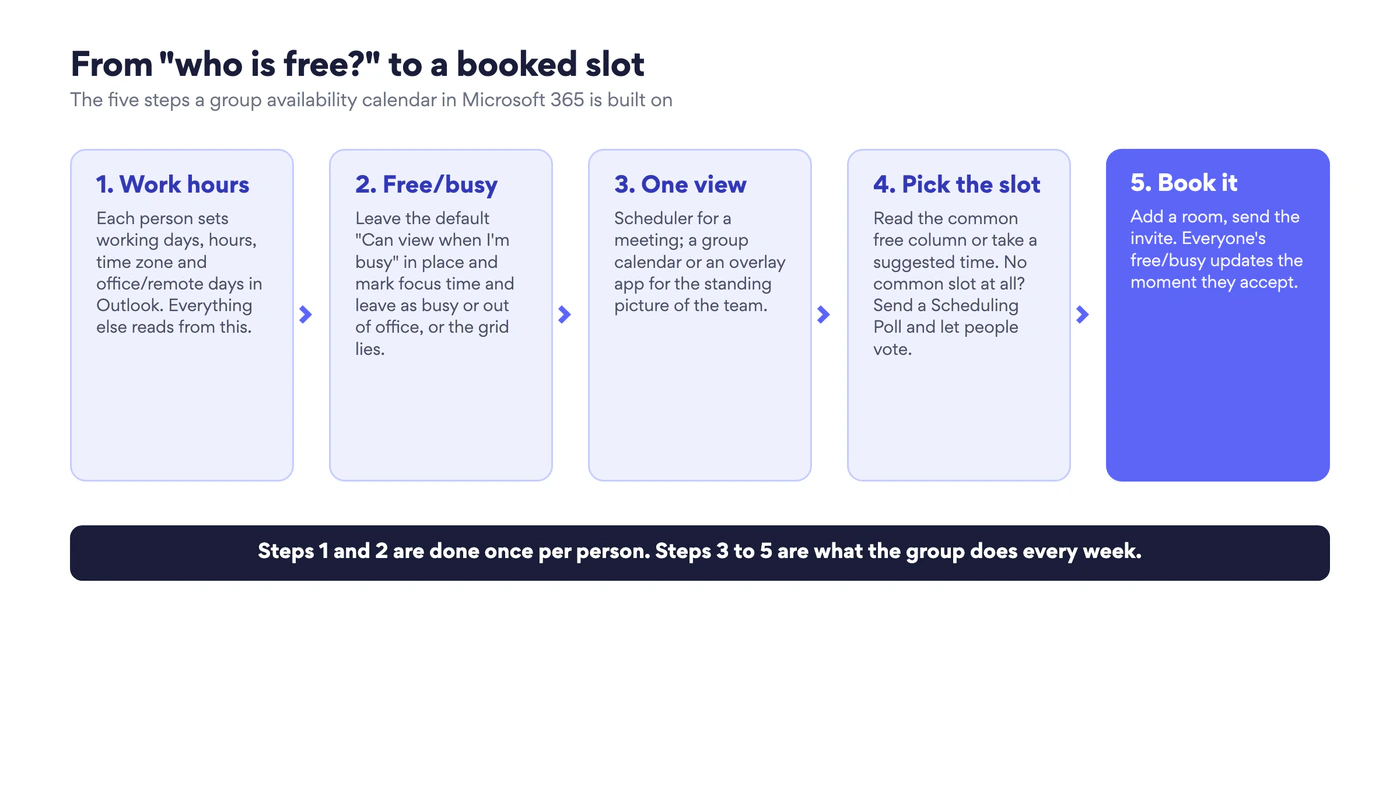
Fig. 5. From “who is free?” to a booked slot: the five steps a group availability calendar in Microsoft 365 rests on
When there is a common slot: book it with the room
Pick the slot in Scheduler, add the room and send. Rooms are Exchange resource mailboxes, so a room accepts or declines by itself and its row updates for the next organizer. If your rooms do not appear in the room search, an administrator has to create room mailboxes and room lists first; our guide on creating and displaying a meeting room calendar in Microsoft 365 shows how, and the room booking software guide covers what to add when rooms, desks and equipment need more than a mailbox.
When there is no common slot: run a Scheduling Poll
When the grid shows no hour that everyone has free, stop searching and let the group vote. The Scheduling Poll in Outlook (the successor to the FindTime add-in) sends attendees several time options, places temporary holds on everyone’s calendar for each of them, and lets the organizer close the poll with the option that won.
- In the calendar, select New event and add the attendees.
- Select the date and time area and pick the first day you would consider. Outlook recommends options after that date.
- Select Scheduling poll on the event toolbar. If the toolbar is narrow, look under the three dots.
- Review the suggested times, which are based on the attendees’ availability. Delete the ones you do not want and use Add new option for your own. Up to 15 options are allowed; three to five work best.
- Optionally set a poll end date, add the title and agenda, and select Send.
- Attendees vote Yes or No from the email, from the hold on their calendar, or from the secure voting webpage, which is how people outside your organization vote.
- When the votes are in, open the event, choose the time with the most Yes votes and select End poll with selected option. The holds disappear and the event moves to the final time.
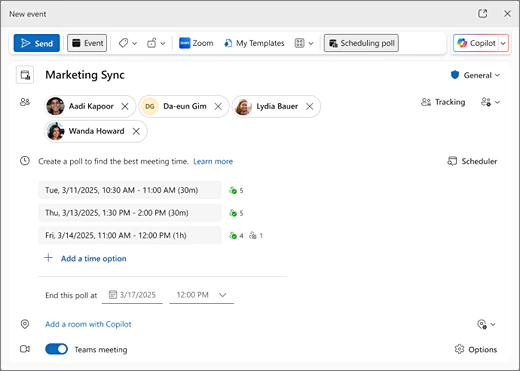
Pic. 6. Setting up a scheduling poll in a new event in Outlook. Source: Microsoft Support
Microsoft is still rolling this version out to new Outlook and Outlook on the web, so the button may not be in your tenant yet. It needs a work or school mailbox in Exchange Online. Scheduling polls are not supported for shared mailboxes or group calendars, and calendar delegates cannot create them. Classic Outlook for Windows and Outlook for Mac have an older version of the same feature. Microsoft’s find the best meeting time for everyone with Outlook Scheduling Poll page covers both.
When some of the group is outside your organization
People in another tenant see your availability only if both administrators allow it: your sharing policy sets the level (free/busy time only, or with titles and locations), and an organization relationship between the two tenants makes it work in the Scheduler grid. For a client or a partner you cannot federate with, the practical routes are a Scheduling Poll, which needs no access at all, or a Book with me page from Microsoft Bookings, which publishes your free slots for them to choose from. Our guide on creating an Office 365 shared calendar covers sharing with external users in more depth.
Group availability with Virto Calendar App
Virto Calendar App is our calendar overlay for Microsoft 365 and SharePoint Online. For a group availability calendar it does three things the native tools do not: it shows any number of calendars from any Microsoft 365 source in one view, it colour-codes them by source or category once for everyone, and it sits on a SharePoint page or a Teams tab that the team opens instead of each member building the view in Outlook.
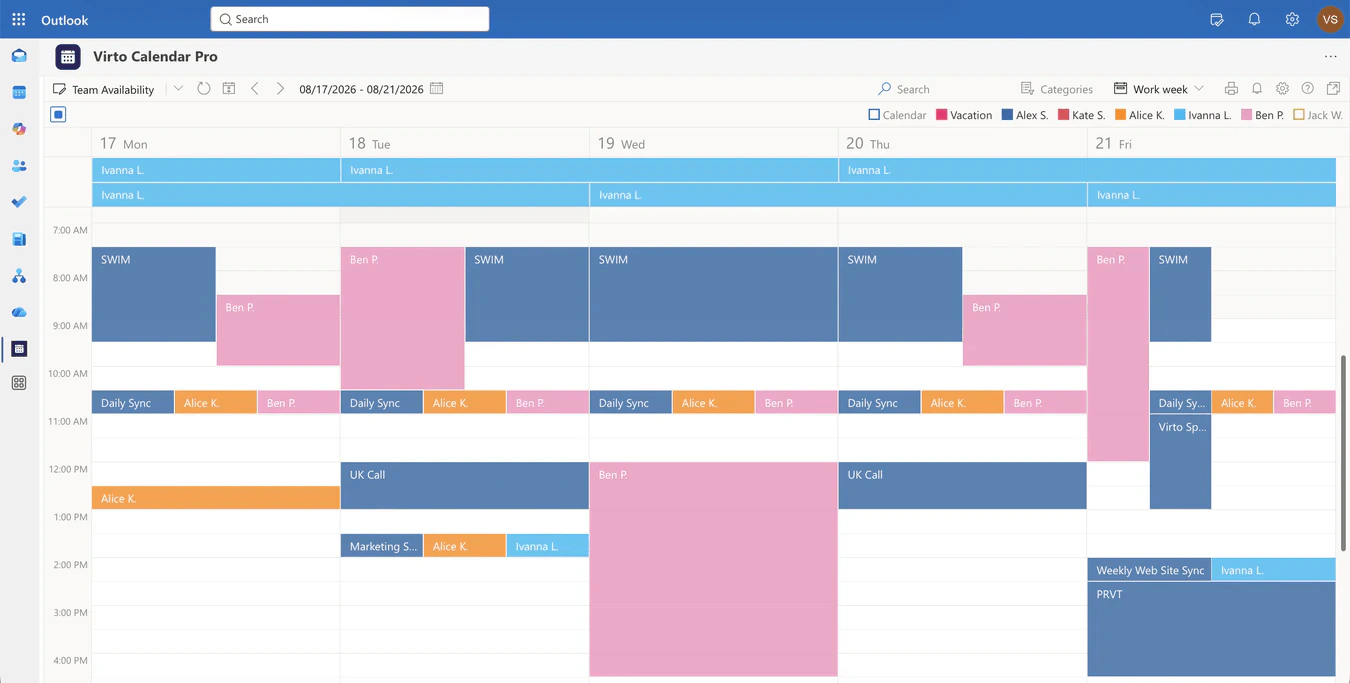
Pic. 7. A team availability view in Virto Calendar App: several colleagues’ calendars overlaid in one colour-coded week
A typical setup for a team of eight with a shared lab and an external agency looks like this:
- Add the app to the team’s SharePoint site as a web part, or to the Teams channel as a tab, from the Microsoft Marketplace listing on the Virto Calendar App page.
- Add each member’s Exchange calendar as a source. The app respects the sharing level each person granted, so a colleague who shares “when I’m busy” appears as busy blocks and nothing more.
- Add the Microsoft 365 group calendar and the lab’s room mailbox as further sources, so shared events and the room’s bookings are on the same axis.
- Add the SharePoint list that holds the shift rota and the agency’s iCal feed. These are the two sources Outlook’s Scheduler will never show.
- Assign a colour per source and switch on the filter panel, so the team can show only people, only rooms, or only one sub-team when the view gets busy.
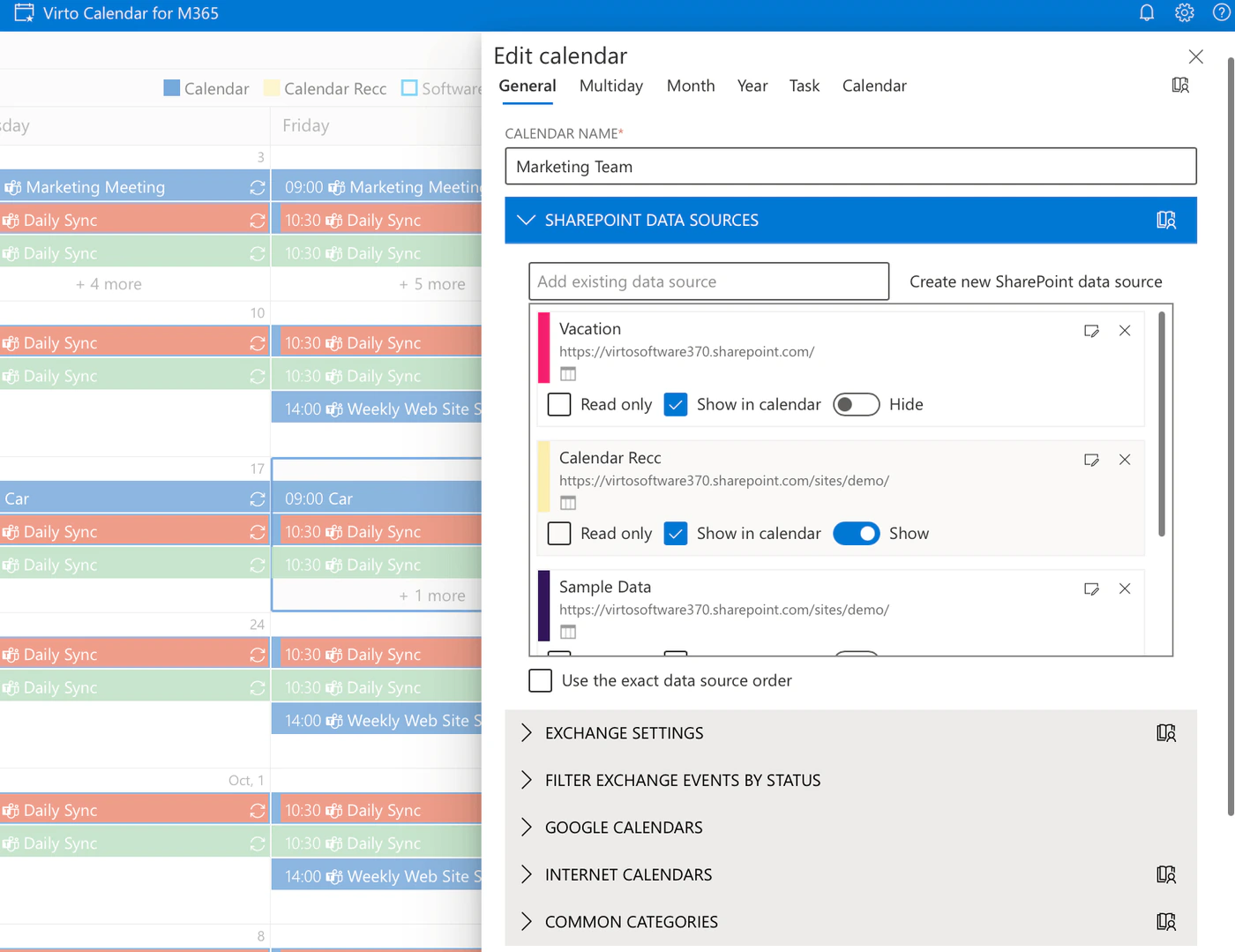
Pic. 8. Calendar sources in Virto Calendar App: SharePoint data sources, Exchange, Google and internet calendars feed the same overlay
From then on, the group opens one page. Booking stays where it was: a member reads the gap off the overlay and creates the meeting in Outlook or Teams, and the accepted invite appears in the overlay a moment later. There is a 30-day free trial, and the availability calendar use case shows a configured example. For the wider picture of scheduling meetings for groups, including polls and booking pages, see our group meeting scheduler guide.
FAQ
What is an availability calendar for a group?
A view that shows all group members’ free/busy times together so you can find and book a slot that suits everyone. In Microsoft 365 it is computed from the members’ own calendars: Scheduler (the former Scheduling Assistant) builds it for one meeting, side-by-side shared calendars keep it as a standing view, and a calendar overlay app adds sources outside Exchange.
How do I see a whole group’s availability in Outlook?
Create a new event, add the people (or the Microsoft 365 group’s address) and open Scheduler, which classic Outlook calls Scheduling Assistant. Every attendee gets a free/busy row on one time axis; drag the meeting block to the column where all of them are clear. For a permanent view, add the members’ calendars from the directory and use Split view.
Does a Microsoft 365 group calendar show members’ availability?
No. A group calendar holds the events the group posts together. To see when the members are free, add the group as an attendee and open Scheduler, open the members’ individual calendars next to it, or overlay them in a calendar app.
Can people outside my organization see my availability?
Only to the extent your administrator’s sharing policy allows, which by default is free/busy time without titles, and only where an organization relationship exists between the two tenants. For anyone else, use a Scheduling Poll or a Book with me page, neither of which needs access to your calendar.
What if there is no time when everyone is free?
Run a Scheduling Poll from the new event form. Offer three to five time options, let attendees vote Yes or No, and end the poll with the winning option. Marking non-essential attendees as Optional in Scheduler often reveals a slot as well.
Is there a free availability calendar for groups in Microsoft 365?
Scheduler, Scheduling Poll, shared calendars and work hours and location are included in every Microsoft 365 business plan. Virto Calendar App is a paid add-on with a 30-day free trial for teams that need calendars from SharePoint, Google or iCal feeds in the same view.
Conclusion
An availability calendar for a group is not something you build; it is something you make visible. Once every member keeps their working hours set and their busy time honest, Microsoft 365 will show the group’s free/busy grid for any meeting in Scheduler, keep a standing view in shared calendars, and settle the cases with no common slot through a Scheduling Poll. The one thing it will not do is put a SharePoint rota, a room, a partner’s feed and the members’ calendars on the same axis, and that is where a calendar overlay such as Virto Calendar App earns its place. Booking never leaves Outlook or Teams; what changes is how much of the group’s time you can see before you press Send.
To go further, start with the availability calendar guide for setup, scenarios and templates, the Microsoft 365 group calendar guide for the group’s own calendar, and managing multiple Microsoft 365 calendars for the overlay options in detail, or browse all of our event management guides.