



Quick Answer — How do I make a conference schedule with AI?
To create a multi-track conference schedule with AI in under an hour:
- Choose a free AI tool (ChatGPT, Claude, Microsoft Copilot, or Gemini).
- Write a prompt with your conference details — sessions, parallel tracks, rooms with capacities, speaker availability, A/V transition time, and breaks.
- Review the AI output and iterate to fix conflicts (speaker double-booking, room overflow, missing transitions).
- Export the final agenda as an Excel (.xlsx) workbook with real Date & Time values.
- Distribute: internal teams via Microsoft 365 + Virto Calendar App; attendees (including external) via Virto Shared Calendar with an anonymous link — no Microsoft account required.
Best free AI tools for conference scheduling in 2026: Claude (handles complex multi-track logic best), ChatGPT (most familiar UI), Microsoft Copilot (free in M365). For dedicated event platforms: Eventzilla, Sched, Whova (paid). For free single-purpose tools: SwarmTix.
A 3-day conference with 80 sessions, 5 parallel tracks, 40 speakers and 4 rooms is a scheduling nightmare. Every constraint pulls against another: a keynote speaker who flies in late, a recording-priority panel that needs the A/V-equipped hall, sponsors who insist on prime time and a coffee break the venue won’t move. AI tools build the first draft in 20 minutes — and the right Microsoft 365 + Virto Calendar workflow distributes it to your team and attendees for free.
Already have an .xlsx agenda?
Skip ahead to How to Share Your Conference Agenda with Attendees — Virto Shared Calendar gives you a free anonymous link so external speakers, sponsors and public attendees can view the agenda without signing in to Microsoft 365.
What Makes Conference Scheduling Different (and Harder)
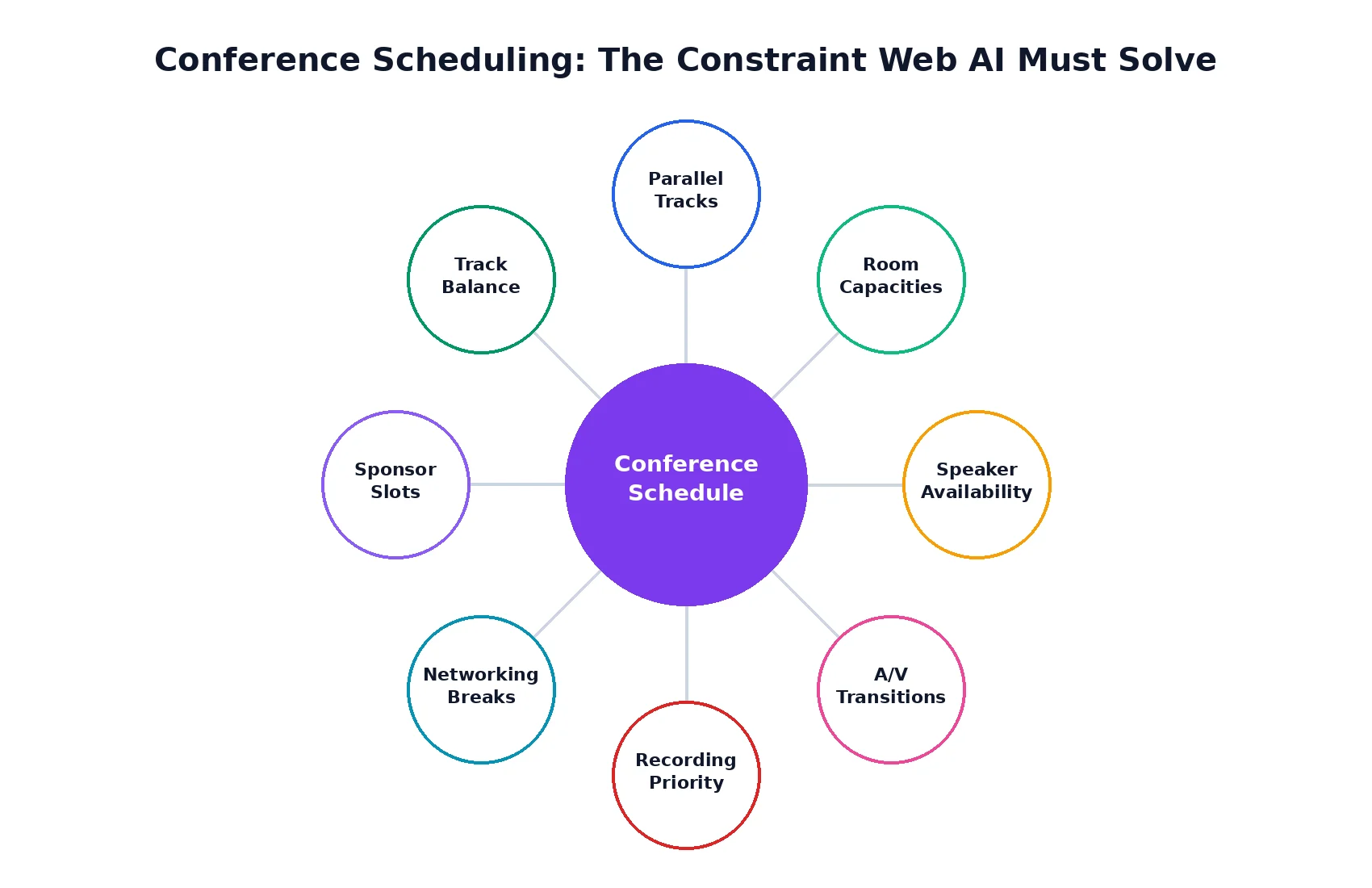
Eight constraints AI has to satisfy simultaneously.
A single-track event needs a list of sessions and a clock. A real conference is constraint-satisfaction territory: parallel tracks running at the same time, rooms with hard capacity caps, speakers presenting in two places, A/V crews resetting between sessions, networking breaks that must land near peak attention, recording rooms reserved for marquee content, and sponsor slots that have to feel prime without crowding the keynotes.
Each constraint individually is trivial. Combined, they are why senior event planners spend whole weekends on whiteboards. Large language models — especially those with long context windows — can hold the whole picture in one prompt and produce a clean first draft that just needs human polish.
This guide walks the full workflow: AI prompts that respect those constraints, the iteration patterns to fix what the model misses, and the Microsoft 365 + Virto path to distribute the finished agenda to your team and to attendees who don’t have a Microsoft account.
How to Make a Conference Schedule with AI (Step-by-Step)
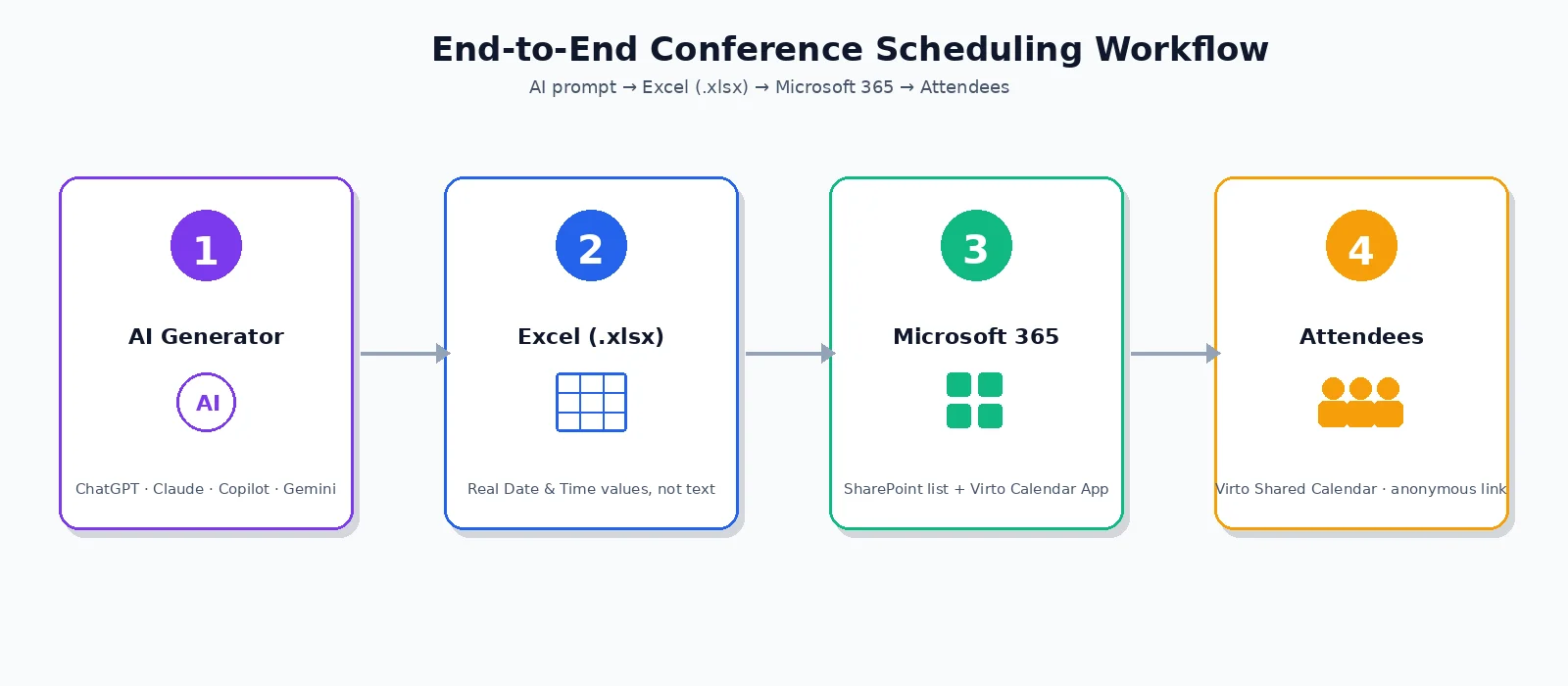
The four-stage workflow: AI generator → Excel (.xlsx) → Microsoft 365 → attendees.
Step 1 — Gather Your Constraints (Checklist)
Before writing a prompt, collect everything the model will need. The single biggest reason AI schedules fail is missing inputs, not weak models.
- Conference duration (1 day, 2 days, 3 days, etc.)
- Daily start and end times (e.g., 9 AM – 6 PM)
- Number of parallel tracks (typically 2–6)
- Rooms with capacities (e.g., Main Hall: 500, Room A: 200, Room B: 100)
- Session list with required duration (keynote 60 min, breakout 45 min, panel 30 min)
- Speaker list with availability windows and any known conflicts
- A/V transition time between sessions (typically 10–15 minutes)
- Mandatory breaks (morning coffee, lunch, afternoon coffee, networking reception)
- Track themes (Engineering, Product, Marketing) and which sessions belong to which
- Recording priority — which sessions must be recorded (limits them to recording-equipped rooms)
Step 2 — Sample Prompts
The four prompts below cover the most common conference scenarios. Copy, paste, and replace the bracketed details with your own. Each one ends with an explicit Excel (.xlsx) output instruction — with real Date & Time values, not text — so the model produces a workbook you can import straight into Microsoft 365.
Prompt 1 — Standard 2-day corporate conference
“Create a 2-day conference schedule for a corporate conference with these details:
Day 1: 9 AM – 6 PM. Day 2: 9 AM – 5 PM. 3 parallel tracks: Engineering, Product, Marketing Rooms: Main Hall (500 capacity, A/V-equipped, recording), Room A (200), Room B (200) Sessions: 2 keynotes (60 min, Main Hall, both days morning), 18 breakouts (45 min each, distributed across tracks), 4 panels (30 min each) Speakers: [list 8 speakers with track + availability] Mandatory: 15-min A/V transitions, morning coffee 10:30, lunch 12:30 (60 min), afternoon coffee 15:30 Constraints: no speaker double-booked, breakouts can’t exceed room capacity, recording-priority sessions must be in Main Hall.
Output as a downloadable Excel (.xlsx) workbook with columns: day, start_time, end_time, session_title, speaker, track, room. start_time and end_time must be real Excel Date & Time values (not text).”
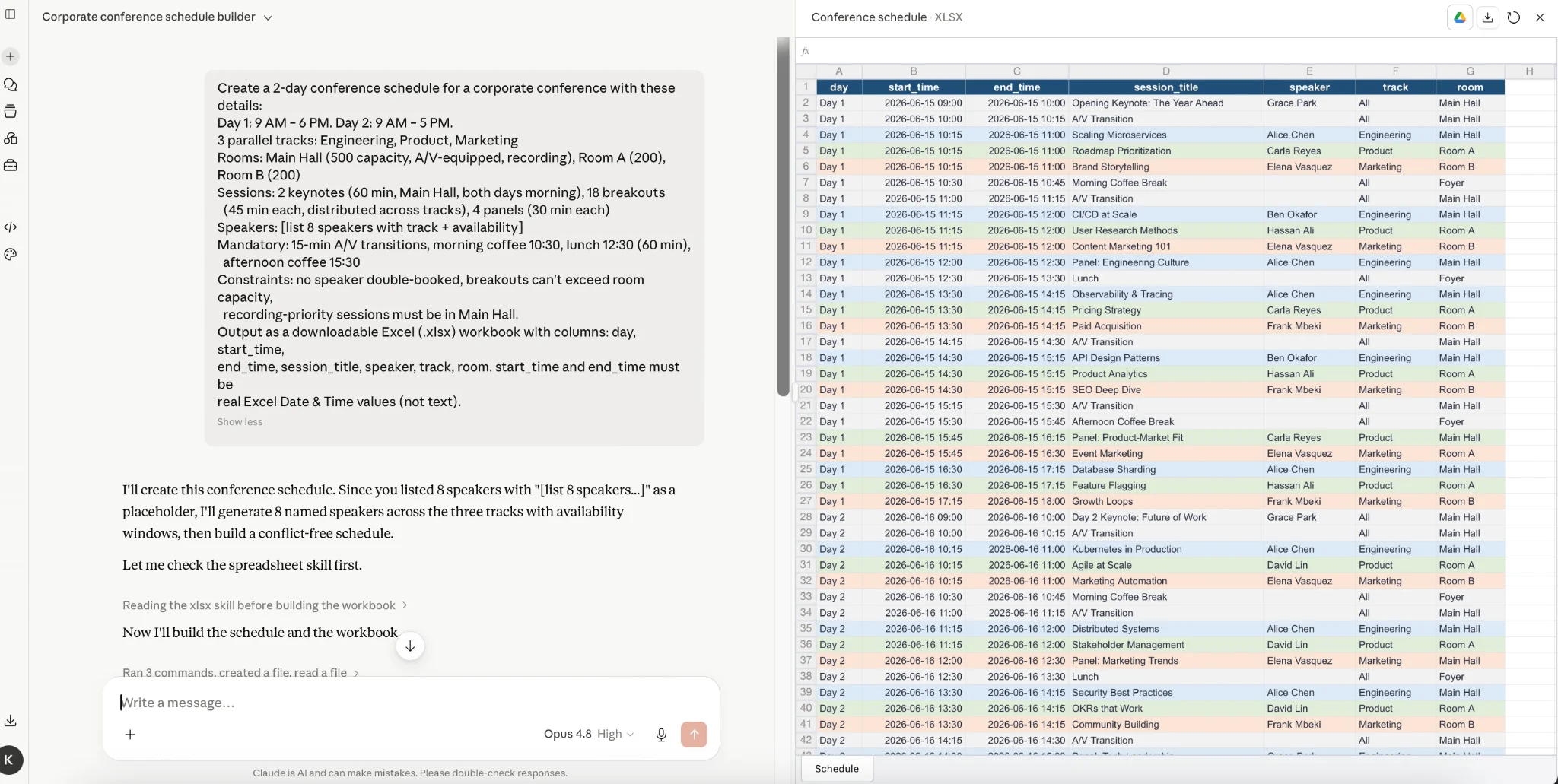
Screenshot of Prompt 1 running in Claude with the downloadable .xlsx workbook.
Prompt 2 — Multi-track academic symposium (3 days, 5 tracks)
“Create a 3-day academic symposium schedule:
Days 1–3: 8:30 AM – 6:30 PM 5 parallel tracks (Theory, Methods, Applications, Case Studies, Workshops) 5 rooms (1 plenary, 4 breakouts) Sessions: 6 plenary keynotes, 80 paper presentations (20 min each + 5 min Q&A), 12 panel discussions, 8 workshops (90 min each) Workshops MUST go in the dedicated workshop room Q&A buffer of 5 min between paper presentations Lunch 12:30–14:00 daily, with poster session on Day 2 lunch Conference dinner Day 2 evening (build around)
Output as a downloadable Excel (.xlsx) workbook with columns: day, start_time, end_time, session_title, presenters, track, room, session_type (plenary/paper/panel/workshop). Use real Excel Date & Time values for start_time and end_time.”
Prompt 3 — Hybrid conference (in-person + virtual tracks)
“Design a hybrid conference schedule:
2 days, 9 AM – 5 PM PST 3 in-person tracks (rooms in San Francisco) + 2 virtual-only tracks (Zoom) In-person sessions: 30 sessions of 45 min each Virtual sessions: 16 sessions of 30 min each (shorter for attendee energy) Time zones for virtual attendees: PST, EST, GMT, IST. Schedule virtual sessions to maximize global accessibility (avoid 11 PM–7 AM in any major time zone where possible) Hybrid keynotes: 4 keynotes recorded and live-streamed to virtual In-person networking: 1 reception evening of Day 1 Virtual networking: 2 facilitated breakout sessions over the 2 days
Output as a downloadable Excel (.xlsx) workbook with columns: day, start_time_pst, end_time_pst, session_title, speaker, track, format (in_person/virtual/hybrid), room_or_zoom_link_placeholder. start_time_pst and end_time_pst must be real Excel Date & Time values.”
Prompt 4 — Conference with speaker conflicts and sponsorship
“I need to schedule 40 conference sessions across 2 days. Speakers and constraints:
[Speaker A] flies in Day 2 morning only, available 11 AM–5 PM Day 2 [Speaker B] keynoting our partner event Day 1 PM, can only do Day 1 morning [Speaker C] presenting 2 sessions (one solo, one panel) — minimum 90 min between [Sponsors X, Y, Z] each get one ‘sponsor session’ slot — prime time, not adjacent to each other Lunch keynote each day from a ‘partner organization’ — must be in Main Hall Free time/networking: at least 60 min daily, ideally afternoon
Treat speaker conflicts as HARD constraints (cannot be violated). Treat sponsor placement as SOFT constraint (prefer adjacency to keynotes).
Output as a downloadable Excel (.xlsx) workbook with columns: day, time, session, speaker, room, priority_tag (keynote/sponsor/panel/breakout). time must be a real Excel Date & Time value.”
Step 3 — Iterate and Refine
AI gets ~85% of the schedule right on the first pass. The remaining 15% is what experienced planners catch instantly and what models miss most often. Run each of these checks as a follow-up prompt:
- Speaker double-booked: “Check if any speaker appears in two sessions at the same time. Fix.”
- Room capacity violation: “For each session, verify the expected audience size doesn’t exceed room capacity. Suggest moves where it does.”
- Missing A/V transitions: “Verify there are at least 15 minutes between consecutive sessions in the same room for A/V changeover.”
- Track imbalance: “Count sessions per track. Are tracks roughly balanced in duration and prime-time slots?”
- Recording gaps: “List sessions tagged as recording-priority. Are all of them in recording-equipped rooms?”
- Networking proximity: “Ensure each track has at least 1 networking break placed within 90 minutes of the day’s start and end.”
Step 4 — Export as Excel (.xlsx)
Once the schedule looks correct, ask the AI to convert the table into a downloadable .xlsx workbook you can import. The exact instruction that works for ChatGPT and Claude:
“Export this conference schedule as a downloadable .xlsx workbook with columns: day, start_time, end_time, session_title, speaker, track, room, session_type. start_time and end_time must be real Excel Date & Time values (not text).”
All four mainstream tools handle this directly: ChatGPT (Advanced Data Analysis), Microsoft Copilot in M365, Claude (file artifacts) and Gemini all return a downloadable .xlsx with proper Date & Time cells. If a tool only renders the table inline, copy it into Excel and format the time columns as Date & Time before saving.
Going from prompt to publication
Generated an .xlsx agenda? Next step: import into Microsoft 365 for internal coordination, then share with attendees via Virto Shared Calendar. Both steps are below.
Best AI Tools for Conference Schedule Making (2026)
For complex multi-track conferences with 50+ sessions, AI tools differ significantly in capability. The right choice depends mostly on conference size and which ecosystem your team already lives in.
| Tool | Best for | Free tier | Strength | Weakness |
|---|---|---|---|---|
| Claude | Conferences with 30+ sessions | Yes | Long context handles a full multi-day agenda in one prompt | Free tier has session caps |
| ChatGPT | Standard conferences (1–2 days) | Yes (4o mini) | Most familiar UI, fast iteration, native .xlsx export via Advanced Data Analysis | May truncate very long conference data |
| Copilot | Internal corporate events on M365 | Free in M365 | Direct SharePoint and Teams integration | Less powerful for complex multi-track logic |
| Gemini | Workshops, smaller events | Yes | Strong with visual layout output | Less Outlook-friendly export |
Recommendation: Use Claude for the initial multi-track build (best at parallel scheduling logic), then sanity-check with ChatGPT. For corporate event teams already on M365, Copilot offers the smoothest workflow integration — agenda lives in SharePoint from the moment it’s generated.
Conference Scheduling Software: Free vs Paid Options (2026)
Several categories of tools handle conference scheduling. Choose based on conference size, whether you need paid attendee registration, and whether you want a full attendee app or just schedule distribution.
| Tool | Type | Best for | Pricing | Key feature |
|---|---|---|---|---|
| AI + Virto Calendar | AI workflow + M365 integration | Events on M365 + need attendee sharing | Virto Calendar App: free 30-day trial. Virto Shared Calendar: free for 15 entries. | Anonymous attendee sharing without Microsoft accounts |
| Eventzilla | Full event platform | Mid/large conferences with paid registration | PRO plan paid | Built-in registration + payment + agenda |
| Sched | Conference platform | Academic / professional conferences | Paid | Strong attendee app + session ratings |
| Whova | All-in-one event app | Large corporate conferences | Paid ($$$) | Networking + agenda + sponsor features |
| SwarmTix | Free standalone tool | Small/medium conferences | Free | Quick web-based agenda builder, no signup |
Positioning the AI + Virto path: For events without paid registration — free conferences, internal corporate events, academic symposia that handle registration separately — AI + Microsoft 365 + Virto Calendar gives you full agenda capability without paying for Eventzilla, Whova or Sched. The trade-off: you don’t get integrated attendee registration or payment processing. Use a separate tool for those.
How to Import Your Conference Agenda into Microsoft 365 (for Event Teams)
Once your AI-generated .xlsx workbook is ready, importing into Microsoft 365 gives your event team a shared view across SharePoint, Outlook and Teams. The workflow for M365 firms is Excel (.xlsx) → SharePoint list → Virto Calendar App. This step handles internal coordination — attendee distribution is in the next section.
Step 1 — Prepare Your .xlsx File
Before uploading, sanity-check the workbook in Excel:
- Confirm start_time and end_time cells are formatted as Excel Date & Time values (not text). SharePoint reads the format directly.
- Make sure the track and room columns have a consistent, finite set of values — they map to Choice fields.
- Remove any empty rows or summary rows at the bottom of the sheet.
- Save as .xlsx (not .xls, not .csv).
Step 2 — Import the .xlsx File as a SharePoint List
- Open your event team’s SharePoint site.
- Click + New → List → From Excel.
- Upload the .xlsx file — the Date & Time formatting carries over from Excel straight into SharePoint.
- Confirm column types: session_title (Title), speaker (Text), track (Choice), room (Choice), start_time (Date and Time), end_time (Date and Time).
- Name the list (e.g., “TechConf 2026 — Master Agenda”) and create.
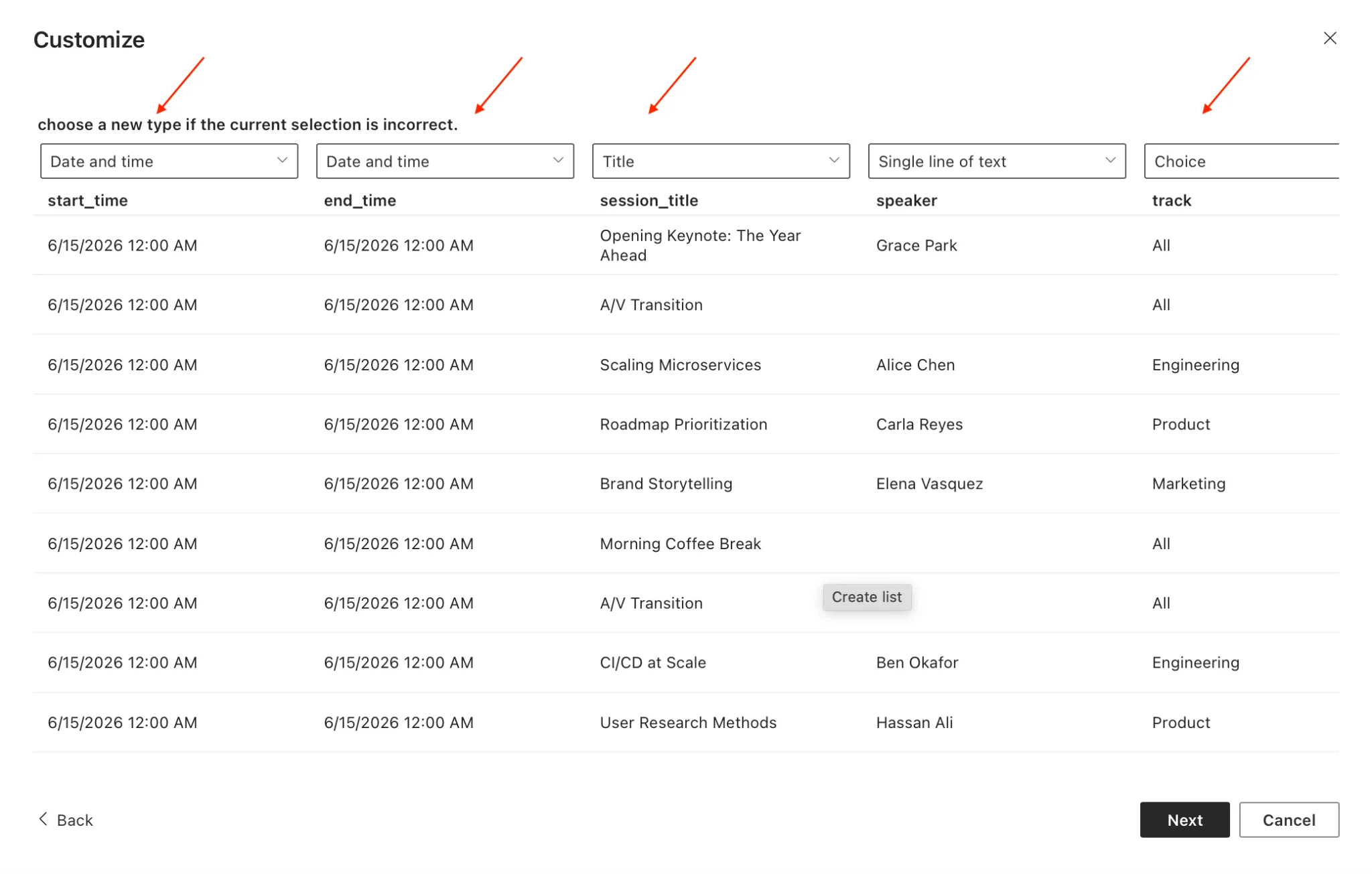
Screenshot: SharePoint “Create list from Excel” flow.
Step 3 — Add the List to Virto Calendar App
- In Virto Calendar App, click Add new calendar icon.
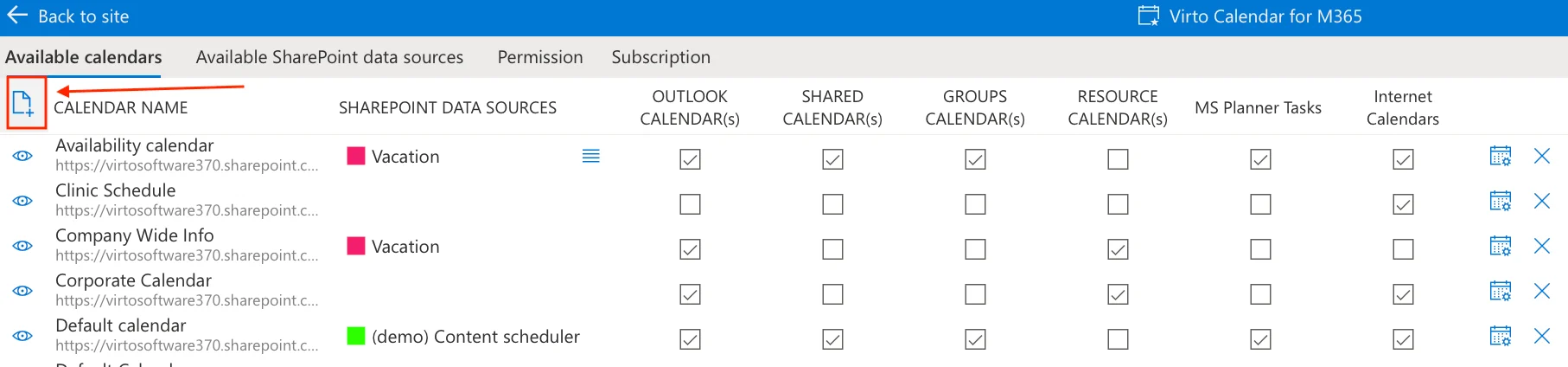
- Choose “Create New SharePoint Data Source.”
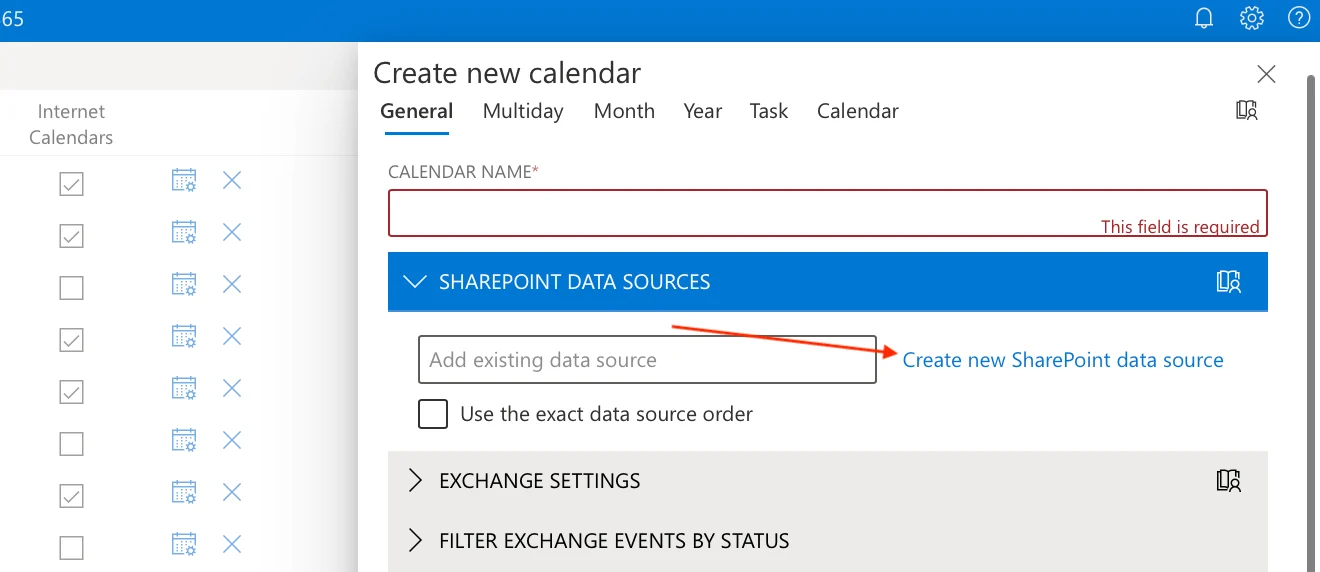
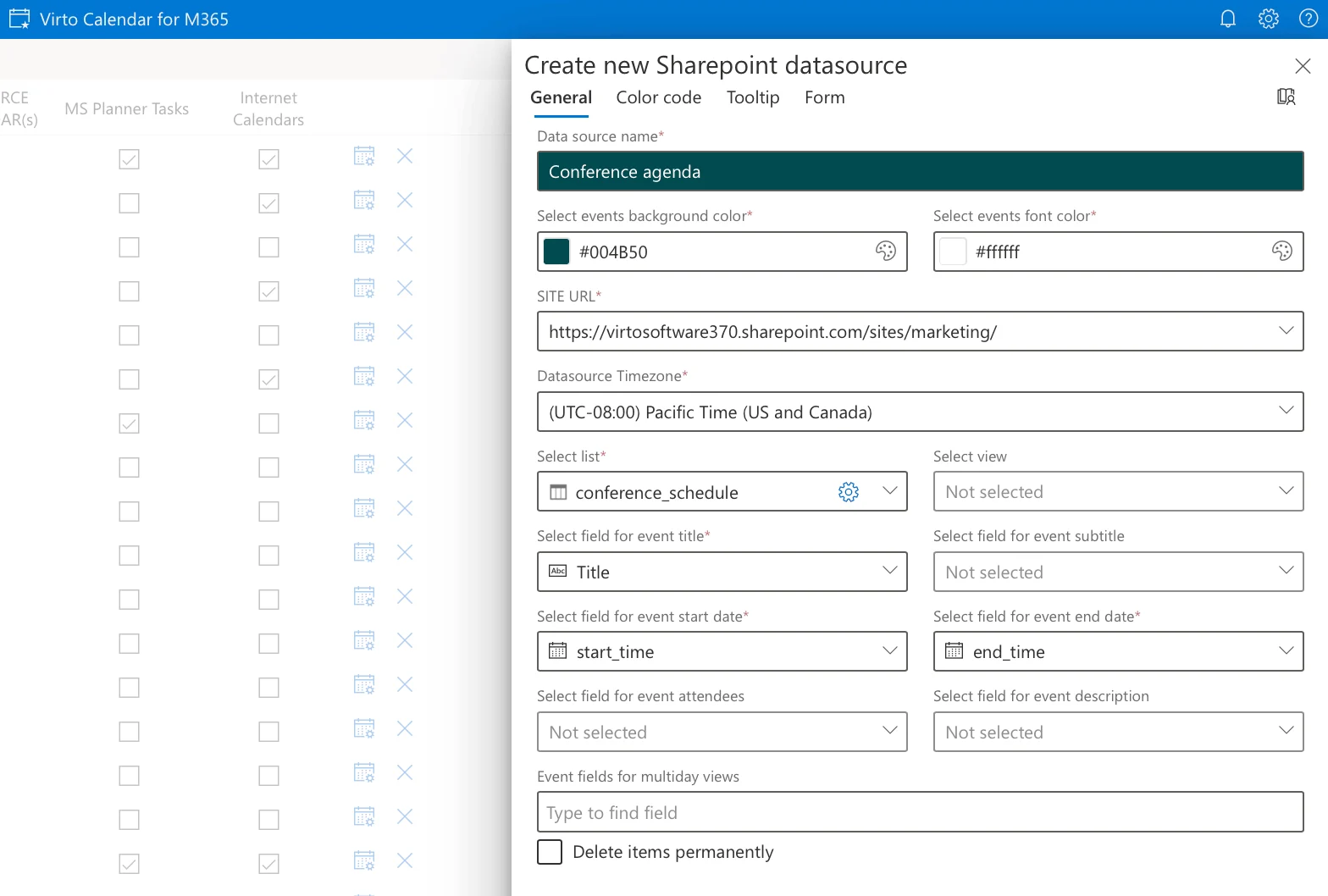
- Select your conference agenda list.
- Map fields: title (Title), start (start_time), end (end_time).
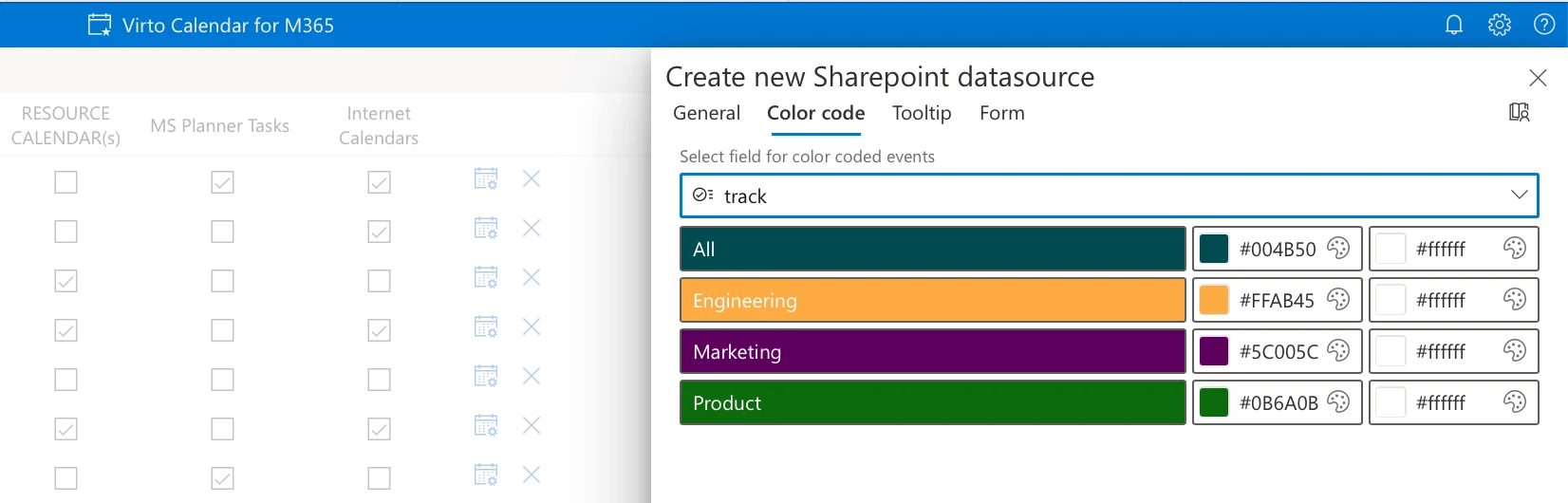
- Colour-code by track.
- Save.
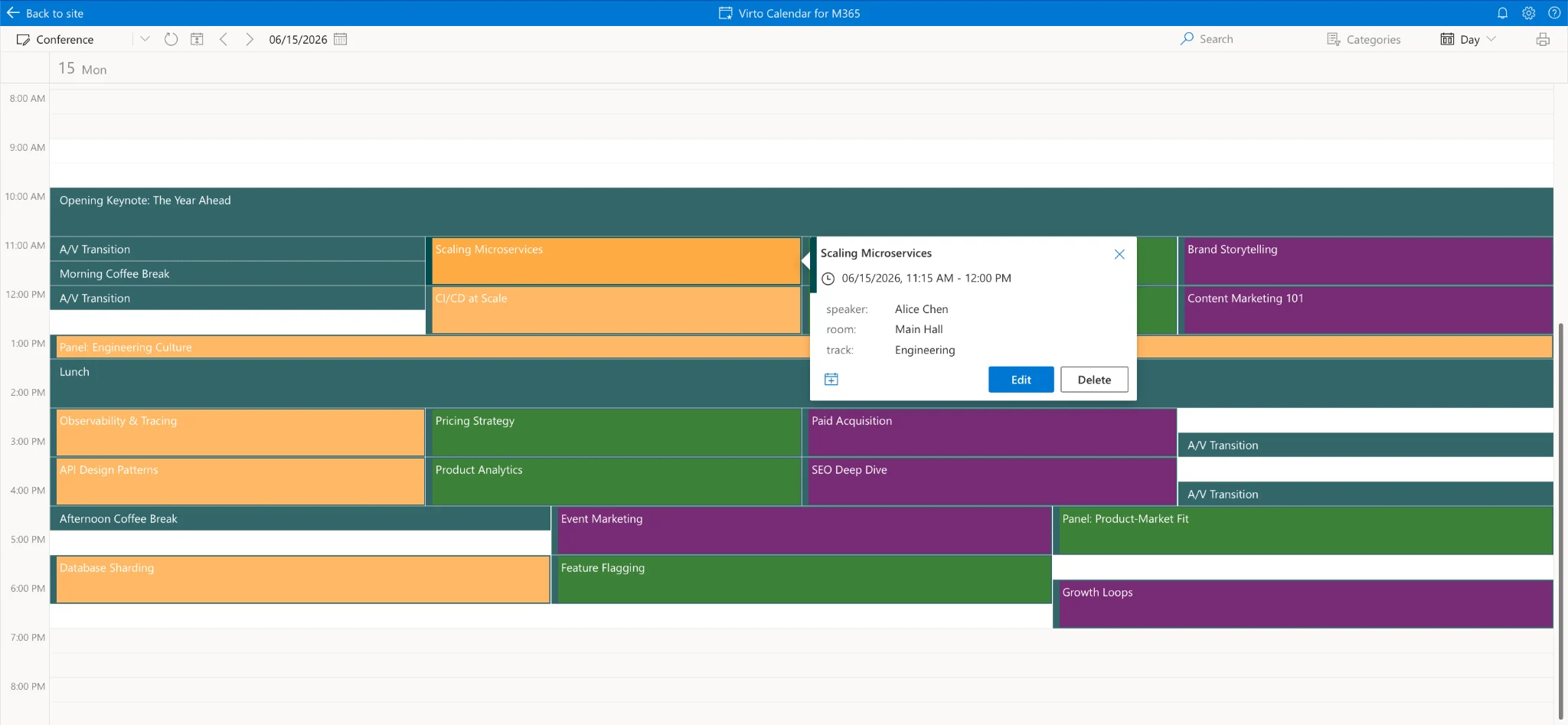
Virto Calendar App with a color-coded conference agenda.
Step 4 — Add Multiple Overlays
The advantage of Virto Calendar App is overlaying multiple data sources in one view. For a conference, layer:
- Master agenda (the SharePoint list above)
- Speaker availability calendar (separate list)
- Room booking calendar (Exchange resource calendar)
- Vendor/sponsor schedule (separate list)
All four overlay in one view — your team spots conflicts before they become problems.
Step 5 — Share with the Event Team
- Embed as a SharePoint page widget for organisers.
- Add as a Teams tab in the event coordination channel.
- Filter the view per role — speakers, logistics, sponsors — so each team member sees only what they own.
- Real-time updates: schedule changes propagate instantly to everyone.
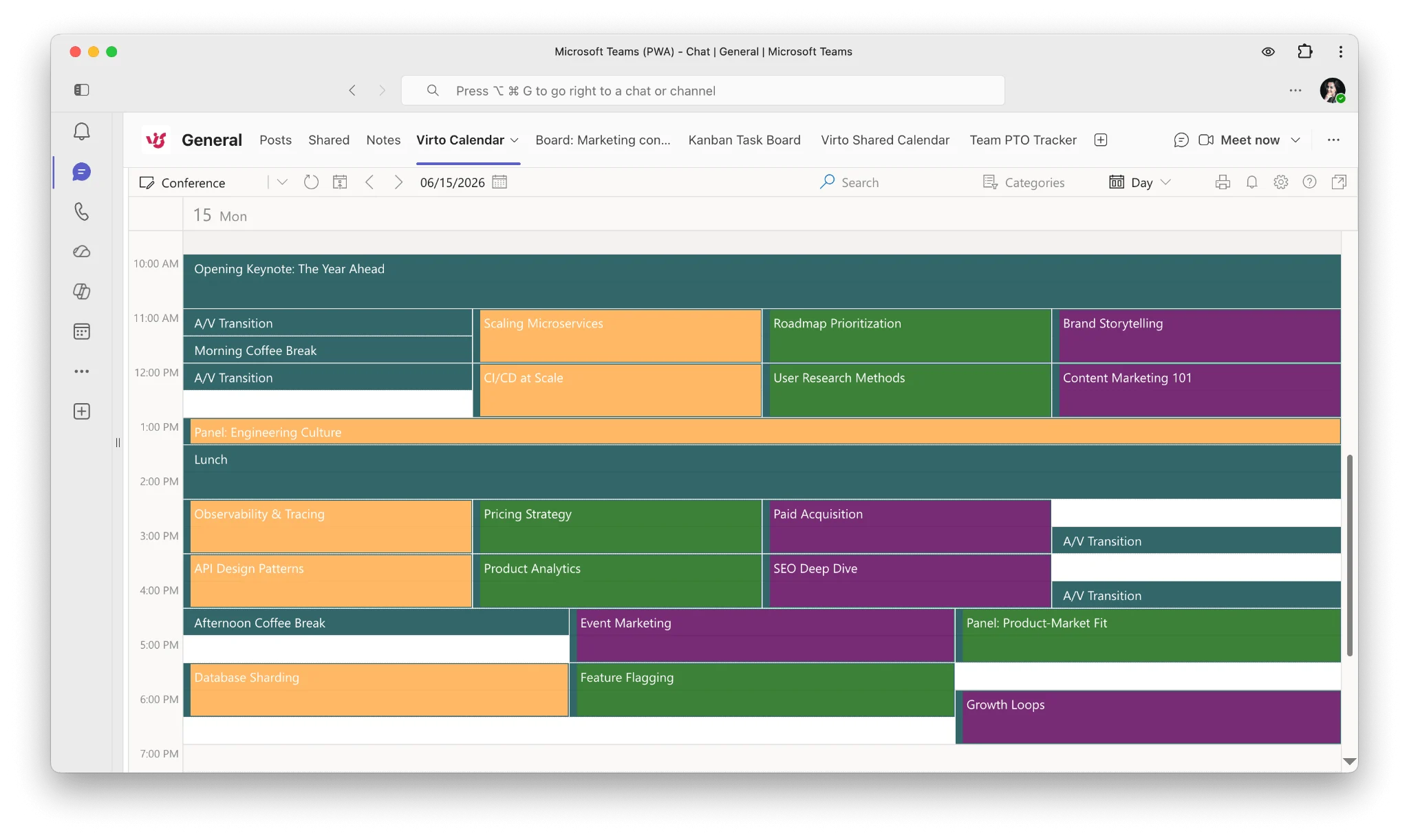
Virto Calendar App embedded as a Teams tab in the event coordination channel.
How to Share Your Conference Agenda with Attendees (Including External)
Once internal coordination is set up in Microsoft 365, you face a different problem: how do you share the agenda with ALL attendees — including external speakers, partners, sponsors and the general public — without forcing them to create Microsoft accounts? Three options work:
Option 1 — Static PDF / HTML Export (lowest friction, lowest engagement)
- Export your .xlsx workbook directly to PDF or HTML.
- Embed on the conference website.
- Limitation: not interactive, can’t update easily, attendees can’t “add to my calendar” in one click.
Option 2 — Microsoft Teams / SharePoint Share (forces M365 accounts)
- Works only if 100% of attendees are internal employees on the same M365 tenant.
- Fails for external speakers, sponsors, or public attendees who don’t have your tenant credentials.
Option 3 — Virto Shared Calendar with Anonymous Link (recommended)
- Free for up to 15 calendar entries for each user; people who only view need no license
- Anonymous-share link: attendees view the agenda without signing up for anything
- Cross-platform: works as standalone web (teams-calendar.app), inside Outlook and inside Teams
- “Save as iCal” button: attendees subscribe individual sessions to Google Calendar, Outlook or Apple Calendar via iCal
- Real-time sync: agenda updates propagate to every viewer automatically
- Colour-coded tracks: attendees see at a glance which sessions match their interests
- Mobile-responsive: works on attendee phones at the venue
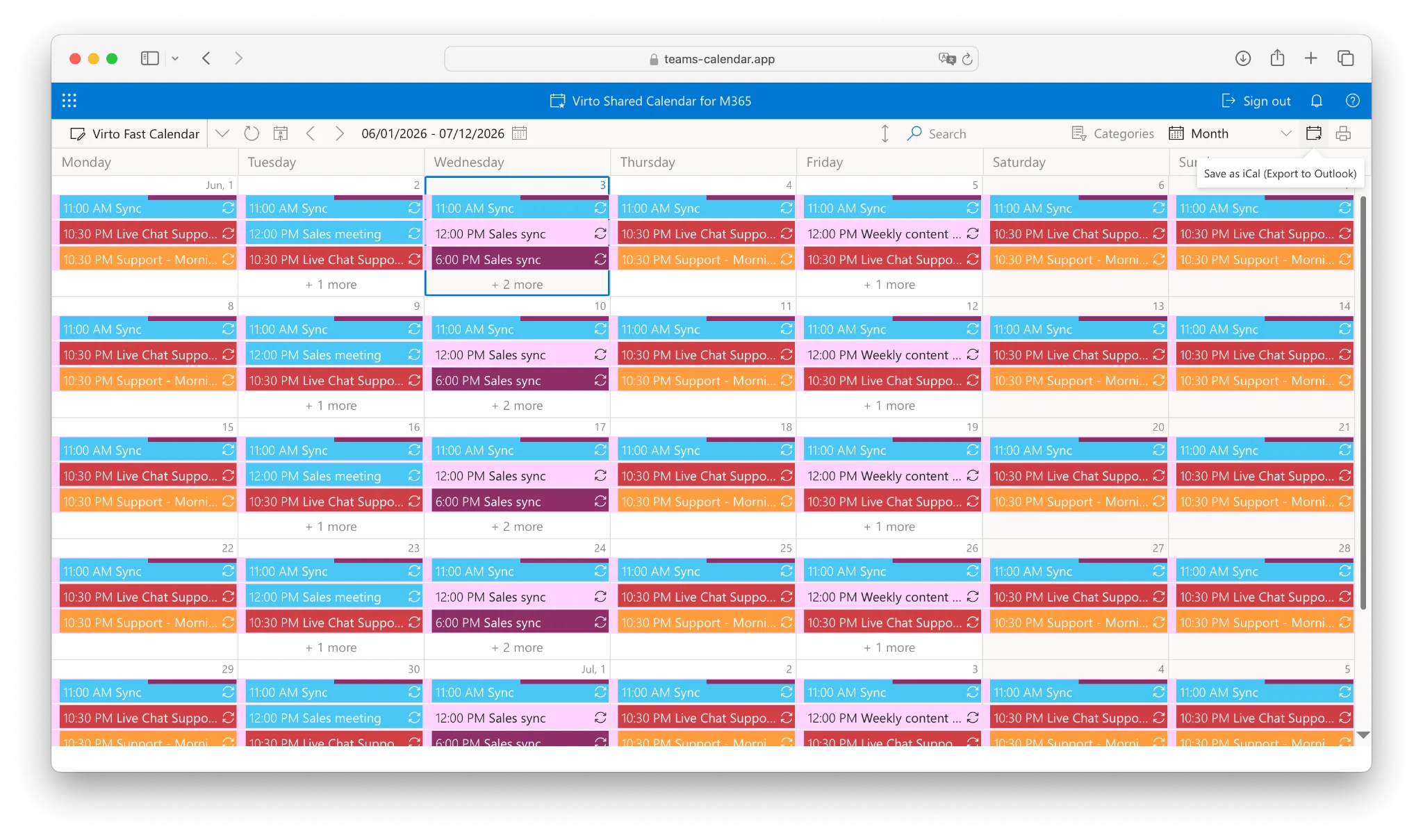
Virto Shared Calendar
Implementation steps:
- Create a Virto Shared Calendar for your conference.
- Generate an anonymous-share link.
- Embed the link on your conference website OR send via attendee confirmation email.
- Attendees view, filter by track, and add sessions to their personal calendars — no account, no signup.
Why this matters
Virto Shared Calendar is the only product in the Virto suite that supports anonymous public sharing without Microsoft accounts. For conferences with external speakers, partners, sponsors or public attendees, that’s the difference between a working agenda and an inbox full of “I can’t open the link” emails.
Try Virto Shared Calendar (free for 15 entries) →
Common Conference Scheduling Mistakes (and How AI Helps Avoid Them)
Booking the keynote speaker twice
AI fix: Add explicit “no speaker appears in two sessions at the same time” as a HARD constraint in your prompt, then re-run the speaker-conflict check from Step 3.
Putting a 300-person session in a 150-person room
AI fix: Include room capacities in the initial prompt, then verify with: “For each session, verify the expected audience doesn’t exceed room capacity.”
Forgetting A/V transitions between sessions
AI fix: Specify minimum transition time (10–15 min) in the prompt. AI defaults to back-to-back unless told otherwise.
Scheduling the most popular sessions in parallel
AI fix: Ask the model: “Are any two sessions targeting the same audience scheduled at the same time? Suggest moves.”
Networking breaks placed where they break flow
AI fix: Pin breaks to specific times in the prompt (morning coffee 10:30, lunch 12:30, afternoon coffee 15:30). Don’t let the model invent them.
Frequently Asked Questions
Can AI create a multi-track conference schedule?
Yes. AI tools (ChatGPT, Claude, Microsoft Copilot, Gemini) handle multi-track conference scheduling well when given clear constraints: parallel tracks, rooms with capacities, speaker availability, A/V transitions and recording requirements. Claude has the longest context window and handles full 3-day agendas with 80+ sessions best. Provide all your constraints upfront, then iterate to fix conflicts. Full step-by-step prompts for corporate, academic, hybrid and complex conferences are in this article above.
What is the best AI tool for conference planning?
For complex multi-track conferences with 30+ sessions: Claude (best at parallel scheduling logic with long context). For typical 1–2 day conferences: ChatGPT (most accessible, fast iteration). For corporate event teams on Microsoft 365: Copilot (seamless integration with SharePoint and Teams). All four offer free tiers sufficient for most events. Test with a sample prompt before committing to one for your full conference workflow.
Is there a free conference schedule maker?
Yes, multiple. Free AI tools (ChatGPT, Claude, Copilot, Gemini) generate agendas at no cost and export directly to Excel (.xlsx). SwarmTix offers a free standalone web-based conference schedule builder. For sharing the agenda with attendees, Virto Shared Calendar is free for up to 15 calendar entries for each user, with unlimited anonymous viewers. The combination of AI tool + Virto Shared Calendar = free end-to-end workflow without paying for Eventzilla, Sched or Whova.
How do I share a conference agenda with attendees without making them sign up?
Use Virto Shared Calendar with its anonymous-share link feature. Create the calendar, import your .xlsx agenda, and generate a public link that attendees view without creating any account. They can also subscribe individual sessions to their personal Google Calendar, Outlook or Apple Calendar via iCal. This works equally well for internal employees, external speakers, sponsors and the general public.
How do I handle speaker conflicts when AI generates the schedule?
Define all speaker conflicts explicitly in your prompt as HARD constraints. For example: “Speaker A is only available Day 2 morning. Speaker B keynotes our partner event Day 1 PM and cannot be scheduled then.” After the AI generates the first draft, iterate with: “Check if any speaker appears in two sessions at the same time” and “For speakers presenting multiple sessions, verify at least 90 minutes between their sessions for prep.” AI handles these well when constraints are clearly stated.
Can I import an AI-generated agenda into Outlook or Google Calendar?
Yes. Ask the AI to export the agenda as an .xlsx workbook with start_time and end_time formatted as Excel Date & Time. Import into Outlook (File → Open & Export → Import) or Google Calendar (Settings → Import & Export — Google Calendar reads the .xlsx after a one-click Save As .ics, or paste the table directly). For event teams on Microsoft 365, importing the .xlsx as a SharePoint list + Virto Calendar App gives a richer experience: multi-source overlay, colour-coding by track and room booking integration. For sharing with attendees who don’t have Microsoft 365, Virto Shared Calendar generates iCal subscription links each attendee can add to their personal calendar app.
Bringing It Together
AI does the constraint-solving. Microsoft 365 keeps your team aligned. Virto Shared Calendar gets the agenda in front of every attendee — including the ones without a Microsoft account. The whole pipeline is free or close to it, and once your team has run it for one event the second one takes an afternoon.
Choose your next step:
- Enterprise event team on M365 + SharePoint → Virto Calendar App for SharePoint (free 30-day trial)
- Mid-size org events team on Teams → Virto Calendar App for Teams (free 30-day trial)
- Solo organiser / association coordinator → Virto Shared Calendar (free for 15 entries, anonymous attendee sharing)
Related reading: Corporate events calendar guide · Master calendar guide · Scheduling conflicts guide · Share calendar with external users (no Microsoft account) · AI Scheduling Assistant hub · School timetable AI guide