


Microsoft SharePoint stands as one of the leading platforms for building both intranet portals and collaboration portals, offering numerous tools for content sharing, team communication, and information access. Organizations frequently choose SharePoint as a foundation thanks to its native integration with Microsoft 365 apps like Teams and OneDrive, scalable architecture, and enterprise-grade security.
Why SharePoint Portal Excels
Its familiar Microsoft Office interface simplifies adoption. Features like advanced search, automated workflows, and customizable apps help information flow across distributed teams. SharePoint powers portals for enterprises by handling massive data volumes, enforcing compliance, and breaking down silos without third-party dependencies.
Keys to Portal Success
A successful portal starts with intuitive navigation driven by smart information architecture. It also relies on robust security for access control, effective content management via metadata and versioning, and engaging features like personalized dashboards to drive user adoption.
Article Goals
This article dives deep into SharePoint’s robust portal-building capabilities, scalability for enterprise needs, and proven governance strategies. It also highlights how Virtosoftware solutions extend core functionality, with advanced workflows and custom components, for seamless deployment across SharePoint Online and On-Premises environments.
SharePoint Portal Overview
SharePoint portals unify corporate resources into a Microsoft digital workspace. This section explores their core purpose, benefits, standout features, and variations.
SharePoint Portal: Concept and Key Characteristics
A SharePoint portal is a corporate hub built on SharePoint, either in the cloud (Microsoft 365) or on-premises. It brings together people, content, and processes in one secure web space with easy navigation and controlled access. It serves as the main hub for documents, knowledge bases, announcements, tasks, and apps. Plus, it offers strong tools for easy publishing, smart search, and smooth teamwork.
Unlike scattered folders and basic tools, a SharePoint portal provides ready-made templates, end-to-end content management (from creation to archiving), and clear governance rules for consistency.
- SharePoint portal: Branded main gateway that pulls together multiple sites with custom navigation, targeted audiences, and global search.
- SharePoint site: One focused workspace, like a team site for projects or communication site for updates, that feeds into the larger portal.
- SharePoint hub: Online-only connector linking related sites for shared navigation, look, and content—simpler than a full portal.
👉 How to sign in to SharePoint »>
Importance and Benefits of SharePoint Portal
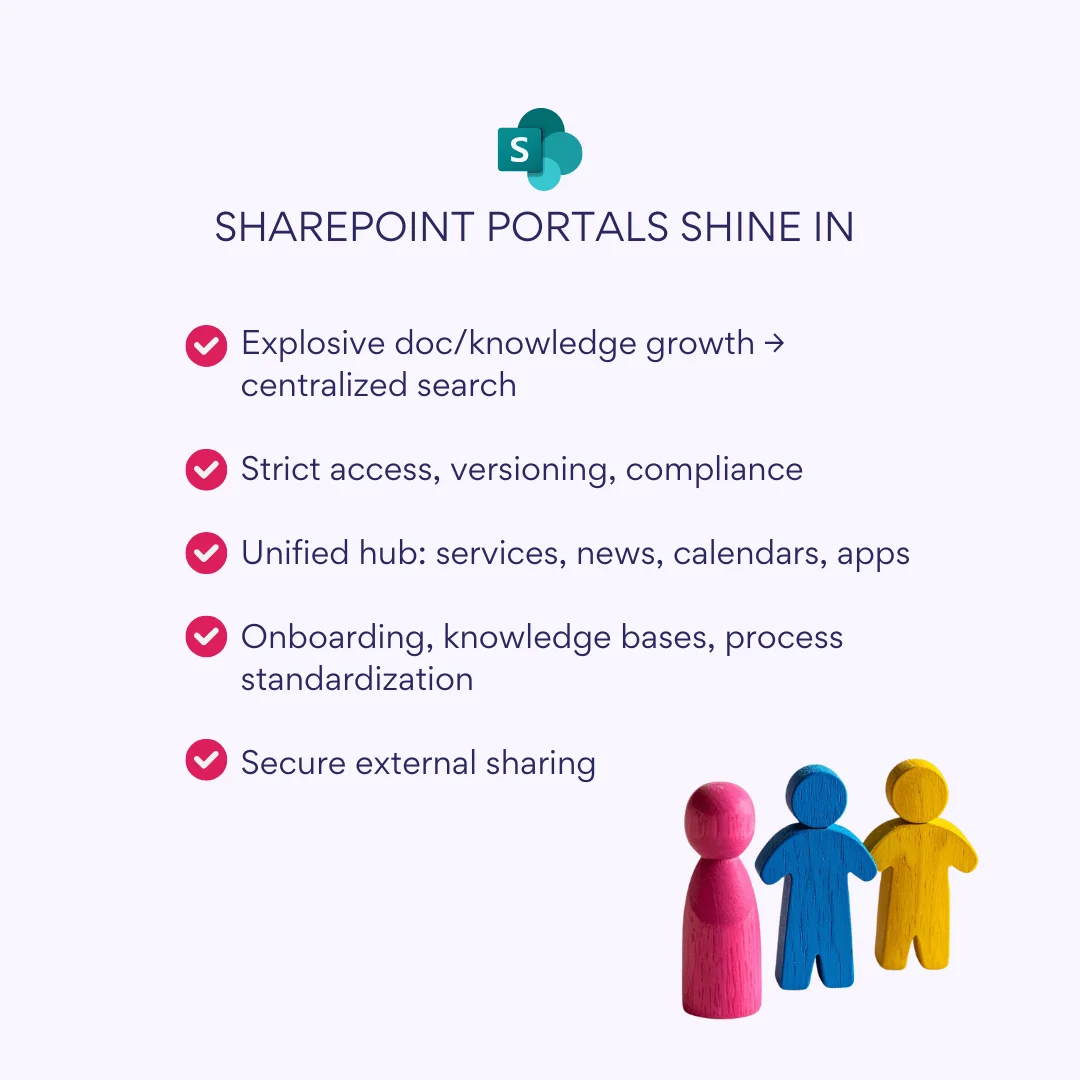
SharePoint portals create one central spot for company news, documents, policies, and services. This saves time on searches, cuts down duplicates, and makes processes clearer with real-time updates and trackable actions.
Different teams make great use of these portals:
- Employees: Quick access to newsfeeds, documents, and self-service tools like forms or directories.
- Managers and process owners: Tools for publishing policies, KPI dashboards, and performance reports.
- HR and internal communications: Onboarding portals, employee directories, announcements, and event calendars.
- IT and support teams: Knowledge bases, service status pages, and request forms.
- Legal and compliance: Retention policies, approval workflows, and granular access controls.
- Partners and contractors (with external sharing): Secure, permissioned document and data exchange.
Compared to disconnected tools or traditional file shares, SharePoint portals shine with these advantages:
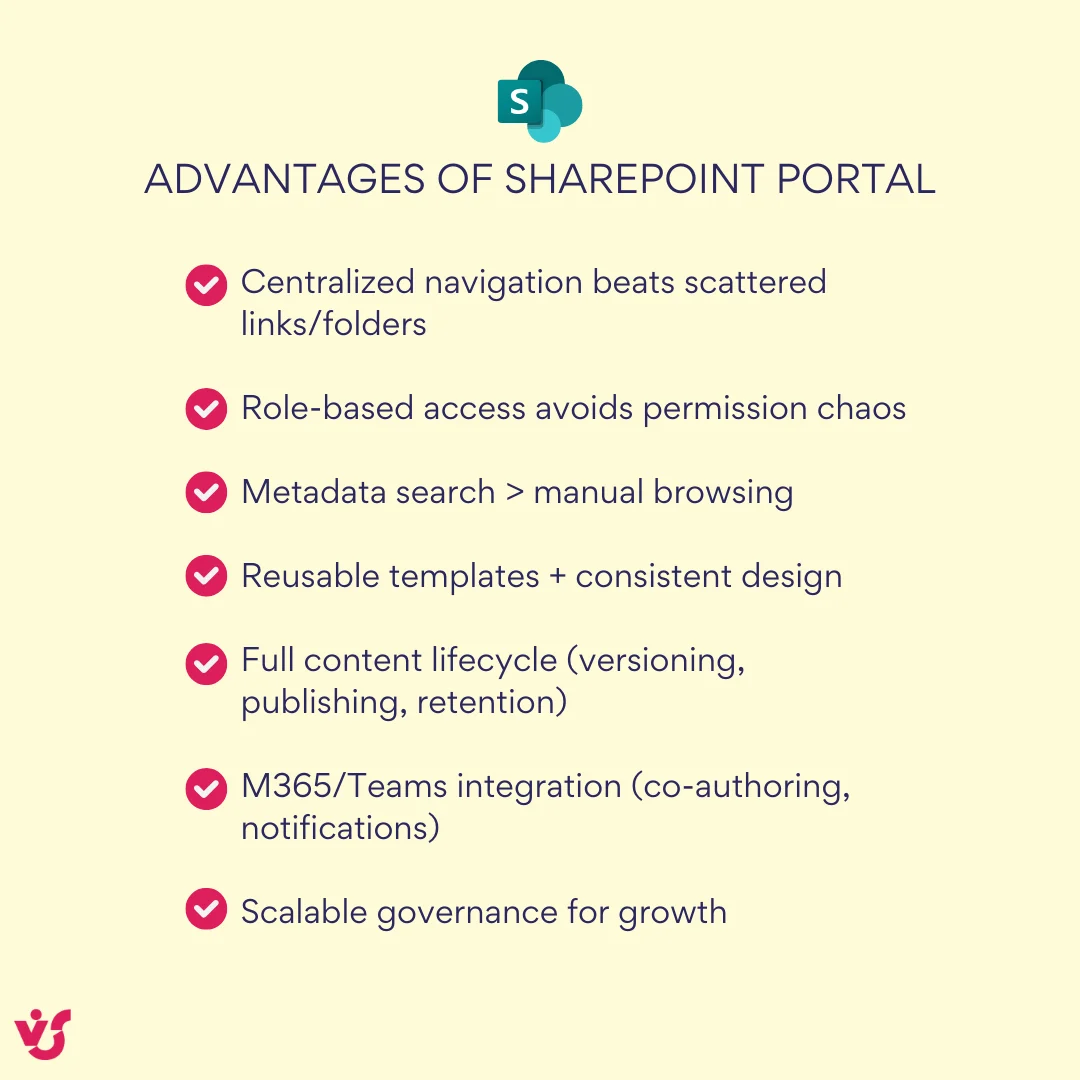
- Centralization and unified navigation, replacing scattered links and folder mazes.
- Role-based access and inherited permissions, avoiding chaotic network share setups.
- Metadata-driven search across all content, far beyond manual folder browsing.
- Reusable site/page templates, consistent visual styling, and modular web parts.
- Full content lifecycle: versioning, scheduled publishing, archiving, and automated retention.
- Native Microsoft 365/Teams integration for co-authoring, notifications, and chat-linked docs.
- Scalability with built-in governance to handle expanding content and user growth effortlessly.
SharePoint Portal Features and Use Cases
SharePoint portals pack powerful features for enterprise needs. These tools allow easy content handling, collaboration, and administration across teams.
Key features include:
- Sites and subsites: Communication sites for broadcasting info, team sites for collaboration, and hub structures for navigation across related areas.
- Document libraries: Versioning with history tracking, metadata tagging, real-time co-authoring, check-in/check-out controls, and scheduled publishing.
- Lists: Structured data storage with custom forms, validation rules, and status tracking for tasks or inventories.
- Web parts: Modular components like news feeds, event calendars, quick links, hero banners, embedded lists, and dynamic reports.
- Search: Configurable scopes (site, hub, or global), managed properties for precision, faceted filters, and relevance-based highlighting.
- Navigation: Global and local menus, breadcrumb trails, and customizable link directories for intuitive browsing.
- Security: Microsoft 365 groups for easy management, granular permission levels, controlled external sharing, and detailed activity auditing.
- Teams integration: Direct tabs for sites/libraries, shared channels for cross-tenant work, and automated event notifications.
- Automation: Power Automate flows for approvals, reminders, content routing, and integrations with other services.
- Multilingual support: Page translations, localized navigation, and language-specific content for global teams.
Types of SharePoint Portals
SharePoint supports diverse portal types, each optimized for specific needs. They share core tech but differ in audience, security, and focus.
Main types:
- Intranet portal: Central hub for internal comms—news feeds, policies, knowledge bases, org charts, and service catalogs to keep employees informed and productive.
- Extranet/partner portal: Secure space for external users; enables document sharing, joint projects, and restricted access via guest links or dedicated sites.
- Project and departmental portals: Dedicated areas for tasks, calendars, milestones, and artifacts; often integrate with Teams for real-time project tracking.
- Employee self-service portal: Improves HR/IT requests with forms, automated approvals, status trackers, and notifications for vacations, equipment, or support tickets.
Key differences:
| Portal Type | Primary Audience | Security Focus | Common Features |
|---|---|---|---|
| Intranet | Internal employees | Internal-only permissions, M365 groups | News, directories, policies, global search |
| Extranet/Partner | External partners/vendors | Guest access, sensitivity labels, auditing | Secure sharing, project collaboration, restricted views |
| Project/Departmental | Specific teams/projects | Role-based (e.g., viewer/editor), hub-associated | Task lists, calendars, document libraries, Teams tabs |
| Self-Service | All employees | Self-access with approvals, workflow automation | Forms, dashboards, notifications, status tracking |
SharePoint’s Enterprise Potential
SharePoint serves as a reliable foundation for enterprise portals of any scale, powering solutions for organizations from small teams to global corporations. Its mature architecture supports growth without compromising performance or usability.
Built-in Capabilities
SharePoint offers core components ideally suited for large-scale portals. Sites and hubs provide flexible structures for organizing content hierarchically, while document libraries handle massive file volumes with metadata and versioning. Lists allow custom data tracking, and web parts deliver dynamic, customizable interfaces for news, reports, and integrations.
Security and M365 Integration
For large enterprises, SharePoint excels in security, access management, and deep ties to the Microsoft 365 ecosystem. Features like Microsoft 365 groups, granular permission inheritance, and external sharing controls for precise access, while integration with Teams provides chat-linked collaboration, Office co-authoring, and Power Platform automation for workflows.
SharePoint Portals for Large Organizations
SharePoint stands out for enterprise portals due to unmatched scalability, security, and compliance. It manages petabytes of data, supports tens of thousands of concurrent users, and navigates complex hierarchies through site collections and associated hubs.
Key strengths include:
- Multi-level permissions with item- or folder-level granularity.
- Comprehensive auditing, Data Loss Prevention (DLP) policies, and retention labels for compliance.
- Full content lifecycles: automated approval, publishing schedules, archiving, and eDiscovery.
- Federated search across sites, tenants, or even hybrid environments for unified discovery.
Scalability Highlights
SharePoint scales effortlessly via multi-region deployments, intelligent caching, and content delivery networks to maintain speed globally. Content type hubs standardize metadata enterprise-wide, while site templates and provisioning services allow rapid rollout of consistent portals, ensuring performance even under heavy loads.
SharePoint Portal Architecture Essentials
Sustainable SharePoint portal governance begins with robust architecture: unified navigation and metadata standards, a clear permission model, standardized content templates, and native Microsoft 365 integrations. This foundation provides scalability, usability, and long-term maintainability for enterprise environments, whether Online or On-Premises.
Key Components and Best Practices
Information Architecture: Hub Model
Adopt 1–3 root hubs to structure your portal effectively—a corporate hub for enterprise-wide content, functional department hubs for business units, and optionally a knowledge hub for shared resources. Associate child sites with hubs to inherit navigation, themes, and search scopes automatically, promoting consistency.
Separate hubs by content type and audience (e.g., HR policies vs. technical guides) rather than rigid organizational charts, which evolve frequently and complicate maintenance.
Site Collections
Create dedicated site collections for major domains, assigning unique owners and storage quotas to isolate responsibilities. Use separate collections for extranets or regional sites to contain risks, enforce local compliance, and simplify scaling.
For temporary projects, provision lifecycle-based sites using templates triggered by automated requests for clean decommissioning.
Navigation
Limit global hub navigation to two levels deep with 7–9 top menu items for quick access. Complement with local site navigation featuring contextual links, quick actions, and breadcrumbs to guide users intuitively.
Maintain a unified naming convention and icon set across menus; eliminate duplicates to reduce clutter and cognitive load.
Taxonomy and Metadata
Establish managed metadata terms for core content types like news, policies, procedures, knowledge articles, events, and project records. Mandate fields such as owner, last review date, language, target audience, and confidentiality level for precise filtering and search.
Publish content types centrally via the Content Type Hub to enforce consistency and prevent siloed variations.
Content Types and Templates
Design bespoke page and card templates for each content type, embedding uniform fields for streamlined authoring. Pair with standardized Word, Excel, and PowerPoint document templates pre-populated with metadata properties to boost compliance from creation.
Naming Conventions
Follow strict patterns for clarity:
| Element | Convention | Examples |
|---|---|---|
| Sites | Domain prefix + short name | corp-hr, kb-guides, ext-partners |
| Libraries | Short, purpose-driven; metadata holds dates | Documents, Policies, Projects |
| Pages | Readable URLs, no spaces/special chars | /hr/onboarding-guide, /it/service-status |
Versioning and Lifecycle
Enable minor versions (drafts) for iterative knowledge pages; major versions suffice for static news. Implement expiration policies with automated owner alerts 30–60 days prior to refresh deadlines, integrating Power Automate for archiving or deletion to keep content fresh.
Permissions and Security in SharePoint Portal
Effective SharePoint portal security relies on structured access principles and proactive compliance measures. These allow data protection scalability with organizational growth.
Access Principles
Adhere to the principle of least privilege, assigning permissions exclusively through groups rather than individual users to simplify management and reduce errors. Define distinct groups by role—owners (full control), editors (contribute), members (edit), readers (view)—and never mix responsibilities within a single group.
Microsoft 365 and SharePoint Groups
For team sites, use Microsoft 365 groups to synchronize access across SharePoint, Teams, Planner, and Outlook. Communication sites benefit from SharePoint groups, offering finer control without the broader app ecosystem linkage.
Permission Levels
Manage permissions at the site or library level to minimize inheritance breaks; folder- or item-level adjustments increase drift risks exponentially. For private sections, opt for dedicated libraries over complex folder permissions to maintain clarity and auditability.
Extranet and Guest Access
Isolate extranet sites in separate collections with tailored sharing policies, enforcing download limits, sensitivity watermarks, forwarding blocks, and mandatory auditing of guest actions. Limit external links to authenticated users via Azure AD guest accounts.
Policies and Compliance
Apply Data Loss Prevention (DLP) policies and sensitivity labels to flag or block sensitive content movement. Use retention labels for automated legal holds and storage compliance, paired with tenant-wide conditional access and multifactor authentication (MFA)—document all exceptions rigorously.
Auditing and Control
Schedule quarterly reviews of groups, permissions, and external users, generating reports on downloads, bulk exports, and changes. Formalize governance docs specifying group creation approvals, external access workflows, and review cadences.
Content and Search
A disciplined content model paired with refined search drives portal adoption. Focus on standardization to cut maintenance overhead.
Content Model
Structure libraries functionally—e.g., Policies, Procedures, Templates, Project Artifacts—avoiding date-based folders. Build portal pages solely from approved templates with predefined web part zones for consistency.
Web Parts
Deploy a core set: News for announcements, Highlighted Content for featured items, Quick Links for navigation, Hero for visuals, List for data views, and Forms for inputs.
For advanced needs, VirtoSoftware components elevate standard SharePoint functionality with enterprise-grade overlays and integrations, available for both SharePoint Online/Teams and On-Premises.
Calendars and Tasks
- SharePoint Online and Teams: Virto Calendar App overlays multiple calendars (Exchange, SharePoint, Teams events) into a single, customizable view with color-coding, recurring events, and drag-and-drop rescheduling. Virto Kanban Board App transforms lists into visual boards with swimlanes, WIP limits, card customization, and automation rules—ideal for agile task tracking and project sprints across distributed teams.
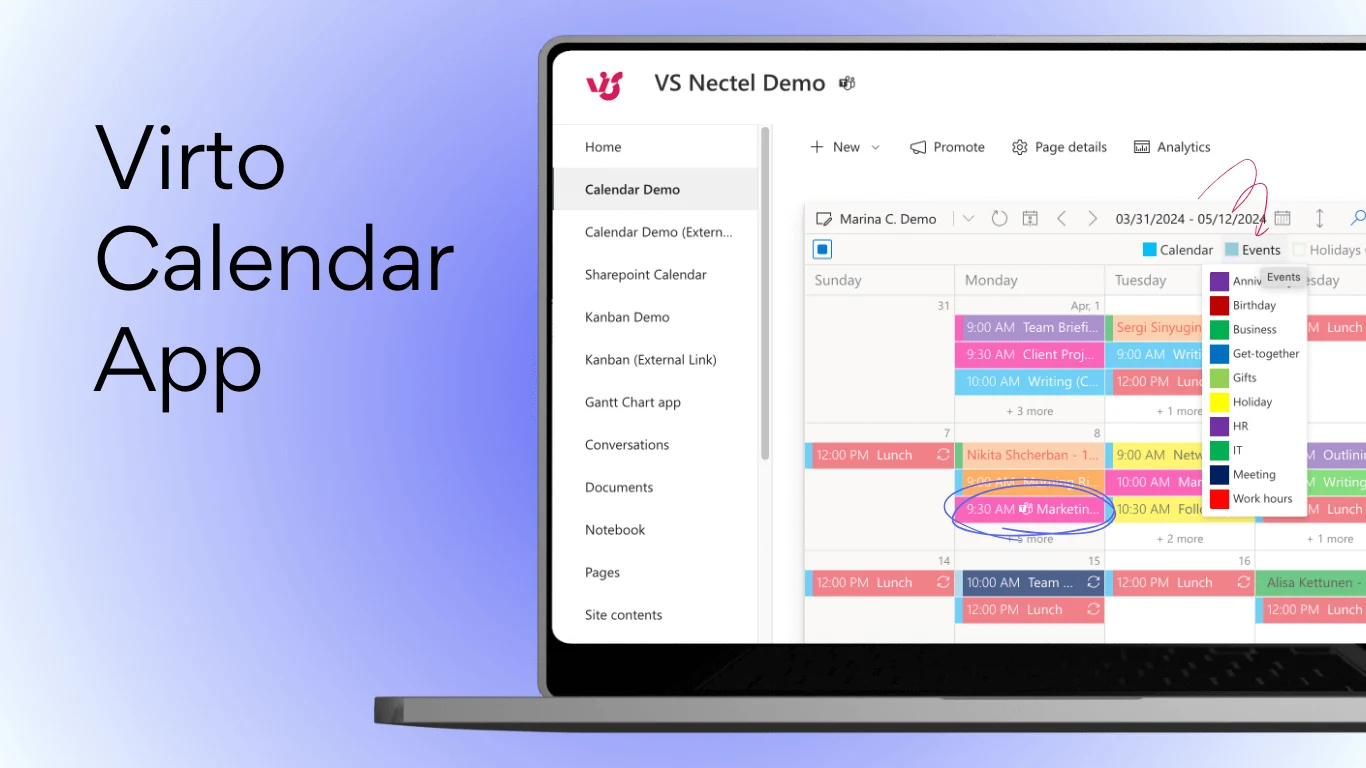
- SharePoint On-Premises: Virto Calendar Web Part embeds the same multi-source overlay directly on pages for perfect integration without app installations. Virto Kanban Board Web Part delivers identical visual task management, supporting custom fields, filters, and export to Excel/PDF for compliance reporting.
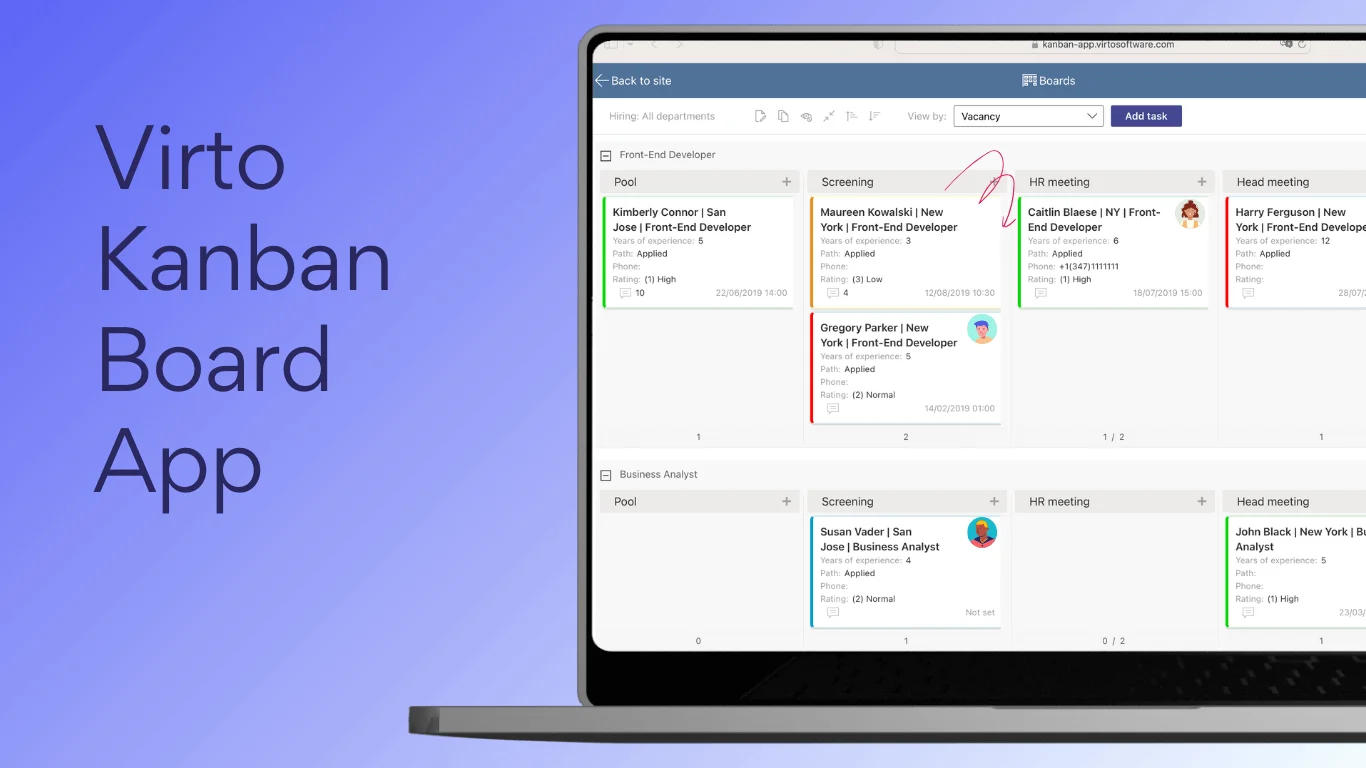
These tools consolidate fragmented calendars and tasks, reducing context-switching and positively influencing productivity in enterprises.
Alerts and Reminders
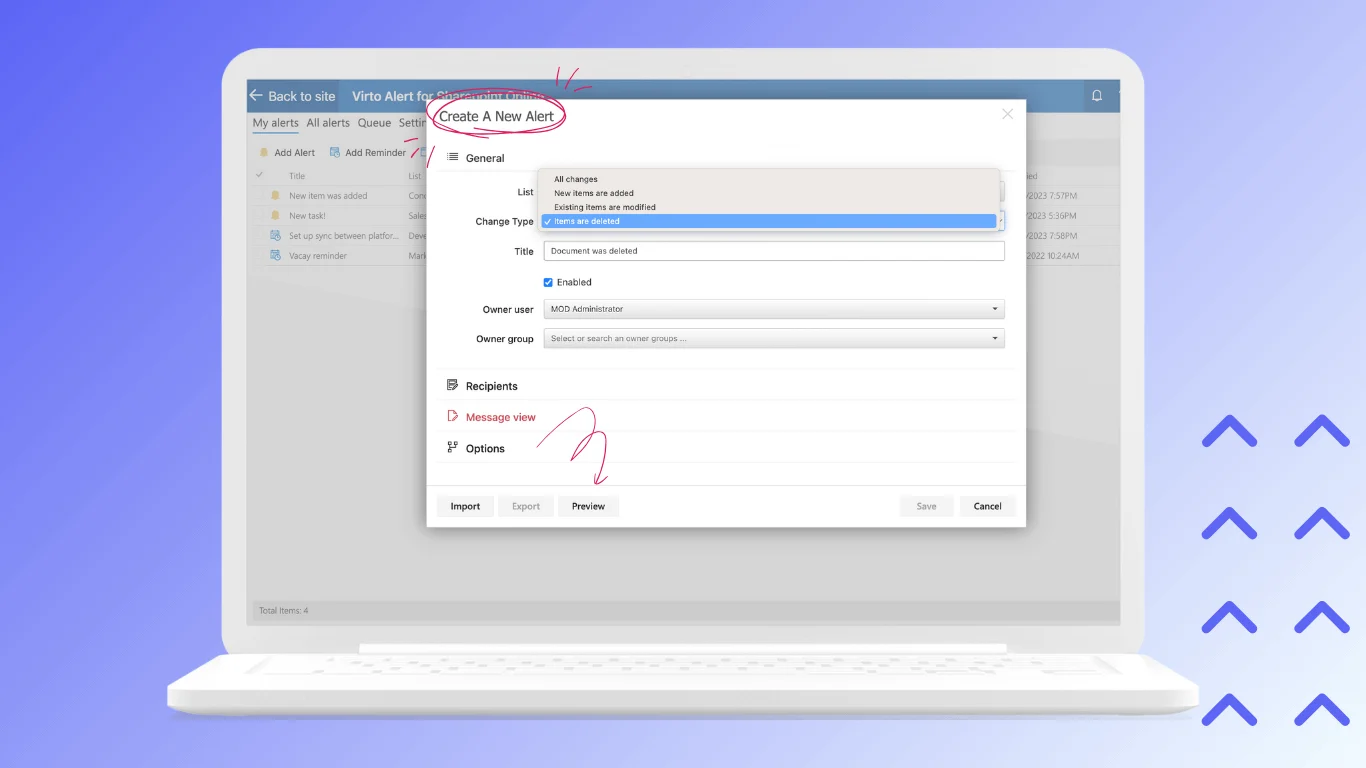
Virto Alerts & Reminders App (SharePoint Online/On-Premises) monitors changes across lists, libraries, and pages, sending instant or scheduled notifications via email, SMS, or Teams with customizable triggers (e.g., item added, overdue tasks). The Teams-integrated Virto Notifications & Reminders App pushes rich cards directly into channels or chats, including event invites, publication alerts, and deadline warnings with one-click actions.
Key enhancements include audience targeting (by group or metadata), digest summaries to avoid alert fatigue, and escalation rules for unanswered items—perfect for keeping stakeholders aligned on dynamic content like policies or project milestones.
Search and Relevance
Set up verticals like People, News, Documents, Knowledge, and Services, with refiners for type, owner, last updated, language, and audience. Incorporate query suggestions, industry synonyms, and a stop-word list; monitor zero-result queries quarterly to refine dictionaries.
Multilingual Support and Accessibility
Support multilingual page versions and localized navigation labels for global teams. Meet WCAG standards via alt text, color contrast, and keyboard navigation.
Streamline upkeep with uniform page layouts, managed metadata, and consolidated search to reduce custom tweaks.
SharePoint Portal Integrations
Strategic integrations connect SharePoint portals to everyday tools, streamlining workflows and extending reach without complexity. Limit to proven connectors with defined SLAs to avoid maintenance sprawl.
Microsoft Teams
Pin essential portal sections—like news pages, document libraries, or dashboards—as tabs directly in Teams channels for one-click access. Deploy Virto Kanban Board App and Virto Calendar App within Teams to synchronize tasks and events across SharePoint lists, Exchange calendars, and channel posts, providing real-time updates for hybrid teams.
Outlook
Turn on Outlook subscriptions to departmental news, announcements, or curated digests, delivering updates straight to inboxes with RSS-like feeds. Publish portal calendars to corporate Outlook calendars for event visibility and RSVP handling.
Power Automate
Build no-code flows for content approvals, overdue task notifications, and automated site provisioning from Microsoft Forms requests. Connect to external systems like ticketing (ServiceNow), HRIS (Workday), or ITSM platforms via pre-built connectors, triggering actions based on SharePoint metadata changes.
Viva Connections
Designate your main intranet as the Viva home site, surfacing portal content as interactive cards in the Viva Connections dashboard within Teams. Create custom cards for quick actions (e.g., submit requests) and live metrics (e.g., task completion rates), personalizing based on user roles.
External Systems
Link via REST APIs, Power Automate connectors, or CSOM for knowledge bases, service catalogs, and registries—pulling data into web parts or pushing updates to SharePoint lists. For On-Premises, deploy on-premises data gateways with scheduled syncs to bridge air-gapped systems securely.
Choosing Components Wisely
Start with this curated set to future-proof management:
| Integration | Purpose | Why Prioritize |
|---|---|---|
| Teams + Virto Apps | Collaboration hub | Native, real-time; covers 80% of daily workflows |
| Outlook Subscriptions | News/Calendar push | Low-effort, high-adoption for desk workers |
| Power Automate | Automation | No-code scalability; 100+ connectors |
| Viva Connections | Mobile/Teams entry | Modern employee experience standard |
| Gateways/APIs (limited) | Legacy systems | Defined SLAs prevent “zoo” growth |
Fix supported integrations early via governance policy—e.g., IT approval required, quarterly reviews—for long-term simplicity and performance.
👉 Discover best workspace collaboration tools for modern teams »>
Step-by-Step SharePoint Portal Creation
Launching a SharePoint portal follows structured stages from planning to post-launch support. This ensures alignment with business goals and smooth adoption across the organization.
Preparation
Start by defining clear objectives tied to business needs, such as improving information access or streamlining approvals. Analyze your target audience (employees, partners), conduct a content audit to identify and prioritize assets, map key processes (e.g., onboarding, requests), and compile a requirements checklist covering security levels, compliance standards, multilingual support, and scalability targets.
Design
Craft the information architecture using the hub model outlined earlier, grouping content by audience and type. Develop UX guidelines with wireframes for key pages, a consistent design system (colors, fonts, icons), and reusable templates to maintain branding uniformity from the outset.
Configuration and Build
Provision site collections via the SharePoint admin center, applying governance-approved templates for sites, libraries, and pages. Configure metadata and content types through the Content Type Hub, set up web parts (News, Hero, Quick Links), and customize search with verticals, refiners, and managed properties.
Build a pilot environment mirroring production, then design core pages—home, department hubs, news feeds—with performance tweaks like image optimization and caching enabled.
Permissions and Automation
Establish Microsoft 365 or SharePoint groups per role (owners, editors, readers), applying permissions at site/library levels and allowing inheritance where possible. Roll out security via DLP policies, sensitivity labels, and MFA requirements.
Integrate Power Automate for workflows: content approvals, overdue reminders, site requests. Improve with Virto tools—e.g., Alerts & Reminders App for targeted notifications and Kanban Board App for task visuals.
Content and Launch
Draft a content migration plan with schedules, owners, and approval gates; populate using templates and bulk import tools. Run User Acceptance Testing (UAT) with pilot users, deliver role-based training sessions (live/webinars), and announce via email, Teams, and Viva Connections.
Implement a 2–4 week hypercare phase with dedicated support, feedback channels, and analytics monitoring (usage reports, search queries). Celebrate go-live and transition to ongoing governance reviews.
👉 Learn more about creating and launching healthy SharePoint portal »>
Common SharePoint Portal Pitfalls
Many SharePoint portals falter due to avoidable errors in planning, governance, and maintenance. Addressing these upfront for long-term success and user satisfaction.
Key Mistakes and Prevention
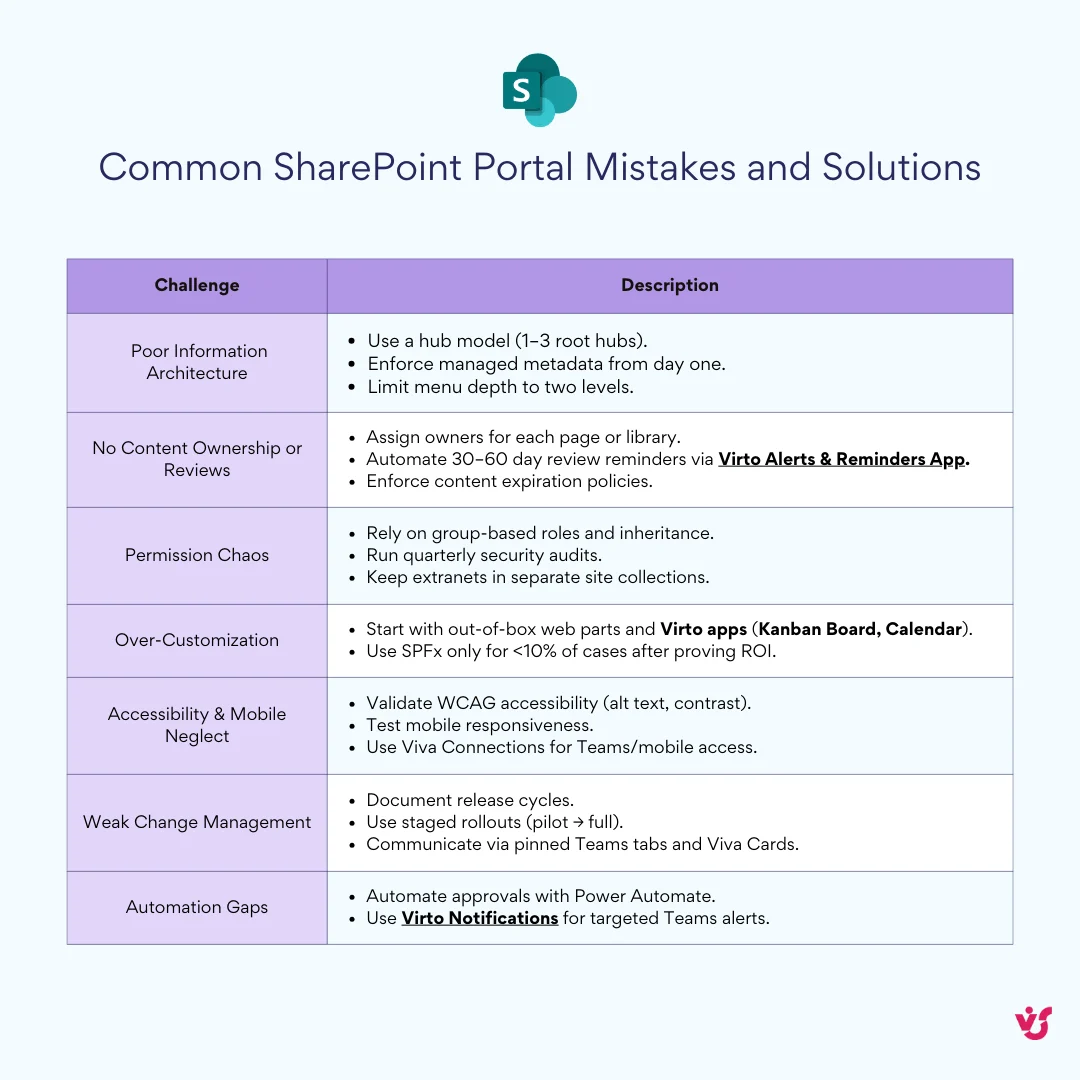
- Poor information architecture: Cluttered navigation and missing metadata lead to frustration. Solution: Adopt the hub model with 1-3 root hubs, enforce managed metadata from day one, and limit menu depth to two levels.
- No content ownership or reviews: Stale content erodes trust. Solution: Assign explicit owners to every page/library, automate 30-60 day review reminders via Virto Alerts & Reminders App, and enforce expiration policies.
- Permission chaos: Too many unique permissions create “shadow” sites with unclear access. Solution: Stick to group-based roles, inherit at site/library levels, conduct quarterly audits, and isolate extranets in dedicated collections.
- Over-customization: Reinventing wheels ignores powerful templates. Solution: Start with out-of-box web parts and Virto apps (e.g., Kanban Board, Calendar Overlay); reserve SPFx for <10% of needs after proving ROI.
- Accessibility/mobile neglect: Excludes remote users. Solution: Validate WCAG compliance (alt text, contrast), test responsive designs, and leverage Viva Connections for Teams/mobile access.
- Weak change management: Unannounced updates cause confusion. Solution: Document release cadences, use staged rollouts (pilot → full), and communicate via pinned Teams tabs and Viva cards.
- Automation gaps: Manual publishing/notifications waste time. Solution: Deploy Power Automate for approvals and Virto Notifications for targeted Teams alerts on deadlines/events.
Quality Criteria Summary
A high-quality SharePoint portal meets these benchmarks:
| Criterion | Measures of Success |
|---|---|
| Relevant Content | 90%+ up-to-date (per audits); owner-assigned items |
| Search Performance | <2s results; 80%+ query success rate with refiners |
| Navigation | 2-click access to key pages; consistent icons/naming |
| Accessibility/Mobile | WCAG AA compliant; full functionality on Teams app |
| Security/Compliance | Zero unmanaged uniques; DLP blocks enforced |
| User Engagement | >70% monthly active users; positive adoption metrics via analytics |
Extending SharePoint Portal with Virtosoftware
Standard SharePoint delivers a strong foundation, but specialized enterprise needs—like advanced calendars, notifications, or bulk uploads—often require targeted enhancements. Virtosoftware specializes in SharePoint solutions that extend these capabilities for both Online and On-Premises, boosting usability without custom code.
Solutions for SharePoint Online
Virtosoftware apps integrate natively into Microsoft 365 and Teams, addressing gaps in standard tools with intuitive, high-performance features.
Virto Multiple File Upload App for SharePoint Online & Microsoft 365
Problem: SharePoint’s default uploader struggles with bulk transfers from local folders, failing to preserve folder structures and slowing down large migrations or regular reporting.
Solution: Virto Multiple File Upload enables drag-and-drop upload of hundreds of files or entire folder trees directly into document libraries, automatically recreating the hierarchy.
Use cases:
- Populating portals with legacy document archives or project folders during initial setup.
- Uploading monthly reports exported as structured folders from CRM/ERP systems.
- Migrating file shares or legacy storage into SharePoint without manual reorganization.
Key benefits:
- Preserves full folder hierarchy via simple drag-and-drop.
- Handles high-volume uploads at speeds far exceeding native tools.
- Seamless UI integration—no training needed, works across browsers and devices.
Other Virtosoftware Apps for SharePoint Online & M365
| App | Problem Solved | When to Use | Key Benefits |
|---|---|---|---|
| Virto Calendar App | Fragmented calendars across Exchange, SharePoint, Teams make scheduling chaotic. | Overlaying events for teams/departments in portals or Teams channels. | Unified color-coded views, recurring events, drag-and-drop rescheduling, mobile sync. |
| Virto Kanban Board App | Lists lack visual task tracking for agile workflows. | Project sprints, support tickets, or content pipelines in Teams/SharePoint. | Swimlanes, WIP limits, custom cards, automation rules, Excel/PDF export. |
| Virto Alerts & Reminders App | Basic alerts miss deadlines and changes in noisy environments. | Monitoring libraries/lists for updates in portals. | Custom triggers, email/SMS delivery, digests, escalation rules. |
| Virto Notifications & Reminders App for Teams | Notifications buried in email; no Teams-native alerts. | Real-time team updates on events, publishes, tasks. | Rich Teams cards, audience targeting, one-click actions, channel integration. |
Solutions for SharePoint On-Premises
For air-gapped or compliance-driven environments, Virtosoftware’s web parts embed directly into SharePoint pages, delivering Online-grade features without cloud dependencies. These maintain full compatibility with on-premises versions like SharePoint 2019 or Subscription Edition.
| Web Part | Problem Solved | When to Use | Key Benefits |
|---|---|---|---|
| Virto Calendar Web Part | Siloed calendars hinder event visibility in secure setups. | Embedding multi-source overlays (Exchange, SharePoint lists) on intranet homepages or project sites. | Color-coding, recurring events, drag-and-drop, print/export; no external apps needed. |
| Virto Kanban Board Web Part | Flat lists fail for visual workflow tracking. | Task boards on departmental or project pages for agile processes. | Swimlanes, custom fields, WIP limits, filters, automation; exports to Excel/PDF. |
| Virto Multiple File Operations | Tedious bulk actions on libraries waste admin time. | Managing large document sets—delete, move, tag, check-in across folders. | Batch select, multi-action toolbar, undo support, progress tracking; scales to thousands of files. |
Use Cases
Virtosoftware apps shine in real-world portals, streamlining operations across roles.
HR Portal
- Publishing policies and news: Standardized templates with approval flows ensure compliant rollout.
- Events in shared calendar: Virto Calendar (App/Web Part) overlays onboarding sessions, holidays, and training into one view.
- Deadline reminders: Virto Alerts & Reminders notifies managers of expiring policies 30 days ahead via email/Teams.
IT Self-Service Portal
- Knowledge base for processes: Metadata-driven articles with search refiners for quick troubleshooting.
- Kanban-managed changes: Virto Kanban Board (App/Web Part) tracks RFCs through stages—Submitted, Review, Approved—with assignees.
- Incident notifications: Virto Notifications for Teams pushes critical alerts to on-call channels with status links.
Project Hubs
- Roadmaps and tasks: Virto Kanban visualizes milestones, dependencies, and sprints from SharePoint lists.
- Release calendars: Virto Calendar aggregates dev/test/deploy dates across teams.
- Content review reminders: Virto Alerts automates pings for wiki updates or artifact approvals before go-live.
SharePoint Scenarios for Enterprises
SharePoint’s true strength emerges in complex, scalable deployments tailored for large organizations. Real-world examples showcase its flexibility across global operations and secure collaborations.
Multilingual Intranet Portals
Global companies face the challenge of delivering unified information that’s localized for diverse workforces across regions.
Implementation in SharePoint:
- Content localization: For On-Premises, deploy Variations to auto-generate translated page versions from a source language. In SharePoint Online, use hub sites with multilingual metadata—tag pages by language and audience for automatic translation workflows or manual copies.
- Language switching: Set the portal to detect browser language preferences for instant content display, or add a global navigation dropdown for manual selection, providing seamless toggling without broken links.
- Regional content owners: Empower local managers via granular permissions on subsites or libraries, decentralizing updates while central IT retains oversight through content type hubs and approval flows.
Problem solved: Breaks down language barriers, meets local compliance needs (e.g., GDPR variations), and drives higher engagement by serving culturally relevant, always-current content.
Secure Extranet Portals
Large enterprises must share documents and collaborate with partners/clients securely, without exposing internal systems.
Implementation in SharePoint:
- Guest access: Leverage Azure AD B2B to invite externals using their own identities—no internal accounts needed. Assign permissions strictly at site/library levels, with Microsoft 365 groups for easy scaling.
- Download/reforward restrictions: Apply sensitivity labels and Azure Information Protection policies to enforce view-only access, block printing/copying, and add watermarks. Pair with Conditional Access policies to restrict by device compliance, location, or risk signals.
- Audit logs: Enable unified Microsoft 365 auditing to log all actions—views, downloads, edits—with searchable reports in the Compliance center, providing defensible records for audits or disputes.
Problem solved: Safeguards IP during external partnerships, providing traceable interactions for compliance (e.g., SOX, HIPAA), and scales collaboration without VPNs or risky file shares.
Knowledge Center and Document Repository
Large organizations grapple with overwhelming volumes of policies, instructions, regulations, and standards that quickly outdated, burying current information under obsolete files.
Implementation in SharePoint:
- Standard page templates and metadata: Develop dedicated templates for content types like “Software Instruction” or “Corporate Policy,” mandating fields such as author, publication date, document type, and department. This powers faceted search and filtering for precise retrieval.
- Search with synonyms: Build a thesaurus in the SharePoint Admin Center so queries like “laptop” surface “notebook” results, boosting findability without users needing exact terms.
- Content expiration processes: Apply retention policies with Power Automate flows to alert owners 30 days before expiry, enforcing review/update cycles and auto-archiving outdated items.
Problem solved: Converts chaotic file shares into a dynamic knowledge base, delivering the single source of truth with always-fresh, easily discoverable content.
Cross-Functional Project Portals
Coordinating cross-departmental teams (dev, marketing, sales) on intricate projects demands flawless task sync, deadline tracking, and communication.
Implementation in SharePoint + Teams:
- Teams + SharePoint: Provision a Teams team for real-time chat, auto-creating a linked SharePoint site as the central document repository and project hub.
- Unified Kanban boards: Embed Virto Kanban Board App for M365 and Teams on portal pages to visualize backlogs, statuses, and workloads with swimlanes, custom cards, and WIP limits—serving as the definitive project dashboard.
- Release calendar grid: Integrate Virto Calendar App for M365 and Teams to overlay milestones, releases, and meetings in a color-coded grid, spotting conflicts instantly.
- Checkpoint alerts: Deploy Virto Alerts & Reminders App for M365 to trigger notifications on approaching deadlines, status shifts, or milestones, targeting individuals or full teams.
Problem solved: Dismantles silos, offers full project transparency, automates alerts to preempt delays, and speeds decisions across functions.
Conclusion
SharePoint remains a powerhouse for constructing scalable, secure, and user-centric corporate portals that evolve with large organizations. Its enterprise-grade security—encompassing granular permissions, DLP policies, auditing, and MFA—combined with native Microsoft 365 integrations like Teams co-authoring, Viva Connections dashboards, and Power Automate workflows, creates a unified ecosystem where content flows effortlessly to the right users at the right time.
While SharePoint’s out-of-the-box capabilities cover foundational needs like sites, hubs, search, and libraries exceptionally well, real-world demands often call for targeted extensions to handle nuances such as multi-source calendar overlays, visual Kanban workflows, or intelligent notification routing that prevent information overload.
Virtosoftware bridges these gaps with purpose-built apps for both SharePoint Online and On-Premises environments, delivering reliable enhancements like Virto Calendar for consolidated event views, Virto Kanban Board for agile task visualization, and Virto Alerts & Reminders for proactive, audience-specific updates—all without the complexity or cost of bespoke coding.
Take stock of your current portal’s performance: Are users finding content quickly? Do workflows automate routine tasks? Do remote teams stay aligned? By auditing against the architecture, and use cases outlined in this article, and integrating solutions like Virtosoftware’s suite, you can transform a good portal into a strategic asset that drives compliance, and productivity across your enterprise. Start today—your teams will thank you.