Exchange Online is the mail engine behind every Microsoft 365 tenant — it stores the mailboxes, drives the calendars, and feeds Outlook, Teams, and mobile devices. This guide covers the server settings you need for manual client configuration, how to configure Exchange Online end to end in the admin centres, the security policies worth turning on first, and what changed in 2026 or is due in 2027.
Quick answer: Office 365 Exchange server settings
For a Microsoft 365 work or school account, you normally don’t need server names at all: Outlook and mobile mail apps configure themselves through Autodiscover — enter your email address and password, and the client pulls the rest. If you do have to configure a client manually, use outlook.office365.com for incoming mail (IMAP port 993 or POP port 995, SSL/TLS) and smtp.office365.com port 587 with STARTTLS for outgoing mail. Your username is your full email address. Modern authentication (OAuth 2.0) is required — Microsoft is retiring password-based sign-in for these protocols.
Settings at a glance
| Protocol | Server | Port | Encryption | Notes |
|---|---|---|---|---|
| Exchange (MAPI over HTTP) | Detected automatically via Autodiscover | 443 | TLS | The recommended connection for Outlook — full calendar, contacts, and rules support |
| IMAP | outlook.office365.com | 993 | SSL/TLS | OAuth 2.0 required; on by default per mailbox, off when security defaults are enabled |
| POP3 | outlook.office365.com | 995 | SSL/TLS | OAuth 2.0 required; on by default per mailbox, off when security defaults are enabled |
| SMTP (client submission) | smtp.office365.com | 587 | STARTTLS | No port 465 option; SMTP AUTH is off by default for tenants created after January 2020 |
| Autodiscover | autodiscover.outlook.com | — | — | Published as a CNAME record on your domain |
| Username | Your full email address (e.g. name@company.com) | — | — | Not the alias or the onmicrosoft.com address, unless that is the primary |
Fig. 1. Standard Office 365 / Microsoft 365 Exchange server settings.
One caveat worth knowing before you reach for these values: classic Outlook for Windows will not let you add a Microsoft 365 work mailbox as an IMAP or POP account — it insists on the Exchange connection. IMAP and POP are for third-party clients (Thunderbird, Apple Mail, scanners, line-of-business apps), not for reconfiguring Outlook itself.
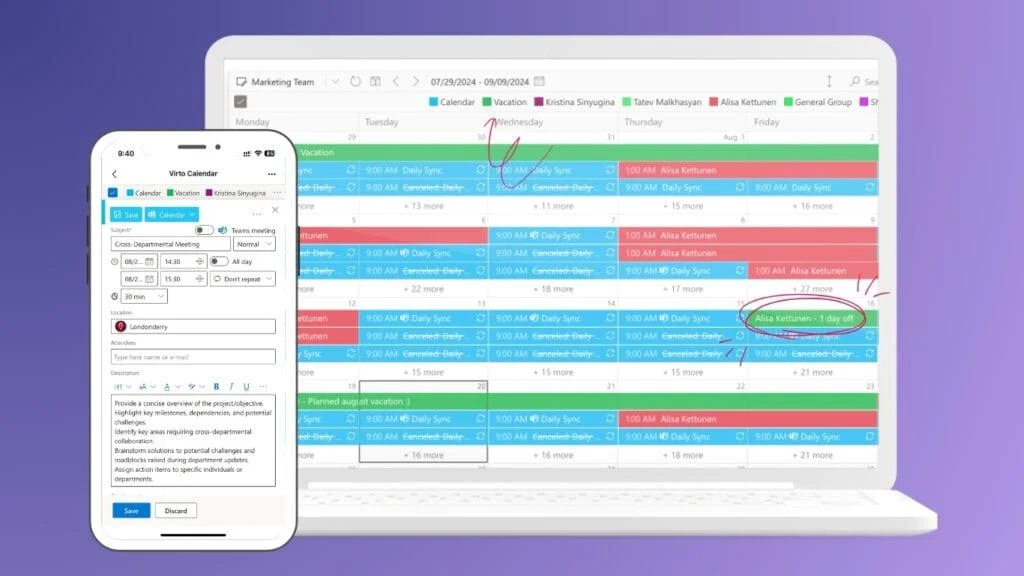
Next question: once mail is connected, where do the calendars come together? Exchange Online keeps each mailbox calendar on its own. To see Outlook calendars, group calendars and SharePoint lists in one color-coded view, add Virto Calendar App.
What changed in 2026, and what’s due in 2027
Several long-running Microsoft deprecations landed in 2026 or are due in 2027, and they change the advice in most older Exchange configuration guides.
Basic authentication for SMTP AUTH is being switched off. Microsoft revised the timeline in January 2026: behaviour is unchanged until the end of December 2026, at which point SMTP AUTH basic authentication will be disabled by default for existing tenants (admins can still re-enable it). Tenants created after December 2026 won’t have it available by default, and a final removal date is due to be announced in the second half of 2027. Clients that keep using it get a hard 550 5.7.30 rejection. See Microsoft’s updated deprecation timeline.
Exchange Web Services (EWS) is being switched off. Since October 2026, Exchange Online has been disabling EWS in phases: tenants that had not set EWSEnabled=True by the end of August 2026 are switched to EWSEnabled=False, and from 10 October 2026 EWSEnabled=True alone is no longer enough — apps also need to be on the tenant’s EWSAllowedAppIDs allow list, which Microsoft pre-filled for some tenants from their recent EWS usage. Full, permanent shutdown follows on 1 April 2027. Microsoft Graph is the replacement. This does not affect on-premises Exchange Server. See Microsoft’s EWS deprecation notice.
New Outlook for Windows becomes the default for enterprise users. Microsoft moved the opt-out phase for enterprise plans from April 2026 to March 2027; from then, new Outlook is the default client and people can still switch back. Classic Outlook remains supported through at least 2029 — but the two clients keep account settings in different places, which matters when you’re walking a user through manual configuration.
The admin portals moved. The Microsoft 365 compliance portal (compliance.microsoft.com) and the old Security & Compliance Center are retired; retention, DLP, eDiscovery, and audit now live in the unified Microsoft Purview portal at purview.microsoft.com. The Azure AD portal is now the Microsoft Entra admin center at entra.microsoft.com, and Azure AD itself is Microsoft Entra ID.
IMAP and POP already require modern auth. Basic authentication for IMAP, POP, EAS, EWS, and remote PowerShell was removed back in 2022. Any guide still telling you to use a plain password with IMAP against a Microsoft 365 mailbox is out of date.
How to find Exchange server settings in Outlook
Most users never need these screens — Autodiscover handles it. When you do need to confirm what a client is actually connected to, here is where to look.
Outlook on the web: Settings (gear) → Mail → Sync email. This page also shows whether POP and IMAP are enabled for your mailbox.
Classic Outlook for Windows: File → Account Settings → Account Settings → select the account → Change → More Settings, or File → Account Settings → Server Settings for a summary view.
New Outlook for Windows: Settings → Accounts → Email accounts → Manage. Manual server fields appear only for accounts added through Advanced setup → Internet email.
Outlook for Mac: Tools → Accounts → select the account → Advanced.
Admin view: In the Exchange admin center, Recipients → Mailboxes → select a mailbox → Manage email apps shows which protocols (MAPI, OWA, EAS, IMAP, POP) are enabled per user.
👉 Microsoft’s own reference for business mailboxes is POP and IMAP settings for Outlook Microsoft 365 for business. (The frequently-cited “POP, IMAP, and SMTP settings for Outlook.com” article covers consumer accounts and lists a different SMTP host — don’t use it for a work tenant.)
Connecting Outlook, mobile, and other clients
Outlook on desktop, web, and mobile
Outlook connects to Exchange Online over MAPI over HTTP. There are three routes in:
Outlook desktop (Windows/Mac): the user enters their work email address and password; Autodiscover supplies everything else.
Outlook on the web: sign in at outlook.office.com with Microsoft 365 credentials — nothing to configure.
Outlook mobile (iOS/Android): install the Outlook app, enter the email address, complete sign-in; configuration is automatic.
When DNS is correct — specifically the Autodiscover CNAME — none of these clients need manual server settings. If a user is being asked for a server name, the DNS record is usually the thing to check first.
Mobile devices via Exchange ActiveSync
Exchange ActiveSync synchronises mail, calendar, and contacts with the built-in mail apps on phones and tablets.
- Open the device’s mail settings and choose “Add Account”, then Exchange or Microsoft 365.
- Enter the corporate email address and sign in.
- The device configures the server automatically via Autodiscover. Enter outlook.office365.com manually only if automatic setup fails.
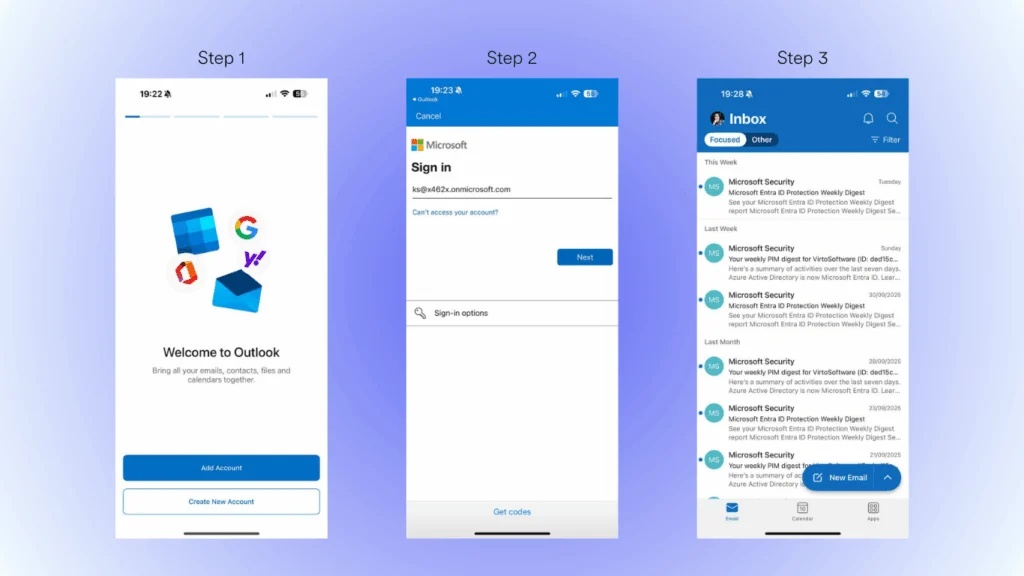
Pic. 1. Setting up an Exchange ActiveSync account on a mobile device.
ActiveSync is also a policy channel. Administrators can require a device PIN, enforce encryption, wipe a lost device remotely, and control which devices are allowed to connect at all — through mobile device mailbox policies in the Exchange admin center.
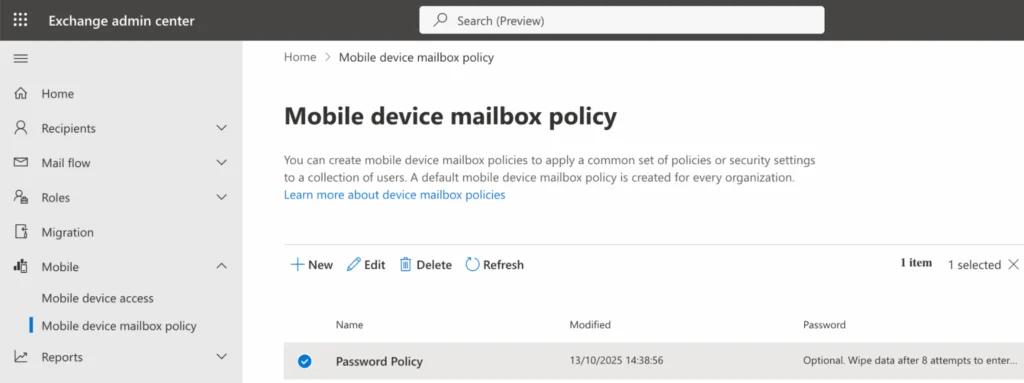
Pic. 2. Mobile device mailbox policy in the Exchange admin center.
Configuring Exchange Online in the admin centers
Exchange Online is managed from two places: the Microsoft 365 admin center (admin.cloud.microsoft) for users, licences, domains, and groups, and the Exchange admin center (admin.exchange.microsoft.com) for mailbox-level settings, mail flow, and delegation. You need an administrator role for both.
Creating and configuring mailboxes
Adding a user in the Microsoft 365 admin center creates the Exchange Online mailbox automatically and links it to your domain and identity system.
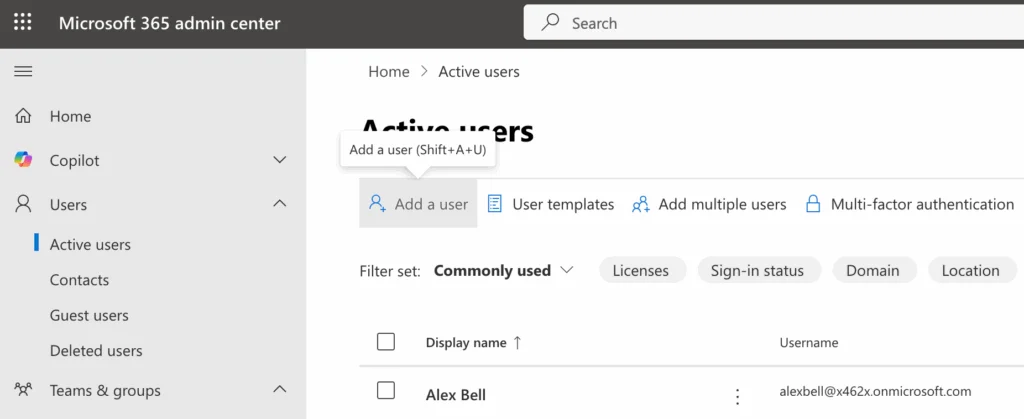
Pic. 3. Microsoft 365 admin center — Active users.
- Create the user: first and last name, display name, and username (which becomes the email address).
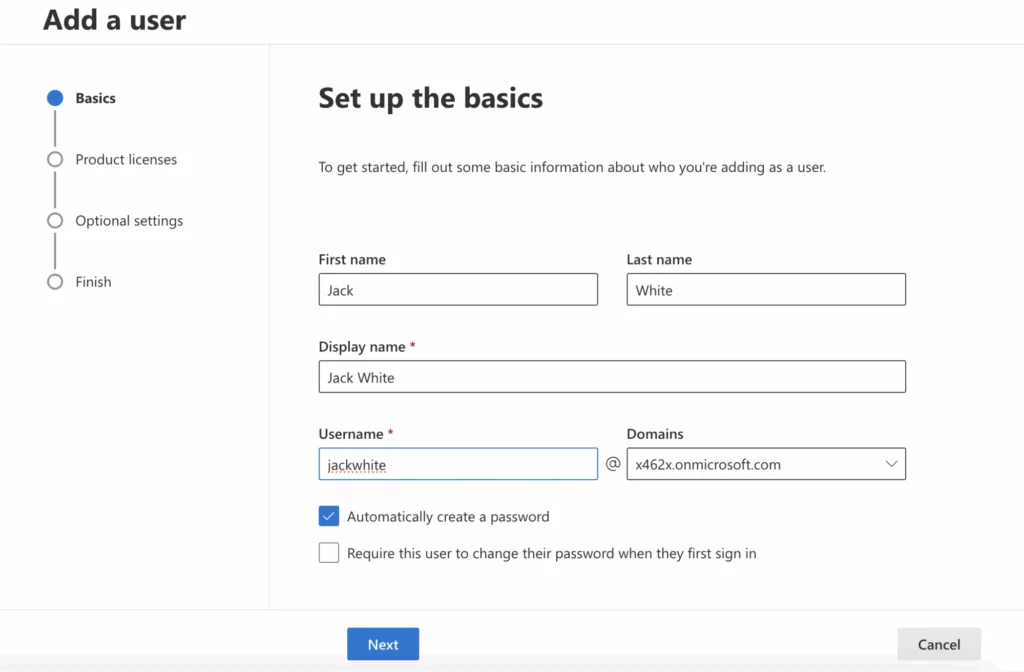
Pic. 4. Adding a user in the Microsoft 365 admin center.
- Assign a Microsoft 365 licence so the user gets Exchange Online, Teams, and the rest.
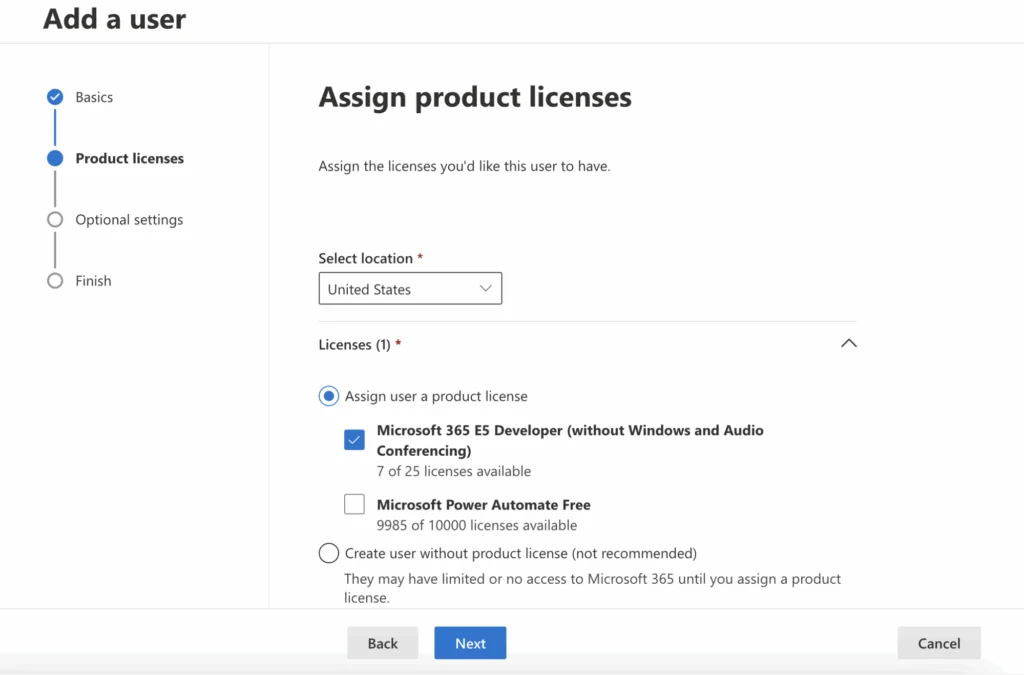
Pic. 5. Assigning a product licence in the Microsoft 365 admin center.
- Optionally assign administrative roles if the user needs permissions beyond a standard mailbox.
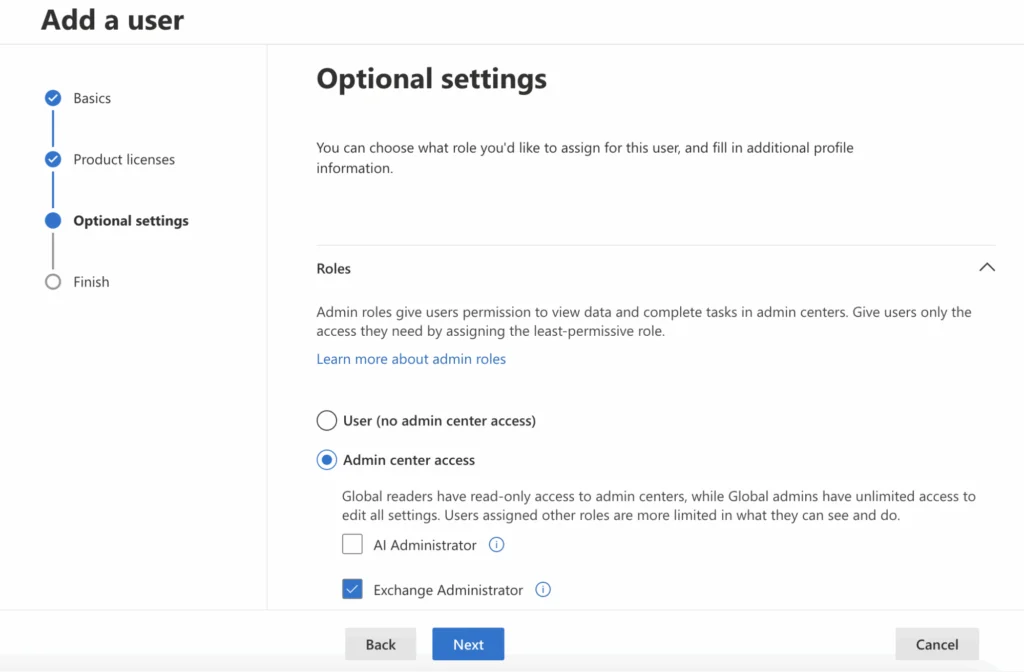
Pic. 6. Optional user settings in the Microsoft 365 admin center.
- Optionally fill in profile information such as job title or department — this feeds the Global Address List.
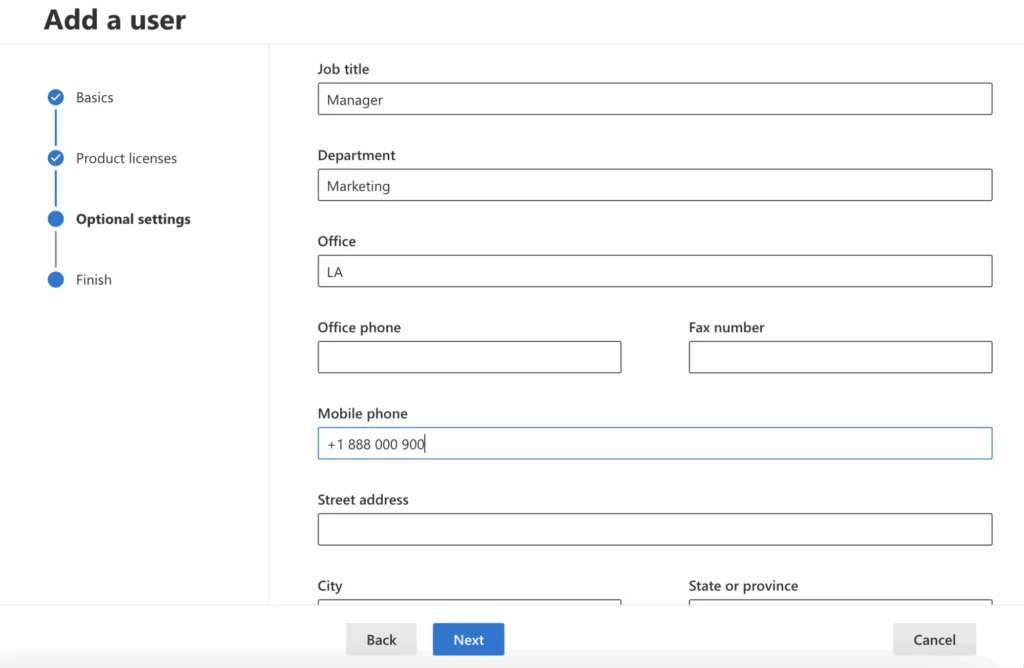
Pic. 7. Filling in user information in the Microsoft 365 admin center.
Once the mailbox exists, the user can sign in immediately through Outlook on the web or the desktop client, and settings synchronise across every connected device.
Some mailbox settings are managed separately, after creation:
- Mailbox size and quotas: Exchange admin center → Recipients → Mailboxes → select a mailbox → Mailbox features.
- Access permissions: Exchange admin center → Recipients → Mailboxes → Delegation tab, to grant Full Access, Send As, or Send on Behalf.
- Retention policies: Microsoft Purview portal → Solutions → Data lifecycle management → Retention policies.
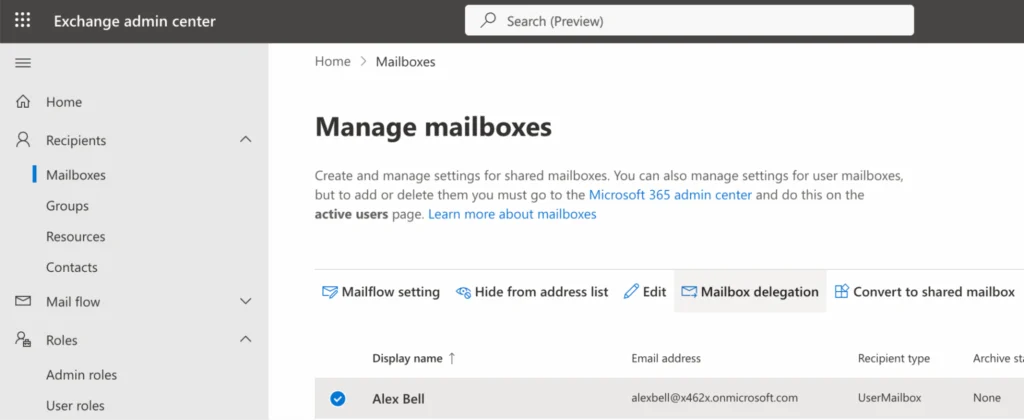
Pic. 8. Managing mailboxes in the Exchange admin center.
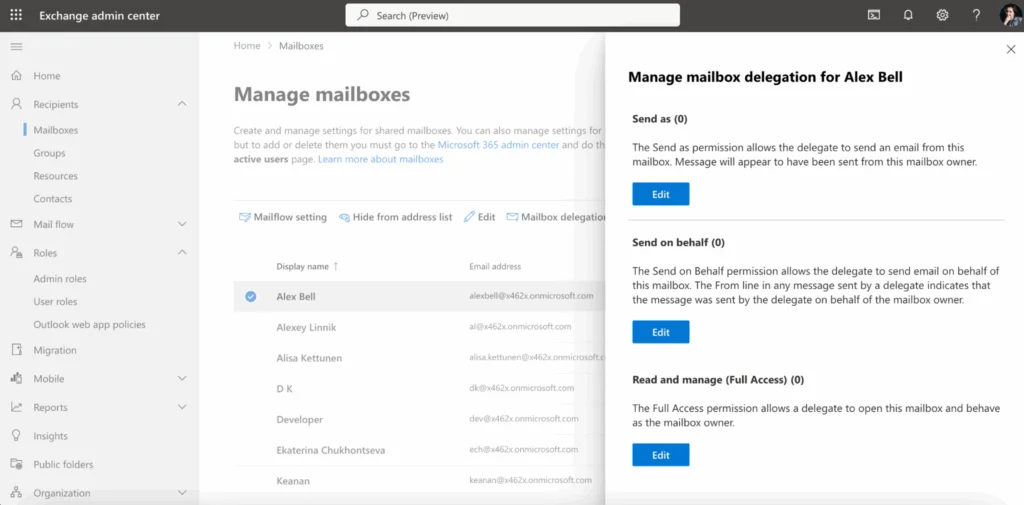
Pic. 9. Managing mailbox delegation in the Exchange admin center.
Adding and verifying your domain
Until you add and verify your own domain, mail only works on the default onmicrosoft.com address — no branded email. In the Microsoft 365 admin center, go to Settings → Domains → Add domain and follow the wizard.
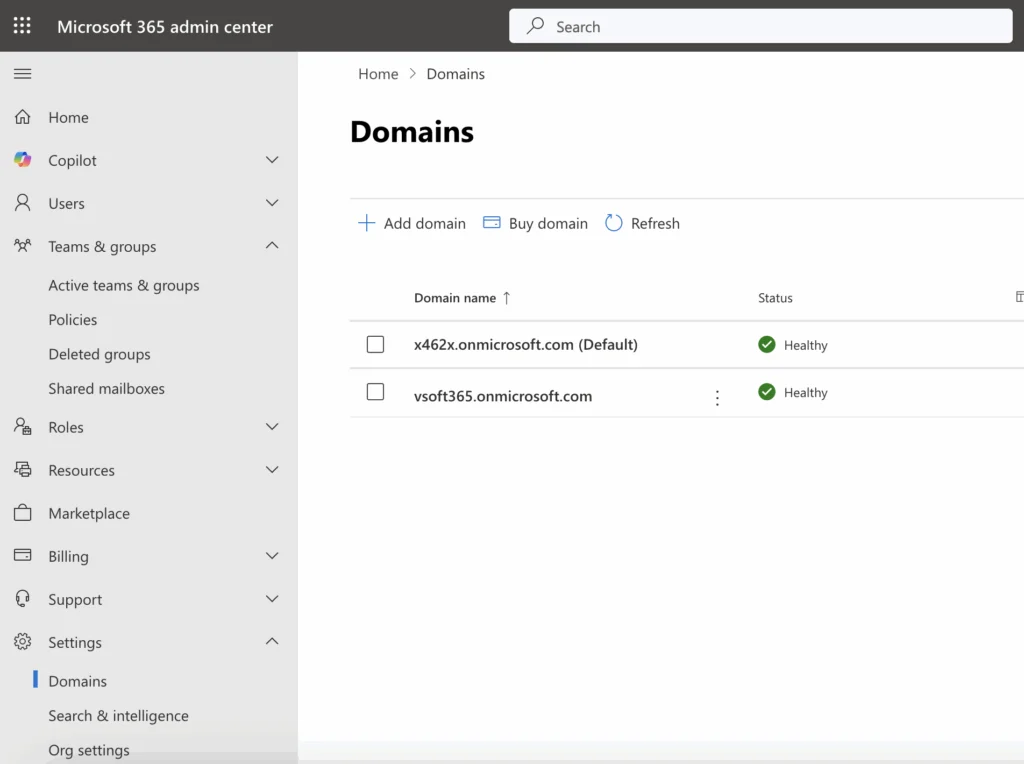
Pic. 10. Microsoft 365 admin center — Domain settings.
- Enter the domain name you want to add.
- Microsoft asks you to publish a TXT record in your domain’s DNS to prove ownership.
- Once the record validates, the domain becomes available for email addresses and other Microsoft 365 services.
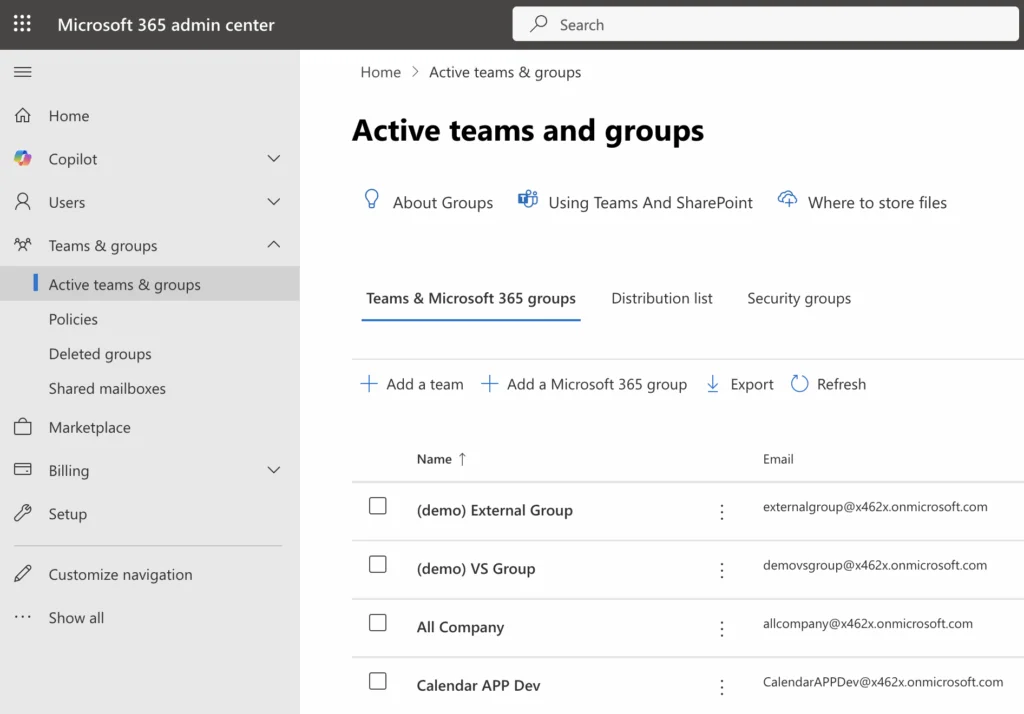
Pic. 11. Domains in the Microsoft 365 admin center.
If your domain is registered with a supported registrar (GoDaddy and several others), Microsoft can sign in on your behalf and create the TXT, MX, and CNAME records automatically. Otherwise you add them by hand — Microsoft publishes the exact values in its DNS records reference.
DNS records that matter
| Record | Purpose | Consequence if wrong |
|---|---|---|
| MX | Points inbound mail at Exchange Online | Mail never arrives |
| CNAME (autodiscover) | Lets clients configure themselves automatically | Users are prompted for server names; mobile setup fails |
| SPF (TXT) | Declares which servers may send as your domain | Outbound mail lands in spam or is rejected |
| DKIM | Cryptographically signs outbound mail | Weaker deliverability; DMARC alignment fails |
| DMARC (TXT) | Tells receivers what to do with mail failing SPF/DKIM | No spoofing protection and no reporting |
Fig. 2. Core DNS records for Exchange Online.
Groups and distribution lists
Group types live under Teams & groups in the Microsoft 365 admin center, and picking the right one saves a lot of rework later.
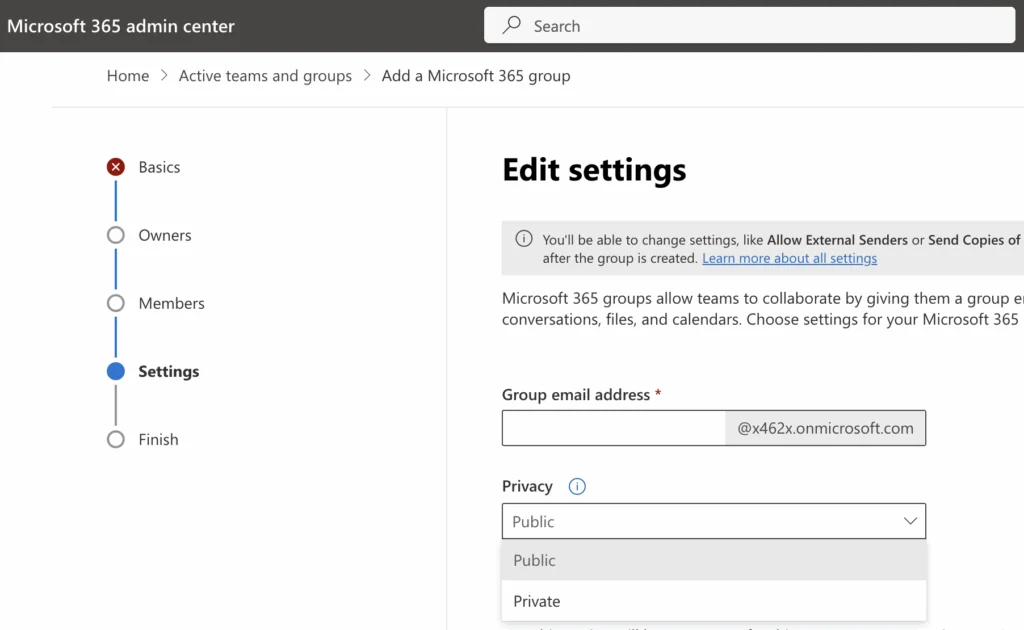
Pic. 12. Microsoft 365 admin center — Teams & groups settings.
| Group type | Purpose | What you get | Typical use |
|---|---|---|---|
| Team | Collaboration in Microsoft Teams | Channels, chat, meetings, files — always backed by a Microsoft 365 Group | Project or department collaboration |
| Microsoft 365 Group | Shared resources without Teams channels | Shared mailbox, calendar, SharePoint site, Planner, OneNote | Email, file, and calendar sharing |
| Distribution list | Email distribution only | Delivers to all members; no shared resources | Announcements and bulk email |
| Security group | Access and permission management | Grants access to SharePoint, files, applications | Controlling who can reach what |
Fig. 3. Differences between the group types under “Teams & groups”.
Pic. 13. Teams and groups in the Microsoft 365 admin center.
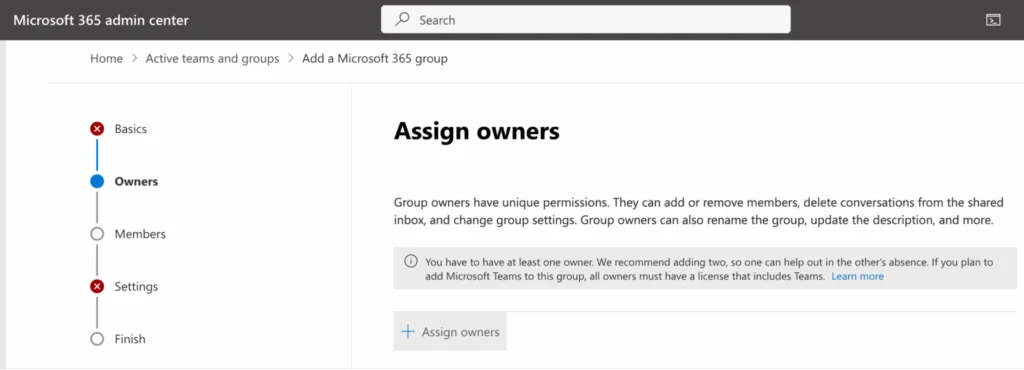
Mail sent to an address such as hr@company.com then reaches every member of the HR group without anyone maintaining a recipient list by hand. Groups can be public or private, and each one gets owners who manage membership and access.
Pic. 14. Adding a Microsoft 365 group.
Pic. 15. Assigning an owner when adding a Microsoft 365 group.
Shared mailboxes for departments
A shared mailbox gives several people one address — hr@company.com, support@company.com — with read/unread state synchronised across everyone who opens it. It needs no licence of its own, which is why it beats forwarding rules for team inboxes.
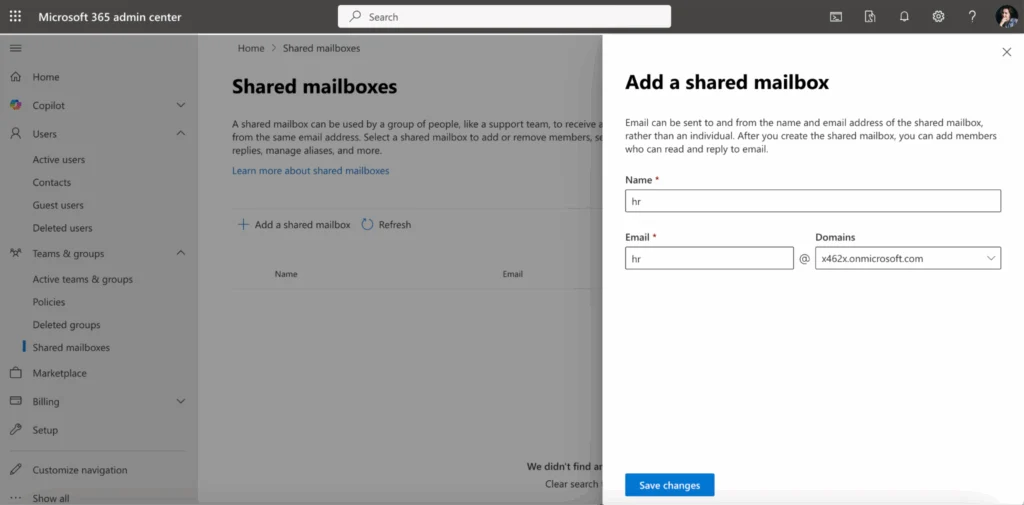
- In the Microsoft 365 admin center, go to Teams & groups → Shared mailboxes.
- Click Add a shared mailbox and give it a name and address.
Pic. 16. Adding a shared mailbox in the Microsoft 365 admin center.
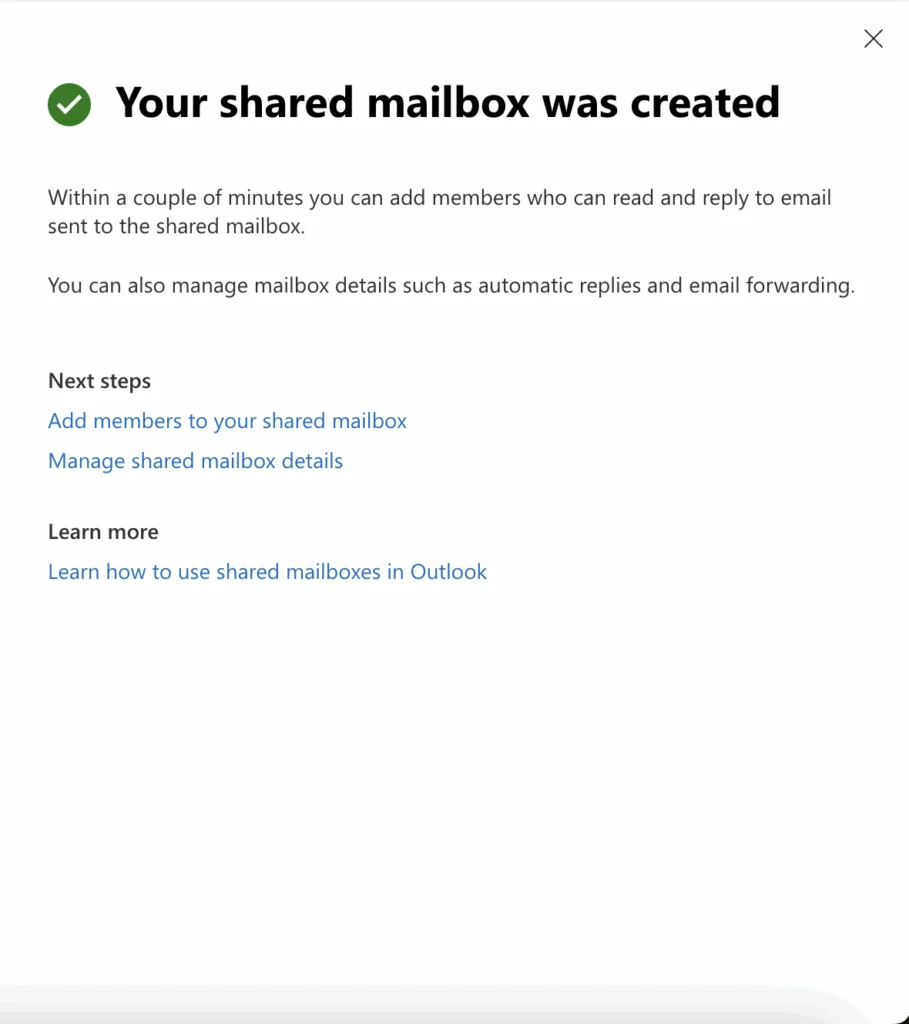
- Add the members who need access, then configure forwarding or rules from the mailbox’s settings.
Pic. 17. Adding members to a shared mailbox in the Microsoft 365 admin center.
Security and policy management
Multi-factor authentication
MFA is the single highest-value setting in this whole guide: it blocks the overwhelming majority of credential-based attacks even when the password is already stolen. Common second factors are the Microsoft Authenticator app (push or generated code), SMS codes, and hardware tokens.
- Sign in to the Microsoft Entra admin center at entra.microsoft.com.
- Go to Entra ID → Users → All users to configure MFA per user.
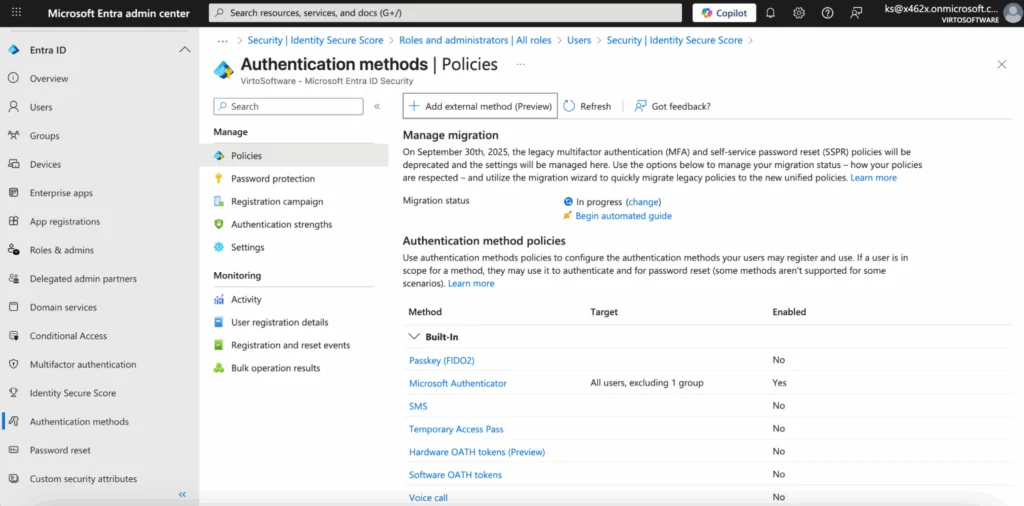
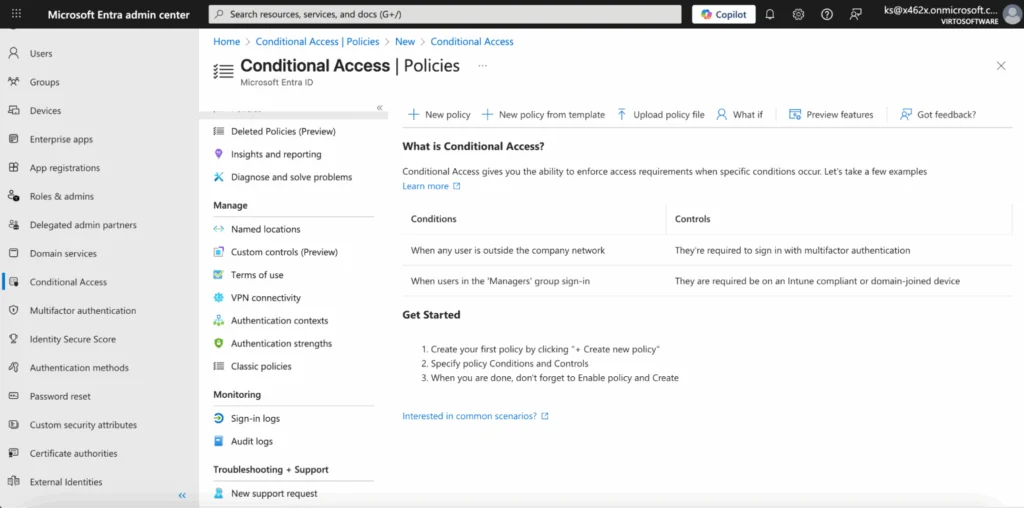
- For organisation-wide enforcement, use Entra ID → Authentication methods → Policies, or Conditional Access.
Pic. 18. Microsoft Entra policies.
Conditional Access
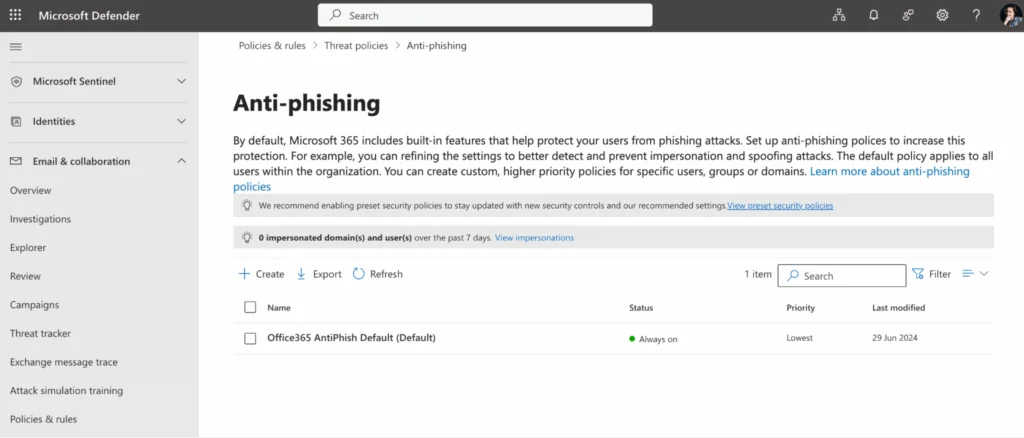
Conditional Access in Microsoft Entra ID gates mailbox access on conditions rather than credentials alone — for example, allowing mail only from corporate-managed devices, restricting Outlook on the web to particular countries, or requiring MFA whenever someone signs in from outside the corporate network. It is also the cleanest way to block legacy authentication protocols outright.
Pic. 19. Conditional Access — access restrictions based on conditions.
Anti-spam, anti-phishing, and attachment protection
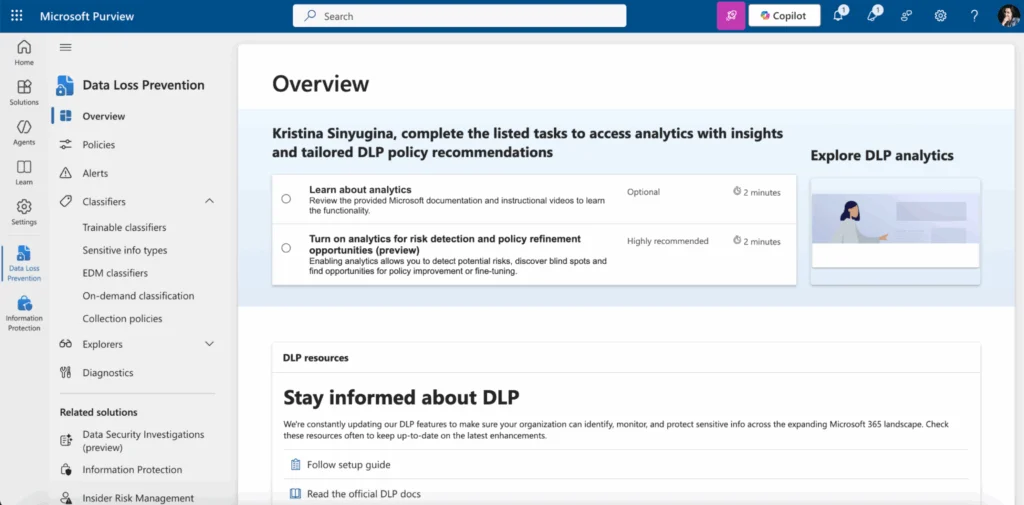
Exchange Online Protection settings no longer live in the classic Exchange admin center. Anti-spam, anti-malware, Safe Links, Safe Attachments, and anti-phishing policies are all configured in the Microsoft Defender portal at security.microsoft.com under Email & Collaboration → Policies & rules → Threat policies. Microsoft also ships preset security policies (Standard and Strict) that apply its recommended settings in one step — a sensible starting point if you have no dedicated security team.
Pic. 20. Anti-phishing in Microsoft Defender.
Retention, DLP, and compliance in Microsoft Purview
Everything governance-related now runs from the unified Microsoft Purview portal at purview.microsoft.com. Old bookmarks to compliance.microsoft.com or protection.office.com no longer take you anywhere useful.
Pic. 21. Microsoft Purview overview.
Retention policies: Solutions → Data lifecycle management → Retention policies. Delete mail automatically after a set period, move older mail to archive mailboxes, or preserve messages to meet regulatory requirements.
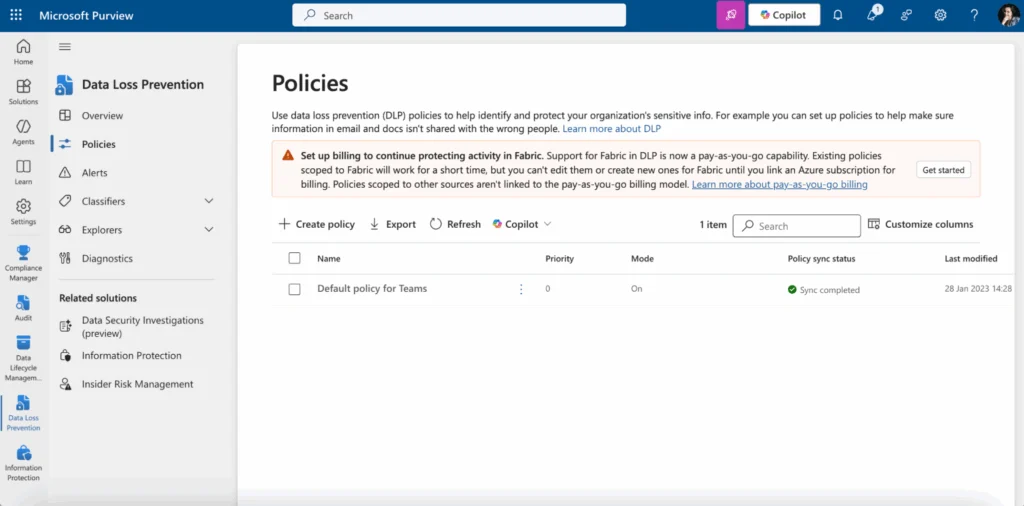
Data loss prevention: Solutions → Data Loss Prevention. Block messages carrying card numbers or personal data to external domains, warn users before they forward confidential documents, and report on policy matches. This is where GDPR and HIPAA obligations get operationalised.
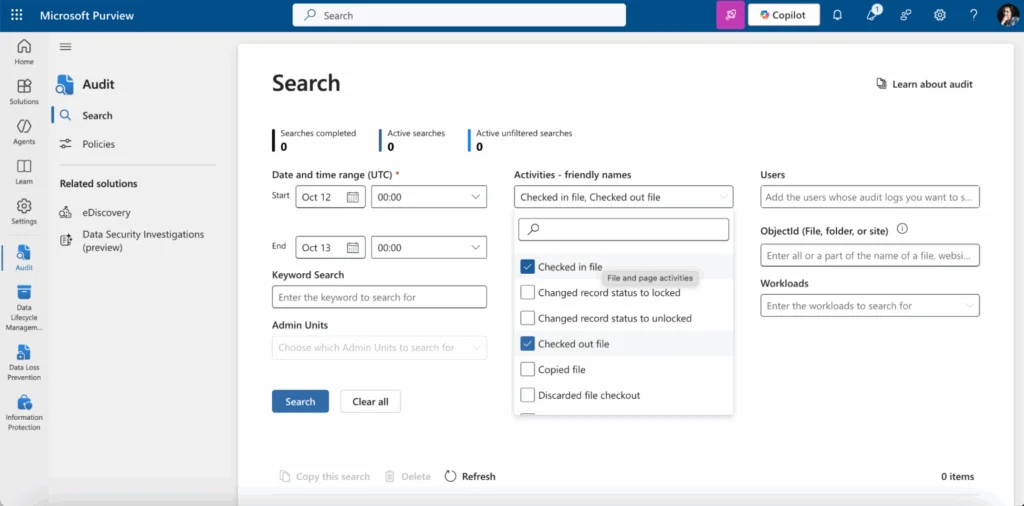
Audit: Solutions → Audit. Search sign-ins, permission changes, forwarding-rule creation, and bulk deletions — the four events most worth alerting on.
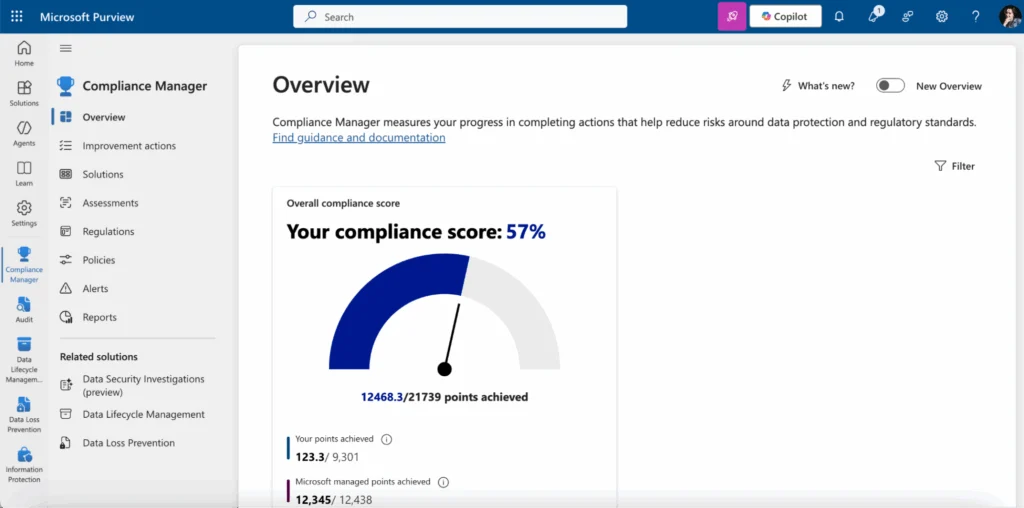
Compliance Manager: a scored dashboard of your posture against common regulatory frameworks, with the specific actions to close each gap.
Pic. 22. Microsoft Purview policies.
Pic. 23. Microsoft Purview search activities.
Pic. 24. Microsoft Purview Compliance Manager.
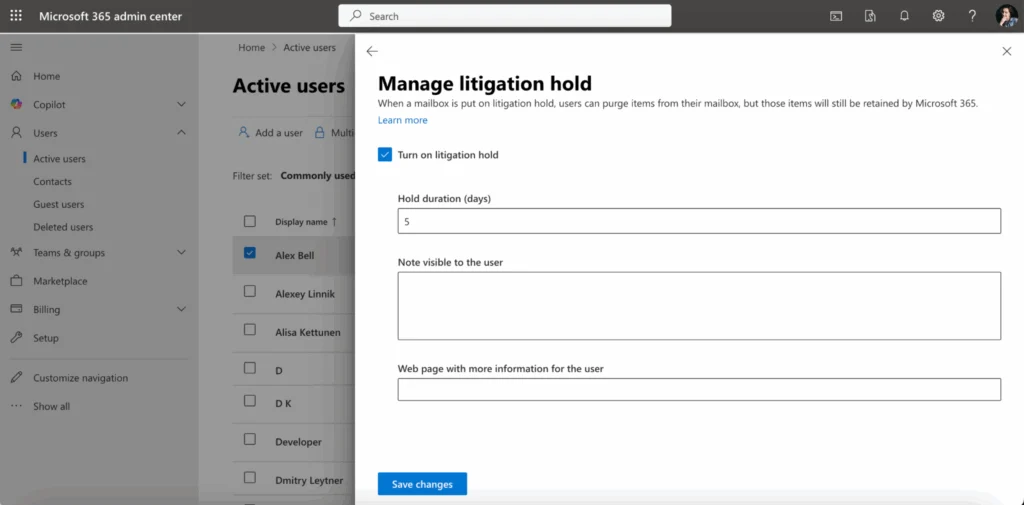
Litigation Hold is set per mailbox rather than by policy: in the Microsoft 365 admin center go to Users → Active users, select the user, open the Mail tab, and enable it. Changes can take up to 240 minutes to apply. Once on, it preserves deleted and modified items for legal or audit purposes while the user carries on working normally.
Pic. 25. Managing litigation hold in the Microsoft 365 admin center.
Mail flow: automatic replies and transport rules
Automatic replies (out of office)
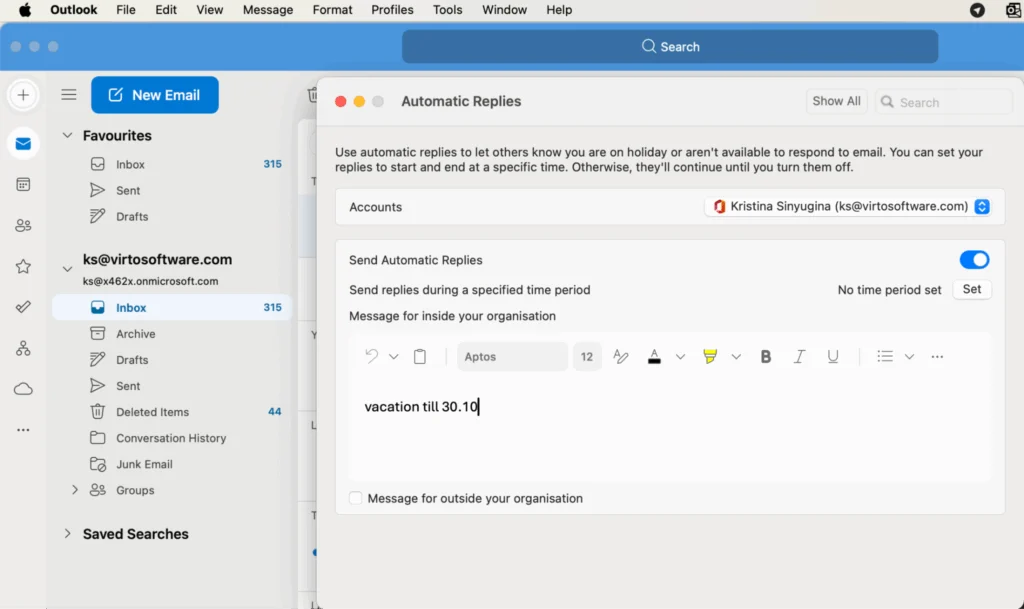
Users set their own out-of-office replies in Outlook — in classic Outlook via File → Automatic Replies, and in Outlook on the web via Settings → Account → Automatic replies. Different messages can be sent to internal and external senders, and the date range fields only appear once you tick the option to send replies during a specific period.
Pic. 26. An administrator sets automatic replies for another user’s mailbox in the Exchange admin center: Mailboxes → Others → Manage automatic replies.
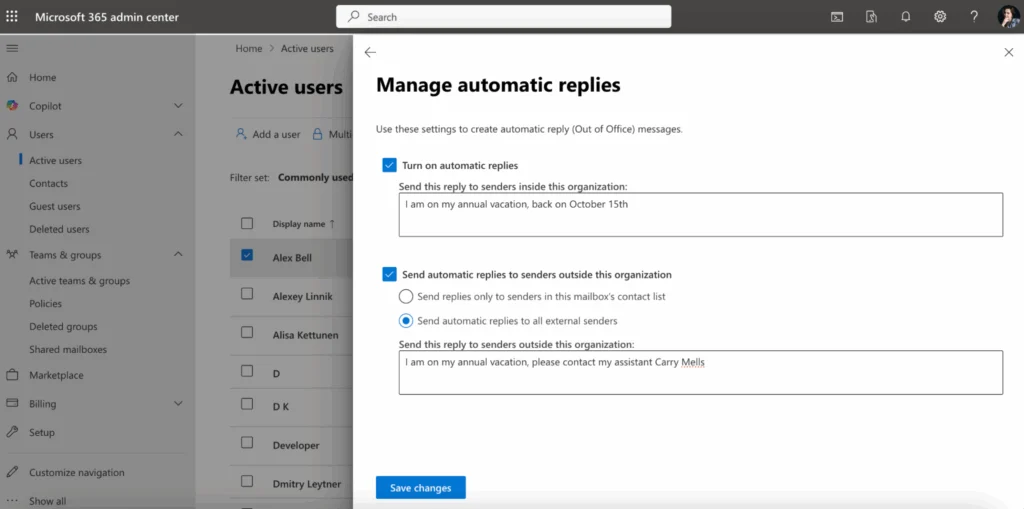
Administrators can set replies on someone else’s behalf — useful when a departure was unplanned. In the Microsoft 365 admin center, go to Users → Active users, select the person, and use the Mail tab.
Pic. 27. Automatic replies in the Microsoft 365 admin center.
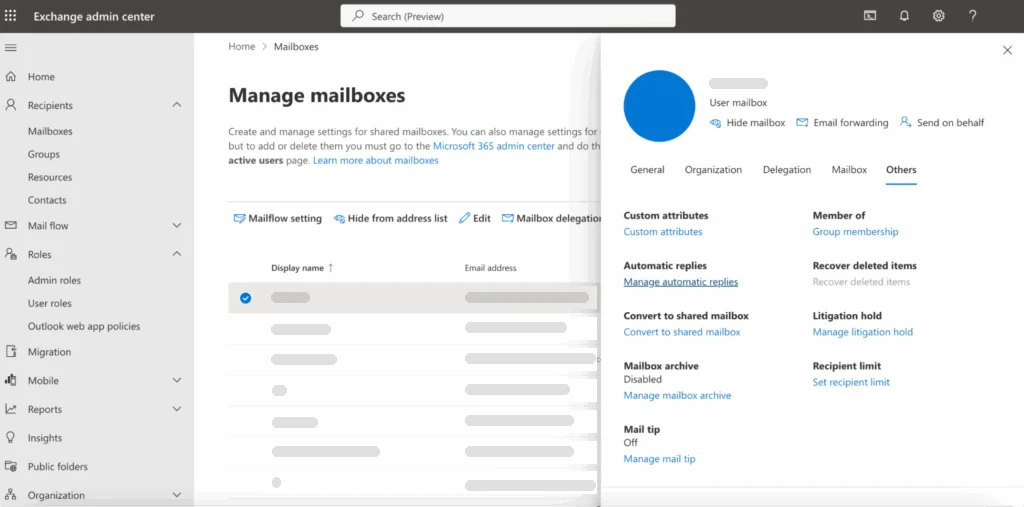
The same is available in the Exchange admin center under Recipients → Mailboxes → select a mailbox → Manage automatic replies.
Pic. 28. Managing automatic replies in the Exchange admin center.
Transport rules and forwarding
Transport rules (mail flow rules) act on messages organisation-wide, in contrast to the personal rules a user creates in Outlook. Typical uses: forwarding everything from one address to another mailbox, applying disclaimers, tagging or blocking messages that match keywords, and routing outbound mail through a third-party security gateway.
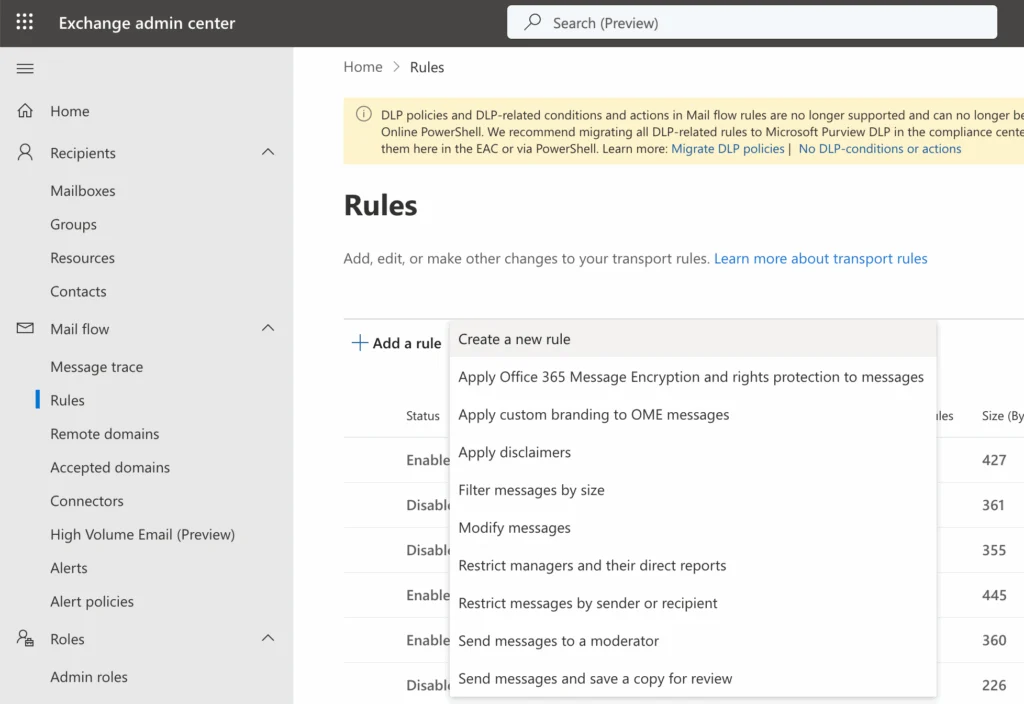
- Sign in to the Exchange admin center at admin.exchange.microsoft.com.
- Go to Mail flow → Rules.
- Use New rule, then set conditions, exceptions, actions, and priority.
Pic. 29. Rules in the Exchange admin center.
One caution: automatic external forwarding is a favourite persistence technique after an account compromise. Restrict it by policy rather than leaving it open, and alert on new forwarding rules in the audit log.
Calendars and contacts in Exchange Online
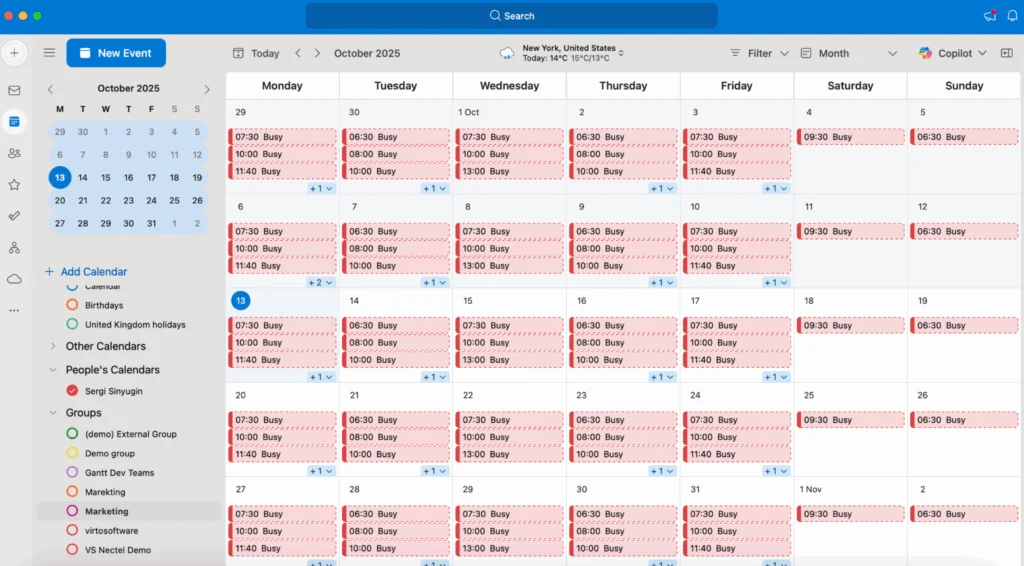
Exchange Online is the store behind every Microsoft 365 calendar. Users create personal and shared calendars, set granular permissions (view availability only, view details, edit, or delegate), and see colleagues’ free/busy times when scheduling.
Pic. 30. Group calendar in Outlook.
- Free/busy lookups make finding a workable meeting slot straightforward.
- Meeting invitations notify and update all participants automatically.
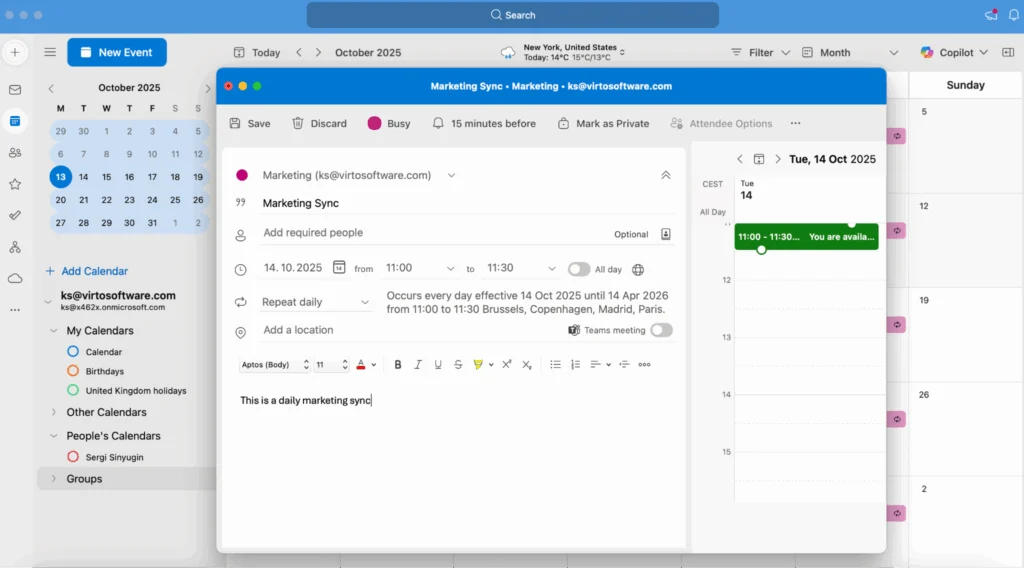
- Recurring events cover standing team activities without re-entry.
Pic. 31. Creating recurring events in Outlook.
👉 For the step-by-step version, see our guide to creating an Office 365 shared calendar, and if you are juggling several at once, managing multiple Microsoft 365 calendars.
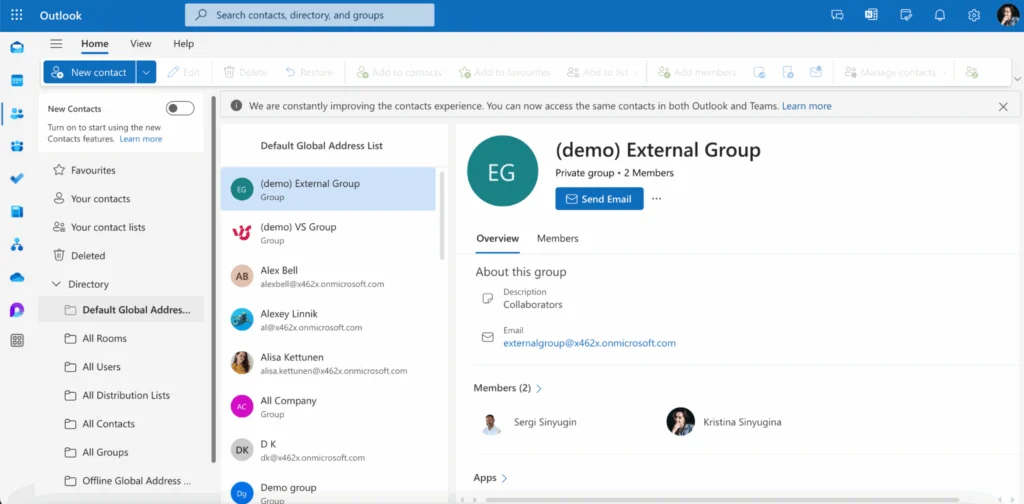
Contacts follow the same server-side model: personal contacts and the organisation-wide Global Address List (GAL) live on the server and appear in every Outlook client. To browse the GAL, open outlook.office.com, click People, then Directory → Default Global Address List. Changes made anywhere sync everywhere, and authentication runs through Microsoft Entra ID.
Pic. 32. Default Global Address List in Outlook.
Common problems and how to fix them
| Symptom | Most likely cause | Fix |
|---|---|---|
| Outlook keeps asking for a server name | Autodiscover CNAME missing or pointing at the wrong host | Publish autodiscover as a CNAME to autodiscover.outlook.com and wait for propagation |
| 550 5.7.30 Basic authentication is not supported | The app is using SMTP AUTH with a password | Move the app to OAuth 2.0, High Volume Email, or Microsoft Graph — the message is permanently rejected, not queued |
| A device or app cannot send on port 465 | Exchange Online only listens on 587 | Reconfigure to smtp.office365.com:587 with STARTTLS and TLS 1.2 or 1.3 |
| 5.7.60 Client does not have permission to send as this sender | Authenticating as one mailbox, sending from another address | Grant explicit Send As permission on the target mailbox |
| IMAP client cannot connect | IMAP disabled on the mailbox, or the client only supports basic auth | Enable IMAP in the Exchange admin center and use a client that supports OAuth 2.0 |
| Outlook won’t let me add the mailbox as IMAP | Expected behaviour for Microsoft 365 work accounts | Use the Exchange connection in Outlook; reserve IMAP for third-party clients |
| Inbound mail is not arriving at all | MX record still pointing at the old provider | Update MX to the Exchange Online value shown in the admin center |
Fig. 4. Frequent Exchange Online configuration problems and their fixes.
Configuration best practices
Turn on MFA and Conditional Access before anything else. Everything else on this list matters less if credentials alone open the mailbox.
Inventory anything still using SMTP AUTH with a password. The SMTP AUTH report in the Exchange admin center distinguishes basic auth from OAuth. Printers, scanners, monitoring tools, and line-of-business apps are the usual suspects — and from the end of December 2026, basic auth for SMTP AUTH is off by default.
Audit regularly. Watch for sign-ins from unusual locations, new mailbox permissions, new forwarding rules, and mass deletions.
Keep DLP policies aligned with real processes. A policy written two reorganisations ago produces false positives, and false positives train people to ignore warnings.
Plan backup and recovery anyway. Retention and archiving are not a backup. Document backup intervals, scope, and retention; consider a third-party tool such as Veeam or AvePoint; and run restore drills so you find out about gaps before an incident does.
Apply least privilege to delegation. Full Access, Send As, and Send on Behalf are all different things — grant the narrowest one that does the job.
Beyond native Exchange: VirtoSoftware apps for Microsoft 365
Exchange Online handles mail and calendars well. Where teams tend to run out of road is visibility across many calendars and sources at once — and that is exactly the gap our apps fill.
Virto Calendar App for Microsoft 365 & Teams
The Virto Calendar App overlays Exchange Online calendars, Microsoft 365 group calendars, SharePoint lists, Microsoft Planner, and external iCal feeds into one colour-coded view inside Teams or SharePoint. Instead of clicking between calendars, a manager sees the whole team on a single screen — with day, week, month and year views, and filters. Data stays inside your Microsoft 365 tenant. There is a 30-day free trial.
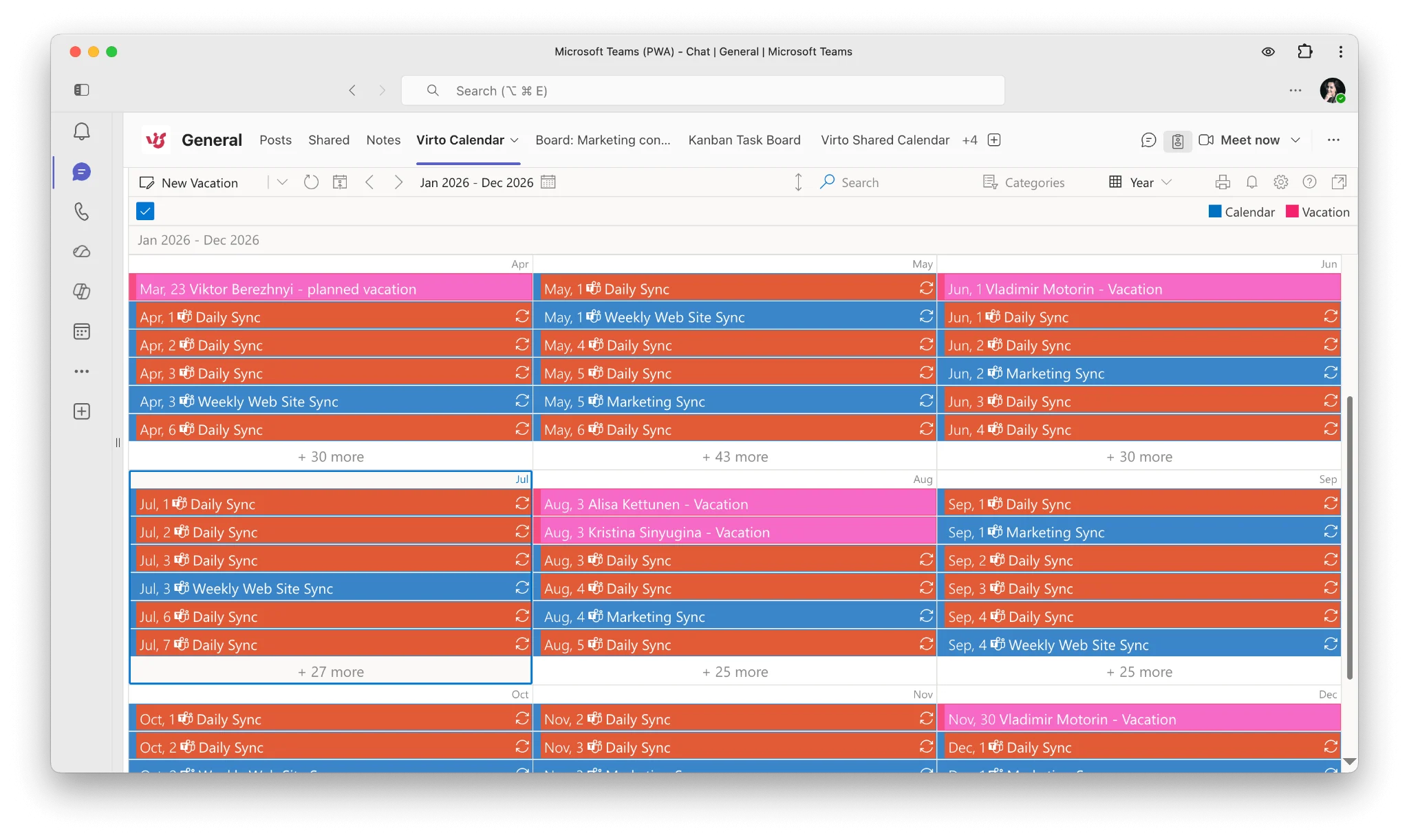
Pic. 33. Virto Calendar App for Microsoft Teams & Microsoft 365.
Virto Kanban Board App
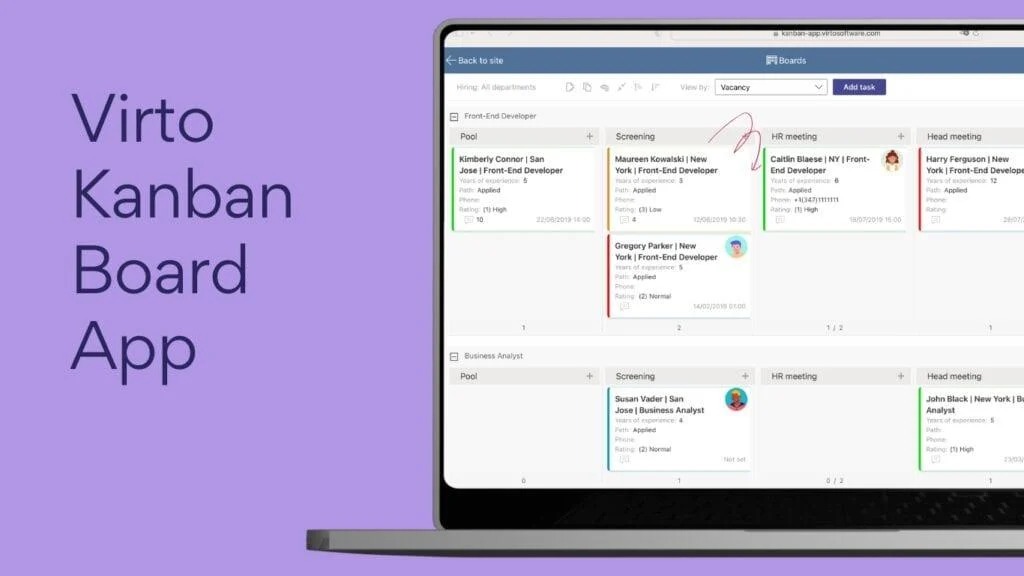
The Virto Kanban Board App turns SharePoint lists and Microsoft 365 tasks into visual boards with swimlanes, filters, colour-coded priorities, and drag-and-drop updates — inside Teams channels or SharePoint pages. Also 30 days free to trial.
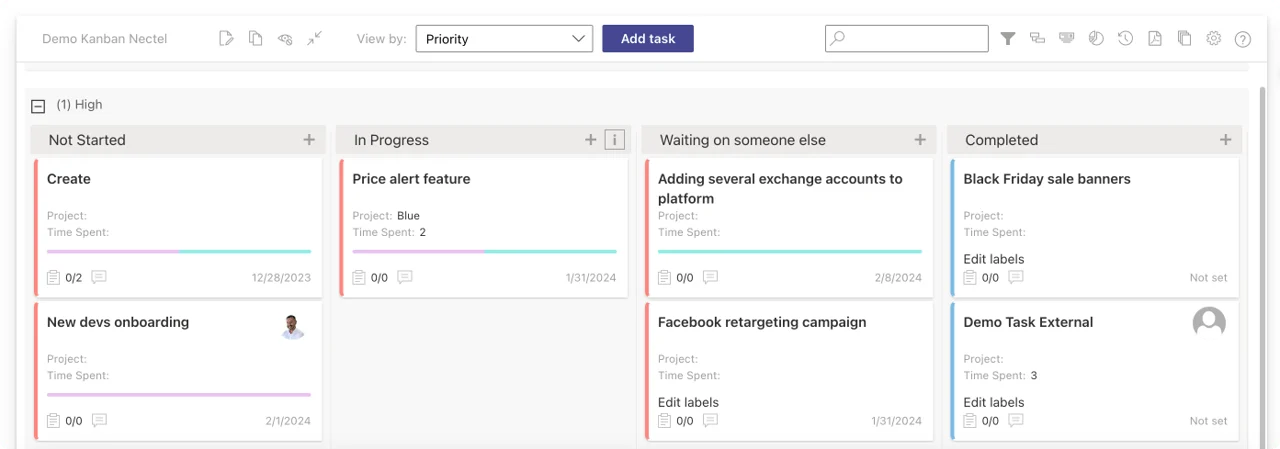
Pic. 34. Virto Kanban Board App for Microsoft 365.
Virto Alerts & Reminder App
The Virto Alerts & Reminder App covers what native notifications can’t: scheduled digests, conditional rules, and reminders tied to list items, deadlines, and events, delivered by email or into Microsoft Teams. Particularly relevant now that SharePoint’s classic “Alert me” has been retired.
Virto Forms Designer App
The Virto Forms Designer App builds interactive SharePoint forms with conditional logic and validation, feeding approval workflows and structured data collection that would otherwise happen over email threads.
Browse the full catalogue of Virto apps for Microsoft 365 or book a product demo.
FAQ
What is the Exchange server for Office 365?
Exchange Online — Microsoft’s cloud-hosted version of Exchange Server, included in Microsoft 365. It stores mailboxes, calendars, and contacts, and Microsoft runs the infrastructure. For manual client configuration the relevant host names are outlook.office365.com (IMAP/POP) and smtp.office365.com (SMTP).
What are the Office 365 IMAP and SMTP settings?
IMAP: outlook.office365.com, port 993, SSL/TLS. POP3: outlook.office365.com, port 995, SSL/TLS. SMTP: smtp.office365.com, port 587, STARTTLS. Your username is your full email address, and OAuth 2.0 authentication is required.
How do I find my Exchange server settings in Outlook?
In Outlook on the web, go to Settings → Mail → Sync email. In classic Outlook for Windows, File → Account Settings → Server Settings. In new Outlook, Settings → Accounts → Email accounts. Most users never need these, because Autodiscover configures the client automatically.
Why won’t Outlook let me set up my Microsoft 365 account as IMAP?
That is expected behaviour. Classic Outlook for Windows requires the Exchange (MAPI over HTTP) connection for Microsoft 365 work mailboxes. IMAP and POP settings are for third-party clients such as Thunderbird or Apple Mail, and for devices and applications that send mail.
Is basic authentication still supported for Office 365 email?
Only for SMTP client submission, and not for much longer. Basic auth was removed from IMAP, POP, EAS, and EWS in 2022. For SMTP AUTH it will be disabled by default for existing tenants at the end of December 2026 and unavailable by default for tenants created after that; Microsoft plans to announce the final removal date in the second half of 2027.
Do I need to configure Autodiscover?
You need the DNS record, not the client setting. Publish a CNAME called autodiscover on your domain pointing to autodiscover.outlook.com. With that in place, Outlook desktop, Outlook mobile, and Exchange ActiveSync devices all configure themselves from the email address alone.
Where do I configure anti-spam and DLP now?
Anti-spam, anti-phishing, Safe Links, and Safe Attachments are in the Microsoft Defender portal at security.microsoft.com. Retention, DLP, eDiscovery, and audit are in the Microsoft Purview portal at purview.microsoft.com. The older compliance.microsoft.com and protection.office.com portals are retired.
What happens to my apps when EWS is retired?
Exchange Online has been disabling EWS in phases since October 2026, and permanently shuts it down on 1 April 2027. Migrate integrations to Microsoft Graph. Until then, a tenant that still needs EWS sets EWSEnabled=True and lists every app in the EWSAllowedAppIDs allow list — since 10 October 2026, EWSEnabled=True alone is not enough. On-premises Exchange Server is unaffected.
How much does the Virto Calendar App cost, and is there a trial?
Yes — every paid Virto app comes with a 30-day free trial. Current pricing for each app is listed on its product page and on the VirtoSoftware pricing page.
Conclusion
Correctly configured Exchange Online settings are what make Outlook, Teams, and mobile devices behave as one system rather than three. Get the DNS right and Autodiscover removes most manual configuration entirely; get MFA and Conditional Access right and the majority of email-borne risk goes with it. The manual IMAP, POP, and SMTP values are still worth knowing — but in 2027 they come with an authentication caveat that older guides simply do not mention.
Where native Exchange stops is unified visibility across many calendars and sources. That is what the Virto Calendar App is built for — overlay Exchange, SharePoint, Planner, and external calendars in one colour-coded view inside Teams or SharePoint, free for 30 days.